Showing posts with label ARM. Show all posts

05 May 2018

Running Mixed Reality apps on Windows 10 on ARM PCs–get ready for a surprise

Intro

I was planning to write a step-by-step procedure of the things you would need to do to get the Mixed Reality app I created in my previous post to work on a Windows 10 on ARM PC. After all, when I tried to do that on a Raspberry PI2 quite some time ago, there was some creative slashing necessary.

Life is what happens while you are busy making other plans

Turns that what I needed to do was exactly nothing. Well, I had to compile and deploy it for ARM. And that worked. Just like that, just like on a intel-based PC as I described in my previous post. When I deployed Walk the World to the Windows 10 on ARM PC some posts ago, I still had to remove some parts of the Mixed Reality Toolkit to make the ARM tools swallow the sources. Apparently, that’s no longer necessary.

And then I tested it. And I learned I had to make some changes to my code after all. I think Microsoft likes to hear that you can run code on Windows 10 on ARM PCs unchanged, but in this case I don’t think they will mind me saying this I actually needed to make some changes because it was running too bloody fast on a Windows 10 on ARM PC. Yeah, you read that right. The code I wrote for controlling the app via an Xbox One Controller replied so fast it was actually nearly impossible to control the view point, especially when rotating. Even when I compiled it for x86 and CHPE had to do the translation, it still ran too fast for reasonable control.

It actually ran faster than on my i7 Surface Pro 4. That was one serious WTF, I can tell you that.

One trigger, two triggers

You might remember that in the previous post I used the right trigger to make moving and rotating go faster. Well we sure don’t need to go faster, so I adapted the code to calculate the speed up factor:

var speed = 1.0f + TriggerAccerationFactor * eventData.XboxRightTriggerAxis;

To use the right trigger to slow down the speed.

var speed = (1.0f + TriggerAccerationFactor * eventData.XboxRightTriggerAxis) - 
            (eventData.XboxLeftTriggerAxis * 0.9f);

And that works reasonably well.

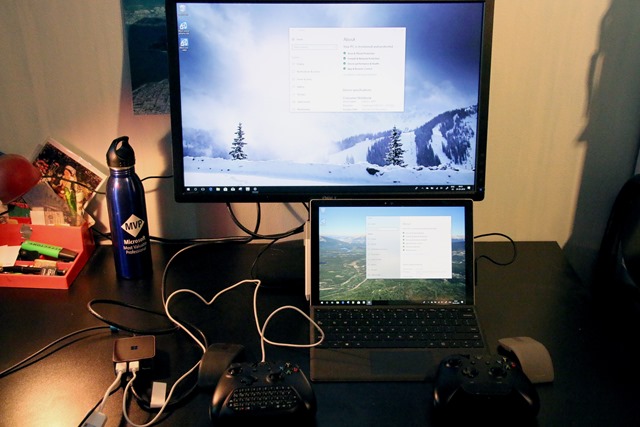
Now I made a setup quite comparable to my previous post on Windows 10 on ARM, only now the x86/ARM versions are not only compared with each other, but also with an x64 version running on my Surface Pro 4.IMG_6845_2

The Surface Pro 4 for is running on his own screen and is connected to the right Xbox Controller and the gray ArcMouse, the Windows 10 on ARM PC, once again missing from this picture, is connected to the black ArcMouse, and Dell monitor and the left Xbox Controller via the Continuum dock that you can see just in front of the MVP thermos.

So here’s a little video of the three versions:

You can clearly see the the Windows on ARM10 PC is quite a bit faster than the Surface Pro 4 and that even the x86 CHPE-fied version is faster, so that rotating indeed needs the left trigger to slow it down, to get some resemblance of control. At the end, you can actually seen them all three together
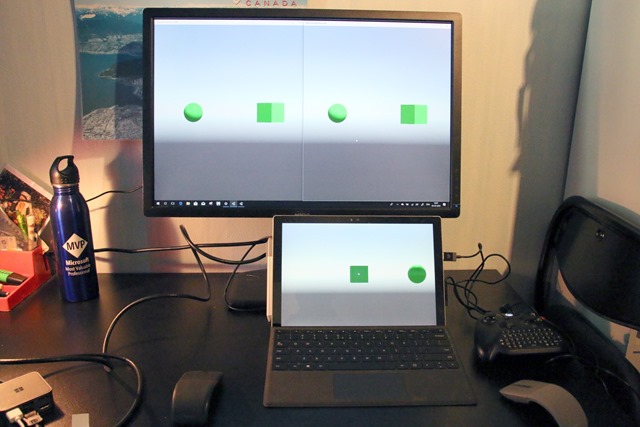
IMG_6852_3

The difference between the x86 and the ARM version is mainly in startup time here and a wee bit of general performance (although you mainly notice that when you actually operate the app – if you just watch it’s less obvious). Last time I wrote about Windows 10 on ARM I already concluded that CHPE does an amazing job as far as graphics performance goes, and it shows here again.

[image%5B22%5D]Interesting detail – the Windows 10 on ARM PC does not show this popup a the end, while the Surface Pro 4 does. Now this may be because Windows x64 actually has the optional “Windows Mixed Reality” component (although this particular hardware doesn’t support that), and Windows 10 on ARM does not have that particular component. Also, the latter still runs the Fall Creators Update, while the Surface Pro 4 runs the April 2018 update. Both may be a factor. I have no way to test this now.

Two versions of the same app?

You might have noticed this before - I sometimes run two versions of the same app together on one PC. That's normally not possible - if you deploy one version it gets overwritten by the other, even when you change target architecture in Visual Studio. To get two version of the same app to run of one computer, you will need to fiddle somewhat in the Package.appmanifest. Open it as XML file (not via the beautiful GUI editor provided by Visual Studio). Change the Name in Identity (3rd line in the file)

<?xml version="1.0" encoding="utf-8"?>
<Package xmlns:....
   <Identity Name="XBoxControllerDemo" Publisher="CN=DefaultCompany" Version="1.0.0.0" />

and change XBoxControllerDemo for instance to XBoxControllerDemoARM

Then look a bit lower for the VisualElements tag

<uap:VisualElements DisplayName="XBoxControllerDemo"

And change that to for instance "XBoxController ARM Version" - to make sure the app also have separate icon labels.

Do not ever do this on production apps but if you want to you your own kind of crazy A-B testing like me it can be useful.

Conclusion

This article is quite a bit shorter than I anticipated, but that it’s because Mixed Reality apps seem to run amazingly well on Windows 10 on ARM PCs with very little work. This platform is a serious candidate for Unity generated UWP apps.

I am now seriously considering rebuilding my Mixed Reality apps with this new MRTK and the newest applicable version of Unity, and including an ARM package in the store. Why not. It runs fine. Let's see if users like it.

No (new) project this time. You can find the project with the updated XBoxControllerAppControl.cs (still) here.

04 April 2018

For crying out loud, compile for native ARM!

CHPE works its magic…

Let me get this straight first: Microsoft did and amazing job with CHPE and x86 emulation, that allows x86 to run without any conversion on the new Windows 10 on ARM PCs. Considering what happens under the hood, the performance and reliability x86 apps get is nothing short of stunning. And you still get the amazing battery life we are used to from ARM – but now on full fledged PCs.

Yet, there are still some things to consider. If you are an UWP developer, you by now probably have stopped providing ARM packages for your UWP apps. After all, Windows 10 Mobile is, alas, fading away, and these ARM PCs run x86 apps, so why bother?

… but magic comes at a price

Well this is why. UWP can compile to native ARM code, and now we have these ARM based PCs. Native ARM code can run on the Windows 10 on ARM PCs without using CHPE. Although CHPE is awesome, it still comes at a price – it uses CPU cycles to convert x86 instructions to ARM instructions and then executes those. Skip one step, you gain performance. And depending on what you do, you can gain a lot of performance.

To show you I am not talking nonsense, I actually compiled my HoloLens/Mixed Reality app “Walk the World” not only for x86 (which I need to do for HoloLens anyway) but also for native ARM. I made two videos, of the app running as x86 UWP, and native ARM UWP. Since I don’t use a head set in this demo, I created a special Unity behaviour to control the viewpoint using an Xbox One Controller. I keep the actual PC out of the videos again, but you can clearly see the Continuum dock I wrote about before – I connected the Dell monitor using a DisplayPort, the Xbox One controller using USB, and a USB-to-ethernet dongle to rule out any variations in Wi-Fi signal.

First, watch the x86 version

Then, the ARM version.

You can clearly see: although the x86 version works really well, the native ARM version starts faster, and also downloads the map faster – considerably so. Still, CHPE amazed me again by the fact that the graphics performance was nearly identical – once the map was loaded, panning over it happened at nearly identical speeds. But apparently startup and network code take more time. So there’s your win!

Note: any flickering or artifact you see are the results of the external camera I used, to prevent any suggestion of this being faked. I also did not want to use a screen capture program as this might interfere with the app’s performance.

Message clear? CHPE is to be used for either x86 apps from the Store that are converted using the Desktop Bridge, or none-Store apps that are downloaded ‘elsewhere’ – think of Chrome, Notepad++ – anything that has not been converted yet to UWP or processed via the Desktop Bridge.

One extra checkbox to rule them all

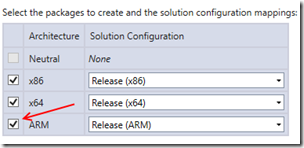
I did not have to change anything to my code just to add the native ARM version. Basically all I had to do was tick a check box:

image

…and the store will do the rest, selecting the optimal package for you user. That one little checkbox gives your app a significant performance boost on these Windows 10 on ARM PCs.

Now one might wonder – why on Earth would you convert an app that started on HoloLens to an UWP desktop app to run on an Windows 10 on ARM PC and how you make it work? Well, stay tuned.

And incidentally, this was the 300th post on this blog since I started in October 2007. And rest assured – I am far from done ;)

22 March 2018

Windows 10 on ARM and devices–hang on to your continuum dock!

Drumroll

I have been asked to evaluate a prototype Windows 10 on ARM PC. You might have seen people talk about it earlier, like my friend Lance who wrote about his one day developer experience, Daren May has something to say about remote debugging with these devices, and wouldn’t you know - on the first day of spring, one sprung up at to Paul Thurrott’s site. I am not sure if that’s exactly the same model as I have – it looks pretty similar, but that’s actually not important. As far as Windows goes, the platform and what it can do is more interesting to me than the actual underlying hardware. Windows goes ARM – yet again, one might say.

Wait, haven’t we seen this before?

Windows has been running on ARM before, both on tablets, phones and IoT devices like a Raspberry PI. Windows RT was an Windows 8 variant, Windows Mobile made it actually to Windows 10, IoT devices run a super compact version of Windows 10 and UWP apps. In all cases, apps on Windows versions that run on ARM devices could only be native (ARM) apps. For a number of use cases, the backward compatibility with the vast library of Windows apps that have been created over the years posed a bit of a challenge. And that’s where some brand new tech comes in. The new Windows 10 on ARM runs actual x86 code, made for the ‘conventional’ Intel chips - converting it on the fly. It uses a technology that’s called CHPE (pronounced “chip-pee”) to work the magic. Lance’s article has a nice in-depth explanation of it. I talked to people working on that CHPE during the last MVP Summit. Modest and quiet people they are, but by golly, I felt like a Neanderthal getting a quantum physics 101 lecture by the late professor Hawking when they casually talked about a few of the things they had to overcome. Really impressive.

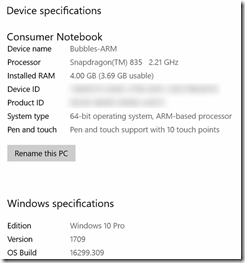
imageI installed some x86 programs on the PC, downloaded from various sources and some Desktop Bridge programs from the Windows Store. It’s very much a case of Your Mileage May Vary, but let’s just put it this way – I put a resource hog like Chrome on it – the x86 version – and it ran just fine, even the first time, when it’s supposed to be slower while CHPE works it’s magic. I still prefer Edge, as I like to keep my memory and battery power for other things than just web pages – but it runs Chrome just fine. I also tried TeamViewer – also just works fine – case in point, I made the screenshots on this blogpost using that. For all intents and purposes, this is just Windows. So much so, that you actually have to dig to see there’s another heart beating beneath it’s metal. The most obvious is the File Explorer – see image on the right side:


And of course, there’s this.

image

Also, fun fact: because my good old Map Mania app still has an ARM package, intended for phones, it gets the native ARM package from the store, and runs very fast on the device. So pay attention kids, but by all means, submit an ARM package when you put your app in the Windows Store. .

So if this is just Windows… how about devices?

One of the most awesome things I like about Windows is that whatever device you plug into it, it works, and nearly instantly. If it does not, you actually have a better chance of having a defective device than Windows not at least eking the basic functionality out of it. I have had… let’s say, other and utterly frustrating experiences with other operating systems. However, the device I have has just one port – an USB-C port. It charges fine with the accompanying charger, but what about other devices?

See the source imageThis is where the fun starts. As a former Windows Phone MVP, I went all the way to the Lumia 950XL, scoring a free Continuum Dock with the phone. Remember this one? Connect a keyboard,a mouse and a monitor to it, plug the other end in your Lumia, and you basically had a kind of PC-from-your-pocket. Turns out Microsoft did not use some proprietary tricks, but apparently just some standard protocol.
I plugged the dock into the device, power in the other end:

Score one – it charged. Then I went a bit …. overboard…

IMG_6803

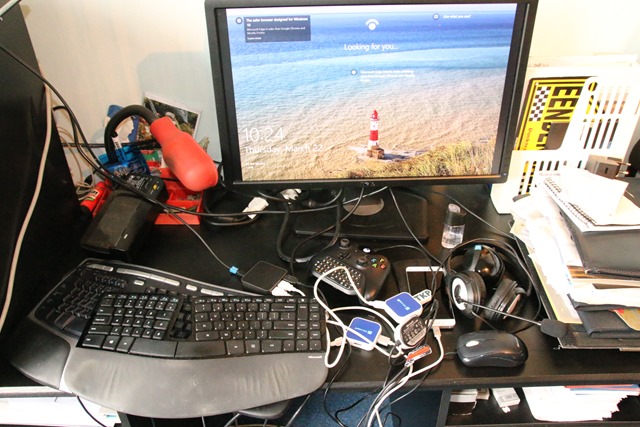
I connected this entire pile of hardware to it. And all of it worked. What you see here, connected simultaneously:

  • A Dell monitor connected via DisplayPort (tried the HMDI port too – worked as well)
  • Two USB hubs, because I have 3 only USB ports on the dock ;)
  • A generic USB key
  • A Microsoft Basic Mouse V2
  • A Microsoft Natural Ergonomic Keyboard 4000 v1
  • An Xiaomi MI 5 Android Phone
  • A Microsoft LifeChat LX-3000 headset
  • A Microsoft XBox One controller
  • A Microsoft Sculpt ergonomic keyboard and accompanying mouse set (via a wireless dongle)

Not on this picture, but successfully tried:

  • A HoloLens – it got set up, but I could not connect to the portal via localhost:10080. I have to look into that a little bit more. Also other things work but that’s outside the scope of this article.
  • A fairly new Canon DSLR, but I needed that one to take the picture so it’s obviously not in it ;)

I also found the PC actually wants to charge from a Lizone QC series battery, that I originally bought to extend my Surface Pro 4’s battery life on long transatlantic flights. The Windows 10 on ARM PC itself is missing from the picture – that’s because it’s a pre-release device and I don’t want pictures of it to roam around the internet.

Did I find stuff that did not work? In fact, I did:

  • I could not get a fingerprint reader that I got for free to work. This is some pre-release device that I got on the summit from a fellow MVP – 1.5 or maybe 2.5 years ago. Although it is set up and recognized, I cannot activate it in the settings screen. Maybe this has something to do with the built-in Windows-Hello-compatible camera of the PC getting priority.
  • A wireless dongle for XBox One controllers. Remember the original XBox One controllers did not have Bluetooth in it? This gadget allows you to connect it to PCs anyway. It connects, but nothing is set up. It’s not a big deal, as a controller plugged in via an USB cable works just fine. I suppose this dongle was not sold in large volumes, and probably not at all anymore, as all newer XBox One controllers can be connected via Bluetooth. Only people hanging on to old hardware (guilty as charged) would run into this.

General conclusion

I feel like a broken record, because I keep getting back to this simple fact - it’s just Windows, it will run your apps pretty nicely, it will connect to nearly all of your hardware, and give you a very long battery life. Although, I can imagine battery life might degrade a little if you add this much devices to it’s USB port. But then again, if you need this many devices connected to your PC you might want to rethink what kind of PC you want to buy anyway ;). The point is, you can, and everything but very obscure devices will work.

Now if you would excuse me, I have to clean up an enormous pile of stuff – my study looks like a minor explosion took place in the miscellaneous hardware box.