When I talk of the MVVM pattern, people usually think of business objects that get wrapped by ViewModels which get data bound to a user interface. Usually this is something like a list of people, news, items that can be purchased, whatever – and usually this data is displayed in a list box, with a bit of templating if it isn’t too much trouble. That’s fine in itself and good way to use my favorite pattern but there are more things possible using MVVM data binding than most people imagine. The most fun way I have been able to discover is to combine ItemsControl and behaviors. This is what drives my game Catch’em Birds. And this article shows how to use this technique make a kind of heads up compass. I’ll sprinkle some ‘how to do things in Blend’ (like adding and configuring behaviors) throughout the article as well.
For the hasty readers: “Setting the stage”, “Building the models” and “Building the ViewModel” is the ground work. The real stuff starts at “Initial user interface”.
Setting the stage
- Create a new Windows Phone 7 application. Let’s call it “HeadsUpCompass”. Select Windows Phone 7.1 - duh ;).
- Install my wp7nl library from codeplex via NuGet. This will get you some of my stuff and MVVMLight and some more stuff as well in one go.
- Add references to Microsoft.Device.Sensors and Microsoft.Xna.Framework.
Building the models
The application has two models: CompassDirectionModel – holding stuff that wants to be displayed, and CompassModel, that checks the compass direction using the motion API. The CompassModel is implemented below. I’ve explained using the Motion API to check where the camera is looking in an earlier post so I’ll skip the details here. It’s basically the same functionality, wrapped in a model, with an event firing at the end:
using System;
using System.Windows;
using Microsoft.Devices.Sensors;
using Microsoft.Xna.Framework;

namespace HeadsUpCompass.Models
{
  public class CompassModel
  {
    Motion motion;

    /// <summary>
    /// Inits this instance.
    /// </summary>
    public void Init()
    {
      // Check to see if the Motion API is supported on the device.
      if (!Motion.IsSupported)
      {
        MessageBox.Show("the Motion API is not supported on this device.");
        return;
      }

      // If the Motion object is null, initialize it and add a CurrentValueChanged
      // event handler.
      if (motion == null)
      {
        motion = new Motion {TimeBetweenUpdates = TimeSpan.FromMilliseconds(250)};
        motion.CurrentValueChanged += MotionCurrentValueChanged;
      }

      // Try to start the Motion API.
      try
      {
        motion.Start();
      }
      catch (Exception)
      {
        MessageBox.Show("unable to start the Motion API.");
      }
    }

        /// <summary>
    /// Stops this instance.
    /// </summary>
    public void Stop()
    {
      motion.Stop();
      motion.CurrentValueChanged -= MotionCurrentValueChanged;
    }

    /// <summary>
    /// Fired when a direction change is detected
    /// </summary>
    void MotionCurrentValueChanged(object sender,
                                   SensorReadingEventArgs<MotionReading> e)
    {
      var yaw = MathHelper.ToDegrees(e.SensorReading.Attitude.Yaw);
      var roll = MathHelper.ToDegrees(e.SensorReading.Attitude.Roll);
      var pitch = MathHelper.ToDegrees(e.SensorReading.Attitude.Pitch);

      if (roll < -20 && roll > -160)
      {
        SetNewCompassDirection(360 - yaw + 90);
      }
      else if (roll > 20 && roll < 160)
      {
        SetNewCompassDirection(360 - yaw - 90);
      }
      else if (pitch > 20 && pitch < 160)
      {
        SetNewCompassDirection(-yaw );
      }
      else if (pitch < -20 && pitch > -160)
      {
        SetNewCompassDirection(360 - yaw + 180);
      }
    }

    private void SetNewCompassDirection(double compassDirection)
    {
      if (compassDirection > 360)
      {
        compassDirection -= 360;
      }
      if (compassDirection < 0)
      {
        compassDirection += 360;
      }

      if (CompassDirectionChanged != null)
      {
        CompassDirectionChanged(Convert.ToInt32(Math.Round(compassDirection)));
      }
    }

    // Event communicating compass direction change to outside world
    public event CompassDirectionChangedHandler CompassDirectionChanged;

    public delegate void CompassDirectionChangedHandler(int newDirection);
  }
}
The stuff that gets displayed has it’s own model, and is very simple:
using System.Collections.Generic;

namespace HeadsUpCompass.Models
{
  public class CompassDirectionModel
  {
    public int Direction { get; set; }

    public string Text { get; set; }

    public static IEnumerable<CompassDirectionModel> GetCompassDirections()
    {
      return new List<CompassDirectionModel>
      {
        new CompassDirectionModel {Direction = 0, Text = "N"},
        new CompassDirectionModel {Direction = 45, Text = "NE"},
        new CompassDirectionModel {Direction = 90, Text = "E"},
        new CompassDirectionModel {Direction = 135, Text = "SE"},
        new CompassDirectionModel {Direction = 180, Text = "S"},
        new CompassDirectionModel {Direction = 225, Text = "SW"},
        new CompassDirectionModel {Direction = 270, Text = "W"},
        new CompassDirectionModel {Direction = 315, Text = "NW"}
      };
    }
  }
}
And most of is a static factory method too that I, being a lazy programmer, just plonked into a class. This model accepts a text and a compass direction where it wants to be displayed. You can limit or add whatever you like.
Building the ViewModel
So far it has not been quite rocket science, and neither is the only ViewModel that is employed in this solution:
using System.Collections.ObjectModel;
using System.Windows;
using GalaSoft.MvvmLight;
using HeadsUpCompass.Models;

namespace HeadsUpCompass.ViewModels
{
  public class CompassViewModel : ViewModelBase
  {
    private readonly CompassModel model;

    public CompassViewModel()
    {
      model = new CompassModel();
      model.CompassDirectionChanged += ModelCompassDirectionChanged;
      CompassDirections =
        new ObservableCollection<CompassDirectionModel>(
          CompassDirectionModel.GetCompassDirections());
      if( !IsInDesignMode) model.Init();
    }

    void ModelCompassDirectionChanged(int newDirection)
    {
      Deployment.Current.Dispatcher.BeginInvoke(
        () => { CompassDirection = newDirection; });
    }

    private int compassDirection;
    public int CompassDirection
    {
      get { return compassDirection; }
      set
      {
        if (compassDirection != value)
        {
          compassDirection = value;
          RaisePropertyChanged(() => CompassDirection);
        }
      }
    }

    private ObservableCollection<CompassDirectionModel> compassDirections;
    public ObservableCollection<CompassDirectionModel> CompassDirections
    {
      get { return compassDirections; }
      set
      {
        if (compassDirections != value)
        {
          compassDirections = value;
          RaisePropertyChanged(() => CompassDirections);
        }
      }
    }
  }
}
The ViewModel creates a CompassDirectionModel and subscribes to its events, and fills an observable collection with CompassDirectionModels – so basically a list of texts and the direction in which they want to be displayed.
Initial user interface
First of all, open MainPage.xaml, set shell:SystemTray.IsVisible="false", SupportedOrientations="PortraitOrLandscape" and then delete the grid “LayoutRoot” and everything inside it (and get rid of the App Bar sample code that commented out as well, that clears the stage). Replace it by this:
<Grid x:Name="LayoutRoot" >
  <Grid.RowDefinitions>
    <RowDefinition Height="Auto"/>
    <RowDefinition Height="*"/>
  </Grid.RowDefinitions >

  <!--TitlePanel contains the name of the application and page title-->
  <StackPanel x:Name="TitlePanel" Grid.Row="0" Margin="12,17,0,28">
    <TextBlock x:Name="ApplicationTitle" Text="HeadsUp Compass"
      Style="{StaticResource PhoneTextNormalStyle}"/>
  </StackPanel>

  <!--ContentPanel - place additional content here-->
  <Grid x:Name="ContentPanel" Grid.Row="1" Margin="12,0,12,0">
    <Grid>
      <Grid.RowDefinitions>
        <RowDefinition Height="0.7*"/>
        <RowDefinition Height="0.3*"/>
      </Grid.RowDefinitions >
    <ItemsControl x:Name="CompassItems" ItemsSource="{Binding CompassDirections}"
           Grid.Row="0">
      <ItemsControl.ItemsPanel>
        <ItemsPanelTemplate>
          <Canvas Background="Transparent" />
        </ItemsPanelTemplate>
      </ItemsControl.ItemsPanel>
      <ItemsControl.ItemTemplate>
        <DataTemplate>
          <Grid>
            <TextBlock Text="{Binding Text}" FontSize="48" Foreground="Red"/>
          </Grid>
        </DataTemplate>
      </ItemsControl.ItemTemplate>
    </ItemsControl>

    <TextBlock TextWrapping="Wrap" Text="{Binding CompassDirection}"
       VerticalAlignment="Top" Margin="0,10,0,0" FontSize="48" Foreground="Red"
       HorizontalAlignment="Center" Grid.Row="1"/>
    </Grid>
  </Grid>
</Grid>
The interesting part I’ve marked red. This is an ItemsControl - nothing more than a simple repeater. The declaration used in this article uses two templates: an ItemsPanelTemplate, which describes what all the bound items are rendered upon – in this case, a transparent canvas – and an ItemTemplate, which describes how each individual item in the CompassDirections property bound to the control itself is displayed – in this case, a grid with a simple text bound to a Text property. But on the ItemTemplate you can put literally everything you can dream. Including behaviors.
Setting up data binding using Expression Blend
First let’s get the data binding done. This is considerably easier using Expression Blend. Compile the application so far, and open it up in Expression Blend. Then use the following workflow:
- On the top right hand side, select the “Data” tab
- Click the Icon on the right that gives as tooltip “Create data source”
- Select “Create Object DataSource”
- Select “CompassViewModel” in the popup that appears.
- Drag “CompassViewModel” under “CompassViewModelSource on top of the “LayoutRoot” grid in the Objects and Timeline Panel to the left bottom

If you have done things correctly, you should immediately see appear a red zero in the horizontal middle of your screen a little below the center, and a lot of texts stacked upon each other in the top left op your screen.
The fun thing is, this application already works more or less. If you deploy this on a device and fire it up, you will already see that the 0 starts to display the compass direction in degrees. But the compass direction texts are still stacked upon each other in the top left corner. Now it’s time for the coupe de grâce: a behavior that dynamically changes the location of the compass direction texts.
Location calculation
The behavior actually consist out of two parts: the LocationCalculator class and the actual CompassDirectionDisplayBehavior. I pulled the actual location calculation out of the behavior because I had to cobble it together by trial and error – and adding it to a test project by means of a link and testing it by unit tests made this a lot easier. Anyway, the code itself it pretty small: most of it is comments and properties:
using System;
using System.Windows;

namespace ARCompass.Behaviors
{
  /// <summary>
  /// Calculates screen positions based upon compass locations
  /// </summary>
  public class LocationCalcutator
  {
    /// <summary>
    /// Initializes a new instance of the LocationCalcutator class.
    /// Sets some reasonable defaults
    /// </summary>
    public LocationCalcutator()
    {
      Resolution = (6 * 800 / 360);
      CanvasHeight = 800;
      CanvasWidth = 480;
      ObjectWidth = 10;
    }

    /// <summary>
    /// Gets or sets the resolution (i.e. the pixels per degree
    /// </summary>
    public int Resolution { get; set; }

    /// <summary>
    /// The compass direction where the object to calculate for is located
    /// </summary>
    public int DisplayCompassDirection { get; set; }

    /// <summary>
    /// Gets or sets the width of the canvas.
    /// </summary>
    public double CanvasWidth { get; set; }

    /// <summary>
    /// Gets or sets the height of the canvas.
    /// </summary>
    public double CanvasHeight { get; set; }

    /// <summary>
    /// Gets or sets the width of the object (in pixels)
    /// </summary>
    public double ObjectWidth { get; set; }

    /// <summary>
    /// Sets the horizontal pixels.
    /// </summary>
    /// <param name="pixels">The pixels.</param>
    public void SetHorizontalPixels(double pixels)
    {
      Resolution = Convert.ToInt32(Math.Round(pixels/360));
    }

    /// <summary>
    /// Calculates the screen position.
    /// </summary>
    /// <param name="compassDirection">The compass direction the screen is
    /// currently looking at.</param>
    /// <returns></returns>
    public Point CalculateScreenPosition(int compassDirection)
    {
      if (!(double.IsNaN(CanvasHeight) || double.IsNaN(CanvasWidth)))
      {
        var y = CanvasHeight / 2;
        var deltaDegrees1 = compassDirection - DisplayCompassDirection;
        var deltaDegrees2 = compassDirection - DisplayCompassDirection - 360;
        var deltaDegrees =
           Math.Abs(deltaDegrees1) < Math.Abs(deltaDegrees2) ?
             deltaDegrees1 : deltaDegrees2;

        var dx = deltaDegrees * Resolution;
        var x = Convert.ToInt32(CanvasWidth / 2) - dx;
        return new Point(x, y);
      }
      return new Point(-1000, -1000);
    }

    /// <summary>
    /// Determines whether the specified point is visible in the current canvas
    /// </summary>
    public bool IsVisible(Point point)
    {
      var overshoot = Convert.ToInt32(Math.Round(ObjectWidth/2 + 5));
      return (point.X > -overshoot && point.X < CanvasWidth + overshoot);
    }
  }
}
Resolution is a pretty weird property and is the base for all other calculations. It basically says – how many pixels is 1 degree? Default I set it to 6 * 800 / 360 = 13.333, which basically means if you move your camera 1 degree to the left whatever is displayed on your screen moves 13 pixels to the right.
The CalculateScreenPosition method basically is my way to calculate the screen position of an object in direction compassDirection, without using trigonometry – since I am notoriously bad at it. I’ve learned it about three times if I really have to use it, but for some reason as soon as I stop using it, it quite quickly drops from my mind again. I don’t doubt I’ll be getting reactions of math lovers who will point out this a stupid way to do it ;-). But this works, and that’s fine with me. Finally, the IsVisible property can be used to determine if the objects is on the screen at all.
The actual behavior
This behavior heavily leans on things I wrote about earlier, namely the extension methods for FrameWorkElement I described in my article “Simple Windows Phone 7 / Silverlight drag/flick behavior” but which are now fortunately all in the Wp7nl library. It is also based upon the Safe event detachment ‘pattern’ for behaviors. Anyway – the base setup is like this:
using System.Windows;
using System.Windows.Interactivity;
using System.Windows.Media;
using ARCompass.Behaviors;
using Phone7.Fx.Preview;
using Wp7nl.Utilities;

namespace HeadsUpCompass.Behaviors
{
  public class CompassDirectionDisplayBehavior : Behavior<FrameworkElement>
  {
    private FrameworkElement elementToAnimate;

    private FrameworkElement displayCanvas;

    private LocationCalcutator calculator;

    #region Setup
    protected override void OnAttached()
    {
      base.OnAttached();
      AssociatedObject.Loaded += AssociatedObjectLoaded;
      AssociatedObject.Unloaded += AssociatedObjectUnloaded;
    }

    void AssociatedObjectLoaded(object sender, RoutedEventArgs e)
    {
      calculator = new LocationCalcutator
        {DisplayCompassDirection = DisplayCompassDirection};
      elementToAnimate = AssociatedObject.GetElementToAnimate();
      if (!(elementToAnimate.RenderTransform is CompositeTransform))
      {
        elementToAnimate.RenderTransform = new CompositeTransform();
      }
      displayCanvas = elementToAnimate.GetVisualParent();
      if (displayCanvas != null)
      {
        displayCanvas.SizeChanged += DisplayCanvasSizeChanged;
        UpdateCalculator();
      }
    }
    #endregion

    #region Cleanup
    private bool isCleanedUp;

    private void Cleanup()
    {
      if (!isCleanedUp)
      {
        isCleanedUp = true;
        AssociatedObject.Loaded -= AssociatedObjectLoaded;
        AssociatedObject.Unloaded -= AssociatedObjectUnloaded;
      }
    }

    protected override void OnDetaching()
    {
      Cleanup();
      base.OnDetaching();
    }

    void AssociatedObjectUnloaded(object sender, RoutedEventArgs e)
    {
      Cleanup();
    }
    #endregion
  }
}
Now that most of the calculation logic is in the LocationCalculator, the calculation and positioning logic is reduced to these three little methods:
void DisplayCanvasSizeChanged(object sender, SizeChangedEventArgs e)
{
  UpdateCalculator();
}

private void UpdateCalculator()
{
  calculator.CanvasHeight = displayCanvas.ActualHeight;
  calculator.CanvasWidth = displayCanvas.ActualWidth;
  calculator.SetHorizontalPixels(6 * calculator.CanvasWidth);
  UpdateScreenLocation();
}

void UpdateScreenLocation()
{
  var translationPoint =
     calculator.CalculateScreenPosition(CurrentCompassDirection);
  if (calculator.IsVisible(translationPoint))
  {
    elementToAnimate.SetTranslatePoint(
      calculator.CalculateScreenPosition(CurrentCompassDirection));
    elementToAnimate.Visibility = Visibility.Visible;
  }
  else
  {
    elementToAnimate.Visibility = Visibility.Collapsed;
  }
}
The fun thing is that the calculator’s resolution is set to 6 times the canvas width, so that every time you rotate the phone it recalculates the location where objects are displayed. The net result is that objects are spaced wider apart when you rotate the phone in landscape. Thus, the app makes optimal use of the screen space available.
And all there is left are two dependency properties: DisplayCompassDirection which holds the location in which the current object wants to be displayed, and CurrentCompassDirection which should get the current direction the camera is looking at. By nature they are pretty verbose unfortunately:
#region DisplayCompassDirection
public const string DisplayCompassDirectionPropertyName =
   "DisplayCompassDirection";

public int DisplayCompassDirection
{
  get { return (int)GetValue(DisplayCompassDirectionProperty); }
  set { SetValue(DisplayCompassDirectionProperty, value); }
}

public static readonly DependencyProperty DisplayCompassDirectionProperty =
  DependencyProperty.Register(
    DisplayCompassDirectionPropertyName,
    typeof(int),
    typeof(CompassDirectionDisplayBehavior),
    new PropertyMetadata(0, null));
#endregion

#region CurrentCompassDirection
public const string CurrentCompassDirectionPropertyName =
  "CurrentCompassDirection";

public int CurrentCompassDirection
{
  get { return (int)GetValue(CurrentCompassDirectionProperty); }
  set { SetValue(CurrentCompassDirectionProperty, value); }
}

public static readonly DependencyProperty CurrentCompassDirectionProperty =
  DependencyProperty.Register(
    CurrentCompassDirectionPropertyName,
    typeof(int),
    typeof(CompassDirectionDisplayBehavior),
    new PropertyMetadata(0, CurrentCompassDirectionChanged));

public static void CurrentCompassDirectionChanged(
  DependencyObject d, DependencyPropertyChangedEventArgs e)
{
  var behavior = d as CompassDirectionDisplayBehavior;
  if (behavior != null)
  {
    behavior.UpdateScreenLocation();
  }
}
#endregion
Save and compile the app. Don’t run it yet.
 Adding/configuring the behavior using Expression Blend
Go back to Expression Blend, and use the following workflow:
- In the Objects and Timeline Panel to the left, select ItemsControl “CompassItems”
- Right-click on in, select “Edit Additional Templates”, then “Edit Generated Items (ItemsTemplate)”, and finally “Edit Current”
- Top left, select the “Assets” tab. In the left panel below it, select “Behaviors”. In the right panel you should see “CompassDirectionDisplayBehavior” appear.
- Drag the behavior on top of the grid
As soon as you have done this, you will get a properties tab on the right of your screen that neatly shows the two dependency properties. Of course you can do this in code, but Blend takes care of creating namespaces and name space references – it makes life so much easier and that should appeal to a programmer’s natural laziness. Next task is data binding properties of the behavior to the ViewModel, and using Blend that is dead easy too.
Configuring behavior binding
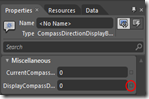 Data binding to a behavior, yes sir (or ma’am)! Welcome to Mango: this is Silverlight 4, so no more complex hooplah with attached dependency properties if you want to have a behavior to play along with data binding. You can now directly bind to dependency properties in the behavior itself! After you have dragged the CompassDirectionDisplayBehavior on Grid, you get the little properties tab as displayed on the left, showing the behavior's two properties. To data bind these, use the following workflow:
- Click the little square right of “DisplayCompassDirection” (indicated with the red circle), and select “Data Binding” from the popup menu
- Choose tab “Data context” on the dialog that pops us (usually that’s default)
- Select property “Direction : (Int32), that is directly under CompassDirections : (CompassDirectionModel)
You have now selected the DisplayCompassDirection property of the behavior to be bound directly to the “Direction” property to the CompassDirectionModel. One can argue if it’s technically corr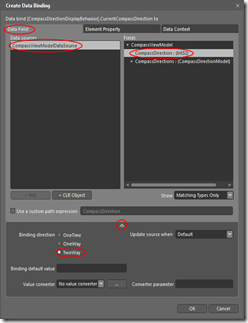 ect to directly bind a Model in stead of having a ViewModel sitting in between. Since this Model only shows data and has no intelligence at all, I feel comfortable with it – if you do not, go ahead and define a ViewModel around it ;-)
The second and last part of binding goes like this:
- Click the square behind “CurrentCompassDirection” and select “Data Binding” again in the popup menu
- Select the “Data Field” tab
- In the Data Field Tab, select “CompassViewModelDataSource” in the right pane
- In the left pane, select “CompassDirection : (Int32)
- Click the down-pointing arrow on the bottom of the dialog – more options appear
- Select “TwoWay” for “Binding Direction”
You have now selected the CurrentCompassDirection property of the behavior to be bound to the CompassDirection of the CompassViewModel. And that means – you are done! Hit File/Save all and go back to Visual Studio to launch the application on your phone, and you will see compass directions moving through your screen if you move phone.
One for the road
Having a plain black screen to see the compass directions moving over is quite boring. So lets add the behavior to show the Windows Phone 7 camera as background I wrote some time ago as well. Add it to the project, drag it on top of the LayoutRoot grid, and bang – now you don’t only have a heads-up, but a see-trough compass as well!
Some final words
This is all pretty crude in terms of how things move, and there are quite some things eligible for improvement but nevertheless - what we have here is almost like any other old LOB MVVM based application. Business objects bound to the GUI. Only, that GUI happens to be an ItemsControl with a behavior on its template. Which turns the whole app into a dynamic experience. I hope to have tickled your imagination, and showed some useful Blend how-to as well.
MVVM is not limited to just LOB apps. Make something fun. To quote Nokia – make the amazing everyday ;-
Complete sample solution can be found here.