This blog attempts to be a collection of how-to examples in the Microsoft software stack - things that may take forever to find out, especially for the beginner. I see it as my way to return something to the Microsoft community in exchange for what I learned from it.
In my previous post I explained two ways of preparing holograms and uploading them to Azure: using a whole scene, and using just a prefab. In this post I am going to explain how you can download those holograms in a running Mixed Reality or HoloLens app and an show them.
Setting the stage
We uploaded two things: a single prefab of an airplane, with a behavior attached, and a scene containing a prefab – a house, also with a behavior attached. The house rotates, the airplane follows quite an erratic path. To access both we created a Shared Access Signature using the Azure Storage Explorer.
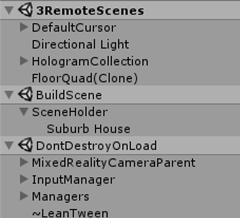
In the demo code there’s a Unity project called RemoteAssets. We have used that before in earlier posts. The third scene (Assets/App/Demo3/3RemoteScenes) is the scene that actually tries to load the holograms
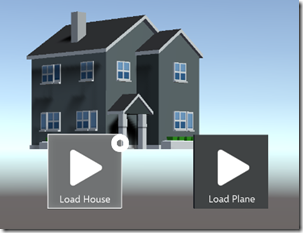
If you open that scene, you will see two buttons: “Load House” and “Load Plane”
This SceneLoader is not a lot of code and does a lot more than is strictly necessary:
using System.Collections;
using UnityEngine;
using UnityEngine.Networking;
using UnityEngine.SceneManagement;

public class SceneLoader : MonoBehaviour
{
    public string SceneUrl;

    public GameObject Container;

    private bool _sceneIsLoaded;

    public void StartLoading()
    {
        if (!_sceneIsLoaded)
        {
            StartCoroutine(LoadScene(SceneUrl));
            _sceneIsLoaded = true;
        }
    }

    private IEnumerator LoadScene(string url)
    {
        var request = UnityWebRequest.GetAssetBundle(url, 0);
        yield return request.SendWebRequest();
        var bundle = DownloadHandlerAssetBundle.GetContent(request);
        var paths = bundle.GetAllScenePaths();
        if (paths.Length > 0)
        {
            var path = paths[0];
            yield return SceneManager.LoadSceneAsync(path, LoadSceneMode.Additive);
            var sceneHolder = GameObject.Find("SceneHolder");
            foreach (Transform child in sceneHolder.transform)
            {
                child.parent = Container.transform;
            }
            SceneManager.UnloadSceneAsync(path);
        }
    }
}
It downloads the actual AssetBundle using a GetAssetBundle request, then proceeds to extract that bundle using a DownloadHandlerAssetBundle. I already wrote about the the whole rigmarole of specialized requests and accompanying handlers in an earlier post. Then it proceeds to find all scenes in the bundle, picks the first once, and loads this one additive to the current scene. If you comment out all lines after the LoadSceneAsync and run the code, you will be actually able to see what’s happening – a second scene inside the current scene is created.
If you however run the full code, the SubUrb house will appear inside the HologramCollection and no trace of the BuildScene will remain. That’s because the code tries to find a “SceneHolder” object (and you can see that’s the first object in the BuildScene), moves all children (one, the house) to the Container object and once that is done, the additional scene will be unloaded again. But the hologram that we nicked from it still remains, and it even rotates. If you look very carefully in the editor if you click the button, you can actually see the scene appear, see the house being moved from it, and then disappear again.
The result: when you click “Load House” you will see the rotating house, 2 meters before you.
Success. Now on to the airplane.
Loading a remote prefab
This is actually less code, or at least – less code than the way I chose to handle scenes:
using System.Collections;
using UnityEngine;
using UnityEngine.Networking;

public class PrefabLoader : MonoBehaviour
{

    public string AssetUrl;

    public GameObject Container;

    private bool _isLoaded;

    public void StartLoading()
    {
        if (!_isLoaded)
        {
            StartCoroutine(LoadPrefab(AssetUrl));
            _isLoaded = true;
        }
    }

    private IEnumerator LoadPrefab(string url)
    {
        var request = UnityWebRequest.GetAssetBundle(url, 0);
        yield return request.SendWebRequest();
        var bundle = DownloadHandlerAssetBundle.GetContent(request);
        var asset = bundle.LoadAsset<GameObject>(bundle.GetAllAssetNames()[0]);
        Instantiate(asset, Container.transform);
    }
}
The first part is the same, then we proceed to use bundle.LoadAsset to extract the first asset by name from the bundle as a game object (there is only one, so that’s always correct for this bundle). And then we instantiate the asset – a prefab, which is a game object, into the hologram collection.
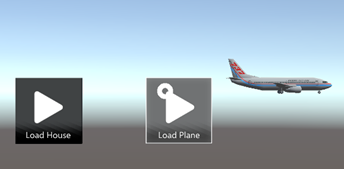
If you click the “Load Plane” button the result is not what you might expect:
Uhm, what? We basically did the same as before, actually less. It turns out, the only reason the house rotated fine, was because I used the Horizontal Animator from my own HoloToolkitExtensions. That script is present in both the SceneBuilder project (that I used to create the bundles uploaded to Azure) and the target app, RemoteAssets, that downloads the assets bundles and tries to use them.
But for the airplane to move around, I created a script “MoveAround” that is only present in the SceneBuilder. It does not happen often, dear reader, but I intentionally checked in code that fails, to hammer home the following very important concept:
In an Asset Bundle you can put about anything – complete scenes, prefabs, images, materials and whatnot – everything but scripts.
In order to get this to work, the script and its meta file need to be copied to the target project. Manually.
It does not matter much where in the target project it comes, Unity will pick it up, resolve the script reference, the bundle will load successfully if you press the “Load Plane” button. I tend to place it next to the place where it’s used.
And lo and behold: and airplane moving once again like a drunken magpie.
Concluding words
I have shown you various ways to upload various assets – JSON data, images, videos and finally holograms to Azure, how to download them from you app, and what limitations you will need to consider.
Important takeaways from this and previous posts:
Yes, I could have downloaded earlier assets using an Unity Asset Bundle as well, in stead of downloading images etc. via a direct URL. Drawback of using an Asset Bundle is you will always need Unity to build it. If you are building an app for a customer that wants to update training images or videos, it’s a big plus if you can just have them uploaded to Azure using the Storage Explorer or some custom (web) app. Whatever the customer can change or maintain themselves, the better it is.
You can’t download dynamic behavior, only (static) assets. The most ‘dynamics’ a downloaded asset can have is referring to a script that exists both in the building and the target app. I have seen complex frameworks that tried to achieve downloadable behavior by storing properties into the project file but that usually is a lot of work to achieve only basic functionalities (like moving some parts or changing colors and stuff) but while that may for simple applications, approaches like that are complex to maintain, a lot of work to ‘program’ into your asset, brittle and hard to transfer between project. Plus, it still needs Unity, and your customer is not going to use that. Rule of thumb is always: if you want to change the way things look, you can download assets dynamically. If you need new behavior, you will need to update the app.
I hope you enjoyed this brain dump. The project can (still) be found here.
In my series about remote assets, there’s one major thing left: how to use remote assets that can be used as Holograms in your Mixed Reality app. I will do this in two post:
Prepare for usage and actual upload
Use and download.
And this is, as you guessed, the first post.
Asset bundles
A Unity asset bundle is basically a package that can almost any piece of a Unity app. It’s usually used to create downloadable content for games, or assets that are specific for a platform or game level, so the user does not have to download everything at once. This enhances startup time, but also saves on (initial) bandwidth and local storage. Also, you can update part of the app without actually requiring the user to download a complete new app. There are some limitations, but we will get to that.
General set up
We want to create an app that downloads assets, that it does not have initially included in it. But a Unity project is what we need to actually build the asset bundles. So we need two projects: the actual app that will run, and a ‘builder’ project. That project – which I not completely correctly called “SceneBuilder: – you can find here. I will show you how to prepare an asset bundle that contains a complete scene, and one that only contains a single prefab.
The SceneBuilder contains everything a normal Unity app does: scenes, assets, scripts, the works. And something extra. But first, our runtime app is going to use the Mixed Reality Toolkit, some stuff from the Mixed Reality Toolkit Samples, LeanTween, and my own extensions. I kind of all threw it in because why not. It also contains three scenes in the root.
Main (which is empty and not used)
BuildScene (a rather darks scene which contains a house from the Low Poly Buildings Lite package, and nothing else)
PrefabScene (which contains what seems to be a normal Mixed Reality app, as well an airplane called “Nathalie aguilera Boing 747” (I assume “Boing” should be “Boeing”, and the model is actually a Boeing 737 but whatever – it’s a nice low poly model)
The most important thing is the AssetBundle Browser. This is a piece of code provided by Unity to make building asset bundles a lot easier. You can find the AssetBundle Browser in folder “UnityEngine.AssetBundles” under “Assets. You can download the latest version from Unity’s Github repo. It comes with a whole load, but basically you only need everything that’s under UnityEngine.AssetBundles/Editor/AssetBundleBrowser. This you plonk in your Scen eBuilder project’s Asset folder.
The BuildScene
If you open the BuildScene first, you will see there’s actually very little in it. An empty ‘SceneHolder’ object, and a “Suburb House 1” prefab in it. The lack of lighting also makes the scene rather dark. This has a reason: we are going to add this scene to another scene later, and we don’t want all kinds of duplicate stuff like lighting, Mixed Reality toolkit managers, etc. – coming into our existing app. So almost everything is deleted. But to that Prefab, one thing is added: the Horizontal Animator behavior (that debuted in this article). This is a very simple behavior that will make the house spin round every five seconds. Nothing special – this is to prove a point later.
If you play the scene, you will actually see the house spinning in the scene. The Game window will be black, only saying “Display 1 No cameras rendering”, which is correct, as I deleted everything but the asset we are going to build and upload, so there’s even no camera to show anything.
Build the buildscene asset bundle
First order of business – build the UWP app, as if you are going to create an actual Mixed Reality app for HoloLens and/or immersive head set out of the SceneBuilder. For if you don’t, the AssetBundle browser will kick off that process, and if there’s a syntax error or whatever – it’s modal build window will get stuck, blocking Unity – and the only way out is killing it in the Task manager.
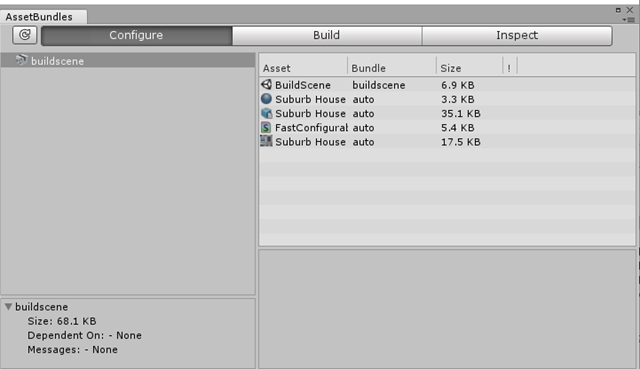
Click Window/AssetBundle Browser and you will see this:
I already pre-defined some stuff for you. What I basically did was, in an emtpy AssetBundle browser, drag the BuildScene into the empty screen:
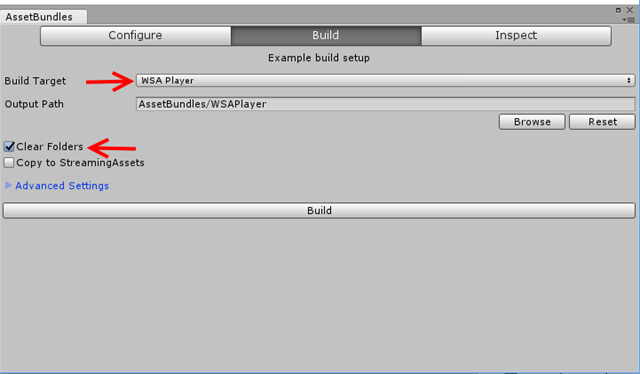
and the AssetBundle Browser then adds everything it needs automatically. Click the tab “Build” and make sure the settings are the same as what you see here. Pay particular attention to the build target. That should be WSAPlayer, because that’s the target we use in the app that will download the assets.
Hit the ugly wide “Build” button and wait till the build completes. If all works out, you will see four files in SceneBuilder\AssetBundles\WSAPlayer:
buildscene
buildscene.manifest
WSAPlayer
WSAPlayer.manifest
Only those where there all along, as I checked the folder with these files in GitHub. But go ahead, delete the files manually, you will see they are re-created. You will see they are all only 1 KB, except for buildscene – that’s 59 KB.
The PrefabScene
This looks more like a normal scene: it has everything in it you would expect in , and the airplane.
If you hit the play button in this scene, the airplane will move around in a way that makes you happy you are not aboard it, due to a behaviour called “Move Around”. This script sits in “Assets/App/Scripts” and is nothing more than an start method that creates a group of point relative to the start position and moves it around using LeanTween
void Start()
{
    var points = new List<Vector3>();
    points.Add(gameObject.transform.position);
    points.Add(gameObject.transform.position);
    points.Add(gameObject.transform.position + new Vector3(0,0,1));
    points.Add(gameObject.transform.position + new Vector3(1,0,1));
    points.Add(gameObject.transform.position + new Vector3(-1,0,1));
    points.Add(gameObject.transform.position + new Vector3(-1,1,1));
    points.Add(gameObject.transform.position);
    points.Add(gameObject.transform.position);

    LeanTween.moveSpline(gameObject, points.ToArray(), 3).setLoopClamp();
}
But this script will later cause us some trouble as we will see in the next post (also to prove a point). I created a prefab of this airplane with it’s attached behaviour in Assets/App/Prefabs. Open the AssetBundle Brower again, drag this prefab onto the left pane of the dialog like this:
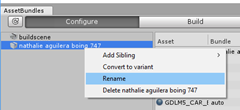
Only this creates an impossible long name, so simply right-click on the name and rename it to “airplane”. Select the “Build” tab again, hit the wide Build button again, wait a while.
If everything went according to plan, SceneBuilder\AssetBundles\WSAPlayer should now contain two extra files:
airplane
airplane.manfest
The manifest file is once again 1 KB, airplane itself should be 87 KB
Simply drag your the airplaine and buildscene (you don’t need anything else) into a blob container of any old storage account. The right-click on a file, select “Get Shared Access Signature” and click “Create”, but not before paying close attention to the date/time range, particularly the start date and time
The Azure Storage explorer tends to generate a start time some time (1.5 hours or so) in the future, and if you use the resulting url right away, it won’t work. Believe me – been there, done that, and I am glad no-one can could hear me ;). So dial back the start time to the present or a little bit in the past, then create the url, and save it. Do this for both the airplane and the buildscene file. We will need them in the next post to actually download and use them.
Conclusion
We have built two assets and uploaded them to Azure without writing any code – only a little code to make the airplane move, but that was not part of the build/upload procedure. Of course, sou can write the code to build asset bundles yourself, but I am lazy smart and tend to use what I can steal borrow from the internet. This was almost all point-and-click, next time we will see more code. For the impatient, the whole finished project can be found here.
The title of this blog post kind of gives away that this is actually two blog post in one:
How to prepare and load videos into Azure
How to load these videos back from Azure, and show these in a floating video player that is activated upon looked at.
The basic idea
The UI to demo loading and playing the video is a simple plane that gets a ‘MovieTexture’ applied to it. When you look at the plane (i.e. the gaze strikes the Plane), MovieTexture’s “Play” method is called, and the video starts playing. When you don’t look at it for like three seconds, the MovieTexture’s “Pause” method is called. It’s not rocket science.
Two post ago, I introduced a BaseMediaLoader a as simple base class for downloading media. We are going to re-use that in this post, as loading video – as you will see – is not that different from loading audio.
Prepare and upload the video
If you have read my post about loading audio you might have guessed – you can’t just upload an MP4 file to a blob storage, download and play it. Unity seems to have a preference for off-center open source formats. You will need to convert you movie to the OggTheora and you can do this with the command line tool “ffmpeg”. The documentation on it is not very clear, and default conversion yields a very low quality movie (think early years YouTube). I have found the following parameters give a quite reasonable conversion result:
-q:v 8 gives a nice video quality. Also, the original 121605 kb movie is compressed to about 40000 kb. The resulting ogv need to be uploaded to an Azure blob storage. I used the Storage Explorer for that. That also makes it easy to get a shared access signature url.
Video player components
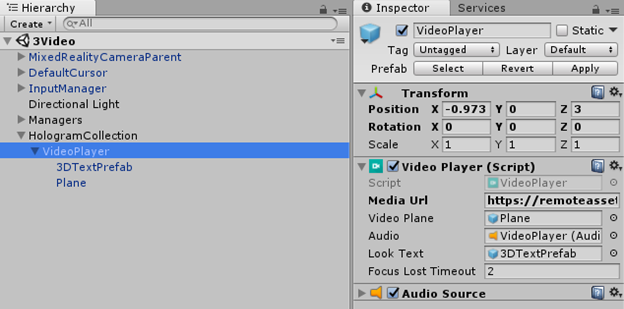
The video player itself is pretty simple – a Plane to display the movie on, a Text to tell the user to start playing it by looking at the Plane, and an AudioSource you can just about see in this image blow, depicted by a very vague loudspeaker icon
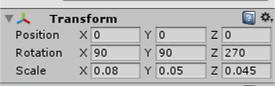
Note the video player is about 3 meters from the user, and a bit off-center to the left – preventing it from auto starting immediately, which it would do if it would appear right ahead. The video plane is rotated 90/90/270° to make it appear upright with the right direction to the user.
The VideoPlayer script
The VideoPlayer script is actually doing all the work – downloading the video, playing it when gaze hits, and pausing the playback after a timeout of 2 seconds (‘Focus Lost Timeout’). It start pretty simple:
using System.Collections;
using HoloToolkit.Unity.InputModule;
using UnityEngine;
using UnityEngine.Networking;

public class VideoPlayer : BaseMediaLoader, IFocusable
{
    public GameObject VideoPlane;

    public AudioSource Audio;

    public GameObject LookText;

    public float FocusLostTimeout = 2f;

    private MovieTexture _movieTexture;

    private bool _isFocusExit;

    protected void Start()
    {
        VideoPlane.SetActive(false);
        LookText.SetActive(false);
    }
}
Notice all components are explicitly defined, that is – although they are within one prefab, you still have to drag the Plane, the Text and the AudioSource into the script’s fields. Initially it turns off everything – if there’s nothing downloaded (yet), show nothing. If you are on a slow network, you will see the player disappear for a while, then reappear.
The most important part of this script consist out of this two methods:
Remember, from BaseMediaLoader, that StartLoadMedia is called as soon as MediaUrl changes. That turns off the UI again (in case it was already turned on because a different file was loaded previously). Then we need an DownloadHandlerMovieTexture. I think the person who came up with the DownloaderScheme should be awarded for an originality award ;)
Then we set both the loop property for both the movie texture and the AudioSource to true, and after that we apply the movie texture to the Videoplane's Renderer material texture so it will indeed show the movie. Since that will only play a silent movie, we need to extract the movie texture's audioClip property value and put that in our audio source, and both make the plane and the text visible, inviting the user to have a look
Then we have these two simple methods to actually start and pause playing. Notice you have to start call the movie texture's Play method and the AudioSource's Play method, but for pausing it's enough to call just the movieTexture's Play. One of those weird Unity idiosyncrasies.
Notice the setting of _onFocusExit to false when the StartPlaying. We need that later. Finally, the methods that actually are fired when you are looking at or away from the plane, as defined by IFocusable
public void OnFocusEnter()
{
   StartPlaying();
}

public void OnFocusExit()
{
    _isFocusExit = true;
    StartCoroutine(PausePlayingAfterTimeout());
}

IEnumerator PausePlayingAfterTimeout()
{
    yield return new WaitForSeconds(FocusLostTimeout);
    if (_isFocusExit)
    {
        PausePlaying();
    }
}
If the user stops looking at the plane, _onFocusExit is sets to true and a coroutine starts that first waits for the defined time. If that time has passed and the user still does not look at the plane, the video play will actually be paused. This way you prevent small head movements, that make the gaze cursor wander off the plane for a short period of time, will make the movie stop and start repeatedly - which is a bad user experience.
No controls?
The floating audio player I described earlier has a fancy slider that showed progress and made it possible to jump to any piece of the audio. Unfortunately, a movie texture does not support a time property that you can get and set to random access parts of the movie, and jump to a specific point. You can only move forward, and only by setting the loop property to true you actually end up at the start again, because moving to start does not work either. I don't know why this is, but that's the way it seems to be.
Conclusion
Showing video is almost a easy as playing audio, and in many ways are similar. The default Unity capabilities allow only for a bit limited control, but it's a nice way to - for instance - show instructional videos. Be aware playing videos in a resource-constricted device (read: HoloLens) might ask for a lot of resources. Consider smaller low-res videos is this case. Testing is always key.
All but the most trivial apps have some kind of back end. In the past, I have written about accessing all kinds of services from HoloLens and Mixed Reality apps, But apart from mere data, you can download all kind of media from external sources and use those in you Mixed Reality apps. This is highly useful if you want to change used media, use different files for like instructions depending on some factor. Or heck, some random background music. In fact, what I will be describing is not even Mixed Reality specific – the principle can be used in any Unity app, although the code that sits around to demonstrate the workings definitely only works for Mixed Reality.
Oh, and by the way – for us Microsoft geeks “back end” equals to “Microsoft Azure” – if it’s not for the competitive pricing, then for the way Microsoft makes it easy for developers to get going (heaven knows this was quite different in the early days). But to be clear: this will work with any backend that hosts files.
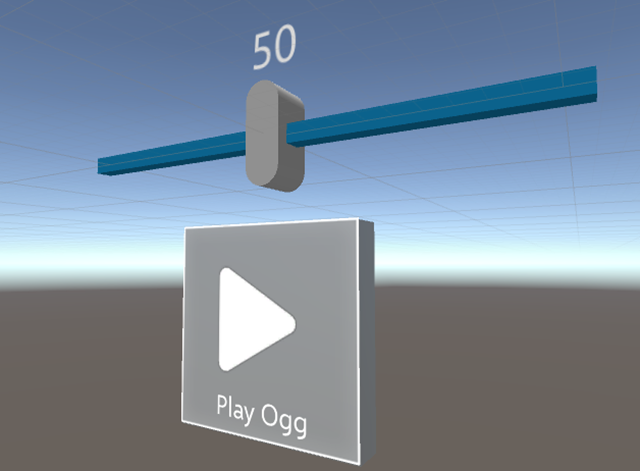
This post will be 2-part: the first part concentrates on the actual technique of downloading and playing audio files, the second part will explain the ‘floating audio player’ I built to make this easily demonstrable. The floating part in ‘floating player’ should be taken in the most literal way possible:
You can find it in the demo project. You can just jump to there if you want to skip all my mumbling.
Global overview
If you open the project in Unity, you will not see one but three floating players, next to each other. They will all attempt to play on of my ringtones – an excerpt from the Doctor Who theme song (one is a nerd or one is not). But it will attempt to use one of three different audio formats – the well-known MP3, Ogg Vorbis, and WAVE audio format (aka ye good ole’ WAV).
To hear them, either build the app or just hit the play button. If you choose the second option, you will need to attach an XBox One controller to you PC, to steer the cursor and click on the buttons. You will notice the Ogg and the WAV file playing nicely. The mp3 one won’t. In fact, the player just disappears before you even can get to it. We will get to that later.
Using UnityWebRequest
In previous posts I have shown you either how to use the Unity WWW class, or how to resort to pure UWP code and use HttpClient/HttpRequestMessage. It seems like the WWW class is being deprecated, although I have no official information on that. However,the new (third) kid on the block seems to be UnityWebRequest.
This is a bit on an oddball. It uses a handler. Generally, a UnityWebRequest looks like this:
var request = UnityWebRequest.Get(url);
request.downloadHandler = handler;
yield return request.SendWebRequest();
The second line is optional – if the you don’t set the handler, it’s the default DownloadHandler class, which sports a “text” property you can query. This is very useful for accessing data services like an API app on Azure App Service. If you want to download audio files, you will need a DownloadHandlerAudioClip handler.
Putting it in code
To make this all work easily, I have created the following base class for download loading media:
using System.Collections;
using UnityEngine;
using UnityEngine.Networking;

public abstract class BaseMediaLoader : MonoBehaviour
{
    public string MediaUrl;

    private string _currentMediaUrl;

    protected virtual void Update()
    {
        if (_currentMediaUrl != MediaUrl)
        {
            _currentMediaUrl = MediaUrl;
            StartCoroutine(StartLoadMedia());
        }
    }

    protected abstract IEnumerator StartLoadMedia();

    protected IEnumerator ExecuteRequest(string url, DownloadHandler handler)
    {
        var request = UnityWebRequest.Get(url);
        request.downloadHandler = handler;
        yield return request.SendWebRequest();
    }
}
MediaUrl is an url that points to a place where the actual audio file can be downloaded – in this case, as SAS link to a file in my own Azure blob storage. Every time Update is called, it checks if the MediaUrl has been changed, and if so, it starts the StartLoadMedia in the background. ExecuteRequest is a helper method that can be used from a StartLoadMedia. Like this:
using System.Collections;
using UnityEngine;
using UnityEngine.Networking;

public class SoundPlaybackController : BaseMediaLoader
{
    public AudioSource Audio;

    public AudioType TypeAudio = AudioType.OGGVORBIS;

    protected override IEnumerator StartLoadMedia()
    {
        yield return LoadMediaFromUrl(MediaUrl);
    }

    private IEnumerator LoadMediaFromUrl(string url)
    {
        var handler = new DownloadHandlerAudioClip(url, TypeAudio);
        yield return ExecuteRequest(url, handler);
        if (handler.audioClip.length > 0)
        {
            Audio.clip = handler.audioClip;
        }
    }
}
This is a very reduced version of the SoundPlaybackController that is in the demo project, concentrating only on the actual downloading and playing of the data.
The override of StartLoadMedia simply calls StartLoadMedia, which proceeds to create a DownloadHandlerAudioClip handler. Now the odd thing is, this handler wants and url as well as the request. Why this is so, I have no idea. Also notice the fact you need to supply the handler with the type of audio you are going to download – there’s a AudioType enumeration for that.
If the audio has been downloaded successfully, you only have to set the “clip” property of an AudioSource to the handler’s “audioClip” property, and call the Audiosource’s “Play” method. And you are good to go.
Audio types are important
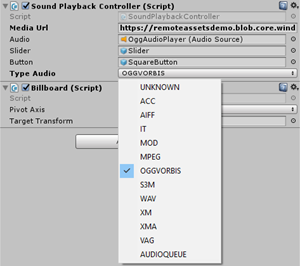
Since the TypeAudio property is public, the Unity editor makes a nice dropdown for us to select the type of audio:
I’ll be the first one to admit I haven’t heard of most of these file types, let alone know them. Actually, before I started, I only knew MP3 and WAV. I learned to know Ogg Vorbis. And for a good reason too. I already mentioned the fact the left (mp3) player disappears when you start the code. The SoundPlaybackController that I actually created (not the simple version above) hides the UI of the whole player while actually downloading the audio file. You might have noticed an error in the Unity status bar when you run the code. That actually says:
Streaming of 'mp3?st=2018-02-02t15%3a51%3a00z&se=2020-02-03t17%3a51%3a00z&sp=rl&sv=2017-04-17&sr=b&sig=kymvql5q1yyr%2bqilcxhfc3popwo56vd0ejibennldzw%3d' on this platform is not supported
UnityEngine.Networking.DownloadHandlerAudioClip:get_audioClip()
<LoadMediaFromUrl>c__Iterator0:MoveNext() (at Assets/App/Scripts/SoundPlaybackController.cs:34)
UnityEngine.SetupCoroutine:InvokeMoveNext(IEnumerator, IntPtr)
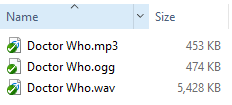
The code in that player crashes, and never gets to showing the UI again. Well, that’s a bummer. Unity simply does not seem to support MP3 on ‘this platform’, which is apparently UWP. You can convert it to WAV, but unless you like to burn a lot of battery downloading stuff, you must be pretty much out of your mind doing so – Ogg Voribs is a much better option, as this simple list of files shows.
And Audacity, that good old workhorse of audio-artists and podcasters all around the globe makes conversion easy, so why not use it, right.
Conclusion
The very short version of this blog post: use UnityWebRequest and DownloadHandlerAudioClip to download an audio clip from Azure blob storage, and if you value your users’ bandwidth, their devices’ battery life, and your own sanity – use Ogg Vorbis audio files.
I have not tried all the other audio files types, simply because I did not have to do so – Ogg Vorbis works fine. WAV too, but is absurdly big compared to MP3 and Ogg Vorbis. In addition, I have no idea what those audio types are, how I should create/convert them, and why I should use them. To paraphrase Star Trek’s TOS medical officer Dr. Leonard “Bones” McCoy – I am a developer, not an audio engineer.
Next time, I will explain the workings of the floating audio player around this code.
In this episode I am going to describe how the airplanes are selected in the sky by air tapping them. This requires some changes made to both the Azure Mobile App service and the app. The change to the app service is necessary as I want to share the selected airplane between all possible HoloLenses using the app. Why? Because ;). You actually can do this with the app in the store. This is why sometimes airplanes get selected even when you don’t select them – that is because someone else, somewhere in the world, selects an airplane.
Adapting the service
We need to be able to post to the service which aircraft is active, and in the data that is pulled from the server the active airplane needs to be indicated. Remember in the very first episode the “Flight” object had an unused “IsActive” field? It won’t be unused very much longer. First, you add a reference to System.Runtime.Caching
Then, add using statements:
using System.Runtime.Caching;
using System.Net.Http;
using System.Net;
Then, in the Get method, insert right before the “return flights” statement the following code:
var activeKey = Cache[ActiveIdKey] as string;
if (activeKey != null)
{
  var activeFlight = flights.FirstOrDefault(p => p.Id == activeKey);
  if (activeFlight != null)
  {
    activeFlight.IsActive = true;
  }
}
This is a rather naive way of ‘storing’ data on a server but I am just do darn lazy to set up a database if I only want to have one simple id kept active. So I am using the MemoryCache. If you post an id to the Post method, it will simply set the cache key – which will be copied into the data in the next data download, provided it’s actually an id used in the data. Publish your service, and let’s go the Unity project again
Adding a gaze cursor – and messing a bit with it
The HoloToolkit has a number of gaze cursors, but I am not quite happy with those, so I made one for myself – by adding a bit into an existing one. The procedure is as follows:
From HoloToolkit/Input/scripts, drag Handsmanager on top of the HologramCollection
From HoloToolkit/Input/scripts, drag Gazemanager on top of the HologramCollection
From HoloToolkit/Input/Prefabs, drag Cursor on top of the HologramCollection
Then we create a little extra behavior, called HandColorCursor
using UnityEngine;
using HoloToolkit.Unity;

public class HandColorCursor : Singleton<HandColorCursor>
{
  // Use this for initialization
  private GameObject _cursorOnHolograms;

  public Color HandDetectedColor;

  private Color _originalColor = Color.green;

  void Start()
  {
    _cursorOnHolograms = CursorManager.Instance.CursorOnHolograms;
    _originalColor =
      _cursorOnHolograms.GetComponent<MeshRenderer>().material.color;
  }

  // Update is called once per frame
  void LateUpdate()
  {
    if (_cursorOnHolograms != null && HandsManager.Instance != null)
    {
      _cursorOnHolograms.GetComponent<MeshRenderer>().material.color =
        HandsManager.Instance.HandDetected ? Color.green : _originalColor;
    }
  }
}
Drag this behavior on top of the Cursor prefab. Now if you build and run the app and point the gaze cursor to the airport it should become a kind of blue circle. If you move your hand into view, the cursor should appear and go green.
If you move it back, the cursor should again become blue. Unfortunately, if you point it at anything else, you will still see the fuzzy ‘CursorOffHologram’ image. That it’s because the airport is the only thing that has a collider. To make aircraft selectable, we will need to do some work at AircraftHolder.
Updating the airplane
To be selectable, it needs to have a collider. I have chosen a box collider that is pretty big with respect to the actual airplane model – to make it easier to actually select the airplane (as it can be quite some distance away, or at least seem to be) and a box makes it possible to actually see the cursor sitting pretty stable on the selection area as it hits the collider (as opposed to a mesh collider that will make it wobble around). Go to your AircraftHolder prefab in the App/Prefab folder, and add an 80x80x80 Box Collider
And you will indeed see the cursor appear over the airplane
Getting some selecting done – code first
From HoloToolkit/Input/scripts, drag GestureManage on top of the HologramCollection. GestureManager sends an OnSelect message to any GameObject that happens to be hit by a gaze (and where, incidentally, the cursor is hanging out out) using this code:
So there needs to be an OnSelect method in the AircraftController to handle this. First we will need to add the following fields to the AircraftController:
To the Start method, we add the following code, just in front of the “_initComplete = true;” statement
_sound = GetComponent<AudioSource>();
_originalColors = new Dictionary<MeshRenderer, Color>();
foreach (var component in GetComponentsInChildren<MeshRenderer>())
{
  _originalColors.Add(component, component.material.color);
}
So this actually initializes some things by getting the audio source and reads the color of all sub components – so we can revert it easily later. Then add this method:
If the _isActive field of the current airplane differs from the new _flightData.IsActive, then flip white things to red – or red things back to white, depending on the actual value of _flightData.IsActive. And it turns on the sound – the annoying sonar ping you saw in the movie I made in the first episode. And fortunately it can also turn in it off ;)
Next, add a call to this new method at the end of the already existing “SetNewFlightData” method. Then, add this code:
This is like SendMessage, but then upwards through the object hierarchy, in stead of down to the children. So this will look for an AircraftSelected method in the parent.
Save the file. Now we go to the DataService, and add the following method. Make sure it is sitting between #if UNITY_UWP – #endif directives.
#if UNITY_UWP
public async Task SelectFlight(string flightId)
{
  var parms = new Dictionary<string, string>
  {
    { "activeId", flightId }
  };
  await _client.InvokeApiAsync<List<Flight>>("FlightData",
           HttpMethod.Post, parms);
}
#endif
This does the actual calling of the App service. And then we need to go to AircraftLoader, which plays the select sound and passes the call trough to the DataService:
Getting some selecting done – connecting the dots in Unity
There are a few things we need to be doing in Unity, but one thing is very important. One I forgot in my first CubeBouncer demo app and in the app that’s in the store, simply because I was not aware of it. Fortunately someone who shall remain nameless here made me aware of it.
First, in the main Unity window, hit Edit/Project Settings/Audio. Then check “Ms HRTF Spatialization” for “Spatializer plugin”
Then open the AircraftHolder prefab again, and add an AudioSource. Important advice, also from the person mentioned above: hit the “Spatialize” checkbox. Then select the “Loop” checkbox and uncheck the “Play On Awake” checkbox. Finally, find a sound you would like to be played by a selected airplane. I took a sonar ping. I put it in the Assets/App/Audio folder, and dragged it on the Audio Clip property. I also moved the “Spatial Blend” slider all the way to the right but I don’t think that is necessary anymore now I use the Spatializer. Net result:
And sure enough, if you now air tap an airplane it shows like below, and it starts pinging:
Adding confirmation sound to selection
I think it’s good practice to add a confirmation sound of some sorts to any user input that is ‘understood’. This is especially necessary with speech commands, but I like to add it to air taps. Sometimes the effect of what you do is not immediately visible, and an audio confirmation the HoloLens has understood you and is working on making your command getting executed is very nice. I tend to add a kind of “pringgg” sound. I used the “Ready” file that is in Assets/App/Audio.
First, add an AudioSource to the HologramCollection and drag the “Ready” sound on top of the “AudioClip” field. Don’t forget to uncheck the “Play On Awake” checkbox.Then go to the AircraftLoader behaviour. Since this receives the message from every AircraftController and passes it through to the DataService, this is a nice central place to play the confirmation sound. So we add a new field:
private AudioSource _sound;
that needs to be initialized in the Start method:
_sound = GetComponent<AudioSource>();
and finally in the AircraftSelected method, insert this line at the top of the method:
_sound.Play();
And we are done. Now if you airtap on the aircraft your HoloLens will sound a ‘pringgg’ sound. That is, if you tapped correctly.
Conclusion
And that’s that. Selecting an airplane by by air tapping it it, and posting an id to the Azure Mobile App service is pretty easy indeed. A lot of the interaction components are basically dragged in from the HoloToolkit, very little actual programming is required. This is the power of the HoloToolkit – I use as much from what is already there, and make as little as possible myself. As any good programmer I am a lazy programmer ;)
This blog post written far, far away from home, in Sammamish, WA, USA, shortly after the MVP summit that left me very inspired – again. After posting this I will soon retire – and go to SEA-TAC tomorrow for my flight back home in the Netherlands.
Recently I posted my first HoloLens app “AMS HoloATC” to the public store, Now it has been showed to the important customers, I have no longer to keep it under wraps, and I can start doing what I always planned to do – bring this app in the open, and blogging in detail how I built it. So here we are, a little earlier than I anticipated. For those who have not seen it, a little video of the app, recorded the Wortell offices, which are housed in an converted Roman Catholic church (hence some unusual details).
A little rant
So why am I ‘giving this all away’? If there is one thing around the HoloLens that really annoys me it’s the secrecy. Not secrecy from Microsoft – I am talking about the videos that show beautiful apps, and tell zilch about how things are made, nothing about best practices or experiences. It’s a far cry from what I was used to in the Windows Phone and am used to in the UWP world. I get it: HoloLenses are expensive, investments need to be protected, commercial interest are at stake, your fellow community member is maybe a competitor too – but approaching how-to knowledge as a trade secret is taking it a bit too far IMHO. This is, after all, the age of Open Source. So I am going to show you (almost) every little detail, show you the places where I stumbled, and include all the code – like you are used from me from way back before I was MVP. I hope it will be useful for you. And I sincerely hope some more people will participate in being more open about their experiences in this new and exiting field. End of rant.
Planned series
As far as I can see, this is going to be an 8 part series.
As you can see, in the first part we are not even touching on a HoloLens yet. So let’s get started with
A demo data service
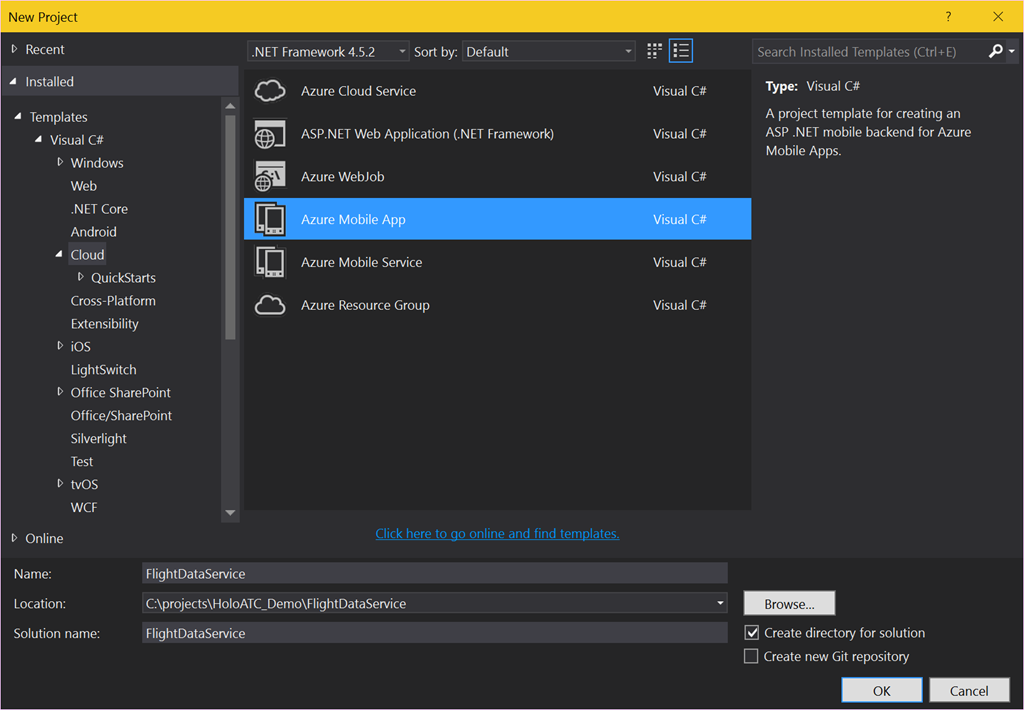
For what I hope are obvious reasons I cannot give you access to my live data feed, but what I can do is provide a sample. It serves up a 10 hour loop of recorded live data data, using data files. And this actually the feed the app in the store uses. We start with creating an App Service called “FlightDataService”.
I put this in a subdirectory HoloATC_Demo as this will be the home for both projects – the data service and the Unity projects/the UWP app. On the next screen I suggest you select ‘Host in the cloud’ on Azure indeed and take it from there. Provided of course you have an Azure subscription. If you don’t, take a free trial.
I will skip the details of hosting the service in the cloud for now, you can also do that later. First, we do a big cleaning out. We empty the Controllers, DataObjects and Models directory of the project. Then open App_Start/Startup.MobileApp.cs and remove the class MobileServiceInitializer at the bottom of the file, as well as line 25 and 26 of the Startup class:
// Use Entity Framework Code First to create database tables based on your DbContext
Database.SetInitializer(new MobileServiceInitializer());
Also, use all unused namespaces in that file, in particular FlightDataService.DataObjects and FlightDataService.Models as they no longer exist.
Adding data objects
The service employs two data objects and one enumeration. The last one is the most simple:
namespace FlightDataService.DataObjects
{
  public enum TrackType
  {
    Up = 1,
    Down = 2
  }
}
A plane is either going up or down. At least - for now. Then we need a coordinate, and this looks a bit peculiar
namespace FlightDataService.DataObjects
{
  public class Coordinate
  {
    public double Lon { get; set; }
    public double Lat { get; set; }
    public double? Alt { get; set; }
    public double X { get; set; }
    public double Y { get; set; }
    public double Z { get; set; }
  }
}
There’s not only Latitude, Longitude and Altitude, but also X, Y and Z. This is is the already converted Lat/Lon/Alt coordinate into Unity X/Y/Z space as used by HoloLens. How this is done, you can read in the precursor to this series. You won’t see this conversion in the solution as this is already converted data. But the important point it this – for every every airplane, it’s coordinate and that of it’s track (see later) needs to be converted by a set of complex mathematical calculations. Every 10 seconds the HoloLens app will pull in new aircraft data, this may means every 10 seconds up to 500 points need to be converted. it’s much more logical to run that conversion where the available computing power is next to unlimited – in Azure – in stead of a HoloLens, whose resources are limited to what Microsoft could cram into it.
The final data class is the Flight:
using System.Collections.Generic;

namespace FlightDataService.DataObjects
{
  public class Flight
  {
    public Flight()
    {
      Track = new List<Coordinate>();
    }

    public string Id { get; set; }

    public string FlightNr { get; set; }

    public string Aircraft { get; set; }

    public Coordinate Location { get; set; }

    public double? Speed { get; set; }

    public double? Heading { get; set; }

    public List<Coordinate> Track { get; set; }

    public TrackType TypeTrack { get; set; }

    public bool IsActive { get; set; }

    public override string ToString()
    {
      return string.Format("{0} {1} {2} {3} {4} {5}", FlightNr, Aircraft,
        Location.Alt, Speed, Heading, TypeTrack).Trim();
    }
  }
}
My aircraft data feed does not always give speed or heading, especially when airplanes just have taken off, so both are nullable types. Notice also the track – the list of points where the aircraft has already been observed. IsActive is a special case – we won’t use that until much much later.
Adding a controller
We add a simple Azure Mobile App Custom Controller “FlightDataController”
And put the following code in it:
using System;
using System.Collections.Generic;
using System.IO;
using System.Linq;
using System.Web.Http;
using FlightDataService.DataObjects;
using Microsoft.Azure.Mobile.Server.Config;
using Newtonsoft.Json;

namespace FlightDataService.Controllers
{
  [MobileAppController]
  public class FlightDataController : ApiController
  {
    // GET api/FlightData
    [HttpGet]
    public List Get()
    {
      var dataDirectory = new DirectoryInfo(
        System.Web.HttpContext.Current.Server.MapPath(@"~/App_Data"));

      var time = DateTimeOffset.UtcNow;
      var maxPattern = $"{time.Hour % 10 + 8:00}_{time.Minute:00}_{time.Second:00}.json";
      var datafile =
          dataDirectory.EnumerateFiles()
              .Where(p => string.Compare(p.Name, maxPattern, StringComparison.Ordinal) >= 0)
              .OrderBy(p => p.Name)
              .First();
      using (var stream = datafile.OpenText())
      {
        var flights = JsonConvert.DeserializeObject>(stream.ReadLine());
        return flights;
      }
    }
  }
}
So what does this do? Well, basically look for a json file with a HH_mm_ss.json name. I have recorded a 10 hour loop from 8am to 6pm and this algorithm makes sure the data files are served up in the right order. It takes the first file whose name is ‘larger or equal’ (i.e. represents the same or a later time) than the actual time.
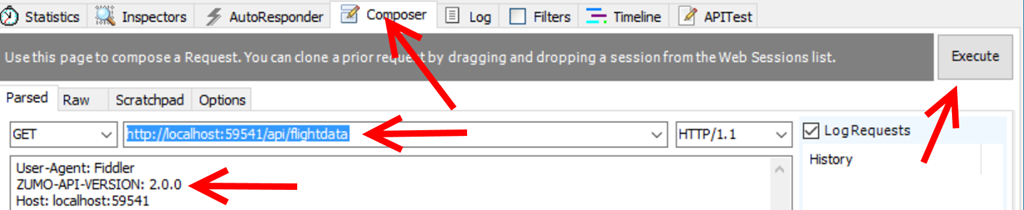
And that’s it for this very humble start. Publish it to Azure somewhere, and note the URL. You cannot test it directly in your browser because it’s an Azure App Service. If you run the service and hit http://localhost:59541/api/flightdata in your browser you get {"message":"No API version was specified in the request, this request needs to specify a ZUMO-API-VERSION of '2.0.0'. For more information and supported clients see: http://go.microsoft.com/fwlink/?LinkId=690568#2.0.0"}
You can test it using Fiddler though by using the composer:
The important thing is adding ZUMO-API-HEADER:2.0.0 to the headers, then hit execute. In the session list to the left you will see then
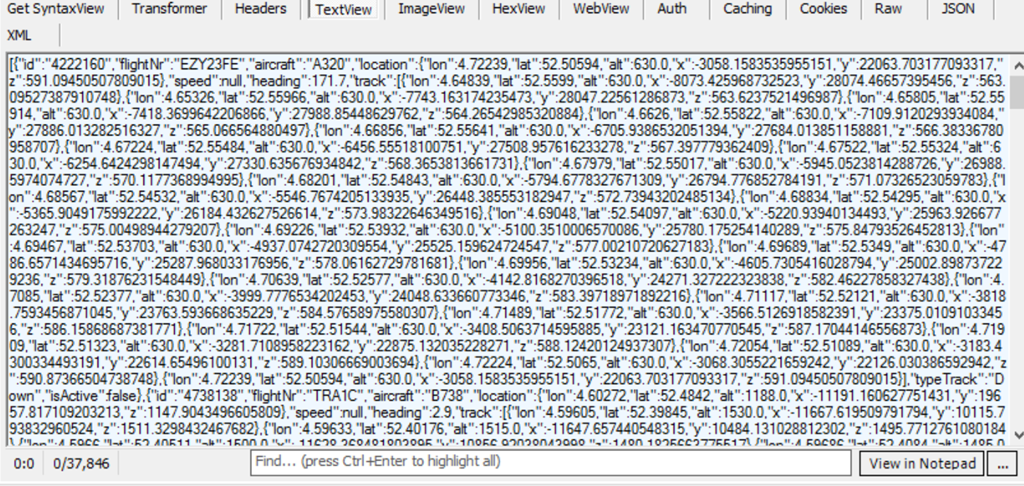
And on the right hand side below the composer a lot of JSON:
That is, if you select TextView. Right. Our service is now working. We can now move on to make a real HoloLens application that read this stuff and transforms it into airplanes moving through your room.
Code, as always, can be viewed on and downloaded from GitHub.
Part 6 of Reading temperatures & controlling a fan with a RP2, Azure Service Bus and a Microsoft Band
Intro In the final post of this series I will show how the Microsoft Band client in this project, that is used to actually read temperatures and control the fan, is created and operated. The client has a tile and a two-page UI, looks like this and can be seen in action in this video from the first blog post:
To recap - the function of the Band client is as follows
WhenI tap the tile on the Band, the UI is opened and shows the latest data, that is:
The temperature as last measure by the Raspberry PI2
A button I can use to toggle the fan. The text on the button reflects the current status of the fan (i.e. it shows "Stop fan" when it's running, and "Start fan" when it is not
Date and time of the last received data.
The classes involved As you can see in the demo solution, there are three classes, and one interface, all living in the TemperatureReader.ClientApp's Models namespace - that have something to do with the Band:
BandOperator
BandUiController
BandUiDefinitions
IBandOperator
I showed a little bit of it in the previous post that described the Windows 10 UWP app itself, but to recap: the app is put together using dependency injection, so every class gets everything (well, almost everything) it needs passed via the constructor, and only knows what it gets via an interface (not a concrete class). In addition, most communication goes via events.
Start it up If you look in the MainViewModel's CreateInstance method, you will see the BandOperator first spring into life:
public static MainViewModel CreateNew()
{
  var fanStatusPoster = new FanSwitchQueueClient(QueueMode.Send);
  fanStatusPoster.Start();
  var listener = new TemperatureListener();
  var errorLogger = SimpleIoc.Default.GetInstance<IErrorLogger>();
  var messageDisplayer = SimpleIoc.Default.GetInstance<IMessageDisplayer>();
  var bandOperator = new BandOperator(fanStatusPoster);
  return (new MainViewModel(
    listener, bandOperator,
    messageDisplayer, errorLogger));
}
I grayed out the stuff that is not so important here, but you see the BandOperator uses the FanSwitchQueueClient (see explanation in this post) to defer sending data on Azure Service bus to, and then it's passed to the MainViewModel. Apparently some other mechanism is used to deliver temperature data from the Azure Service bus, and that code is found in the Start method of MainViewModel:
You can see the listener - being a ITemperatureListener, see also this post - simply passes the event to the BandOperator, starts it, and makes the Band vibrate. So you see - the actual code that operates the Band is very loosely coupled to the rest of the app. But what you also see - the Band does not listen to the data coming form the Azure Service Bus, nor does it send data. That app does that interaction, and the Band - in turn - interacts with the app.
Some definitions first What is important to understand is that the UI lives on the Band, an remains there. Changing it, and responding to events, is essentially a process that runs on your phone, not on the Band, and you are interacting with a process that sends data over Bluetooth - but that is mostly abstracted away. Building a Band UI is also vastly different from what you are used to, using XAML. You are basically writing code to build the structure of the UI, then fill it with data using even more code. There is no such things as data binding. All UI elements have to be defined using unique identifiers - no such things as easily recognizable names. It harkens back to ye olden days from even before Visual Basic.
Anyway, there is this separate definition class that contains all the necessary ids:
using System;

namespace TemperatureReader.ClientApp.Models
{
  public static class BandUiDefinitions
  {
    public static readonly Guid TileId =
      new Guid("567FF10C-E373-4AEC-85B4-EF30EE294174");
    public static readonly Guid Page1Id =
      new Guid("7E494E17-B498-4610-A6A6-3D0C3AF20226");
    public static readonly Guid Page2Id =
      new Guid("BB4EB700-A57B-4B8E-983B-72974A98D19E");

    public const short IconId = 1;
    public const short ButtonToggleFanId = 2;
    public const short TextTemperatureId = 3;
    public const short TextTimeId = 4;
    public const short TextDateId = 5;
  }
}
So we have three main UI ids - the tile, and both 'pages', that need to have a GUID. I just generated a few using Visual Studio, what GUID you use does not really matter - they need to be different from each other and refrain from re-using them - even over projects. Then there's five user interface elements.
On the first page - the one you see when you tap the tile: the thermometer icon, the button to turn the fan on or off (also used to show the current fan status), and the label that shows the temperature as measured by the Raspberry PI2
On the second page two label fields, that show the time and the date of the last received update from the Azure Service Bus as received by the App.
The UI looks like this:
The tile that you can tap
The first page, with icon, temperature reading and button. The button now says "Start fan", so apparently the app has already received date from the Raspberry PI2, and it indicated the fan is off. Notice a little part of the second page is already visible on the right, alerting the user there's more to be seen and encouraging him to scroll to the right - a UI pattern in use since the very early days of Windows Phone 7.
The second page (with date and time of last received data)
The user interface element ids are just just integers, but I make them globally unique - that is, unique in the app. The fact that they are spread over two 'pages' comes from the fact that the Band has a very small display, and you will need to make use of it's multi-page features if you want to show anything but the most trivial data. Fortunately, once you understand how it works, that is not very hard to do.
Building the Band client UI I have separated the actual operating building and manipulating of the Band UI from the 'business logic' concerning the interaction with events coming from the Azure Service Bus. So we have the BandUiController and the BandOperator. A crude and not completely correct analogy could define the BandUIController as the view, and the BandOperator as a kind-of-viewmodel. I did this because at one point I had a class approaching 300 lines and things got very confusing. So I split it up. I show only a little excerpt of the BanOperator before I start explaining the BandUIController first.
The BandUIController needs access to a IBandClient to be able to work on the Band's UI. You need to retrieve one first. How this works, you can see in the BandOperator's GetNewBandClient method:
var pairedBands = await BandClientManager.Instance.GetBandsAsync();
if (pairedBands != null && pairedBands.Any())
{
  return await BandClientManager.Instance.ConnectAsync(pairedBands.First());
}
And this IBandClient is injected into the BandUIController via the constructor. We have seen this pattern before in this series
public class BandUiController
{
  private readonly IBandClient _bandClient;

  public BandUiController(IBandClient bandClient)
  {
    _bandClient = bandClient;
  }
}
The next important thing to understand is that although both occur from code, defining the Band interface and actually displaying stuff in it are two separate actions. The public interface of the BandUIController actually only has four methods - and one of them is an overload of another:
public async Task<bool> BuildTile();
public async Task RemoveTile();
public async Task SetUiValues(string timeText, string dateText,
                              string temperature, string buttonText);
public async Task SetUiValues(string temperature, string buttonText);
The first one builds the tile (and the rest of the UI), the second one removes it. The third one sets all the UI elements' value, the second one only that of the elements on the first page - that is used for when you press the button to switch the fan on or off. So let's have a look at BuildTile first.
public async Task<bool> BuildTile()
{
  if (_bandClient != null)
  {
    var cap = await _bandClient.TileManager.GetRemainingTileCapacityAsync();
    if (cap > 0)
    {
      var tile = new BandTile(BandUiDefinitions.TileId)
      {
        Name = "Temperature reader",
        TileIcon = await LoadIcon("ms-appx:///Assets/TileIconLarge.png"),
        SmallIcon = await LoadIcon("ms-appx:///Assets/TileIconSmall.png"),
      };

      foreach (var page in BuildTileUi())
      {
        tile.PageLayouts.Add(page);
      }
      await _bandClient.TileManager.AddTileAsync(tile);
      await _bandClient.TileManager.RemovePagesAsync(BandUiDefinitions.TileId);
      await _bandClient.TileManager.SetPagesAsync(BandUiDefinitions.TileId,
        BuildIntialTileData());
      return true;
    }
  }
  return false;
}
First thing you need to do is check remaining tile space capability. There's only room for up to 13 custom tiles, so chances are there's not enough room. If there is no space, this client silently fails. But if there's room, the tile is created with the designated GUID, a big and a small icon. The big icon appears on the tile, the small icon is typically used on notifications, but both can be used otherwise (as we will see later). "Large" is maybe stretching it a little as it's only 46x46 (the small one is 24x24). "LoadIcon" is a little routine that loads the icon and I nicked those from the Band samples. Then the tile UI pages are being built using BuildTileUi, and are added to the tile's PageLayout collection. So far, so good. Then things get a little murky.
First we add the tile - with page definitions - to the Band UI. By default, it is added to the very right side of the tile strip - just before the settings gear tile.
Then we remove any possible data possibly associated with the pages using RemovePagesAsync. Remember, this is not the structure, just what is being displayed on it.I am not 100% sure this line of code is actually needed, but I just left it while experimenting
Then we are adding the default data to display on the tile pages' UI elements using SetPagesAsync
Let's first have a look at BuildTileUi
private IEnumerable<PageLayout> BuildTileUi()
{
  var bandUi = new List<PageLayout>();

  var page1Elements = new List<PageElement>
  {
    new Icon {ElementId = BandUiDefinitions.IconId,
      Rect = new PageRect(60,10,24,24)},

    new TextBlock  {ElementId = BandUiDefinitions.TextTemperatureId,
      Rect = new PageRect(90, 10, 50, 40)},
    new TextButton {ElementId = BandUiDefinitions.ButtonToggleFanId,
      Rect = new PageRect(10, 50, 220, 40),
      HorizontalAlignment = HorizontalAlignment.Center}
  };

  var firstPanel = new FilledPanel(page1Elements) {
    Rect = new PageRect(0, 0, 240, 150) };

  var page2Elements = new List<PageElement>
  {
    new TextBlock {ElementId = BandUiDefinitions.TextTimeId,
      Rect = new PageRect(10, 10, 220, 40)},
    new TextBlock {ElementId = BandUiDefinitions.TextDateId,
      Rect = new PageRect(10, 58, 220, 40)}
  };

  var secondPanel = new FilledPanel(page2Elements) {
    Rect = new PageRect(0, 0, 240, 150) };

  bandUi.Add(new PageLayout(firstPanel));
  bandUi.Add(new PageLayout(secondPanel));

  return bandUi;
}
Now this may look a bit intimidating, but it's actually not so hard to read.
First we create the UI elements of the firstpage - an Icon, a TextBlock, and a TextButton, all with location and size defined by a PageRect, relative to the panel they are going to be in.
Then we create the first panel, add the list of the UI elements created in the previous step on it, then define it's size and location by a PageRect as well. I am not exactly sure what the maximum values are for a panel, but 240, 150 works out nice and leaves enough space to the right to make the next page visible
Then we create the UI elements of the second panel - two TextBlocks of identical size, the second one right under the first
Then we create a second panel with the same size as the first panel
Finally, we create a PageLayout from both panels and add those to the list.
As we could see in the BuildTile method the result of the BuildTileUi method is added the tile's PageLayouts collection:
foreach (var page in BuildTileUi())
{
  tile.PageLayouts.Add(page);
}
At this point, we have only defined the structure of what is to be displayed on the Band. It still does not display any data.
Showing data on a Band UI Let's have a look at BuildTile again. It's using this line of code to display data
BuildIntialTileData. that just shows some default strings, in turn calls this method
private List<PageData> BuildTileData(string timeText, string dateText,
                                     string temperature, string buttonText)
{
  var result = new List<PageData>
  {
    BuildTileDataPage2(timeText, dateText),
    BuildTileDataPage1(temperature, buttonText)
  };
  return result;
}
And then we come to the heart of the matter (as far as displaying data is concerned) - that is, these two little methods:
private PageData BuildTileDataPage1(string temperature, string buttonText)
{
  return
    new PageData(
      BandUiDefinitions.Page1Id, 0,
      new IconData(BandUiDefinitions.IconId, 1),
      new TextButtonData(BandUiDefinitions.ButtonToggleFanId, buttonText),
      new TextBlockData(BandUiDefinitions.TextTemperatureId, $": {temperature}"));
}

private PageData BuildTileDataPage2(string timeText, string dateText)
{
  return
    new PageData(BandUiDefinitions.Page2Id, 1,
      new TextBlockData(BandUiDefinitions.TextTimeId, $"Time: {timeText}"),
      new TextBlockData(BandUiDefinitions.TextDateId, $"Date: {dateText}"));
}
Let's first dissect BuildTileDataPage2 as that is the most simple to understand. This says, basically: for page with Page2Id, which is the 2nd page on this UI (the page numbering is zero based) set a text on a TextBlock with id BandUiDefinitions.TextTimeId, and set another text for BandUiDefinitions.TextDateId. The third parameter of the PageData constructor is of type params PageElementData[] so you can just go on adding user interface value settings to that constructor without the need of defining a list.
In BuildTileDataPage1 we do something similar - bar that the page index now is 0 in stead of 1, a text on a TextButton needs to be of TextButtonData in stead of TextBlockData. and the first item is an IconData. Notice that it adds an icon with index 1. That is the small icon. Remember this piece of code in BuildTile?
var tile = new BandTile(BandUiDefinitions.TileId)
{
  Name = "Temperature reader",
  TileIcon = await LoadIcon("ms-appx:///Assets/TileIconLarge.png"),
  SmallIcon = await LoadIcon("ms-appx:///Assets/TileIconSmall.png")
};
That was added as second, but of course that's zero based as well. You can also add additional icons to the UI but that's not covered here.
Now there is one important final piece of information that you may not have noticed. In BuildTileData I first add the second pagedata to the list, and then the first. I found it necessary to do it that way, or else the UI appears in reverse order (that is, the page with the date/time is displayed initially, and you have to scroll sideways for the page with the button and the temperature. Sometimes, just sometimes it happens the wrong way around anyway. I have not been able to determine what causes this, but if you add the pagedata in reverse order, it works most times - like in, I saw it go wrong two or three times, and only during heavy development.
The public methods to change the UI values are very simple wrappers around code we have already seen:
The first one refreshes the whole UI, the second only the first page. So that is what is necessary to create a UI and display some data on it. Four UI elements, two pages. Really makes you appreciate XAML, doesn't it? ;)
Handling Band interaction The BandOperator bascially only has the following functions:
When a tile is pressed, show the Band UI with the most recent data received from the Azure Service bus
When the toggle button is pressed fire off a command on the Azure Service bus
When the fan status change is confirmed by the Raspberry PI2, toggle the text on the button
... and yet, it's almost 250 lines long. A lot of that has to do with problems I encountered when a suspended app was resuming. I have tried to fix that using quite an elaborate method to get and create a Band client (the GetBandClient method) - that and it's helper methods are 60 lines in itself. So I will skip over that, but have a look at it in the demo solution to see how I tried to solve this. I am still not quite satisfied with it, but it seems to work. Most of the times.
Moving to the BandOperator's Start method, you can see how the interaction is set up
public async Task<bool> Start(bool forceFreshClient = false)
{
  var tilePresent = false;
  var bandClient = await GetBandClient(forceFreshClient);
  if (bandClient != null)
  {
    var currentTiles = await bandClient.TileManager.GetTilesAsync();
    var temperatureTile = currentTiles.FirstOrDefault(
      p => p.TileId == BandUiDefinitions.TileId);
    if (temperatureTile == null)
    {
      var buc = new BandUiController(bandClient);
      tilePresent = await buc.BuildTile();
    }
    else
    {
      tilePresent = true;
    }

    if (tilePresent)
    {
      await bandClient.TileManager.StartReadingsAsync();
      bandClient.TileManager.TileOpened += TileManager_TileOpened;
      bandClient.TileManager.TileButtonPressed += TileManager_TileButtonPressed;
    }
  }
  IsRunning = tilePresent;
  return tilePresent;
}
Basically this methods tries to either find an existing tile, and failing that, create a BandUiController to make one. bandClient.TileManager.StartReadingsAsync then activates listening to Band events - and by attaching events to TileOpened and TileButtonPressed the handler methods will be called - if the tile on the Band UI button is pressed, or if a button on the custom UI of the tile is pressed.
private async void TileManager_TileOpened(object sender,
  BandTileEventArgs<IBandTileOpenedEvent> e)
{
  var bandClient = await GetBandClient();
  if (bandClient != null)
  {
    if (e.TileEvent.TileId == BandUiDefinitions.TileId && _lastTemperatureData != null)
    {
      var buc = new BandUiController(bandClient);
      await buc.SetUiValues(
        _lastTemperatureData.Timestamp.ToLocalTime().ToString("HH:mm:ss"),
        _lastTemperatureData.Timestamp.ToLocalTime().ToString("dd-MM-yyyy"),
         $"{_lastTemperatureData.Temperature}°C",
         GetFanStatusText());
      await bandClient.NotificationManager.VibrateAsync(
         VibrationType.NotificationOneTone);
    }
  }
}
So the funny thing is - this method gets called when a tile is pressed on the Band. Any tile, not necessarily the one just created. So first we have to determine if it was actually our tile that was being pressed, by checking the tile id against the id of our tile. When that is the case, we create a BandUIController and update the UI values with the last received data from the Azure Service bus. And then we send a single vibration, so the Band wearer knows new data was received immediately (without checking the date and time on the 2nd page of our custom UI).
A similar procedure goes for the handling of the fan button press:
private async void TileManager_TileButtonPressed(object sender,
   BandTileEventArgs<IBandTileButtonPressedEvent> e)
{
  var te = e.TileEvent;
  if (te.TileId == BandUiDefinitions.TileId &&
    te.PageId == BandUiDefinitions.Page1Id &&
    te.ElementId == BandUiDefinitions.ButtonToggleFanId)
  {
    if (!_isProcessing)
    {
      _lastToggleUse = DateTime.UtcNow;
      _isProcessing = true;
      var cmd = new FanSwitchCommand(_lastFanStatus, true);
      Debug.WriteLine($"Sending fan command {cmd.Status}");
      await UpdateFirstPageStatus();
      await _fanStatusPoster.PostData(cmd);
    }
  }
}
First, we need to check if the button was pressed on our custom layout - in theory, that would have been enough as there is only one button on it, but for good measure you can also check for the page and the element id in that page. What then basically happens is that text of the button is changed to "Processing" and a FanSwitchCommand is sent to the Raspberry PI2.
The changing of the text on the button is done via UpdateFirstPageStatus, that in turn uses GetFanStatusText
private async Task UpdateFirstPageStatus()
{
  var bandClient = await GetBandClient();
  if (bandClient != null)
  {
    var text = GetFanStatusText();
    var buc = new BandUiController(bandClient);
    await buc.SetUiValues($"{_lastTemperatureData.Temperature}°C", text);
  }
}

private string GetFanStatusText()
{
  return _isProcessing ? "Processing" :
    _lastTemperatureData.FanStatus == FanStatus.On ? "Stop fan" : "Start fan";
}
The logic behind this is as follows:_isProcessing used to prevent the user from pressing the toggle button multiple times in a row. When you press the button, one of the first things that happens is that _isProcessing is set to true, effectively barring you from doing something with the button again. The text on the button changes to "Processing". The BandOperator is now waiting for the Raspberry PI2 to confirm it has actually toggled the fan. But you cannot change the value of one UI element on a Band page - you have to refresh all of them. So I call the BandUiController's SetUiValues overload with both the new button text and the last received temperature.
So how is the loop closed? How does the BandOperator know the Raspberry PI2 has indeed toggled the fan? The answer lies in the HandleNewTemperature method that receives new temperature data from the rest of the app (remember that it was wired up in MainViewModel.Start?)
public async void HandleNewTemperature(object sender, TemperatureData data)
{
  Debug.WriteLine(
    $"New temperature data received {data.Temperature} fanstatus = {data.FanStatus}");
  _lastTemperatureData = data;
  _lastTemperatureData.Timestamp = DateTimeOffset.UtcNow;
  if (_lastFanStatus != _lastTemperatureData.FanStatus && _isProcessing)
  {
    _isProcessing = false;
    _lastFanStatus = _lastTemperatureData.FanStatus;
    await UpdateFirstPageStatus();
  }
  else if (_lastToggleUse.IsSecondsAgo(Settings.FanSwitchQueueTtl) && _isProcessing)
  {
    _isProcessing = false;
    _lastFanStatus = _lastTemperatureData.FanStatus;
    await UpdateFirstPageStatus();
  }
  else if (!_isProcessing)
  {
    _lastFanStatus = _lastTemperatureData.FanStatus;
  }
}
So, the received temperature data does not only contain temperature but also the current status of the fan. But if this method was to accept the fan status right away after we had sent off a command to toggle the fan, the button text would immediately flip back to the old text - because the command had not reached the Raspberry PI2 yet, and it would not have time to react and send a confirmation.
So what we do is - when new temperature data arrives, _isProcessing is true (so the user has recently clicked the toggle button) and the received data indicates a status flip - then the Raspberry PI2 has received the toggle command and has acted upon it. So the button is updated from "Processing" to a value according the new fan status. If there is no status change, but the last toggle button use was longer ago then the message time-to-live of the FanSwitchQueue - we assume the command has never reached the Raspberry PI2, we update the _lastFanStatus to the old status, and update the button accordingly. In any other cases, if the user has not pressed the button recently, we just keep the last fan status. This has not much to do with the Band or the UI itself - it's just dealing with possible delays from message delivery (and possible messages not being received by the other party).
Conclusion Making a custom Band UI is doable, but you do need to pay a lot of attention to detail to get things right. It's definitely more challenging than creating a UI using Blend, as you basically need to keep seeing the whole UI in your mind - there is no way of visually designing it or even make it visible short of running the app and checking the result on the Band. Debugging is a time and battery consuming activity. Acting upon events and having code interact with remote devices has some particular challenges too. And sometimes things just go wrong - but it is not always clear if those things were caused by me doing things wrong or not understanding the finer details of the Band UI API, the fact that I am using it on Windows 10 mobile (which is still in preview at this moment) or bugs in the various APIs (Band or otherwise) that I use to stitch things together. On the bleeding edge is where you suffer pain - but you have the most fun as well.
And yet, the potential use cases are pretty appealing and are giving a nice idea of how the (very near) future of device coding with Windows CoreIoT looks like. And it has practical appliances too. Recently I was on a holiday in Neustadt an der Weinstraße (where amongst others this blog post was written so the sample location was not entirely random :) ) I had this contraption running at home - but I had put in in my study at home and had connected it to a powerful spot light in stead of a fan. I had my Lumia 1520 and Band with me - and although being physically in Germany, I was able to turn on a light at home (and get confirmation it was actually on or off) by clicking a button on my Band. Thus hopefully convincing potential burglars the house's resident geek was at his computer and the house was occupied. Not that there's much worth stealing anyway, but it's not fun to get home and find broken windows and stuff. If it had any effect - I don't know, but our house was left alone during our absence.
Well, this marks the end of a rather epic and quite voluminous blog post series.I encourage you one final time to download and check the demo solution - and build kick *ss stuff yourself with CoreIoT and/or the Band. Even Doctor Who is into wearable technology these days, and so should we all be :D