This blog attempts to be a collection of how-to examples in the Microsoft software stack - things that may take forever to find out, especially for the beginner. I see it as my way to return something to the Microsoft community in exchange for what I learned from it.
Showing posts with label Microsoft Store. Show all posts
Showing posts with label Microsoft Store. Show all posts
Last September I wrote about various hoops you had to jump through to get a Mixed Reality app to appear in the store and not have it to fail the Windows Application Certification Toolkit (WACK). It's time for a little update, since part of what I wrote is no longer necessary, and some things have changed subtly.
The good news
I wrote how you manually had to mess with Package.AppManifest.xml, particularly how you had to remove the DirectX 10 dependency to make it (still) downloadable for HoloLens 1 devices. Provided you have been diligently installing the service updates that are issued for this device, by now your HoloLens 1 should have been updated to no longer reject apps that have this requirement. So no need to take this step anymore.
The bad news
The trick I wrote how to make sure some unsupported DLLs were not included does not work anymore. We have to resort to more drastic measures.
The problem
To recap: if you generate a C++ solution from the recommended Unity version (2018.4.x, LTS branch) you get the following errors in the WACK
HolographicAppRemoting.dll has failed the AppContainerCheck check.
PerceptionDevice.dll has failed the AppContainerCheck check.
UnityRemotingWMR.dll has failed the AppContainerCheck check.
The Supported API test will list 10 errors concerning UnityRemotingWMR calling unsupported APIs
The Debug configuration test will tell youUnity RemotingWMR is only built in debug mode
And if you try to build for x86 or ARM, the Package sanity test will tell you HolographicAppRemoting.dll, PerceptionDevice.dll and UnityRemotingWMR.dll are only available for x64.
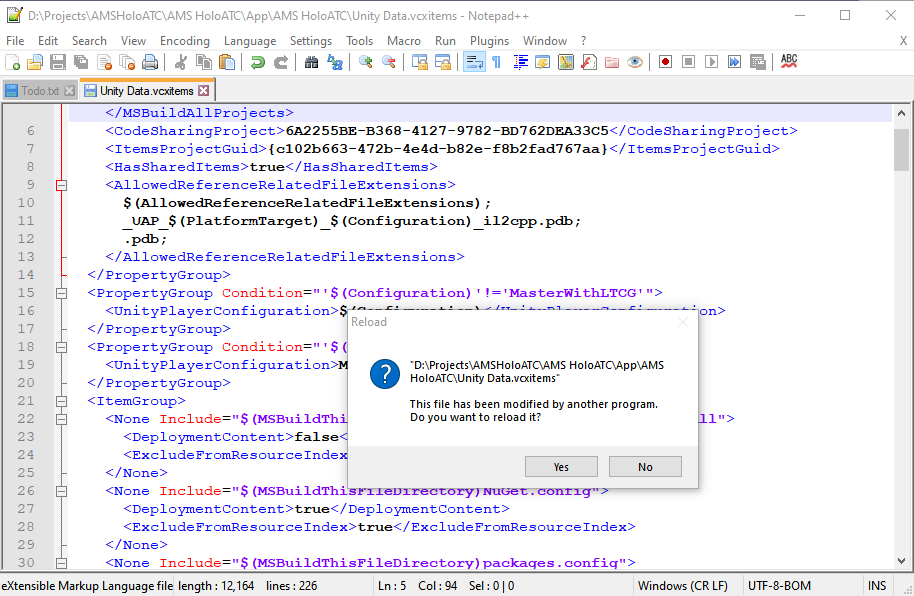
I suggested editing the “Unity Data.vcxitems” file that is inside your store projects and change the contents of the DeploymentContent-tags for these files to false. That worked swell. Until, somewhere between Unity and Visual Studio versions upgrade, some brilliant person thought it a good idea to recreate that file whenever you change the architecture. So when you change the architecture from "x86" to "ARM" - something that happens automatically while creating multi-platform packages - you are greeted with this:
M previous solution does not work anymore, as the three offending DLLs are automatically added back to the file, and thus the WACK fails again. Some more brute force is being required.
The solution
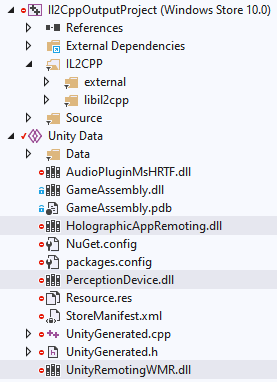
If you expand the Il2CppOutputProject, you can simply see the offending DLL's. The solution is as simple as selecting and deleting them.
And then you can generate your packages, run the WACK again... and may get another failure:
Mind you - as soon as you regenerate the solution from Unity, the project file may or may not be overwritten and you will need to repeat this. So - always always run the WACK before you submit - but then again, that's what you should do anyway.
Conclusion
The ever changing constellations of Unity and Visual Studio keep us throwing curveballs, but fortunately there's always been a way around. So far. Happy submitting!
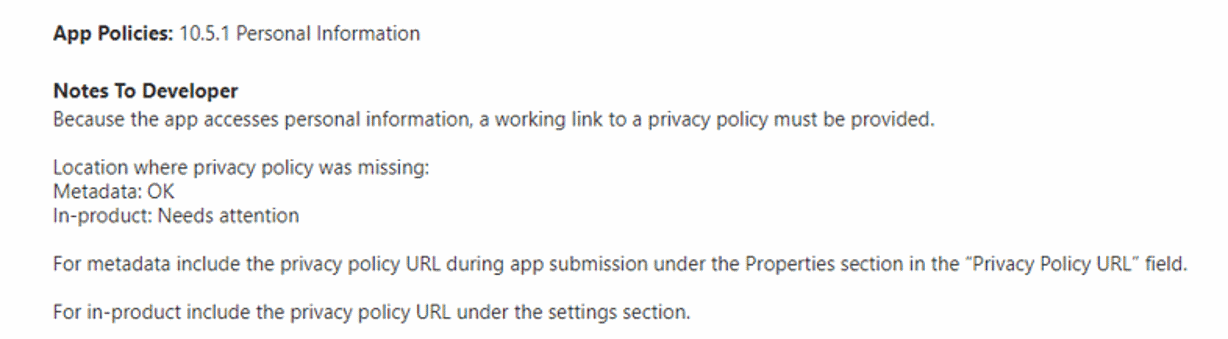
After fellow MVP (and RD, although not fellow-) Philipp Bauknecht discovered a bug in my AMS HoloATC app while testing it on his HoloLens 2 (what lunatic runs HoloLenses with DE-DE settings anyway :P) I created a fix for that and submitted the fixed app to the Microsoft Store on Saturday January 12th. I assumed it would pass right though. It did not. Monday morning I got a failure message:
That was not what I hoped, and certainly not what I expected
Parsing the message
I will admit to being rather confused, because I have a privacy policy link. In the Store. But apparently something has changed. If you want all the details, you can find them in the new App Developer Agreement, but the text in the failure basically says it all:
"For in-product include the privacy policy URL under the settings section"
So I need to add a privacy policy in the app. Okay. But they are expecting it under the settings section. This is clearly written with a desktop app in mind. But I don't have a main screen, let alone I can put a hamburger menu somewhere and put a "Settings" entry in this.
Solution part 1
So I could clearly not obey the letter of the law, but I can try to act in spirit. So I ventured out to see if I could get a privacy policy in the app in a way that would be acceptable to the Store testers. All my apps have like a "help" function, that you can activate by saying "help" or "show help". I actually advertise that on start-up with a floating text that is shortly visible after starting up the app.
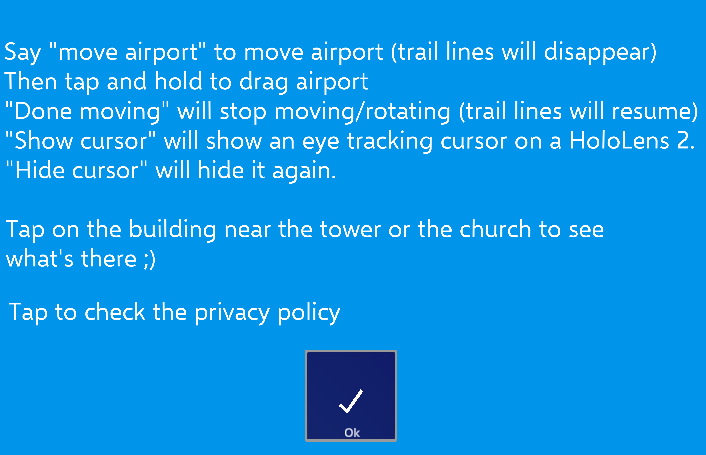
This help screen looked like this:
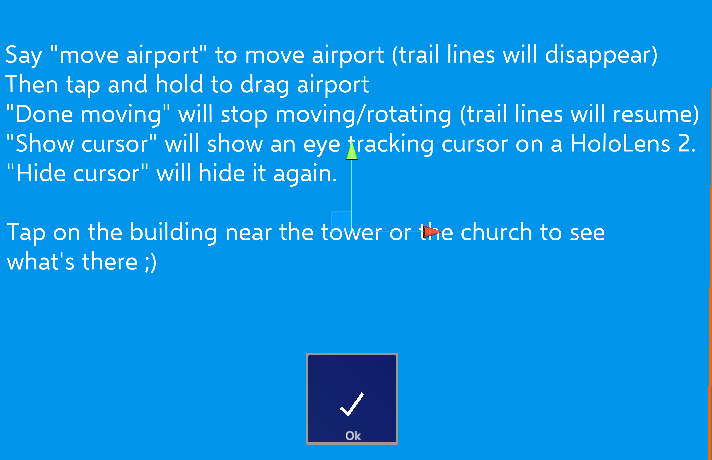
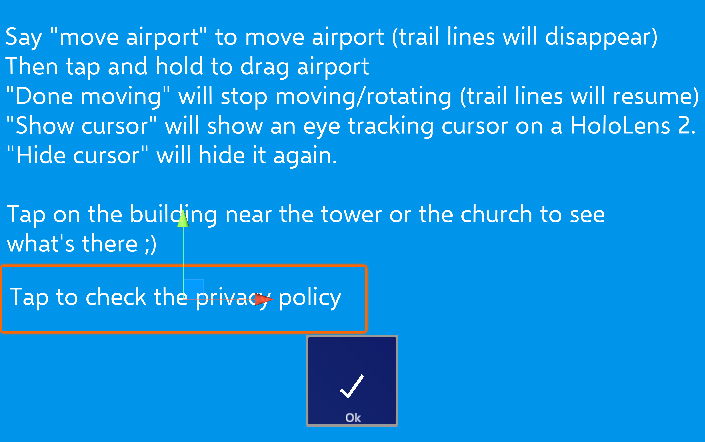
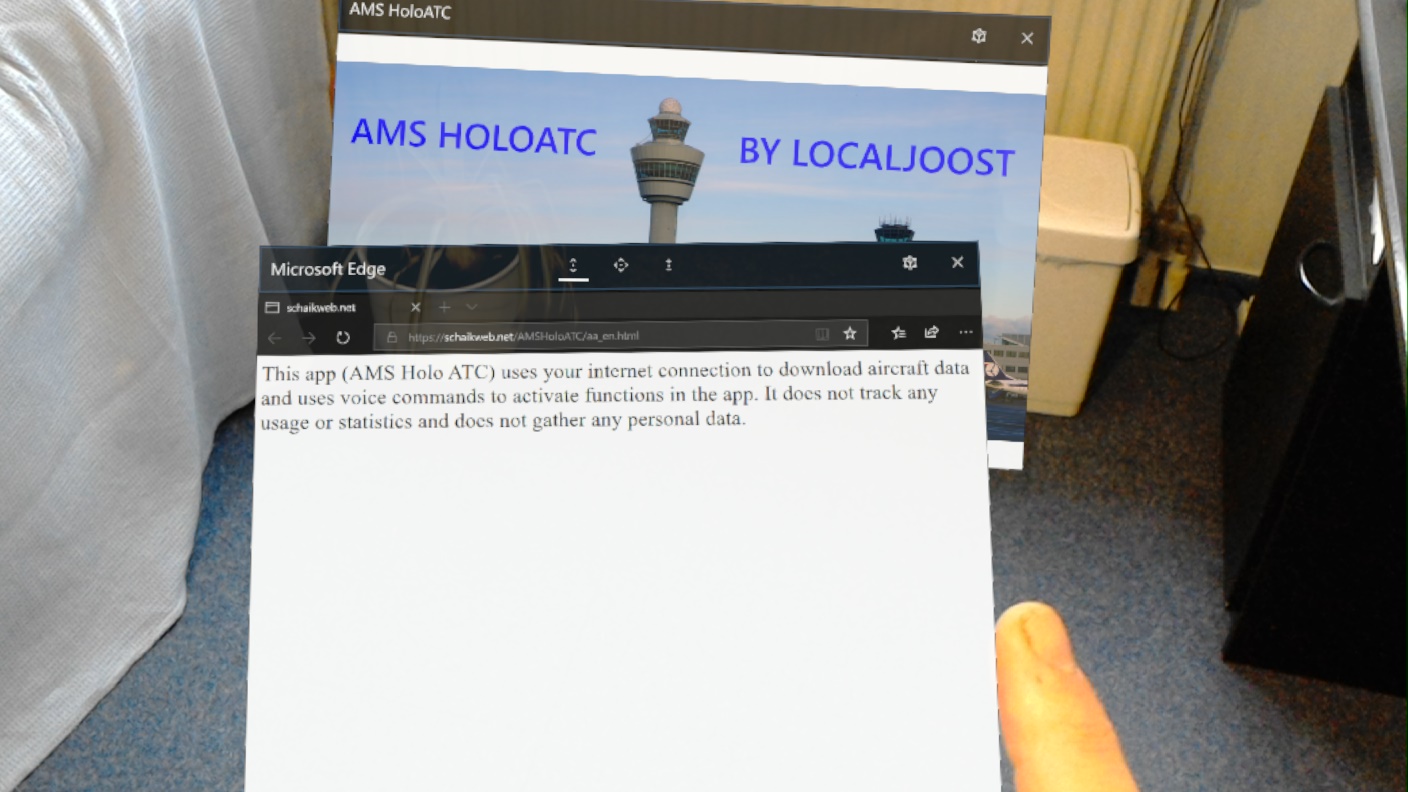
And now looks like this
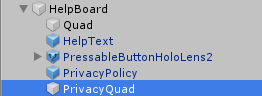
I actually added a text and a quad behind it, just ahead of the quad that is the main backdrop.
And on that quad there a very simple and crude behavior
using Microsoft.MixedReality.Toolkit.Input;
using UnityEngine;
using UnityEngine.WSA;

public class BrowserActivator : MonoBehaviour, IMixedRealityPointerHandler
{
    [SerializeField]
    private string _urlToOpen;

    public void OnPointerDown(MixedRealityPointerEventData eventData)
    {
        Launcher.LaunchUri(_urlToOpen,false);
    }

    public void OnPointerDragged(MixedRealityPointerEventData eventData)
    {
    }

    public void OnPointerUp(MixedRealityPointerEventData eventData)
    {
    }

    public void OnPointerClicked(MixedRealityPointerEventData eventData)
    {
    }
}
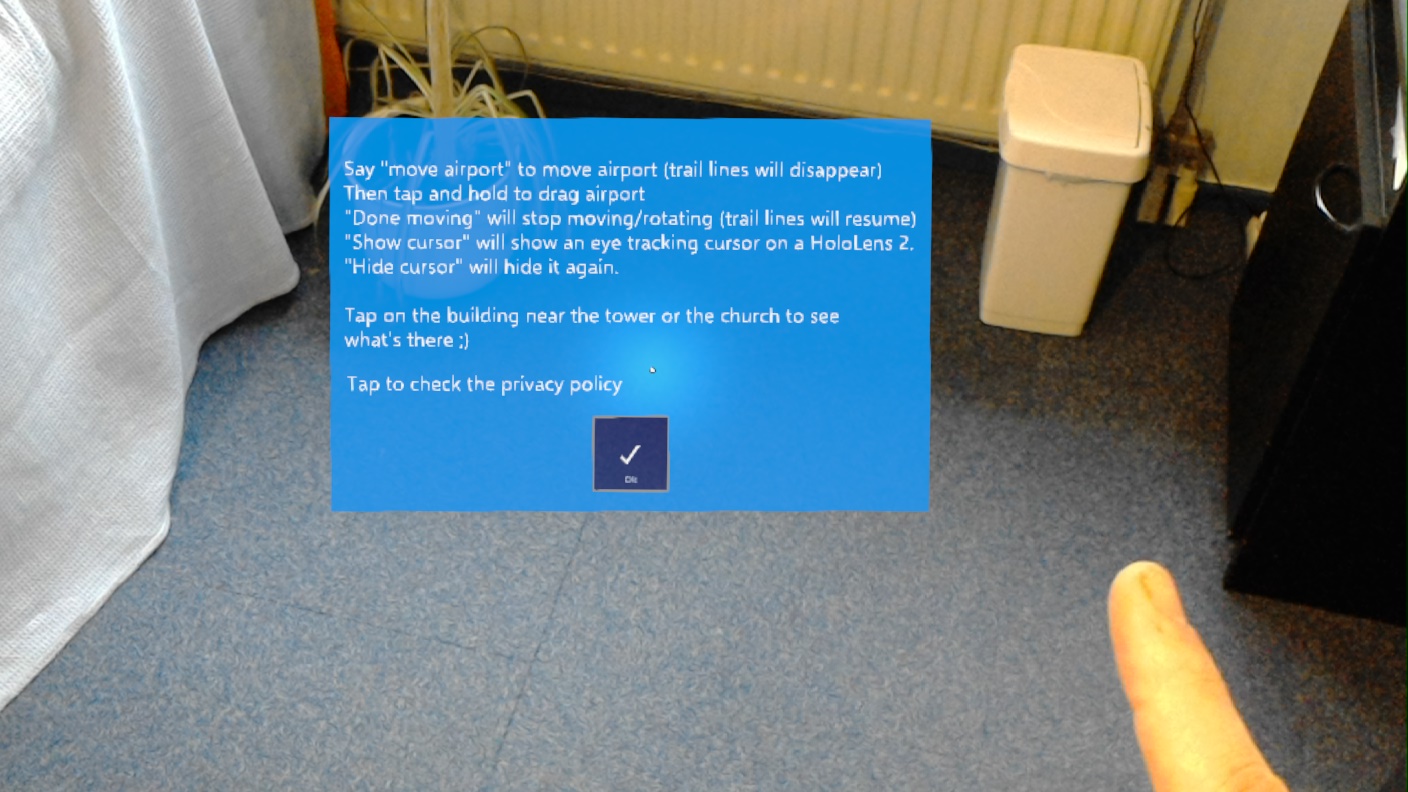
that launches a browser window when you tap on the text. In the app it looks like this:
And if you tap the indicated text, the app will move to the background and you will see this:
Or whatever URL you put into _urlToOpen in the editor. I took the exact same URL as in the Store. I am pretty sure this won't win me any design awards - but that's not the goal here. Note: these images where created with a HoloLens 1, as I am still lacking a HoloLens 2 (if anyone from Microsoft reads this - yes, that's a hint ;) ).
Solution part 2
Since I have no settings section, I thought it prudent to tell the testers where they could find the link to the privacy policy. So under "Submission options" I explained the why, where and how like this:
"IMPORTANT NOTE: this app failed App Policies: 10.5.1 Personal Information. Specifically, it missed an in app privacy policy. I was suggested to add it under section "settings" but there is no sections "settings", in fact, there are not sections at all, since this is not running in a window.
I have added a privacy policy tappable text in the help screen. You can access that by saying "help" or "show help", after you have initially placed the airport. This opens a browser and shows the privacy policy."
Proof of the pudding
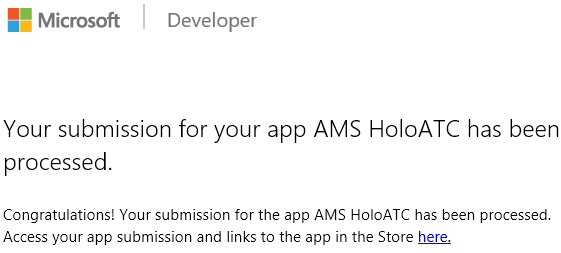
As you can see, following this procedure took me through Store validation successfully. In fact, it took me through it twice - as it's Atlanta twin app ATL HoloATC got certified within hours after submitting with this addition.
Conclusion
Resuming:
Have some way in your app to popup the privacy policy web page.
Explain in Submission options to the testers where they can find it.
We can discuss at length how useful things like this are, if and how this could be communicated better to developers, if there needs to be guidance first before this is implement for the nice market of Mixed Reality apps - that don't have a window nor a settings section - whatever, this works, and while there is no official guidance on how to deal with privacy policies in apps like this, this article show you a way forward. Presumably, for the testers it's also just simply a matter of being mandated to tick off a box required by the legal department. And this is apparently an acceptable way of getting the box ticked. Job done.
No code sample this time - I assume everyone making MR apps will be able to re-create the two lines of actual code in the behaviour. And possible come up with a more elegant solution. But that was not the point of this - the point was getting in the store without a legal blocker.
On Monday September 2 version 4.0.19 of my first HoloLens Store app, AMS HoloATC, became available in the Microsoft Store. This version has been completely rebuilt using the Mixed Reality Toolkit 2, and includes some HoloLens 2–only functionality: you can actually touch the airplanes now, and using gaze tracking it will show you a picture of the actual aircraft, if available.
Hoops to jump
As you might recall from earlier posts, things have changed quite a bit when it comes to actually deploying apps on HoloLens. Now, we will need compiling and submitting a Unity-generated C++ solution to the store. Although the process looks very much like we used to do for Unity apps running on the .NET backend, there are three things you might run into:
Your WACK test will most likely fail
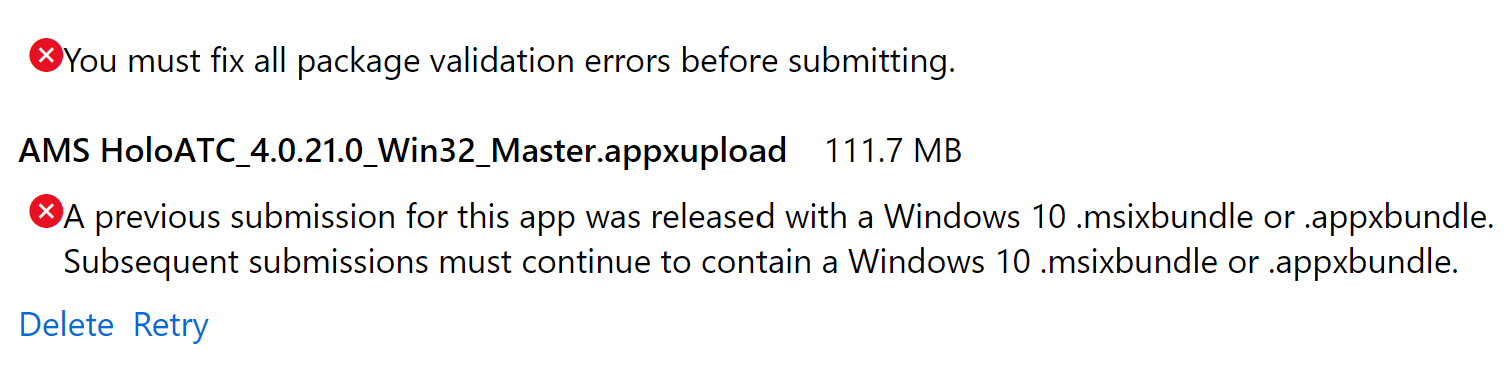
If you have submitted your app as a bundle before, make sure you submit it as a bundle again. A Unity generated C++ solution does not have this as a default setting
If you create (like me) an app that is supposed to run on Desktop (in immersive head sets), HoloLens 1 and HoloLens 2 you may find out your app cannot be downloaded by a HoloLens 1 anymore – or the HoloLens 2 emulator, for what matters
Fixing the WACK fail
Before you actually submit an app to the Store, you do the Windows Application Certification test first, to prevent embarrassing easy-to-prevent fails, right. (right?). And if you do so, you will see it fail. It will spout quite some errors at you.
The Windows security features test will complain about:
HolographicAppRemoting.dll has failed the AppContainerCheck check.
PerceptionDevice.dll has failed the AppContainerCheck check.
UnityRemotingWMR.dll has failed the AppContainerCheck check.
The Supported API test will list 10 errors concerning UnityRemotingWMR calling unsupported APIs
The Debug configuration test will tell youUnity RemotingWMR is only built in debug mode
And if you try to build for x86 or ARM, the Package sanity test will tell you HolographicAppRemoting.dll, PerceptionDevice.dll and UnityRemotingWMR.dll are only available for x64.
The solution is bit weird, but can be found in this Unity forum post, and involves manually hacking the “Unity Data.vcxitems” file that is inside your store projects. Open in it in a text editor, and search for “HolographicAppRemoting”. This will show this piece of XML:
Repeat this for PerceptionDevice and UnityRemotingWMR. Rebuild your app, generated packages again and presto, your WACK test will pass. That is literally all that’s needed to get rid of this multitude of errors.
Bundling your app
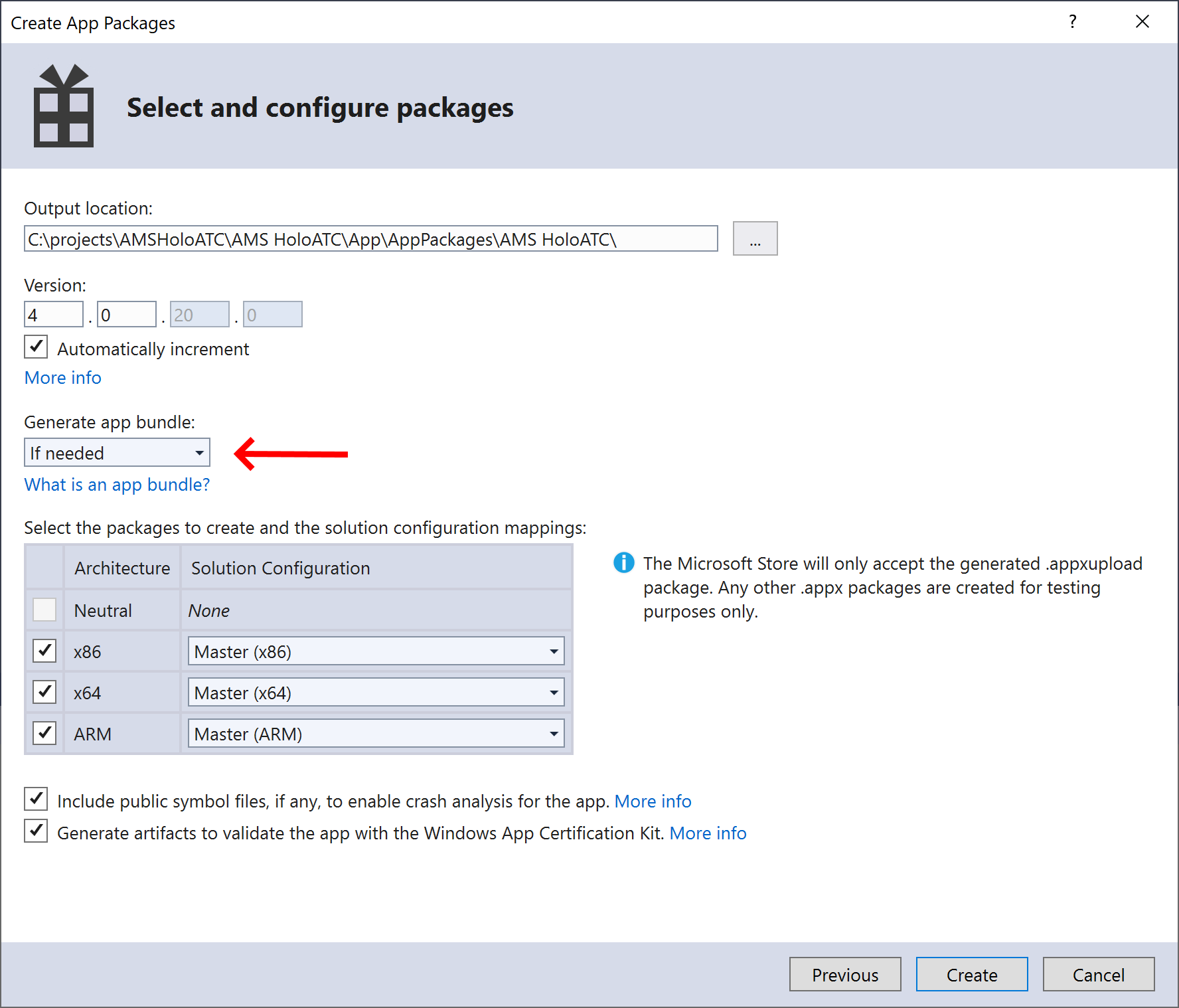
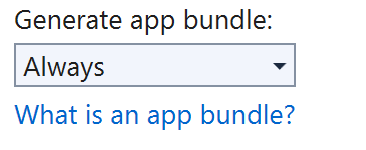
I don’t know exactly what changed, but all my HoloLens apps that I created with previous Unity versions were uploaded as bundles. To be honest, I never did pay much attention to it. But the default setting of the generated C++ setting is this:
which generates an appx per platform (in my case three: one for x64, one for x86 and one for ARM for, in the same order, WMR immersive headsets, HoloLens 1 and HoloLens 2). If you try to upload those files as updates to an app that was previously submitted as a bundle you will be greeted with:
And this can simply be fixed by changing the setting “Generate app bundle” from “If needed” to “Always”
Make your app (still) downloadable for HoloLens 1
To be honest, 4.0.19 was not the first HoloLens 2 enabled version I submitted. That was 4.0.17. It got certified – as one of the first if not the very first indie HoloLens 2 app. I was very happy about this – for about 25 seconds. And then I got a very unpleasant surprise: I could not download it anymore on a HoloLens 1. Sure enough, you could find it in the store, but the “Install” button was greyed out (well, light blue in stead of dark blue, but in any case unoperational). Curiously enough, a HoloLens that had it already installed did get the updated version though.
The reason for this behavior can be found down in this post in the Unity forums. Basically, Unity dropped support for anything lower than DirectX 10 and this is listed now in the app’s store manifest. Unfortunately, when the Store on the HoloLens 1 (and the HoloLens 2 emulator, incidentally) checks for DirectX 10, the device apparently reports “don’t have that” and the Store consequently blocks download.
Now I think this will be fixed shortly, but in the mean time here’s a workaround for if you need do to a submission right now:
First, open the Package.AppManifest.xml file in a text editor. Find these lines:
Comment out the second line. Then proceed to build a bundle, but for x64 only.
Go back to Package.AppManifest.xml, uncomment the first line, and re-activate the second. Now find the StoreManifest.xml file – open it in a text editor. It should look like this:
Simply remove the line <DirectXDependency Name="D3D11_HWFL_10_0" />
Now build a package for x86 and ARM. I am not sure if this is essential, but I made sure the x86/ARM bundle was had a one release number one point higher than the x64.
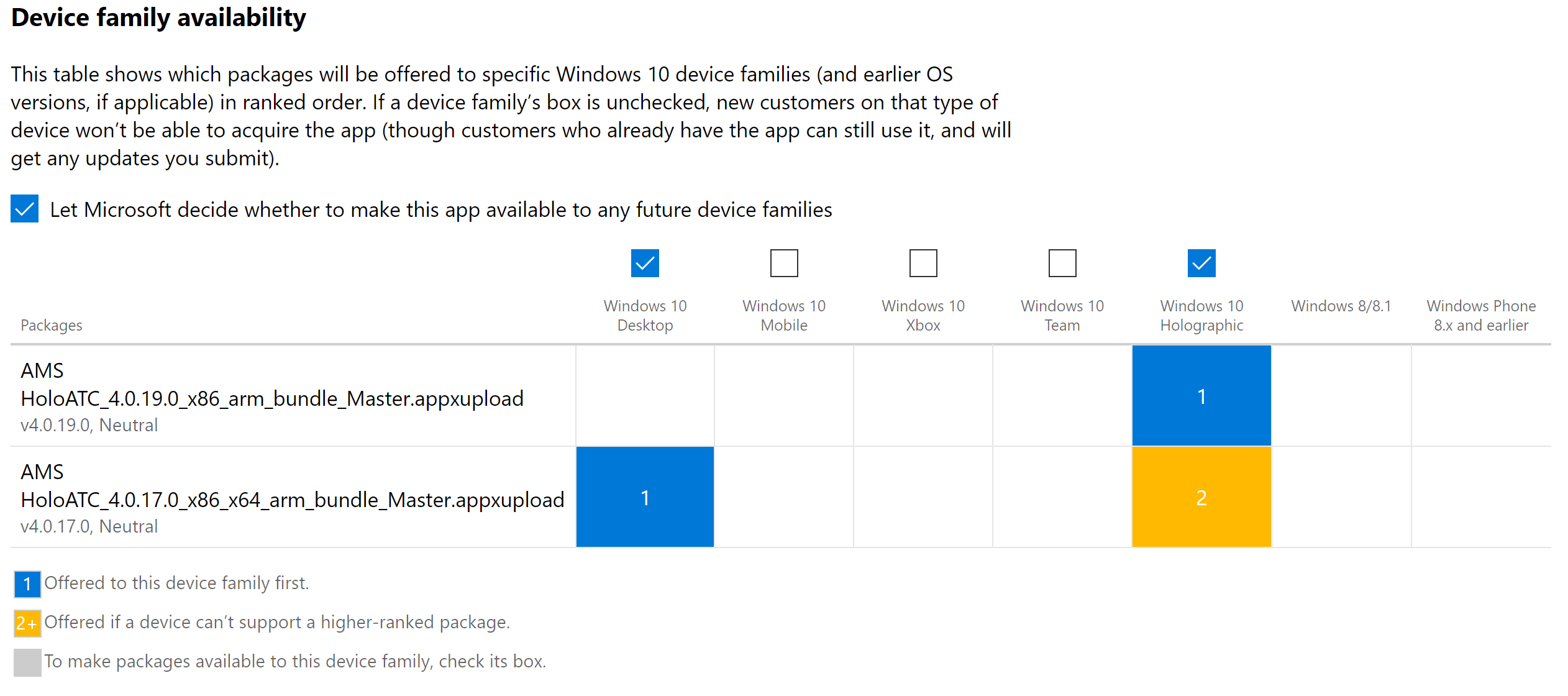
Now proceed to upload both bundles into a submission and set check boxes as needed. In my store submissions it looks like this:
Now as you can see version 4.0.17 still contains all platforms, but that is not necessary. But because the 4.0.19 has a higher version number, it will be offered first to HoloLens 1 and 2.
Anyway, now your app, once certified, should be downloadable for all devices. On x64 the DirectX 10 check will be still in place, for other devices it’s disabled.
Conclusion
It’s early days for HoloLens 2 (I built my app without having direct access to it) but I think it’s pretty cool to have an app armed and ready for it. It takes some fiddling around with xml files to get it right, but I am sure things will be better soon and these work arounds won’t be necessary anymore.
Enjoy building the next generation Mixed Reality apps!