Showing posts with label Win8nl. Show all posts

22 June 2014

Introducing WpWinl 2.0.0 (prerelease version)

Today I have decided to take the plunge – I have released an early version of WpWinNl 2.0.0 to NuGet. This introduces quite some changes.

To start with, WpWinNl now consists of two packages:

  • WpWinNlBasic, which contains all the stuff that is not dependent on MVVMLight. This includes a lot of behaviors, converters and utilities, including a lot of animation stuff.
  • WpWinNl proper, which is dependent on WpWinNlBasic and does pull in MVVMLight.

So if you just want to continue using WpWinNl like you used to do, nothing much is going to happen apart from the fact that you pull in two NuGet packages in stead of one. But if you for some odd reason does not like MVVMLight, or don’t use it can now use all my stuff that does not rely on MVVMLight by pulling in WpWinNLBasic only. I have received several request to that end (most vocally by Dutch DPE Rajen Kishna), so there it is.

If you, by any chance, use WpWinNl on Universal apps or Windows app, you are pulling in a profound change under the hood. For those type of apps, all the code I have written so far is sitting inside a PCL, including the behaviors. To that end, I use my previously released version of IBehaviorPortable, that uses a trick to make it possible to write cross-platform behavior (as described here).

This is a pre-release version as I said, for the simple reason that there are a few known issues:

  1. I am not entirely sure of the Bluetooth stuff. Although phone to phone seems to work, phone to PC does not, at least not under Windows Phone 8.1. I still have to get to the bottom of this
  2. Not all behaviors and utilities made it from Windows Phone 8.0 to 8.1. This includes the behaviors to check for updates, reminding the user to review, and some stuff that Timmy Kokke contributed some 1.5 years ago.

As a bonus, I also released a third package, that allows you to bind polygons, lines, and the new MapIcons to the new Windows Phone 8.1 here maps control. You can find this package by looking for WpWinNlMaps, and it basically is an update to the principle I describe here for Windows Phone 8.0. No sample code yet folks – been a bit busy lately.

I am pretty sure this all works pretty well (barring the mentioned issues), but being a engineer, I don’t say it’s done until it’s really done. So, therefore – prerelease. Terms and conditions may apply. Your mileage may vary. And stuff like that.

If you discover any issues, run into trouble, or have suggestions to improve things - please feel free contact me.

26 February 2014

Drawing circles on Windows Phone Here Maps and Windows Store Bing Maps

One of the areas where the mapping systems for Windows Phone and Windows 8 are lacking, is the ability to draw circles. In particular in Windows Store apps, where you have the ability to use geofences, it would come in pretty handy to be able to draw the outline of a geofence (typically a circle, as this is the only supported type right now) on the map – if only for testing purposes.

To this end I have created a set of extension methods, both for Windows Phone 8 and for Windows Store apps. In the first case, they cannot be used to display the location of a geofence as there are no geofences in Windows Phone 8, but well – drawing circles may come in handy anyway.

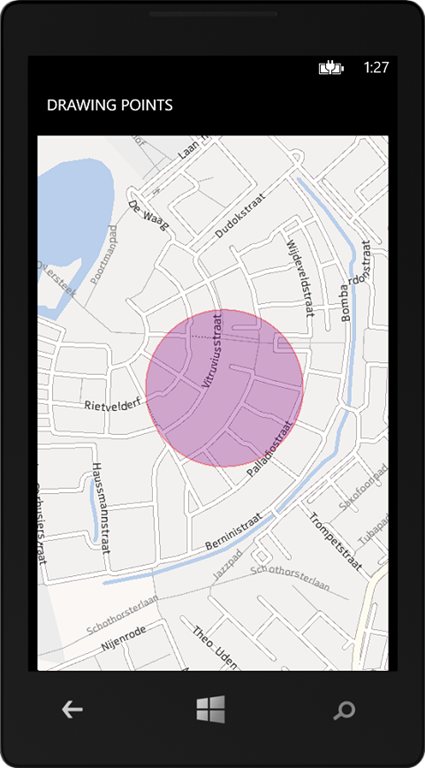
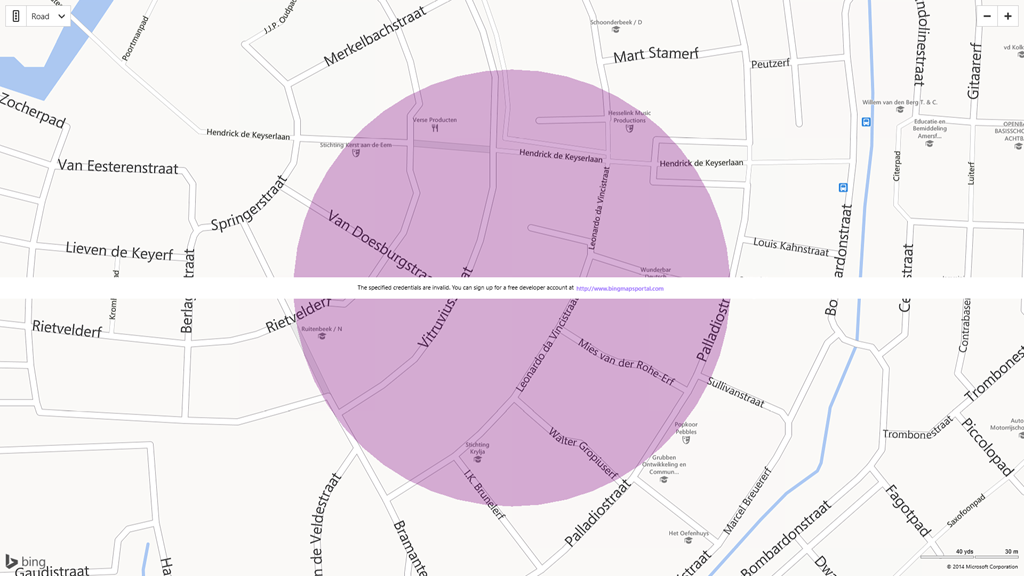
The results look something like this

imageScreenshot (16)

These are not circles – they look like circles. Basically they are just normal polygons, but their points are drawn in a form to resemble a circle. Would you zoom in very far, you would actually be able to see this. Would you calculate it’s surface area, you would actually find it  fraction smaller than a real circle area. But what the heck – it serves the purpose.

I have created a few extension methods to get this done. I will start with Windows Phone code - hey, I am not a Windows Phone MVP for nothing, right? ;-) -which starts off with this piece of math:

using System;
using System.Collections.Generic;
using System.Device.Location;

namespace WpWinNl.Utilities
{
  public static class GeoCoordinateExtensions
  {
    public static GeoCoordinate GetAtDistanceBearing(this GeoCoordinate point, 
                                                     double distance, double bearing)
    {
      const double degreesToRadian = Math.PI / 180.0;
      const double radianToDegrees = 180.0 / Math.PI;
      const double earthRadius = 6378137.0;

      var latA = point.Latitude * degreesToRadian;
      var lonA = point.Longitude * degreesToRadian;
      var angularDistance = distance / earthRadius;
      var trueCourse = bearing * degreesToRadian;

      var lat = Math.Asin(
          Math.Sin(latA) * Math.Cos(angularDistance) +
          Math.Cos(latA) * Math.Sin(angularDistance) * Math.Cos(trueCourse));

      var dlon = Math.Atan2(
          Math.Sin(trueCourse) * Math.Sin(angularDistance) * Math.Cos(latA),
          Math.Cos(angularDistance) - Math.Sin(latA) * Math.Sin(lat));

      var lon = ((lonA + dlon + Math.PI) % (Math.PI * 2)) - Math.PI;

      var result = new GeoCoordinate(lat * radianToDegrees, lon * radianToDegrees);

      return result;
    }
  }
}

This is a method that, given a coordinate, a distance in meters, and a bearing (in degrees) gives you another point. So a entering 50 for distance and 180 for bearing would give you a point 50 meters south of your original point. An impressive piece of math, if I may say so. Which I totally stole from here - as I am into maps, not so much into math. Having this, it’s pretty easy to add a second extension method:

public static IList<GeoCoordinate> GetCirclePoints(this GeoCoordinate center, 
                                   double radius, int nrOfPoints = 50)
{
  var angle = 360.0 / nrOfPoints;
  var locations = new List<GeoCoordinate>();
  for (var i = 0; i <= nrOfPoints; i++)
  {
    locations.Add(center.GetAtDistanceBearing(radius, angle * i));
  }
  return locations;
}

It divides the circle of 360 degrees in the number of points you want, and then simply adds points to the shape at the same distance but at every 360/points degrees. The higher the number of points, the more the shape will look like a real circle. Drawing the circle on a Windows Phone map is child’s play now:

void MainPageLoaded(object sender, RoutedEventArgs e)
{
  var location = new GeoCoordinate(52.181427, 5.399780);
  MyMap.Center = location;
  MyMap.ZoomLevel = 16;

  var fill = Colors.Purple;
  var stroke = Colors.Red;
  fill.A = 80;
  stroke.A = 80;
  var circle = new MapPolygon
  {
    StrokeThickness = 2,
    FillColor = fill,
    StrokeColor = stroke,
    StrokeDashed = false,
  };

  foreach( var p in location.GetCirclePoints(150))
  {
    circle.Path.Add(p);
  }

  MyMap.MapElements.Add(circle);
}

This draws a circle of 150 meters around my house. 

For Windows Store, the story is nearly the same. The differences are:

  1. You will need to install the Bing Maps SDK for Windows 8.1 Store apps
  2. The Bing Maps SDK does not understand System.Device.Location.GeoCoordinate you will need to make the extension method on Bing.Maps.Location

It’s very unfortunate that the mapping APIs for Windows Phone and Windows Store lack convergence even at the point of something as basic the naming of location types. I hope this will get more attention in the future, as mapping is something that I really care about - in case you had not noticed that from this blog ;-).

However, clever use of C# aliasing brings this convergence a bit closer. I changed the top of this file to

using System;
using System.Collections.Generic;
#if WINDOWS_PHONE
using GeoCoordinate = System.Device.Location.GeoCoordinate;
#else
using GeoCoordinate=Bing.Maps.Location;
#endif

et voilá, this file compiles under both Windows Phone and Windows Store (provided you have the Map SDK installed). You can forget about PCLs, but sharing code is definitely a possibility now as far as this little method goes.

Drawing a shape in the Windows Store app is now nearly the same:

void MainPageLoaded(object sender, RoutedEventArgs e)
{
  var location = new Location(52.181427, 5.399780);
  MyMap.Center = location;
  MyMap.ZoomLevel = 18;
  var fill = Colors.Purple;
  fill.A = 80;
  var circle = new MapPolygon
  {
   FillColor = fill,
  };

  foreach (var p in location.GetCirclePoints(150))
  {
    circle.Locations.Add(p);
  }

  var layer = new MapShapeLayer();
  layer.Shapes.Add(circle);

  MyMap.ShapeLayers.Add(layer);
}

Although attentive readers might notice there is no stroke color defined (as MapPolygon in Windows Store does not feature a separate outer shape border) and adding shapes to a map regrettably also works a bit differently. The API of both mapping systems definitely could benefit from some attention here. But anyway – it get’s the job done now at this point.

Full demo solution is downloadable here. One more time – to be able to compile this you will need to install the Bing Maps SDK for Windows 8.1 Store apps first!

23 February 2014

A behavior to replace LayoutAwarePage in Windows Store and Windows Phone apps

Sometimes I think up things all by myself, sometimes I have to read something first to let the ole’ light bulb in my brain go ‘ping’. This post is of the 2nd category, and was inspired by this brilliant piece by C# MVP Iris Classon who is – apart from a very smart and respected coder – also a living and shining (not to mention colorful) axe at the root of the unfortunate gender bigotry that is still widespread in the IT world – a lot of people still think seem convinced “women can’t code, if they do they do it badly, and those who do are socially inept, boring and ugly”. Which is demonstrably untrue – coding requires just a brain and determination - but I am convinced it still shies a lot of brain power out of IT.

Anyway – what I basically did was take Iris’ idea an turn it into – you guessed it – a behavior, to make it more reusable.

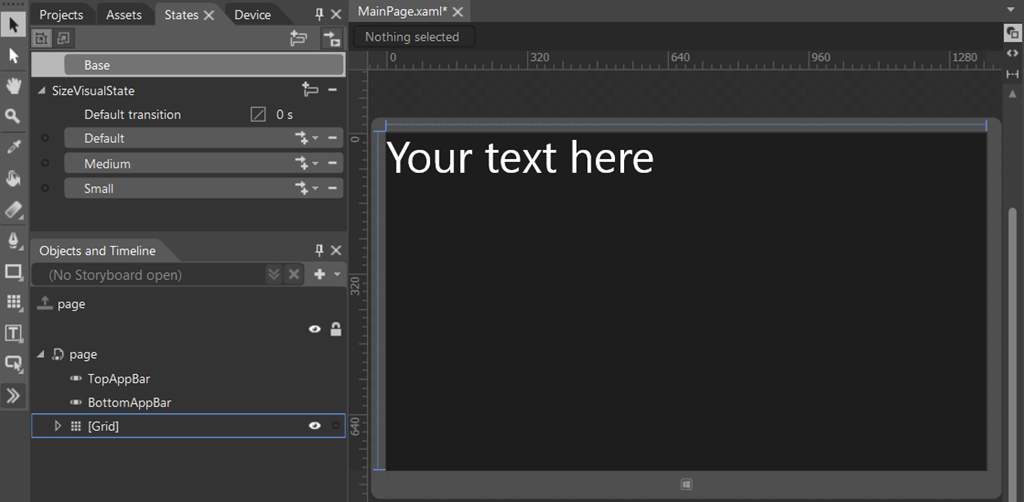
To demonstrate how it works, I created the following Store app with a very compelling UI:

image

There is only one text of 75pt there. And then I created three Visual States:

  • Default, which does basically nothing
  • Medium, which changes the font size to 50pt
  • Small, which changes the font size to 25pt

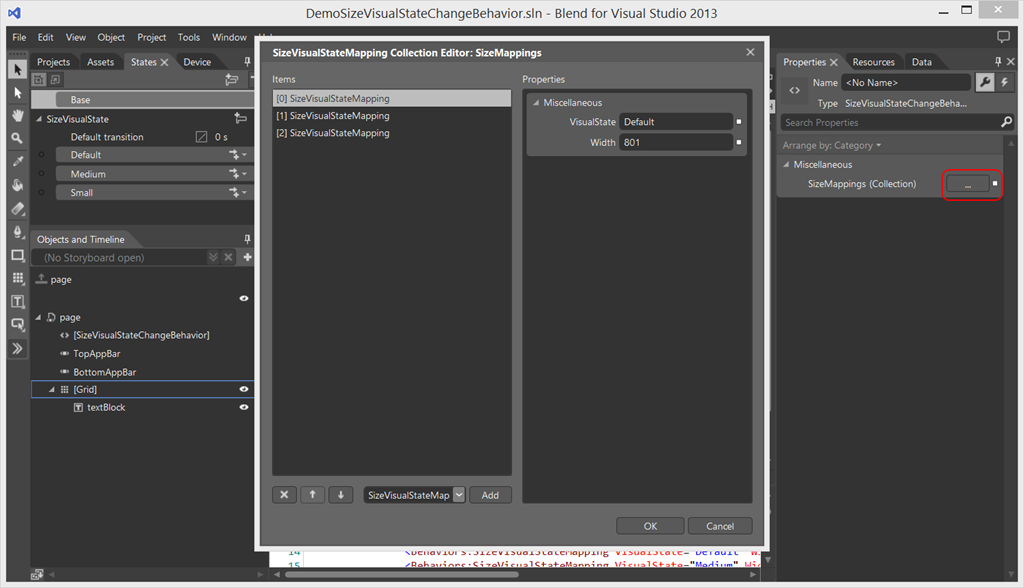
How this is done is amply explained by Iris’ post so I don’t feel very compelled to repeat that here. After creating the states I brought in my WpWinNl nuget package, and added my new SizeVisualStateChangeBehavior to the page. Then I added three entries to “SizeMappings” to the behavior by clicking on the indicated ellipses on the right:

image

  • “Default” with width 801
  • “Medium” with width 800
  • “Small” with width 500

From 801 up to infinity the the Default state will be used (showing the text in it’s default size), between 800 and 501 the Medium state will be used (50pt), and from 500 and lower, the Small state (25pt). And voilá, automatic sizing of items done by filling in some boxes in Blend – or typing in some XAML in Visual Studio if that’s more of your thing. Notice you can add any number of Visual States for any range of widths, just as long as there is one “Default” state that has a width that’s one higher than the largest none-default width. Notice SizeVisualStateMappings can have any name you like as well, as long as they correspond with names of Visual States.

For extra credit, by the way, I made this behavior attachable to Control objects rather than Page, so it can be used inside (user) controls as well. And with some #ifdef directives it also works for Windows Phone, which might come in handy with more and more of resolutions entering the Windows Phone arena.

As to how this behavior works, it’s not quite rocket science. First, we have this hugely complex class :-P that holds one SizeVisualStateMapping:

namespace WpWinNl.Behaviors
{
  public class SizeVisualStateMapping
  {
    public string VisualState { get; set; }
    public int Width { get; set; }
  }
}

The actual behavior’s setup almost immediately shows what I am doing – I simply latch on to the SizeChanged event of the object that the behavior is attached to:

using System.Collections.Generic;
using System.Diagnostics;
using System.Linq;
#if WINDOWS_PHONE
using System.Windows;
using System.Windows.Controls;
#else
using Windows.UI.Xaml;
using Windows.UI.Xaml.Controls;
#endif

namespace WpWinNl.Behaviors
{
  public class SizeVisualStateChangeBehavior : SafeBehavior<Control>
  {
    protected override void OnSetup()
    {
      AssociatedObject.SizeChanged += AssociatedObjectSizeChanged;
      base.OnSetup();
      UpdateVisualState();
    }
    
    private void AssociatedObjectSizeChanged(object sender, SizeChangedEventArgs e)
    {
      UpdateVisualState();
    }
  }
}
The core of the behavior’s functionality is the UpdateVisualState method:
private void UpdateVisualState()
{
  if (SizeMappings != null)
  {
    SizeVisualStateMapping wantedMapping = null;
    var wantedMappings = 
SizeMappings.Where(p => p.Width >= AssociatedObject.ActualWidth); if (wantedMappings.Any()) { wantedMapping = wantedMappings.OrderBy(p => p.Width).First(); } else { var orderedMappings = SizeMappings.OrderBy(p => p.Width); if (AssociatedObject.ActualWidth < orderedMappings.First().Width) { wantedMapping = orderedMappings.First(); } else if (AssociatedObject.ActualWidth > orderedMappings.Last().Width) { wantedMapping = orderedMappings.Last(); } } if (wantedMapping != null) { VisualStateManager.GoToState(AssociatedObject, wantedMapping.VisualState,
false); } } }

Which simply tries to find a SizeVisualStateMapping that’s fit for the current width of the associated object. If it finds that, it tells the VisualStateManager to go to that state, which proceeds to do the actual work. And that’s basically all. All that's left are an Dependency Property SizeMapping of type List<SizeVisualStateMapping> SizeMappings that holds the actual mapings, and a Cleanup method that detaches the behavior from the SizeChanged event again.

Full details, and a working solution including this behavior, can be found here. If you run this app in split screen and slowly makes it’s window width smaller, you will notice the text getting smaller. Be aware that the change only fires when you actually let the window divider control go – as long as you keep it active (by touching or dragging it) nothing will happen.

18 February 2014

Commercial break 2 – introducing 2 Tablet Pong aka Play On Both

310x310Regular readers might remember the launch of 2 Phone Pong in August 2013, one of the first – if not the very first – action game that could be played on two Windows Phones, first only over NFC, later over Bluetooth. It’s been a moderate success, particularly popular in Brazil and Turkey.

Today I launch 2 Tablet Pong, essentially the same game, for Windows 8.1.

But this release has a little twist – not only can you play against any Windows 8.1 device (provided it supports Wi-FI direct) but also against a Windows Phone running the newest version of 2 Phone Pong, making it possible the first cross-platform action game in town.

The gameplay on two Windows 8.1 devices is exactly the same as on Windows Phone. Here you see my Surface Pro 1 (right) and my Surface 2 (left) being used in the game

Surface versus Surface Pro

This is actually the instruction movie inside the game. As is the next one, that shows how my Lumia 1020 (right) connects to the Surface Pro – which is called “Blue”* on my network

You will need to pair a phone to a Windows 8.1 over Bluetooth first, and then they will be able to find each other. That is to say, the phone finds the PC (after some time), never the other way around. With a PC-to-PC connection it’s a matter of who starts first – the last one always finds the connection.

There were some interesting challenges to the port, but thanks to the extensive use of MVVMLight and my WpWinNl library I was able to use 90% of my code and I think 75% of XAML. I mostly used shared code, sometimes partial classes. There are also some extra rules in the Windows version – the ball speed adapts to the size of the screen, so if you play the game on half a screen, it will only go half as fast, or else it will become unplayable.

The game is free, but will be ad-supported in a soon-to-be-released update. I hope it will enjoy a just as enthusiastic reception as it’s phone predecessor.

I will soon update WpWinNl with everything I learned from porting this game, and I have a lot to blog about – I hope the community can benefit from that. Enjoy!


* disclaimer: those who think the name “Blue” has any significance or hints at something – I have a total lack of fantasy as far as device names are concerned, so I have a long standing tradition of naming my PCs after my wife’s pet hamsters. “Blue” is a 26 month old Russian dwarf hamster – she is called that way because that’s the name of the color variety. Go Bing it if you don’t believe me. My next PC will be called Smokey ;)

14 February 2014

Build for both–an instruction video pivot page for Windows store apps

For my game 2 Phone Pong – and its Windows 8.1 counterpart 2 Tablet Pong, that at the time of this writing is going through some interesting certification challenges  – I created a page with video instructions. I did not feel much like writing a lot of text on how to connect the apps and play the game – a short video usually tells so much more. That proved to be less straightforward than I had hoped, so I thought it a good idea to share how I got it to work.

Both platforms have their own limitations and idiosyncrasies. Windows 8 does not have a Pivot, and Windows Phone makes life pretty difficult when it comes to playing multiple videos on one page. I have solved the first problems by creating FlipViewPanoramaBehavior and I was successfully able to reuse that behavior, although it’s now running on top of the official Windows RT Behavior SDK, no longer using my stopgap project WinRtBehaviors.

In this post I will show you how to build a video page for Windows Store apps – the next one will show you how to do the same for Windows Phone. The Windows version is actually the most simple

When I set out to create the video instruction page I wanted it to do the following:

  • Start the video on the current visible pivot item automatically – and start the first video on the first pivot as soon as the user access the page.
  • Repeat that movie automatically when it ends
  • Stop it as soon as the user selects a different pivot item

This gives the following effect:

Store video instruction page demo

How I got to this, is explained below

Setting the stage

The beginning is pretty simple - it usually is ;-)

  • Created an Blank XAML store app
  • Bring in my WpWinNl library from Nuget
  • Add an empty page “Help.xaml”
  • Go to App.xaml.cs and change rootFrame.Navigate(typeof(MainPage), e.Arguments); to rootFrame.Navigate(typeof(Help), e.Arguments);
  • Bring in a couple of video’s you want to use. I took three of my actual instruction videos from 2 Tablet Pong.

The XAML basics

The page contains the usual stuff for a nice page header, but as far as the video instruction part is concerned, it only contains the following things:

  • A FlipView with some (very minor) styling for the header text
  • My FlipViewPanoramaBehavior attached to it
  • A few FlipViewItems, each containing a grid with a header and a MediaElement with the Video in it

That looks more or less like this:

<FlipView x:Name="VideoFlipView"  >
  <FlipView.Resources>
    <Style TargetType="TextBlock">
      <Setter Property="FontSize" Value="30"></Setter>
    </Style>
  </FlipView.Resources>
  <interactivity:Interaction.Behaviors>
    <behaviors:FlipViewPanoramaBehavior/>
  </interactivity:Interaction.Behaviors>
  <FlipViewItem >
    <Grid>
      <Grid.RowDefinitions>
        <RowDefinition Height="40"></RowDefinition>
        <RowDefinition Height="Auto"></RowDefinition>
      </Grid.RowDefinitions>
      <TextBlock Text="Connect via WiFi" ></TextBlock>
      <MediaElement x:Name="FirstMovieMediaElement" 
        Source="Video/ConnectWiFi.mp4" Grid.Row="1" >
       </MediaElement >
    </Grid>
  </FlipViewItem>
  <!-- More FlipViewItems with video -->
</FlipView>

Important to see is that both the FlipView and the first FlipViewItem have a name, this is because we need to reference it form the page code.

Some code to make it work

First order or business is getting this thing on the road, so we need to define some starter events in the constructor:

using System.Linq;
using Windows.UI.Xaml;
using Windows.UI.Xaml.Controls;
using Windows.UI.Xaml.Navigation;
using WpWinNl;
using WpWinNl.Utilities;

namespace Win8VideoPivot
{
  public sealed partial class Help : Page
  {
    public Help()
    {
      InitializeComponent();
      VideoFlipView.SelectionChanged += SelectedIndexChanged;
      FirstMovieMediaElement.MediaOpened += 
        FirstMovieMediaElementMediaOpened;
    }
  }
}

Next up is a little helper property that give us a short cut to all the MediaElements on the page, using a helper method from WpWinNl:

private IEnumerable<MediaElement> AllMediaElements
{
  get
  {
    return VideoFlipView.GetVisualDescendents().OfType<MediaElement>();
  }
}
The main method of this page is StartMovieOnSelectedFlipViewItem - that finds the MediaElement on the current selected FlipViewItem, stops MediaElements on all the other FlipViewItems, and kicks off the current one to play it's movie:
private void StartMovieOnSelectedFlipViewItem()
{
  var pivotItem = (FlipViewItem)VideoFlipView.SelectedItem;
  var mediaItem = pivotItem.GetVisualDescendents().OfType<MediaElement>().FirstOrDefault();
  AllMediaElements.Where(p => p != mediaItem).ForEach(p => p.Stop());

  if (mediaItem != null)
  {
    mediaItem.Play();
  }
}

In the constructor we wired up FirstMovieMediaElementMediaOpened, to be fired when the first MediaElement has opened it's media file. It does, as you would expect, start the first movie file by simply calling StartMovieOnSelectedFlipViewItem  What it also does is setting all the MediaElement’s AutoPlay properties to false, and attach a method to their MediaEnded property, so that a movie is automatically restarted again when it ends.

private void FirstMovieMediaElementMediaOpened(object sender, RoutedEventArgs e)
{
  AllMediaElements.ForEach(p =>
  {
    p.MediaEnded += MovieMediaElementMediaEnded;
    p.AutoPlay = false;
  });
  StartMovieOnSelectedFlipViewItem();
}

private void MovieMediaElementMediaEnded(object sender, RoutedEventArgs e)
{
  ((MediaElement)sender).Play();
}

This might seem a mighty odd place to do it here, and not in the constructor – but I have found that it simply does not have the desired effect when I placed this code in a constructor. A typical ‘yeah whatever’ thing.

The only thing that is now missing is SelectedIndexChanged, that we also wired up in the constructor to be executed when a new FlipViewItem is selected:

private void SelectedIndexChanged(object sender, SelectionChangedEventArgs e)
{
  StartMovieOnSelectedFlipViewItem();
}

It simply restarts a movie that ends all by itself. Note – this is not fired when a movie is stopped by code.

And for good measure, to make sure we don’t introduce all kinds of memory leaks, we detach all the events again in the OnNavigatedTo

protected override void OnNavigatedFrom(NavigationEventArgs e)
{
  base.OnNavigatedFrom(e);
  AllMediaElements.ForEach(p =>
  {
    p.MediaEnded -= MovieMediaElementMediaEnded;
  });
  VideoFlipView.SelectionChanged -= SelectedIndexChanged;
  FirstMovieMediaElement.MediaOpened -= FirstMovieMediaElementMediaOpened;
}

That’s all there is to it – you will find that most of the work will actually go into making videos that are good enough to convey the minimal message without enormously blowing up the size of your app. The code itself, as you see, is pretty easy.

Full demo solution can be found here.

Oh by the way – I did not suddenly do a 180 of MVVM versus code behind – this is just pure view stuff, no business logic needed to drive it, so it’s OK to use code behind in this case.

09 December 2013

Understanding and preventing Multilingual App Toolkit ‘lost translations’

Update: the MAT was updated on February 7, 2014, adding new capabilities to handle this issue better

In the old days, making apps in multiple languages was quite a hassle, maintaining multiple resource files and keeping them in sync. In 2012 came the Multilingual App Toolkit, a brilliant piece of technology that changed everything. Suddenly professional localization tooling landed into the lap of John Developer. The tool has a lot of great capabilities – for instance, it can generate translations automatically using Bing Translator. For short texts this works very well, for longer texts your mileage may vary – but you can request for translation from inside the tool, mail it off to a buddy and later import it again. The machine translation at the very least greatly decreases the work of your translator – he or she can skip the 12 instances of Ok, Cancel, Yes, No and stuff like that.

So why wouldn’t you use this? Well, I have heard rumors of people claiming to have lost translations. After getting translated texts and importing that translations into your app – at some point the imported translations where partly reset back to English. So I know of some people who kind of avoid the MAT. I did not understand what their problem was, until I ran into it myself. Fortunately I have had the honor of actually meeting the MAT Product Manager twice this year (at both MVP Summits), and that gives me kind of an advantage in gaining understanding what was going on. So I will try to explain to you what happens, and how you can prevent yourself from shooting in the foot with MAT.

If you start making a localized app, you start out with just making one resource file (using the aforementioned resource file editor), for the default language – usually US/English. Once your apps is done, you fire up the MAT, and start adding languages. The MAT makes an XLF file for every language you add, and – in a Windows Phone app – automatically generates resx files for that. You can prefill those translations using the machine translation option, and like I said, optionally send it off to someone else to review the translation – using the much more translator-friendly editor than the resx file editor. What’s more, they don’t have to have Visual Studio at all – the MAT can run from Visual Studio but also as a simple stand-alone application.

So when do you ‘lose’ translations? Very simple – if you go back to your original resx file with US/English and change the text in there, upon the next build, MAT will assume the text will need to be re-translated, replaces the changed texts with US/English again and marks them red (“Needs translation”) again. The logic behind this stems from the way Microsoft itself uses the application – at one point the UI gets frozen, and then localization happens. But in the mobile app development world, sometimes people go back to the original text and change that too. In my case, I wasn’t really happy with the original wording, or I changed a comma or something. And bam – gone were 5 translations of a single text. But now I understand what’s going on and why, the problem is already halfway solved. The other half I get around by using the following procedure:

  • Use source control, for example Visualstudio.com. Simply check in your files before you start messing around in your translations and particularly when you want to change your source language texts.
  • imageUse the MAT state feature – you can mark all translations as ‘signed off’ (green)when you are satisfied
  • The net result – if you suddenly see all your XLF files checked out, MAT has done some potential unwanted processing. You can easily find what is actually changed by finding everything that’s marked red. If German texts are now suddenly English, you have probably been messing around with the original texts. If you want to retrieve the texts that were reset, you can still retrieve them from TFS.

For the sake of completeness - if you add a new text, you will more or less see the same result (all XLF files checked out) and suddenly an English text between your translated texts – but that is logical, because it’s a new text that has to be translated, either by machine translation or human translators (again).

Currently there is no way to change the MATs behavior in this respect, but f you follow this procedure and keep in mind the rules that drive the MAT, you can use this awesome tool without shooting yourself in the foot. Maybe the tool will be changed to accommodate the more flexible/chaotic way mobile development goes, but that’s for later. Stay tuned.

Update: as you might have seen, the MAT team just started their own blog on MSDN. More importantly: the first article mentions a uservoice for MAT! I think I know what I am going to add for a suggestion ;-)

04 December 2013

Building for both: a tap+send/Bluetooth connection helper for Windows Phone 8 AND Windows 8.1

On my way to the November 2013 MVP Summit, at Matthijs Hoekstra’s house in Sammamish, and back again in the Netherlands I spent considerable time trying to get my tap+send and Bluetooth connection helper to not only work on Windows 8.1 as well, but also to make it provide cross-platform communication between Windows Phone 8 and Windows 8.1. Unfortunately the MSDN PixPresenter sample suggest you can connect between Windows Phone and Windows 8 by sharing app ids in the PeerFinder.AlternateIdentities property, and so does the MSDN documentation on said property. That way, my friends, lay only mud pies and frustration. I don’t doubt that it will work for tap+send, but as the majority of the current Windows 8.x devices (including Microsoft’s own excellent Surface devices) do not include NFC capabilities, the chances of making a successful connection between a Windows Phone and a random Windows 8 computer using tap+send are very small.

I seem to have a thing with Italians these days – I had a lot of fun with a bunch of them at the Summit, and it was not until this Italian developer called Andrea Boschin pointed me to a recent blog post by him that I found a way out of this. Using this knowledge I adapted DevicePairConnectionHelper once again, so now it’s not only cross platform, but it can also connect between Windows Phone 8 and Windows 8.1. If you are completely new to this subject, I suggest you read the previous two articles about this subject as well.

What it can do

In the demo solution, that sports both a Windows 8.1 Store application and a Windows Phone 8 application, you will find a shared file DevicePairConnectionHelper2.cs containing the updated DevicePairConnectionHelper – now supporting  the following communication paths:

  • Windows Phone 8 to Windows Phone 8 – tap+send
  • Windows Phone 8 to Windows Phone 8 – Bluetooth browsing
  • Windows 8.1 to Windows 8.1 – WifiDirect browsing
  • Windows 8.1 to Windows Phone 8 – Bluetooth.

In theory it should support Windows 8.1 to Windows 8.1 over tap+send as well, but lacking even a single NFC enabled Windows 8.1 device, this is hard to test for me.

How to set it up and use it

A very important precondition– the devices can only find each other when the phone is paired to the Windows 8.1 computer. Now the odd thing is – as you have paired the phone to the computer, you will see that is “connected” on both the computer and the phone, for a very short time. And then it flashes off again, so they are not connected. This is a bit confusing, but it is normal. They now ‘know’ each other, and that is what’s important.

As far as the the updated DevicePairConnectionHelper goes, it works nearly the same as the previous one, but it has two extras, as far as using it is concerned.

  • In the constructor, you can now optionally provide a GUID that describes a Bluetooth Service
  • There is a new boolean property ConnectCrossPlatform that you can set to true – then the Window 8 phone will try to connect to a Windows 8 machine using Bluetooth.

To set it up, you have to take the following things into account:

  • In you Windows Phone 8 app manifest, you have to select the ID_CAP_PROXIMITY capability
  • In you Windows 8 app manifest, you will have to the following capabilities
    • Private Networks (Client & Server)
    • Proximity
  • After you have saved you manifest, you have to open the Package.appmanifest manually (right click, hit View Code) and add a Bluetooth rfcomm service. Andrea explains how this is done, and I repeat it here for completeness:
<Capabilities>
  <Capability Name="internetClient" />
  <Capability Name="privateNetworkClientServer" />
  <DeviceCapability Name="proximity" />
  <m2:DeviceCapability Name="bluetooth.rfcomm">
    <m2:Device Id="any">
      <m2:Function Type="serviceId:A7EA96BB-4F95-4A91-9FDD-3CE3CFF1D8BC" />
    </m2:Device>
  </m2:DeviceCapability>
</Capabilities>

The stuff in Italics is what you add – verbatim. Except for the serviceId. Make and id up yourself, generate a guid, but don’t copy this one. Don’t re-use it over applications. But keep it ready, for you will need it in your code.

So, in your Windows 8 app, you now create a DevicePairConnectionHelper and fire it off like this:

var d = new DevicePairConnectionHelper("A7EA96BB-4F95-4A91-9FDD-3CE3CFF1D8BC");
d.ConnectCrossPlatform = true;
d.Start(ConnectMethod.Browse);

And you do exactly the same on Windows Phone 8. Usually the best way to connect is:

  • Start both the Windows 8.1 and the Windows Phone 8 app.
  • First start connect on the Windows 8.1 computer. That usually pretty quickly returns with zero peers found, but it keeps advertising it’s service. Then hit connect on the Windows Phone 8
  • After some time – sometimes half a minute – the Windows Phone 8 gets the peers

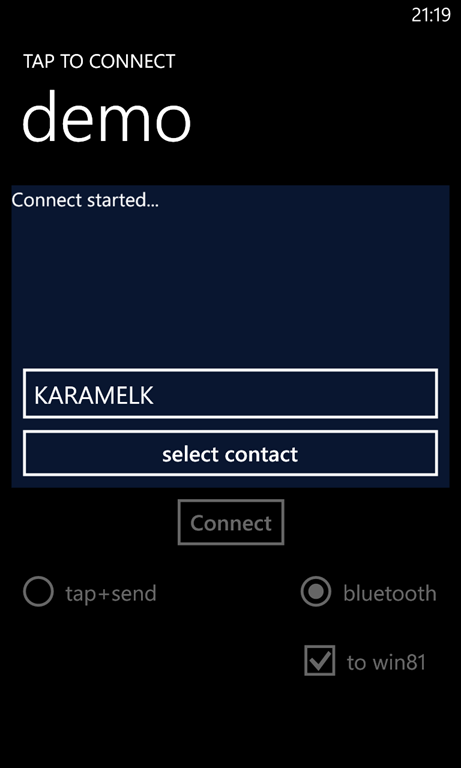
Below is the Windows 8 demo app as it has found my main desktop computer “Karamelk”) (that sports a Bluetooth dongle), and next to it the screen of the Windows 8.1 computer, still searching for contacts

wp_ss_20131204_0001     image

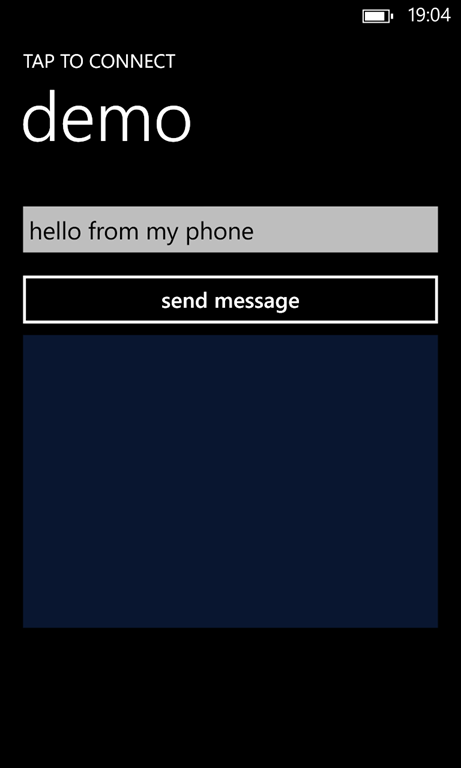
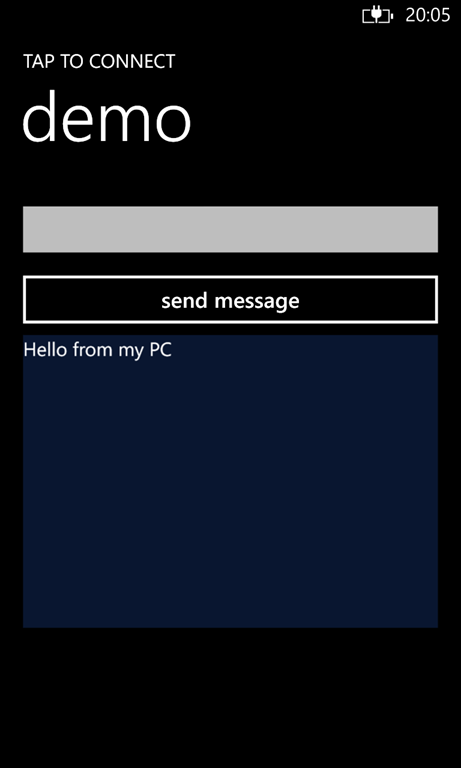
Then I hit “Select contact”. The first time, the Windows 8.1 you get a popup asking if the phone can use the connection. And if you give it permission, the apps connect, and it then it looks like this:

wp_ss_20131205_0001      imagewp_ss_20131205_0003

Now you can send messages back and forth.

You can still use this component to connect two Windows Phones to each other like you used to, and you now can also can connect two computers to each other and exchange messages.

A final piece of warning as far as usage is concerned – if you set ConnectCrossPlatform to true, the Windows Phone 8 will do cross-platform connect – but that’s the only thing it will do. Apparently it can’t find other Windows Phone 8 devices in that mode – just Windows 8.1 computers. For a Windows 8.1 computer, it does not matter – whether ConnectCrossPlatform is on or off, it will find other computers as well as phones. The text “Bluetooth” next to the right radio button is actually wrong on Windows 8.1, since the connection between computer actually uses WiFi Direct.


How it works

Just like last time – when I added Bluetooth – there was surprisingly little to change. The actual difficult stuff was already found out by Andrea ;-). It turns out that on the Windows Phone side you don’t have to do much, but on the Windows 8.1 side you have to resort to some trickery and use the Bluetooth Rfcomm API.

First of all we need a property to instruct the component to connect cross-platform (or not) and some stuff to hold the service GUID that we need:

public bool ConnectCrossPlatform { get; set; }

private Guid rfcommServiceUuid;

public string RfcommServiceUuid
{
  get
  {
    return rfcommServiceUuid == Guid.Empty ? null : rfcommServiceUuid.ToString();
  }
  set
  {
    Guid tmpGuid;
    if (Guid.TryParse(value, out tmpGuid))
    {
      rfcommServiceUuid = tmpGuid;
    }
  }
}

The RfcommServiceUuid property looks a bit complex, but it’s only to ensure there’s an actual GUID in it. Then comes the actual cross-platform connecting stuff. Most is just simply taken from Andrea, and for an explanation of what he is actually doing I kindly refer to his post (because I understand about half of it).

#if WINDOWS_PHONE
    private async Task InitBrowseWpToWin()
    {
      var t = new Task(() =>
      {
        PeerFinder.AlternateIdentities["Bluetooth:SDP"] = 
          rfcommServiceUuid.ToString();
      });
      t.Start();
      await t;
    }

    private void StopInitBrowseWpToWin()
    {
      if (PeerFinder.AlternateIdentities.ContainsKey("Bluetooth:SDP"))
      {
        PeerFinder.AlternateIdentities.Remove("Bluetooth:SDP");
      }
    }
#endif

#if NETFX_CORE
    // Code in this part largely based on 
    // http://www.silverlightshow.net/items/Windows-8.1-Play-with-Bluetooth-Rfcomm.aspx

    private const uint ServiceVersionAttributeId = 0x0300;
    private const byte ServiceVersionAttributeType = 0x0A;
    private const uint ServiceVersion = 200;

    private RfcommServiceProvider provider;

    private async Task InitBrowseWpToWin()
    {
      provider = await RfcommServiceProvider.CreateAsync(
                       RfcommServiceId.FromUuid(rfcommServiceUuid));

      var listener = new StreamSocketListener();
      listener.ConnectionReceived += HandleConnectionReceived;

      await listener.BindServiceNameAsync(
        provider.ServiceId.AsString(),
        SocketProtectionLevel.BluetoothEncryptionAllowNullAuthentication);

      using (var writer = new DataWriter())
      {
        writer.WriteByte(ServiceVersionAttributeType);
        writer.WriteUInt32(ServiceVersion);

        var data = writer.DetachBuffer();
        provider.SdpRawAttributes.Add(ServiceVersionAttributeId, data);
        provider.StartAdvertising(listener);
      }
    }

    private void HandleConnectionReceived(StreamSocketListener listener,
      StreamSocketListenerConnectionReceivedEventArgs args)
    {
      provider.StopAdvertising();
      listener.Dispose();
      DoConnect(args.Socket);
    }
    
    // Borrowed code ends
    
    private void StopInitBrowseWpToWin()
    {
      if (provider != null)
      {
        provider.StopAdvertising();
        provider = null;
      }
    }
#endif

Important to notice is that I use Bluetooth:SDP in stead of Bluetooth:Paired like Andrea does. If I use the paired option, I get a list of all devices paired to my phone, including my Jabra headset, my Surface Pro, a Beewi Mini Cooper Coupé Red I got on the last MVP Summit and the desktop computer that I try to connect to. I use SDP (Service Discovery Protocol) to find the device that actually provides the one service I am looking for – not so much a Bluetooth connection from a device that happens to be in the list of paired devices. Notice the Windows Store portion actually makes a “RfcommServiceProvider” with the Guid as identifier, and the Windows Phone portion sets that same Guid as a string to the AlternateIdentities.

Oh – the Windows Phone version of InitBrowseWpToWin method is a bit convoluted – it’s just a way to make whatever is inside async as well, so it’s compatible with the signature of the Windows 8.1 version.

Another important thing to notice is that the Window 8.1 part needs an extra using:

#if NETFX_CORE
using Windows.Devices.Bluetooth.Rfcomm;
#endif

Anyway, where it all starts is here: at the constructor. Not much has changed – there’s only the extra optional parameter that’s being recorded for future use:

public DevicePairConnectionHelper2(string crossPlatformServiceUid = null)
{
  RfcommServiceUuid = crossPlatformServiceUid;
  Messenger.Default.Register<NavigationMessage>(this, ProcessNavigationMessage);
  PeerFinder.TriggeredConnectionStateChanged += PeerFinderTriggeredConnectionStateChanged;
  PeerFinder.ConnectionRequested += PeerFinderConnectionRequested;
}

The Start method has been slightly adapted- it’s now async, to accommodate the async InitBrowseWpToWin method

public async Task Start(ConnectMethod connectMethod = ConnectMethod.Tap, 
   string displayAdvertiseName = null)
{
  Reset();
  connectMode = connectMethod;
  if (!string.IsNullOrEmpty(displayAdvertiseName))
  {
    PeerFinder.DisplayName = displayAdvertiseName;
  }

  try
  {
    PeerFinder.Start();
  }
  catch (Exception)
  {
    Debug.WriteLine("Peerfinder error");
  }

  // Enable browse
  if (connectMode == ConnectMethod.Browse)
  {
    if (ConnectCrossPlatform)
    {
      await InitBrowseWpToWin();
    }

    await PeerFinder.FindAllPeersAsync().AsTask().ContinueWith(p =>
    {
      if (!p.IsFaulted)
      {
        FirePeersFound(p.Result);
      }
    });
  }
}}

A couple of things have changed here – first of all, the whole component is reset in stead of just the PeerFinder, because there's now potentially much more set up now than just the PeerFinder. The start of the PeerFinder is now in a try-catch because on Windows 8.1 some combinations of parameters cause an exception – while still the connection is set up. This is a typical ‘yeah whatever works’ solution. Then the cross platform stuff is set up – if that is required, and I also check first if the result of the task that returns from the PeerFinder is not faulted, which I did not do in earlier versions either.

The most important piece of refactoring is the DoConnect method. In the old version there was one – now there are three overloads:

private void DoConnect(PeerInformation peerInformation)
{
#if WINDOWS_PHONE
  if (peerInformation.HostName != null)
  {
    DoConnect(peerInformation.HostName, peerInformation.ServiceName);
    return;
  }
#endif

  PeerFinder.ConnectAsync(peerInformation).AsTask().ContinueWith(p =>
  {
    if (!p.IsFaulted)
    {
      DoConnect(p.Result);
    }
    else
    {
      Debug.WriteLine("connection fault");
      FireConnectionStatusChanged(TriggeredConnectState.Failed);
    }
  });
}

private void DoConnect(HostName hostname, string serviceName)
{
  var streamSocket = new StreamSocket();
  streamSocket.ConnectAsync(hostname, serviceName).AsTask().ContinueWith((p) => 
                            DoConnect(streamSocket));
}

private void DoConnect(StreamSocket receivedSocket)
{
  socket = receivedSocket;
  StartListeningForMessages();
  PeerFinder.Stop();
  FireConnectionStatusChanged(TriggeredConnectState.Completed);
}

It is a bit complicated, but these three methods cover all scenario’s

  1. If a Windows Phone connects to a Windows Phone, it calls the first method. Since this is not a cross-platform call, the HostName will be null, so it will do PeerFinder.ConnectAsync, receive a StreamSocket and proceed to call the 3rd DoConnect method.
  2. If a Windows 8.1 computer connects a Windows 8.1 computer – ditto
  3. If a Windows Phone connects a Windows 8.1 computer – the Phone will fine find that the HostName (and ServiceId) will be set, so it calls the 2nd DoConnect method. This will proceed to connect to the service, as pass on the result StreamSocket again to the 3rd method
  4. The Window 8.1 computer, upon being connected by a Windows Phone, will get a callback in HandleConnectionReceived (see above, in Andrea’s code) which will immediately result in a StreamSocket, so it call the 3rd DoConnect immediately.

For good measure – the 2nd DoConnect method is actually never used in a Windows 8.1 application.

And that’s about what I needed to do. The changes to the sample app are very limited – I added a checkbox on both of them, and a wrapping ConnectCrossPlatform property that is set by said checkbox. Also a minor detail – the Reset method in the NfcConnectViewModel no longer stops the PeerFinder first. This is especially important for the Windows 8.1 app – it never finds the phone, but the phone is still trying to make a connection. If the PeerFinder on Windows 8.1 is already stopped, you get all kind of funky errors when you select the computer on the phone.

For those who find the discussion a bit arcane – there is, as always, a working demo solution for this article. It is built on top of my new not-yet-published WpWinNl library – that’s basically a cross-platform (no, not PCL, just a NuGet Package) version of the wp7nl library. Well as cross platform as it can be. Stay tuned, it will be available soon. But tackling this problem took a bit longer than I hoped, so I am a bit behind schedule

09 November 2013

Build for both-Reflection bits & pieces for Windows Phone 8 and Windows 8

This is a bit of an odd post – it’s the things I learned while porting SilverlightSerializer 2 from Windows Phone to Windows 8 Store apps code. For those who don’t know what that is – it’s a very fast serializer, created by the brilliant Mike Talbot that’s able to store complex objects graphs in a very compact binary format. I use it to store an app’s state by simply serializing the view model graph to storage. For my (now) only Windows Store app I made a half-*ssed attempt to convert the much simpler SilverlightSerializer  v1 last year – but that’s slower and much less capable – especially my port. I was very much in a hurry then, so I cut out everything I did not need.

Anyway – SilverlightSerializer is a big chunk of reflection code. To get it to work in Windows Store apps, I had to change quite a lot of things – but then again a lot less than I thought. Even more shocking was the fact it worked without any problems when I linked the adapted code back to my Windows Phone project. That’s the power of the common Windows Runtime – no #if WINDOWS_PHONE preprocessor statements here!

So anyway, here’s what I learned. I wrote it in a kind of boring old-new style, but I found very little on this subject on the web, so I hope this is useful for people digging into reflection on Windows Store apps and hitting the wall when trying to do it ‘the new way’.

Properties and Fields

Get an object’s properties:

  • Old code: Type.GetProperties()
  • New code: Type.GetRuntimeProperties()

Get a single property:

  • Old code: Type.GetProperty("MyProperty")
  • New code: Type.GetRuntimeProperty("MyProperty")

Get a property’s get method

  • Old code: PropertyInfo.GetGetMethod();
  • New code: PropertyInfo.GetMethod;

Get a property’s set method

  • Old code: PropertyInfo.GetSetMethod();
  • New code: PropertyInfo.SetMethod;

Get public non-static properties that can be get and set

  • Old code:Type.GetProperties(BindingFlags.Instance | BindingFlags.Public).
                          Where(p => p.GetSetMethod() != null));
  • New code:Type.GetRuntimeProperties().
                             Where(p=> p.GetMethod != null && p.SetMethod != null &&
                                         !p.SetMethod.IsStatic && !p.GetMethod.IsStatic &&
                                         p.GetMethod.IsPublic && p.SetMethod.IsPublic);

Get an object’s Fields:

  • Old code: Type.GetFields()
  • New code: Type.GetRuntimeFields()

Get a single Field:

  • Old code: Type.GetField("MyProperty")
  • New code: Type.GetRuntimeField("MyProperty")

You can already see two patterns here – in stead of GetXYZ you do GetRuntimeXYZ. This “Runtime” indicates all an objects has available on runtime – that is, both it’s own properties, methods etc. and those of it’s parents. The other pattern is that in the Windows Runtime there is a tendency to use properties in stead of zero-parameter get methods.

Attributes

Determine whether a property has a custom attribute or not

  • Old code: PropertyInfo.GetCustomAttributes(typeof(DoNotSerialize), true).Any()
  • New code: PropertyInfo.GetCustomAttribute<DoNotSerialize>(true) != null

Type info

Determine if a type is an enum

  • Old code: Type.IsEnum
  • New code: Type.GetTypeInfo().IsEnum

Determine if a type is a generic type

  • Old code: Type.IsGenericType
  • New code: Type.GetTypeInfo().IsGenericType

Determine a type’s generic arguments

  • Old code: Type.GetGenericArguments()
  • New code: Type.GetTypeInfo().GenericTypeArguments

Find a type’s default constructor

  • Old code:Type.GetConstructor(new Type[] { });
  • New code: Type.GetTypeInfo().DeclaredConstructors.
                            FirstOrDefault(p => !p.GetParameters().Any());

Determine if a type implements an interface

  • Old code: Type.GetInterface("IEnumerable", true) != null;
  • New code: GetTypeInfo().ImplementedInterfaces.FirstOrDefault(
                         p => string.Compare(p.Name, name, ignoreCase?
                         StringComparison.OrdinalIgnoreCase : StringComparison.Ordinal)==0);

I must admit being a bit lazy on this one – this was used quite a number of times in SilverlightSerializer, so I made the following extension method

using System;
using System.Linq;
using System.Reflection;

namespace WpWinNl.Utilities
{
  public static class TypeExtensions
  {
    public static Type GetInterface(this Type type, string name, bool ignoreCase)
    {
      return type.GetTypeInfo().ImplementedInterfaces.FirstOrDefault(
        p => string.Compare(p.Name, name, ignoreCase? 
            StringComparison.OrdinalIgnoreCase : StringComparison.Ordinal)==0) ;
    }
  }
}

and was done with it ;-). Beware – this is not something I recommend – making the new API compatible with the old. Rather, make it the other way around. But for porting existing code – especially code you did not write yourself – this can be a helpful way to save time.

Miscellaneous

Creating delegates

  • Old code: Delegate.CreateDelegate(typeof(DelegateType), MethodInfo);
  • New code: MethodInfo.CreateDelegate(typeof(DelegateType));

A MethodInfo is something you would get out of for instance PropertyInfo.GetMethod. I must admit to code in SilverlightSerializer is quite complex at this point, and I don’t understand the whole detail. But this seems to work, and I suggest people more interested in the details to have a look at the code. I will post the whole shebang soon.

Sorry, no sample this time ;-)

07 November 2013

Build for both-Converters for Windows Phone 8 and Windows 8.1 Store apps

Our Dutch DPE Rajen Kishna has been quite heavily banging the ‘build for both’ drum for some time now, and after having spent quite some time on exclusive Windows Phone development I decided to see if I could rewrite the code for my wp7nl library on codeplex so that it would easily work for Windows Phone 8 and Windows 8.1 store apps – of course in order to be able to port my apps for Windows 8.1 as well.

At the moment of this writing I am still very much in the process of converting and rewriting code, but here is already the first part one of my yet-to-be-decided-number-of-parts of a build-for-both series – about how to write a ValueConverter that runs on both platforms. Since this handles about UI stuff, I could not go PCL, so I chose the shared code route.

ValueConverters need to implement IValueConverter, a simple two-method interface. In Windows Phone (and Silverlight and WPF) this interface is

Convert(object value, Type targetType, object parameter, CultureInfo culture);
ConvertBack(object value, Type targetType, object parameter, 
CultureInfo culture);
So far so good, but for some reason I not have fathomed yet Microsoft have decided to change the IValueconverter signature to
Convert(object value, Type targetType, object parameter, string culture);
ConvertBack(object value, Type targetType, object parameter, string culture);

This is something you can moan about, or something you can solve. I choose the latter part. First of all, I implemented an abstract  base class BaseValueConverter

using System;
using System.Globalization;
#if WINDOWS_PHONE
using System.Windows.Data;
#else
using Windows.UI.Xaml.Data;
#endif

namespace WpWinNl.Converters
{
  public abstract class BaseValueConverter : IValueConverter
  {
    public abstract object Convert(object value, Type targetType, 
object parameter, CultureInfo culture); public abstract object ConvertBack(object value, Type targetType,
object parameter, CultureInfo culture); public object Convert(object value, Type targetType, object parameter,
string language) { return Convert(value, targetType, parameter, new CultureInfo(language)); }
public object ConvertBack(object value, Type targetType, object parameter,
string language) { return ConvertBack(value, targetType, parameter,
new CultureInfo(language)); } } }

Important to know is that the IValueConverter interface is defined in namespace System.Windows.Data in Windows Phone, and in Windows.UI.Xaml.Data in Windows Store apps. Fortunately, every Windows Phone project automatically defines the WINDOWS_PHONE conditional compilation symbol, so we can put these #if-#else-#endif preprocessor directives in code.

Then I took this little converter, that translates bound text to uppercase (written by my felllow MVP Timmy Kokke and added to wp7nl by him some months ago), and rewrote it using BaseValueConverter:

using System;
using System.Globalization;
using System.Windows;
#if !WINDOWS_PHONE
using Windows.UI.Xaml;
#endif

namespace WpWinNl.Converters
{
  /// <summary>
  /// Converts a string to all uppercase letters
  /// </summary>
  public class ToUpperValueConverter : BaseValueConverter
  {
    public override object Convert(object value, Type targetType, 
                           object parameter, CultureInfo culture)
    {
      if (value == null) return string.Empty;

      return value.ToString().ToUpperInvariant();
    }

    public override object ConvertBack(object value, Type targetType, 
                                       object parameter, CultureInfo culture)
    {
      return DependencyProperty.UnsetValue;
    }
  }
}

And that is all. So how does this work? In Windows Store apps, the methods with the string language parameters are called, but these make a CultureInfo from the string, and then call the methods using a CultureInfo. In Windows Phone, the CultureInfo using methods are directly called, and the string language parameters are simply not used. I could have put these between preprocessor directives as well, but I am not very fond of too much directives in the code itself.

I have included a sample Windows Phone and Windows Store app, that both show a button with the text HELLO in capitals, using this converter. The shared source code comes from a separate directory and is added as link to both solutions. When my library is finished you will of course simply make a reference to the right library, but in the mean time you know how you can write cross platform converters yourself.

Update: irony has it that Rajen itself, in the article I link to, refers to his October starter template which incorporates a BaseConverter class. His approach is a little bit different from mine, but the general idea - using shared code for a base class - is the same. As I apparently downloaded the wrong zip file from his SkyDrive, I did not see it before I wrote this. I don't know if this is prior art, but I like to be thorough in this. Great minds apparently think alike, and I sure was inspired by his (older) template to use shared code.

17 October 2013

Introducing Win8nl for Windows 8.1–kissing WinRtBehaviors goodbye

Updated November 11, 2013
It was at my very first MVP Summit in February 2012 that I learned that Windows 8 XAML was not to have any behaviors. I remember distinctly being very angry first, telling the presenter I would be “dead in the water”, then upon reflection, calming down, and deciding to find out if I could plug the hole myself. And so I did, with the help of (in order of appearance) Geert van Horrik, Filip Skakun, and András Velvárt.

WinRtBehaviors saw the light in Spring 2012, shortly after said Summit. With 4,634 downloads, it being used in well-known top apps like Shazam, and being specifically mentioned at the 2013 edition of TechDays in both Belgium and The Netherlands (much to the surprise of colleagues and friends visiting there, not to mention myself) – I think I quite made my mark in the Windows XAML stack.

I also learned the downsides of having such a successful library, i.e. a lot of support requests. But today Visual Studio 2013 was released, and along with it the final version of the Behaviors SDK, so I released a version of Win8nl – the library with ported Windows Phone code that I built on top of WinRtBehaviors – and I made a yet-to-release version of Catch’em Birds for Windows on it, that totally works (since very recently) on that new version of Win8nl. So the days of the old WinRtBehaviors warhorse are over.

Win8nl 1.0.9 still supports Windows 8.0 and still downloads WinRtBehaviors, but if you target your app for Windows 8.1 you will see that there’s not longer a reference made to it when you download the Nuget Package.

Part of the library are the classes Behavior and Behavior<T>. These have the following implementations:
using Windows.UI.Xaml;
using Microsoft.Xaml.Interactivity;

namespace Win8nl.Behaviors
{
  /// <summary>
  /// A base class for behaviors, can be used in native environments too
  /// </summary>
  /// <typeparam name="T"></typeparam>
  public abstract class Behavior : DependencyObject, IBehavior
  {
    public DependencyObject AssociatedObject { get; set; }

    public virtual void Attach(DependencyObject associatedObject)
    {
      AssociatedObject = associatedObject;
    }

    public virtual void Detach()
    {
    }
  }
}
This is a base class for environments where generics cannot be used - and the implementation for C# behaviors is then simple:
using Windows.UI.Xaml;

namespace Win8nl.Behaviors
{
  /// <summary>
  /// A base class for behaviors, to appear them to be identical to older frameworks
  /// </summary>
  /// <typeparam name="T"></typeparam>
  public abstract class Behavior<T> : Behavior where T: DependencyObject
  {
    [System.ComponentModel.EditorBrowsable(System.ComponentModel.EditorBrowsableState.Never)]
    public new T AssociatedObject { get; set; }

    public override void Attach(DependencyObject associatedObject)
    {
      base.Attach(associatedObject);
      this.AssociatedObject = (T)associatedObject;
      OnAttached();
    }

    public override  void Detach()
    {
      base.Detach();
      OnDetaching();
    }


    protected virtual void OnAttached()
    {
    }

    protected virtual void OnDetaching()
    {
    }

  }
}
Based upon this class, you can port your existing behaviors from WinRtBehaviors (or from any other XAML framework, for what matters, virtually without any code change. I wrote this code in the early days of August 2013, but kind of sat on it as I wanted it to be part of the new Win8nl library. I sat a bit on it too long, as Fons Sonnemans published a very similar solution in September, so I can’t really claim prior art, but let just say it’s a logical thing to do and great minds apparently think alike. I took the EditorBrowsable thing from him, never thought of that.

What you will also notice is that the ‘hero’ behaviors EventToCommandBehavior and EventToBoundCommandBehavior, although still present, are now marked as Obsolete.This is for a very simple reason: the framework now has a standard way of doing such things. Would you use something like this in Windows 8.0 XAML:
<WinRtBehaviors:Interaction.Behaviors>
  <Win8nl_Behavior:EventToBoundCommandBehavior Event="Loaded" 
    Command="{Binding StartGame}"/>
  <Win8nl_Behavior:EventToBoundCommandBehavior Event="Unloaded" 
    Command="{Binding SuspendGame}"/>
</WinRtBehaviors:Interaction.Behaviors>
Now you can achieve the same thing an EventTriggerBehavior combined with an InvokeCommandAction.
<interactivity:Interaction.Behaviors>
  <Core:EventTriggerBehavior EventName="Loaded">
    <Core:InvokeCommandAction Command="{Binding StartGame}"/>
</Core:EventTriggerBehavior>

<Core:EventTriggerBehavior EventName="Unloaded"> <Core:InvokeCommandAction Command="{Binding SuspendGame}"/> </Core:EventTriggerBehavior> </interactivity:Interaction.Behaviors>

Update November 11, 2013
InvokeCommandAction has a CommandParameter too that you can bind to and refer to in the usual way. An interesting and useful feature of InvokeCommandAction was pointed out to me by fellow MVP Morten Nielsen – if don’t specify a CommandParameter, it defaults to passing the event arguments of the trapped event to the command. So if you have for instance this

<interactivity:Interaction.Behaviors>
  <core:EventTriggerBehavior EventName="Tapped">
    <core:InvokeCommandAction Command="{Binding TappedCommand}"/>
  </core:EventTriggerBehavior>
</interactivity:Interaction.Behaviors>

Then this is still a valid command to intercept it – you just ignore the arguments

public ICommand TappedCommand
{
  get
  {
    return new RelayCommand(
        () =>
        {
          Debug.WriteLine ("Command tapped");
        });
  }
}

But this as well!

public ICommand TappedCommand
{
  get
  {
    return new RelayCommand<TappedRoutedEventArgs>(
        (p) =>
        {
          Debug.WriteLine ("Command tapped:" + p!=null);
        });
  }
}

And thus you can do something with the event arguments. So with InvokeCommandAction you can do everything you wanted to do with EventToBoundCommandBehavior.
(Update ends)
I would urge you to the utmost to no longer using EventToCommandBehavior and/or EventToBoundCommandBehavior from this day forward. Any support requests will simply be directed to this blog post ;).

Something I have been sitting on for very long – part of Catch’em Birds for Windows was a DataStateBehavior, which I basically cobbled together by reflecting into a Windows Phone 7 assembly, butchering stuff I didn’t need, understand or that did not compile, and finally arriving at something that kind of worked. For my goals. For obvious reasons I could not publish what was basically stolen and butchered Microsoft code and I am therefore very happy the Behavior SDK now has something to do the trick. If you now use DataStateBehavior in for instance a Windows Phone project like this:

<behaviors:Interaction.Behaviors>
  <behaviors_ic:DataStateBehavior Binding="{Binding IsGameOver}" 
     FalseState="GameNotOver" TrueState="GameOver" Value="true"/>
</behaviors:Interaction.Behaviors>
You can achieve the same effect by using this code:
<interactivity:Interaction.Behaviors>
  <Core:DataTriggerBehavior Binding="{Binding IsGameOver}" Value="True">
    <Core:GoToStateAction StateName="GameOver"/>
  </Core:DataTriggerBehavior>
  <Core:DataTriggerBehavior Binding="{Binding IsGameOver}" Value="False">
    <Core:GoToStateAction StateName="GameNotOver"/>
  </Core:DataTriggerBehavior>
</interactivity:Interaction.Behaviors>
Thus ends the story of WinRtBehaviors on October 17, 2013. I hope you have enjoyed it, and I also hope to have given you a clear migration path.

I wish the development team lots of luck with the support requests from especially my Belgian friends, who were quite ingenious in finding scenarios in which the EventToCommand behaviors did not work properly. The best one was something like “the behavior does not work if it’s in a data template from a resource file located in another assembly”. ;)

20 November 2012

Passing event arguments to the WinRT EventToCommandBehavior

This week my fellow MVP Scott Lovegrove contacted me and asked if and how he could pass the result of an event to my WinRT EventToCommandBehavior and/or EventToBoundCommandBehavior. I replied this was currently not supported, but that would not be hard to make. He acknowledged that, and asked if he could mail some code. Since I am not very possessive of ‘my’ libraries, and am a lazy as any programmer should be, I responded with giving him developer access to Win8nl. He actually took up the challenge, and submitted the code.

Both EventToCommandBehavior and EventToBoundCommandBehavior now sport an extra property:

public bool PassEventArgsToCommand { get; set; }

If you set this property to true and don’t use the CommandParameter property, the method firing the command will actually pass the captured event to the model. How this works, is pretty simple to see in EventToBoundCommandBehavior:

private void FireCommand(RoutedEventArgs routedEventArgs)
{
  if (Command != null && Command.CanExecute(CommandParameter))
  {
    if (PassEventArgsToCommand && CommandParameter == null)
    {
      Command.Execute(routedEventArgs);
    }
    else
    {
      Command.Execute(CommandParameter);
    }
  }
}

Red shows the additions. Usage of course is pretty simple:

<TextBlock Text="TextBlock" FontSize="48">
  <WinRtBehaviors:Interaction.Behaviors>
    <Behaviors:EventToBoundCommandBehavior Event="Tapped" 
      Command="{Binding TestCommand}" 
      PassEventArgsToCommand="true"/>
  </WinRtBehaviors:Interaction.Behaviors>
</TextBlock>

And then you have to define a command TestCommand like this in your model:

public ICommand TestCommand
{
  get
  {
    return new RelayCommand<TappedRoutedEventArgs>(
      (p) =>
        {
           Debug.WriteLine(p.PointerDeviceType);
        });
  }
}

This will write '”Mouse”, “Touch” or “Pen” in your output window, depending on what you use to tap. Of course this is not a very useful application of this technique, but it proves the point. If you don’t use PassEventArgsToCommand both behaviors will work as before.

Now as an architect I am not too fond of this technique, because it introduces user-interface related objects into the view model – I get a bit restless when I see something like “using Windows.UI.Xaml.Input” on top of a view model class. Be careful when you use this. On the other hand, a holier-than-thou attitude ain’t gonna help getting Window 8 apps shipped and so if this will help people, I am more than fine with that.;-)

Scott tells me this code is derived from Laurent Bugnion’s original code – I did not check, but I am going to take his word for it. At the time of this writing it’s part of Win8nl 1.0.6 and already available as Nuget package. Now I only have the problem that not every line of code comes from the Netherlands, so maybe I should indeed rename this package to Win8eu ;-)

As (almost) always, a demo solution can be found here

14 November 2012

A WinRT behavior to mimic EventToCommand (take 2)

(Updated with sample code January 19 2013)

Some time ago I posted a WinRT behavior to mimic EventToCommand. This behavior cunningly looked for the command name in the DataContext, but it occurred to me (and some blog post commenters as well) that it actually might be more logical skip all that skullduggery and let the developer bind to a command in stead of letting her/him provide its name as string and then go look for it.

Anyway, not wanting to break compatibility I added a new behavior to my win8nl library on CodePlex, very originally called EventToBoundCommandBehavior.

It’s working is very similar to the original EventToCommandBehavior. There are two notable differences:

  • The Command property is now no longer of type string but ICommand
  • The FireCommand method is now very simple:
private void FireCommand()
{
  if (Command != null && Command.CanExecute(CommandParameter))
  {
    Command.Execute(CommandParameter);
  }
}

Which goes to show that you can be too clever.

If you want to replace the original behavior for the new one – say, you used it like this

<TextBlock Text="TextBlock" FontSize="48">
  <WinRtBehaviors:Interaction.Behaviors>
    <Behaviors:EventToCommandBehavior Event="Tapped" 
      Command="TestCommand" 
      CommandParameter="{Binding TestProperty, Mode=TwoWay}"/>
  </WinRtBehaviors:Interaction.Behaviors>
</TextBlock>

Just go to the places marked red/underlined:

<TextBlock Text="TextBlock" FontSize="48">
  <WinRtBehaviors:Interaction.Behaviors>
    <Behaviors:EventToBoundCommandBehavior Event="Tapped" 
      Command="{Binding TestCommand}" 
      CommandParameter="{Binding TestProperty, Mode=TwoWay}"/>
  </WinRtBehaviors:Interaction.Behaviors>
</TextBlock>

Those who want to see the full source code of the new (and largely simplified) behavior can do so at http://win8nl.codeplex.com/SourceControl/changeset/view/20896#395786

Update: I’ve added some more sample code as a lot of people seem to struggle with the correct use of this behavior. Lots of time I get program problems like this: “I have a list in my view model and a command yet my command is not fired when then I tap the item”. The view model usually contains these properties:

public ObservableCollection Phones { get; set; }

public ICommand TappedCommand
{
  // code omitted
}

and the XAML is like this:

<Grid Background="{StaticResource ApplicationPageBackgroundThemeBrush}" 
  DataContext="{StaticResource DemoViewModel}">

  <GridView ItemsSource="{Binding Phones}" SelectionMode="None" 
     IsTapEnabled="True">
    <GridView.ItemTemplate>
      <DataTemplate>
        <Grid Width="350">
          <Grid.ColumnDefinitions>
            <ColumnDefinition/>
            <ColumnDefinition/>
          </Grid.ColumnDefinitions>
          <WinRtBehaviors:Interaction.Behaviors>
            <Behaviors:EventToBoundCommandBehavior 
              Command="{Binding TappedCommand}" 
              CommandParameter="{Binding}" Event="Tapped" />
          </WinRtBehaviors:Interaction.Behaviors>

          <TextBlock Text="{Binding Brand}"/>
          <TextBlock Text="{Binding Type}" Grid.Column="1"/>
        </Grid>
      </DataTemplate>
    </GridView.ItemTemplate>
  </GridView>
</Grid>

I this case, the programmer has lost track of what’s the exact data context. Happens all the time, even to me. I’ve used colors to depict the data context changes.

  • In the black code, DemoViewModel is the data context
  • In the red code, the ObserservableCollection Phones is the data context
  • In the blue code, a single Phone is the context.

So what this code tries to do is to call a command TappedCommand on class Phone in stead of DemoViewModel.So either the command needs to be in “Phone”, or the behavior’s binding must be updated like this:

<WinRtBehaviors:Interaction.Behaviors>
  <Behaviors:EventToBoundCommandBehavior 
    Command="{Binding TappedCommand, Source={StaticResource DemoViewModel}}" 
    CommandParameter="{Binding}" Event="Tapped" />
</WinRtBehaviors:Interaction.Behaviors>

Full working example can be found here.

03 October 2012

A WinRT behavior to start a storyboard on an event

Sometimes I get a bit distracted. In this article I mention a behavior that I wrote which starts a storyboard on an event, I even put in in the win8nl library – and then totally forget to blog about it, or even to announce it. So anyway, when Danny van Neyghem asked me about a problem that was almost solved by my behavior, I kinda remembered it, and that I totally forgot about it - and decided a) to improve it and b) to talk about it (well, write).

World, meet StartStoryboardBehavior. It’s a very simple behavior that has the following properties:

Storyboard The name of the Storyboard to start. Mandatory.
StartImmediately true = don’t wait for an event to start, just start the storyboard when the behavior is loaded. Optional; default is false
EventName The event of the AttachedObject that will initiate the start of the storyboard (e.g. ‘Click’ on a button). Ignored when StartImmediately  == true, mandatory otherwise
SearchTopDown Optional, default is true. If true, the behavior will start to search for your storyboard from the top of the visual tree. This is the scenario in which for instance clicking a button will initiate a storyboard that sits somewhere in the top of the page. If this value is set to false, the behavior will search from the attached object up. Choose this setting when you use the behavior to start a storyboard that’s sitting inside a template.

“SearchTopDown” was added just yet, and I hope it solves Danny’s problem. For those who just want to use the behavior: Nuget Win8nl and you have the behavior armed and ready. I’ve updated the package with the improved behavior already. For those who want to learn – well, it’s not rocket science but read on.

The first part is not so very interesting – just your basic setting up of the behavior, the wiring up and a wiring down of the events. The only interesting things happen in AssociatedObjectLoaded:

using System;
using System.Linq;
using Windows.UI.Xaml;
using WinRtBehaviors;
using System.Reflection;
using Win8nl.External;
using Windows.UI.Xaml.Media.Animation;
using System.Reactive.Linq;

namespace Win8nl.Behaviors
{
  public class StartStoryboardBehavior : Behavior<FrameworkElement>
  {
    protected override void OnAttached()
    {
      base.OnAttached();
      AssociatedObject.Loaded += AssociatedObjectLoaded;
    }
    
    protected override void OnDetaching()
    {
      AssociatedObject.Loaded -= AssociatedObjectLoaded;
      base.OnDetaching();
    }

    private void AssociatedObjectLoaded(object sender, RoutedEventArgs e)
    {
      if (StartImmediately)
      {
        StartStoryboard();
      }

      if (!string.IsNullOrWhiteSpace(EventName))
      {
        var evt = AssociatedObject.GetType().GetRuntimeEvent(EventName);
        if (evt != null)
        {
          Observable.FromEventPattern<RoutedEventArgs>(AssociatedObject, EventName)
            .Subscribe(se => StartStoryboard());
        }
      }
    }
  }
}

If StartImmediately is true, the storyboard is fired immediately. If not, the behavior tries to find an event with the name supplied in the EventName property and tries to attach a dynamic handler to it using Rx. Nothing new here, I already described this technique earlier - in the article where I announced this forgotten behavior :-)

More interesting is this funny little method, that’s basically one big Linq statement:

private Storyboard GetStoryBoardInVisualDescendents(FrameworkElement f)
{
  return f.GetVisualDescendents()
    .Where(p => p.Resources.ContainsKey(Storyboard) && p.Resources[Storyboard] is Storyboard)
    .Select(p => p.Resources[Storyboard] as Storyboard).FirstOrDefault();
}

It checks in all visual children’s resources for a storyboard with the name supplied in “Storyboard”, and if so, it selects it. It uses the extension method GetVisualDescendents to generate a list of all the children – all the way to the bottom of the visual tree from the element in “f”.

As for the behavior’s default behavior (meh), it searches top-down for the storyboard, using this method:

private void StartStoryboardTopDown()
{
  var root = AssociatedObject.GetVisualAncestors().Last() ?? AssociatedObject;

  var storyboard = GetStoryBoardInVisualDescendents(root);
  if (storyboard != null)
  {
    storyboard.Begin();
  }
}

In a nutshell: find the very last top object in the visual tree – that is the root. If that’s null, apparently the current associated object already is the root. Then it starts to search downward for the storyboard and if it finds it, it will fire it.

For the bottom-up strategy, another method is employed, with a very original name:

private void StartStoryboardBottomUp()
{
  var root = AssociatedObject;
  Storyboard storyboard;
  do
  {
    storyboard = GetStoryBoardInVisualDescendents(root);
    if (storyboard == null)
    {
      root = root.GetVisualParent();
    }
  } while (root != null && storyboard == null);

  if (storyboard != null)
  {
    storyboard.Begin();
  }
}

This method starts by trying to find the storyboard in the visual tree below the current associated object. If it doesn’t find it, in moves one level up and tries again. And another one. Till it a) finds the storyboard or b) runs out of levels. If a storyboard is found, then it fires it. Okay, so that’s a little inefficient, but it only happens upon firing the event.

The final pieces of the puzzle is StartStoryboard, which simply selects the method based upon the SearchTopDown value.

private void StartStoryboard()
{
  if( SearchTopDown)
  {
    StartStoryboardTopDown();
  }
  else
  {
    StartStoryboardBottomUp();
  }
}

And that’s all there is to it. I’ve omitted the declaration of the four (attached dependency) properties as that only bulks up this post with no actual value, and the complete listing can be found here on CodePlex if that helps you to get overview.

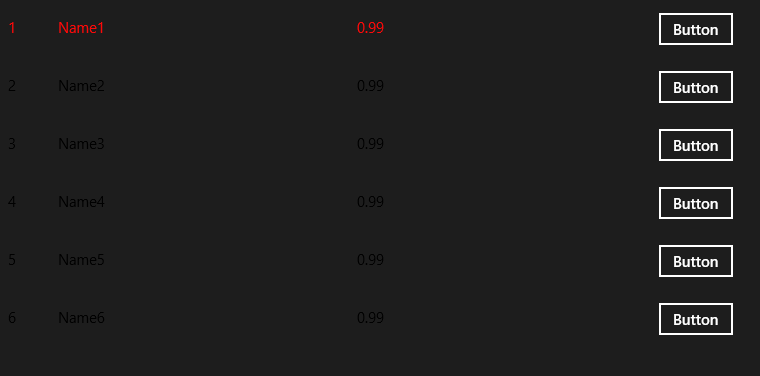
Screenshot8For those who love to see the behavior in action I created a little sample app, which shows a few items in a ListBox. At the end of each row there’s a button, and if you click that the color of three texts to the left is animated from black to red in about a second. That’s a storyboard being fired by the behavior. Very exiting ;-) - but it proves the point.

Enjoy! I hope this helps you with your Windows 8 development! Global Availability is coming, get cracking to get your stuff in the store!