Showing posts with label MVVM Light. Show all posts

05 January 2015

Binding shapes to the Windows Phone 8.1 Here Maps control

Intro

Every time I meet someone from the Windows Phone Map team (or get into contact with them in some other way) I talk about the importance of being able to data bind shapes to the maps. Things are definitely improving: XAML elements can displayed using data binding out of the box (we used to need the Windows Phone toolkit for that), but Map Shapes alas not. As the saying goes – ‘if the mountain will not come to Muhammad, then Muhammad must go to the mountain' I took up an old idea that I used for Bing Maps on Windows 8 and later converted to Windows Phone 8.0 – and basically adapted it for use in Windows Phone 8.1. Including some bug fixes.

Map display elements recap

You can display either XAML elements on top of the map or use map shapes. XAML elements can be anything, a can be displayed by either adding them in code to the map’s Children property, or by using a MapItemControl, databind it’s ItemSource property to a list object and them define a template for the display using properties from the object bound to the template. Typically, that looks like this:

<Maps:MapItemsControl ItemsSource="{Binding Activities}">
    <Maps:MapItemsControl.ItemTemplate>
        <DataTemplate >
            <Image Source="{Binding Image}" Height="25"
                Maps:MapControl.NormalizedAnchorPoint="{Binding Anchor}" 
                Maps:MapControl.Location="{Binding Position}">
            </Image>
        </DataTemplate>
    </Maps:MapItemsControl.ItemTemplate>
</Maps:MapItemsControl>

Important to know is that these elements are not drawn by the map, but on top of the map, by the UI thread. Typically, they are slow.

Map shapes, on the other hand, are drawn by the map itself, by native code, and therefore fast. You can add them to the map by adding a MapShape child class to the maps’ MapElements properties. You can choose from MapPolyLine, MapPolygon and – new in Windows Phone 8.1 – MapIcon. Data binding is, unfortunately, not something that is supported.

Enter WpWinNlMaps

This time, you won’t have to type or have to look at a lot of code, as I have already published all that’s necessary on NuGet – in the WpWinNlMaps package. You simply add this to your application, and you are ready to go. Mind you, this pulls in a lot of other stuff – the WpWinNl package itself, MVVMLight, and some more stuff. This will enable you to bind view models to the map, have them displayed to and make them ‘tappable’. This is all done with the aid of – you guessed it – a behavior. MapShapeDrawBehavior to be precise.

Concepts

Typically, maps are divided into layers. You can think of this as logical units representing one class of real-world objects (or ‘features’ as they tend to be called in the geospatial word). For instance, “houses”, “gas stations”, “roads”. In Windows Phone, this is clearly not the case: all MapShapes are thrown into one basket – the MapElements property. In WpWinNlMaps, a layer roughly translates to one behavior attached to the map.

A MapShapeDrawBehavior contains a few properties

  • ItemsSource – this is where you bind your business objects/view models to
  • PathPropertyName – the name of the property in a bound object that contains the Geopath describing the object’s location
  • LayerName – the name of the layer. Make sure this is unique within the map
  • ShapeDrawer – the name of the class that actually determines how the Geopath in PathPropertyName is actually displayed
  • EventToCommandMappers – contains a collection of events of the map that need to be trapped, mapped to a command on the bound object that needs to be called when the map receives this event. Presently, the only events that make sense are “Tapped” and “MapTapped”.

A sample up front

Before going further into detail, let’s do a little sample first, because theory is fine, but code works better, in my experience. So I have a little class containing a viewmodel that has a Geopath, and Name, and a command that can be fired:

public class PointList : ViewModelBase
{
  public PointList()
  {
    Points = null;
  }
  public string Name { get; set; }

  public Geopath Points { get; set; }
  
  public ICommand SelectCommand
  {
    get
    {
      return new RelayCommand<MapSelectionParameters>(
        p => DispatcherHelper.CheckBeginInvokeOnUI(() => 
        Messenger.Default.Send(new MessageDialogMessage(
          Name, "Selected object", "Ok", "Cancel"))));
    }
  }
}

Suppose a couple of these things are sitting in my main view model’s property “Lines”, then I can simply display a number of blue violet lines by using the following XAML

<maps:MapControl x:Name="MyMap" >
  <mapbinding:MapShapeDrawBehavior LayerName="Lines" ItemsSource="{Binding Lines}" 
       PathPropertyName="Points">
  
      <mapbinding:MapShapeDrawBehavior.EventToCommandMappers>
        <mapbinding:EventToCommandMapper EventName="MapTapped" 
             CommandName="SelectCommand"/>
      </mapbinding:MapShapeDrawBehavior.EventToCommandMappers>
      
      <mapbinding:MapShapeDrawBehavior.ShapeDrawer>
        <mapbinding:MapPolylineDrawer Color="BlueViolet"/>
      </mapbinding:MapShapeDrawBehavior.ShapeDrawer>
      
  </mapbinding:MapShapeDrawBehavior>
</maps:MapControl

So:image

  • Objects are created from the collection “Lines”
  • The name of the layer is “Lines” (this does not need to correspond with the name used in the previous bullet)
  • The property containing the Geopath for a single object in the list “Lines” is called “Points”
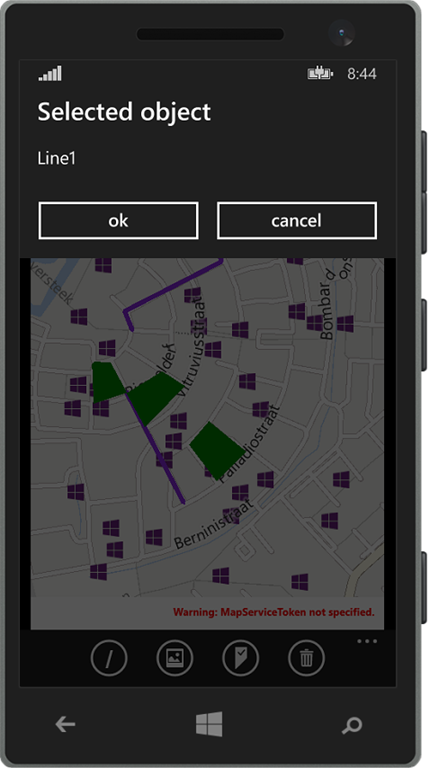
  • When the event “MapTapped” is detected on one of these lines, the command “SelectCommand” is to be fired. Mind you, this command should be on the bound object. Notice this fires a MessageDialogMessage that can be displayed by a MessageDialogBehavior. Basically, if all the parts are in place, it will show a message dialog displaying the name of the object the user tapped on.
  • This object is to be drawn as a blue violet line.

The result being something as displayed to the right.

Map shape drawers

These are classes that turn the Geopath into an actual shape. You get three out of the box that can be configured using a few simple properties.

  • MapIconDrawer
  • MapPolyLineDrawer
  • MapPolygonDrawer

To draw an icon, line or polygon (duh).  The key thing is – the drawers are very simple. For instance, this is the drawer that makes a line:

public class MapPolylineDrawer : MapLinearShapeDrawer
{
  public MapPolylineDrawer()
  {
    Color = Colors.Black;
    Width = 5;
  }

  public override MapElement CreateShape(object viewModel, Geopath path)
  {
    return new MapPolyline { Path = path, StrokeThickness = Width, 
                             StrokeColor = Color, StrokeDashed = StrokeDashed, 
                             ZIndex = ZIndex };
  }
}

There is only one method CreateShape that you need to override to make your own drawer. You get the viewmodel and the Geopath (as extracted by the MapShapeDrawBehavior and you can simply mess around with it.

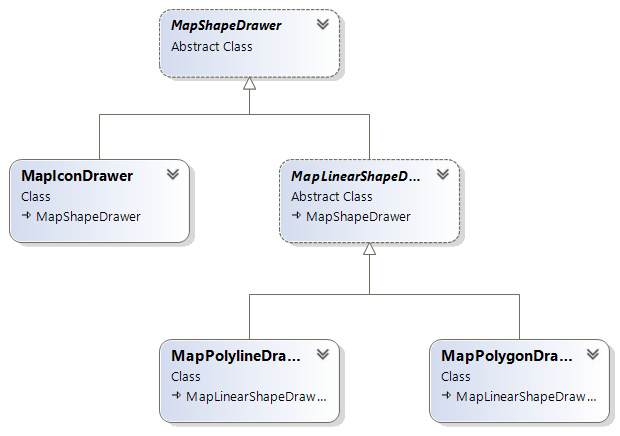
The drawer class model is like this:

image

Trapping events and activating commands with EventToCommandMapper

By adding an EventToCommandMapper to EventToCommandMappers you can make a command get called when an event occurs. You can do that easily in XAML as displayed in the sample. Basically only events that have a MapInputEventArgs or TappedRoutedEventArgs can be trapped. In most real-world cases you will only need to trap MapTapped. See the example above how to do that. Keep in mind, again, that although the event is trapped on the map, the command is executed on the elements found on the location of the event.

There is a special case though where you might want to trap the “Tapped” event too – that is when you mix and match XAML elements and MapShapes. See this article for background information on that particular subject.

Some limitations and caveats

  • Even for MapIcons the PathPropertyName needs to point to a Geopath. This is to create a common signature for the CreateShape method in the drawers. Geopaths of one point are valid, so that is no problem. If you provide Geopaths containing more than one point, it will just use the first point.
  • Although the properties are read from bound objects, those properties are not bound themselves. Therefore, an object that has already been drawn on the map will not be updated on the map if you change the contents of the Geopath. You will need to make sure the objects are in an ObservableCollection and then replace the whole object in the collection to achieve that result.
  • If you use a method like mine to deal with selecting objects (firing messages), your app’s code will need to deal with multiple selected objects – since there can be more than one object on one location. My sample solution does clearly not do that. All objects will fire a message, but only one will show the message dialog. A better way to deal with it would be
    • Make a message that contains the MapSelectionParameters that are supplied to the command that is fired on select (see sample code)
    • Have the MainViewModel collect those messages, and decide based upon the SelectTime timestamp what messages are the result of one select action and should be displayed together.
  • In professional map systems the order of the layers determines the order in which elements are drawn. So the layers that are drawn first, appear at the bottom, and everything that’s drawn later on top of it. In Windows Phone, the Z-index of each element determines that. So be sure to set those in the right order if you want to appear stuff on top of each other.
  • Be aware that MapIcons are a bit of an oddball. First, they are drawn using a ‘best effort’. In layman’s terms, this means that some of them won’t a appear if they are too close together. If there are a lot close together, a lot won’t appear. This will change while you zoom and pan, and you have no way to control it. Furthermore, MapIcons don’t always show on top of other shapes even if you specify the Z-index to be higher.

Conclusion

imageThe sample solution shows the drawing of icons, lines and polygons using the binding provided by WpWinNlMaps. You can tap on a map element and the name of the tapped element will display in a message dialog. This should give you a running start in using this library.

Although there are quite some limitations with respect to the binding, mainly caused by the nature of how the map works (you cannot bind to a command that is to be called when you tap the element – you can just provide the name of the command, just like the path property) I think this library makes using the map a lot easier – at least in MVVM apps. I am using this library extensively in my latest app Travalyzer.

Happy mapping!

22 December 2014

A behavior to show a MessageDialog from a MVVMLight viewmodel in Universal apps–with callbacks

Of course you are now all writing MVVM based apps, after all I have been advocating that for years, and you are listening this here old venerable MVP, right? ;). Anyway, some UI interactions between UI and viewmodel can seem to be a bit complicated, but these kinds of problems are usually pretty simple to solve with a combination of a behavior, the MVVMLight messenger, and a message containing a callback. And as I hate to write things more than once, I  made this into a reusable behavior. It ain’t rocket science, but it’s nice and clean.

I start with a class holding the actual message, and in this class file I have defined a callback delegate as well:

using System.Threading.Tasks;
using GalaSoft.MvvmLight.Messaging;

namespace WpWinNl.Behaviors
{
  public class MessageDialogMessage : MessageBase
  {
    public MessageDialogMessage(string message, string title,
                                string okText, string cancelText,
                                MessageDialogCallBack okCallback = null,
                                MessageDialogCallBack cancelCallback = null,
                                object sender = null, object target = null)
                                : base(sender, target)
    {
      Message = message;
      Title = title;
      OkText = okText;
      CancelText = cancelText;
      OkCallback = okCallback;
      CancelCallback = cancelCallback;
    }

    public MessageDialogCallBack OkCallback { get; private set; }
    public MessageDialogCallBack CancelCallback { get; private set; }
    public string Title { get; private set; }
    public string Message { get; private set; }
    public string OkText { get; private set; }
    public string CancelText { get; private set; }
  }

  public delegate Task MessageDialogCallBack();
}

It’s a basic MVVMLight BaseMessage child class, with properties for various texts, and two optional callbacks for OK and cancel actions.

The behavior itself is, as behaviors go, pretty simple:

using System;
using System.Diagnostics;
using Windows.UI.Popups;
using Windows.UI.Xaml;
using GalaSoft.MvvmLight.Messaging;

namespace WpWinNl.Behaviors
{
  public class MessageDialogBehavior : SafeBehavior<FrameworkElement>
  {
    protected override void OnSetup()
    {
      Messenger.Default.Register<MessageDialogMessage>(this, ProcessMessage);
      base.OnSetup();
    }

    private async void ProcessMessage(MessageDialogMessage m)
    {
      bool result = false;
      var dialog = new MessageDialog(m.Message, m.Title);

      if (!string.IsNullOrWhiteSpace(m.OkText))
      {
        dialog.Commands.Add(new UICommand(m.OkText, cmd => result = true));
      }

      if (!string.IsNullOrWhiteSpace(m.CancelText))
      {
        dialog.Commands.Add(new UICommand(m.CancelText, cmd => result = false));
      }

      try
      {
        await dialog.ShowAsync();
        if (result && m.OkCallback != null)
        {
          await m.OkCallback();
        }

        if (!result && m.CancelCallback != null)
        {
          await m.CancelCallback();
        }
      }
      catch (Exception ex)
      {
        Debug.WriteLine("double call - ain't going to work");
      }
    }
  }
}

This being once again a SafeBehavior, it simply starts to listen to MessageDialogMessage messages. When one is received, a MessageDialog is constructed with the message and title to display, as well as an optional Ok and Cancelbutton – and callback. If you send a message, you can provide optionally provide simple method from your viewmodel to be called by the behavior when Ok or Cancel is called, thus providing a two-way communication channel. Mind, though, all this is async, which has a curious side effect: if you send another message before the user has clicked Ok or Cancel, this will raise an exception.This will be displayed in the Visual Studio output window while you debug, but it won’t show up in release, and your message won’t be displayed either – so you need to carefully control sending messages, and not throw them out like there’s no tomorrow.

I have made a little sample app – a Universal app of course, because there have been some pretty clear hints by Microsoft this is the way to go forward. You will notice everything worthwhile is the shared project, up to the MainPage.xaml. People who were present at the latest Lowlands WpDev day last October will remember my fellow MVP Nico Vermeir saying in his talk “don’t do that, there’s pain in there”, and while this is true, it’s an ideal thing for lazy demo writers.

I started out with a blank Universal app, and moved the MainPage.Xaml and it’s companion MainPage.Xaml.cs to the shared project. Then I brought in my WpWinNl project that, amongst other things, drags in MVVMLight and everything else you need. Then I created this whopping complex viewmodel:

using System.Threading.Tasks;
using System.Windows.Input;
using GalaSoft.MvvmLight;
using GalaSoft.MvvmLight.Command;
using GalaSoft.MvvmLight.Messaging;
using WpWinNl.Behaviors;

namespace SampleMessagePopup
{
  public class MainViewModel : ViewModelBase
  {
    public ICommand MessageCommand
    {
      get
      {
        return new RelayCommand(
          () => 
            Messenger.Default.Send(new MessageDialogMessage(
              "Do you really want to do this?", "My Title", 
              "Hell yeah!", "No way", 
              HellYeah, Nope)));
      }
    }

    private async Task HellYeah()
    {
      Result = "Hell yeah!";
    }

    private async Task Nope()
    {
      Result = "NOOOO!";
    }


    private string result = "what?";
    public string Result
    {
      get { return result; }
      set { Set(() => Result, ref result, value); }
    }
  }
}

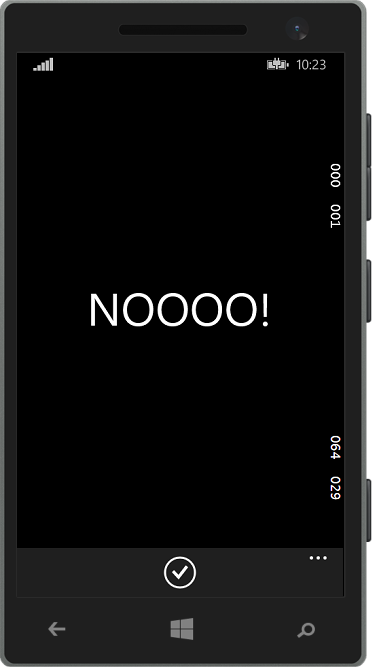
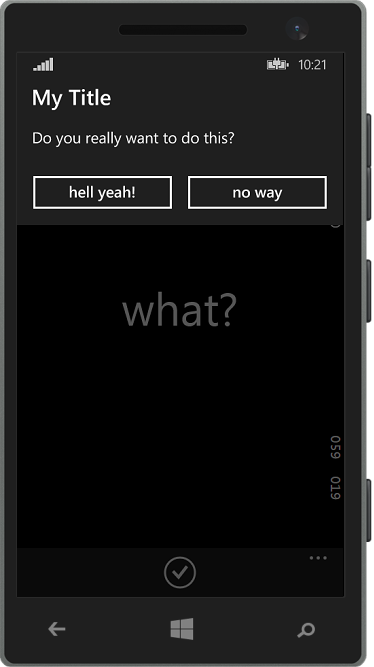
imageimageIf you fire the command, it will show a dialog that looks like the left on these two screens (on Windows Phone) and if you press the “no way” button it will show the very right screen. A few things are noticeable:

  • Both methods are async, although they don’t implement anything asynchronous. That’s because I wanted to be able do awaitable things in the callback and a contract is a contract – were not making JavaScript here. Only tools like ReSharper (highly recommended) will make you notice it, but you can ignore it for now.
  • You might notice the callback methods are private but still the behavior is apparently able to call these methods. This, my dear friends who grew up in the nice era of managed OO languages that shield you from the things that move below you in the dark dungeons of your processor, is because you basically give a pointer to a method – and that’s accessible anywhere. Your compiler may tell you it’s a private method, but that’s more like it has a secret telephone number – if you got that, you can access it anywhere ;-). Us oldies who grew up with C or Assembler can tell you all about the times when boats were made of wood and men were made of steel and the great ways you can shoot yourself in the foot with this kind of things. If you want to make you app testable it makes more sense to make the methods public, by the way, but I could not let the opportunity to show this great example of the law of leaky abstractions pass.

But I digress, I know, that is also a sign of age ;)

The Xaml is of course also pretty simple – as this app does not do much:

<Page
    xmlns="http://schemas.microsoft.com/winfx/2006/xaml/presentation"
    xmlns:x="http://schemas.microsoft.com/winfx/2006/xaml"
    xmlns:Interactivity="using:Microsoft.Xaml.Interactivity" 
    xmlns:Behaviors="using:WpWinNl.Behaviors"
    x:Class="SampleMessagePopup.MainPage"
    DataContext="{StaticResource MainViewModel}">
  <Interactivity:Interaction.Behaviors>
    <Behaviors:MessageDialogBehavior/>
  </Interactivity:Interaction.Behaviors>
  <Page.BottomAppBar>
    <CommandBar>
      <AppBarButton Icon="Accept" Label="go ask!" 
                    Command="{Binding MessageCommand}"/>
    </CommandBar>
  </Page.BottomAppBar>

  <Grid Background="{ThemeResource ApplicationPageBackgroundThemeBrush}" >
  	<TextBlock Text="{Binding Result}" HorizontalAlignment="Center" 
                   VerticalAlignment="Center" FontSize="56"/>
  </Grid>
</Page>

Notice the behavior sitting on the page itself. For obvious reasons, it’s the logical place to put. You can also put it on the top grid. But whatever you do, use only one per page. They all listen to the same message, and if you put more of them on one page you will get an interesting situation where multiple behaviors will try to show the same MessageDialog. I have not tried this, but I assume it won’t be very useful.

To make this work, by the way, you need of course to declare your viewmodel in App.Xaml. You have no other choice here, as the App Bar sits at the top level of the page, the button calls the command and thus the resource must be one level higher, i.e. the app itself.

<Application
    x:Class="SampleMessagePopup.App"
    xmlns="http://schemas.microsoft.com/winfx/2006/xaml/presentation"
    xmlns:x="http://schemas.microsoft.com/winfx/2006/xaml"
    xmlns:local="using:SampleMessagePopup"
    xmlns:system="using:System">

  <Application.Resources>
    <local:MainViewModel x:Key="MainViewModel" />
  </Application.Resources>
</Application>

Again, if you use something like ReSharper a simple click on the declaration in MainPage.Xaml will make this happen.

So, that’s all there is to it. You won’t find the code for this behavior in the solution, as it is already in WpWinNl. Just like the previous one ;). As usual, a sample solution is provided, but in inspired by my fellow MVP Diederik Krols I’ve have decided that going forward I will publish those on GitHub.

30 July 2014

Sharing code between a Xamarin Forms/MVVMLight app and EF-code first backend using Shared Reference Project Manager

Disclaimer

I am in the very early early stages of toying with Xamarin and it may well be that whatever I am doing here, is not the smartest thing in the world. This is a much as a report of my learning (may ‘struggle’ is a better word) as how-to. But what I describe here works – more or less – although it was a mighty hassle to actually get it working.

The objective

While I was having my first trials with Xamarin stuff, I turned to Entity Framework Code First because, well, when setting up a backend I am lazy. Without much thinking I made the models, using data annotations, and soon found out I had painted myself into a corner with a model that (very simplified) looks like this

using System.ComponentModel.DataAnnotations;
using System.ComponentModel.DataAnnotations.Schema;

namespace DemoShared.Models
{
   [Table("Pictures")]
    public class Photo
    {
      public long ID { get; set; }
      
     [Required]
      public string Name { get; set; }
    }
}

imageGuess what - data annotations don't work in PCL. Now what? Make a shadow class library for use on the client? That kind of went against my principles. So I decided to use the Shared Reference Project Manager.  This is a Visual Studio extension that can make basically any project shared, in stead of only between Windows Phone 8.1 and Windows 8.1 You can get it here.

Setting up the initial application

Using this tutorial by Laurent Bugnion I did set up my first Xamarin MVVM application. I created an app "DemoShared" and used the tutorial it up to the point where he starts making a new new xaml page (“Creating a new XAML page”).

Try to build the project. If the Windows Phone project fails with “The 'ProductID' attribute is invalid.. “ (etc), manually open it’s Properties/WMAppManifest.xml, for instance with NotePad, find “ProductID and “PubisherID” and place the generate GUIDs between accolades. This is a bug the Xamarin project template that I already reported.image

Basic setup of the backend

  • File/New Project/Web/ASP.Net Web application (it’s the only choice you have)
  • Choose a name (I chose DemoShared.Backend) and hit OK
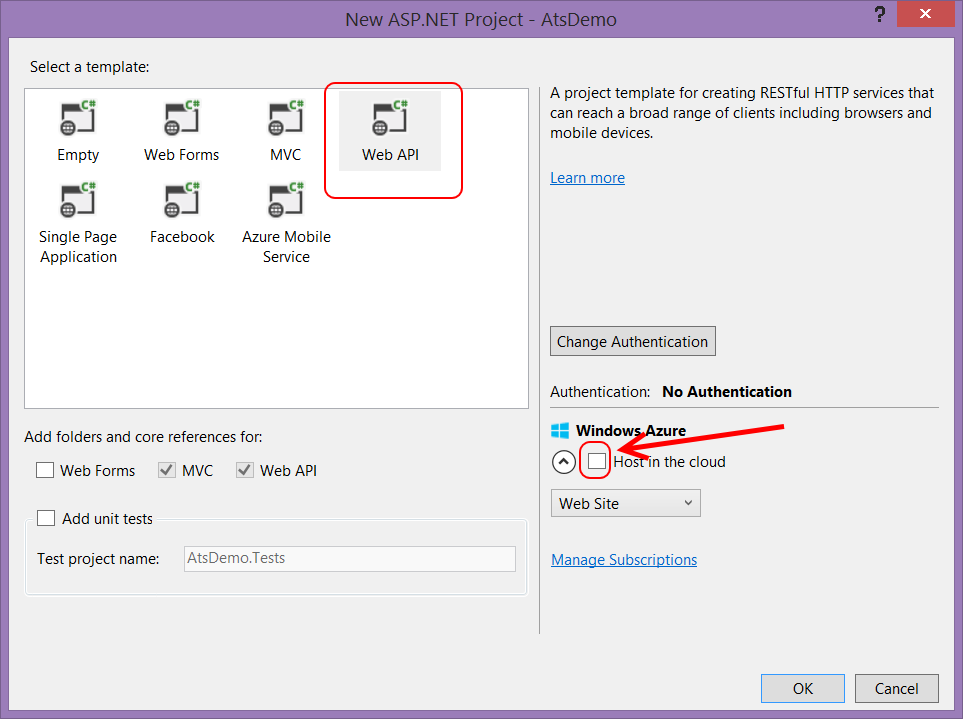
  • Choose “Web Api” and UNSELECT “Host in the cloud”
  • Go to the NuGet Package manager and update all the packages, because a lot of them will be horribly outdated. Hit “accept” or “yes” on any questions
  • Delete the all folders except “App_Data”, “App_Start” and “Controllers” because we don’t need them
  • Delete BundleConfig.cs from App_Start, and remove the reference to it from Global.asax.cs as well
  • Add a (.NET) class library DemoShared.DataAccess
  • Install NuGet Package “EntityFrameWork” in DemoShared.Backend and DemoShared.DataAccess
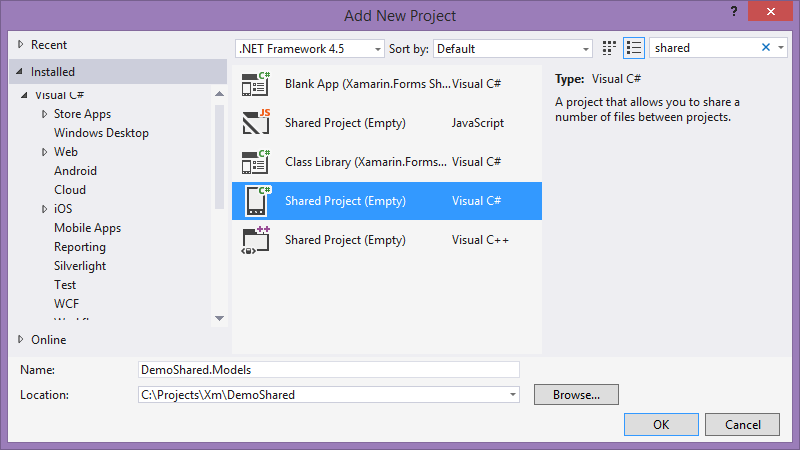
  • Create a project DemoShared.Models of type Shared Project (Empty) of type Visual C#:

image

  • Right-click the DemoShared (Portable) project, select Add, then “Add Shared Project reference”, then select “DemoShared.Models
  • Repeat this procedure for DemoShared.DataAccess.
  • Also add a reference to System.ComponentModel.DataAnnotations to DemoShared.DataAccess.
  • Add DemoShared.DataAccess as a reference to DemoShared.Backend

Re-defining the models

The key point of this whole exercise is to re-use models. For one model class this is quite some overkill, but if you have a large collection of models, things becomes quite different. So anyway. I redefined the model class as follows:

#if NET45
using System.ComponentModel.DataAnnotations;
using System.ComponentModel.DataAnnotations.Schema;
#endif

namespace DemoShared.Models
{
#if NET45
   [Table("Pictures")]
#endif

  public class Photo
  {
    public long ID { get; set; }

#if NET45     
     [Required]
#endif
    public string Name { get; set; }
  }
}

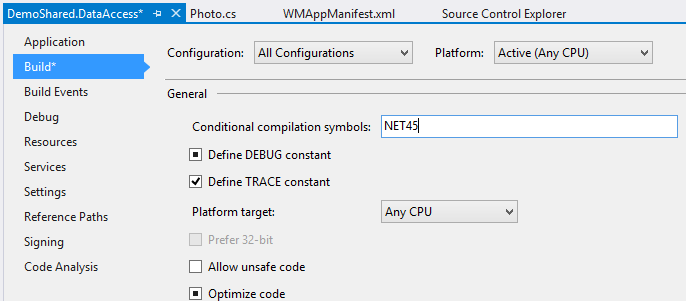
Now in order to make this compile work the way it is intended on server, you will need to add the conditional compilation symbol “NET45” to all configurations of DemoShared.DataAccess

image

And then it compiles both into PCL and into the DataAccess project – without the attributes in the first, but with the attributes the second. Remember, this is just a really nifty formalized way of ye olde way of file linking.

Kick starting the Entity Framework

Following this tutorial – more or less, I added the following class to the DataAccess project:

using System.Data.Entity;
using DemoShared.Models;

namespace DemoShared.DataAccess
{
  public class DemoContext : DbContext
  {
    public DemoContext()
      : base("DemoContext")
        {
        }

    public DbSet<Photo> Photos { get; set; }
  }
}

And then to the web.config I added this rather hopeless long connection string:

<connectionStrings>
  <add name="DemoContext" connectionString="Data Source=(localdb)\v11.0;AttachDbFilename=|DataDirectory|DemoDb.mdf;Initial Catalog=DemoDb;Integrated Security=True;MultipleActiveResultSets=True" providerName="System.Data.SqlClient" />
</connectionStrings>

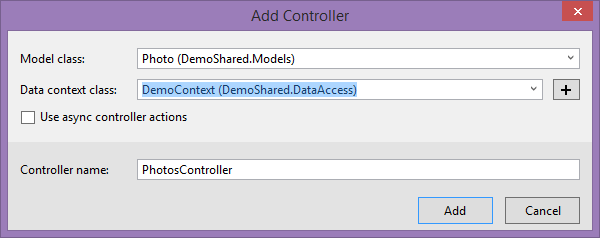
Rebuild the project. Now go to the Backend Controller folder, right click Add/Controller, select “Web API 2 Controller with actions, using Entity Framework” and in the following dialog, select the Model and Data Context class as displayed to the right

imageimage

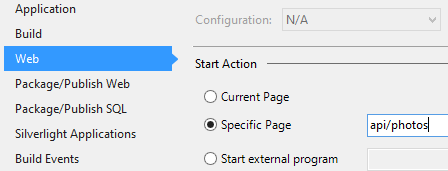
imageNow if you set “DemoShared.Backend” as start-up project, set it’s startup URL to “api/photos” and start the project, you will automatically get a database “DemoDb” in “App_Data”.Is EF code first cool or what? And my data annotations are used correctly – the Photo type is stored in the “Pictures” table, just as I wanted.

image

Now I manually entered some data in the tables to get something to show, but of course you can also write an initializer like the EF tutorial describes, or write a separate project that prefills the the database. This is what I usually do, and that’s why I have put the DemoContext in a separate assembly and not in the web project – to be able to reference it form another project.

And now finally, to the Xamarin app

Adding the view model

First of all – start the NuGet package manager and add Newtonsoft Json.NET to DemoShared (Portable).

Then, add a “ViewModels” folder to DemoShared (Portable) to hold this class:

using System;
using System.Collections.Generic;
using System.Collections.ObjectModel;
using System.IO;
using System.Net;
using DemoShared.Models;
using GalaSoft.MvvmLight;
using GalaSoft.MvvmLight.Command;
using Newtonsoft.Json;

namespace DemoShared.ViewModels
{
  public class MainViewModel : ViewModelBase
  {
    public MainViewModel()
    {
      Photos = new ObservableCollection<Photo>();
    }

    public string DataUrl
    {
      get { return "http://169.254.80.80:28552/api/Photos"; }
    }

    public ObservableCollection<Photo> Photos { get; set; }

    private RelayCommand loadCommand;

    public RelayCommand LoadCommand
    {
      get
      {
        return loadCommand ?? (loadCommand = new RelayCommand(
            () =>
            {
              var httpReq = (HttpWebRequest)WebRequest.Create(new Uri(DataUrl));
              httpReq.BeginGetResponse((ar) =>
              {
                var request = (HttpWebRequest)ar.AsyncState;
                using (var response = (HttpWebResponse)request.EndGetResponse(ar))
                {
                  if (response.StatusCode == HttpStatusCode.OK)
                  {
                    using (var reader = new StreamReader(response.GetResponseStream()))
                    {
                      string content = reader.ReadToEnd();
                      if (!string.IsNullOrWhiteSpace(content))
                      {
                        var result = JsonConvert.DeserializeObject<List<Photo>>(content);
                        foreach (var g in result)
                        {
                          Photos.Add(g);
                        }
                      }
                    }
                  }
                }
              }, httpReq);
            }));
      }
    }

    private static MainViewModel instance;
    public static MainViewModel Instance
    {
      get
      {
        CreateNew();
        return instance;
      }
      set { instance = value; }
    }

    public static MainViewModel CreateNew()
    {
      if (instance == null)
      {
        instance = new MainViewModel();
      }
      return instance;
    }
  }
}

A rather standard MVVMLight viewmodel I might say, with the usual singleton pattern I use (I am not a big fan of "Locators"). When the command is fired, data is loaded from the WebApi url, deserialized to the same model code as was used to create it on the server, and loaded into the ObservableCollection. Nothing much special here.

There's one fishy detail - in stead of a computer name or “localhost”, there is this hard coded IP adress. We will get to that later.

Adding the Forms XAML page

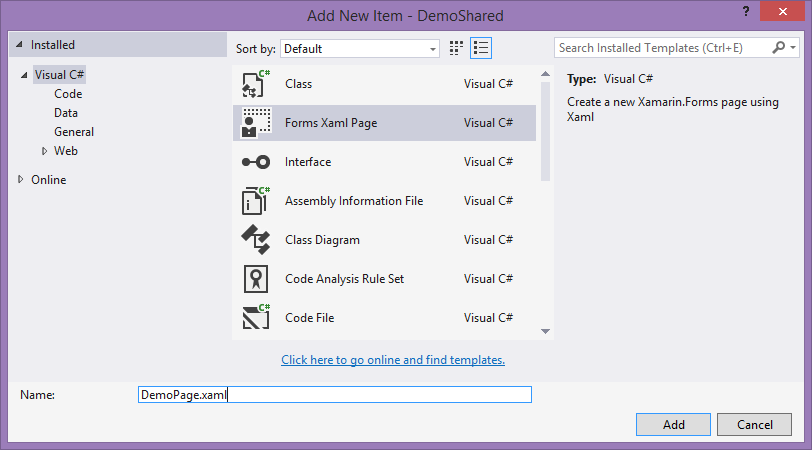
Add a new Forms XAML page like this

image

Be aware that you have to enter the name manually, that’s a bug in the Xamarin tools, like Laurent Bugnion already described in his tutorial

Now, go to the DemoPage.Xaml.cs and set up the data context by adding one line of code to the constructor of the page:

public DemoPage()
{
  InitializeComponent();
  BindingContext = MainViewModel.Instance;
}

This will of course require a “using DemoShared.ViewModels;” at the top. Then we add our “XAML” to start page

<?xml version="1.0" encoding="utf-8" ?>
<ContentPage xmlns="http://xamarin.com/schemas/2014/forms"
		xmlns:x="http://schemas.microsoft.com/winfx/2009/xaml"
		x:Class="DemoShared.DemoPage">
  <StackLayout Orientation="Vertical" Spacing="0">
    <Button Text="Click here" Command="{Binding LoadCommand}" 
            VerticalOptions="Start" HorizontalOptions="Center"  />
    <ListView ItemsSource="{Binding Photos}"
           RowHeight="50">
      <ListView.ItemTemplate>
        <DataTemplate>
          <ViewCell>
            <ViewCell.View>
              <StackLayout Padding="5, 5, 0, 5"
                           Orientation="Vertical"
                           Spacing="2">
                <Label Text="{Binding ID}" Font="Bold, Large" 
                       TextColor="Red"/>
              </StackLayout>
            </ViewCell.View>
          </ViewCell>
        </DataTemplate>
      </ListView.ItemTemplate>
    </ListView>
  </StackLayout>
</ContentPage>

Now this looks kind of familiar, but also kind of - not really. Binding looks kind of you would expect, some controls have weird options, as some... well, have you ever seen a ViewCell before? Working with this stuff really makes you appreciate things like IntelliSense and Blend, for you have none of the above. Good old handcrafted XML. But - it does carry the magic of Xamarin Forms.

Finally, we make our start page the start page of the app. Go to App.cs in DemoShared (Portable) and change the GetMainPage method to:

public static Page GetMainPage()
{
  return new DemoPage();
}

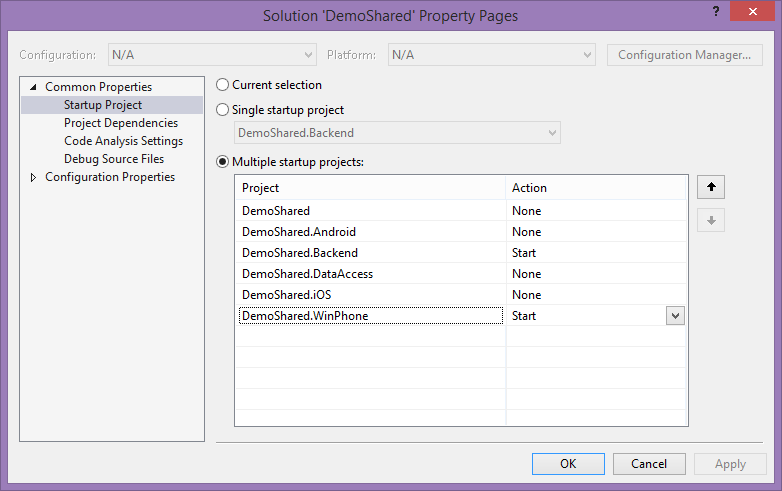
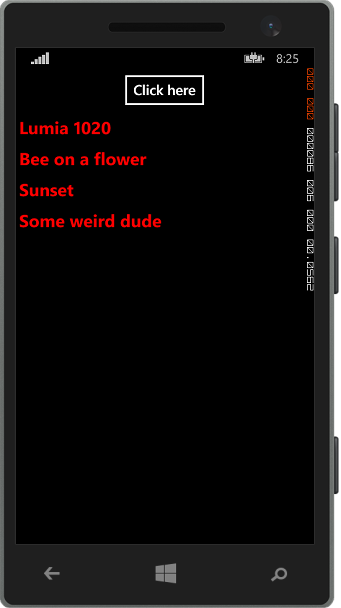
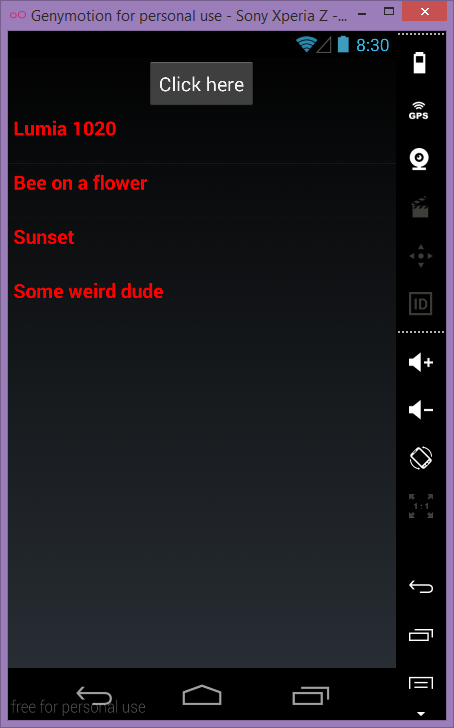
imageimageThen I set a multiple startup project, setting both the Windows Phone project as well as the backend project as startup.

And sure enough, there’s the Windows Phone startup screen with one button. And if I click it…


I get an error.

And now for the fishy detail

So your backend is a website - running under IISExpress. By default, that’s not accessible by anything else but localhost, and not by IP adress. What you have to do is explained mostly here. First, find your applicationhost.config. It’s usually in

  • C:\Users\%USERNAME%\Documents\IISExpress\config or
  • D:\Users\%USERNAME%\Documents\IISExpress\config

In my case it’s the second one. Now before you start messing around in it, you might want to make a backup. Then open the file, and search for the text "*:28552”. This should yield you the following line:

<binding protocol="http" bindingInformation="*:28552:localhost" />

Make a copy of this line, directly below it. Replace localhost by the IP adress you found earlier using "ping -t –4 <hostname>". Net result, in my case:

<binding protocol="http" bindingInformation="*:28552:localhost" />
<binding protocol="http" bindingInformation="*:28552:169.254.80.80" />

Then – very important – close Visual Studio and restart as Administrator. For then and only then IISExpress will be allowed to bind to something else than localhost. That crucial bit of information is unfortunately hard to find.

And then, sure enough:

imageimage

It runs on Windows Phone and Android. And I am sure, on Apple stuff too but lacking Apple hardware and developer account I could not test it.

BTW – and alternative to messing around with IIS Express settings is of course host the website in IIS. But that requires apparently the database being hosted in SQL*Server Express, so it can’t be in App_Data like this. Or something like that. I found this made a quick test easier.

One more thing

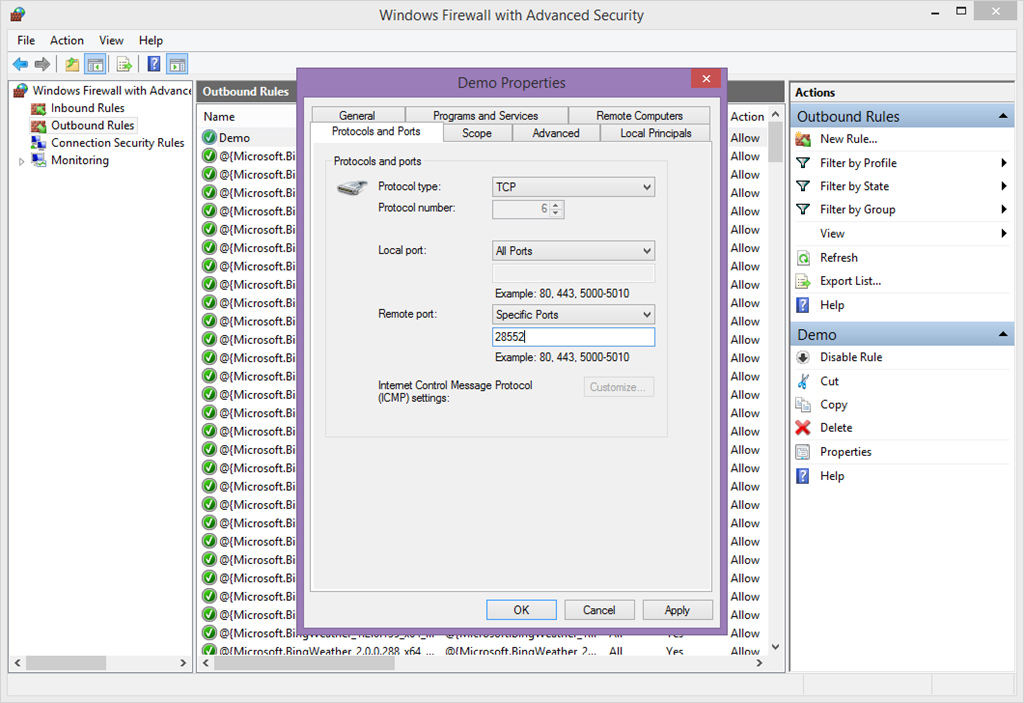
If you want to test this from outside your computer, on a phone, you might want to open the port for TCP traffic:

image

Conclusion

Using Xamarin allowed us to shared code over multiple platform, but the Shared Reference Project Manager we could also share with the server. And the ease with which you can get a database powered backend up and running using EF code first was also quite impressive to me. Now tiny details, like security and upgrades, I leave as exercise to the reader.

Code can be found here.

Post scriptum

My fellow MVP Corrado Cavelli pointed out to me that the LoadCommand method in the MainViewModel can be made considerably less complex by using the Microsoft ASP.NET Web API 2.2 Client NuGet Package. He turns out to be quite right. When you add this to the portable class library you can rewrite the command to a relatively simple

public RelayCommand LoadCommand
{
  get
  {
    return loadCommand ?? (loadCommand = new RelayCommand(
        async () =>
              {
                var client = new HttpClient { 
                   BaseAddress = new Uri("http://169.254.80.80:28552") };
                var response = await client.GetAsync("api/Photos");
                var result = await response.Content.ReadAsAsync<List<Group>>();
                foreach (var g in result)
                {
                  Groups.Add(g);
                }
              }));
  }
}
This requires "using System.Net.Http;" and "using System.Threading.Tasks;" to be added to the file, but it's a lot less cluttered than my original - copied somewhere from the interwebz - code. Thanks Corrado!

16 July 2014

Cross-platform behavior for making screenshots in Windows (Phone) 8.1

Currently I am developing an app that should be able to share or save whatever is on the screen. I came upon this article by Loek van den Ouweland about RenderTargetBitmap and wondered if I could a) make this more generally (re)usable and b) make it play nice with MVVM.

The answer was – you guessed it – a behavior. The fun thing is, you can drag it onto any UI element, and it will create a screenshot of whatever what’s inside that element ( and that’s not necessary the whole screen!) and save it to storage. Two dependency properties, Target and Prefix, determine what message the behavior listens to, and what the file prefix is.

The main code of the functionality – which still looks a lot like Loek’s original sample – is in the behavior itself. To invoke it from the viewmodel, I call in the help of the MVVMLight messenger. So I start with the message that the viewmodel and the behavior use to communicate:

using GalaSoft.MvvmLight.Messaging;

namespace WpWinNl.Behaviors
{
  public class ScreenshotMessage : MessageBase
  {
    public ScreenshotMessage(object sender = null, object target = null, 
      ScreenshotCallback callback = null) : base(sender, target)
    {
      Callback = callback;
    }

    public ScreenshotCallback Callback { get; set; }
  }

  public delegate void ScreenshotCallback(string fileName);
}

This is a standard MVVMLight message, with the added extra that it can carry an optional payload of a callback. The behavior I created saves the file to a KnownFolder, but it can send the name of the file that’s been created back to the calling object by calling said callback.

The basics of the behavior – implemented once again as a SafeBehavior – is actually pretty simple:

using System;
using System.Runtime.InteropServices.WindowsRuntime;
using System.Threading.Tasks;
using Windows.Graphics.Imaging;
using Windows.Storage;
using Windows.UI.Xaml;
using Windows.UI.Xaml.Media.Imaging;
using GalaSoft.MvvmLight.Messaging;

namespace WpWinNl.Behaviors
{
  public class ScreenshotBehavior : SafeBehavior<FrameworkElement>
  {
    protected override void OnSetup()
    {
      Messenger.Default.Register<ScreenshotMessage>(this, ProcessMessage );
      base.OnSetup();
    }

    protected override void OnCleanup()
    {
      Messenger.Default.Unregister(this);
      base.OnCleanup();
    }

    private async void ProcessMessage(ScreenshotMessage m)
    {
      if (m.Target != null && Target != null)
      {
        if (m.Target.Equals(Target))
        {
          await DoRender(m.Callback);
        }
      }
      else
      {
        await DoRender(m.Callback);       
      }
    }
  }
}

So it listens to a ScreenshotMessage coming by. When Target (a dependency property in this behavior) is equal to the target specified in the message, the rendering is done. Think of Target as a shared key – this enables a viewmodel to fire a specific behavior using – usually - a string. This I show in the sample solution. If both the behavior’s target and the message’s target are null, it fires as well. You can use this if you only have one behavior and one call. If, however, the behavior is used on multiple places I strongly recommend specifying Target, or else you might get very interesting race conditions.

The actual rendering method is nearly all Loek’s code with some little adaptions:

private async Task DoRender(ScreenshotCallback callback)
{
  var renderTargetBitmap = new RenderTargetBitmap();
  await renderTargetBitmap.RenderAsync(AssociatedObject);
  var pixelBuffer = await renderTargetBitmap.GetPixelsAsync();

  var storageFile = 
    await KnownFolders.SavedPictures.CreateFileAsync(
      string.Concat(Prefix, ".png"),
      CreationCollisionOption.GenerateUniqueName);
  using (var stream = await storageFile.OpenAsync(FileAccessMode.ReadWrite))
  {
    var encoder = 
await BitmapEncoder.CreateAsync(BitmapEncoder.PngEncoderId, stream); encoder.SetPixelData( BitmapPixelFormat.Bgra8, BitmapAlphaMode.Ignore, (uint) renderTargetBitmap.PixelWidth, (uint) renderTargetBitmap.PixelHeight, 96d, 96d, pixelBuffer.ToArray()); await encoder.FlushAsync(); if (callback != null) { callback(storageFile.Name); } } }

It creates an unique file based on the Prefix dependency property in the “SavedPictures” known folder, renders the screen as a png file, saves it, and if so desired calls a callback transmitting the name back to that callback – most likely a method of the viewmodel, which can then act on it.

The rest of the behavior are the two dependency properties that I leave out for brevity's sake.You don’t need to use them at all – if you don’t set Prefix, it will use “Screenshot”

To use it: as stated earlier, drag it on top of the UI element you want to make screenshots of, then add for instance the following code to your viewmodel:

public ICommand ScreenshotCommand
{
  get
  {
    return new RelayCommand(() =>
    {
      var m = new ScreenshotMessage(this, 
        "screenshot", MyCallback);
      Messenger.Default.Send((m));
    });
  }
}

private void MyCallback(string name)
{
  Debug.WriteLine(name);
}
In the message I have set the target to "screenshot", so in the XAML it should now says
<Behaviors:ScreenshotBehavior Target="screenshot" Prefix="MyScreenshot"/>

or else the behavior won’t respond to the message. When it’s done, it writes the name of the created file to the console – not very useful in production scenario’s, but it shows it’s working. In this callback you can for instance inform the user the file has been saved, activate a share contract or whatever you feel is neccesary.

The fun thing is, of course, that in this awesome world we live today behaviors can actually be cross-platform and be defined in a PCL and run both on Windows Phone 8.1 as on “big Windows” 8.1 :).

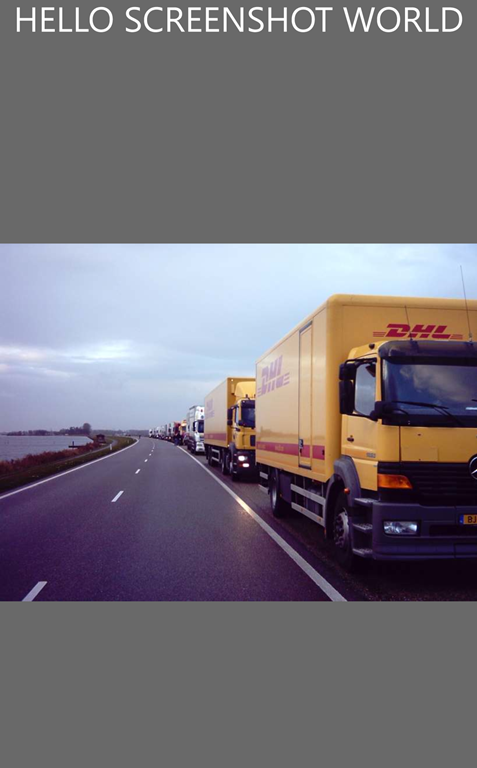
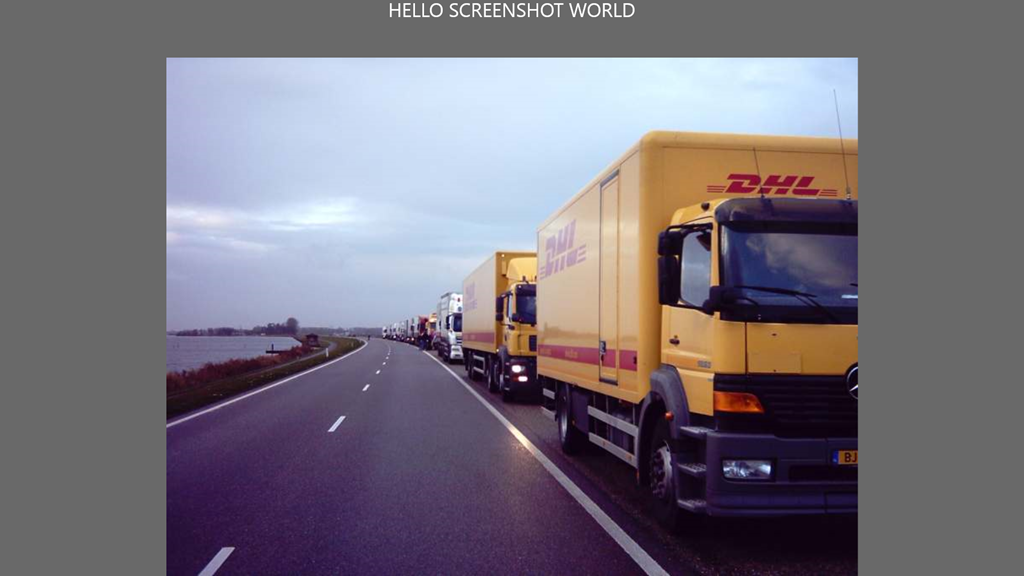
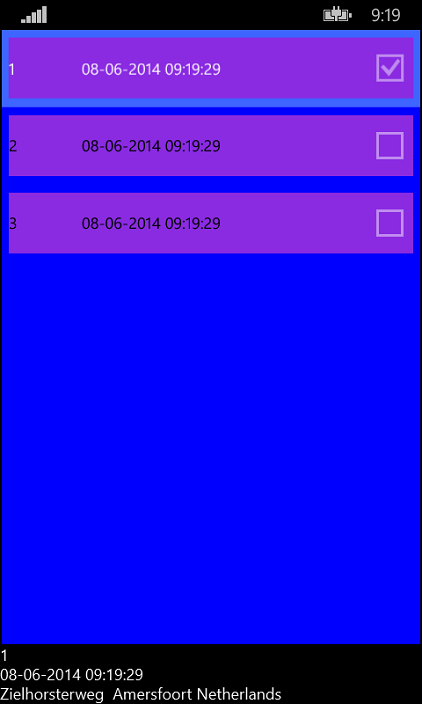
MyScreenshotMyScreenshot (2)

In the demo solution, that contains both a Windows Phone App, a Windows App, and a shared project you will see I have once again dragged the Main.Xaml to the shared project just for the fun of it. Don’t forget to set access to the pictures library in both the app manifests. I always forget that.

MyScreenshotFor Windows, the pictures end up in my “USERPROFILE%\Picures” folder, in Windows Phone they end up in “Pictures\Saved Pictures”.

Interesting detail – I have set the application’s root grid background to gray. If I don’t set a color, the background of the picture on Windows is not black, but cropped to 1297x1080 in stead of 1920x1080 as is my native resolution. I have not been able to determine yet why this is.

I built this behavior on top of my WpWinNl 2.0.3 package, but you can easily adapt it to get it to work as a normal behavior just using the procedure I described here.

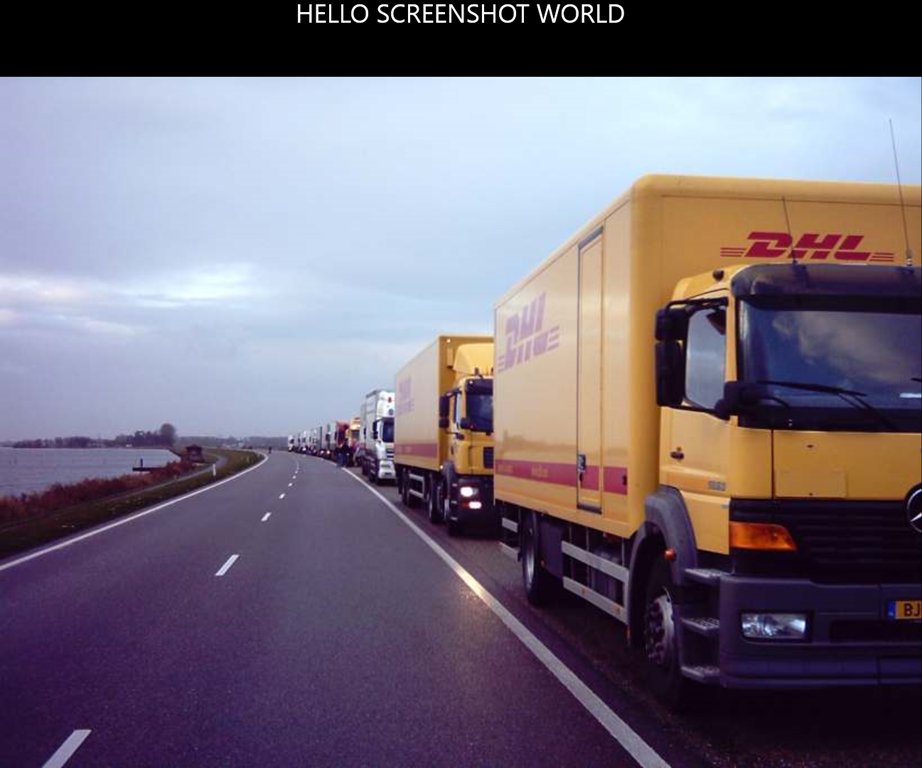
Oh and the picture? It’s just an old picture of my wife’s Mercedes truck back in 2004, when she and a colleague joined a Guinness Book of records attempt to create the longest truck convoy ever. This is a short stop at dyke road shoulder before the actual 9.5 km long convoy was assembled. Interesting detail: all 416 drivers were women. The convoy drove 22 km without any problems, and as my wife so aptly said – it was the first time she joined a traffic jam for fun.

25 June 2014

Using SensorCore and MVVMLight to build a ‘what did I do where and when’ Windows Phone 8.1 app

Introduction

As you might have seen, the SensorCore SDK has been released. I intended to bring out a full fledged app utilizing this new and exiting SDK, but I found out that I first had to explain a bit about the ‘supporting acts’ I was going to use – if you study my last four posts you will see they all contain parts of the sample app that goes what this post. In addition, the last month I had a rather time- and energy-consuming, frustrating, ultimately fruitless and disappointing thing cross my way with which I won’t bother you with – sufficient to say I would rather have spent this time on writing apps.

Anyway. I set out to make an app that would use the both the SensorCore ActivityMonitor and TrackPointMonitor, as well as the existing MapLocationFinder to find out what I was doing where, and when.

For those who are not familiar with the concept of SensorCore: a few newer devices, among which the Lumia 630, have hardware aboard that allows you to track where the user has been about every 5 minutes, and what he was doing, for the last 10 days. Based upon this information, it designates places that are apparently important to the owner (like home, work). In addition, it has a step counter. Everything is handled by a special, very low power piece of hardware that continuously tracks location and movement with very little battery drain.

Now for the tin foil hat crew: there are some key differences to the way other platforms handle this. First of all, it can only happen with the user’s consent – it’s a phone setting that has to be explicitly turned on, and then and only then the hardware starts to collect data. Furthermore, this data never leaves the phone all by itself – there is no Bing server tracking your actions to clutter your phone with ads or other stuff you may not necessarily appreciate. The only way this data can ever leave your phone is by some for of app – but first you have to give the phone consent, then the app, and said app has to pass certification as well. This Windows/Windows Phone ecosystem takes your privacy very seriously. Ask any developer – almost everyone has been rejected at least once over some tiny detail they missed in the privacy sections of the certification requirements ;-)

The app I am going to show you looks like this. With sincere apologies for the video quality – apparently maps on a slow device is a bit too much for a cable connection with a Lumia 630, but it shows the gist.

SensorCore and MVVMLight

Setting the stage

So I created a Windows Phone 8.1 (Store) app WhatWhenWhere with one supporting class library WpWinNl.MvvmLight.Contrib. I added my WpWinNlMaps NuGet packages to both projects, and added PropertyChanged.Fody as well to it. The contrib package holds BaseNotifyingModel and TypedViewModelBase – as described in this article on using PropertyChanged.Fody for Model-to-Viewmodel communication

An other minor detail – you might want to pull in the Lumia SensorCore NuGet package as well ;-)

A model to hold one location

So I needed a model to know where and when something happened (a TrackPointMonitor TrackPoint), what I was doing there (an ActivityMonitorReading) and an approximate street address (a MapLocationFinder MapLocation). First analysis learns that an ActivityMonitorReading only holds a Timestamp and an Activity. This activity describes what I was doing (Idle, Moving, Stationary, Walking or Running). As I already know the time from the TrackPoint, and I only use that Timestamp to get the accompanying Activity, we might as just only hold that Activity, and not the whole ActivityMonitorReading.

So I created the following model class:

using System;
using System.Linq;
using Windows.Devices.Geolocation;
using Windows.Services.Maps;
using Lumia.Sense;
using WpWinNl.MvvmLight;

namespace WhatWhenWhere.Models
{
  public class ActivityPoint : BaseNotifyingModel
  {
    public ActivityPoint()
    {
    }

    public ActivityPoint(TrackPoint p)
    {
      LengthOfStay = p.LengthOfStay;
      Position = p.Position;
      Radius = p.Radius;
      Timestamp = p.Timestamp;
    }

    public ActivityPoint(TimeSpan lengthOfStay, BasicGeoposition position, 
      double radius, DateTimeOffset timestamp, Activity activity)
    {
      LengthOfStay = lengthOfStay;
      Position = position;
      Radius = radius;
      Timestamp = timestamp;
      Activity = activity;
    }

    public TimeSpan LengthOfStay { get; set; }
    public BasicGeoposition Position { get; set; }
    public double Radius { get; set; }
    public DateTimeOffset Timestamp { get; set; }
    public Activity Activity { get; set; }

    public MapLocation LocationData { get; set; }

    public void LoadAddress()
    {
      if (LocationData == null)
      {
        MapLocationFinder.FindLocationsAtAsync(
new Geopoint(Position)).AsTask().ContinueWith(p => { var firstLocationData = p.Result.Locations; if (firstLocationData != null) { LocationData = firstLocationData.FirstOrDefault(); } }); } } } }

Which has, unlike the TrackPoint and the ActivityMonitorReading, the added benefit of being serializable on account of having a default constructor (ahem) which comes in handy when doing storing state when the app is deactivated (note: the demo app does not handle that).

You might notice the LoadAddress method that can called externally to load the address on demand (in stead of just doing that in the constructor. This has been done for performance reasons – geocoding and loading addresses is expensive and  slow, and you don’t want to do that if you are not sure if the user actually wants to see those addresses or not. So you defer that to the last possible moment – when the user actually selects this object.This technique is described in detail in this article .Notice it carefully avoids the way how you obtain these locations ;-) .

A model to load the data.

The bulk of the DataLoaderModel is shamelessly stolen from the samples.

using System;
using System.Collections.Generic;
using System.Linq;
using System.Threading.Tasks;
using GalaSoft.MvvmLight.Messaging;
using Lumia.Sense;
using WhatWhenWhere.Models.Messages;
using Tracker = Lumia.Sense.TrackPointMonitor;

namespace WhatWhenWhere.Models
{
  public class DataLoaderModel
  {
    public DataLoaderModel()
    {
    }

    public async Task Init()
    {
      await InitTracker();
      await InitActivityMonitor();
    }

    private Tracker tracker;
    private async Task<bool> InitTracker()
    {
      if (await Tracker.IsSupportedAsync())
      {
        if (tracker == null)
        {
          if (await CallSensorcoreApiAsync(async () =>
              tracker = await Tracker.GetDefaultAsync()))
          {
            return true;
          }
        }
      }
      return false;
    }

    private ActivityMonitor activityMonitor;

    private async Task<bool> InitActivityMonitor()
    {
      if (await ActivityMonitor.IsSupportedAsync())
      {
        if (activityMonitor == null)
        {
          if (await CallSensorcoreApiAsync(async () =>
              activityMonitor = await ActivityMonitor.GetDefaultAsync()))
          {
            return true;
          }
        }
      }
      return false;
    }

    public async Task SetSensorState(bool enable)
    {
      await SetSensorState(tracker, enable);
      await SetSensorState(activityMonitor, enable);
    }

    private async Task SetSensorState(ISensor sensor, bool active)
    {
      if (sensor != null)
      {
        if (!active)
        {
          await CallSensorcoreApiAsync(async () => 
{ await sensor.DeactivateAsync(); }); } else { await CallSensorcoreApiAsync(async () =>
{ await sensor.ActivateAsync(); }); } } } private async Task<bool> CallSensorcoreApiAsync(Func<Task> action) { try { await action(); } catch (Exception ex) { SenseHelper.GetSenseError(ex.HResult); Messenger.Default.Send( new SenseFailureMessage(SenseHelper.GetSenseError(ex.HResult), this)); // This is now not handled, but should really be handled as described here // (Calling the SensorCore SDK safely) return false; } return true; } } }

It has some clever tricks with Lambdas to be able to call SensorCore methods without having to copy & past the whole try/catch stuff. I basically only added in both sensors, and let it send out an error message via the MVVMLight Messenger if things go wrong (note: app does not handle this, but I think it’s a good pattern).

I did add some code to this stolen-from-sample class, to actually load the data into the model:

public public async Task<bool> LoadInitialData()
{
  if (tracker != null && activityMonitor != null)
  {
    var result = await tracker.GetTrackPointsAsync(
       DateTime.Now - TimeSpan.FromDays(10), TimeSpan.FromDays(10));
    if (RoutePoints == null)
    {
      RoutePoints = new List<ActivityPoint>(result.Select(p => new ActivityPoint(p)));
    }
    else
    {
      RoutePoints.Clear();
    }
    await LoadActivities();
    return true;
  }
  return false;
}

private async Task LoadActivities()
{
  foreach (var r in RoutePoints)
  {
    try
    {
      var reading = await activityMonitor.GetActivityAtAsync(r.Timestamp);
      r.Activity = reading.Mode;
    }
    catch (Exception ex)
    {  // lame – I know.
    }
  }
}

public List<ActivityPoint> RoutePoints { get; set; }

This is the core of the whole app – the rest is fluff to make things visible. LoadInitialData first loads all the TrackPoints from the last 10 days (which is the maximal available time anyway) and converts them into my ActivityPoint model. It then proceeds to find the actual activity that was performed at the time the TrackPoint was recorded. And if you call the ActivityPoint’s LoadAddress method, it will find the (approximate) address of the location it was recorded – it will even return highway names (it’s won’t find a house number then, but I don’t think that will surprise anyone).

A view model for a single point

Quite a lot of how this this works, is already described in my article on using PropertyChanged.Fody. I can directly bind to the model, but for formatting output and commands I like to keep my model clean and employ a viewmodel for that.

using System;
using System.ComponentModel;
using System.Globalization;
using System.Linq;
using System.Windows.Input;
using Windows.Devices.Geolocation;
using Windows.Services.Maps;
using GalaSoft.MvvmLight.Command;
using GalaSoft.MvvmLight.Messaging;
using GalaSoft.MvvmLight.Threading;
using WhatWhenWhereMessages;
using WhatWhenWhere.Models;
using WpWinNl.MvvmLight;

namespace WhatWhenWhere.ViewModels
{
  public class ActivityViewModel : TypedViewModelBase<ActivityPoint>
  {
    public ActivityViewModel()
    {
    }

    public ActivityViewModel(ActivityPoint p) : base (p)
    {
    }
  
    public Geopath Location
    {
      get
      {
        return new Geopath(new[] { Model.Position });
      }
      set
      {
        var p = value.Positions.FirstOrDefault();
        if (Model.Position.Equals(p))
        {
          Model.Position = p;
          RaisePropertyChanged(() => Location);
        }
      }
    }

    public string DateAndTime
    {
      get
      {
        return Model != null ? 
Model.Timestamp.ToString("dd-MM-yyyy hh:mm:ss",
CultureInfo.InvariantCulture) : string.Empty; } } public string LocationName { get { return Model != null && Model.LocationData != null ?
GetFormattedAdress(Model.LocationData.Address) : string.Empty; } } private string GetFormattedAdress(MapAddress a) { if (a == null) throw new ArgumentNullException("a"); return string.Format("{0} {1} {2} {3}",
a.Street, a.StreetNumber, a.Town, a.Country); } public ICommand SelectCommand { get { return new RelayCommand( () => { Messenger.Default.Send(new SelectedObjectMessage(this)); Model.LoadAddress(); }); } } public ICommand DeSelectCommand { get { return new RelayCommand( () => Messenger.Default.Send(new SelectedObjectMessage(null))); } } protected override void ModelPropertyChanged(object sender,
PropertyChangedEventArgs e) { if (e.PropertyName == "LocationData") { DispatcherHelper.CheckBeginInvokeOnUI(() =>
RaisePropertyChanged(() => LocationName)); } } } }

There are a few things that might attract your attention:

  • The Location in this viewmodel is a GeoPath of only one position. This is because I want to re-use my MapBinding assembly that I originally created for Windows Phone 8, and recently ported to Windows Phone 8.1
  • The SelectCommand explicitly launches the loading of the address when the viewmodel is selected. In my previous sample I showed a way to do this in the getter of a property, but this is a better way I think (as I already said then)
  • The ModelPropertyChanged method launches a RaisePropertyChanged using MVVMLight’s DispatcherHelper. While this is very useful, it requires the DispatcherHelper to be initialized in the App.Xaml.cs. We will get to that later.

Bringing it all together

The MainViewModel is always my ‘class that brings it all together’. I won’t show all details here, or this article will be even longer than it already is. I start with some initialization stuff:

using System.Collections.ObjectModel;
using System.Threading.Tasks;
using System.Windows.Input;
using Windows.Devices.Geolocation;
using GalaSoft.MvvmLight;
using GalaSoft.MvvmLight.Command;
using GalaSoft.MvvmLight.Messaging;
using WhatWhenWhereMessages;
using WhatWhenWhere.Models;
using WpWinNl.Messages;
using WpWinNl.Utilities;

namespace WhatWhenWhere.ViewModels
{
  public class MainViewModel : ViewModelBase
  {
    public async Task Start()
    {
      if (Activities == null)
      {
        Activities = new ObservableCollection<ActivityViewModel>();
      }

      if (Route == null)
      {
        Route = new ObservableCollection<RouteViewModel>();
      }

      Messenger.Default.Register<WindowVisibilityMessage>(this, async m =>
      {
        await ProcessWindowVisibilityMessage(m);
      });

      Messenger.Default.Register<SelectedObjectMessage>(this, 
ProcessSelectedObjectMessage); await Model.Init(); } private void ProcessSelectedObjectMessage(SelectedObjectMessage message) { SelectedItem = message.Activity; } private async Task ProcessWindowVisibilityMessage(WindowVisibilityMessage m) { if (Model != null) { if (!IsInDesignMode) { await Model.SetSensorState(m.Visible); } } } } }

And you can also see the viewmodel listens to two messages: one that is fired when an object is selected, and one that is fired when the main windows becomes visible (or invisible) - and sets the sensor state according to that. The second half of the MainViewModel mostly contains data properties and a command:

public ICommand LoadCommand
{
  get
  {
    return new RelayCommand(
      async () =>
      {
        await Model.LoadInitialData();
        Model.RoutePoints.ForEach(p => Activities.Add(new ActivityViewModel(p)));
        Route.Clear();
        var route = new RouteViewModel(Activities);
        Route.Add(route);
        ViewArea = GeoboundingBox.TryCompute(route.Path.Positions);
      });
  }
}

public ObservableCollection<RouteViewModel> Route { get; set; }

public ObservableCollection<ActivityViewModel> Activities { get; set; }

private GeoboundingBox viewArea = GeoboundingBox.TryCompute(new[] 
  { new BasicGeoposition { Latitude = -90, Longitude = -90 }, 
    new BasicGeoposition { Latitude = 90, Longitude = 90 } });

public GeoboundingBox ViewArea
{
  get { return viewArea; }
  set
  {
    if (viewArea != value)
    {
      viewArea = value;
      RaisePropertyChanged(() => ViewArea);
    }
  }
}

private ActivityViewModel selectedItem;
public ActivityViewModel SelectedItem
{
  get { return selectedItem; }
  set
  {
    if (selectedItem != value)
    {
      selectedItem = value;
      RaisePropertyChanged(() => SelectedItem);
    }
  }
}

Notice the LoadCommand: not only it loads the activities into a view model, but it also makes a new RouteViewModel (for drawing one line between all the points) and a bounding box to make all the points fit into the view. The RouteViewModel itself is a very simple thing that creates a GeoPath from all the points of all activities:

using System.Collections.Generic;
using System.Linq;
using Windows.Devices.Geolocation;
using GalaSoft.MvvmLight;

namespace WhatWhenWhere.ViewModels
{
  public class RouteViewModel : ViewModelBase
  {
    public RouteViewModel()
    {
    }

    public RouteViewModel(IEnumerable activities)
    {
      Path = new Geopath(activities.Select(p => p.Location.Positions.First()));

    }

    private Geopath geoPath;
    public Geopath Path
    {
      get { return geoPath; }
      set
      {
        if (geoPath != value)
        {
          geoPath = value;
          RaisePropertyChanged(() => Path);
        }
      }
    }
  }
}

And a wee bit of XAML to glue it all together

Being a lazy ****** and not wanting to think of something to draw all the stuff on a map, I reused both my Map Drawing behavior as the trick to show a popup, and came out with pretty little XAML indeed:

<Page.BottomAppBar>
  <CommandBar>
    <AppBarButton Icon="Accept" Label="Load" Command="{Binding LoadCommand, Mode=OneWay}"/>
  </CommandBar>
</Page.BottomAppBar>

<!-- stuff snipped -->

<Grid Grid.Row="1" x:Name="ContentRoot" Margin="19,9.5,19,0">
  <interactivity:Interaction.Behaviors>
    <behaviors:SizeListenerBehavior x:Name="ContentRootListener"/>
  </interactivity:Interaction.Behaviors>
  <Button Content="Button" HorizontalAlignment="Left" Margin="246,208,0,0" 
        VerticalAlignment="Top" Command="{Binding LoadCommand}"/>

  <Maps:MapControl maps:MapBindingHelpers.MapViewArea="{Binding ViewArea}">
    <interactivity:Interaction.Behaviors>
      <maps:MapShapeDrawBehavior LayerName="Locations" 
        ItemsSource="{Binding Activities}" 
        PathPropertyName="Location">
        <maps:MapShapeDrawBehavior.EventToCommandMappers>
          <maps:EventToCommandMapper EventName="MapTapped" 
            CommandName="SelectCommand"/>
        </maps:MapShapeDrawBehavior.EventToCommandMappers>
        <maps:MapShapeDrawBehavior.ShapeDrawer>
          <maps1:MapActivityDrawer/>
        </maps:MapShapeDrawBehavior.ShapeDrawer>
      </maps:MapShapeDrawBehavior>
        
      <maps:MapShapeDrawBehavior LayerName="Route" 
        ItemsSource="{Binding Route}" 
        PathPropertyName="Path">
        <maps:MapShapeDrawBehavior.ShapeDrawer>
          <maps:MapPolylineDrawer Color="Green" Width="3" 
                     StrokeDashed="True"/>
        </maps:MapShapeDrawBehavior.ShapeDrawer>
      </maps:MapShapeDrawBehavior>    
     </interactivity:Interaction.Behaviors>
  </Maps:MapControl>
    <Grid DataContext="{Binding SelectedItem}" 
        Height="{Binding WatchedObjectHeight, ElementName=ContentRootListener, 
           Converter={StaticResource PercentageConverter}, ConverterParameter=30}" 
           VerticalAlignment="Bottom" Background="Black" >
      <interactivity:Interaction.Behaviors>
        <behaviors:UnfoldBehavior RenderTransformY="1"  Direction="Vertical"  
        Activated="{Binding Converter={StaticResource NullToBooleanConverter}}"/>
      </interactivity:Interaction.Behaviors>
      <userControls:RouteItemPopup >
    </userControls:RouteItemPopup>
    </Grid>
  </Grid>
</Grid>

If you want more info on how these behaviors for binding elements to a MapControl work, I suggest you look at the original article explaining how they should be used. If a user taps on a map symbol, a popup with activity data is shown, and the address where that happened is loaded. Basically the same trick as I used here

Start it up

It’s important to initialize the Dispatcher helper, start new MainViewModel, and setup the WindowVisibilityMessage. I have talked about this before, but I thought it wise to repeat it one more time.

protected async override void OnLaunched(LaunchActivatedEventArgs e)
{
    DispatcherHelper.Initialize();
    MainViewModel.CreateNew();
    await MainViewModel.Instance.Start();
    WindowVisibilityMessage.Setup();
// more
Notice the OnLaunched needs to be async, because of the async nature of the Start method.

…and a class to draw a different image for every activity

using System;
using System.Collections.Generic;
using System.Linq;
using System.Text;
using System.Threading.Tasks;
using Windows.Devices.Geolocation;
using Windows.Foundation;
using Windows.Storage.Streams;
using Windows.UI.Xaml.Controls.Maps;
using Lumia.Sense;
using WhatWhenWhere.ViewModels;
using WpWinNl.Maps;

namespace WhatWhenWhere.Maps
{
  public class MapActivityDrawer : MapShapeDrawer
  {
    public override MapElement CreateShape(object viewModel, Geopath path)
    {
      var activityModel = ((ActivityViewModel) viewModel).Model;
      return new MapIcon
      {
        Location = new Geopoint(path.Positions.First()),
        Title = activityModel.Activity.ToString(),
        NormalizedAnchorPoint = new Point(0.5,1),
        Image = GetImage(activityModel.Activity)
      };
    }

    private static RandomAccessStreamReference GetImage(Activity activity)
    {
      var image = "Other";
      switch (activity)
      {
        case Activity.Idle:
        {
          image = "Idle";
          break;
        }
        case Activity.Walking:
        {
          image = "Walking";
          break;
        }

        case Activity.Moving:
        {
          image = "Moving";
          break;
        }

        case Activity.Stationary:
        {
          image = "Stationary";
          break;
        }
      }
      return RandomAccessStreamReference.CreateFromUri(
         new Uri(string.Concat("ms-appx:///Images/", image, ".png")));

    }
  }
}

Basically, translates every bound object back to ActivityViewModel, and draws a different image for it. This can be made more efficient, but this shows a way it could work.

Conclusion: the good and the bad parts

As you have seen, using SensorCore is actually pretty easy. Making it work together with MVVMLight as well, although I am very well aware that all the stuff I used around it may make it look a bit more convoluted that it actually is. The DataLoaderModel is all you have to understand. The rest is just the app around it.

The bad parts of SensorCore are pretty simple:

  • It’s still in beta
  • It requires a Windows Phone 8.1 phone with a Lumia Cyan update and the required hardware aboard. Currently, to the best of my knowledge, only the Lumia 630 has both the required hardware and software, although I assume the 930 will have it too.
  • The TrackPointMonitor only gives a position every 5 minutes – at the very best. Sometimes it misses points. So forget about a super-duper-detailed tracking of your location.

Another bad part – but that is more my bad – is that I have not included a way to run this on simulated data. A NuGet package allows you to test against fake or prerecorded data, so you can try your app without having access to an actual device have the sensors on board. I made this using a real live 630. To get this to work properly, you will need one too. The good part is: they are dirt cheap.

The good parts are a lot better:

  • Very simple and easy-to-use API.
  • Possibility to do geographical tracking and analysis after-the-fact
  • All kinds of fun apps possible, like fitness apps, life logging, and stuff like that
  • Very low power consumption (unlike ‘active’ GPS enabled apps)
  • Privacy is secured – no big brother watching over your shoulder. The data is yours and yours alone.

So. A new class of apps is enabled by this new SDK. I hope I have inspired you to have a spin with it. If you have read all the way to this, I am very impressed by your perseverance ;-)

Demo solution, as (nearly) always, can be found here.

Edit 26-06-2014: made some minor updates after suggestions from my Finland fellow MVP Jani Nevalainen.

09 June 2014

Using Fody.PropertyChanged for automatic PropertyChangedEvents and model-to-viewmodel communication

When you are working with MVVM, you are faced with a couple of interesting challenges. Usually you have something like this:

You see a lot of properties with a lot of repetitive code. Of course, you can use snippets to make that easier, but still. It looks cluttered.

using GalaSoft.MvvmLight;

namespace MyApp.Logic.ViewModels
{
  public class DummyViewModel : ViewModelBase
  {
    private string myProperty;
    public string MyProperty
    {
      get { return myProperty; }
      set
      {
        if (myProperty != value)
        {
          myProperty = value;
          RaisePropertyChanged(() => MyProperty);
        }
      }
    }

    private string yourProperty;
    public string YourProperty
    {
      get { return yourProperty; }
      set
      {
        if (yourProperty != value)
        {
          yourProperty = value;
          RaisePropertyChanged(() => YourProperty);
        }
      }
    }

    public void DoSomething()
    {}
  }
}

And it usually gets more cluttered, as people tend to put what amounts to business logic into the viewmodel. I used to make a viewmodel as a wrapper around a model, like this.

namespace MyApp.Logic.Models
{
  public class DummyModel
  {
    public string YourProperty { get; set; }
    public string MyProperty { get; set; }

    public void DoSomeBusinessThing()
    { }
  }
}
and then something like this, also created via snippets
using GalaSoft.MvvmLight;
using MyApp.Logic.Models

namespace MyApp.Logic.ViewModels
{
  public class DummyViewModel : ViewModelBase
  {
    public DummyViewModel()
    {
    }

    public DummyViewModel(DummyModel model)
    {
      Model = model;
    }
    public DummyModel Model { get; set; }

    public string MyProperty
    {
      get { return Model.MyProperty; }
      set
      {
        if (Model.MyProperty != value)
        {
          Model.MyProperty = value;
          RaisePropertyChanged(() => MyProperty);
        }
      }
    }

    public string YourProperty
    {
      get { return Model.YourProperty; }
      set
      {
        if (Model.YourProperty != value)
        {
          Model.YourProperty = value;
          RaisePropertyChanged(() => YourProperty);
        }
      }
    }
  }
}
Nice. But now you have a different problem. I you call DoSomeBusinessThing and that affects "MyProperty" or "YourProperty" on the model in some way, how is the viewmodel supposed to know and fire a PropertyChanged?

Enter Fody - a great toolkit. It is basically an extensible toolkit for “weaving” .NET assemblies. It accepts plugins to decide what is actually injected. The most useful for our problem is the PropertyChanged.Fody.Which is also available as a Nuget package that you can easily add to your project. You then take your good old DummyObject and add the attribute ImplementPropertyChanged to it.

using PropertyChanged;

namespace Travalyzer.Logic.ViewModels
{
  [ImplementPropertyChanged]
  public class DummyModel
  {
    public string YourProperty { get; set; }
    public string MyProperty { get; set; }

    public void DoSomeBusinessThing()
    { }
  }
}

and boom. If something affects a property, the property will fire PropertyChanged. PropertyChanged.Fody will add all kinds of smart logic to your model, as described here. Ain't that cool, you don't even have to make a viewmodel anymore.

Well, sorry to rain on your parade, but if you now start to add commands to your enhanced model and properties or methods that are only used for display (for instance, a formatted date) you are basically polluting your business layer. It’s like adding business logic to your viewmodel, but coming from the opposite direction. Yes, you can now bind directly to model properties and they will fire a PropertyChanged, but business logic is business logic and thou shalt not pollute that with methods indented to deliver data for display and UI interaction. That is what viewmodels are for. And your viewmodel may still need to do something so it still may need to be notified. After some puzzling I came up with the following. First, I define a base class for my models with minimal baggage:

using System.ComponentModel;
using GalaSoft.MvvmLight.Threading;
using PropertyChanged;

namespace WpWinNl.MvvmLight
{
  [ImplementPropertyChanged]
  public class BaseNotifyingModel : INotifyPropertyChanged
  {
    public event PropertyChangedEventHandler PropertyChanged;

    protected virtual void OnPropertyChanged(string propertyName = null)
    {
      if (PropertyChanged != null)
      {
        DispatcherHelper.CheckBeginInvokeOnUI(() => 
            PropertyChanged(this, new PropertyChangedEventArgs(propertyName)));
      }
    }
  }
}

I don’t even use MVVMLight’s ViewmodelBase, but a very simple INotifyPropertyChanged implementation. PropertyChanged.Fody is apparently smart enough to leave that part of the class alone if it’s already implemented. But of course I do use other smart things by Laurent Bugnion – the DispatcherHelper. Mind you, this requires it being initialized in App.Xaml.cs. The most important thing is that the PropertyChanged event can be used by the viewmodel to track possible changes in the model. I use this in the following base view model, which is used on MVVMLight ViewModelBase:

using System.ComponentModel;
using GalaSoft.MvvmLight;
using PropertyChanged;

namespace WpWinNl.MvvmLight
{
  [ImplementPropertyChanged]
  public class TypedViewModelBase<T> : ViewModelBase where T : BaseNotifyingModel 
  {
    private T model;

    public TypedViewModelBase()
    {
    }

    public TypedViewModelBase(T model)
    {
      Model = model;
    }

    public T Model
    {
      get { return model; }
      set
      {
        if (value != model)
        {
          if (model != null)
          {
            model.PropertyChanged -= ModelPropertyChanged;
          }
          model = value;
          if (model != null)
          {
            model.PropertyChanged += ModelPropertyChanged;
          }
        }
      }
    }

    protected virtual void ModelPropertyChanged(object sender, 
       PropertyChangedEventArgs e)
    {
    }
  }
}

imageIf you derive your models from BaseNotifyingModel and your viewmodels from TypedViewModelBase you will have a model that automatically fires INotifyPropertyChanged on any property that is changed – so it can be used in data binding – and you will have viewmodels that will automatically be notified of any change in their model – and by overriding ModelPropertyChanged you can act on that.

Now of course this is all very nice and very architecty, but how would this ever be useful? Suppose you have a list of business object containing a location. When the user selects it, you want to display it’s street address. You can get that using the MapLocationFinder API. If you have a few 100 points, and you want to get all the addresses – this can take quite some time. So you want to do this on-demand, as displayed in the Windows Phone demo solution.


So I created this model:

using System;
using System.Linq;
using Windows.Devices.Geolocation;
using Windows.Services.Maps;
using WpWinNl.MvvmLight;

namespace FodyDemo.Models
{
  public class LocationData : BaseNotifyingModel
  {
    public LocationData()
    {
      TimeStamp = DateTime.Now;
    }

    public int Id { get; set; }

    public bool HasLocation { get; set; }

    public Geopoint Position { get; set; }

    public DateTimeOffset TimeStamp { get; set; }

    private MapLocation locationInfo;

    public MapLocation LocationInfo
    {
      get
      {
        if (locationInfo == null)
        {
          lock (this)
          {
            MapLocationFinder.FindLocationsAtAsync(Position).
AsTask().ContinueWith(p => { var firstLocationData = p.Result.Locations; if (firstLocationData != null) { LocationInfo = firstLocationData.FirstOrDefault(); HasLocation = true; } }); } } return locationInfo; } set { locationInfo = value; } } } }

Basically, only if the LocationInfo property is accessed it is actually retrieved. In real life, I would probably implement this using a “LoadLocation” method or something, but whatever – this works as well. If the location is found, not only the LocationInfo is set, but also the HasLocation property, which makes the checkbox light up. In the list, the following properties are bound like this: 

<TextBlock Text="{Binding Model.Id}" FontSize="15"
VerticalAlignment="Center"></TextBlock> <TextBlock Text="{Binding DateAndTime}" Grid.Column="1" FontSize="15"
VerticalAlignment="Center"></TextBlock> <CheckBox IsChecked="{Binding Model.HasLocation}" IsEnabled="False"
Grid.Column="2" ></CheckBox

You can see HasLocation is bound directly to the Model, still it gets a PropertyChanged event fired courtesy of Fody. The DataAndTime property apparently coming from the ViewModel, but Location Property is left alone. for now. The panel at the bottom, where the selected object is displayed, is like this

<TextBlock Text="{Binding Model.Id}" FontSize="15" ></TextBlock>
<TextBlock Text="{Binding DateAndTime}" Grid.Row="1" FontSize="15"></TextBlock>
<TextBlock Text="{Binding LocationName}" Grid.Row="2"
FontSize="15"></TextBlock>

In the the viewmodel it looks like this:

using System.ComponentModel;
using System.Globalization;
using System.Windows.Input;
using Windows.Services.Maps;
using FodyDemo.Messages;
using FodyDemo.Models;
using GalaSoft.MvvmLight.Command;
using GalaSoft.MvvmLight.Messaging;
using WpWinNl.MvvmLight;

namespace FodyDemo.ViewModels
{
  public class LocationViewModel : TypedViewModelBase<LocationData>
  {

    public LocationViewModel()
    {
    }

    public LocationViewModel(LocationData ld) : base(ld)
    {
    }

    public string DateAndTime
    {
      get
      {
        return Model != null ? 
          Model.TimeStamp.ToString("dd-MM-yyyy hh:mm:ss", 
            CultureInfo.InvariantCulture) : string.Empty;
      }
    }

    public string LocationName
    {
      get {
        return Model != null && Model.LocationInfo != null ? 
        GetFormattedAdress(Model.LocationInfo.Address) : string.Empty; }
    }

    private string GetFormattedAdress(MapAddress a)
    {
      return string.Format("{0} {1} {2} {3}", a.Street, a.StreetNumber,
a.Town, a.Country); } public ICommand SelectCommand { get { return new RelayCommand( () => Messenger.Default.Send(new SelectedObjectMessage(this))); } } protected override void ModelPropertyChanged(object sender,
PropertyChangedEventArgs e) { if (e.PropertyName == "LocationInfo") { RaisePropertyChanged(() => LocationName); } } } }

You can see the LocatioName property shows a neatly formatted address – and gets a manual RaisePropertyChanged when the ModelPropertyChanged is fired from the model (once again courtesy of Fody) – it checks if that is indeed the “LocationInfo” property and boom – the UI knows it must update because a property from the model is changed, even tough that property is not directly bound to the property.

Thus you can use the viewmodel as it is intended – a place to bind model and view together, a converter on steroids as Josh Smith put is so aptly as early as 2008. A simple base class will add some minimal extra functionality to your business class to make it play within MVVM – but it will still keep it clean.

Important detail – if you use the MVVMLight DispatcherHelper, you must initialize it first. I usually do this in the App.xaml.cs.

The demo solution, which contains some more code, can be found here. Credits go to the equally smart as sarcastic-in-a-fun-way Scott Lovegrove, who first put me on track with Fody quite some time ago, but only recently I was smart enough to actually take his advice and try it out. My base class for models was based on this Fody sample – but of course I thought I was smarter that that and opted for events rather than MVVMLight messages, it being a more lightweight solution. I like to reserve the Messenger for inter-viewmodel communication.

If you did indeed read all the way through here – congratulations. This is a very architect’s article, not some fun thing to make a cool new user control. But once in a while I start pondering about things like this, to keep my code cleaner, and make things better. If I haven’t bored you to death with it, you might be one of the very rare species that has some architectural genes hidden in your DNA too. I like to think I have, although I am more of a micro-architect, not one that only draws enormous complex diagrams for a living ;)