Showing posts with label Mapping. Show all posts

02 August 2017

Creating a 3D topographical map in your HoloLens / Windows MR app with the Bing Maps Elevation API

Intro

All right, my friends. It's time for the real deal, the blog post I have been anticipating to write since I first published the 3D version of Walk the World like two months ago. It took me a while to extract the minimal understandable code from my rather convoluted app. Everyone who has ever embarked on a trip of 'exploratory programming' (meaning you have an idea what you want to do, but only some vague clues how) knows how you end up with a repo (and code) full of failed experiments, side tracks, etc. So I had to clean that up a little first. Also, my app does a lot more than just show the map, and those features would obscure the general idea. As a bonus - after creating this blog post I finally actually understand myself how and most importantly why the app works :).

So, without further ado, I am going to show you how to display a 3D map in your HoloLens or Windows MR headset. Just like in Walk the World. I will build upon my previous post, in which I showed you how to make a flat slippy map. This time, we are going 3D.

The general idea

As you can read in the previous post, I 'paste' the actual map tiles - mere images - on a Unity3D Plane. A Plane is a so-called mesh that exists out of a grid of 11x11 points, that form the vertices. If I somehow would be able to ascertain actual elevation on those locations, I can move those points up and down and actually get a 3D map. The tile itself will be stretched up and down.The idea of manipulating the insides of a mesh, which turns out to be very simple, is explained by the awesome Rick Bazarra in the first episode of his must-see "Unity Strikes Back" explanatory video series on YouTube, a follow-up to his Creative Coding with Unity series on Channel 9, that I consider a standard starting point for everyone who wants to get off the ground with Unity3D.

So where do we get those elevations? Enter the awesome Microsoft service called the Bing Maps Elevation API. It seems to be built-to-order for this task. Your first order of business - get yourself a Basic Bing Maps key.

Adding some geo-intelligence to the tile

The Bing Maps Elevation API documentation describes an endpoint GetElevations that allows you to get altitudes in several ways. One of them is a grid of altitudes in a bounding box. That is what we want - our tiles are square. The documentation says the bounding box should be specified as follows:

"A bounding box defined as a set of WGS84 latitudes and longitudes in the following order:
south latitude, west longitude, north latitude, east longitude"

If you envision a tile positioned so that north is up, we are required to calculate the geographical location of the top-right and bottom-left of the tile. The Open Street Maps Wiki provides code for the north-west corner of the tile, i.e. top left. I translated the code to C#...

//http://wiki.openstreetmap.org/wiki/Slippy_map_tilenames#C.23
private WorldCoordinate GetNorthWestLocation(int tileX, int tileY, int zoomLevel)
{
    var p = new WorldCoordinate();
    var n = Math.Pow(2.0, zoomLevel);
    p.Lon = (float)(tileX / n * 360.0 - 180.0);
    var latRad = Math.Atan(Math.Sinh(Math.PI * (1 - 2 * tileY / n)));
    p.Lat = (float) (latRad * 180.0 / Math.PI);
    return p;
}

image... and it works fine, but we need the south west and the north east points. Well, if you consider how the tiles are stacked, you can easily see how the north east point is the north-west point of the tile right of our current tile, and the south-west point is the north west point of the tile below our tile. Therefore we can use the north-west points of those adjacent tiles to find the values we actually need - like this:

public WorldCoordinate GetNorthEast()
{
    return GetNorthWestLocation(X+1, Y, ZoomLevel);
}

public WorldCoordinate GetSouthWest()
{
    return GetNorthWestLocation(X, Y+1, ZoomLevel);
}

That was easy, right?

Size matters

Although Microsoft is a USA company, it fortunately has an international orientation so the Bing Maps Elevation API returns no yards, feet, inches, miles, furlongs, stadia, or any other deprecated distance unit – it returns plain old meters. Which is very fortunate, as the Windows Mixed Reality distance unit is – oh joy – meters too. But it returns elevation in real world values, and while it might be fun to show Kilimanjaro in real height, it will be a bit too big to fit in my room (or any room, for what matters). Open Street Map is shown at a definite scale per zoom level – and as a GIS guy, I like to be the height correctly scaled - to get for this real life feeling. Once again, referring to the Open Street Map Wiki – there is a nice table that shows how many meters a pixel is at any given zoom level. We will need the size per tile (which is 256 pixels, as I explained in the previous post), so we add the following code that will give you a scale factor for the available zoom levels for Open Street Map:

//http://wiki.openstreetmap.org/wiki/Zoom_levels
private static readonly float[] _zoomScales =
{
    156412f, 78206f, 39103f, 19551f, 9776f, 4888f, 2444f,
    1222f, 610.984f, 305.492f, 152.746f, 76.373f, 38.187f,
    19.093f, 9.547f, 4.773f, 2.387f, 1.193f, 0.596f, 0.298f
};

private const int MapPixelSize = 256;

public float ScaleFactor
{
    get { return _zoomScales[ZoomLevel] * MapPixelSize; }
}

Creating the request

Now we move to MapTile. We add the following code to download the Bing Maps Elevation API values

private string _mapToken = "your-map-token-here";

public bool IsDownloading { get; private set; }

private WWW _downloader;

private void StartLoadElevationDataFromWeb()
{
    if (_tileData == null)
    {
        return;
    }
    var northEast = _tileData.GetNorthEast();
    var southWest = _tileData.GetSouthWest();

    var urlData = string.Format(
    "http://dev.virtualearth.net/REST/v1/Elevation/Bounds?bounds={0},{1},{2},{3}&rows=11&cols=11&key={4}",
     southWest.Lat, southWest.Lon, northEast.Lat, northEast.Lon, _mapToken);
    _downloader = new WWW(urlData);
    IsDownloading = true;
}

This simply queries the TileInfo structure for the new methods we have just created. Notice it then builds the URL, containing the bounds, the hard coded 11x11 points that are in a Unity Plane, and the key. Then it calls a piece of Unity3D code called “WWW”  which is a sort of HttpClient named by someone with a lot of fantasy (NOT). And that’s it. We add a call to the existing SetTileData method like this:

public void SetTileData(TileInfo tiledata, bool forceReload = false)
{
    if (_tileData == null || !_tileData.Equals(tiledata) || forceReload)
    {
        TileData = tiledata;
        StartLoadElevationDataFromWeb();
    }
}

so that whenever tile data is supplied, it does not only initiate the downloading of the tile, but also the downloading of the 3D data.

Processing the 3D data

Next up is a method ProcessElevationDataFromWeb, that is called from Update (so about 60 times a second). In this method we check if a the MapTile is downloading – and if it’s ready, we process the data

protected override void OnUpdate()
{
    ProcessElevationDataFromWeb();
}

private void ProcessElevationDataFromWeb()
{
    if (TileData == null || _downloader == null)
    {
        return;
    }

    if (IsDownloading && _downloader.isDone)
    {
        IsDownloading = false;
        var elevationData = JsonUtility.FromJson<ElevationResult>(_downloader.text);
        if (elevationData == null)
        {
            return;
        }

        ApplyElevationData(elevationData);
    }
}

An ElevationResult is a class to deserialize a result from a call to the Bing Maps Elevation API in. I entered the result of a manual call in Json2CSharp and got a class structure back – only I changed all properties into public fields so the rather stupid limited Unity JsonUtility, that does not seem to understand the concept of properties, can handle it. I also initialized lists in the objects from the constructors. It’s not very interesting but if you want a look go here in the demo project.

Applying the 3D data.

So now it’s time to actually move the mesh points up an down. Mostly using code I stole from Rick Bazarra, with a few adaptions from me:

private void ApplyElevationData(ElevationResult elevationData)
{
    var threeDScale = TileData.ScaleFactor;

    var resource = elevationData.resourceSets[0].resources[0];

    var verts = new List<Vector3>();
    var mesh = GetComponent<MeshFilter>().mesh;
    for (var i = 0; i < mesh.vertexCount; i++)
    {
        var newPos = mesh.vertices[i];
        newPos.y = resource.elevations[i] / threeDScale;
        verts.Add(newPos);
    }
    RebuildMesh(mesh, verts);
}

private void RebuildMesh(Mesh mesh, List<Vector3> verts)
{
    mesh.SetVertices(verts);
    mesh.RecalculateNormals();
    mesh.RecalculateBounds();
    DestroyImmediate(gameObject.GetComponent<MeshCollider>());
    var meshCollider = gameObject.AddComponent<MeshCollider>();
    meshCollider.sharedMesh = mesh;
}

First we get the scale factor – that’s simply the value by which elevation data must be divided to make it match the current zoom level. Next, we get the elevation data itself, that is two levels down in de ElevationData. And then we go modify the elevation of the mesh points to match those of the elevation we got. For some reason - and that's why I said it looks like the Bing Maps Elevation API looks to be like built-to-order for this task - the points come in at exactly the right order for Unity to process in the mesh.

As I learned from Rick, you cannot modify the points of a mesh, you have to replace them. So we loop through the mesh points and fill a list with points that have their y – so the vertical direction – changed to a scaled value of the elevation. Then we call RebuildMesh, that simply replaces the entire mesh with new vertices, does some recalculation and rebuilds the collider, so your gaze cursor will actually play nice with the new mesh. I also noticed that it you don’t do the recalculate stuff, you will end up looking partly through tiles. I am sure people with a deeper understanding of Unity3D will understand why. I just found out that it needs to be done.

Don't press play yet! There a few tiny things left to do, to make the result look good.

Setting the right location and material

First of all, the map is kind of shiny, which was more or less okay-ish for the flat map, but if you turn the map into 3D you will get this over bright effect. So open up the project in Unity, create a new material “MapMaterial” and apply the properties as displayed here below left. The color of the material should be #BABABAFF. See left image. When it is done, drag it on top of the MapTile (see right image).
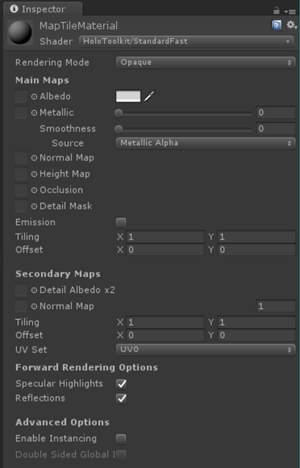
imageimage

Then, the app is still looking at Redmond. While that’s an awesome place, there isn’t much spectacular to see as far as geography is concerned. So we mosey over to the MapBuilder script. There we change the zoom level to 14, the Latitude to 46.78403 and the Longitude to -121.7543

image

It's a little east and quite a bit more south from Redmond. In fact, when you press play, you will see a landmark that is very familiar if you live anywhere near the Seattle area or visited it:
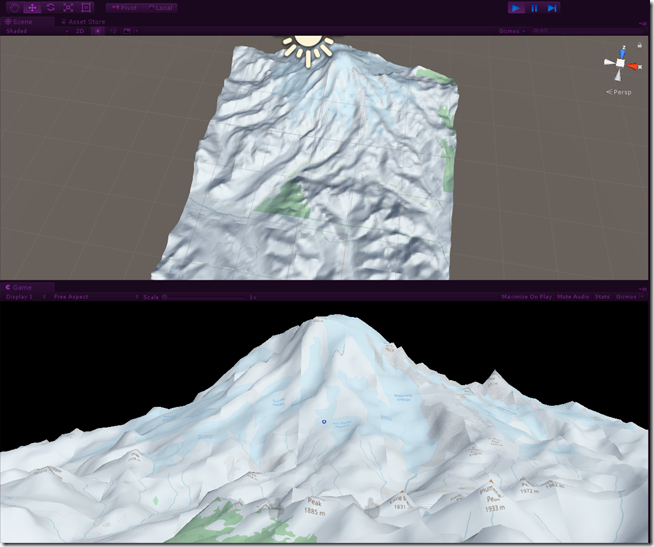
image

famous Mount Rainier, the volcano sitting about 100 km from Seattle, very prominently visible from aircraft - weather permitting. To get this view, I had to fiddle with the view control keys a little after pressing play - if you press play initially you will see Rainier from a lot more close up.

And that, my friends, is how you make a 3D map in your HoloLens. Of almost any place in the world. Want to see Kilimanjaro? Change Latitude to -3.21508 and Longitude to 37.37316. Press play.
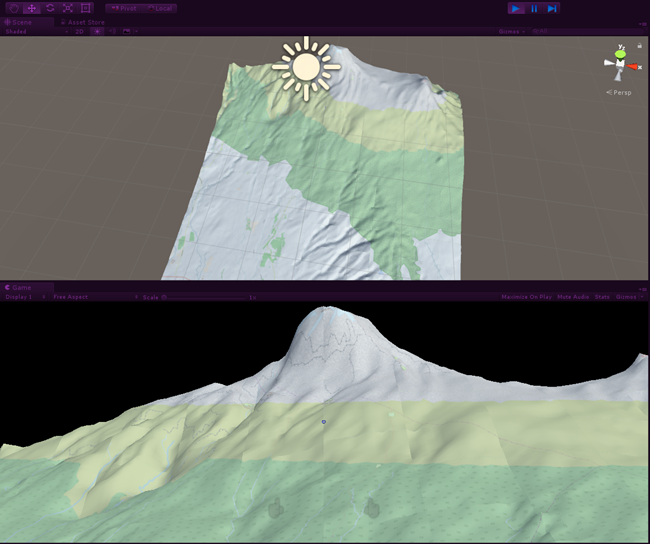
image

Niagra falls? Latitude 43.07306, Longitude -79.07561 and change zoom level to 17. Rotate the view forward a little with your mouse and pull back. You have to look down. But then, here you go.
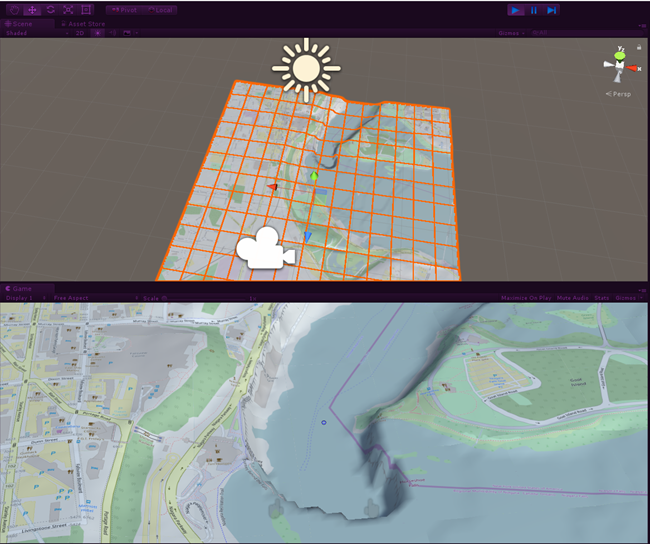
image

GIS is cool, 3D GIS is ultra-cool! All that is left is to generate the UWP app and deploy it into your HoloLens or view it in your new Windows Mixed Reality device.

Caveat emptor

Awesome right?  Now there are a few things to consider. In my previous post I said this app was a bandwidth hog, as it downloads 169 tiles per map. In addition, it now also fires 169 requests per map to the Bing Maps Elevation API. For. Every. Single. Map. Every time. Apart from the bandwidth and power consequences, there's another thing to consider. If you go to this page and click "Basic Key", you will see something like this:
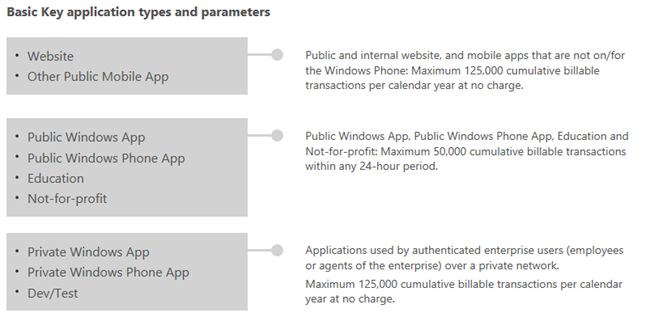
image

What is boils down to is - if your app is anywhere near successful, it will eat your allotted request limit very fast, you will get a mail from the Bing Team kindly informing you of this (been there, got that) - and then suddenly you will have a 2D app again. You will have to buy and enterprise key and those are not cheap. So I advise you to do some caching - both in the app and if possible on an Azure service. I employed a Redis cache to that extent.

Furthermore, I explained I calculate the north east and south west points of a tile using the north west points of the tiles left of and below the current tile. If those tiles are not present, because you are at the edge of the map, I have no idea what will happen - but presumably it won't work as expected. You can run into this when you are zoomed out sufficiently in the very south or east of the map. But then you are either at the International Date Line (that runs from the North Pole to the South Pole exactly on the side of Earth that is exactly opposite of the Greenwich Meridian) or at Antarctica. On the first spot, there’s mostly ocean (why else do you think they’ve put it there) and thus no (visible) geography to speak of. As far as Antarctica goes, you’ll hit another limitation, for it clearly says in the Bing Maps Elevation API documentation:

"There is a limitation in that latitude coordinates outside of the range of -85 and 85 are not supported."

So beware. Stay away from the Earth's edges. Your app might fall off :).

Some assembly required, batteries not included

Indeed, it does not look exactly like in the videos I showed. Walk the World employs a different map tile sets (plural indeed), and there's also all kinds of other stuff my app does - like sticking the map to the floor so that even at high elevations you have a nice overview, reverse geocoding so you can click on the map to see what's there, tracking the user's moves so it can make a new map appear where the user is walking off it  - connecting to the old one, zoom in/out centered on the user's location in the map, showing a map of the physical surroundings... there's a lot of math in there. I only showed you the basics. If you need a HoloDeveloper who knows and understand GIS to the core, you know who to contact now :)

Conclusion

Once you know the basics, it's actually pretty easy to create a 3D scaled map of about anywhere in the world, that is - anywhere where the Bing Maps Elevation API is supported. The 3D stuff is actually the easy part - knowing how to calculate tiles and build a slippy map is harder. But in the end, it is always easy when you know what to do. Like I said, I think GIS is a premier field in which Mixed Reality will shine. I am ready for it: I hope you are too. Innovate or die - there are certainly companies I know that could take that advice and get moving.

Get the demo project and get inspired!

Credits

Thanks to René Schulte, the wise man from 51.050409, 13.737262 ;)  for pointing me to the Bing Maps Elevation API. And of course to Rick Bazarra, who inspired me so often and actually provided some crucial code in his YouTube training video series.

22 July 2017

Creating a geographical map on the floor in your Hololens / Windows MR app

Intro

If you make an awesome app like Walk the World, of course you are not going to spill the beans on how you built it, right? Well – wrong, because I think sharing knowledge is the basis of any successful technical community, because I like doing it, and last but not least – I feel it is one the primary things that makes an MVP an MVP. I can’t show you all the details, if only because the app is humongous and is badly in need of some overhaul / refactoring, but I can show you some basic principles that will allow you to make your own map. And that’s exactly what I am going to do.

‘Slippy map’?

Getting on my GIS hobby horse here :) Gather around the fire ye youngsters and let this old GIS buff tell you all about it. ;)

Slippy maps are maps made out of pre rendered square images that together form a continuous looking map. Well-known examples are Bing Maps and Google Maps, as well as the open source map Open Street Maps – that we use for this example, The images are usually 256x256 pixels. Slippy maps have a fixed number of discrete zoom levels. For every zoom level there is a number of tiles. Zoom level 0 is typically 1 image showing the whole world. Zoom level 1 is 4 tiles each showing 1/4th of the world. Zoom level 2 is 16 tiles each showing 1/16th of the world. You get the idea. Generally speaking a zoom level has 2zoomlevel x 2zoomlevel tiles.

You can see the number of tiles (and the amount of data servers need to store those) go up very quickly. Open Street Maps’ maximum zoom level is 19 – which all by itself is 274.9 billion tiles, and that is on top of all the other levels. Google Map’s maximum zoom level is 21 at some places and I think Bing Maps goes even further. The amount of tiles of level 21 alone would be 4398046511104, a little short of 5 trillion. And that is not all - they even have multiple layers – map, terrain, satellite. Trillions upon trillions of tiles - that is even too much to swallow for Microsoft and Google, which is why they vary the maximum zoom level depending on the location – in the middle of the ocean there’s considerable less zoom levels available ;). But still: you need really insane amounts of storage and bandwidth to serve a slippy map of the whole world with some amount of detail, which is why you have so little parties actually meeting this challenge – mostly Google, Microsoft, and Open Street Maps.

Anyway - in a slippy map tiles are defined in rows and columns per zoom level. The takeaway from this is to realize that a map tile can be identified by three parameters and three parameters only: X, Y and zoom level. And those need to be converted into a unique URL per tile. The way these tiles are exactly organized depends on the actual map supplier. And if your starting point is a Lat/Lon coordinate, you will have to do some extra math. Basically all you need to know you can find here at the Open Streep Maps wiki. But I am going to show in more detail anyway.

Setting up the project

For this project we will use Unity 2017.1.0.f3. Do not forget to install the Windows Store (.NET) Target Support as well. If you are finished, clone my basic setup from Setting up a HoloLens project with the HoloToolkit - June 2017 edition. Rename the folder to “SlippyMapDemo”, then

  • Open the project in Unity
  • Open the Build Settings window (CTRL+B)
  • Make sure it looks like this:

image 

  • Hit the "Player Settings..." button
  • Change "June2017HoloLensSetup" in "SlippyMapDemo" where ever you see it. Initially you will see only one place, but please expand the "Icon" and "Publishing Settings" panels as well, there are more boxes to fill in. 

Upgrading the HoloToolkit

imageTo make a working app on the new Unity version, we will need a new HoloToolkit. So delete everything from the Assets/Holotoolkit but do it from Unity, as this will leave the .gitignore in place.

Select all items, press delete. Then, go to http://holotoolkit.download/ and download the latest HoloToolkit. If you click “Open” while downloading, Unity will automatically start to import it. I would once again suggest de-selecting Holotoolkit-Tests as they are not useful for an application project.

Some basic stuff first

We will need to have a simple class that can hold a Lat/Lon coordinate. UWP supplies those, but that means we cannot test in the editor and, well, we don’t need all what they can do. So we start off with this extremely simple class:

public class WorldCoordinate
{
    public float Lon { get; set; }
    public float Lat { get; set; }

    public override string ToString()
    {
        return string.Format("lat={0},lon={1}", Lat, Lon);
    }
}

Lat/Lon to tile

A map has a location – latitude and longitude, so that is our starting point. So we need to have a way to get the tile on which the desired location is. A tile is defined by X, Y and zoom level, remember? We start like this:

using System;
using UnityEngine;

public class TileInfo : IEquatable<TileInfo>
{
    public float MapTileSize { get; private set; }

    public TileInfo(WorldCoordinate centerLocation, int zoom, float mapTileSize)
    {
        SetStandardValues(mapTileSize);

        var latrad = centerLocation.Lat * Mathf.Deg2Rad;
        var n = Math.Pow(2, zoom);
        X = (int)((centerLocation.Lon + 180.0)/360.0*n);
        Y = (int)((1.0 - Mathf.Log(Mathf.Tan(latrad) + 1 / Mathf.Cos(latrad)) / Mathf.PI) / 2.0 * n);
        ZoomLevel = zoom;
    }

    private void SetStandardValues(float mapTileSize)
    {
        MapTileSize = mapTileSize;
    }

    public int X { get;  set; }
    public int Y { get;  set; }

    public int ZoomLevel { get; private set; }

}

Via a simple constructor X and Y are calculated from latitude, longitude and zoomlevel, The MapTileSize is the apparent physical size of the map tile - that we will need in the future (it will be 0.5 meters, as we will see later).

Wow. That seems like some very high brow GIS calculation, that only someone like me understands, right? ;)Maybe, maybe not, but you find this formula on the Open Street Map wiki, more specifically, here.

So now we have the center tile, and to calculate the tiles next to it, we simply need another constructor

public TileInfo(int x, int y, int zoom, float mapTileSize)
{
    SetStandardValues(mapTileSize);
    X = x;
    Y = y;
    ZoomLevel = zoom;
}

in a simple loop, as we also will see later, we can find the tiles next, above and below it and we can define a MapBuilder class that can loop over this information, and make map tiles grid. BTW, this class also has some equality logic, but that’s not very exiting in this context, so you can look that up in the demo project.

Tile to URL

As I have explained, a tile can be identified by three numbers: X, Y and zoom level but to actually show the tile, you need to convert that to a URL. So I defined this interface to make the tile retrieval map system agnostic:

public interface IMapUrlBuilder
{
    string GetTileUrl(TileInfo tileInfo);
}

and this single class implementing it for Open Street Map:

using UnityEngine;

public class OpenStreetMapTileBuilder : IMapUrlBuilder
{
    private static readonly string[] TilePathPrefixes = { "a", "b", "c" };

    public string GetTileUrl(TileInfo tileInfo)
    {
        return string.Format("http://{0}.tile.openstreetmap.org/{1}/{2}/{3}.png",
                   TilePathPrefixes[Mathf.Abs(tileInfo.X) % 3],
                   tileInfo.ZoomLevel, tileInfo.X, tileInfo.Y);
    }
}

this is not new code. Regular readers (or better – long time readers) of this blog may have seen it as early as 2010, when I showed how to do this for Window Phone 7.

Some (very little) re-use

Basically we are going to download images from the web again, using the URL that the IMapUrlBuilder can calculate from the TileData. Downloading an showing images in a HoloLens app – been there, done that, and it fact, that’s what made the idea of Walk the World popup up in my mind in the first place. So I am going to reuse the DynamicTextureDownloader from this post. In the demo project, it sits in the HolotoolkitExtensions. We make a simple child class:

using HoloToolkitExtensions.RemoteAssets;
using System.Collections;
using UnityEngine;

public class MapTile : DynamicTextureDownloader
{
    public IMapUrlBuilder MapBuilder { get; set; }

    private TileInfo _tileData;

    public MapTile()
    {
        MapBuilder = MapBuilder != null ? MapBuilder : new OpenStreetMapTileBuilder();
    }

    public void SetTileData(TileInfo tiledata, bool forceReload = false)
    {
        if (_tileData == null || !_tileData.Equals(tiledata) || forceReload)
        {
            TileData = tiledata;
        }
    }

    public TileInfo TileData
    {
        get { return _tileData; }
        private set
        {
            _tileData = value;
            ImageUrl = MapBuilder.GetTileUrl(_tileData);
        }
    }
}

So what happens – if you set TileData using SetTileInfo, it will ask the MapBuilder to calculate the tile image URL, the result will be assigned to the parent class’ ImageUrl property, and the image will automatically be drawn as a texture on the Plane it’s supposed to be added to.

Creating the MapTile prefab

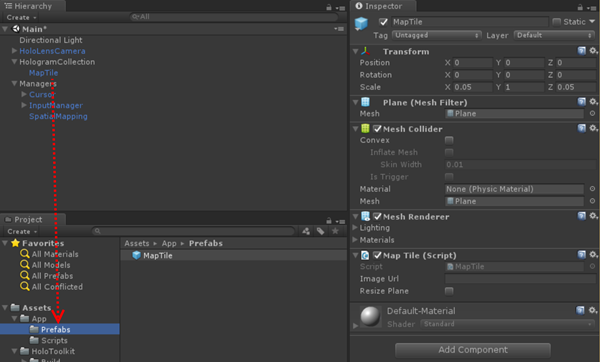
In HologramCollection, create a Plane and call it MapTile. Change it’s X and Z scale to 0.05 so the 10x10 meter plane will show as 0.5 meters indeed. Then add the MapTile script to it as a component. Finally, drag the MapTile Plane (with attached script) from the HologramCollection to the Prefabs folder in Assets.

image

If you are done, remove the MapTile from the HologramCollection in the Hierarchy.

A first test

To the HologramCollection we add another empty element called “Map”. Set it’s Y position to –1.5, so the map will appear well below our viewpoint. To that Map game object that we add a first version of our MapBuilder script:

using UnityEngine;

public class MapBuilder : MonoBehaviour
{
    public int ZoomLevel = 12;

    public float MapTileSize = 0.5f;

    public float Latitude = 47.642567f;
    public float Longitude = -122.136919f;

    public GameObject MapTilePrefab;


    void Start()
    {
        ShowMap();
    }

    public void ShowMap()
    {
        var mapTile = Instantiate(MapTilePrefab, transform);
        var tile = mapTile.GetComponent<MapTile>();
       tile.SetTileData(
           new TileInfo(
               new WorldCoordinate{ Lat = Latitude, Lon = Longitude }, 
               ZoomLevel, MapTileSize)
           );
    }
}

This simple script basically creates one tile based upon the information you have provided. Since it does nothing with location, it will appear at 0,0,0 in the Map, which itself is at 1.5 meters below your viewpoint. If you were to run the result in the HoloLens, a 0.5x0.5m map tile map should appear right around your feet.

Anyway, drag the prefab we created in the previous step on the Map Tile Prefab property of the Map Tile Builder …

image

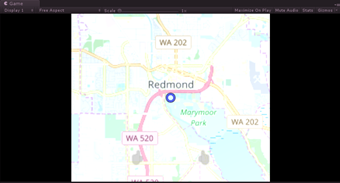
… and press the Unity Play button.You will see nothing at all, but if you rotate the Hololens Camera 90 degrees over X (basically looking down) while being in play mode a map tile will appear, showing Redmond.

image

Only it will be upside down, thanks to the default way Unity handles Planes - something I still don't understand the reason for. Exit play mode, select the Map game object and change it’s Y rotation to 180, hit play mode again and rotate the camera once again 90 over X.

image

That’s more like it.

The final step

Yes, there is only one step left. In stead of making one tile, let’s make a grid of tiles.

We add three more properties to the MapBuilder script:

public float MapSize = 12;

private TileInfo _centerTile;
private List<MapTile> _mapTiles;

And then here’s the body of MapBuilder v2

void Start()
{
    _mapTiles = new List<MapTile>();
    ShowMap();
}

public void ShowMap()
{
    _centerTile = new TileInfo(new WorldCoordinate { Lat = Latitude, Lon = Longitude }, 
        ZoomLevel, MapTileSize);
    LoadTiles();
}

private void LoadTiles(bool forceReload = false)
{
    var size = (int)(MapSize / 2);

    var tileIndex = 0;
    for (var x = -size; x <= size; x++)
    {
        for (var y = -size; y <= size; y++)
        {
            var tile = GetOrCreateTile(x, y, tileIndex++);
            tile.SetTileData(
new TileInfo(_centerTile.X - x, _centerTile.Y + y, ZoomLevel, MapTileSize), forceReload); tile.gameObject.name = string.Format("({0},{1}) - {2},{3}", x, y, tile.TileData.X, tile.TileData.Y); } } } private MapTile GetOrCreateTile(int x, int y, int i) { if (_mapTiles.Any() && _mapTiles.Count > i) { return _mapTiles[i]; } var mapTile = Instantiate(MapTilePrefab, transform); mapTile.transform.localPosition = new Vector3(MapTileSize * x - MapTileSize / 2, 0, MapTileSize * y + MapTileSize / 2); mapTile.transform.localRotation = Quaternion.identity; var tile = mapTile.GetComponent<MapTile>(); _mapTiles.Add(tile); return tile; }

In ShowMap we first calculate the center tile’s data, and then in LoadTiles we simply loop over a square matrix from –(MapSize/ 2) to +(MapSize/2) and yes indeed, if you define a MapSize of 12 you will actually get a map of 13x13 tiles because there has to be a center tile. If there is a center tile, the resulting matrix by definition has an uneven number of tiles.

In LoadTiles you see TileInfo’s second constructor in action: just X, Y, and Zoomlevel. Once you have the first center tile, calculating adjacent tiles is extremely easy. GetOrCreateTiles does the actual instantiation and positioning in space of the tiles – that’s what we need the MapTileSize for. Note, that for an extra performance gain (and a prevention of memory leaks), it actually keeps the instantiated game objects in memory once they are created, so if you call ShowMap from code after you have changed one of the MapBuilder’s parameters, it will re-use the existing tiles in stead of generating new ones. LoadTiles itself also creates a name for the MapTile but that’s only for debugging / educational purposes – that way you can see which tiles are actually downloaded in the Hierachy while being in Unity Play Mode.

If you deploy this into a HoloLens and look down you will see a map of 6.5x6.5 meters flowing over the floor.

image

To make this completely visible I had to move the camera up over 20 meters ;) but you get the drift.

Some words of warning

  • The formula in TileInfo calculates a tile from Latitude and Longitude. That only guarantees that location will be on that tile but it doesn’t say anything about where on the tile it is. You can see Redmond on the center tile, but it’s not quite in the center of that center tile. It may have well been op the top left. The more you zoom out, the more this will be a factor.
  • This sample shows Open Street Map and Open Street Map only. You will need to build IMapUrlBuilder implementations yourself if you want to use other map providers. Regular readers of this blog know this very easy to do. But please be aware of the TOS of map providers.
  • Be aware that the MapBuilder with map setting of 12 downloads 13x13=169 tiles from the internet. On every call. This app is quite the bandwidth hog - and probably a power hog as well.

Conclusion and some final thoughts

Building basic maps in Unity for use in your HoloLens / Windows Mixed Reality apps is actually pretty easy. I will admit I don’t understand all the fine details of the math either, but I do know how slippy maps are supposed to work, and once I had translated the formula to C#, the rest was actually not that hard, as I hope to have shown.

Almost all data somehow has a relation with a location, and being able to generate a birds’ eye environment in which you can collaborate with you peers, will greatly enhance productivity and correct interpretation of data. Especially if you add 3D geography and/or buildings to it. It looks like reality, it shows you what’s going on, and you less and less have to interpret 2D data into 3D data. We are 3D creatures, and it’s high time our data jumps off the screen to join us in 3D space.

I personally think GIS and geo-apps are one of the premier fields in which AR/VR/MR will shine – and this will kick off an awesome revolution in the GIS world IMHO. Watch this space. More to come!

Demo project here. Enjoy!

28 September 2016

Converting lat/lon coordinates to local coordinates for HoloLens apps

This is going to be a bit of a theoretical story, but I feel it’s a necessary as a precursor to my promise to explain in detail how I made the AMS HoloATC app. So bear with me.

One of the challenges when it comes to showing geo-positioned data in a HoloLens is that is most of this type of data comes in Lat/Lon (and optional Alt – for altitude) format. The UWP Map component knows how to handle it, but if you want to use this kind of data in a HoloLens you will need some way to convert to the X-Y-Z system Unity uses.

Now there are two approaches. The first one is to go for the full 3D experience and you project the coordinates relative to a globe. Although is awesome for demoes, it also has the drawback that it may not be easy to see relative heights over larger distances in what is in essence a curved plane. In my app I take the Netherlands – an area of 300 by 200 km, the largest part more or less North-South, and condense that by a factor of 15000 to about 20 x 13 meters. The curvature of the Earth would cause the airplanes to rise from the edges of the view, and then come down again as they head for approach and landing.

The second approach is to pretend the Earth is flat in the Netherlands (which is kind of true, but and in a different way-people who have ever visited us will understand why) and use a tangential plane that hits the Earth on a certain spot. This is the approach I took. For the spot where the plane hits the Earth I took what according to Google Maps is the center of Amsterdam airport (aka Schiphol) -  52.307687, 4.767424, 0 (lat/lon/alt)*. A very useful site for finding lat/lon coordinates of places on Earth is this one. Click on the map or enter a name and presto.

Projecting an airplane to a globe or this tangential plane requires more math than I know. Although I worked in GIS for over 20 years I was never formally trained for it that and I was never a math wizard anyway. Fortunately, some guy called Govert van Drimmelen – I presumed him to be Dutch as well based on his name, but he is actually from South Africa – has posted a GitHub gist that does exactly what you need. It actually supports both approaches (projection to a globe and to a tangential plane). I made a fork of it that only gets rid of the missing Util.DegreesToRadians, the tests and other stuff that is not used, but is essentially the same.

But there are still two caveats, and they both have to do with altitude. I put the center of Schiphol on the 0,0,0 position in Unity’s coordinate system, and then wrote this test code:

double x, y, z;
GpsUtils.GeodeticToEnu(52.307687, 4.767424, 0, 52.307687, 4.767424, 0, out x, out y, out z);
Assert.IsTrue(x == 0 && y == 0 && z == 0);

The first coordinate is the coordinate I want to project, the second one is the place where the tangential plane is hitting the ground. If I put both at the same place, the method should return 0,0,0. And indeed it does. Hurray.

Now let’s head over to the city of Leeuwarden, some 121 km North-East from Schiphol (this is a useful simple website for measuring distances) at lat, lon = 53.201233, 5.799913. As I have no idea what to expect, let’s first print out the results before testing

GpsUtils.GeodeticToEnu(53.201233, 5.799913, 0, 52.307687, 4.767424, 0, out x, out y, out z);
Debug.WriteLine($"{x},{y},{z}");

Result: 68991.988451593,99923.1412132109,-1155.45361490022. The output is apparently in meters. Nice. So… 100km to the North and 69km to the West. If you do Pythagoras on those first two values, you get indeed about 121000. Awesome. So that seems to work as well. But… 1155 down? Still the curvature of the Earth, I guess. Apparently when you go 121 km to the North-East, you end up 1155 below the horizon of someone standing on the original place. I think. So when I project my plane I use X for X, Y for Y, and the original altitude for Z. But this leads to another problem.

First of all, one unit is a meter in a HoloLens (or appears to be – let’s not get metaphysical). If I were to use X/Y/Alt directly, an airplane approaching from the direction of Leeuwarden at 3km would be some 121km from my point of view – and at 3km height. Even if I used 1:1 models it would be invisible. That does not help giving an Air Traffic Controller (ATC) a nice 3D view of the area around his or her airport of condern. So I divide X and Y by 15000. Result for an airplane about Leeuwarden is this: 4.59946589677287,6.6615427475474

So an airplane that is in real life about 121km from me appears about 7 meters from me, forward and quite a bit to the right. As airplanes on approach for an airport (at least around Schiphol) are moving within 20km around the airport this makes the busiest part of air traffic happen in an apparent space of about 2.5x2.5 meters. That looks good to me. But if I would use the same scale factor on the height, and airplane flying 3km would be 20cm from the ground. At final approach, say at about 500m, it would be a mere 3cm from the ground. At 10km – cruise altitude, and not particularly interesting to and ATC - it would still be a little short of 70cm. Our poor ATC would have to look very carefully to see height differences between aircraft on final approach ;). So I opted to scale down the height considerably less – by dividing that by only 2000. That puts an aircraft on 500m at 25cm, on 3km it is at 1.5m, and 10km is at 5m – still well within visual range, but literally flying way over your head, which is exactly what you want, as it is not of immediate concern for an ATC handling the arrivals and departures on an airport. The only drawback is that aircraft seem to climb at impossible steep trajectories when taking off, but I think that’s ok.

So this is how I convert and transform aircraft flight data into what I think a format and space that makes it usable for an ATC wearing a HoloLens. The fun part of it is that when I hook up the app to live data and put Schiphol to the side of the room, the city where I live is more or less where the living table is. It’s pretty awesome to see airplanes coming from Schiphol and moving over that table – because in certain conditions, and when I open a window, I can actually hear the rumble of engines of the actual airplane outside when it passes over my house at 3km height ;)

As I wrote earlier, a very theoretical and perhaps even dry piece of text. I hope it’s useful for other people thinking about using geo-positioned data in HoloLens. I am still a GIS nut at heart, although I don’t work in GIS anymore. I wonder if other people maybe have better approaches.

*Technically that is not correct - Schiphol is about 4.5 meters below sea level. Do not be alarmed. We have excellent dunes, dams, and other things to keep the wet bit where it belongs, i.e. not where we live. That is, for the time being ;)

18 May 2016

Generic databinding for MapIcons in Universal Windows Apps

Preface

Ever since I introduced databinding for the UWP map control (and it’s previous incarnations for Windows Phone 8.x and Windows 8.x) I have been asked to write ‘real’ data binding for map shapes. I have patiently tried to explain that the very nature of the map control makes this impossible as the map shapes are not templated controls drawn by the XAML renderer, but drawn by the map control itself – and that is what makes it so fast. So I encouraged people to write their own MapShapeDrawer child classes that converted a view model into a map shape. How hard can it be, I thought. Judging by the number of requests I got, apparently it is hard, indeed, or too inflexible. So I decided to take a shot at creating a more or less generic class for converting view models to MapIcons – the most commonly used scenario. Thus GenericMapIconDrawer was created.

If the previous paragraphs made no sense at all to you, because this is the first time you ever have encountered my map binding library, I encourage you to read this article first.

Demo

image

I have once again updated the demo application that goes with the WpWinNl project. If you first hit Show Area, then hit “Flags” a number of time, you will see the map slowly getting covered with round flags of Belgium, Germany, Italy, Netherlands, Sweden and the UK. Don’t ask me why I choose this particular group of countries – I just did. If you then hit the “Pirate!” button, one of the nation’s flags will turn into Jolly Rogers, the descriptive label will change in “Arrrr!” and the icon will seem to jump upward a little. If you press the “Pirate!” button again, the current Jolly Roger flags will disappear, and another nation is selected to turn into pirates. Unless it selects a nation that has already turned pirate, then nothing will happen. If you press the “Pirate!” button long enough, all nations will turn into pirates and then disappear. Crime does not pay, in the end. At least in this demo. See video below.

The purpose of this – admittedly – rather peculiar demo, which I created when I was entirely sober indeed, is to show that by merely changing properties things change on the map. So even when it is not strictly data binding, it sure acts like data binding is happening. By the way, on my Surface Pro 4 you hardly see the flickering – it seems like my trusted old 2011 i7 970 machine that I used for recording this video is finally showing it’s age.

How the demo works (aka how you should use the new library feature)

There is actually way more code to the demo than the actual changes to the WpWinNl.Maps package comprise. First of all, the base class for my geometry providing view models has been changed so that it's name property is an actual view model property raising a NotifyPropertyChanged, using the standard MVVMLight syntax

public class GeometryProvider : ViewModelBase
{
  private string _name;
  public string Name
  {
    get { return _name; }
    set { Set(() => Name, ref _name, value); }
  }
}

Then there is the FlagList class, a child class of GeometryProvider, that provides a list of randomly located flags from a randomly selected nation within a rectangle defined by two Geopoints

using System;
using System.Collections.Generic;
using Windows.Devices.Geolocation;
using Windows.Foundation;

namespace WpWinNl.MapBindingDemo.Models
{
  public class FlagList : GeometryProvider
  {
    public static readonly string[] Countries =
      { "Belgium", "Germany", "Italy", "Netherlands", "Sweden", "UK" };


    private Uri _iconUri;
    public Uri Icon
    {
      get { return _iconUri; }
      set { Set(() => Icon, ref _iconUri, value); }
    }

    private BasicGeoposition _point;
    public BasicGeoposition Point
    {
      get { return _point; }
      set { Set(() => Point, ref _point, value); }
    }

    private Point _anchorPoint = new Point(0.5, 0.5);
    public Point AnchorPoint
    {
      get { return _anchorPoint; }
      set { Set(() => AnchorPoint, ref _anchorPoint, value); }
    }

    private bool _isVisible = true;
    public bool IsVisible
    {
      get { return _isVisible; }
      set { Set(() => IsVisible, ref _isVisible, value); }
    }

    public static IEnumerable<FlagList> GetRandomFlags(
                          Geopoint point1, Geopoint point2, int nrOfPoints)
    {
      var flags = new List<FlagList>();
      var points = PointList.GetRandomPoints(point1, point2, nrOfPoints);
      var r = new Random(DateTime.Now.Millisecond * 2);
      foreach (var point in points)
      {
        var flagIdx = (int)Math.Round(r.NextDouble() * 5);
        flags.Add(new FlagList
        {
          Name = Countries[flagIdx],
          Icon = new Uri($"ms-appx:///Assets/{Countries[flagIdx]}.png"),
          Point = point.Point
        });
      }
      return flags;
    }
  }
}

Notice here, as well, that all properties are raising INotifyPropertyChanged, that IsVisible is true by default and that we have a default icon anchor point of 0.5, 0.5 – that is, the center of the icon falls on the location specified by "Point". 

On the MapBindingViewModel there is a new public property ObservableCollection<FlagList> Flags that only gets loaded up with initial data in the LoadFlags method

public void LoadFlags()
{
  Flags.AddRange(FlagList.GetRandomFlags(new Geopoint(_area.NorthwestCorner),
    new Geopoint(_area.SoutheastCorner), 50));
}
Which is called when you press the "Flags" button. It add 50 icons every time you press it. Then there is the method that changes a random flag into pirate flags
public void ChangeToPirate()
{
  foreach (var flag in Flags.Where(p => p.Name == "Arrr!").ToList())
  {
    flag.IsVisible = false;
  }

  var r = new Random(DateTime.Now.Millisecond * 2);
  var flagIdx = (int)Math.Round(r.NextDouble() * 5);
  var flagName = FlagList.Countries[flagIdx];)
  foreach (var flag in Flags.Where(p => p.Name == flagName).ToList())
  {
    flag.Name = "Arrr!";
    flag.Icon = new Uri("ms-appx:///Assets/JollyRoger.png");
    flag.AnchorPoint = new Point(0.5, 1);
  }
}

Any existing pirate flags are made invisible first, then new ones are created by setting the Name, the Icon and the AnchorPoint property. Thus the label changes, the icon, and the icon on the map seems to jump up about half it’s size as it’s anchor point is now center/bottom in stead of center/center (boy does that terminology bring back memories of my very first job)

In XAML, things are more or less still the same, with some additions:

<maps:MapControl x:Name="MyMap" Grid.Row="0" 
   ZoomLevel="{x:Bind ViewModel.ZoomLevel, Mode=OneWay}" 
   Center="{x:Bind ViewModel.Center, Mode=OneWay}">
  <interactivity:Interaction.Behaviors>
  
    <mapbinding:MapShapeDrawBehavior LayerName="Flags" 
      ItemsSource="{x:Bind ViewModel.Flags, Converter={StaticResource MapObjectsListConverter}}" 
                    PathPropertyName="Point">
      <mapbinding:MapShapeDrawBehavior.EventToHandlerMappers>
        <mapbinding:EventToHandlerMapper EventName="MapElementClick" 
                                         CommandName="SelectCommand" />
      </mapbinding:MapShapeDrawBehavior.EventToHandlerMappers>
      
      <mapbinding:MapShapeDrawBehavior.ShapeDrawer>
        <mapbinding:GenericMapIconDrawer 
           ImageUriPropertyName="Icon" 
           AnchorPropertyName="AnchorPoint" 
           TitlePropertyName="Name" 
           IsVisiblePropertyName="IsVisible" 
           CollisionBehaviorDesired="RemainVisible"/>
      </mapbinding:MapShapeDrawBehavior.ShapeDrawer>
      
    </mapbinding:MapShapeDrawBehavior>
  </interactivity:Interaction.Behaviors>

</maps:MapControl

As drawer we have the new GenericMapIconDrawer that has a boatload of new properties, basically instructing the GenericMapIconDrawer from which view model properties to get the values that should be applied to the MapIcon it is creating. So, technically, this is still not data binding – the properties are pulled from the view model using reflection. Which means that you really should test this using .NET Native tooling to see if those properties are not pulled out by the compiler – or else suffer the pain I suffered when I tried to publish my app.

How the code works

The GenericMapIconDrawer is surprisingly simple. It's basic setup is like this: a few properties and a CreateShape method that actually creates the Icon from the viewmodel:

using Windows.Devices.Geolocation;
using Windows.Foundation;
using System;
using System.Reflection;
using Windows.Storage.Streams;
using Windows.UI.Xaml.Controls.Maps;

namespace WpWinNl.Maps
{
  public class GenericMapIconDrawer : MapShapeDrawer
  {
    protected object ViewModel;

    protected MapIcon Icon;

    public string TitlePropertyName { get; set; }

    public string AnchorPropertyName { get; set; }

    public string ImageUriPropertyName { get; set; }

    public string IsVisiblePropertyName { get; set; }

    public MapElementCollisionBehavior CollisionBehaviorDesired { get; set; }

    public override MapElement CreateShape(object viewModel, BasicGeoposition pos)
    {
      ViewModel = viewModel;

      Icon = new MapIcon
      {
        Location = new Geopoint(pos),
        CollisionBehaviorDesired = CollisionBehaviorDesired,
        ZIndex = ZIndex
      };

      SetPropertyValuesFromViewModel();

      return Icon;
    }
  }
}

The SetPropertyValuesFromViewModel is pull the additional four properties from the view model (the position is already being taken care of by the MapShapeDrawBehavior itself)

private void SetPropertyValuesFromViewModel()
{
  string title = null;
  if (TryGetPropertyValue(ViewModel, TitlePropertyName, ref title))
  {
    Icon.Title = title;
  }

  Point anchorPoint;
  if (TryGetPropertyValue(ViewModel, AnchorPropertyName, ref anchorPoint))
  {
    Icon.NormalizedAnchorPoint = anchorPoint;
  }

  Uri imageUri = null;
  if (TryGetPropertyValue(ViewModel, ImageUriPropertyName, ref imageUri))
  {
    Icon.Image = RandomAccessStreamReference.CreateFromUri(imageUri);
  }

  bool isVisble = true;
  if (TryGetPropertyValue(ViewModel, IsVisiblePropertyName, ref isVisble))
  {
    Icon.Visible = isVisble;
  }
}

And because I am a lazy b*****d I wrote a little helper method do to the repetitive heavy lifting for that

private static bool TryGetPropertyValue<T>(object obj, string propertyName, 
                                           ref T outValue)
{
  if (!string.IsNullOrWhiteSpace(propertyName))
  {
    var prop = obj.GetType().GetRuntimeProperty(propertyName);
    var result = prop?.GetValue(obj);
    if (result is T)
    {
      outValue = (T) prop.GetValue(obj);
      return true;
    }
  }
  return false;
}

Note, however, that only the position, label text, icon uri, anchor point and visibility are pulled from the view model. Z-index and collisionbehavior are not. Deep down in the MapShapeDrawBehavior, in the CreateShape method, there is another change that I want to draw your attention to:

var evt = viewModel.GetType().GetRuntimeEvent("PropertyChanged");
if (evt != null)
{
  var observable = Observable.FromEventPattern<PropertyChangedEventArgs>(
     viewModel, "PropertyChanged")
    .Subscribe(se =>
    {
      if (!LegacyMode || se.EventArgs.PropertyName == PathPropertyName)
      {
        ReplaceShape(se.Sender);
      }
    });

  TrackObservable(viewModel, observable);
}

Previously, the shape would only be replaced if the geometry changed. Now, unless the new property LegacyMode is set to true, this will happen at every PropertyChanged event. If you look carefully at the video, you will actually see the Jolly Rogers flickering, which is correct – since three properties are changed (Name, Icon and AnchorPoint) each flag is redrawn three times. This is quite inefficient, but unfortunately the way it works. You cannot change an Icon, only replace it. So for every property change it actually gets replaced indeed, and to that extent I also had to make a little change to ReplaceShape itself.

private void ReplaceShape(object viewModel)
{
  var shape = AssociatedObject.MapElements.FirstOrDefault(p => p.ReadData() == viewModel);
  if (shape != null)
  {
    var shapeLocation = AssociatedObject.MapElements.IndexOf(shape);
    if (shapeLocation != -1)
    {
      var newShape = CreateShape(viewModel);
      if (newShape != null)
      {
        // Previous code
        // AssociatedObject.MapElements[shapeLocation] = CreateShape(viewModel); 
        AssociatedObject.MapElements.RemoveAt(shapeLocation);
        AssociatedObject.MapElements.Insert(shapeLocation, newShape);
      }
    }
  }
  else
  {
    AddNewShape(viewModel);
  }
}

So this experiment did not only bring new (or at least easier to use) functionality – it also instilled a bug fix. Of course, you can work around the repeated drawing/flickering by making a view model that does not fire PropertyChanged on every property change, but handle this manually when you are done. But that kind of performance tweaking is outside of the scope of this article.

Concluding remarks

Data binding shapes in the classical way still is not possible, so I had to resort to something that acts like it. I hope this makes using this package for mapping a bit easier. Be advised that for massive changes to large datasets this may not be the most efficient way to get things done, but for your average project it makes things way easier.

It’s now downloadable from NuGet as version 3.0.6, and you can find the sources of the demo app here.

09 December 2015

Release of WpWinNl 3.0.2 alpha with UWP support - and map data binding

I just released my open source library WpWinNl to 3.0.2-alpha (that is, pre-release) to NuGet. WpWinNl now supports Windows Phone 8, Windows Phone 8.1, Windows 8.1 and the new Universal Windows Platform. All the basic libraries are updated to the latest version.
The library builds three NuGet packages, which can be found on NuGet as of now:
  1. WpWinNlBasic, which contains everything except the stuff that hangs on MVVMLight
  2. WpWinNl, builds on top of WpWinNlBasic and MVVMLight (and has dependencies on both)
  3. WpWinNlMaps, that builds on top of WpWinNlBasic. This is code that allows you to bind data to maps utilizing a special behavior
For Windows Phone 8, Windows Phone 8.1 and Windows 8.1 basically nothing changes. With respect to UWP, the following changes have been made:
  1. The behaviors are built on top of the new UWP Behaviors NuGet Package
  2. WpWinNlMaps has a slightly expanded API to support the new features by the new maps control, as well align more with the x:Bind scenario
There is a sample application for WpWinNlMaps in GitHub that I will explain more in detail in a follow-up post. Make sure that if you have a look at the code, take the UWP branch.
A few words of warning:
  • Apart from WpWinNlMaps, this has not yet been extensively tested, hence the pre-release designation.
  • No attempt has been made to share code between UWP and the earlier incarnations of these packages. Effectively I have ceased working on wp8/wp81/win81 code, as of now only the UWP code will move forward and at one point in time these packages will stop supporting them at all.
  • Parts of this library, especially the behaviors, may be removed entirely and end up in the Microsoft Behaviors NuGet package.
However, for the time being, I think especially the map binding is pretty important, so is was time to release it. Any feedback is welcome.

03 December 2015

Drawing polygons with holes (donuts) on Windows 10 UWP apps

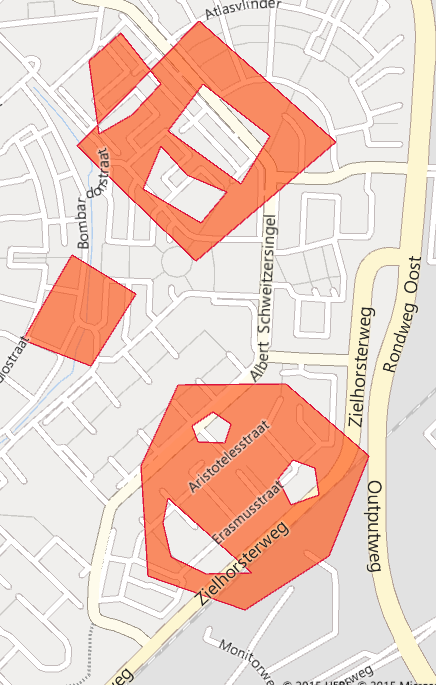
imageNovember 30th was the day a long standing wish of me came true - Windows 10 Universal Windows Platform gets on par with some professional geographical information systems. As of SDK version 10586, you can draw polygons with holes in them on the map (we GIS people call those 'donuts' - remember this term if you want to sound like a smartass educated in the GIS area) as well as multipolygons (single map objects consisting out of multiple disjoint shapes. What I mean by this, can be seen on the right. On this map are actually only two shapes. The 'smiley' on the bottom is one shape, and rest is actually also one shape.
To achieve this, the maps team have extended the MapPolygon. This type, that is used to draw polygons, already had a property Path of type GeoPath. Now it has a property Paths - plural. This property is of type IList<GeoPath>. The smiley exists of four of these GeoPaths. The first one is the outer shape, the second, third and forth one fall on top of a shape that is earlier in the list, and thus creates a hole. You can get some pretty interesting side effects as you look a the top shape - if you draw a second or later path outside of the first shape, you just get a second shape. But for the map, this is one object and if you click on it you will get the same text. Even more interesting is drawing a second shape partly on top of an earlier shape - the overlapping part becomes a hole, the rest just a filled shape.
Other possibilities are drawing a shape, on top of that a smaller shape (creating a hole), inside the hole an even smaller shape (that will be a normal shape again), on top of that an yet even smaller shape - that will create a hole... etc... and so you can create rings. The odd shapes are shapes (when you start counting with 1!), the even shapes holes.
I have extended the solution that I used in my 7-part map series to make clear how this happens. I have added a class MultiPathList that is basically a very long and boring list of coordinates. It looks like this:
new BasicGeoposition{Latitude = 52.1782977506518, Longitude = 5.40948953479528},


using System.Collections.Generic;
using Windows.Devices.Geolocation;

namespace Manipulation_Drawing
{
    public class MultiPathList : IMapObject
    {
      public MultiPathList()
      {
          Paths = new List<Geopath>();
      }
      
      public string Name { get; set; }

      public List<Geopath> Paths { get; set; }


      public static List<MultiPathList> GetMultiPolygons()
      {
        var paths = new List<MultiPathList>
        {
          new MultiPathList
          {
            Name = "MultiArea 1",
            Paths = new List<Geopath>
            {
               new Geopath( new[]
               {
                 new BasicGeoposition{Latitude = 52.1840454731137, Longitude = 5.40299842134118},
                 new BasicGeoposition{Latitude = 52.182151498273, Longitude = 5.40619041770697},
                 new BasicGeoposition{Latitude = 52.1841113548726, Longitude = 5.40994542650878},
                 new BasicGeoposition{Latitude = 52.1861041523516, Longitude = 5.40627088397741}
               }),
               new Geopath( new[]
               {
                 new BasicGeoposition{Latitude = 52.184210177511, Longitude = 5.40817516855896},
                 new BasicGeoposition{Latitude = 52.185066556558, Longitude = 5.40637808851898},
                 new BasicGeoposition{Latitude = 52.1842925716192, Longitude = 5.4054393991828},
                 new BasicGeoposition{Latitude = 52.1834195964038, Longitude = 5.40739741176367}
               }),
             }
             //etc
          },
          new MultiPathList
          {
            Name = "Smiley (MultiArea 2)",
            Paths = new List<Geopath>
            {
               new Geopath( new[]
               {
                 new BasicGeoposition{Latitude = 52.1787753514946, Longitude = 5.40471511892974},
                 new BasicGeoposition{Latitude = 52.1801093313843, Longitude = 5.40570753626525},
                 new BasicGeoposition{Latitude = 52.1801258437335, Longitude = 5.40860432200134},
                 new BasicGeoposition{Latitude = 52.1789400558919, Longitude = 5.4108305554837},
                 new BasicGeoposition{Latitude = 52.1772930957377, Longitude = 5.40975767187774},
                 new BasicGeoposition{Latitude = 52.1764037758112, Longitude = 5.40750461630523},
                 new BasicGeoposition{Latitude = 52.1769636869431, Longitude = 5.40490287356079},
               }),
              //etc
             }
          }
        };
        return paths;
    }
  }
}
it just creates two lists of GeoPaths (I have omitted most of them - there are 9 of these paths in grand total). And then in MainPage.xaml.cs you will find this simple method that actually draws the shapes:
private void DrawMultiShapes(object sender, RoutedEventArgs e)
{
  if (!DeleteShapesFromLevel(4))
  {
    var strokeColor = Colors.Crimson;
    var fillColor = Colors.OrangeRed;
    fillColor.A = 150;

    foreach (var dataObject in MultiPathList.GetMultiPolygons())
    {
      var shape = new MapPolygon
      {
        StrokeThickness = 1,
        StrokeColor = strokeColor,
        FillColor = fillColor,
        StrokeDashed = false,
        ZIndex = 4
      };
      foreach (var path in dataObject.Paths)
      {
        shape.Paths.Add(path);
      }
      shape.AddData(dataObject);

      MyMap.MapElements.Add(shape);
    }
  }
}
image[9]In stead of setting the MapPolygon's shape, we add a number of GeoPaths to the Paths property, and that is all. You can view the shapes for yourself by downloading the sample solution from GIT (take branch "multipolygon" )
That is all there is to it. This is a very important for when you are are drawing things like zoning permits, buildings with an inner garden, parking areas in cities (where the fee increases when you come closer to the center), so they are basically rings in rings in rings - etc. - anything were less-than-trivial mapping is concerned. And it's very easy to use now.
And of course, all this goodness can be used on Windows 10 mobile as well. Enjoy mapping!

21 October 2015

Windows 10 maps part 7 - using external maps with TMS/WMS

Intro
In this final episode of the planned series, posted on "Back to the Future" day, I will show you how to use external map sources and how to use them with the Windows 10 maps control. Specifically I will show you how to use Tile Map Services (TMS) - way of distributing digital maps designed by the Open Source Geospatial Foundation and popularized by Google Maps - and Web Map Services (WMS), and older, more complex protocol designed by the Open Geospatial Consortium in 1999.
I am using TMS in a loosely defined way here - I am defining it as a REST-based system that retrieves pre-rendered tiles of maps using fixed zoom levels based on zoom level and location (try to say that without stuttering). A TMS basically is a take-it-or-leave-it approach - you get a map rendered as the maker saw fit, whereas WMS offers you the possibility to select layers and determine the order in which those layers are retrieved - and sometimes they even support custom styling. In addition, it allows for arbitrary image sizes, whereas TMS typically services 256x256 images. TMS typically comes from a file system containing a very large number of small files, whereas a WMS is typically served from a spatial database. Consequently, WMS, while being more versatile, usually is a lot slower.


So what is this all about?
The are a very large number of servers out there that offer you maps that you can use - OpenStreetmaps, Google, NOAA, but also our own Dutch Rijkswaterstaat - a government agency that maintains the Dutch main road and water transport infrastructure. You can search for public endpoints of those servers, and when you implement a little code to translate the requests of you Windows 10 map control into the right URLs, maps will show up.
The sample code will show you how to use the following data:

  • Google Maps
  • OpenStreetMaps (a non-profit organization that has insanely detailed maps) - I use it often when I go on hiking holidays in Germany or the like, as even the most obscure hiking trails are displayed in more detail than any tourist map you can buy.
  • Dutch Rijkswaterstaat maps
  • NOAA weather and cloud maps

Be sure to read up on the terms of services of the map providers. Not every one of those providers have unlimited bandwidth or CPU power to serve up the needs of your app, or they may require you to pay for that. OpenStreetMaps is a non-profit organization that does not like you to let their servers burn. Some, like Google, require you to use their API in stead of directly accessing the URLs where their data reside. The sample code used in this project violates this TOS of Google, and is intended as an educational sample only. I strongly advise you not to use this in production environments - and to be honest, the HERE maps data is so good in most of the cases there is little need for doing that.


Viewing the demos
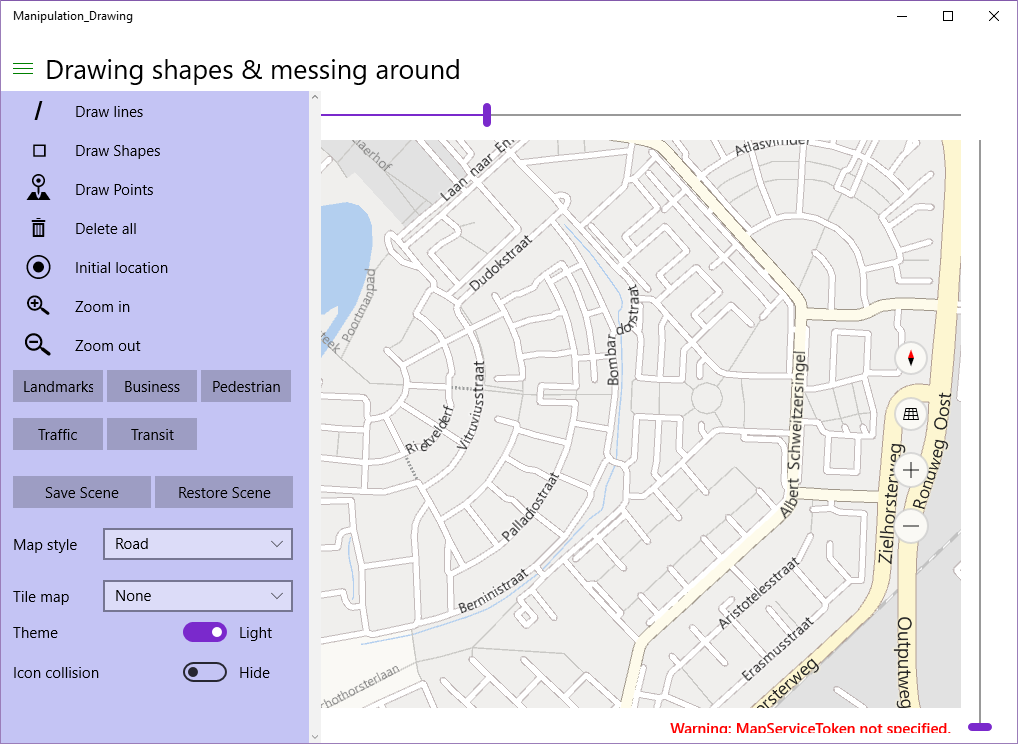
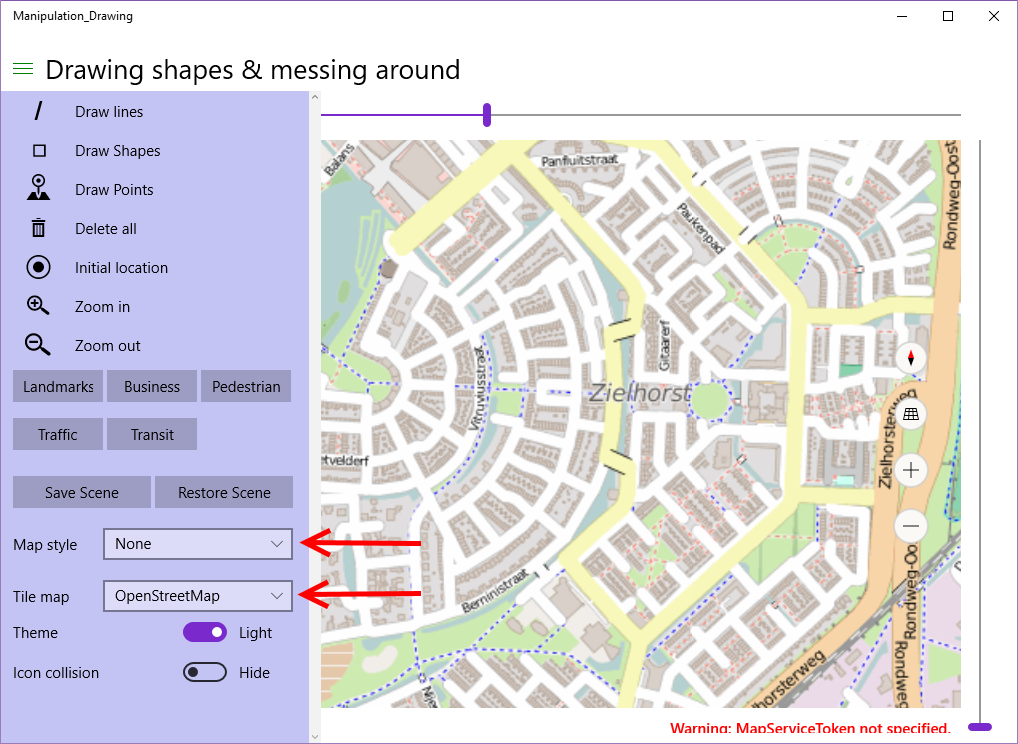
Start the app, click "Initial location". You will see this.
image
Now select "None" for Map style (the map will turn black), then select "OpenStreetMap" for Tile Map. The map will turn into as displayed below, and already shows some blue dotted hiking trails - even through the very neck of the woods where I live.
image
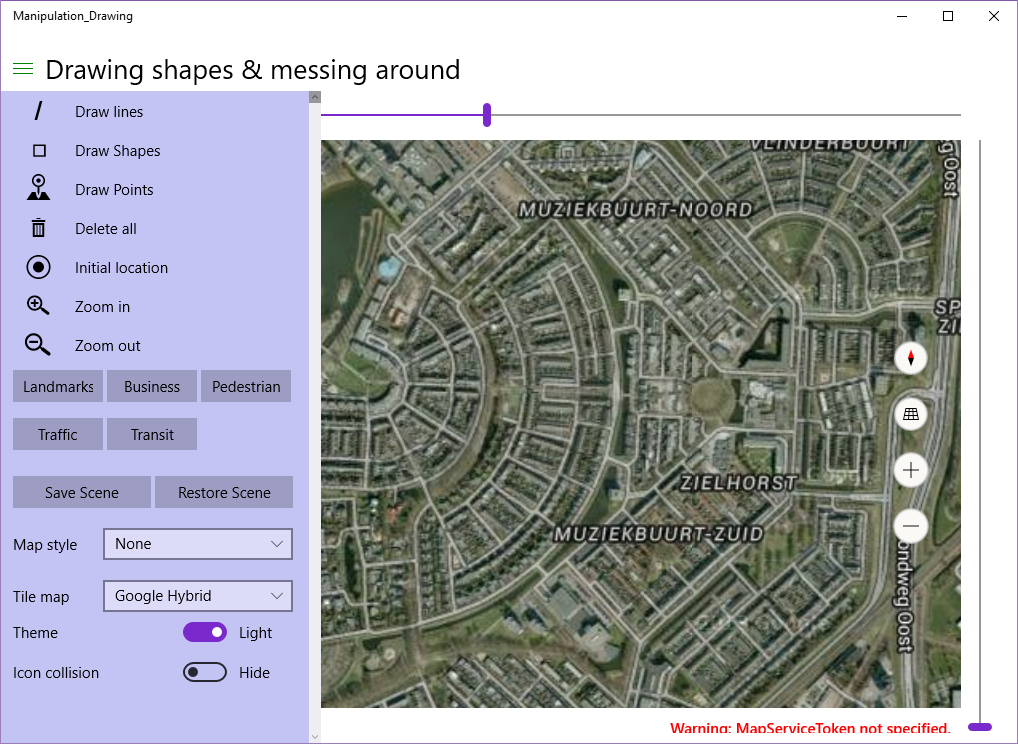
If you select Google Hybrid you will get the Google Satellite imagery with street labels on top of it. Once again, this is illegal, but it proves my point:
image
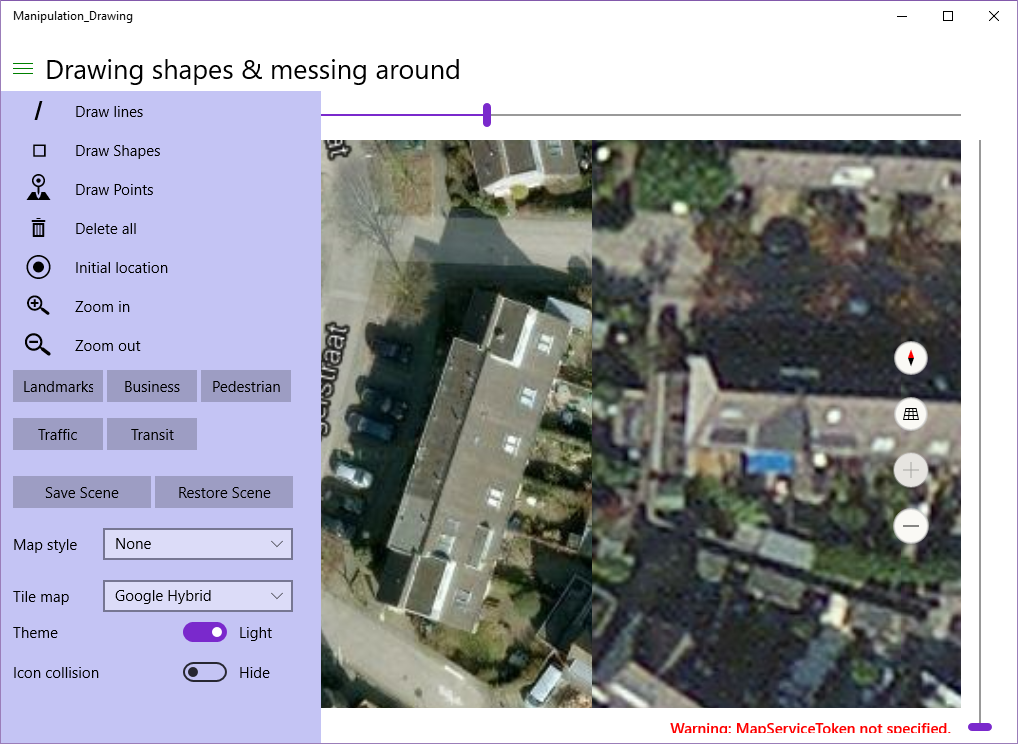
And why this might be useful... if you zoom all the way in and put the Google and Here imagery next to each other you will see that Google imagery in some places still has some more detail, although it's very outdated - my neighbor's house extension is not visible yet (it is on Here Maps) and I am now driving the 2nd car after the car that is still in front of my house - putting this back to the early days of 2009 at the very latest.
image
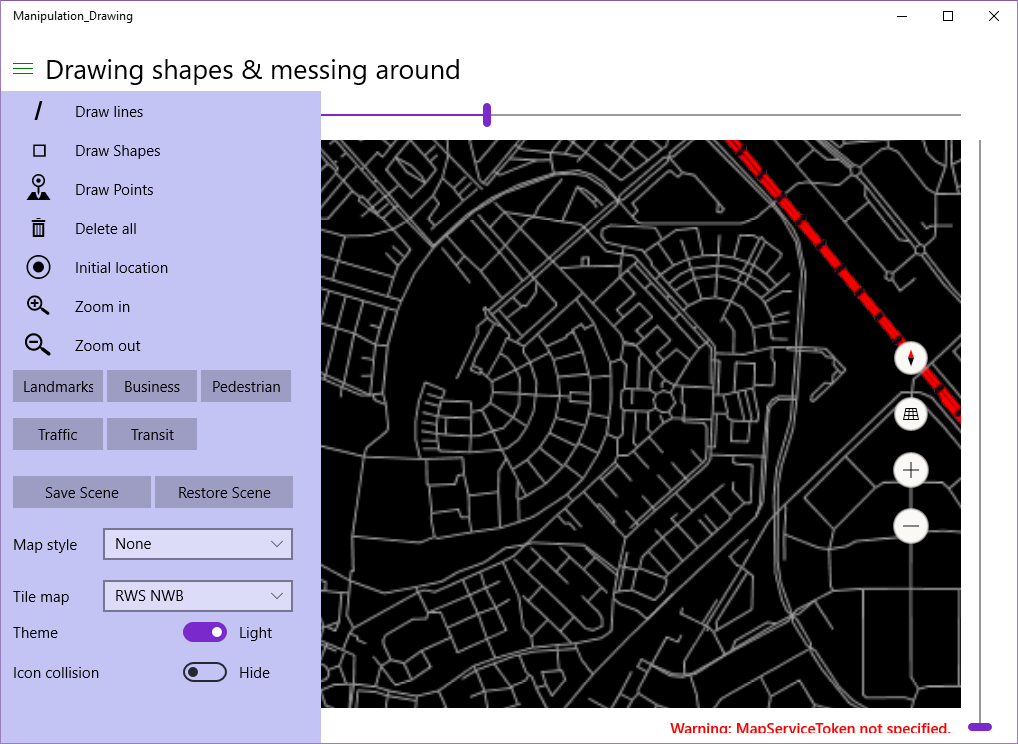
If you zoom out a little again, and select "RWS NWB" you will see the national road grid map from the Dutch Rijkswaterstaat, a simple line map for secondary roads, the major highway depicted as double red lines, with black dots showing the location of hectometer signs - the little signs that show you where you are on the roads, and that can be used to specify your location when your cars breaks down and you need to call for help. Amongst other things :)
image
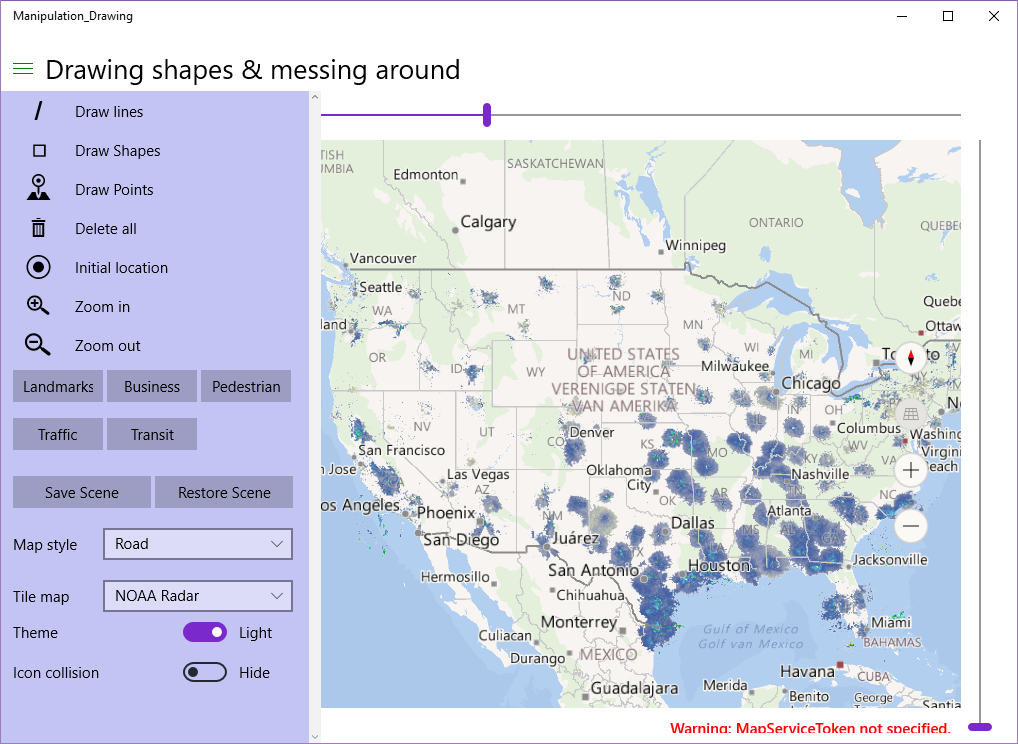
Set style back to "Roads", and zoom out more or less the USA, the select NOAA Radar. This shows the rain radar of the USA, as observed by the NOAA

image
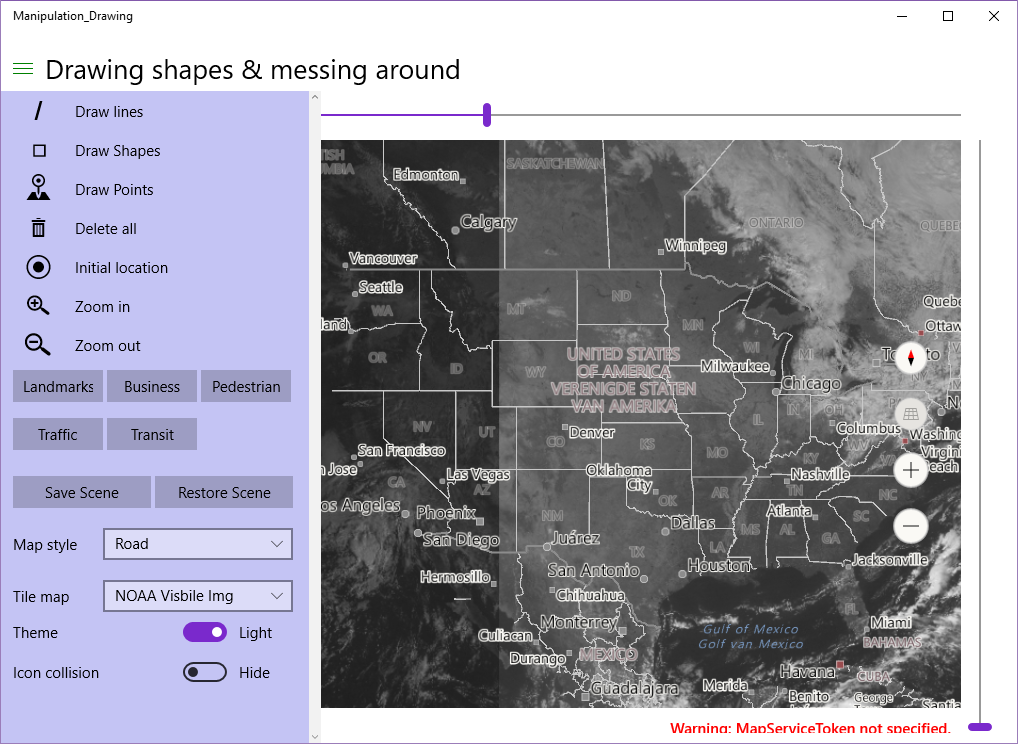
Looks like my friend Richard Hay is in for some rain over in Jacksonville. Or maybe it is just past him ;). Anyhow, if you select "Visible Img" you will get some real-time (or as near as real time as possible) weather satellite imagery in the visible light.
image
Now this is what I call a cloud service  ;)
Now believe it or not, but all those beautiful maps are created by these simple methods way down in MainPage.Xaml.cs

private void TileComboChanged(object sender, SelectionChangedEventArgs e)
{
  MyMap.TileSources.Clear();
  var tileSource = TileCombo.SelectedItem as ITileSource;
  if (tileSource != null)
  {
    MyMap.TileSources.Add(new MapTileSource(tileSource.TileSource));
  }
}

private void InitTileComboBox()
{
  TileCombo.Items.Add("None");
  TileCombo.Items.Add(new OpenStreetMapSource());
  TileCombo.Items.Add(new GoogleMapSource("y", "Google Hybrid"));
  TileCombo.Items.Add(new WmsTileSource("NOAA Radar",
   "http://nowcoast.noaa.gov/arcgis/services/nowcoast/radar_meteo_imagery_nexrad_time/MapServer/WmsServer?", 
    new[] { "1" }, "1.3.0", "CRS"));
  TileCombo.Items.Add(new WmsTileSource("NOAA Visible Img",
   "http://nowcoast.noaa.gov/arcgis/services/nowcoast/sat_meteo_imagery_goes_time/MapServer/WMSServer?", 
   new[] { "9" }, "1.3.0", "CRS"));
  TileCombo.Items.Add(new WmsTileSource("RWS NWB", 
    "http://geodata.nationaalgeoregister.nl/nwbwegen/ows?service=WMS", 
      new[] { "wegvakken", "hectopunten" }));
  TileCombo.Items.Add(new WmsTileSource("RWS NWB 4326", 
    "http://geodata.nationaalgeoregister.nl/nwbwegen/ows?service=WMS", 
    new[] { "wegvakken", "hectopunten"},"1.3.0", "CRS", 4326));

  TileCombo.SelectedIndex = 0;
}

And, of course, 'the supporting act' of some classes I wrote myself.

 
Tile sources
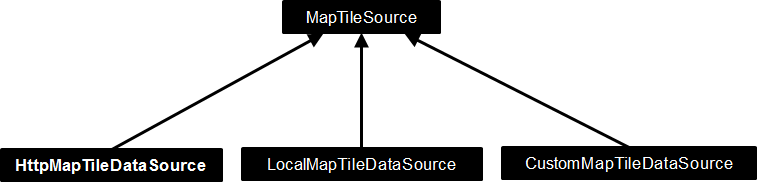
Welcome to the wonderful world of tile maps. Our friends of the Maps develop team have created a small class hierarchy to serve up tile maps to a Windows app map. Add any child of MapTileSource to your map's TileSource collection and you have created a new map. It's as simple as that. There are three kinds of map tiles sources, as depicted in the diagram below:
image

  • HttpMapTileDataSource is meant to serve up map tiles via an URI to the web and download them on the fly
  • LocalMapTileDataSource is meant to serve up map tiles via an URI to titles that are downloaded to local storage
  • CustomMapTileDataSource is meant to cover all other cases - it does not ask for a remote or a local URI to a map tile, but asks you to return a 256x256 bitmap and it's up to you to determine where it comes from or how it's created.
My samples use HttpMapTileDataSource only, but of course the other classes are very interesting too, specifically LocalMapTileDataSource, as it opens the possibility to download and use tiles from any map to your device and use it from there, thereby creating your own Here-Maps-like offline experience.
HttpMapTileDataSource has a UriRequested event. You will need to attach a listener to it with this signature:
void MapUriRequested(
     HttpMapTileDataSource sender, 
     MapTileUriRequestedEventArgs args);
MapTileUriRequestedEventArgs has a Request property with four parameters:
  • Request
  • X
  • Y
  • Zoomlevel
The last three are input, based upon which the event listener must calculate a Uri, which needs to be put in Request - the output property. How this works in practice can be seen in for instance the OpenStreetMapSource:
private readonly static string[] TilePathPrefixes = { "a", "b", "c" };

protected override void MapUriRequested(HttpMapTileDataSource sender, MapTileUriRequestedEventArgs args)
{
  var deferral = args.Request.GetDeferral();
  // TilePathPrefixes - load balancing + caching
  args.Request.Uri = new Uri(
    $"http://{TilePathPrefixes[args.Y % 3]}.tile.openstreetmap.org/{args.ZoomLevel}/{args.X}/{args.Y}.png");
  deferral.Complete();
}
Where do you get this wisdom? You can be a GIS expert, or just look for these kinds of tricks on the internet, and mostly they can be found on the tile provider's site itself. Sufficient to say OpenStreetMaps has 3 servers, and then the X, Y and Zoomlevel are simply in the path and the filename.
The MapTileDataSource and it's children sport a weird oddity, though. The most logical approach would be to subclass HttpMapTileDataSource, right? This is possible, as they are not sealed. All is well, up until the moment you actually try to use such a child class in real life by adding it to the map TileSources collection and have the map display itself. Then you are greeted by
An exception of type 'System.Runtime.InteropServices.InvalidComObjectException' occurred in Manipulation_Drawing.exe but was not handled in user code
WinRT information: The text associated with this error code could not be found.
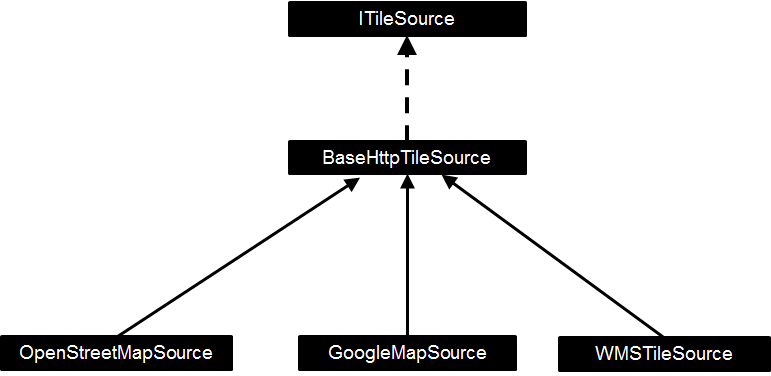
And good luck to you. Fortunately, where's a need, there's a workaround. I made a class containing a HttpMapTileDataSource, implementing an interface exposing that HttpMapTileDataSource. Meet BaseHttpTIleSource and it's friends.
image
ITileSource is pretty simple, as I alluded to:
interface ITileSource
{
  MapTileDataSource TileSource { get; }
}
It basically allows you to add YourTileSource.TileSource to the map's TileSource's collection without having aforesaid crash. BaseHttpTileSource is pretty simple, too.
public abstract class BaseHttpTileSource : ITileSource
{
  protected BaseHttpTileSource()
  {
    var t = new HttpMapTileDataSource();
    t.UriRequested += MapUriRequested;
    TileSource = t;
  }

  public MapTileDataSource TileSource { get; private set; }

  protected abstract void MapUriRequested(HttpMapTileDataSource sender, 
    MapTileUriRequestedEventArgs args);
}
It takes away most of the plumbing of using a HttpMapTileDataSource and the only thing you need to do is subclass this and override the MapUriRequested method. As shown for OpenStreetMaps, and there is also such an override for Google:
protected override void MapUriRequested(HttpMapTileDataSource sender, MapTileUriRequestedEventArgs args)
{
  var deferral = args.Request.GetDeferral();
  args.Request.Uri = 
    new Uri($"http://mt{(args.X%2)+(2*(args.Y%2))}.google.com/vt/lyrs={mapPrefix}&z={args.ZoomLevel}&x={args.X}&y={args.Y}");
  deferral.Complete();
}

Once again, this violates Google's TOS, but the trick is very old and I wrote first about it almost exactly five years ago. I still wait for Google's lawyers to turn up on my doorstep, at which point I will gladly discuss the lack of a decent API for Windows apps which enables us to use the data in a legitimate way.

WMS maps
Web Map Services is a prime example of the age-old wisdom stating a camel is a horse designed by a committee - the committee in this case being the Open Geo Consortium. OGC is - or at least was in that time - a group op GIS professionals of academic origin and they have clearly tried to a design a protocol that catered for a wide variety of analytic needs - of course using XML, which was the hot rage in the days it was designed. What they did not do was taking into account banal things like consistency, ease of use, performance, and other things that are valued by mere mortals who just want to have a bloody map in their web page or app. And if you think this is bad, try to read the specifications for vector data (WFS or Web Feature Service), a format so convoluted, bloated, with so much versions, inconsistencies and complexities that it almost requires a PhD to get a basic understanding of how it works - let alone use it. WMS servers used to be slow, bandwidth and processing power gorging monsters. And this in the early 2000s, the year where most web access was served over 56k6 dial up lines, and a top of the line computer had a Pentium 4 processor. No wonder it never gained much use outside of the specialist realm.
But I digress. I wrote a small class that will serve as a WMS client for the limited scenarios that play nice with the Windows map control, which require little knowledge of the actual plumbing for using it. This class is called WmsTileSource, How it's used, you can see in InitTileComboBox, where I initialize four instances of it. To explain how you get to such parameters, I will need to explain a bit first. The next paragraph is me getting on my GIS hobby horse. If you do not care about that, at least read the two bullet points halfway and the first sentence of the paragraph below the Africa picture.


Projections (and coordinate systems)

See the source imageThis may come as a surprise, but the Earth is not flat, yet every map since the beginning of map making pretends it is. This has various, mostly historical reasons, the most notable being the fact it's much easier to roll up a flat map of the of Earth's pieces you are interested in (or put a lot of them in a book) and take those along for the trip, than to lug around a true representation of the Earth - which most likely would contain a lot of details on stuff you don't need, and too little of the stuff you do. Yes kids, people used to lug atlases around, books with maps. They have the added bonus of never running out of battery.


So a map needs (or needed) to be flat, which makes it necessary to put the outside of what is essentially a sphere on a flat surface. That cannot be done without some dire consequences. Peel an orange and try to make the outside a continuous flat surface - and you will understand what I mean.
This is where projections come into play. These are ways to fit the sphere's outside on a flat surface. There are literally thousands of projections in use, both for the whole planet and for parts of it - so much they are mostly designated by numbers - so called EPSG numbers - not by name. To the left I show only a few ways to project Earth. The most well-known version is the Mercator projection, shown top-left. It is also known as WGS84 or EPSG:4326 (that is the number I meant). There is also a variant of this, hated by professional cartographers everywhere, but it became instantly and overnight the most used projection worldwide as it is used by Google Maps. It is referred to as 'popular Mercator', initially had the tongue-in-cheek designation EPSG:900913 (900913 being 'Google in "leet speak"), later officially adopted as EPSG:3857.
The point of this whole rambling paragraph is two-fold:

  • The Windows 10 Maps control uses the EPSG:3857 projection. This means that only WMS servers that support delivering maps in EPSG:3857 / EPSG:900913 will correctly show data (that is, roads and stuff will appear on exactly the same places as your standard Here Maps data). EPSG:4326 will give 'mostly correct' results, provided you don't zoom out too much. All other projection systems won't work at all. At best they will show stuff in the wrong place, most likely it will appear to be wildly distorted as well.
  • The Popular Mercator projection comes with some severe consequences. One of them is that the further you go from the equator (move closer to the poles), the more stuff gets stretched. A whole generation now has grown up believing Greenland is about the size of Canada (the biggest country in the world bar Russia), and the northern American continent is about the size of Africa. Well, have a look at this map - and have a reality check, too. Cheers!

image
One minor detail: another thing Google made us do was using the WGS84 coordinate system (aka "lat/lon", standing for latitude and longitude) for a projection is was not intended to, because that is so convenient when using it in conjunction with satellite navigation. There are also a lot of ways to designate locations on Earth other than just latitude and longitude, but outside the GIS inner circle hardly anybody knows - and even less people care. There is a lesson to be learned: if you design too academically oriented standards, they will be wiped out or at least bastardized by market parties more interested in practical appliances than scientific correct approaches.


Finding the right parameters for the WmsTileSource
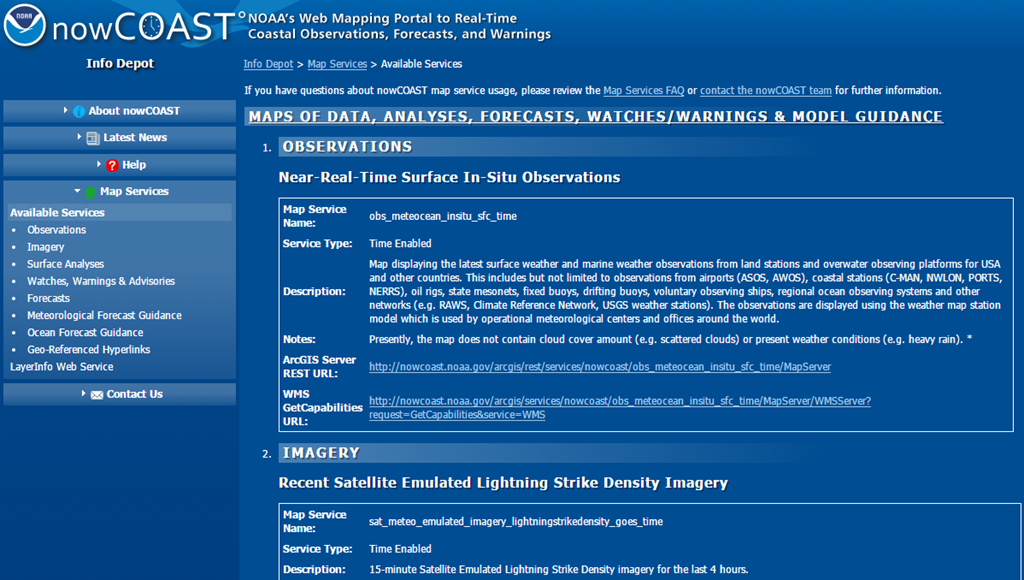
Enough theory (and rambling) - we will now get down to business and actually use the WmsTileSource. First, you will need to know where the WMS server you want to use is actually located. This can be quite a challenge, but some institutions are really helpful. If you enter "noaa wms server" in Bing or Google and search a little around you will quite readily get to this site that shows you a whole range of interesting servers.
image
The important thing to know is that a WMS server can provide you with metadata about what it can and cannot do. These are called "capabilities" and you can get them but getting adding "?service=WMS&request=getcapabilities to the WMS URL. NOAA already has provided those links in their page - how thoughtful of them. You can click those links best using *cough*Google Chrome*cough* as that readily displays XML rather than trying to download it. So I clicked the third link (for "Recent GOES Weather Satellite Imagery", not visible in the image above) and then you get a rather depressingly long and hard to read XML potpourri. But don't despair, I will learn you a few tricks to quickly distill the things you need. We will need to find out:

  1. Does this thing support ESPG:3857, EPSG:900913 or EPSG:4326?
  2. What coordinate system tag is it using?
  3. What layers are available?
  4. What version of WMS is it running?

Find the EPSG
This one is easy. Just search for the number 3857, if you don't find that try 900913, then 4326. If you don't find anything, you're out of luck and the server is unusable. But good old NOAA does not fail us
image
So yes, we can use this server, it supports even the most optimal projection (and 4326 as well, but why use good if you can get perfect).

Find the coordinate tag
Over time the WMS standard has 'evolved'. In ye olden days the coordinate system was designated using the SRS tag, now it's mostly using the CRS tag. I think - but I am not sure - in WMS version 1.1.1 it was SRS, in 1.3.0 it's CRS. Anyway - you can quite easily find this by first searching for CRS, and if you cannot find that, SRS. See the image above - this one is clearly using CRS.


Find available layers

Guess what - you search for the text "Layer". Inside that Layer you will find a Title describing what it is and a Name that you will need to refer to it. NOAA have made this a bit complicated, but the important thing is to hunt for the Layer/Name.
image
So for Visible Imagery you will need a layer with the name "9". Usually a more descriptive name is used, but whatever.


Find the WMS version

Sometimes you can get this out of the URL, but if you cannot - well, you guessed it. Find the word "version" and that will give you give you most likely two possible outcomes: 1.3.0 or 1.1.1


Putting it all together
So know we have:

  • EPSG = 3857
  • Coordinate system tag = "CRS"
  • Layer = "9"
  • WMS version is "1.3.0"
This will allow us to construct a WMS layer like this:
new WmsTileSource("NOAA Visible Img",
"http://nowcoast.noaa.gov/arcgis/services/nowcoast/sat_meteo_imagery_goes_time/MapServer/WMSServer?", 
 new[] { "9" }, "1.3.0", "CRS"));

Notice that the layers are actually constructed as an array, as you can request for multiple layers on top of each other. This only makes sense when the layers are partially transparent, and visible imagery is not - so in this case it doesn't make sense. But if you want to use radar rain images on top of cloud data (see code inside InitTileComboBox) that makes perfect sense. Be aware that layers a drawn in order of appearance, so the last layer in the array will appear on top.
Also notice I did not provide any data for the EPSG. That is because that's the last parameter, and it's default value is 3857.


One more thing
In all cases - be it WMS to TMS - the device you are using goes out to the web to get tiles. That is why a HttpMapTileDataSource has an "AllowCaching" property, that is default set to true. So even if you don't download map tiles to your device, it still caches them - a nice feature for both your users and the map providers.


Conclusion
I have shown you the amazing versatility of the Windows Maps control in nearly all aspects in this series, and hope to have inspired you to look beyond the data that is offered by default with this last post. The world of geo data is a fascinating one, it is a shame so much is locked up behind the complexities of confusing, convoluted and/or outdated protocols.
Enjoy mapping! And let me know if you have found a cool map server to use in your app.