Showing posts with label WP7NL. Show all posts

12 September 2013

Zero lines of code solution to entice Windows Phone users to rate and review an app

I don’t think I need to elaborate on how important it is to get ratings for your app in the Store – and preferably good ratings. By no means this is new and original: Matthijs Hoekstra wrote something to this effect, our Dutch DPE Rajen Kishna even made a NuGet package for similar stuff, Telerik have something in their magnificent Radcontrols for Windows Phone  and yet me, being stubborn, need to make something of my own. The reason for this is simple: I wanted (of course) to make a behavior so you can add it to your app without any code at all – just drag it on top of your first opening page and it will work out of the box. And Blend will present you with some properties that you can set – or not. It works fine out of the box. As it does in my latest Windows Phone app, 2 Phone Pong.

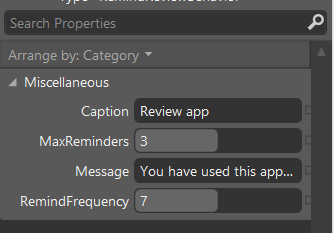
If you drop the behavior on top of your start page it will work without modification. But Blend exposes four properties to customize it’s mode of operation:

image

  • Caption is the text on top of the message box that will display when the app reminds the user. Default is “Review App”. You can set a different value in XAML or (better) bind it to a view model property holding a globalized text.
  • MaxReminders is the number of times the behavior will ask the user to review. If the user refuses to review more than MaxReminders time, he will no longer be bothered.
  • Message shows the actual reminder message. Default values is “You have used this app a few times now, would you like to review it in the store?”
  • RemindFrequency is the number of app startups after which the review request is displayed.

So, with the default setting, the app will ask you the 7th, 14th and 21st time if you want to review the app. After the third dismiss, it won’t ask you anymore. This is to prevent users getting annoyed by endless review requests and giving negative reviews because of that. And of course it will stop asking the user when has elected to post a review.

The behavior itself is built on top of my wp7nl library on codeplex (of course) and implemented as a SafeBehavior. First, I created a simple data class to hold the data in local storage:

namespace Wp7nl.Behaviors
{
  /// <summary>
  /// Simple data class to store data in used by RemindReviewBehavior
  /// </summary>
  public class RemindData
  {
    public int Starts { get; set; }

    public bool Reviewed { get; set; }

    public bool Refused { get; set; }
  }
}

The behavior itself is also pretty simple – it sports four Dependency Properties with the same names as Blend shows – not coincidentally – in front of the text boxes in the image on top of this post.

The behavior itself starts simple enough, being a standard SafeBehavior:

namespace Wp7nl.Behaviors
{
  /// <summary>
  /// A behavior to remind the user to review the app after a couple
  /// times using it
  /// </summary>
  public class RemindReviewBehavior: SafeBehavior<Page>
  {
    protected override void OnSetup()
    {
      CheckRemind();
   }
}

All the functionality is in the CheckRemind method:

private void CheckRemind()
{
  var helper = new IsolatedStorageHelper<RemindData>();
  var remindData = 
helper.ExistsInStorage() ? helper.RetrieveFromStorage() : new RemindData(); if (!remindData.Reviewed && !remindData.Refused) { remindData.Starts++; if (remindData.Starts % RemindFrequency == 0) { var result = MessageBox.Show(Message, Caption, MessageBoxButton.OKCancel); if (result == MessageBoxResult.OK) { Review(); remindData.Reviewed = true; } else { if (remindData.Starts >= MaxReminders * RemindFrequency) { remindData.Refused = true; } } } helper.SaveToStorage(remindData); } }

Using the IsolatedStorageHelper from wp7nl it checks if there is already data from a previous run in local storage – if there is not, it is created. If Reviewed or Refused are true, no action in necessary. After, the number or starts is increased, and it checks if the number of starts can be divided by the RemindFrequency. If that is the case, the message is displayed,

If the user then decides to review the app, the Review method called and the Reviewed property is set to true so the user won’t be bothered anymore. If the user does not want to review, the app checks if the max number of review request has already been put out – and if so, the Refused property is set to true. The user is (also) no longer bothered anymore. And at the end, the remindData is saved so whatever happened in the method is saved for posterity.

The Review method then is pretty simple:

private void Review()
{
  var marketplaceReviewTask = new MarketplaceReviewTask();
  try
  {
    marketplaceReviewTask.Show();
  }
  catch (InvalidOperationException ex)
  {
  }
}

ReviewAppThe only drawback is that the user can click OK, go to the Store, and then hit cancel. There is no way around cheaters, but if someone does not want to review, whatever – at least he/she then won’t give a bad review either.

The four dependency properties I leave out for the sake of brevity.

I have put the code into upcoming version of the wp7nl library, but for now you can get it from the demo solution. I have changed MaxReminders to 20 and RemindFrequency to 2 so the demo app will ask you every other time to rate it, for 20 times. This is a setting I would definitely not recommend in the wild, but it shows the point.

Now Matthijs, Rajen, me and several others have showed you multiple ways to get this done. Mine does not even require you to code – just drag and drop. Now make sure you implement any of these solutions. Whether you are in the Windows Phone game for fun, glory, money or all of the above – you want those apps downloaded. And ratings are crucial for that.

22 July 2013

Extension methods to animate an object over the screen via waypoints for Windows Phone

A long time ago, before I even was a Microsoft MVP, I wrote an article about a behavior that could make anything draggable and flickable for Windows Phone (then still 7). That article used a few extension methods to FrameworkElement and Storyboard to create the desired effect Those extension methods are a bit limited, because they can only create an animation that move an object from one location to another – there are no possible points in between.

The Windows Phone 8 game I am currently developing needs just that, and as usual, as soon as I created something reusable, I spin it off to my library and start blogging about it. Don’t despair if you don’t get the whole explanation – I explain how I created the code and what it does, but if you don’t care, you can just copy it and use the resulting calls.

The earlier extension methods created a DoubleAnimation. Well actually it created two – one to animate the TranslateX property of a CompositeTransform, the other to animate the TranslateY property, over a certain Duration. But these kinds of ‘simple’ animations are executed in parallel in a Storyboard – and now I want to do consecutive animations. You then need key frames. And since the Translate properties are doubles, you need to create instances of DoubleAnimationUsingKeyFrames :). Luckily, the Microsoft developers creating this API did choose some logical names. There are a few things you should remember:

  • The DoubleAnimationUsingKeyFrames animates the property, so this needs to be used in the SetTarget of the Storyboard
  • For the individual animation frames you need to add LinearDoubleKeyFrame instances to the DoubleAnimationUsingKeyFrames’ KeyFrames collection – with a key time and a value. This is the value which the animated property needs to have at the key time.
  • The duration of the entire DoubleAnimationUsingKeyFrames needs to be equal to the sum of key times of the individual LinearDoubleKeyFrame key times.
  • We need to animate both X and Y, so there needs to be two animations per key time, namely one for X and one for Y

Let’s do that!

using System;
using System.Collections.Generic;
using System.Linq;
using System.Windows;
using System.Windows.Media;
using System.Windows.Media.Animation;

namespace Wp7nl.Utilities
{
  public static class StoryboardExtensions2
  {
    public static Timeline CreateKeyFrameAnimation(this Storyboard storyboard, 
        IList<double> values, IList<Duration>times)
    {
      var keyFrameAnimation = new DoubleAnimationUsingKeyFrames();
      var keyTime = TimeSpan.FromMilliseconds(0);
      for (var i = 0 ; i< values.Count(); i++)
      {
        keyTime += times[i].TimeSpan;
        var frame = new LinearDoubleKeyFrame {Value = values[i], KeyTime = keyTime};
        keyFrameAnimation.KeyFrames.Add(frame);
        keyFrameAnimation.Duration += times[i];
      }
      return keyFrameAnimation;
    }
  }
}

This code is still pretty abstract, but it’s doing exactly what I described – it makes the DoubleAnimationUsingKeyFrames, adds the keyframes (of type LinearDoubleKeyFrame  - I found that out using Blend and basically translated the XAML to C#) and makes the total duration equal to the sum of the durations.The first key frame on key time 0 is the first point – and from then we add more points and new key times.

This, of course, is not very “programmer friendly”. That is where the main extension method comes in:

public static void AddWayPointAnimation(
  this Storyboard storyboard, FrameworkElement fe, 
  IList<Point> points, double speed)
{
  var durations = new List<Duration> {new Duration(TimeSpan.FromSeconds(0))};
  for (var i = 0; i < points.Count - 1; i++)
  {
    durations.Add(points[i].CalculateDuration(points[i + 1], speed));
  }
  var xValues = points.Select(p => p.X).ToList();
  storyboard.AddAnimation(fe.RenderTransform, 
    storyboard.CreateKeyFrameAnimation(xValues, durations), 
       CompositeTransform.TranslateXProperty);
  var yValues = points.Select(p => p.Y).ToList();
  storyboard.AddAnimation(fe.RenderTransform, 
    storyboard.CreateKeyFrameAnimation(yValues, durations), 
      CompositeTransform.TranslateYProperty);
}

So you pass in an empty Storyboard, the GUI element you want to animate, a list of waypoints, and a speed (in pixels per second). And done. You can now simply use the following code:

myGuiElement.RenderTransform = new CompositeTransform();
myGuiElement.RenderTransformOrigin = new Point(0.5, 0.5);
var s = new Storyboard();
s.AddWayPointAnimation(myGuiElement, myListOfPoint, 500);
s.Begin();

And whatever is in myGuiElement will be animated over the waypoints. The first two statements can also be replaced by creating the transform in Blend. You may, by the way, have noticed some odd statements in AddWayPointAnimation. Both the red underlined statements are not part of the standard API. CalculateDuration is part of a few extension methods for Point that I wrote some time ago, and AddAnimation is part of the original article I mentioned before. Both are now part of my #wp7nl library on codeplex (and its accompanying NuGet package) so I won’t go into details about this.

screenshot4To demonstrate this principle I have made the following pinnacle of animation design:

When you hit the button “move”it will move the whole TitlePanel first a bit to the left, then down, then to the right, and finally up to where it came from. Pretty pointless to do this from code, but it proves the point.

Note that what we animate here is a Translation. So the coordinates used are relative coordinates within the container!

As usual, the full demo solution can be downloaded here

14 June 2012

Behavior to make Bing Maps view area bindable

The Bing Maps control in Windows Phone 7 is pretty versatile but does not always play along very well with data binding. You can bind ZoomLevel and MapCenter, which is all very well, but if you want to know what area is actually shown within the map – for instance, for making a GIS application that loads only visible data, and not stuff that’s outside the view area anyway, things get a lit complicated.

Not so if you uses this little behavior. It builds upon the SafeBehavior that is already in my wp7nl library on codeplex. It sports two GeoCoordinate depencency propertise, NorthEast and SouthWest

using System.Device.Location;
using System.Windows;
using Microsoft.Phone.Controls.Maps;

namespace Wp7nl.Behaviors
{
  public class ViewportAreaBehavior
  {
    /// <summary>
    /// A behavior to make southwest and northeast bindable
    /// </summary>
    public class ViewportwatcherBehavior : SafeBehavior<Map>
    {
      #region NorthWest
      public const string NorthWestPropertyName = "NorthWest";

      public GeoCoordinate NorthWest
      {
        get { return (GeoCoordinate)GetValue(NorthWestProperty); }
        set { SetValue(NorthWestProperty, value); }
      }

      public static readonly DependencyProperty NorthWestProperty = 
	DependencyProperty.Register(
          NorthWestPropertyName,
          typeof(GeoCoordinate),
          typeof(ViewportwatcherBehavior),
          new PropertyMetadata(null));

      #endregion

      #region SouthEast
      public const string SouthEastPropertyName = "SouthEast";

      public GeoCoordinate SouthEast
      {
        get { return (GeoCoordinate)GetValue(SouthEastProperty); }
        set { SetValue(SouthEastProperty, value); }
      }

      public static readonly DependencyProperty SouthEastProperty = 
	DependencyProperty.Register(
          SouthEastPropertyName,
          typeof(GeoCoordinate),
          typeof(ViewportwatcherBehavior),
          new PropertyMetadata(null));

      #endregion
    }
  }
}

All pretty standard stuff. Next comes the setup/cleanup stuff,

protected override void OnSetup()
{
  AssociatedObject.ViewChangeEnd += AssociatedObjectViewChangeEnd;
  CalcRectangle();
}

protected override void OnCleanup()
{
  AssociatedObject.ViewChangeEnd -= AssociatedObjectViewChangeEnd;
}

in which you can see I intercept the ViewChangeEnd event. I don’t do anything special there: I just call the method CalcRectangle, just as on startup.

void AssociatedObjectViewChangeEnd(object sender, MapEventArgs e)
{
  CalcRectangle();
}

The final missing piece of the puzzle is then of course CalcRectangle itself:

private void CalcRectangle()
{
  NorthWest = AssociatedObject.ViewportPointToLocation(new Point(0, 0));
  SouthEast = AssociatedObject.ViewportPointToLocation(
    new Point(AssociatedObject.ViewportSize.Width, 
              AssociatedObject.ViewportSize.Height));
}

So I basically take the point left top (0,0) and and use ViewportPointToLocation to convert it to a coordinate, and do the same think with the point that left bottom. And that’s all.

Now you can bind to the NorthWest and SouthEast property of the behavior and you get the view area in your view model. Be aware this works one way. It gets the view area to the ViewModel, not the other way around.

Contrary to my custom there’s no solution with the code in it, mostly because it’s already in the wp7nl library since yesterday. You can download the code from the library itself here, if you want.

06 May 2012

JSON deserialization with JSON.net: caching results

On January 22 I promised this to be a three-part series. I’ve been kinda busy with upgrading apps, Windows 8 experiments and trivial ;-) stuff like code camps, an MVP summit, preparing my first and second talk about Windows Phone and whatnot and made you wait for the final part for exactly three months – but those who know me, know I stick my promises, so here’s the third and final part of my JSON for Windows Phone series.

In part 1 of this series I described the basics of creating classes from a JSON string and then simply deserializing the string into a (list of) classes. In part 2 I showed how to use JSONConverter subclasses to handle complex stuff the deserializer cannot handle out of the box, like class hierarchies. Part 3, as promised, shows a way to cache results - which makes your application faster, more responsive and more battery/data plan friendly.

Using the demo solution of part 2 as a starting point, I first brought in my wp7nl library on codeplex using NuGet. I am lazy just like any programmer (should be) and I like to defer as much heavy lifting to already existing code as I can ;-).

When dealing with data downloaded from the web everything becomes asynchronous by nature (at least on Windows Phone), and since we don’t have the await and async keyboards aboard our platform yet, I tend to use Observables from Microsoft.Phone.Reactive. To let that work with events, I need an EventArgs child class for my “loading completed” delegate, which I have defined in the following trivial way:

using System;
using System.Collections.Generic;

namespace Wp7nl.Utilities
{
  public class DataLoadCompletedArgs<T> : EventArgs
  {
    public IList<T> Result { get; set; }

    public Exception Error { get; set; }
  }
}

It’s a generic class because I am basically too lazy to write casting statements everywhere. The basic setup of the helper class that does both loading itself is like this:

using System.Linq;
using Microsoft.Phone.Reactive;
using System;
using System.Collections.Generic;
using System.ComponentModel;
using System.Net;
using Newtonsoft.Json;

namespace Wp7nl.Utilities
{
  public class CachedServiceDataLoader<T> where T : class
  {
    private readonly IsolatedStorageHelper<List<T>> storageHelper;

    public CachedServiceDataLoader()
    {
      storageHelper = new IsolatedStorageHelper<List<T>>();
    }

    private void FireDataLoadCompleted(IList<T> result, Exception error)
    {
      if (DataLoadCompleted != null)
      {
        DataLoadCompleted(this,
                          new DataLoadCompletedArgs<T> 
                          {Result = result, Error = error});
      }
    }

    public delegate void DataLoadCompletedHandler(object sender, 
      DataLoadCompletedArgs<T> args);

    public event DataLoadCompletedHandler DataLoadCompleted;
  }
}

So what have we here? A constructor that creates an IsolatedStorageHelper – that’s a class from the latest version from Wp7nl, where it sits in the Wp7nl.Utilities namespace. It’s basically the internal logic of the extension methods I described in my article about tombstoning MVVMLight viewmodels using SilverlightSerializer cut loose from those extension methods – so they can be used for caching all kinds of classes, and not only viewmodels on deactivation or closing of the app. The bottom part of the class is just the event indicating a data load action has been completed, and a convenience method to easily fire that event (I mentioned I was lazy, didn’t I? ;-) ) .

Next up is another little convenience methods for loading stuff from the cache or returning a default (empty) list if the results are not available:

private List<T> LoadFromStorage()
{
  return storageHelper.ExistsInStorage() ? 
     storageHelper.RetrieveFromStorage() : new List<T>();
}

It’s only used once, so I could just a easy have omitted it, but it makes the rest of the code a bit more readable and that’s important too. When you state your intentions in code, that saves on comment.

The method to read stuff from cache is a bit more complex than strictly necessary, but since data coming from the web is coming in asynchronously, why would I want my app to wait on my cache coughing up its results? So I made the cache retrieval asynchronously as well, using some old skool BackgroundWorker hoopla:

public bool StartLoadFromCache()
{
  if (storageHelper.ExistsInStorage())
  {
    var w = new BackgroundWorker();
    w.DoWork += (s, e) =>
      {
        e.Result = LoadFromStorage();
      };

    w.RunWorkerCompleted += (s, e) =>
      FireDataLoadCompleted(e.Result as List<T>, e.Error);

    w.RunWorkerAsync();
    return true;
  }
  return false;
}

I could have used an observable here as well I guess, but I still have not adapted my code snippet. So anyway, I cheat a little by checking first if there’s any cache data at all – if there is not, the method immediately returns false, informing the calling method there’s no cached data and to go get the stuff on the web. Which it can, incidentally, by calling the following method:

public void StartDownloadCacheData(IList<T> currentObjects, Uri serviceUri,
                                   params JsonConverter[] converters)
{
  var w = new SharpGIS.GZipWebClient();
  Observable.FromEvent<DownloadStringCompletedEventArgs>(
    w, "DownloadStringCompleted")
    .Subscribe(r =>
    {
      if (DataLoadCompleted != null)
      {
        if (r.EventArgs.Error == null)
        {
          var deserialized = 
               JsonConvert.DeserializeObject<List<T>>(r.EventArgs.Result,
                                                      converters);
          var result = new List<T>(currentObjects);
          result.AddRange(deserialized.Where(p => !currentObjects.Contains(p)));
          FireDataLoadCompleted(result, r.EventArgs.Error);
          storageHelper.SaveToStorage(result);
        }
        else
        {
          FireDataLoadCompleted(null, r.EventArgs.Error);
        }
      }
    });

  w.DownloadStringAsync(serviceUri);
}

So what this method does is pretty simple:

  • It makes a GZipWebClient (that allows data to be loaded zipped, thus saving on amount of bytes actually transmitted)
  • It makes an Observable from the event “DownloadStringCompleted” and subscribes an anonymous method
  • It fires the DownloadStringAsync method on the uri

Now the anonymous method that is fired when the data arrives

  • Checks for errors
  • Tries to deserialize the incoming data using the provides converters (if any)
  • Adds the existing object list to the result list
  • Add the new objects to the list after weeding out duplicates that were already in the list
  • Fires the complete event
  • Stores the now merged data set in isolated storage.

So the idea is that you can do consecutive downloads, but that resulting data never contains any duplicates. This is why you must provide the list of current objects. This may seem like a little odd, but this is exactly the thing you want to do with working with geographical data – which I do almost all the time for a living. As an inspector you want to download stuff from the areas you want to inspect, not the whole municipality. You move your map to a location, hit “download” and presto, you have the stuff you want to use cached on you device before you go on the road. Repeat until all areas you want to visit today have been processed. Kinda like Nokia Drive does – there is never enough room aboard your phone to store all the possible maps of the world, but when you to Seattle, you download the maps for Washington State, not the whole of North America, and you’re good to go.

But what if you want to start over – clearing the cache in stead of adding it? That’s the last method of this class:

public void StartClearStorage()
{
  var w = new BackgroundWorker();
  w.DoWork += (s, e) => storageHelper.DeletedFromStorage();

  w.RunWorkerCompleted += (s, e) =>
  {
    if (DataLoadCompleted != null)
    {
      FireDataLoadCompleted(new List<T>(), e.Error);
    }
  };

  w.RunWorkerAsync();
}

Also asynchronously, also not strictly necessary, but Microsoft tend to move toward doing everything asynchronously – if you have done any Windows 8 development you know performance requirements are pretty high and strict, so better get used to it already.

JSONdemo3I updated the demo solution to show off the workings of this class, that presents itself like showed to the right. If you click on “Load devices”, it will show four devices, as displayed on the image, and the message “Loading from web”. If you hit the “Load devices” button again, it will show the same four devices, but show the message “Loading from cache” and it will show them just a wee bit faster.

If you hit “Load more devices” you will see six devices, – with the Lumia 800 mentioned two times. But wait, what about weeding out the duplicates in StartDownloadCacheData – doesn’t that work? It sure does, but I already mentioned I was lazy, so I did not implement any “Equals” logic on  the Device class – that’s left as exercise for the reader ;-). I assure you it will work properly then.

“Clear list” just clears the list, and if you hit “Load devices” it will load the devices from cache again – very fast.

“Clear cache and list” will actually wipe the cache, so if you hit “Load devices” again it will show “Loading from web”.

I won’t bother you with the XAML – the code in MainPage.xaml.cs is pretty straightforward and shows off all the features of the CachedServiceDataLoader:

using System;
using System.Collections.Generic;
using System.Windows;
using Microsoft.Phone.Controls;
using Microsoft.Phone.Reactive;
using Wp7nl.Utilities;

namespace JsonDemo
{
  public partial class MainPage : PhoneApplicationPage
  {
    private CachedServiceDataLoader<Device> cachedLoader;
    private IList<Device> currentData;
    public MainPage()
    {
      InitializeComponent();
      Loaded += MainPage_Loaded;
    }

    void MainPage_Loaded(object sender, RoutedEventArgs e)
    {
      cachedLoader = new CachedServiceDataLoader<Device>();
      currentData = new List<Device>();
      Observable.FromEvent<DataLoadCompletedArgs<Device>>(
        cachedLoader, "DataLoadCompleted")
       .Subscribe(r =>
                    {
                      currentData = r.EventArgs.Result;
                      PhoneList.ItemsSource = r.EventArgs.Result;
                    });
    }

    private void Load_Click(object sender, RoutedEventArgs e)
    {
      if (!cachedLoader.StartLoadFromCache())
      {
        Message.Text = "Loading from web";
        cachedLoader.StartDownloadCacheData(currentData,
          new Uri("http://www.schaikweb.net/dotnetbyexample/JSONPhones2.txt"),
          new JsonDeviceConverter(), new JsonSpecsConverter());
      }
      else
      {
        Message.Text = "Loading from cache";        
      }
    }

    private void Load2_Click(object sender, RoutedEventArgs e)
    {
      Message.Text = "Loading from web";
      cachedLoader.StartDownloadCacheData(currentData,
        new Uri("http://www.schaikweb.net/dotnetbyexample/JSONPhones3.txt"),
        new JsonDeviceConverter(), new JsonSpecsConverter());
    }      

    private void Clear_Click(object sender, RoutedEventArgs e)
    {
      PhoneList.ItemsSource = null;
      Message.Text = "cleared list (not cache)";
    }

    private void ClearCache_Click(object sender, RoutedEventArgs e)
    {
      cachedLoader.StartClearStorage();
      Message.Text = "cleared list and cache";
    }
  }
}

There isn’t even any of my trademark MVVM code in here. In the MainPage_Loaded – not surprisingly - all the stuff is initialized. The CachedServiceDataLoader is created using a type T, and spits out a IList of T. I use an Observable to keep track of things here as well, but of course you are free to subscribe to events in the ‘old fashioned’ way.

Load_Click shows the usage of StartLoadFromCache and StartDownloadCacheData, the latter one using the JSONconverter child classes I showed in part 2. The rest I assume to be pretty straightforward.

As you can see, working with JSON on Windows Phone is dead easy and my little helper class makes it even more easy. I am still pondering if I should include this in the wp7nl library, as this creates yet two more dependencies (SharpGIS.GZipWebClient and Newtonsoft.Json) to keep in sync. If you have any feedback on this, I’d be happy to hear it. But anyway, this concludes my JSON for Windows Phone series, I hope it will prove to be a useful mini-tutorial for the Windows Phone developer community. And as usual, you can download the full solution from my website.

25 March 2012

Instant language update in a Windows Phone 7 application using MVVM

With more and more Marketplaces being added to the Windows Phone ecosystem, globalization of your app becomes all the more more important. I am happy to see a lot of apps these days support multiple languages. I usually employ a solution described in my article MVVMLight based language selection for Windows Phone 7 – this automatically picks up the language from the phone and defaults to English/US if the default language is not supported by the app. But I also like to give the user the chance to override the automatically selected language. I, for instance, run the phone OS in English/US, but I’d like specific Dutch apps to run in Dutch, thank you. If you follow the globalization example as described by MSDN using my code, that unfortunately requires the app to be restarted after applying the language change. Well, no more!

The sample as provided by MSDN provides a localized string helper that looks more or less like this:

namespace InstantLanguage.Resources
{
  public class LocalizedStrings
  {
    public LocalizedStrings()
    {
    }
  
    private static AppResources localizedResources = new AppResources();

    public AppResources LocalizedResources 
    { 
      get { return localizedResources; } 
    }
  }
}

I employed it since my first localized app, and I usually put it in the same directory as my resource files. You declare it in your App.xaml like this:

<Application.Resources>
    <!-- More resources -->
    <Resources:LocalizedStrings x:Key="LocalizedStrings"/>
</Application.Resources>
Of course you need to declare the namespace for LocalizedResources first, so in the top you will add something like
xmlns:Resources="clr-namespace:InstantLanguage.Resources"

And now you can use it to show localized strings by binding to it like this:

<TextBlock x:Name="ApplicationTitle" 
  Text="{Binding LocalizedResources.AppTitle, Source={StaticResource LocalizedStrings}}" 
  Style="{StaticResource PhoneTextNormalStyle}"/>

But unfortunately, as I said, if you change the language, for instance by calling this code, nothing happens.

Thread.CurrentThread.CurrentUICulture = new CultureInfo("de-DE");
Thread.CurrentThread.CurrentCulture = Thread.CurrentThread.CurrentUICulture;

The reason for this is pretty simple: the app has no way of informing the GUI, as LocalizedStrings has no support for INotifyPropertyChanged. But that can be easily fixed, by taking MVVMLight and implement LocalizedStrings as a child class of ViewModelBase:

using System.Windows;

namespace InstantLanguage.Resources
{
  using GalaSoft.MvvmLight;

  public class LocalizedStrings : ViewModelBase
  {
    private static AppResources localizedresources = new AppResources();

    public AppResources LocalizedResources
    {
      get { return localizedresources; }
    }

    public void UpdateLanguage()
    {
      localizedresources = new AppResources();
      RaisePropertyChanged(() => LocalizedResources);
    }

    public static LocalizedStrings LocalizedStringsResource
    {
      get
      {
        return Application.Current.Resources["LocalizedStrings"]
            as LocalizedStrings;
      }
    }
  }
}

and then there is another matter: the app needs to have a way of kicking off the RaisePropertyChanged event on a class used as a StaticResource. That’s what UpdateLanguage and the static LocalizedStringsResource are for. Note that for this to work, you will need to have defined the resource with the key LocalizedStrings:

<Resources:LocalizedStrings x:Key="LocalizedStrings"/>

The keys that need to match are marked in red in both pieces of code. Anyway, after you changed the language, call:

LocalizedStrings.LocalizedStringsResource.UpdateLanguage();

And boom – all your texts coming from the resource file will update instantaneously.

InstantLanuage

Here you can find a sample solution demonstrating this principle using the newest release of my #wp7nl library on codeplex and the technique I mentioned earlier. There’s a simple viewmodel subclassing LanguageSettingsViewModel, and you can see the call to UpdateLanguage directly after the language setting has been changed:

using System.ComponentModel;
using InstantLanguage.Resources;
using Wp7nl.Globalization;

namespace InstantLanguage.ViewModel
{
  /// <summary>
  /// Main view model. By subclassing LanguageSettingsViewModel we get properties 
  /// "SupportedLanguages" and "CurrentLanguage" for free. 
  /// </summary>
  public class MainViewModel : LanguageSettingsViewModel
  {

    public MainViewModel()
    {
      // Note: en-US is added by default
      AddLanguages(new Language 
	    { Description = "Deutsch", Locale = "de-DE" });
      AddLanguages(new Language 
	   { Description = "Nederlands", Locale = "nl-NL" });
      PropertyChanged += MainViewModelPropertyChanged;
    }

    void MainViewModelPropertyChanged(object sender, PropertyChangedEventArgs e)
    {
      if (e.PropertyName == "CurrentLanguage")
      {
        SetLanguageFromCurrentLocale();
        LocalizedStrings.LocalizedStringsResource.UpdateLanguage();
      }
    }
  }
}

In the end, it’s always pretty simple.

Note that for this globalization and the code to work properly, you will need to take into account the following:

  • You will need to change the “Custom Tool” property for each resource file to “PublicResXFileCodeGenerator” (default is ResXFileCodeGenerator)
  • You will need to have a .resx file for every language you support. For the default language I call mine usually AppResources.resx, for German I then have to define AppResources.de-DE.resx, etc.
  • You will also need to add supported extra languages in the SupportedCultures tag in your main project. You need to do manually, by opening the project file in for instance notepad. Why this can’t be done from Visual Studio – don’t ask me, I’m just the messenger here ;-). To support Dutch and German for instance you change the tag’s contents to:
<SupportedCultures>nl-NL;de-DE</SupportedCultures>

Note: I got the idea from a gentleman I met at the 2012 edition of the Microsoft Techdays in The Hague while while I was manning at the Ask The Expert stand. He showed me it could be done, but did only briefly showed me some of code and certainly not all of it. Once I knew it could be done, I more or less pieced this together in the moments I was not being bombarded by questions from developers dropping by. Unfortunately I don’t remember the gentleman’s name, or else I would have added some credits.

Have fun! I hope this helps you storm the new Marketplaces! ;-)

22 February 2012

Behavior to show a MessageBox from a ViewModel

Since I am a very lazy programmer and I not always want to register or define services and whatnot for showing a simple message I created this extremely simple behavior for showing a MessageBox from a ViewModel. I wrote the code for Windows Phone 7, but I suppose it could be used in Silverlight as well.

The behavior itself is as simple as this:

using System.Windows;
using System.Windows.Interactivity;

namespace Wp7nl.Behaviors
{
  public class MessageBoxDisplayBehavior : Behavior<FrameworkElement>
  {
    public const string MessagePropertyName = "Message";

    public string Message
    {
      get { return (string)GetValue(MessageProperty); }
      set { SetValue(MessageProperty, value); }
    }

    public static readonly DependencyProperty MessageProperty =
      DependencyProperty.Register(
        MessagePropertyName,
        typeof(string),
        typeof(MessageBoxDisplayBehavior),
        new PropertyMetadata(string.Empty, MessageChanged));

    public static void MessageChanged(DependencyObject d, 
      DependencyPropertyChangedEventArgs e)
    {
      var msg = e.NewValue as string;
      if (!string.IsNullOrEmpty(msg))
      {
        MessageBox.Show(msg);
      }
    }
  }
}

Easiest way to use it is to just drag it onto about any control in your Page using Blend, as long as it has the right data context, and select a string property to bind it to. In XAML, it usage looks something like this:

<Grid DataContext="{Binding ChooserViewModel}">
 <i:Interaction.Behaviors>
  <Wp7nl_Behaviors:MessageBoxDisplayBehavior 
    Message="{Binding MessageBoxMessage, Mode=TwoWay}"/>
 </i:Interaction.Behaviors>

Just one the one thing you might want to consider is how you define “MessageBoxMessage” in your ViewModel. I defined it as follows:

private string messageBoxMessage;
public string MessageBoxMessage
{
  get { return messageBoxMessage; }
  set
  {
    messageBoxMessage = value;
    RaisePropertyChanged(() => MessageBoxMessage);
  }
}
as opposed to what you would normally do, which is
private string messageBoxMessage;
public string MessageBoxMessage
{
  get { return messageBoxMessage; }
  set
  {
    if (messageBoxMessage != value)
    {
      messageBoxMessage = value;
      RaisePropertyChanged(() => MessageBoxMessage);
    }
  }
}
I intentionally left out the value check (in red), so RaisePropertyChanged always fires. This gives the real stupid mentally challenged users that make the same error multiple times multiple message boxes as well ;-)

06 February 2012

JSON deserialization with JSON.net: class hierarchies

In part 1 of this series I described the basics of creating classes from a JSON string and then simply deserializing the string into a (list of) classes. That way, you don’t have all the hooplah of SOAP, but still have strongly-typed classes in your client app. But beware, there is no formal contract either, so on a beautiful morning you might start to think that either you had too much of a drink yesterday evening, or that the company providing the data feed for your app indeed has started to sell Windows Phone 7 devices made by Sony, with a 65” screen.

Looking at the JSON string you now see something like this:

[
  {
    "Brand": "Nokia","Type" : "Lumia 800", "Device" : "Phone",
    "Specs":{"Storage" : "16GB", "Memory": "512MB","Screensize" : "3.7"}
  },
  {
    "Brand": "Sony", "Type" : "KDL-65HX920","Device" : "TV",
    "Specs":{"Screensize" : "65", "FullHD" : "Yes", "ThreeD" : "Yes" }
  },  
  { "Brand": "Nokia","Type" : "Lumia 900","Device" : "Phone",
    "Specs":{"Storage" : "8GB", "Memory": "512MB","Screensize" : "4.3" }
  },
  {
    "Brand": "Samsung", "Type" : "UE55C9000","Device" : "TV",
    "Specs":{"Screensize" : "55", "FullHD" : "Yes", "ThreeD" : "Yes" }
  },  
]
None of the two options mentioned before appear to be true: apparently the company has diversified. They are now selling TV's as well. Of course you could run this trough json2csharp, which will give you this:
public class Specs
{
    public string Storage { get; set; }
    public string Memory { get; set; }
    public string Screensize { get; set; }
    public string FullHD { get; set; }
    public string ThreeD { get; set; }
}

public class RootObject
{
    public string Brand { get; set; }
    public string Type { get; set; }
    public string Device { get; set; }
    public Specs Specs { get; set; }
}

This will work, but not for the purpose of what I’d like to show. We refactor the whole stuff into an object structure like this:

CodeScheme

Or, in code (put into a single file for the sake of brevity)

namespace JsonDemo
{
  public abstract class Device
  {
    public string Brand { get; set; }
    public string Type { get; set; }
  }
  
  public class Phone : Device
  {
    public PhoneSpecs Specs { get; set; }
  }
  
  public class Tv : Device
  {
    public TvSpecs Specs { get; set; }
  }
  
  public abstract class Specs
  {
    public string Screensize { get; set; }
  }
  
  public class PhoneSpecs : Specs
  {
    public string Storage { get; set; }
    public string Memory { get; set; }
  }
  
    public class TvSpecs: Specs
  {
    public string FullHd { get; set; }
    public string ThreeD { get; set; }
  }
}

If you think this is a ludicrous complicated way to store such a simple data structure I think you are quite right, but a) they don’t call me a Senior Software Architect for nothing, making things complicated is what I am told Architects do for a living, so I try to be a Good Boy ;-) and b) this is just for the purpose of the sample, so bear with me, right?

If you remember the crux of part 1: it all came down to one line of code, namely:

JsonConvert.DeserializeObject<List<Phone>>(r.EventArgs.Result);

This method actually has a second parameter: params Newtonsoft.Json.JsonConverter[] converters, which allows you to provide your own custom converters. Making those is pretty easy, and it becomes even more easy when you use the JsonCreationConverter<T> class that’s floating around the internet in various permutations. I nicked it from StackOverflow here.

using System;
using Newtonsoft.Json;
using Newtonsoft.Json.Linq;

namespace JsonDemo
{
  public abstract class JsonCreationConverter<T> : JsonConverter
  {
    protected abstract T Create(Type objectType, JObject jsonObject);

    public override bool CanConvert(Type objectType)
    {
      return typeof(T).IsAssignableFrom(objectType);
    }

    public override object ReadJson(JsonReader reader, Type objectType, 
      object existingValue, JsonSerializer serializer)
    {
      var jsonObject = JObject.Load(reader);
      var target = Create(objectType, jsonObject);
      serializer.Populate(jsonObject.CreateReader(), target);
      return target;
    }

    public override void WriteJson(JsonWriter writer, object value, 
   JsonSerializer serializer)
    {
      throw new NotImplementedException();
    }
  }
}

To make a converter, you subclass this object into a templated converter for the base class, override the “Create” method and off you go. Writing a converter for the Device/Phone/Tv hierarchy is pretty easy: you just have to check the value of the “Device” property, which you do like this:

using System;
using Newtonsoft.Json.Linq;

namespace JsonDemo
{
  public class JsonDeviceConverter : JsonCreationConverter<Device>
  {
    protected override Device Create(Type objectType, JObject jsonObject)
    {
      var typeName = jsonObject["Device"].ToString();
      switch(typeName)
      {
        case "TV":
          return new Tv();
        case "Phone":
          return new Phone();
        default: return null;
      }
    }
  }
}

For the Specs/PhoneSpecs/TvSpecs you do more or less the same, only now you have to check for the existence of certain properties, not the value. I decided that if an object has a “Storage” property it’s a PhoneSpecs, and if it has “FullHD” it’s a TVSpecs.

using System;
using Newtonsoft.Json.Linq;

namespace JsonDemo
{
  public class JsonSpecsConverter : JsonCreationConverter<Specs>
  {
    protected override Specs Create(Type objectType, JObject jsonObject)
    {
      if(jsonObject["Storage"] != null)
      {
        return new PhoneSpecs();
      }

      if (jsonObject["FullHD"] != null)
      {
        return new TvSpecs();
      }

      return null;
    }
  }
}

Finally, to get these converters being used by the deserializer you have to slightly modify the deserialization line:

var deserialized = JsonConvert.DeserializeObject<List<Device>>(r.EventArgs.Result, 
  new JsonDeviceConverter(), new JsonSpecsConverter());

And sure enough, if you put a breakpoint behind this line, you can place a watch on “deserialized” and see that the data structure has been deserialized in our artfully crafted class structure.

Deserialized

And that’s all there is to it. Demo solution with full code can be found here.

The third and final part of this series shows how to cache results and can be found here

01 February 2012

Behavior to force TextBox model update to prevent trouble with the ApplicationBar

A small quicky this time:

Problem:

  • TextBox, Text property bound to a string in my ViewModel
  • I type text in the TextBox
  • I click a “Save” button on my ApplicationBar
  • The string in my ViewModel is not updated. It never gets updated. WTF???

It appears the TextBox only updates it’s value to a bound string when it loses focus. And a TextBox does not lose focus when you click an ApplicationBar Button. Meh.

I have found a few solutions and workarounds, and in the end rolled my own:  a very small behavior that updates the binding every time you type something in your textbox. That’s a bit wasteful, but it works for me. It builds on the SafeBehavior pattern I wrote about earlier, and it’s so small I post it in one go:

using System.Windows.Controls;

namespace Wp7nl.Behaviors
{
  /// <summary>
  /// A behavior to for text box model update when text changes
  /// </summary>
  public class TextBoxChangeModelUpdateBehavior : SafeBehavior<TextBox>
  {
    protected override void OnSetup()
    {
      AssociatedObject.TextChanged += AssociatedObjectTextChanged;
    }

    protected override void OnCleanup()
    {
      AssociatedObject.TextChanged -= AssociatedObjectTextChanged;
    }

    void AssociatedObjectTextChanged(object sender, TextChangedEventArgs e)
    {
      var binding = AssociatedObject.GetBindingExpression(TextBox.TextProperty);
      if (binding != null)
      {
        binding.UpdateSource();
      }
    }
  }
}

I have read amongst other things Prism has a UpdateTextBindingOnPropertyChanged behavior. Well this one will be in the next version of my #wp7nl library on codeplex 

29 January 2012

Templating a XAML CheckBox to a thumbs-up/down control using Expression Blend

Preface
The checkbox has been been around in the Graphical User Interface for as long as I can remember doing GUI – since the early 90’s I guess. You know what, let’s make that “it’s been around for longer than I care to remember” ;). For my newest Windows Phone project I wanted something different. In stead of boring old 
checkbox 
 
I wanted something like this:
thumbsupdown
Turns out you can do this in pure XAML. And almost entirely in Expression Blend, too. I could just post the XAML and be done with it, but I like to document the track I took, not only to educate you, but also to remember myself how the hell I got here in the first place ;-).
Setting the stage
  • Open Visual Studio 2010
  • Create a new Windows Phone 7 (7.1 of course!) project,
  • Make a folder “icons”build actions
  • Download this image to your computer
  • Paste it in the “icons” folder in Visual Studio
  • Double check the image’s properties, they should be as showed to the right.
  • Save the project
Creating style and control template
  • Open the project in Expression blend
  • Put one (or more, for all I care) CheckBoxes on the phone page.
  • Select one of them, then click in the main Blend menu “Object/Edit Style/Create Empty”.
  • In the dialog that follows, enter “Thumbupdowncheckboxstyle” for a name and select “Application” under “Define in”
  • You will get a screen with a single CheckBox. Right click it, select “Edit template/Create Empty”.
  • In the dialog that follows, enter “Thumbupdowncheckboxtemplate” for a name and select “Application” under “Define in”
First thing you will notice is that the selected CheckBox completely disappears from your design surface. That’s because basically you have replaced the entire look for the CheckBox by an empty template, which is essentially well, pretty empty indeed. It only contains a grid, and even that’s gonna go.
  • Delete the Grid
  • Add a Rectangle to the template by double clicking on the Rectangle button from the Assets toolbar on the left
This is a good moment to turn on Split View in the designer, because that shows you what the designer is actually doing. Right-click the rectangle in the Objects and Timeline panel, and select “View XAML”. At this point you will see only this:
<Application.Resources>

  <ControlTemplate x:Key="Thumbupdowncheckboxtemplate" TargetType="CheckBox">
    <Rectangle Fill="#FFF4F4F5" Stroke="Black"/>
  </ControlTemplate>

  <Style x:Key="Thumbupdowncheckboxstyle" TargetType="CheckBox">
    <Setter Property="Template" Value="{StaticResource Thumbupdowncheckboxtemplate}"/>
  </Style>

</Application.Resources>
And the design surface will only show a horizontal white rectangle with a black border.
Default control size
ResourcesFirst and foremost, set the default size of your control. To get this done, look right top, select the Resources tab and expand App.Xaml. Then proceed as follows:
  • Right-click Thumbupdowncheckboxstyle
  • Select “Edit”
  • Select the “Properties” tab left of the “Resources” tab
  • Locate the “Width” and “Height” fields and enter 40 for both.
Your XAML now should look like this:
<Application.Resources>

  <ControlTemplate x:Key="Thumbupdowncheckboxtemplate" TargetType="CheckBox">
    <Rectangle Fill="#FFF4F4F5" Stroke="Black"/>
  </ControlTemplate>

  <Style x:Key="Thumbupdowncheckboxstyle" TargetType="CheckBox">
    <Setter Property="Template" Value="{StaticResource Thumbupdowncheckboxtemplate}"/>
    <Setter Property="Width" Value="40"/>
    <Setter Property="Height" Value="40"/>
  </Style>

</Application.Resources>
Propagate default size to template
Now go back to editing the Control template again:
  • Once again go to the “Resources” tab left top
  • Right-click Thumbupdowncheckboxtemplate
  • Select “Edit”.
  • Select the Rectangle and Click the tab “Properties” top left againwidth
  • Click the little square all the way to the right behind the field “Width”
  • This will popup a menu. Select “Template Binding/Width”
  • Click the little square behind “Height” and Select “Template Binding/Height”
This will set the width and height of the rectangle to the full width and height of the control. If the user does not set a specific width and height, the values in the default Setters (both 40) will be used. XAML at this point:
<Application.Resources>

  <ControlTemplate x:Key="Thumbupdowncheckboxtemplate" TargetType="CheckBox">
    <Rectangle Fill="#FFF4F4F5" Stroke="Black" Width="{TemplateBinding Width}" 
    Height="{TemplateBinding Height}"/>
  </ControlTemplate>

  <Style x:Key="Thumbupdowncheckboxstyle" TargetType="CheckBox">
    <Setter Property="Template" Value="{StaticResource Thumbupdowncheckboxtemplate}"/>
    <Setter Property="Width" Value="40"/>
    <Setter Property="Height" Value="40"/>
  </Style>

</Application.Resources>
Initial colors
Next steps:
  • ColorClick the white white rectangle behind “Fill”
  • Don’t bother to select a color: simply type in “Green” in the text box and Blend will make a pretty hex string of it ;-)
  • After that, click the little white square behind “Stroke”
  • From the popup-menu, select “Reset”
The design surface now shows a green rectangle. Oh wow ;-) but bear with me, we will get there in the end. Your XAML should now look like this:
<Application.Resources>

  <ControlTemplate x:Key="Thumbupdowncheckboxtemplate" TargetType="CheckBox">
    <Rectangle Fill="Green" Width="{TemplateBinding Width}" Height="{TemplateBinding Height}"/>
  </ControlTemplate>

  <Style x:Key="Thumbupdowncheckboxstyle" TargetType="CheckBox">
    <Setter Property="Template" Value="{StaticResource Thumbupdowncheckboxtemplate}"/>
    <Setter Property="Width" Value="40"/>
    <Setter Property="Height" Value="40"/>
  </Style>

</Application.Resources>
Including the image as an ‘opacity mask’
OpacityBlend’s greatest asset – it’s enormous capabilities – unfortunately is also sometimes its Achilles’ heel: there’s a bewildering set of options that’s not always easy to find your way in. Fortunately, at the top of the Properties there’s a Search box that helps you find that hard-to-find-options. Which is extremely helpful – if you happen to know what to look for ;-). In this case:
  • Enter “Opacity” in the Search box
  • Click “No Brush”
  • Select “Tile Brush” – that’s the 2nd icon from the left
  • That produces a drop-down where you can select “icons/thumbsup.png”
your XAML should now look like this:
<Application.Resources>

  <ControlTemplate x:Key="Thumbupdowncheckboxtemplate" TargetType="CheckBox">
  <Rectangle Fill="Green" Width="{TemplateBinding Width}" Height="{TemplateBinding Height}">
    <Rectangle.OpacityMask>
    <ImageBrush Stretch="Fill" ImageSource="icons/thumbsup.png"/>
    </Rectangle.OpacityMask>
  </Rectangle>
  </ControlTemplate>

  <Style x:Key="Thumbupdowncheckboxstyle" TargetType="CheckBox">
  <Setter Property="Template" Value="{StaticResource Thumbupdowncheckboxtemplate}"/>
  <Setter Property="Width" Value="40"/>
  <Setter Property="Height" Value="40"/>
  </Style>

</Application.Resources>
desing2designYour design surface should now looks like to the image to the left, which is kinda crummy. You can use the little triangle on the right bottom, and the two little lines on the right and the bottom, to resize the design surface. This will have no effect on the control template itself, it will make just make it look better (see right image) .
You can also manually add the attributes d:DesignWidth="75" and d:DesignHeight="75" to the Rectangle.
Defining Visual States
statesA CheckBox has certain states, the most obvious being Checked and Unchecked. Actually there are quite a lot more, and you can see them by clicking on the “States”  tab. Now all these states are defined, but there are no visuals connected to it anymore, since you have replaced the control template by something empty and started filling in yourself. This next step will bring a bit of those visual states back. To prepare for that:
  • Make sure the Rectangle is selected in the “Objects and Timeline”  panel left
  • In the Properties panel to the right of the screen, scroll down to “Transform”
  • Expand the Transform panel if it’s collapsed
  • Selected the leftmost tab
  • Enter 0.5 in both X and Y boxes
transformXAML at this point:
<Application.Resources>

  <ControlTemplate x:Key="Thumbupdowncheckboxtemplate" TargetType="CheckBox">
    <Rectangle Fill="Green" Width="{TemplateBinding Width}" Height="{TemplateBinding Height}" 
       d:DesignWidth="75" d:DesignHeight="75" RenderTransformOrigin="0.5,0.5">
      <Rectangle.RenderTransform>
        <CompositeTransform TranslateX="0.5" TranslateY="0.5"/>
      </Rectangle.RenderTransform>
      <Rectangle.OpacityMask>
        <ImageBrush Stretch="Fill" ImageSource="icons/thumbsup.png"/>
      </Rectangle.OpacityMask>
    </Rectangle>
  </ControlTemplate>

  <Style x:Key="Thumbupdowncheckboxstyle" TargetType="CheckBox">
    <Setter Property="Template" Value="{StaticResource Thumbupdowncheckboxtemplate}"/>
    <Setter Property="Width" Value="40"/>
    <Setter Property="Height" Value="40"/>
  </Style>

</Application.Resources>
In the “States”  panel, click on the “Checked” state. This will add quite some XAML code: you will see a “VisualStateManager.VisualStateGroups” tag appear, defining all three states of the “CheckStates”  group, i.e. “Checked”, “Unchecked”  and “Indeterminate”.
  • Now Select the “Unchecked”  state
  • Make sure the “Rectangle” still is selected in the “Objects and Timeline”  panel
  • Select the “Properties” tab on the top right again
  • Select the (now green) “Fill” Rectangle again.
  • In the box where you previously typed “Green” (which will say ”#FF008000” now), type “Red”. The thumbs-up image will now turn red
  • flipScroll down to “Transform” again
  • Select the right most tab
  • Select the “Flip Y-axis” button, in the middle. The thumbs-up image will now flip vertically and turn into a thumbs-down picture.
  • recordingLocate the little red button on top of the design pane that says “Unchecked state recording is on”. Click it and the text should change into “Unchecked state recording is off”.
If you press F5, the project will compile and run (yes, that works from Blend as well), and you will see that the checkbox shows a green thumbs-up image when selected, and a red thumbs-down image when unselected.
Now, for a finale to make things a little more visually appealing:
  • AnimateGo back to the “States” tab again
  • Select the Textbox with “0 s” in the “Default transition” panel above state “Unchecked”
  • Type 0.5 in the text box
  • And press F5 again.
You will now see the thumbs not simply flip: now it rotates in half a second and change color from red via orange to green. By simply specifying a time you tell the application to actually infer an animation. And there you are. A completely customized, animated, thumb-up-thumbs-down control with just some clicking around. Code-wise it behaves just like a normal checkbox. And if you want to make more of these checkboxes, just select a standard CheckBox, right click it, Select “Edit template/Apply Resources/Thumbupdowncheckboxstyle” and boom – yet another Thumbup-thumbsdown control.
Final XAML:
<Application.Resources>

  <ControlTemplate x:Key="Thumbupdowncheckboxtemplate" TargetType="CheckBox">
    <Rectangle x:Name="rectangle" Fill="Green" Width="{TemplateBinding Width}" 
               Height="{TemplateBinding Height}" 
               d:DesignWidth="75" d:DesignHeight="75" RenderTransformOrigin="0.5,0.5">
      <Rectangle.RenderTransform>
        <CompositeTransform TranslateX="0.5" TranslateY="0.5"/>
      </Rectangle.RenderTransform>
      <Rectangle.OpacityMask>
        <ImageBrush Stretch="Fill" ImageSource="icons/thumbsup.png"/>
      </Rectangle.OpacityMask>
      <VisualStateManager.VisualStateGroups>
        <VisualStateGroup x:Name="CheckStates">
          <VisualStateGroup.Transitions>
            <VisualTransition GeneratedDuration="0:0:0.5"/>
          </VisualStateGroup.Transitions>
          <VisualState x:Name="Indeterminate"/>
          <VisualState x:Name="Unchecked">
            <Storyboard>
              <DoubleAnimation Duration="0" To="-1" 
                    Storyboard.TargetProperty="(UIElement.RenderTransform).(CompositeTransform.ScaleY)" 
                    Storyboard.TargetName="rectangle" d:IsOptimized="True"/>
              <ColorAnimation Duration="0" To="Red" 
                   Storyboard.TargetProperty="(Shape.Fill).(SolidColorBrush.Color)" 
                   Storyboard.TargetName="rectangle" d:IsOptimized="True"/>
            </Storyboard>
          </VisualState>
          <VisualState x:Name="Checked"/>
        </VisualStateGroup>
      </VisualStateManager.VisualStateGroups>
    </Rectangle>
  </ControlTemplate>

  <Style x:Key="Thumbupdowncheckboxstyle" TargetType="CheckBox">
    <Setter Property="Template" Value="{StaticResource Thumbupdowncheckboxtemplate}"/>
    <Setter Property="Width" Value="40"/>
    <Setter Property="Height" Value="40"/>
  </Style>
</Application.Resources>
You could of course go on and define all other states, but this already works pretty well IMHO ;-). Oh and by the way: this should work on any XAML platform, not just on Windows Phone. And for those who don’t like typing or copy-and-pasting, here is, as always, the complete demo solution.
Thanks to Willem Meints for helping me out via twitter on default setters for styles.

22 January 2012

JSON deserialization with JSON.net: basics

I’ve been contemplating an article about handling JSON for some time now, but it turned out to be a rather long article. So I’d thought to try something new, and write a short series in three parts.

  • Part 1 handles the basics
  • Part 2 handles advanced deserialization with class hierarchies
  • Part 3 handles a caching-and-updating scenarios.

And this is part 1 ;-)

This whole article actually boils down to one line of code, but I need to go trough some hooplah to show you how to use it. It all begins with the data. Consider this piece of quite readable JSON, describing a few recent Windows Phone models.

[
  {
    "Brand": "Nokia","Type" : "Lumia 800",
    "Specs":{"Storage" : "16GB", "Memory": "512MB","Screensize" : "3.7"}
  },
  {
    "Brand": "Nokia", "Type" : "Lumia 710",
    "Specs":{"Storage" : "8GB","Memory": "512MB","Screensize" : "3.7"}
  },  
  { "Brand": "Nokia","Type" : "Lumia 900",
    "Specs":{"Storage" : "8GB", "Memory": "512MB","Screensize" : "4.3" }
  },
  { "Brand": "HTC ","Type" : "Titan II",
    "Specs":{"Storage" : "16GB", "Memory": "512MB","Screensize" : "4.7" }
  },
  { "Brand": "HTC ","Type" : "Radar",
    "Specs":{"Storage" : "8GB", "Memory": "512MB","Screensize" : "3.8" }
  }
]

JSON is rather compact, which is a great feature when you are developing for mobile devices. It has also a few downsides as far as client programming is concerned:

  • generating client code for it that does all the parsing and calling, as for SOAP, is not a standard feature of Visual Studio,
  • it’s almost impossible to read for an ordinary human being,
  • deciphering it into classes is a lot of work,
  • hand coding a parser for it is not fun.

Which is why you don’t. There are several ways of generating classes from JSON, the simplest way is this website: json2csharp by Jonathan Keith. You copy a JSON result into the upper textbox, hit the “Generate” button and out come your classes:Json2Csharp

There are more sites that do the same, by the way, but this is what I use. Next steps:

  • Fire up Visual Studio
  • Create a new Windows Phone project (for instance JsonDemo)
  • Plonk the classes generated above in the project. Bonus cookies if you split them in separate files and add namespaces to them. Bonus donut if you, like me, think “RootObject” is actually a pretty ugly name for an object - so change it to "Phone".
  • Click Tools/Library Package Manager/Manage NuGet Packages for Solution (you do have the NuGet Package Manager installed, don’t you? If not, stop whatever you are doing now and get it right this instance, you hear me ;)? )
  • Search for JSON.Net
  • Click install. This will add a reference to NewtonSoft.Json.dll to your product.
  • Add references to Microsoft.Phone.Reactive and System.Observable because they are going to be needed in the next step.

To make the result visible, add some XAML to the default content panel in Mainpage.Xaml – just a button and a templated ListBox, no rocket science here:

<StackPanel>
  <Button Name="Load"
      VerticalAlignment="Top"
      Content="Load phones" Click="Load_Click" />
  <ListBox x:Name="PhoneList" Height="532">
    <ListBox.ItemTemplate>
      <DataTemplate>
        <StackPanel Orientation="Horizontal">
          <TextBlock Text="{Binding Brand}" 
                 Margin="0,0,12,0" />
          <TextBlock Text="{Binding Type}"/>
        </StackPanel>
      </DataTemplate>
    </ListBox.ItemTemplate>
  </ListBox>
</StackPanel>

Finally, open MainPage.Xaml.cs and add the method Load_Click as displayed below.

using System;
using System.Collections.Generic;
using System.Net;
using System.Windows;
using Microsoft.Phone.Controls;
using Microsoft.Phone.Reactive;
using Newtonsoft.Json;

namespace JsonDemo
{
  public partial class MainPage : PhoneApplicationPage
  {
    // Constructor
    public MainPage()
    {
      InitializeComponent();
    }

    private void Load_Click(object sender, RoutedEventArgs e)
    {
      var w = new WebClient();
      Observable
        .FromEvent<DownloadStringCompletedEventArgs>(w, "DownloadStringCompleted")
        .Subscribe(r =>
        {
          var deserialized = 
            JsonConvert.DeserializeObject<List<Phone>>(r.EventArgs.Result);
          PhoneList.ItemsSource = deserialized;
        });
      w.DownloadStringAsync(
        new Uri("http://www.schaikweb.net/dotnetbyexample/JSONPhones1.txt"));
    }
  }
}

JsonSerializerAnd there it is, the one line of code that this is all about. Call the DeserializeObject method, template it with the return type you want, and stuff the JSON string in it. Result: a list of objects with their properties filled, even if there are things like nested objects (specs in these case) and arrays in there.

If you run the demo solution you get the result displayed in the image on the right. Keep in mind this code is by no means Windows Phone specific. There are JSON.Net implementations for virtually all frameworks available. So should you feel the need to use this from Silverlight or full .NET: it’s there.

You should, by the way, pay attention to the structure of the JSON. The code I show works for a list. A list in JSON starts with a square bracket: [. If your JSON starts with a curly brace: { then you get returned a single object - a so called root object. In that case, your deserialization should code return a single object in stead of a list as well, i.e. something like

var deserialized = 
     JsonConvert.DeserializeObject<Phone>(r.EventArgs.Result);

Finally, a ninja tip:

  • Click Tools/Library Package Manager/Manage NuGet Packages for Solution  again
  • Search for SharpGIS.GZipWebClient
  • Click install
  • Change “WebClient” in the Load_Click method to SharpGIS.GZipWebClient

This plug-in replacement for WebClient by Morten Nielsen adds support for GZIP compressed web requests – this reduces network traffic even further, apparently boosting load performance significantly. You won’t really notice the difference on such a small data files as used in this sample, but as your JSON return values get larger, so will be the impact of using this library.

For the record: I am not ill nor do I have forsaken MVVM, but I tried to make the example as simple as possible so yes, I used a little code behind, as to not to cloud the solution in architectural frills. ;-)

Thanks to Matthijs Hoekstra for putting me on track to this, and to fellow #wp7nl developer Leon Zandman for correcting some annoying typos.

31 December 2011

A Windows Phone 7 behavior to show an image background for a search string

Note: an update to this article has been written here

On New Year’s Eve I can’t help but writing this last bit of 2011: yesterday on a #wp7nl developer’s meet up, which was basically a free-for-all fun hacking event organized by Matthijs Hoekstra, I wrote a little thingy for Windows Phone 7 that accepts a string, tries to find an image for it using Bing Image search and displays it as a background. Of course it’s a behavior – I write behaviors a dozen, because the concept of reusable dynamic behavior is something that fits very well with the way I think. Call me the behaviornator if you like ;-)

It’s very simple, it’s quite fun, demonstrates a little Rx usage, makes quite unusual use of the Bing Image Search api - and it will play a supporting act in my newest Windows Phone 7 app. The basic structure of the behavior is set up utilizing the #wp7nl library SafeBehavior that I described earlier:

using System;
using System.Linq;
using System.Net;
using System.Windows;
using System.Windows.Controls;
using System.Windows.Media;
using System.Windows.Media.Imaging;
using System.Xml;
using System.Xml.Linq;
using Microsoft.Phone.Reactive;
 
namespace Wp7nl.Behaviors
{
  /// <summary>
  /// A behavior that puts an image on the background of the Attched object
  /// using Bing Image Search
  /// </summary>
  public class DynamicBackgroundBehavior : SafeBehavior<Panel>
  {
    private ImageBrush backgroundBrush;
    
    public DynamicBackgroundBehavior()
    {
      Opacity = 1.0;
    }

    #region SearchString
    public const string SearchStringPropertyName = "SearchString";

    /// <summary>
    /// The search string to be used on Bing Maps
    /// </summary>
    public string SearchString
    {
      get { return (string)GetValue(SearchStringProperty); }
      set { SetValue(SearchStringProperty, value); }
    }

    public static readonly DependencyProperty SearchStringProperty = 
        DependencyProperty.Register(
        SearchStringPropertyName,
        typeof(string),
        typeof(DynamicBackgroundBehavior),
        new PropertyMetadata(String.Empty, SearchStringChanged));

    public static void SearchStringChanged(DependencyObject d, 
                                           DependencyPropertyChangedEventArgs e)
    {
      var behavior = d as DynamicBackgroundBehavior;
      if (behavior != null)
      {
        behavior.StartGetFirstImage((string)e.NewValue);
      }
    }
    #endregion

    /// <summary>
    /// Bing search key
    /// </summary>
    public string BingSearchKey { get; set; }

    /// <summary>
    /// Stretch used for the image
    /// </summary>
    public Stretch Stretch { get; set; }

    /// <summary>
    /// Opacity used for the image
    /// </summary>
    public double Opacity { get; set; }
  }
}

In short, this behavior has four properties:

  • Opacity
  • Stretch
  • BingSearchKey
  • SearchString

BingSearchApiOpacity and Stretch are just simple properties for the images that is going to be displayed. SearchString is the string that’s going to be used to find an image for. This is a dependency property – so it can be used in data binding. Note the SearchStringChanged method – this is called when the SearchString property changes. That in turn is firing the method StartGetFirstImage, that will start the actual search.

BingSearchKey is a 40-character long string identifying your application. You have to create a key for your application on the Bing Developer portal. Click the left button (“Sign in – Bing Search API”) and fill in the form depicted to the right(click for larger image).

Note: the behavior references Microsoft.Phone.Reactive – so the project holding this should Microsoft.Phone.Reactive.dll and System.Observable.dll

Moving on to the setup of the behavior, which is very simple now since we are building upon the SafeBehavior:

/// <summary>
/// Setup the behavior
/// </summary>
protected override void OnSetup()
{
  backgroundBrush = new ImageBrush
  {
    Stretch = Stretch,
    Opacity = Opacity
  };

  // Set the image brush to the background of the Panel 
  AssociatedObject.Background = backgroundBrush;
}

Simply put: create an Image brush using the property settings, and put it as background on the GUI element to which the behavior is attached.

The method that’s called from SearchStringChanged (which is fired as the SearchString dependency property changes) is implemented as showed below:

/// <summary>
/// Start the image request using Bing Serach
/// </summary>
/// <param name="searchString"></param>
protected void StartGetFirstImage(string searchString)
{
  var queryUri = 
    string.Format(
      "http://api.bing.net/xml.aspx?Appid={0}&query={1}&sources=image",
      BingSearchKey, searchString);
  var request = WebRequest.Create(queryUri) as HttpWebRequest;
  var response = 
    Observable.FromAsyncPattern<WebResponse>(
      request.BeginGetResponse, request.EndGetResponse)();
  response.Subscribe(WebClientOpenReadCompleted, WebClientOpenReadError);
}

An Uri is formed using the BingSearchKey and the actual search string – and the clause “sources=image”, telling Bing to return images. That Uri is fed to a standard WebRequest. And then the Rx framework comes into play to easily process the async read process. The Observable.FromAsyncPattern and Subscribe usage has the distinct advantage of not having to attach all kind of event handlers, trap errors with try-catch blocks, and not forgetting to detach the event handlers when the reading is done. The Rx framework handles this all, so I don’t have to worry about that.

The final piece of the behavior – the actual processing of the image:

/// <summary>
/// Called when image search returns
/// </summary>
/// <param name="result"></param>
private void WebClientOpenReadCompleted(WebResponse result)
{
  using (var stream = result.GetResponseStream())
  {
    using (var reader = XmlReader.Create(stream,
       new XmlReaderSettings { DtdProcessing = DtdProcessing.Ignore }))
    {
      var doc = XDocument.Load(reader);

      // Get the first image from the result
      XNamespace ns = "http://schemas.microsoft.com/LiveSearch/2008/04/XML/multimedia";
      if (doc.Root != null)
      {
        var firstImage = doc.Root.Descendants(ns + "MediaUrl").FirstOrDefault();
        if (firstImage != null)
        {
          Deployment.Current.Dispatcher.BeginInvoke(() =>
            {
              var bi = new BitmapImage
                {
                  UriSource = new Uri(firstImage.Value),
                  CreateOptions = BitmapCreateOptions.BackgroundCreation
                };
              backgroundBrush.ImageSource = bi;
            });
        }
      }
    }
  }
}

/// <summary>
/// Called upon a search error (not used)
/// </summary>
/// <param name="ex"></param>
private void WebClientOpenReadError(Exception ex)
{
}

Since the xml.aspx page is referenced, Bing returns the result as a xml document. If you are interested in the details of the Bing Search result, feel free to explore the xml document – this code basically just finds the first “MediaUrl” tag, makes a BitMapImage from it, and puts the result into the backgroundBrush. And we’re done.

carrotdemoPut this behavior on a descendant of Panel (a Grid, for instance), fill the BingSearchKey property with a valid key, databind the “SearchString” property to a string in a ViewModel and as soon as the value of SearchString changes, the behavior will show the first available image returned by Bing Image search as a background on that grid.

I’ve put together a small demo application containing and demonstrating the behavior. It deviates in two ways from my usual mode of operation. First, does not run out of the box – you will have to get your own Bing Search API key first. Second: it does not use MVVM – I’ve data bound the behavior’s SearchString property directly to a TextBox’s Text property, which makes the behavior start to search for background immediately as you start typing, as showed to the left. So if you type “carrot” in the textbox you get, well – an image showing carrots ;-)


Well, that’s all for 2011. A very special year from me with some ups and downs, with getting a Windows Phone Development MVP award definitely being the top event in the "ups" category. Now onwards to 2012, which I think will prove to be a very exciting year indeed. I hope you all will continue to enjoy this blog as I did - and you apparently did in 2011 as well.