Intro – what? WHY?
As regular readers of my blog might have seen, I got myself a Raspberri PI 2 and a Sunfounders sensor kit, and was happily dabbling a little with it. And then suddenly, out of the blue, Microsoft dropped a development kit for the Microsoft Band – and Gerard Verbrugge (Microsoft DX Netherlands) challenged me to make something with it. So I thought to combine a number of gadgets: my Microsoft Band, my Windows Phone and the Raspberry PI plus some of the stuff from the sensor kit.
I created an application that shows your heart rate with a blinking led connected to the Raspberry PI, with a connected buzzer making sound as well. The LED blinks at the heart rate as reported by the Band, and using the buzzer, the PI also emits and audible tick-sound as the LED blinks. At low heart rate the LED blinks blue, at medium rate green, and at high rate red:
If you crank up the sound, you can hear the ticking of the buzzer at the heartbeat. I think this is one of the coolest stuff I ever made. So, Gerard, challenge accepted. And, IMHO, achievement unlocked ;)
Hardware used
- 1 Microsoft Band
- 1 Windows Phone running Windows Phone 8.1
- 1 Raspberry PI 2
- 1 4-pins RGB LED from the SunFounders kit
- 1 3-pins Active buzzer from the Sunfounders kit
- Breadboard, GPIO cable (connecting PI to breadboard), miscellaneous connecting wires
Don’t give up reading if you don’t have a Band – that part can be simulated and the technique to control hardware peripherals from a WebAPI endpoint is useful on it’s own.
Global setup
How this thing works is, in essence, pretty simple:
- On the Raspberry PI2 runs a OWIN server hosting
- a little WebAPI endpoint that accepts heart rate data
- an endless running task making the LED blink in the right color and cadence, again using Daniel Riches’ wrapper around Gordon Henderson’s wiringPI C library. Once again, with some adaptions.
- A Windows Phone 8.1 application listening to the paired Microsoft Band’s heartrRate sensor’s events, and posting those to the RaspBerry PI2’s OWIN server upon receiving those.
The demo solution contains 5 projects:
- A Universal app (with only the Windows Phone project actually used)
- An project holding the OWIN server
- A PCL holding two simple classes: an object to post data with to the OWIN server, and a Settings object with some hard coded settings shared over several projects
- A test project posting a single simulated hearth rate update to the server
- The WiringPi project – the wrapper around the C library that I used before.
A little PCL
I started a with a little PCL library WebLinker.Pcl that contains only two classes: a simple payload class that I can post from my Windows Phone to my OWIN server:
namespace WebBlinker
{
  public class Pulse
  {
    public int HeartRate { get; set; }
  }
}
and a little class to host some settings
namespace WebBlinker
{
  public static class Settings
  {
    public const string ServiceUrl = "http://192.168.0.188:5001/api/singleblink";
    public const string BaseListenUrl = "http://*:5001/";
  }
}
Rather primitive, indeed. But I want the class that I post as JSON and deserialize from JSON to be shared over client and server, and I don't like magic strings (especially not repeated magic strings) so I tend to gather those in settings classes.
The OWIN server
OWIN is a self hosted web server inside a console app – more or less Microsoft’s answer to nodejs and the like. It’s pretty simple to get started: make a console app, then add the Microsoft.AspNet.WebApi.OwinSelfHost nuget package and that brings everything you need – it’s even simpler than I described in this post. Oh, and add a reference to the PCL while you are at it.
The server contains four parts:
- A “Program” class with a static void Main – like every console app – kicking and keeping the OWIN server alive
- A “Startup” class containing the configuration of the OWIN server
- A “BlinkController” WebAPI controller hosting two methods (one for test, one for the real thing)
- A “Blinker” class that hosts a thread that does the actual blinking.
The Program class is, well, not very complicated:
using System;
using System.Threading;
using Microsoft.Owin.Hosting;

namespace WebBlinker
{
  class Program
  {
    static void Main(string[] args)
    {
      // Start OWIN host and keep it running
      using (WebApp.Start<Startup>(url: Settings.BaseListenUrl))
      {
        while (true)
        {
          Console.WriteLine("Server still alive...");
          Thread.Sleep(60000);
        }
      }
    }
  }
}
The startup class does the actual configuration and is simple but noteworthy:
using System.Web.Http;
using Owin;

namespace WebBlinker
{
  public class Startup
  {
    public void Configuration(IAppBuilder appBuilder)
    {
      var config = new HttpConfiguration();

      //Use attribute routes!
      config.MapHttpAttributeRoutes();
      appBuilder.UseWebApi(config);
      Blinker.GetBlinker().Start();
    }
  }
}
Although in general I am a fan of Microsoft technology, there are some tiny parts I hate with a vengeance. One of those things is ASP.NET MVC / WebAPI default routing. So whenever I get the chance, I go for attribute based routing. I’d rather like to have the minor chore of having to define all my routes explicitly and know they will be there, in stead of having to deal with inferred routes that might just disappear because someone else adds a route that ‘steals’ or invalidates mine. Just a pet peeve. So I did not include the default routing – I just added a call to MapHttpAttributeRoutes. Now I can control my routes pretty easily in my BlinkController by adding attributes:
using System;
using System.Web.Http;

namespace WebBlinker
{
  public class BlinkController : ApiController
  {
    [HttpPost]
    [Route("api/singleblink")]
    public void PostBlink([FromBody] Pulse pulse)
    {
      Console.WriteLine( "Got update: {0}", pulse.HeartRate);
      Blinker.GetBlinker().HeartRate = pulse.HeartRate;
    }

    [HttpGet]
    [Route("api/helloworld")]
    public string HelloWorld()
    {
      Console.WriteLine("Hello world called");
      return "Hello world!";
    }
  }
}
So now I have an explicitly defined route “api/singleblink” where I can post a Pulse object containing a heart rate to, as well as a simple “api/helloworld” method whose URL I can enter in a browser to see if the WebAPI is up and running at all.
In the “PostBlink” method our Blinker’s HeartRate property is updated. And we come to the heart of the matter – pun intended – as far as the server is concerned. What is important to understand is that the Microsoft Band does not post an update per heartbeat. It posts at a quite regular interval what your current heartbeat is. So in order to let the LED blink at the rate of a heartbeat, we actually have to calculate how often the LED needs to flash. As a matter of fact – the LED does not show your actual heartbeat. It just blinks at the same rate. More or less.
The basic setup of the Blinker is:
using System;
using System.Threading;
using System.Threading.Tasks;
using WiringPi;

namespace WebBlinker
{
  public class Blinker
  {
    private DateTime lastReceivedUpdate = DateTime.MinValue;
    private int heartRate;
    private Task task;

    private Blinker()
    {
      if (Init.WiringPiSetup() != -1)
      {
        GPIO.pinMode(BluePin, (int)GPIO.GPIOpinmode.Output);
        GPIO.pinMode(GreenPin, (int)GPIO.GPIOpinmode.Output);
        GPIO.pinMode(RedPin, (int)GPIO.GPIOpinmode.Output);
        GPIO.pinMode(SoundPin, (int)GPIO.GPIOpinmode.Output);
      }
    }

    public void Start()
    {
      if (task == null)
      {
        cancellationTokenSource = new CancellationTokenSource();
        task = new Task(() => ShowHeartRateBlinking(cancellationTokenSource.Token),
           cancellationTokenSource.Token);
        task.Start();
      }
    }

    public void Stop()
    {
      if (cancellationTokenSource != null)
      {
        cancellationTokenSource.Cancel();
        task = null;
      }
    }

    private CancellationTokenSource cancellationTokenSource = null;


    private static Blinker blinker;
    public static Blinker GetBlinker()
    {
      return blinker ?? (blinker = new Blinker());
    }

    public const int RedPin = 27;
    public const int GreenPin = 28;
    public const int BluePin = 29;
    public const int SoundPin = 0;
  }
}
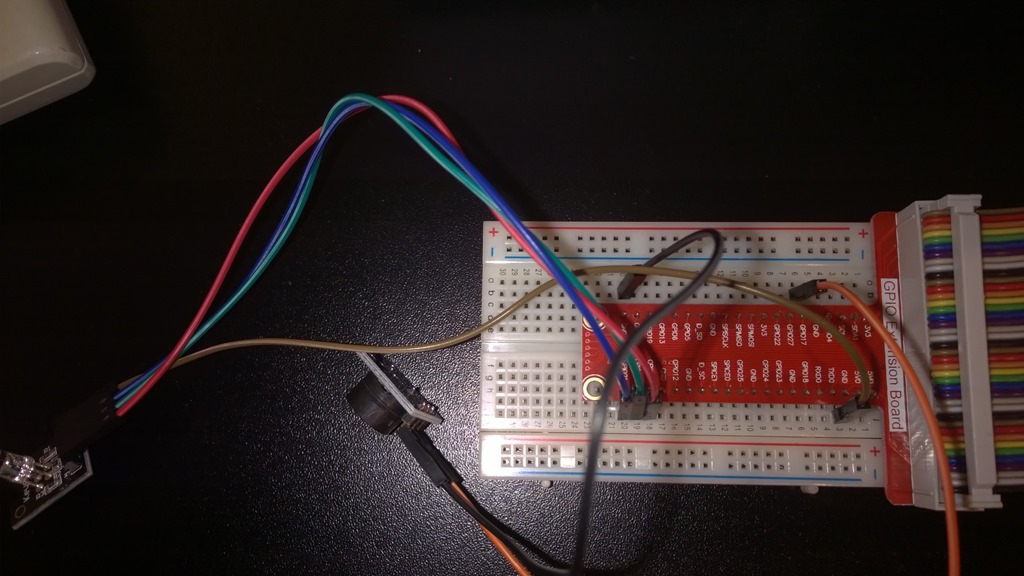
On creation, it initializes the pins we are going to use for output (these are GPIO16, GPIO20 and GPIO21 for RGB, and GPIO17 for sound). See picture for connection details. To make things easier for myself, I actually selected a blue wire for the blue pin, a red for the red ping, and green for the green pin ;):
I am using a different API than before, for this one is – amongst other reasons reasons - a lot simpler to use and does not hinge on C threading. With a caveat I will come to a little later. Important to see is that’s a singleton – there’s only a private constructor and a static method GetBlinker() to create it. Normally you would not get away with this in a web environment, but as OWIN is not hosted in IIS, we actually can use statics here. Scalable? No. But who cares on a mini device like this. Usable? Yes!
So the Startup class initializes and starts the Blinker. That fires of a cancellable task. The Blinker actually has some more code, amongst other the implementation of said task:
private async Task ShowHeartRateBlinking(CancellationToken cancellationToken)
{
  while (!cancellationToken.IsCancellationRequested)
  {
    if (DateTime.Now - lastReceivedUpdate < TimeSpan.FromSeconds(5))
    {
      DoBlink();
      await Task.Delay(60000/HeartRate, cancellationToken);
    }
    else
    {
      await Task.Delay(10000, cancellationToken);
    }
  }
}

public int HeartRate
{
  get { return heartRate; }
  set
  {
    if (value >= 0 && value <= 200)
    {
      lastReceivedUpdate = DateTime.Now;
      Console.WriteLine("Got updated: {0}", value);
      heartRate = value;
    }
  }
}

private async Task DoBlink()
{
  var pin = GetPin();
  GPIO.digitalWrite(pin, 1);
  GPIO.digitalWrite(SoundPin, 1);
  await Task.Delay(50);
  GPIO.digitalWrite(pin, 0);
  GPIO.digitalWrite(SoundPin, 0);
}

private int GetPin()
{
  if( HeartRate < 80) return BluePin;
  return HeartRate < 130 ? GreenPin : RedPin;
}
The ShowHeartRateBlinking actually is an endless loop, that runs while no cancellation is given (or until the OWIN server is simply killed). If the last update was less than 5 seconds ago, it will blink the LED and give a sound pulse, wait for 60000ms divided by the beats per minute – and goes into the next blink. If it does not get updates after 5 seconds, it goes into a 10-seconds polling mode.
The HeartRate property is set by the BlinkController when new data from the Band is posted to the OWIN server’s endpoint, and it’s setter also keeps track of the last update time. The DoBlink method actually does the blinking and the activating of the buzzer (at pin 0). The GetPin method, by means of extra fun, determines what color the LED will flash based upon the posted heart rate: blue for below 80, green for below 130, and red for 130 and up.
In the demo solution there is actually a test project with a test method that posts a single update to the OWIN server. That should at least get you a “Got updated” line on the screen when you run the server. If you run the method multiple times, the LED should start to blink at 75bmp and the buzzer gives a ticking sound.
Adapting the WiringPi wrapper
I already warned about a caveat concerning the API I am using now. Unfortunately, if you compile and run the OWIN server in this stage on the Raspberry PI2, you will get an error. Apparently the WiringPi wrapper is a bit outdated or things have changed for the Raspberry PI2. In the WrapperClass.cs file there’s a class GPIO with on top the following part:
public class GPIO
{
  [DllImport("libwiringPi.so", EntryPoint = "pinModeGpio")]
  public static extern void pinMode(int pin, int mode);

  [DllImport("libwiringPi.so", EntryPoint = "digitalWriteGpio")]
  public static extern void digitalWrite(int pin, int value);
Studying the original C code, I found that the entry points should be just “pinMode” and “digitalWrite”, not “pinModeGpio” and “digitalWriteGpio”. That was easily fixed:
public class GPIO
{
  [DllImport("libwiringPi.so", EntryPoint = "pinMode")]
  public static extern void pinMode(int pin, int mode);

  [DllImport("libwiringPi.so", EntryPoint = "digitalWrite")]
  public static extern void digitalWrite(int pin, int value);
If you compile the OWIN server now, and copy the .EXE and all DLLs in the bin/debug directory to your Raspberry PI2, you should now be able to run the server (sudo mono WebBlinker.exe – since settings.BaseListenerUrl is set to “http://*:5001/” it listens to port 5001 on all hostnames assigned to your Raspberry PI, and this means you have to start the webserver as root). It should print “Server still alive…” every 60 seconds on the command line, as well as any heart beat postings coming by.
The Windows Phone app
I hope my Windows Phone friends will forgive me for skimping a little on this, because I really made quite a horrible and above all ugly app. I first installed the Microsoft ASP.NET WebAPI 2.2 Client libraries in it. Then I created this model to actually listen to the Band’s heart rate events and post them to the OWIN server:
using System;
using System.Diagnostics;
using System.Linq;
using System.Net.Http;
using Microsoft.Band;
using Microsoft.Band.Sensors;
using WebBlinker;

namespace BlinkerPhone
{
  public class BlinkerModel
  {
    public async void SendSimulatedPulse(int value)
    {
      var pulse = new Pulse { HeartRate = value };
      using (var client = new HttpClient())
      {
        await client.PostAsJsonAsync(new Uri(Settings.ServiceUrl), pulse);
      }
    }

    private IBandClient bandClient;

    public async void StartListening()
    {
      var pairedBands = await BandClientManager.Instance.GetBandsAsync();
      if (pairedBands.Any())
      {
        var band = pairedBands.First();
        bandClient = await BandClientManager.Instance.ConnectAsync(band);
        var sensor = bandClient.SensorManager.HeartRate;
        sensor.ReadingChanged += SensorReadingChanged;
        await sensor.StartReadingsAsync();
      }
    }

    public async void StopListening()
    {
      var sensor = bandClient.SensorManager.HeartRate;
      sensor.ReadingChanged -= SensorReadingChanged;
      await sensor.StopReadingsAsync();
      bandClient.Dispose();
    }

    async void SensorReadingChanged(object sender,
      BandSensorReadingEventArgs<IBandHeartRateReading> e)
    {
      try
      {
        if (e.SensorReading != null)
        {
          var pulse = new Pulse { HeartRate = e.SensorReading.HeartRate };
          using (var client = new HttpClient())
          {
            await client.PostAsJsonAsync(new Uri(Settings.ServiceUrl), pulse);
            Debug.WriteLine("Sending update, pulserate = {0}", pulse.HeartRate);
          }
        }
      }
      catch (Exception ex)
      {
        Debug.WriteLine("Error reading/sending data: {0}", ex);
      }
    }
  }
}
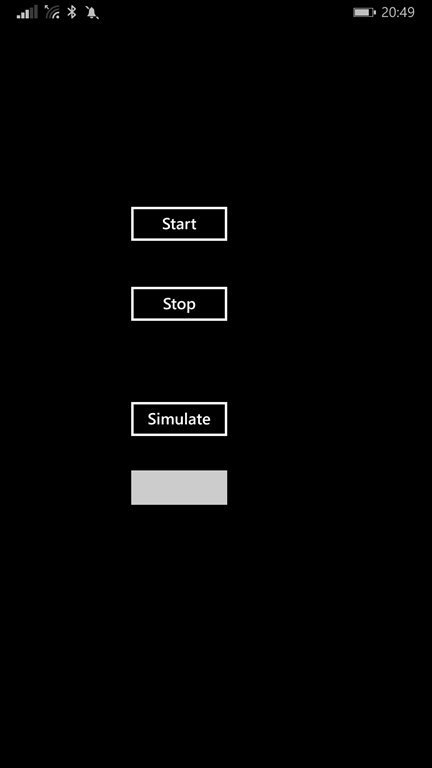
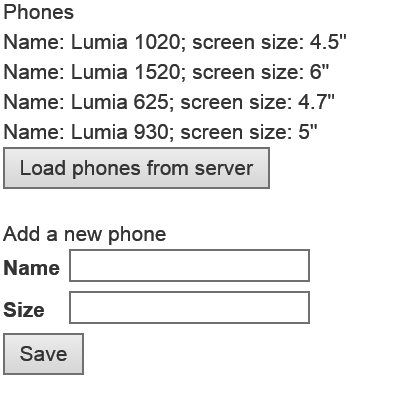
To give the user the ability to start, stop and send test data I created this awesome UI with buttons to start and stop the phone sending band data to the OWIN server, as well as a button to send a simulated heart rate as typed in the textbox. Quite the pinnacle of minimalistic design I’d say, don’t you think? ;)
Conclusion
With a little imagination, out-of-the-box thinking and of course some kick *ss hardware and awesome SDKs it’s not that hard these days to let three devices dance together and make a single system – all C#, mostly Microsoft technology and mostly standard knowledge. The hardest part is now writing the C# code that runs on Mono, as it’s impossible to debug a running instance from Visual Studio. We are so spoiled by Visual Studio and the awesome tools it offers, it’s sometimes very hard to have to do without. Let’s hope Windows 10 for devices makes life as good for device developers as for all other Windows Platform developers.
For those who missed the link in between – a complete solution can be downloaded here.