
Showing posts with label Bing Map Control. Show all posts

01 October 2014

Visualizing geofences as circles on the map in Universal Apps

Intro

If you tried to work with geofences, you may have encountered this problem. You want to have an easy way to show where the darn things are on the map, so you can test the application. This is actually pretty simple, building upon stuff to draw circles on Windows Phone 8 I wrote earlier.

What is important to know – there are now more or universally applicable objects to depict a location. The first one is BasicGeoposition – this is a struct – that basically only holds latitude, longitude and elevation. The second one is Geopoint. You create a Geopoint from a BasicGeoposition. This kind of wrapper class that allows for setting of some additional location settings – like how coordinates and height should be interpreted. I don’t think any of this stuff is really used yet, but I have the feeling Geopoint is going to get more important over time, and anyway as a GIS person I tend to go with the fullest set of location designation. But you might as just well use just BasicGeoposition as a way to pass on coordinates in a universal app.

Do the math!

This is essentially the same method as I wrote before, but adapted for Geopoint. Some other changes come from my former colleague Jarno Peschier, who in his typical way saw possibilities to optimize speed up the circle calculation code (and optimizations actually work – I tested).

using System;
using System.Collections.Generic;
using Windows.Devices.Geolocation;

namespace MappingUtilities
{
  public static class GeopointExtensions
  {
    private const double circle = 2 * Math.PI;
    private const double degreesToRadian = Math.PI / 180.0;
    private const double radianToDegrees = 180.0 / Math.PI;
    private const double earthRadius = 6378137.0;
    
    public static IList<Geopoint> GetCirclePoints(this Geopoint center,
                                   double radius, int nrOfPoints = 50)
    {
      var locations = new List<Geopoint>();
      double latA = center.Position.Latitude * degreesToRadian;
      double lonA = center.Position.Longitude * degreesToRadian;
      double angularDistance = radius / earthRadius;

      double sinLatA = Math.Sin(latA);
      double cosLatA = Math.Cos(latA);
      double sinDistance = Math.Sin(angularDistance);
      double cosDistance = Math.Cos(angularDistance);
      double sinLatAtimeCosDistance = sinLatA * cosDistance;
      double cosLatAtimeSinDistance = cosLatA * sinDistance;

      double step = circle / nrOfPoints;
      for (double angle = 0; angle < circle; angle += step)
      {
        var lat = Math.Asin(sinLatAtimeCosDistance + cosLatAtimeSinDistance * 
                            Math.Cos(angle));
        var dlon = Math.Atan2(Math.Sin(angle) * cosLatAtimeSinDistance, 
                              cosDistance - sinLatA * Math.Sin(lat));
        var lon = ((lonA + dlon + Math.PI) % circle) - Math.PI;

        locations.Add(new Geopoint(new BasicGeoposition { 
        Latitude = lat * radianToDegrees, Longitude = lon * radianToDegrees }));
      }
      return locations;
    }
  }
}

I think this is the Haversine formula but I am not sure and the point is – it gives list of points that, when drawn on a map, gives a reasonable approximation of a circle, where ever you draw it. And that’s what this is about. The radius is the radius in meters, and the numberOfPoints is still the number of points that is used to draw the polygon. For that’s what we are making – as long as there are enough points, our eyes will see this as a circle.

The method is implemented as an extension method to Geopoint, and while I was at it, I added a helper method for BasicGeoposition as well, which was not quite rocket science.

public static IList<Geopoint> GetCirclePoints(this BasicGeoposition center,
                              double radius, int nrOfPoints = 50)
{
  return new Geopoint(center).GetCirclePoints(radius, nrOfPoints);
}

Geofences you said sir?

So far, I have been mumbling only about coordinates – stuff I tend to talk about a lot – but how do I go from geofences to things on a map? Well, pretty easily, actually. It turns out that a geofence has a property Geoshape of type IGeoshape, but since a geofence can only be a circle right now, you can try to cast it to a Geocircle. And a Geocircle has a Center property of type BasicGeoposition, and a Radius property in meters. And that’s what we needed to use the GetCirclePoints extension method. So it’s actually pretty easy to define a new extension method

using System.Collections.Generic;
using Windows.Devices.Geolocation.Geofencing;
using Windows.Devices.Geolocation;

namespace MappingUtilities.Geofencing
{
  public static class GeofenceExtensions
  {
    public static IList<Geopoint> ToCirclePoints(this Geofence fence, 
      int nrOfPoints = 50)
    {
      var geoCircle = fence.Geoshape as Geocircle;

      if (geoCircle != null)
      {
        return geoCircle.Center.GetCirclePoints(geoCircle.Radius, nrOfPoints);
      }
      return null;
    }
  }
}

I always do the as-and-if-null check. I could have make a hard cast, but I am all for defensive programming.

Now the thing is, the GeofenceMonitor has a Geofences collection that can be used to add geofences (duh) but of course you can also retrieve them. And thus you can make yet another simple extension method to retrieve a list of list of points of your current GeoFenceMonitor

using System.Collections.Generic;
using System.Linq;
using Windows.Devices.Geolocation;
using Windows.Devices.Geolocation.Geofencing;

namespace MappingUtilities.Geofencing
{
  public static class GeofenceMonitorExtensions
  {
    public static IList<IList<Geopoint>> GetFenceGeometries(this GeofenceMonitor monitor)
    {
      return monitor.Geofences.Select( p=> p.ToCirclePoints()).ToList();
    }
  }
}

And since the GeofenceMonitor is a static class with a singleton instance, getting all the points of all the geofences in you app in a handy list by one simple call goes like this:

GeofenceMonitor.Current.GetFenceGeometries();

And by iterating over them, you can draw shapes on the map. The fun thing is, since we now have Universal Apps, you can define all this code in a PCL and use it both on Windows Phone and Windows ,and reference this as a Binary. Today. No need to wait for Windows 10. So I put these methods in a PCL called MappingUtilities. And because the current GeofenceMonitor is a singleton, you can use this code in some button method in your app to just get a quick list of the active geofences and draw them on a map, without having to retrieve data from your models or viewmodels, or however you choose to implement your logic.

But there is a tiny detail though. Bing Maps does not using Geopoint or BasicGeoposition, but still the Location class, and that does not exist on Windows Phone.

One more thing to extend

Since I was creating extension methods anyway, I made a new assembly, this time Windows specific, called MappingUtilities.Windows - I bet you did not see that one coming :) – and added the following two extension methods:

using System.Linq;
using Bing.Maps;
using System.Collections.Generic;
using Windows.Devices.Geolocation;

namespace MappingUtilities
{
  public static class PointHelpers
  {
    public static LocationCollection ToLocationCollection(
      this IList<Geopoint> pointList)
    {
      var locations = new LocationCollection();
      foreach (var p in pointList)
      {
        locations.Add(p.ToLocation());
      }
      return locations;
    }

    public static Location ToLocation(this Geopoint location)
    {
      return new Location(location.Position.Latitude, 
                          location.Position.Longitude);
    }
  }
}

And these you can simply use to quickly turn a Geopoint into a Location, or a list of Geopoints into a LocationCollection. How this is used is displayed in the demo solution.

Wrapping it up

The demo solution creates two geofences, and shows how the location of said fences can be displayed pretty easily by calling the GetFenceGeometries extension method, both on Windows Phone and Windows.

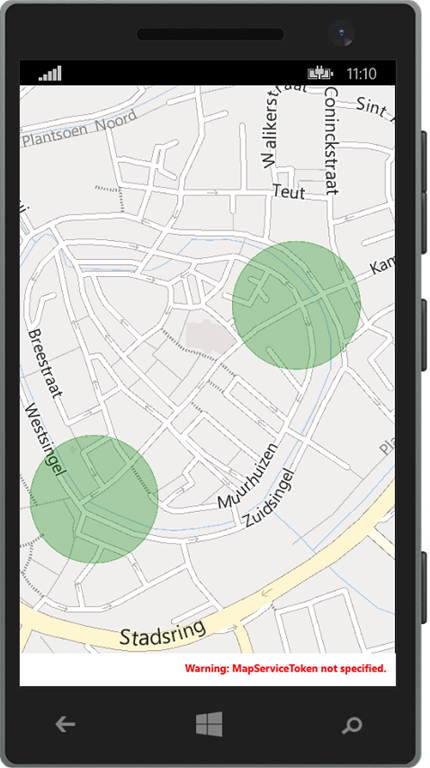
image image

The drawing on the map is done by a simple method that I won’t go into here. I wish to stress the fact that the creation of geofences is in the Shared portion of the app, as well as the facts that these geofences are pretty minimal – I just create them with the default settings - and that I don’t do anything with these geofences apart from creating them. The only thing what this app shows is how easy it is to display geofences using this extension methods, if you have geofences.

If you want to know more about using geofences in Universal Apps and how you could actually be doing something useful with them, please visit my talk on October 18th 2014 where I will be doing a session about this subject on the Lowland Windows Phone Hacker day. This day is organized in a joint effort by both the Dutch and Belgian developer communities in Tilburg, the Netherlands, a place very near the Belgian-Dutch border. Apart from great content - we also have some prizes you may be interested in
image

Just saying :)

14 June 2012

Behavior to make Bing Maps view area bindable

The Bing Maps control in Windows Phone 7 is pretty versatile but does not always play along very well with data binding. You can bind ZoomLevel and MapCenter, which is all very well, but if you want to know what area is actually shown within the map – for instance, for making a GIS application that loads only visible data, and not stuff that’s outside the view area anyway, things get a lit complicated.

Not so if you uses this little behavior. It builds upon the SafeBehavior that is already in my wp7nl library on codeplex. It sports two GeoCoordinate depencency propertise, NorthEast and SouthWest

using System.Device.Location;
using System.Windows;
using Microsoft.Phone.Controls.Maps;

namespace Wp7nl.Behaviors
{
  public class ViewportAreaBehavior
  {
    /// <summary>
    /// A behavior to make southwest and northeast bindable
    /// </summary>
    public class ViewportwatcherBehavior : SafeBehavior<Map>
    {
      #region NorthWest
      public const string NorthWestPropertyName = "NorthWest";

      public GeoCoordinate NorthWest
      {
        get { return (GeoCoordinate)GetValue(NorthWestProperty); }
        set { SetValue(NorthWestProperty, value); }
      }

      public static readonly DependencyProperty NorthWestProperty = 
	DependencyProperty.Register(
          NorthWestPropertyName,
          typeof(GeoCoordinate),
          typeof(ViewportwatcherBehavior),
          new PropertyMetadata(null));

      #endregion

      #region SouthEast
      public const string SouthEastPropertyName = "SouthEast";

      public GeoCoordinate SouthEast
      {
        get { return (GeoCoordinate)GetValue(SouthEastProperty); }
        set { SetValue(SouthEastProperty, value); }
      }

      public static readonly DependencyProperty SouthEastProperty = 
	DependencyProperty.Register(
          SouthEastPropertyName,
          typeof(GeoCoordinate),
          typeof(ViewportwatcherBehavior),
          new PropertyMetadata(null));

      #endregion
    }
  }
}

All pretty standard stuff. Next comes the setup/cleanup stuff,

protected override void OnSetup()
{
  AssociatedObject.ViewChangeEnd += AssociatedObjectViewChangeEnd;
  CalcRectangle();
}

protected override void OnCleanup()
{
  AssociatedObject.ViewChangeEnd -= AssociatedObjectViewChangeEnd;
}

in which you can see I intercept the ViewChangeEnd event. I don’t do anything special there: I just call the method CalcRectangle, just as on startup.

void AssociatedObjectViewChangeEnd(object sender, MapEventArgs e)
{
  CalcRectangle();
}

The final missing piece of the puzzle is then of course CalcRectangle itself:

private void CalcRectangle()
{
  NorthWest = AssociatedObject.ViewportPointToLocation(new Point(0, 0));
  SouthEast = AssociatedObject.ViewportPointToLocation(
    new Point(AssociatedObject.ViewportSize.Width, 
              AssociatedObject.ViewportSize.Height));
}

So I basically take the point left top (0,0) and and use ViewportPointToLocation to convert it to a coordinate, and do the same think with the point that left bottom. And that’s all.

Now you can bind to the NorthWest and SouthEast property of the behavior and you get the view area in your view model. Be aware this works one way. It gets the view area to the ViewModel, not the other way around.

Contrary to my custom there’s no solution with the code in it, mostly because it’s already in the wp7nl library since yesterday. You can download the code from the library itself here, if you want.

19 February 2011

Converter to convert a single item to a list to enable Bing Maps binding

Some things are so simple that I wonder if I am missing something. I tried to bind a single GeoPosition to Bing Maps’ MapItemsControl ItemsSource on Windows Phone 7 and it did not work. Apparently Bing Maps want a list. So I wrote the following converter:

using System;
using System.Collections.Generic;
using System.Globalization;
using System.Windows.Data;

namespace LocalJoost.Convertors
{
  public class ToListConverter : IValueConverter
  {
    public object Convert(object value, Type targetType, object parameter, 
                          CultureInfo culture)
    {
      var l = new List<object> ();
      if (value != null) l.Add(value);
      return l;
    }

    public object ConvertBack(object value, Type targetType, object parameter, 
                              CultureInfo culture)
    {
      return null;
    }
  }
}
A masterpiece of complicated coding, right :-/ ? Anyway, in stead of
<Microsoft_Phone_Controls_Maps:MapItemsControl 
  ItemsSource="{Binding GpsLocation}">
I used
<Microsoft_Phone_Controls_Maps:MapItemsControl 
  ItemsSource="{Binding GpsLocation, Converter={StaticResource ToListConverter}}">

and Lo and Behold – now I did get my single icon on the map.

I have no idea if this is a quirk of the Bing Maps control or that ItemsSource attributes in general only accept lists – but either way, this works.

21 October 2010

Showing Open Source maps on Windows Phone 7 with the Bing Maps Control

My previous post, which caused a bit of a stirrup and got me over 1000 page hits on that one page alone in less than 46 hours, led to the question if I could provide an example of how to use data from Open Source map servers on the web in Bing Maps. This is more useful than Google Maps, since Google’s TOS most likely does not allow accessing their data they way I showed, and an application doing so violates section 3.1 of the Windows Phone 7 Application Certification Requirements, which clearly state that allowed content includes “Copyrighted content that is used with permission”, which I obviously do not have and most likely never will. Unless Google wants to code me a Windows Phone 7 app for them. Hello? Anyone reading along there at Mountain View? ;-)

So anyway, as long as my personal Google Maps for Windows Phone 7 is not going to hit the Marketplace, the Bing Maps MercatorMode can very well be used to show other tile maps, and by popular request I show you how to use data from Mapnik and Osmarender:

MapnikOsmarender

The possibility should come as no surprise, since I showed something like this earlier, only then with a plain ole’ MultiScaleImage. All you need to do is, once again, write a class again that descends from Microsoft.Phone.Controls.Maps.TileSource and overrides

Uri GetUri(int x, int y, int zoomLevel)

like I showed in my previous post. And these are even simpler than the Google Maps tilesource. First, Mapnik:

using System;

namespace LocalJoost.TileSource
{
  public class MapnikTileSource : Microsoft.Phone.Controls.Maps.TileSource
  {
    public MapnikTileSource()
    {
      UriFormat = "http://{0}.tile.openstreetmap.org/{1}/{2}/{3}.png";
      _rand = new Random();
    }

    private readonly Random _rand;
    private readonly static string[] TilePathPrefixes =
        new[] { "a", "b", "c" };

    private string Server
    {
      get
      {
        return TilePathPrefixes[_rand.Next(3)];
      }
    }
   
    public override Uri GetUri(int x, int y, int zoomLevel)
    {
      if (zoomLevel > 0)
      {
        var url = string.Format(UriFormat, Server, zoomLevel, x, y);
        return new Uri(url);
      }
      return null;
    }
  }
}

and second, Osmarender

using System;

namespace LocalJoost.TileSource
{
  public class OsmaRenderTileSource : Microsoft.Phone.Controls.Maps.TileSource
  {
    public OsmaRenderTileSource()
    {
      UriFormat = "http://{0}.tah.openstreetmap.org/Tiles/tile/{1}/{2}/{3}.png";
      _rand = new Random();
    }

    private readonly Random _rand;
    private readonly static string[] TilePathPrefixes =
        new[] { "a", "b", "c", "d", "e", "f" };

    private string Server
    {
      get
      {
        return TilePathPrefixes[_rand.Next(6)];
       }
    }

    public override Uri GetUri(int x, int y, int zoomLevel)
    {
      if (zoomLevel > 0)
      {
        var url = string.Format(UriFormat, Server, zoomLevel, x, y);
        return new Uri(url);
      }
      return null;
    }
  }
}

As you see, no rocket science. How to use this classes in XAML is explained in my previous post, and I am not going to repeat that here..

The odd thing is that the Bing Maps logo stays visible, although no Bing Maps data is being used. Notice that the open source maps are displayed in design mode too. So, use any tile server out there that you can legally access and have fun mapping…. although I must admit that is most likely interesting for hardcore GIS fans only, since both servers are considerably slower than Bing – especially OsmaRender, which does some odd things cutting the Netherlands in half, as you see. But still, if not anything else, it shows off the power and versatility of the Bing Maps control pretty well.

For the lazy people, a complete solution – including the Google stuff – can be downloaded here.

19 October 2010

Google Maps for Windows Phone 7 using the Bing Maps Control

GoogleMapsAs I write this, we are less than 25 hours away from the moment the first Windows Phone 7 devices are released into the wild – in the Netherlands, that is. The marketplace is filling up nicely already. Some things are pretty obviously missing. And you wonder why, because they would be quite easy to make.

I hereby dare Google to publish a Google Maps application in the Windows Phone 7 Marketplace. Why? Because if they don’t do it, someone else probably will, and probably pretty fast, too. See the screenshot to the left. I assure you – this is no fake. What you see here is the Google Maps satellite layer with the Street layer on top of it, with a 40% opacity, showing a piece of the city center of Amersfoort, Netherlands. It took me about 90 lines of code and 18 lines of XAML.

Setting up a basic Bing Map control is easy as cake. You find the grid “Contentpanel”, and you plonk a Map in it, preferably using Blend:


<Microsoft_Phone_Controls_Maps:Map 
 x:Name="map"  
 CredentialsProvider="your_credentials" Mode="Road">
</Microsoft_Phone_Controls_Maps:Map>

You can change “Road” into “Aerial” and then you have Bing Satellite imagery. What’s less known is that you can actually attach your own tile layers to it. A tile is an image of 256x256 defined by it’s X and Y position in the grid forming the map of the world on a specific zoom level. All you have to to is write a little class that descends from Microsoft.Phone.Controls.Maps.TileSource in which you only have to override the following method:

Uri GetUri(int x, int y, int zoomLevel)

in which you tell which x/y/zoomlevel combination translates to which URI. For Google Maps, this turns out to be pretty easy. All information needed for can be found in the Deep Earth source code – a wee bit adapted for for the Bing Map Control. First, I made an enum that defines all the layers that Google provides

namespace LocalJoost.TileSource
{
  public enum GoogleTileSourceType
  {
    Street,
    Hybrid,
    Satellite,
    Physical,
    PhysicalHybrid,
    StreetOverlay,
    WaterOverlay
  }
}

Then, the actual tile calculating class:

using System;

namespace LocalJoost.TileSource
{
  public class GoogleTileSource : Microsoft.Phone.Controls.Maps.TileSource
  {
    public GoogleTileSource()
    {
      UriFormat = @"http://mt{0}.google.com/vt/lyrs={1}&z={2}&x={3}&y={4}";
      TileSourceType = GoogleTileSourceType.Street;
    }
    private int _servernr;
    private char _mapMode;

    private int Server
    {
      get
      {
        return _servernr = (_servernr + 1) % 4;
      }
    }

    private GoogleTileSourceType _tileSourceType;
    public GoogleTileSourceType TileSourceType
    {
      get { return _tileSourceType; }
      set
      {
        _tileSourceType = value;
        _mapMode = TypeToMapMode(value);
      }
    }

    public override Uri GetUri(int x, int y, int zoomLevel)
    {
      {
         if (zoomLevel > 0)
        {
          var url = string.Format(UriFormat, Server, _mapMode, zoomLevel, x, y);
          return new Uri(url);
        }
      }
      return null;
    }

    private static char TypeToMapMode(GoogleTileSourceType tileSourceType)
    {
      switch (tileSourceType)
      {
        case GoogleTileSourceType.Hybrid:
          return 'y';
        case GoogleTileSourceType.Satellite:
          return 's';
        case GoogleTileSourceType.Street:
          return 'm';
        case GoogleTileSourceType.Physical:
          return 't';
        case GoogleTileSourceType.PhysicalHybrid:
          return 'p';
        case GoogleTileSourceType.StreetOverlay:
          return 'h';
        case GoogleTileSourceType.WaterOverlay:
          return 'r';
      } return ' ';
    }
  }
}

As you can see, this is not quite rocket science. To make the Bing Maps control use this, you need to expand your XAML a little. First, you have to add two namespaces to your MainPage.Xaml:

xmlns:MSPCMCore="clr-namespace:Microsoft.Phone.Controls.Maps.Core;assembly=Microsoft.Phone.Controls.Maps" 
xmlns:LJTileSources="clr-namespace:LocalJoost.TileSource;assembly=LocalJoost.TileSource" 

Then, you have to use a third mode for the Bing Map – Mercator. This basically only tells the map to operate in Mercator mode, but not to attach any default imagery. And here we go:

<Microsoft_Phone_Controls_Maps:Map x:Name="map" 
   CredentialsProvider="your credentials" >
  <Microsoft_Phone_Controls_Maps:Map.Mode>
    <MSPCMCore:MercatorMode></MSPCMCore:MercatorMode>
  </Microsoft_Phone_Controls_Maps:Map.Mode>
  <Microsoft_Phone_Controls_Maps:Map.Children>
    <Microsoft_Phone_Controls_Maps:MapTileLayer>
      <Microsoft_Phone_Controls_Maps:MapTileLayer.TileSources>
        <LJTileSources:GoogleTileSource TileSourceType="Satellite"/>  
      </Microsoft_Phone_Controls_Maps:MapTileLayer.TileSources>
    </Microsoft_Phone_Controls_Maps:MapTileLayer>
  </Microsoft_Phone_Controls_Maps:Map.Children>
</Microsoft_Phone_Controls_Maps:Map>
Presto. Google Maps for Windows Phone 7. And oh, if you want to project another layer on top of it, for instance Google Streets, like I did, you just add more tilelayers:
<Microsoft_Phone_Controls_Maps:Map x:Name="map" 
   CredentialsProvider="your credentials" >
<Microsoft_Phone_Controls_Maps:Map.Mode>
  <MSPCMCore:MercatorMode></MSPCMCore:MercatorMode>
</Microsoft_Phone_Controls_Maps:Map.Mode>
<Microsoft_Phone_Controls_Maps:Map.Children>
  <Microsoft_Phone_Controls_Maps:MapTileLayer>
    <Microsoft_Phone_Controls_Maps:MapTileLayer.TileSources>
      <LJTileSources:GoogleTileSource TileSourceType="Satellite"/>
    </Microsoft_Phone_Controls_Maps:MapTileLayer.TileSources>
  </Microsoft_Phone_Controls_Maps:MapTileLayer>
  <Microsoft_Phone_Controls_Maps:MapTileLayer>
    <Microsoft_Phone_Controls_Maps:MapTileLayer.TileSources>
      <LJTileSources:GoogleTileSource TileSourceType="Street"/>
    </Microsoft_Phone_Controls_Maps:MapTileLayer.TileSources>
  </Microsoft_Phone_Controls_Maps:MapTileLayer>
</Microsoft_Phone_Controls_Maps:Map.Children>
</Microsoft_Phone_Controls_Maps:Map>

The Bing Maps control makes you able to zoom and pan trough all this. Okay, Google Maps does a little more than this, but this shows pretty well how darn easy it is to make a good looking, pretty fully functional mapping application showing totally different imagery.

Conclusion: using the Bing Maps Control for showing raster maps is so bloody easy that I almost start to wonder if it’s still justified to feel proud ‘being a GIS guy’. Almost ;-)