Showing posts with label Visual Studio. Show all posts

29 July 2019

Minimal required software for MRTK2 development for HoloLens 2 and Immersive headsets

Intro

A short one this time – and codeless to. You see, next Saturday I will be giving an workshop for MixUG Netherlands about development with the Mixed Reality Toolkit 2 for Immersive headsets, together with my colleague, partner in crime and fellow MVP Alexander Meijers. One of the things that came up preparing for this workshop was what you would actually need to develop with the Mixed Reality Toolkit 2. Since ye olden days of the HoloToolkit, quite a few things have changed – Unity, the minimal OS version, and there’s even a new version of Visual Studio. So I set out to complete a minimal shopping list with a few optional items. Fortunately, our friends over at Microsoft Azure make it quite simple to spin up a totally pristine machine so you don’t run into the typical developer machine issues – multiple versions of Visual Studio with different workloads and a myriad of Unity versions – which makes it hard to tell sometimes what is required for what app.

OS version

Easy one. Windows 10, 1809 or (recommended) 1903. Everything I tested, I tested on Windows 10 Pro

Visual Studio

You will need Visual Studio 2019 community edition. 2017 will work too, but is much slower. Download Visual Studio 2019 community from this link and choose the following work loads:

  • UWP development with optional components USB connectivity and C++ (V142) UWP tools checked
  • Game development with Unity with the optional component 2018.3 64-bit editor unchecked

In images:

Make sure you install Visual Studio before Unity.

Offline installer

A fun trick – if you want to make an offline installer for the community edition for these particular workloads, open a command prompt after downloading the installer, and type (on one line):

vs_community.exe --layout c:\vsinstaller
--add Microsoft.VisualStudio.Workload.ManagedGame
--add Microsoft.VisualStudio.Workload.Universal
--add Microsoft.VisualStudio.Component.Windows10SDK.IpOverUsb
--add Microsoft.VisualStudio.ComponentGroup.UWP.VC --lang en-US

In c:\vsinstaller you will then find a complete install ‘layout’ for all the necessary components. Might be useful if you want to prepare multiple computers.

Unity

2018.4.2f1, taken from ProjectSettings/ProjectVersion.txt in the mrtk_development branch. This particular version can be downloaded directly from this link.

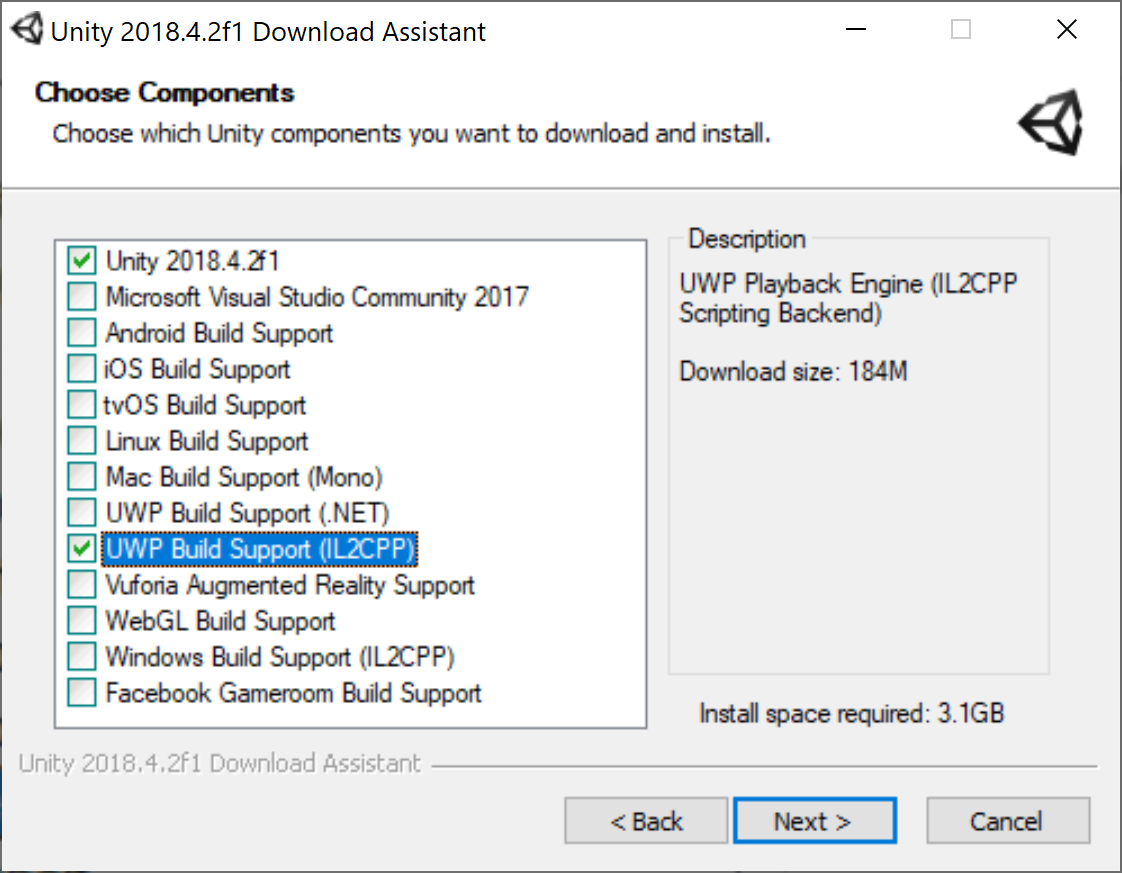
Choose as minimal components

  • Unity 2018.4.2f1
  • UWP Build Support

Mind you – this sets you op for HoloLens 2 and Windows Mixed Reality Immersive headsets only.

Optional – HoloLens 2 emulator

I have already written extensively about it. You can get it here. Be aware that it requires Hyper-V being installed. If you have installed Windows 10 1903, it will run right away. On 1809 you will need some trickery.

Conclusion

It’s not that hard to get up and running for MRTK2 development for HoloLens 2 and Windows Mixed Reality Immersive headsets. And now you have a nice complete ‘shopping list’ for when you want to prepare your PC.

27 August 2014

Simple workaround for “Design view is unavailable for x64 and ARM target platforms”

When you are developing for Windows Phone or Windows and you are faced with using a native component (for instance the Bing Maps control on Windows, or the SensorCore api on Windows Phone) you will loose your designers when you are testing, both in Visual Studio and in Blend, as they will only work for “AnyCPU”  or “x86” configurations.This is highly annoying, but there is a kind-of fix.

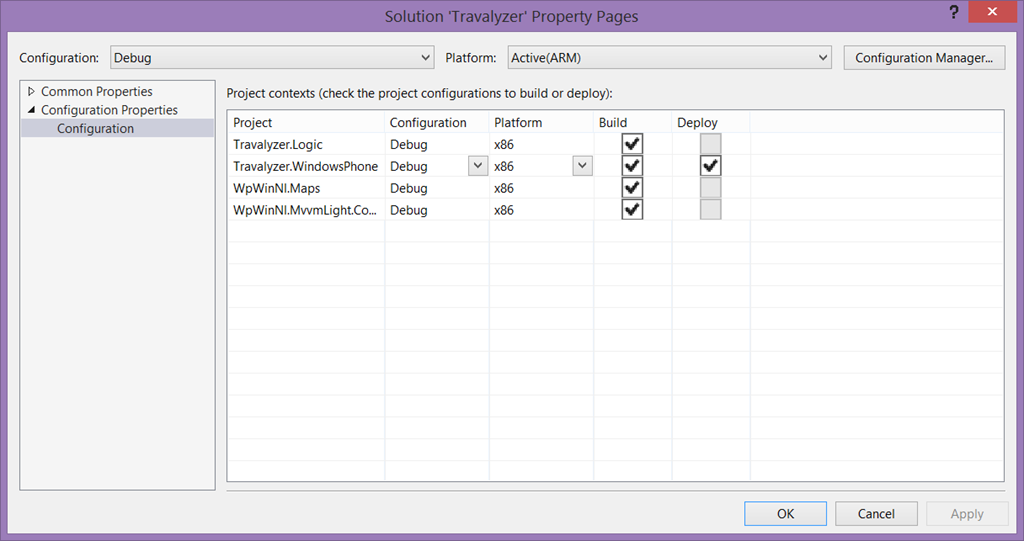
The trick is to create an extra configuration. I usually make a copy of “Debug”, which I call “DebugArm” I do this by right clicking on the solution, selecting “properties”, and then hit “Configuration Manager”

image

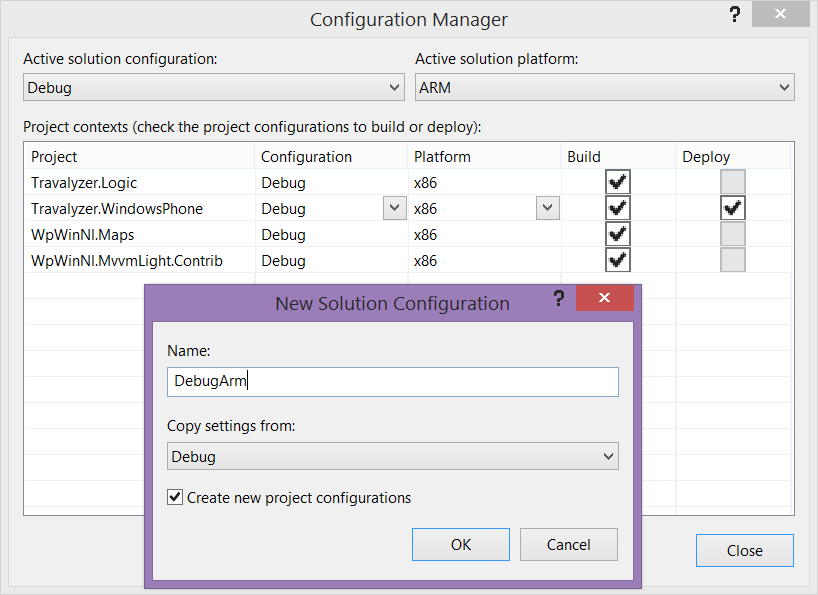
Then I make a copy of Debug, by selecting “New” in the “Configuration” drop down, and I make a copy of Debug, called DebugArm.

image

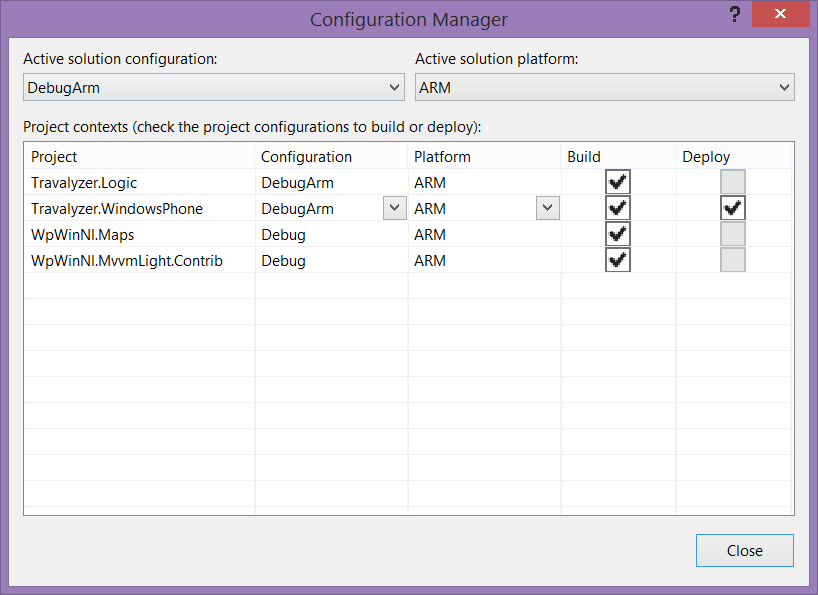
In that solution I set everything to ARM:

image

So far so good, and nothing new. Now select the Debug project configuration again in Visual Studio, hit “Save all” and compile. Then open the solution in Blend. You will notice of course the designers now work, but now you cannot deploy. Changing that configuration every time again is slow and cumbersome, and it won’t be picked up by Blend. So you have to restart that time and time again. This now, my friends, we will use to our advantage.

Go back to Visual Studio, select “DebugArm”. You can now deploy and test again, but your designers will of course go dead again. But like I said Blend does not pick up that configuration change. Apparently that is only read at startup. So that will keep the Debug configuration and the designer still will work! So now you can use Blend to do design changes, and Visual Studio to actually run and deploy, using two different configuration settings, without having to change al the time!

This switchemarole you have to do every time you start Visual Studio and Blend. Granted, it’s not ideal, but a lot less of a hassle than constantly having to change configurations, which is is slow, while now you only have to select a different Icon in the Task Bar. And this is how it should be done most of the time IMHO – Blend is for the UI, Visual Studio for code.

No code this time, as this is a tools-trick only post.

05 June 2014

Fix for being unable to rename files after applying Visual Studio 2013 update 2

A couple of people – me included – have been suffering from the fact that, after they applied Visual Studio 2013 update 2, it became impossible to rename files from Visual Studio. This annoying problem was occurring only on my Surface Pro, and not my Core i7 desktop. The difference was that the Surface Pro at one point ran the public RC of VS2013.2, and the desktop did not. Even totally deleting VS2013 and reinstalling it did not work

Today I got the golden tip from a fellow named Chung Bill (unfortunately I know only his name and e-mail address): apparently, if you did follow the upgrade path from public RC to RTM and you have the Multilingual Application Toolkit (MAT) installed, something goes wrong. The solution is also very simple: uninstall the MAT, then reinstall it again. If you then fire up Visual Studio 2013 again, renaming files works again. Note that you have to uninstall it from Windows, using Programs and Features, not from inside Visual Studio.

Somewhere in the intricate woven components of the MAT and VS2013.2 something apparently went wrong. But fixing it ain't rocket science. No harm done. Nothing broke permanently ;-).