Showing posts with label DataBinding. Show all posts

18 May 2016

Generic databinding for MapIcons in Universal Windows Apps

Preface

Ever since I introduced databinding for the UWP map control (and it’s previous incarnations for Windows Phone 8.x and Windows 8.x) I have been asked to write ‘real’ data binding for map shapes. I have patiently tried to explain that the very nature of the map control makes this impossible as the map shapes are not templated controls drawn by the XAML renderer, but drawn by the map control itself – and that is what makes it so fast. So I encouraged people to write their own MapShapeDrawer child classes that converted a view model into a map shape. How hard can it be, I thought. Judging by the number of requests I got, apparently it is hard, indeed, or too inflexible. So I decided to take a shot at creating a more or less generic class for converting view models to MapIcons – the most commonly used scenario. Thus GenericMapIconDrawer was created.

If the previous paragraphs made no sense at all to you, because this is the first time you ever have encountered my map binding library, I encourage you to read this article first.

Demo

image

I have once again updated the demo application that goes with the WpWinNl project. If you first hit Show Area, then hit “Flags” a number of time, you will see the map slowly getting covered with round flags of Belgium, Germany, Italy, Netherlands, Sweden and the UK. Don’t ask me why I choose this particular group of countries – I just did. If you then hit the “Pirate!” button, one of the nation’s flags will turn into Jolly Rogers, the descriptive label will change in “Arrrr!” and the icon will seem to jump upward a little. If you press the “Pirate!” button again, the current Jolly Roger flags will disappear, and another nation is selected to turn into pirates. Unless it selects a nation that has already turned pirate, then nothing will happen. If you press the “Pirate!” button long enough, all nations will turn into pirates and then disappear. Crime does not pay, in the end. At least in this demo. See video below.

The purpose of this – admittedly – rather peculiar demo, which I created when I was entirely sober indeed, is to show that by merely changing properties things change on the map. So even when it is not strictly data binding, it sure acts like data binding is happening. By the way, on my Surface Pro 4 you hardly see the flickering – it seems like my trusted old 2011 i7 970 machine that I used for recording this video is finally showing it’s age.

How the demo works (aka how you should use the new library feature)

There is actually way more code to the demo than the actual changes to the WpWinNl.Maps package comprise. First of all, the base class for my geometry providing view models has been changed so that it's name property is an actual view model property raising a NotifyPropertyChanged, using the standard MVVMLight syntax

public class GeometryProvider : ViewModelBase
{
  private string _name;
  public string Name
  {
    get { return _name; }
    set { Set(() => Name, ref _name, value); }
  }
}

Then there is the FlagList class, a child class of GeometryProvider, that provides a list of randomly located flags from a randomly selected nation within a rectangle defined by two Geopoints

using System;
using System.Collections.Generic;
using Windows.Devices.Geolocation;
using Windows.Foundation;

namespace WpWinNl.MapBindingDemo.Models
{
  public class FlagList : GeometryProvider
  {
    public static readonly string[] Countries =
      { "Belgium", "Germany", "Italy", "Netherlands", "Sweden", "UK" };


    private Uri _iconUri;
    public Uri Icon
    {
      get { return _iconUri; }
      set { Set(() => Icon, ref _iconUri, value); }
    }

    private BasicGeoposition _point;
    public BasicGeoposition Point
    {
      get { return _point; }
      set { Set(() => Point, ref _point, value); }
    }

    private Point _anchorPoint = new Point(0.5, 0.5);
    public Point AnchorPoint
    {
      get { return _anchorPoint; }
      set { Set(() => AnchorPoint, ref _anchorPoint, value); }
    }

    private bool _isVisible = true;
    public bool IsVisible
    {
      get { return _isVisible; }
      set { Set(() => IsVisible, ref _isVisible, value); }
    }

    public static IEnumerable<FlagList> GetRandomFlags(
                          Geopoint point1, Geopoint point2, int nrOfPoints)
    {
      var flags = new List<FlagList>();
      var points = PointList.GetRandomPoints(point1, point2, nrOfPoints);
      var r = new Random(DateTime.Now.Millisecond * 2);
      foreach (var point in points)
      {
        var flagIdx = (int)Math.Round(r.NextDouble() * 5);
        flags.Add(new FlagList
        {
          Name = Countries[flagIdx],
          Icon = new Uri($"ms-appx:///Assets/{Countries[flagIdx]}.png"),
          Point = point.Point
        });
      }
      return flags;
    }
  }
}

Notice here, as well, that all properties are raising INotifyPropertyChanged, that IsVisible is true by default and that we have a default icon anchor point of 0.5, 0.5 – that is, the center of the icon falls on the location specified by "Point". 

On the MapBindingViewModel there is a new public property ObservableCollection<FlagList> Flags that only gets loaded up with initial data in the LoadFlags method

public void LoadFlags()
{
  Flags.AddRange(FlagList.GetRandomFlags(new Geopoint(_area.NorthwestCorner),
    new Geopoint(_area.SoutheastCorner), 50));
}
Which is called when you press the "Flags" button. It add 50 icons every time you press it. Then there is the method that changes a random flag into pirate flags
public void ChangeToPirate()
{
  foreach (var flag in Flags.Where(p => p.Name == "Arrr!").ToList())
  {
    flag.IsVisible = false;
  }

  var r = new Random(DateTime.Now.Millisecond * 2);
  var flagIdx = (int)Math.Round(r.NextDouble() * 5);
  var flagName = FlagList.Countries[flagIdx];)
  foreach (var flag in Flags.Where(p => p.Name == flagName).ToList())
  {
    flag.Name = "Arrr!";
    flag.Icon = new Uri("ms-appx:///Assets/JollyRoger.png");
    flag.AnchorPoint = new Point(0.5, 1);
  }
}

Any existing pirate flags are made invisible first, then new ones are created by setting the Name, the Icon and the AnchorPoint property. Thus the label changes, the icon, and the icon on the map seems to jump up about half it’s size as it’s anchor point is now center/bottom in stead of center/center (boy does that terminology bring back memories of my very first job)

In XAML, things are more or less still the same, with some additions:

<maps:MapControl x:Name="MyMap" Grid.Row="0" 
   ZoomLevel="{x:Bind ViewModel.ZoomLevel, Mode=OneWay}" 
   Center="{x:Bind ViewModel.Center, Mode=OneWay}">
  <interactivity:Interaction.Behaviors>
  
    <mapbinding:MapShapeDrawBehavior LayerName="Flags" 
      ItemsSource="{x:Bind ViewModel.Flags, Converter={StaticResource MapObjectsListConverter}}" 
                    PathPropertyName="Point">
      <mapbinding:MapShapeDrawBehavior.EventToHandlerMappers>
        <mapbinding:EventToHandlerMapper EventName="MapElementClick" 
                                         CommandName="SelectCommand" />
      </mapbinding:MapShapeDrawBehavior.EventToHandlerMappers>
      
      <mapbinding:MapShapeDrawBehavior.ShapeDrawer>
        <mapbinding:GenericMapIconDrawer 
           ImageUriPropertyName="Icon" 
           AnchorPropertyName="AnchorPoint" 
           TitlePropertyName="Name" 
           IsVisiblePropertyName="IsVisible" 
           CollisionBehaviorDesired="RemainVisible"/>
      </mapbinding:MapShapeDrawBehavior.ShapeDrawer>
      
    </mapbinding:MapShapeDrawBehavior>
  </interactivity:Interaction.Behaviors>

</maps:MapControl

As drawer we have the new GenericMapIconDrawer that has a boatload of new properties, basically instructing the GenericMapIconDrawer from which view model properties to get the values that should be applied to the MapIcon it is creating. So, technically, this is still not data binding – the properties are pulled from the view model using reflection. Which means that you really should test this using .NET Native tooling to see if those properties are not pulled out by the compiler – or else suffer the pain I suffered when I tried to publish my app.

How the code works

The GenericMapIconDrawer is surprisingly simple. It's basic setup is like this: a few properties and a CreateShape method that actually creates the Icon from the viewmodel:

using Windows.Devices.Geolocation;
using Windows.Foundation;
using System;
using System.Reflection;
using Windows.Storage.Streams;
using Windows.UI.Xaml.Controls.Maps;

namespace WpWinNl.Maps
{
  public class GenericMapIconDrawer : MapShapeDrawer
  {
    protected object ViewModel;

    protected MapIcon Icon;

    public string TitlePropertyName { get; set; }

    public string AnchorPropertyName { get; set; }

    public string ImageUriPropertyName { get; set; }

    public string IsVisiblePropertyName { get; set; }

    public MapElementCollisionBehavior CollisionBehaviorDesired { get; set; }

    public override MapElement CreateShape(object viewModel, BasicGeoposition pos)
    {
      ViewModel = viewModel;

      Icon = new MapIcon
      {
        Location = new Geopoint(pos),
        CollisionBehaviorDesired = CollisionBehaviorDesired,
        ZIndex = ZIndex
      };

      SetPropertyValuesFromViewModel();

      return Icon;
    }
  }
}

The SetPropertyValuesFromViewModel is pull the additional four properties from the view model (the position is already being taken care of by the MapShapeDrawBehavior itself)

private void SetPropertyValuesFromViewModel()
{
  string title = null;
  if (TryGetPropertyValue(ViewModel, TitlePropertyName, ref title))
  {
    Icon.Title = title;
  }

  Point anchorPoint;
  if (TryGetPropertyValue(ViewModel, AnchorPropertyName, ref anchorPoint))
  {
    Icon.NormalizedAnchorPoint = anchorPoint;
  }

  Uri imageUri = null;
  if (TryGetPropertyValue(ViewModel, ImageUriPropertyName, ref imageUri))
  {
    Icon.Image = RandomAccessStreamReference.CreateFromUri(imageUri);
  }

  bool isVisble = true;
  if (TryGetPropertyValue(ViewModel, IsVisiblePropertyName, ref isVisble))
  {
    Icon.Visible = isVisble;
  }
}

And because I am a lazy b*****d I wrote a little helper method do to the repetitive heavy lifting for that

private static bool TryGetPropertyValue<T>(object obj, string propertyName, 
                                           ref T outValue)
{
  if (!string.IsNullOrWhiteSpace(propertyName))
  {
    var prop = obj.GetType().GetRuntimeProperty(propertyName);
    var result = prop?.GetValue(obj);
    if (result is T)
    {
      outValue = (T) prop.GetValue(obj);
      return true;
    }
  }
  return false;
}

Note, however, that only the position, label text, icon uri, anchor point and visibility are pulled from the view model. Z-index and collisionbehavior are not. Deep down in the MapShapeDrawBehavior, in the CreateShape method, there is another change that I want to draw your attention to:

var evt = viewModel.GetType().GetRuntimeEvent("PropertyChanged");
if (evt != null)
{
  var observable = Observable.FromEventPattern<PropertyChangedEventArgs>(
     viewModel, "PropertyChanged")
    .Subscribe(se =>
    {
      if (!LegacyMode || se.EventArgs.PropertyName == PathPropertyName)
      {
        ReplaceShape(se.Sender);
      }
    });

  TrackObservable(viewModel, observable);
}

Previously, the shape would only be replaced if the geometry changed. Now, unless the new property LegacyMode is set to true, this will happen at every PropertyChanged event. If you look carefully at the video, you will actually see the Jolly Rogers flickering, which is correct – since three properties are changed (Name, Icon and AnchorPoint) each flag is redrawn three times. This is quite inefficient, but unfortunately the way it works. You cannot change an Icon, only replace it. So for every property change it actually gets replaced indeed, and to that extent I also had to make a little change to ReplaceShape itself.

private void ReplaceShape(object viewModel)
{
  var shape = AssociatedObject.MapElements.FirstOrDefault(p => p.ReadData() == viewModel);
  if (shape != null)
  {
    var shapeLocation = AssociatedObject.MapElements.IndexOf(shape);
    if (shapeLocation != -1)
    {
      var newShape = CreateShape(viewModel);
      if (newShape != null)
      {
        // Previous code
        // AssociatedObject.MapElements[shapeLocation] = CreateShape(viewModel); 
        AssociatedObject.MapElements.RemoveAt(shapeLocation);
        AssociatedObject.MapElements.Insert(shapeLocation, newShape);
      }
    }
  }
  else
  {
    AddNewShape(viewModel);
  }
}

So this experiment did not only bring new (or at least easier to use) functionality – it also instilled a bug fix. Of course, you can work around the repeated drawing/flickering by making a view model that does not fire PropertyChanged on every property change, but handle this manually when you are done. But that kind of performance tweaking is outside of the scope of this article.

Concluding remarks

Data binding shapes in the classical way still is not possible, so I had to resort to something that acts like it. I hope this makes using this package for mapping a bit easier. Be advised that for massive changes to large datasets this may not be the most efficient way to get things done, but for your average project it makes things way easier.

It’s now downloadable from NuGet as version 3.0.6, and you can find the sources of the demo app here.

09 December 2015

Release of WpWinNl 3.0.2 alpha with UWP support - and map data binding

I just released my open source library WpWinNl to 3.0.2-alpha (that is, pre-release) to NuGet. WpWinNl now supports Windows Phone 8, Windows Phone 8.1, Windows 8.1 and the new Universal Windows Platform. All the basic libraries are updated to the latest version.
The library builds three NuGet packages, which can be found on NuGet as of now:
  1. WpWinNlBasic, which contains everything except the stuff that hangs on MVVMLight
  2. WpWinNl, builds on top of WpWinNlBasic and MVVMLight (and has dependencies on both)
  3. WpWinNlMaps, that builds on top of WpWinNlBasic. This is code that allows you to bind data to maps utilizing a special behavior
For Windows Phone 8, Windows Phone 8.1 and Windows 8.1 basically nothing changes. With respect to UWP, the following changes have been made:
  1. The behaviors are built on top of the new UWP Behaviors NuGet Package
  2. WpWinNlMaps has a slightly expanded API to support the new features by the new maps control, as well align more with the x:Bind scenario
There is a sample application for WpWinNlMaps in GitHub that I will explain more in detail in a follow-up post. Make sure that if you have a look at the code, take the UWP branch.
A few words of warning:
  • Apart from WpWinNlMaps, this has not yet been extensively tested, hence the pre-release designation.
  • No attempt has been made to share code between UWP and the earlier incarnations of these packages. Effectively I have ceased working on wp8/wp81/win81 code, as of now only the UWP code will move forward and at one point in time these packages will stop supporting them at all.
  • Parts of this library, especially the behaviors, may be removed entirely and end up in the Microsoft Behaviors NuGet package.
However, for the time being, I think especially the map binding is pretty important, so is was time to release it. Any feedback is welcome.

03 July 2013

On-the-fly updating of a data template selected by a DataTemplateSelector

It’s really fun when someone contacts you with a Windows Phone development problem and you have already something standing by to solve it – even if it was intended for something completely different. Last week fellow MVP Mark Monster contacted me with the following situation:

  • He had several objects in an ObservableCollection
  • He was using a DataTemplateSelector to determine which template was to be used for an object – I assume he used something like this.

This worked very fine when initially binding the list of objects to the LongListSelector, but he ran into the following problem: the template to be used was determined by an attribute that could be changed while the object was visible. Like, in the example by the article on geekchamp.com that I referred to, you could change the Food Type from healthy to unhealthy after the list was displayed. But if Mark did that, the template stayed the same. The new template was not selected.

This is of course perfectly understandable – the template selector, being a ContentControl, just has as OnContentChanged you can override - but has no knowledge about what is going on in the collection from which its instances are created.

The solution is very simple, albeit a bit crude – reaching back into the last post of my 4-part mapping series, I pulled out this brilliant *cough* piece of coding, originally cobbled together to compensate for a bug I in my own CodePlex library:

using System.Collections.Generic;
using System.Collections.ObjectModel;
using System.Collections.Specialized;

namespace Wp7nl.Utilities
{
  public class ResettableObservableCollection<T> : ObservableCollection<T>
  {
    public ResettableObservableCollection()
    {
    }

    public ResettableObservableCollection(List<T> list)
      : base(list)
    {
    }

    public ResettableObservableCollection(IEnumerable<T> list)
      : base(list)
    {
    }

    public void ForceReset()
    {
      OnCollectionChanged(
       new NotifyCollectionChangedEventArgs(NotifyCollectionChangedAction.Reset));
    }
  }
}

The only thing Mark needed to do was:

  • Change his standard ObservableCollection into a ResettableObservableCollection,
  • Call “ForceReset” on the collection after he had changed the attribute that should trigger the template change.

This will work on Windows Phone 8 as well on Windows Phone 7. It’s crude, but effective. Sometimes life is so simple - so simple in fact that that I hope you will forgive me for omitting a demo solution this time. I hope this helps more people wrestling with the same problem.

Which reminds me I should update my wp7nl library on CodePlex again. The additions are backing up again ;-)

07 February 2013

A KnockOut.js binding helper for a JQuery Mobile Slider

For those who have missed it – besides all the things I do on Windows Phone and Windows 8 I actually have a job, and in that job I am currently doing a lot of HTML5/Javascript development – now focusing on a Single Page App using (amongst others) Knockout.js and JQuery Mobile. For those who don’t know: Knockout is a great tool that makes data binding possible in a web environment, making the way I think about making applications – using MVVM – possible in an HTML/Javascript  environment as well. If you use Amplify.js you even have messaging. Oh goody!

Now don’t get me wrong – I am not forsaking XAML and C# (like some others *ahem*), but I tried to find a way to bind a JQuery Mobile slider to Knockout.js. That’s not supported out of the box, so you have to make or find a customer ‘binding helper’ and I found so much examples that were plainly wrong or incomplete that I had to blog mine, which is complete and actually works:

ko.bindingHandlers.jQuerySliderValue = {
  // Initialize slider
  init: function (element, valueAccessor)
  {
    var val = valueAccessor()();
    var el = $(element);
    el.slider({ value: val });

    el.bind("change", function (event, ui)
    {
      var value = valueAccessor()();
      if (value !== el.val)
      {
        valueAccessor()(parseInt(el.val()));
      }
    });
  },

  //handle the model value changing
  update: function (element, valueAccessor)
  {
    var el = $(element);

    var value = ko.utils.unwrapObservable(valueAccessor()());
    if (value !== el.val())
    {
      el.val(value);
      el.slider("refresh");
    }
  }
};

You can use this in HTML like this:

<input type="range" name="slider-1" id="slider-1" 
  min="0" max="5"
  data-bind="jQuerySliderValue: locationDataIndex" />

Now I haven’t all conjured this up out of thin air, there are plenty of samples on, for instance, stackoverflow. Actually my most important addition to the samples out there is the red parseInt piece. All samples seem to fail to take into account that a) data binding can happen both way and b) a Jquery mobile slider apparently returns a string value.  This leads to some interesting results if you try to manipulate the return value in your javascript view model by adding 1 to it. What you think happens is:

0+1=1 , 1+1=2 etc.

But like I said, used this way a range return a string, so you get

“0” + 1 = “01” , “01” +1 = “011”.

And an interesting out of range error. The really gotcha is that it seems to go well the first time, the error only occurs the second time. It seems to make no sense at all. Sure, I could have used input type="number" data-type="range", maybe that would have helped as well, but that ain’t in the samples either. Either way, this fixes it for all cases.

So, this is a very old type of blog post, not so much written from the desire to teach and share but borne from sheer annoyance about the incompleteness and incorrectness of what’s out there – the feeling that actually fuelled the creation of this blog ;-)

26 September 2012

Data binding shapes to the WinRT Bing Maps control – coming from Windows Phone

Disclaimer: this is not a 101 article. It requires understanding of the basic idea about MVVM, data binding, the MVVMLight messenger, and the use of behavior in Windows 8 XAML.

Updated for RTM Bing Maps Control October 3 2012

MVVMLightwp7

Introduction
Let me get this straight: I don’t want you to wean off Windows Phone development – far from it. It’s value proposition is great, and it will become much greater still. This article is yet another way to show you how to carry over code and architecture principles between Microsoft’s great tile based operating systems. It’s all about re-using skills and code. C# and XAML code that is.

Those who have attended my talks about this subject during this year, have seen the application to the right popping up. Basically it generates shapes (be it points, lines or polygons) by data binding from ‘business objects’ - using MVVMLight view models. If you tap any of those shapes, a “SelectCommand” on the bound view model will be fired, and the view model will put itself on the MVVMLight Messenger. Some other view model will listen for those messages, and pop up the info window. The app shows gas stations (points), roadblocks (lines) and buildings (shapes). Don’t go look for the gas stations, they are not there and the fuel prices a way bit behind the (expensive) times, the roadblock are all but one fictional as well. Only the buildings are real – location wise that is. Sources of the original Windows Phone (7) application can be found here:

Windows Phone map binding recap
A quick recap: if you want to data bind to a Bing Maps control in Windows Phone, you will go about like this – first, you would define a data template for a layer:

<DataTemplate x:Key="RoadBlockViewModelTemplate">
  <Microsoft_Phone_Controls_Maps:MapPolyline Locations="{Binding Geometry}"
                         Stroke="#FF71FF00"
                         StrokeThickness="5">
    <i:Interaction.Triggers>
      <i:EventTrigger EventName="Tap">
        <GalaSoft_MvvmLight_Command:EventToCommand 
             Command="{Binding SelectCommand}" />
      </i:EventTrigger>
    </i:Interaction.Triggers>
  </Microsoft_Phone_Controls_Maps:MapPolyline>
</DataTemplate>
This would be able to make a line geometry from a viewmodel containing a “Geometry” attribute containing a LocationCollection object, and an ICommand “SelectCommand” that is executed when the user taps the line. Second, you would make a Bing Maps control, and define a layer like this.
<Microsoft_Phone_Controls_Maps:Map x:Name="map"
    CredentialsProvider="Your-credentials-here">
  <Microsoft_Phone_Controls_Maps:MapLayer 
     x:Name="MapLayer_RoadBlocks">
    <Microsoft_Phone_Controls_Maps:MapItemsControl 
      ItemsSource="{Binding RoadBlocks}" 
      ItemTemplate="{StaticResource RoadBlockViewModelTemplate}"/>
  </Microsoft_Phone_Controls_Maps:MapLayer>
</Microsoft_Phone_Controls_Maps:Map>;

The roadblock view model would look like this:

using System.Windows.Input;
using GalaSoft.MvvmLight;
using GalaSoft.MvvmLight.Command;
using GalaSoft.MvvmLight.Messaging;
using Microsoft.Phone.Controls.Maps;
using MvvmMaps.Logic.Models.GeoObjects;
using MvvmMaps.Logic.Models.Geometries;
using Wp7nl.Utilities;

namespace MvvmMaps.Logic.ViewModels
{
  public class RoadBlockViewModel : ViewModelBase
  {
    public RoadBlock Model { get; set; }

    // Some code omitted
[DoNotSerialize] public LocationCollection Geometry { get { var modelGeom = Model.Location as LineGeometry; return modelGeom.GetLocationCollection(); } set { var modelGeom = Model.Location as LineGeometry; modelGeom.SetLocationCollection(value); } } [DoNotSerialize] public ICommand SelectCommand { get { return new RelayCommand( () => Messenger.Default.Send(this), () => true); } } } }

Basically it comes down to a Geometry view model property that converts a business object geometry to and from something the Bing Maps control understands – a LocationCollection. This is a named collection that contains objects of type GeoCoordinate – your basic Lat/Lon container. As said above, when you tap select the MVVMLight Messenger just sets off the selected viewmodel, and ‘something’  should capture that message and handle it.

Going to Windows 8 – challenges
Now let’s re-use our skills on Windows 8. Simply put – in its current state, the data binding support for the Bing Maps SDK for Windows Store apps is pretty easy to describe with one word – non-existent. Some developers immediately go into the ‘blame-and-flame-the-Microsoft-dev-team’ mode when they encounter things like this. I think ‘CodePlex library’. I always see things like this as an intellectual challenge, a chance to contribute to the community, and fortunately there are more people thinking that way. My very smart fellow Dutch developer community member Dave Smits has created BindableRTMaps, which is very useful for binding point objects – but its shape support is a bit limited. Being a GIS professional and an MVVMLight junkie, I want the control to be able to generate geographical elements directly from view models, just like I was able to do in Windows Phone. I solved the data binding issue for shapes using a Behavior based upon my WinRtBehaviors library. Not quite surprising for those who know me.

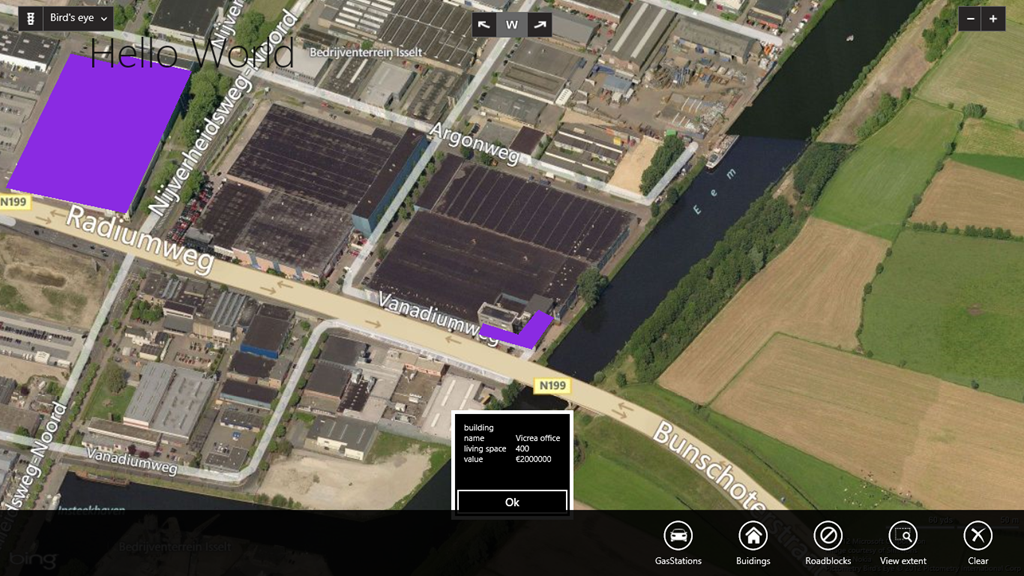
The result can be seen below:

Screenshot (9)

In the center, next to the river, the Vicrea offices, where I work. Say cheese fellows! ;-) As you can see, the shapes are beautifully re-projected when Birds’ Eye View is selected. This is the stuff that makes a GIS buff tick.

Researching the control I quickly found the following:

  • There’s no data binding support at all (as stated)
  • The shapes the control draws cannot be templated. They are apparently just projections of something native (as is the map itself).
  • There are only two kinds of shapes: MapPolygon and MapPolyline, both descending from MapShape, which in turn descends from DependencyObject – which is very fortunate, as I hope will become clear over the course of this article.

So I had the challenge to create something that can be put into XAML to still give the designer an amount of control how things appear, without having to resort to code.

Introducing MapShapeDrawBehavior 
The behavior I created is called MapShapeDrawBehavior  (I’ve never been one for original catchy names) and can be used like this:

<Maps:Map Credentials="Your-credentials-here">
  <WinRtBehaviors:Interaction.Behaviors>
  
    <MapBinding:MapShapeDrawBehavior 
       LayerName="Roadblocks" 
       ItemsSource="{Binding RoadBlocks, Mode=TwoWay}" 
       TapCommand="SelectCommand" PathPropertyName="Geometry" >
         <MapBinding:MapShapeDrawBehavior.ShapeDrawer>
           <MapBinding:MapPolylineDrawer Color="Green" Width="10"/>
         </MapBinding:MapShapeDrawBehavior.ShapeDrawer>
    </MapBinding:MapShapeDrawBehavior>
  
  </WinRtBehaviors:Interaction.Behaviors>
</Maps:Map>

For every category of objects there’s a layer – which translates to one behavior per list of objects, in this case the road blocks (the green line on the app sceenshot above). Then you need to define three things per layer:

  • What command in the item view model (in this case, a RoadBlockViewModel) must be fired when a MapShape’s only event – Tap – is called.
  • Which property in the item view model contains the Path – this is the terminology for a MapShape’s collection of points. This is, once again, of type LocationCollection. Only that’s no longer a collection of GeoCoordinate but of Location.
  • Finally, you need to define a drawer. A drawer is a concept I sucked from my own thumb – it determines how a collection of points is supposed to be transformed to something on the map. It’s my way to make something that’s not templatable more or less configurable.

I created three drawers out of the box: MapPolylineDrawer, MapPolygonDrawer, and MapStarDrawer. The last one draws a configurable star shaped polygon around a point – since map shapes cannot be points by themselves. A drawer needs only to implement one method:

public override MapShape CreateShape(object viewModel, LocationCollection path)

The basic drawers don’t do anything with the view model: they just take the settings from XAML. But if you want for instance your shapes having different colors based upon some view model property – say you want to color urban areas based upon their crime rate (what we GIS buffs call a thematic map) – you can write a little custom drawer.

If you just want to use the behavior you are done with reading. You can download the demo solution with code (which, incidentally, shows off a lot of more things than just binding to a map) and start playing around with it. Be aware of the following issues/caveats:

  • You will need to install the Bing Maps SDK for Windows Store apps first
  • When I moved the solution from my Big Black Box to my slate I had to delete and redo all references to Bing.Maps and “Bing Maps for C#, C++, or Visual Basic” (this was using the Beta, I don’t know if that still applies to the RTM version)
  • The control apparently contains native code, so you cannot build it for Any CPU.
  • The designer only works when you build for x86 (this still the case in RTM)

For the technically interested I will continue with some gory details.

The inner guts
The behavior itself is actually pretty big, so I won’t repeat all code verbatim; I will concentrate on the interesting parts.

First of all, I already mentioned the fact MapShape descends from DependencyObject. That spells ‘Ahoy, Attached Dependency Property ahead!’  to me. So I created two of those, one holding the name of the layer (I use those to find out which shapes belong to a single layer) and one in which I store the view model from which the shape was created:

using Windows.UI.Xaml;

namespace Win8nl.MapBinding
{
  public static class MapElementProperties
  {
    public static readonly DependencyProperty ViewModelProperty =
         DependencyProperty.RegisterAttached("ViewModel",
         typeof(object),
         typeof(MapElementProperties),
         new PropertyMetadata(default(object)));

    // Called when Property is retrieved
    public static object GetViewModel(DependencyObject obj)
    {
      return obj.GetValue(ViewModelProperty) as object;
    }

    // Called when Property is set
    public static void SetViewModel(
       DependencyObject obj,
       object value)
    {
      obj.SetValue(ViewModelProperty, value);
    }

    public static readonly DependencyProperty LayerNameProperty =
         DependencyProperty.RegisterAttached("LayerName",
         typeof(string),
         typeof(MapElementProperties),
         new PropertyMetadata(default(string)));

    // Called when Property is retrieved
    public static string GetLayerName(DependencyObject obj)
    {
      return obj.GetValue(LayerNameProperty) as string;
    }

    // Called when Property is set
    public static void SetLayerName(
       DependencyObject obj,
       string value)
    {
      obj.SetValue(LayerNameProperty, value);
    }
  }
}

The core of the MapShapeDrawBehavior self consists out of just five little methods, and the VERY core method is CreateShape. The behavior iterates over the object list databound to ItemsSource, and calls CreateShape for every view model:

/// <summary>
/// Creates a new shape
/// </summary>
/// <param name="viewModel"></param>
/// <returns></returns>
private MapShape CreateShape(object viewModel)
{
  var path = GetPathValue(viewModel);
  if (path != null && path.Any())
  {
    var newShape = CreateDrawable(viewModel, path);
    newShape.Tapped += ShapeTapped;

    MapElementProperties.SetViewModel(newShape, viewModel);
    MapElementProperties.SetLayerName(newShape, LayerName);

    // Listen to property changed event of geometry property to check 
    // if the shape needs tobe redrawed
    var evt = viewModel.GetType().GetRuntimeEvent("PropertyChanged");
    if (evt != null)
    {
      Observable
        .FromEventPattern<PropertyChangedEventArgs>(viewModel, "PropertyChanged")
        .Subscribe(se =>
                     {
                       if (se.EventArgs.PropertyName == PathPropertyName)
                       {
                         ReplaceShape(se.Sender);
                       }
                     });
    }
    return newShape;
  }
  return null;
}
  • First, it reads the view model property that holds the geometry (or at least, it tries that)
  • It creates the actual shape
  • It attaches an event listener to the “Tapped” event
  • It puts the view model and the layer name in attached dependency properties for said shape
  • Finally it attaches a property changed listener so that when the property that’s holding the view model’s geometry changes, the ReplaceShape method is called (which replaces the shape on the map – duh)

GetPathValue is a simple method that retrieves the view model’s geometry using reflection. Nothing special there:

private LocationCollection GetPathValue(object viewModel)
{
  if (viewModel != null)
  {
    var dcType = viewModel.GetType();

    var methodInfo = dcType.GetRuntimeMethod("get_" + PathPropertyName, 
                     new Type[0]);
    if (methodInfo != null)
    {
      return methodInfo.Invoke(viewModel, null) as LocationCollection;
    }
  }
  return null;
}

CreateDrawable – well that’s VERY simple. Get the drawer and let it decide how the shape will look

protected virtual MapShape CreateDrawable(object viewModel, LocationCollection path )
{
  var newShape = ShapeDrawer.CreateShape(viewModel, path);
  return newShape;
}

And finally ShapeTapped and FireViewModelCommand:

private void ShapeTapped(object sender, TappedRoutedEventArgs e)
{
  var shape = sender as MapShape;
  if( shape != null )
  {
    var viewModel = MapElementProperties.GetViewModel(shape);
    if( viewModel != null )
    {
      FireViewmodelCommand(viewModel, TapCommand);
    }
  }
}

private void FireViewmodelCommand(object viewModel, string commandName)
{
  if (viewModel != null && !string.IsNullOrWhiteSpace(commandName))
  {
    var dcType = viewModel.GetType();
    var commandGetter = dcType.GetRuntimeMethod("get_" + commandName, new Type[0]);
    if (commandGetter != null)
    {
      var command = commandGetter.Invoke(viewModel, null) as ICommand;
      if (command != null)
      {
        command.Execute(viewModel);
      }
    }
  }
}

ShapeTapped checks if it the object sending the event is actually a shape, then tries to retrieve a view model from the attached dependency property, and calls FireViewModelCommand on it. Which basically is directly ripped from my earlier EventToCommandBehavior. And then the circle is round again – user taps, view model command is called (just as Laurent Bugnion’s EventToCommand trigger did for Windows Phone) and the view model takes it further just like before.

There’s more to this behavior, but mostly it’s just reacting to events that occur when the ObservableCollection ItemsSource changes.

Some concluding remarks
Of course this behavior was geared to make the code I already had as much reusable as possible, but I think the way WinRT XAML apps and Windows Phone apps can be put together are remarkably similar – provided you make good use of MVVM and keep your code as clean as possible. So what did I have to do to move over my business and view model code to get this working? Well not very much, actually.

  • A tiny thing in my model library because I was so clever to use a BackgroundWorker somewhere in my models – which is not supported in WinRt
  • The Gas station view model was changed to do the conversion form business object geometry to Bing Maps’ Location in stead of the converter I originally - because my solution does not support converters.
  • I had to change some name spaces and data types. Mainly GeoCoordinate was now called Location.
  • Oh yeah – in stead of "clr-namespace" I had to use "using" for declaring namespaces in XAML. I used ReSharper toalt-enter trough the errors and add the namespaces almost automatically.

And that was about it. Of course, the code in it was quite trivial, but still. On the XAML side things were a bit more complicated:

  • Converters and Attached Dependency Properties were carried over with minimal changes.
  • I had to trash my geometry templates and had to write the behavior to emulate the templates – in a way, which admittedly was no small feat. But that’s a hole that only needs to be plugged once, and can now act as a base for possible better solutions.
  • I had to do some fiddling around with the DataTemplateSelector – that works a wee bit different, and will be subject of a future blog post.
  • ‘Tombstoning’ works a bit differently, but quite analogous. Been there, done that, wrote the blogpost.
  • The App Bar on Windows 8 has a lot more possibilities. And – thank Saint Sinofsky and his minions – it supports data binding out of the box. Moving from Windows Phone app bars to Windows 8 app bars is quite easy. Provided you used the BindableApplicationbar and MVVM of course ;-) 
  • I kinda 1:1 copied the data window (the popup with alphanumeric data that appears when you tap a shape) – that worked remarkably well, but you might want to do something about the styling for a real-world application. The data window is a wee bit small now and does fit in styling wise ;-)

This is still a work in progress, but I think for basic shape data binding this is already very usable. The Bing Maps control is very fast, courtesy of native code, no doubt. I hope this will help people.

Once again, for those who don’t feel scrolling all the way up: the source code. Also updated for RTM. Enjoy!

25 March 2012

Instant language update in a Windows Phone 7 application using MVVM

With more and more Marketplaces being added to the Windows Phone ecosystem, globalization of your app becomes all the more more important. I am happy to see a lot of apps these days support multiple languages. I usually employ a solution described in my article MVVMLight based language selection for Windows Phone 7 – this automatically picks up the language from the phone and defaults to English/US if the default language is not supported by the app. But I also like to give the user the chance to override the automatically selected language. I, for instance, run the phone OS in English/US, but I’d like specific Dutch apps to run in Dutch, thank you. If you follow the globalization example as described by MSDN using my code, that unfortunately requires the app to be restarted after applying the language change. Well, no more!

The sample as provided by MSDN provides a localized string helper that looks more or less like this:

namespace InstantLanguage.Resources
{
  public class LocalizedStrings
  {
    public LocalizedStrings()
    {
    }
  
    private static AppResources localizedResources = new AppResources();

    public AppResources LocalizedResources 
    { 
      get { return localizedResources; } 
    }
  }
}

I employed it since my first localized app, and I usually put it in the same directory as my resource files. You declare it in your App.xaml like this:

<Application.Resources>
    <!-- More resources -->
    <Resources:LocalizedStrings x:Key="LocalizedStrings"/>
</Application.Resources>
Of course you need to declare the namespace for LocalizedResources first, so in the top you will add something like
xmlns:Resources="clr-namespace:InstantLanguage.Resources"

And now you can use it to show localized strings by binding to it like this:

<TextBlock x:Name="ApplicationTitle" 
  Text="{Binding LocalizedResources.AppTitle, Source={StaticResource LocalizedStrings}}" 
  Style="{StaticResource PhoneTextNormalStyle}"/>

But unfortunately, as I said, if you change the language, for instance by calling this code, nothing happens.

Thread.CurrentThread.CurrentUICulture = new CultureInfo("de-DE");
Thread.CurrentThread.CurrentCulture = Thread.CurrentThread.CurrentUICulture;

The reason for this is pretty simple: the app has no way of informing the GUI, as LocalizedStrings has no support for INotifyPropertyChanged. But that can be easily fixed, by taking MVVMLight and implement LocalizedStrings as a child class of ViewModelBase:

using System.Windows;

namespace InstantLanguage.Resources
{
  using GalaSoft.MvvmLight;

  public class LocalizedStrings : ViewModelBase
  {
    private static AppResources localizedresources = new AppResources();

    public AppResources LocalizedResources
    {
      get { return localizedresources; }
    }

    public void UpdateLanguage()
    {
      localizedresources = new AppResources();
      RaisePropertyChanged(() => LocalizedResources);
    }

    public static LocalizedStrings LocalizedStringsResource
    {
      get
      {
        return Application.Current.Resources["LocalizedStrings"]
            as LocalizedStrings;
      }
    }
  }
}

and then there is another matter: the app needs to have a way of kicking off the RaisePropertyChanged event on a class used as a StaticResource. That’s what UpdateLanguage and the static LocalizedStringsResource are for. Note that for this to work, you will need to have defined the resource with the key LocalizedStrings:

<Resources:LocalizedStrings x:Key="LocalizedStrings"/>

The keys that need to match are marked in red in both pieces of code. Anyway, after you changed the language, call:

LocalizedStrings.LocalizedStringsResource.UpdateLanguage();

And boom – all your texts coming from the resource file will update instantaneously.

InstantLanuage

Here you can find a sample solution demonstrating this principle using the newest release of my #wp7nl library on codeplex and the technique I mentioned earlier. There’s a simple viewmodel subclassing LanguageSettingsViewModel, and you can see the call to UpdateLanguage directly after the language setting has been changed:

using System.ComponentModel;
using InstantLanguage.Resources;
using Wp7nl.Globalization;

namespace InstantLanguage.ViewModel
{
  /// <summary>
  /// Main view model. By subclassing LanguageSettingsViewModel we get properties 
  /// "SupportedLanguages" and "CurrentLanguage" for free. 
  /// </summary>
  public class MainViewModel : LanguageSettingsViewModel
  {

    public MainViewModel()
    {
      // Note: en-US is added by default
      AddLanguages(new Language 
	    { Description = "Deutsch", Locale = "de-DE" });
      AddLanguages(new Language 
	   { Description = "Nederlands", Locale = "nl-NL" });
      PropertyChanged += MainViewModelPropertyChanged;
    }

    void MainViewModelPropertyChanged(object sender, PropertyChangedEventArgs e)
    {
      if (e.PropertyName == "CurrentLanguage")
      {
        SetLanguageFromCurrentLocale();
        LocalizedStrings.LocalizedStringsResource.UpdateLanguage();
      }
    }
  }
}

In the end, it’s always pretty simple.

Note that for this globalization and the code to work properly, you will need to take into account the following:

  • You will need to change the “Custom Tool” property for each resource file to “PublicResXFileCodeGenerator” (default is ResXFileCodeGenerator)
  • You will need to have a .resx file for every language you support. For the default language I call mine usually AppResources.resx, for German I then have to define AppResources.de-DE.resx, etc.
  • You will also need to add supported extra languages in the SupportedCultures tag in your main project. You need to do manually, by opening the project file in for instance notepad. Why this can’t be done from Visual Studio – don’t ask me, I’m just the messenger here ;-). To support Dutch and German for instance you change the tag’s contents to:
<SupportedCultures>nl-NL;de-DE</SupportedCultures>

Note: I got the idea from a gentleman I met at the 2012 edition of the Microsoft Techdays in The Hague while while I was manning at the Ask The Expert stand. He showed me it could be done, but did only briefly showed me some of code and certainly not all of it. Once I knew it could be done, I more or less pieced this together in the moments I was not being bombarded by questions from developers dropping by. Unfortunately I don’t remember the gentleman’s name, or else I would have added some credits.

Have fun! I hope this helps you storm the new Marketplaces! ;-)

22 February 2012

Behavior to show a MessageBox from a ViewModel

Since I am a very lazy programmer and I not always want to register or define services and whatnot for showing a simple message I created this extremely simple behavior for showing a MessageBox from a ViewModel. I wrote the code for Windows Phone 7, but I suppose it could be used in Silverlight as well.

The behavior itself is as simple as this:

using System.Windows;
using System.Windows.Interactivity;

namespace Wp7nl.Behaviors
{
  public class MessageBoxDisplayBehavior : Behavior<FrameworkElement>
  {
    public const string MessagePropertyName = "Message";

    public string Message
    {
      get { return (string)GetValue(MessageProperty); }
      set { SetValue(MessageProperty, value); }
    }

    public static readonly DependencyProperty MessageProperty =
      DependencyProperty.Register(
        MessagePropertyName,
        typeof(string),
        typeof(MessageBoxDisplayBehavior),
        new PropertyMetadata(string.Empty, MessageChanged));

    public static void MessageChanged(DependencyObject d, 
      DependencyPropertyChangedEventArgs e)
    {
      var msg = e.NewValue as string;
      if (!string.IsNullOrEmpty(msg))
      {
        MessageBox.Show(msg);
      }
    }
  }
}

Easiest way to use it is to just drag it onto about any control in your Page using Blend, as long as it has the right data context, and select a string property to bind it to. In XAML, it usage looks something like this:

<Grid DataContext="{Binding ChooserViewModel}">
 <i:Interaction.Behaviors>
  <Wp7nl_Behaviors:MessageBoxDisplayBehavior 
    Message="{Binding MessageBoxMessage, Mode=TwoWay}"/>
 </i:Interaction.Behaviors>

Just one the one thing you might want to consider is how you define “MessageBoxMessage” in your ViewModel. I defined it as follows:

private string messageBoxMessage;
public string MessageBoxMessage
{
  get { return messageBoxMessage; }
  set
  {
    messageBoxMessage = value;
    RaisePropertyChanged(() => MessageBoxMessage);
  }
}
as opposed to what you would normally do, which is
private string messageBoxMessage;
public string MessageBoxMessage
{
  get { return messageBoxMessage; }
  set
  {
    if (messageBoxMessage != value)
    {
      messageBoxMessage = value;
      RaisePropertyChanged(() => MessageBoxMessage);
    }
  }
}
I intentionally left out the value check (in red), so RaisePropertyChanged always fires. This gives the real stupid mentally challenged users that make the same error multiple times multiple message boxes as well ;-)

01 February 2012

Behavior to force TextBox model update to prevent trouble with the ApplicationBar

A small quicky this time:

Problem:

  • TextBox, Text property bound to a string in my ViewModel
  • I type text in the TextBox
  • I click a “Save” button on my ApplicationBar
  • The string in my ViewModel is not updated. It never gets updated. WTF???

It appears the TextBox only updates it’s value to a bound string when it loses focus. And a TextBox does not lose focus when you click an ApplicationBar Button. Meh.

I have found a few solutions and workarounds, and in the end rolled my own:  a very small behavior that updates the binding every time you type something in your textbox. That’s a bit wasteful, but it works for me. It builds on the SafeBehavior pattern I wrote about earlier, and it’s so small I post it in one go:

using System.Windows.Controls;

namespace Wp7nl.Behaviors
{
  /// <summary>
  /// A behavior to for text box model update when text changes
  /// </summary>
  public class TextBoxChangeModelUpdateBehavior : SafeBehavior<TextBox>
  {
    protected override void OnSetup()
    {
      AssociatedObject.TextChanged += AssociatedObjectTextChanged;
    }

    protected override void OnCleanup()
    {
      AssociatedObject.TextChanged -= AssociatedObjectTextChanged;
    }

    void AssociatedObjectTextChanged(object sender, TextChangedEventArgs e)
    {
      var binding = AssociatedObject.GetBindingExpression(TextBox.TextProperty);
      if (binding != null)
      {
        binding.UpdateSource();
      }
    }
  }
}

I have read amongst other things Prism has a UpdateTextBindingOnPropertyChanged behavior. Well this one will be in the next version of my #wp7nl library on codeplex 

22 November 2011

Using MVVMLight, ItemsControl, Blend and behaviors to make a ‘heads up compass’

When I talk of the MVVM pattern, people usually think of business objects that get wrapped by ViewModels which get data bound to a user interface. Usually this is something like a list of people, news, items that can be purchased, whatever – and usually this data is displayed in a list box, with a bit of templating if it isn’t too much trouble. That’s fine in itself and good way to use my favorite pattern but there are more things possible using MVVM data binding than most people imagine. The most fun way I have been able to discover is to combine ItemsControl and behaviors. This is what drives my game Catch’em Birds. And this article shows how to use this technique make a kind of heads up compass. I’ll sprinkle some ‘how to do things in Blend’ (like adding and configuring behaviors) throughout the article as well.

For the hasty readers: “Setting the stage”, “Building the models” and “Building the ViewModel” is the ground work. The real stuff starts at “Initial user interface”.

Setting the stage

  • Create a new Windows Phone 7 application. Let’s call it “HeadsUpCompass”. Select Windows Phone 7.1 - duh ;).
  • Install my wp7nl library from codeplex via NuGet. This will get you some of my stuff and MVVMLight and some more stuff as well in one go.
  • Add references to Microsoft.Device.Sensors and Microsoft.Xna.Framework.

Building the models

The application has two models: CompassDirectionModel – holding stuff that wants to be displayed, and CompassModel, that checks the compass direction using the motion API. The CompassModel is implemented below. I’ve explained using the Motion API to check where the camera is looking in an earlier post so I’ll skip the details here. It’s basically the same functionality, wrapped in a model, with an event firing at the end:

using System;
using System.Windows;
using Microsoft.Devices.Sensors;
using Microsoft.Xna.Framework;

namespace HeadsUpCompass.Models
{
  public class CompassModel
  {
    Motion motion;

    /// <summary>
    /// Inits this instance.
    /// </summary>
    public void Init()
    {
      // Check to see if the Motion API is supported on the device.
      if (!Motion.IsSupported)
      {
        MessageBox.Show("the Motion API is not supported on this device.");
        return;
      }

      // If the Motion object is null, initialize it and add a CurrentValueChanged
      // event handler.
      if (motion == null)
      {
        motion = new Motion {TimeBetweenUpdates = TimeSpan.FromMilliseconds(250)};
        motion.CurrentValueChanged += MotionCurrentValueChanged;
      }

      // Try to start the Motion API.
      try
      {
        motion.Start();
      }
      catch (Exception)
      {
        MessageBox.Show("unable to start the Motion API.");
      }
    }

        /// <summary>
    /// Stops this instance.
    /// </summary>
    public void Stop()
    {
      motion.Stop();
      motion.CurrentValueChanged -= MotionCurrentValueChanged;
    }

    /// <summary>
    /// Fired when a direction change is detected
    /// </summary>
    void MotionCurrentValueChanged(object sender, 
                                   SensorReadingEventArgs<MotionReading> e)
    {
      var yaw = MathHelper.ToDegrees(e.SensorReading.Attitude.Yaw);
      var roll = MathHelper.ToDegrees(e.SensorReading.Attitude.Roll);
      var pitch = MathHelper.ToDegrees(e.SensorReading.Attitude.Pitch);

      if (roll < -20 && roll > -160)
      {
        SetNewCompassDirection(360 - yaw + 90);
      }
      else if (roll > 20 && roll < 160)
      {
        SetNewCompassDirection(360 - yaw - 90);
      }
      else if (pitch > 20 && pitch < 160)
      {
        SetNewCompassDirection(-yaw );
      }
      else if (pitch < -20 && pitch > -160)
      {
        SetNewCompassDirection(360 - yaw + 180);
      }
    }

    private void SetNewCompassDirection(double compassDirection)
    {
      if (compassDirection > 360)
      {
        compassDirection -= 360;
      }
      if (compassDirection < 0)
      {
        compassDirection += 360;
      }

      if (CompassDirectionChanged != null)
      {
        CompassDirectionChanged(Convert.ToInt32(Math.Round(compassDirection)));
      }
    }

    // Event communicating compass direction change to outside world
    public event CompassDirectionChangedHandler CompassDirectionChanged;
    
    public delegate void CompassDirectionChangedHandler(int newDirection);
  }
}

The stuff that gets displayed has it’s own model, and is very simple:

using System.Collections.Generic;

namespace HeadsUpCompass.Models
{
  public class CompassDirectionModel
  {
    public int Direction { get; set; }

    public string Text { get; set; }

    public static IEnumerable<CompassDirectionModel> GetCompassDirections()
    {
      return new List<CompassDirectionModel>
      {
        new CompassDirectionModel {Direction = 0, Text = "N"},
        new CompassDirectionModel {Direction = 45, Text = "NE"},
        new CompassDirectionModel {Direction = 90, Text = "E"},
        new CompassDirectionModel {Direction = 135, Text = "SE"},
        new CompassDirectionModel {Direction = 180, Text = "S"},
        new CompassDirectionModel {Direction = 225, Text = "SW"},
        new CompassDirectionModel {Direction = 270, Text = "W"},
        new CompassDirectionModel {Direction = 315, Text = "NW"}
      };
    }
  }
}

And most of is a static factory method too that I, being a lazy programmer, just plonked into a class. This model accepts a text and a compass direction where it wants to be displayed. You can limit or add whatever you like.

Building the ViewModel

So far it has not been quite rocket science, and neither is the only ViewModel that is employed in this solution:

using System.Collections.ObjectModel;
using System.Windows;
using GalaSoft.MvvmLight;
using HeadsUpCompass.Models;

namespace HeadsUpCompass.ViewModels
{
  public class CompassViewModel : ViewModelBase
  {
    private readonly CompassModel model;

    public CompassViewModel()
    {
      model = new CompassModel();
      model.CompassDirectionChanged += ModelCompassDirectionChanged;
      CompassDirections = 
        new ObservableCollection<CompassDirectionModel>(
          CompassDirectionModel.GetCompassDirections());
      if( !IsInDesignMode) model.Init();
    }

    void ModelCompassDirectionChanged(int newDirection)
    {
      Deployment.Current.Dispatcher.BeginInvoke(
        () => { CompassDirection = newDirection; });
    }

    private int compassDirection;
    public int CompassDirection
    {
      get { return compassDirection; }
      set
      {
        if (compassDirection != value)
        {
          compassDirection = value;
          RaisePropertyChanged(() => CompassDirection);
        }
      }
    }

    private ObservableCollection<CompassDirectionModel> compassDirections;
    public ObservableCollection<CompassDirectionModel> CompassDirections
    {
      get { return compassDirections; }
      set
      {
        if (compassDirections != value)
        {
          compassDirections = value;
          RaisePropertyChanged(() => CompassDirections);
        }
      }
    }
  }
}

The ViewModel creates a CompassDirectionModel and subscribes to its events, and fills an observable collection with CompassDirectionModels – so basically a list of texts and the direction in which they want to be displayed.

Initial user interface

First of all, open MainPage.xaml, set shell:SystemTray.IsVisible="false", SupportedOrientations="PortraitOrLandscape" and then delete the grid “LayoutRoot” and everything inside it (and get rid of the App Bar sample code that commented out as well, that clears the stage). Replace it by this:

<Grid x:Name="LayoutRoot" >
  <Grid.RowDefinitions>
    <RowDefinition Height="Auto"/>
    <RowDefinition Height="*"/>
  </Grid.RowDefinitions >

  <!--TitlePanel contains the name of the application and page title-->
  <StackPanel x:Name="TitlePanel" Grid.Row="0" Margin="12,17,0,28">
    <TextBlock x:Name="ApplicationTitle" Text="HeadsUp Compass" 
      Style="{StaticResource PhoneTextNormalStyle}"/>
  </StackPanel>

  <!--ContentPanel - place additional content here-->
  <Grid x:Name="ContentPanel" Grid.Row="1" Margin="12,0,12,0">
    <Grid>
      <Grid.RowDefinitions>
        <RowDefinition Height="0.7*"/>
        <RowDefinition Height="0.3*"/>
      </Grid.RowDefinitions >
    <ItemsControl x:Name="CompassItems" ItemsSource="{Binding CompassDirections}"
           Grid.Row="0">
      <ItemsControl.ItemsPanel>
        <ItemsPanelTemplate>
          <Canvas Background="Transparent" />
        </ItemsPanelTemplate>
      </ItemsControl.ItemsPanel>
      <ItemsControl.ItemTemplate>
        <DataTemplate>
          <Grid>
            <TextBlock Text="{Binding Text}" FontSize="48" Foreground="Red"/>
          </Grid>
        </DataTemplate>
      </ItemsControl.ItemTemplate>
    </ItemsControl>

    <TextBlock TextWrapping="Wrap" Text="{Binding CompassDirection}" 
       VerticalAlignment="Top" Margin="0,10,0,0" FontSize="48" Foreground="Red" 
       HorizontalAlignment="Center" Grid.Row="1"/>
    </Grid>
  </Grid>
</Grid>

The interesting part I’ve marked red. This is an ItemsControl - nothing more than a simple repeater. The declaration used in this article uses two templates: an ItemsPanelTemplate, which describes what all the bound items are rendered upon – in this case, a transparent canvas – and an ItemTemplate, which describes how each individual item in the CompassDirections property bound to the control itself is displayed – in this case, a grid with a simple text bound to a Text property. But on the ItemTemplate you can put literally everything you can dream. Including behaviors.

Setting up data binding using Expression Blend

First let’s get the data binding done. This is considerably easier using Expression Blend. Compile the application so far, and open it up in Expression Blend. Then use the following workflow:DataSource

  • On the top right hand side, select the “Data” tab
  • Click the Icon on the right that gives as tooltip “Create data source”
  • Select “Create Object DataSource”
  • Select “CompassViewModel” in the popup that appears.
  • Drag “CompassViewModel” under “CompassViewModelSource on top of the “LayoutRoot” grid in the Objects and Timeline Panel to the left bottom

Bound

If you have done things correctly, you should immediately see appear a red zero in the horizontal middle of your screen a little below the center, and a lot of texts stacked upon each other in the top left op your screen.

The fun thing is, this application already works more or less. If you deploy this on a device and fire it up, you will already see that the 0 starts to display the compass direction in degrees. But the compass direction texts are still stacked upon each other in the top left corner. Now it’s time for the coupe de grâce: a behavior that dynamically changes the location of the compass direction texts.

Location calculation

The behavior actually consist out of two parts: the LocationCalculator class and the actual CompassDirectionDisplayBehavior. I pulled the actual location calculation out of the behavior because I had to cobble it together by trial and error – and adding it to a test project by means of a link and testing it by unit tests made this a lot easier. Anyway, the code itself it pretty small: most of it is comments and properties:

using System;
using System.Windows;

namespace ARCompass.Behaviors
{
  /// <summary>
  /// Calculates screen positions based upon compass locations
  /// </summary>
  public class LocationCalcutator
  {
    /// <summary>
    /// Initializes a new instance of the LocationCalcutator class.
    /// Sets some reasonable defaults
    /// </summary>
    public LocationCalcutator()
    {
      Resolution = (6 * 800 / 360);
      CanvasHeight = 800;
      CanvasWidth = 480;
      ObjectWidth = 10;
    }

    /// <summary>
    /// Gets or sets the resolution (i.e. the pixels per degree
    /// </summary>
    public int Resolution { get; set; }

    /// <summary>
    /// The compass direction where the object to calculate for is located
    /// </summary>
    public int DisplayCompassDirection { get; set; }

    /// <summary>
    /// Gets or sets the width of the canvas.
    /// </summary>
    public double CanvasWidth { get; set; }

    /// <summary>
    /// Gets or sets the height of the canvas.
    /// </summary>
    public double CanvasHeight { get; set; }

    /// <summary>
    /// Gets or sets the width of the object (in pixels)
    /// </summary>
    public double ObjectWidth { get; set; }

    /// <summary>
    /// Sets the horizontal pixels.
    /// </summary>
    /// <param name="pixels">The pixels.</param>
    public void SetHorizontalPixels(double pixels)
    {
      Resolution = Convert.ToInt32(Math.Round(pixels/360));
    }

    /// <summary>
    /// Calculates the screen position.
    /// </summary>
    /// <param name="compassDirection">The compass direction the screen is 
    /// currently looking at.</param>
    /// <returns></returns>
    public Point CalculateScreenPosition(int compassDirection)
    {
      if (!(double.IsNaN(CanvasHeight) || double.IsNaN(CanvasWidth)))
      {
        var y = CanvasHeight / 2;
        var deltaDegrees1 = compassDirection - DisplayCompassDirection;
        var deltaDegrees2 = compassDirection - DisplayCompassDirection - 360;
        var deltaDegrees = 
           Math.Abs(deltaDegrees1) < Math.Abs(deltaDegrees2) ? 
             deltaDegrees1 : deltaDegrees2;

        var dx = deltaDegrees * Resolution;
        var x = Convert.ToInt32(CanvasWidth / 2) - dx;
        return new Point(x, y);
      }
      return new Point(-1000, -1000);
    }

    /// <summary>
    /// Determines whether the specified point is visible in the current canvas
    /// </summary>
    public bool IsVisible(Point point)
    {
      var overshoot = Convert.ToInt32(Math.Round(ObjectWidth/2 + 5));
      return (point.X > -overshoot && point.X < CanvasWidth + overshoot);
    }
  }
}

Resolution is a pretty weird property and is the base for all other calculations. It basically says – how many pixels is 1 degree? Default I set it to 6 * 800 / 360 = 13.333, which basically means if you move your camera 1 degree to the left whatever is displayed on your screen moves 13 pixels to the right.

The CalculateScreenPosition method basically is my way to calculate the screen position of an object in direction compassDirection, without using trigonometry – since I am notoriously bad at it. I’ve learned it about three times if I really have to use it, but for some reason as soon as I stop using it, it quite quickly drops from my mind again. I don’t doubt I’ll be getting reactions of math lovers who will point out this a stupid way to do it ;-). But this works, and that’s fine with me. Finally, the IsVisible property can be used to determine if the objects is on the screen at all.

The actual behavior

This behavior heavily leans on things I wrote about earlier, namely the extension methods for FrameWorkElement I described in my article  “Simple Windows Phone 7 / Silverlight drag/flick behavior” but which are now fortunately all in the Wp7nl library. It is also based upon the Safe event detachment ‘pattern’ for behaviors. Anyway – the base setup is like this:

using System.Windows;
using System.Windows.Interactivity;
using System.Windows.Media;
using ARCompass.Behaviors;
using Phone7.Fx.Preview;
using Wp7nl.Utilities;

namespace HeadsUpCompass.Behaviors
{
  public class CompassDirectionDisplayBehavior : Behavior<FrameworkElement>
  {
    private FrameworkElement elementToAnimate;

    private FrameworkElement displayCanvas;

    private LocationCalcutator calculator;

    #region Setup
    protected override void OnAttached()
    {
      base.OnAttached();
      AssociatedObject.Loaded += AssociatedObjectLoaded;
      AssociatedObject.Unloaded += AssociatedObjectUnloaded;
    }

    void AssociatedObjectLoaded(object sender, RoutedEventArgs e)
    {
      calculator = new LocationCalcutator 
        {DisplayCompassDirection = DisplayCompassDirection};
      elementToAnimate = AssociatedObject.GetElementToAnimate();
      if (!(elementToAnimate.RenderTransform is CompositeTransform))
      {
        elementToAnimate.RenderTransform = new CompositeTransform();
      }
      displayCanvas = elementToAnimate.GetVisualParent();
      if (displayCanvas != null)
      {
        displayCanvas.SizeChanged += DisplayCanvasSizeChanged;
        UpdateCalculator();
      }
    }
    #endregion

    #region Cleanup
    private bool isCleanedUp;

    private void Cleanup()
    {
      if (!isCleanedUp)
      {
        isCleanedUp = true;
        AssociatedObject.Loaded -= AssociatedObjectLoaded;
        AssociatedObject.Unloaded -= AssociatedObjectUnloaded;
      }
    }

    protected override void OnDetaching()
    {
      Cleanup();
      base.OnDetaching();
    }

    void AssociatedObjectUnloaded(object sender, RoutedEventArgs e)
    {
      Cleanup();
    }
    #endregion
  }
}

Now that most of the calculation logic is in the LocationCalculator, the calculation and positioning logic is reduced to these three little methods:

void DisplayCanvasSizeChanged(object sender, SizeChangedEventArgs e)
{
  UpdateCalculator();
}

private void UpdateCalculator()
{
  calculator.CanvasHeight = displayCanvas.ActualHeight;
  calculator.CanvasWidth = displayCanvas.ActualWidth;
  calculator.SetHorizontalPixels(6 * calculator.CanvasWidth);
  UpdateScreenLocation();
}

void UpdateScreenLocation()
{
  var translationPoint = 
     calculator.CalculateScreenPosition(CurrentCompassDirection);
  if (calculator.IsVisible(translationPoint))
  {
    elementToAnimate.SetTranslatePoint(
      calculator.CalculateScreenPosition(CurrentCompassDirection));
    elementToAnimate.Visibility = Visibility.Visible;
  }
  else
  {
    elementToAnimate.Visibility = Visibility.Collapsed;
  }
}

The fun thing is that the calculator’s resolution is set to 6 times the canvas width, so that every time you rotate the phone it recalculates the location where objects are displayed. The net result is that objects are spaced wider apart when you rotate the phone in landscape. Thus, the app makes optimal use of the screen space available.

And all there is left are two dependency properties: DisplayCompassDirection which holds the location in which the current object wants to be displayed, and CurrentCompassDirection  which should get the current direction the camera is looking at. By nature they are pretty verbose unfortunately:

#region DisplayCompassDirection
public const string DisplayCompassDirectionPropertyName = 
   "DisplayCompassDirection";

public int DisplayCompassDirection
{
  get { return (int)GetValue(DisplayCompassDirectionProperty); }
  set { SetValue(DisplayCompassDirectionProperty, value); }
}

public static readonly DependencyProperty DisplayCompassDirectionProperty = 
  DependencyProperty.Register(
    DisplayCompassDirectionPropertyName,
    typeof(int),
    typeof(CompassDirectionDisplayBehavior),
    new PropertyMetadata(0, null));
#endregion

#region CurrentCompassDirection
public const string CurrentCompassDirectionPropertyName = 
  "CurrentCompassDirection";

public int CurrentCompassDirection
{
  get { return (int)GetValue(CurrentCompassDirectionProperty); }
  set { SetValue(CurrentCompassDirectionProperty, value); }
}

public static readonly DependencyProperty CurrentCompassDirectionProperty =
  DependencyProperty.Register(
    CurrentCompassDirectionPropertyName,
    typeof(int),
    typeof(CompassDirectionDisplayBehavior),
    new PropertyMetadata(0, CurrentCompassDirectionChanged));

public static void CurrentCompassDirectionChanged(
  DependencyObject d, DependencyPropertyChangedEventArgs e)
{
  var behavior = d as CompassDirectionDisplayBehavior;
  if (behavior != null)
  {
    behavior.UpdateScreenLocation();
  }
}
#endregion

Save and compile the app. Don’t run it yet.

DragBehaviorAdding/configuring the behavior using Expression Blend

Go back to Expression Blend, and use the following workflow:

  • In the Objects and Timeline Panel to the left, select ItemsControl “CompassItems”
  • Right-click on in, select “Edit Additional Templates”, then “Edit Generated Items (ItemsTemplate)”,  and finally “Edit Current”
  • Top left, select the “Assets” tab. In the left panel below it, select “Behaviors”. In the right panel you should see “CompassDirectionDisplayBehavior” appear.
  • Drag the behavior on top of the grid

As soon as you have done this, you will get a properties tab on the right of your screen that neatly shows the two dependency properties. Of course you can do this in code, but Blend takes care of creating namespaces and name space references – it makes life so much easier and that should appeal to a programmer’s natural laziness. Next task is data binding properties of the behavior to the ViewModel, and using Blend that is dead easy too.

Configuring behavior binding

behaviorpropertiesData binding to a behavior, yes sir (or ma’am)! Welcome to Mango: this is Silverlight 4, so no more complex hooplah with attached dependency properties if you want to have a behavior to play along with data binding. You can now directly bind to dependency properties in the behavior itself! After you have dragged the CompassDirectionDisplayBehavior on Grid, you get the little properties tab as displayed on the left, showing the behavior's two properties. To data bind these, use the following workflow:

  • Click the little square right of “DisplayCompassDirection” (indicated with the red circle), and select “Data Binding” from the popup menu
  • Choose tab “Data context” on the dialog that pops us (usually that’s default)
  • Select property “Direction : (Int32), that is directly under CompassDirections : (CompassDirectionModel)

You have now selected the DisplayCompassDirection property of the behavior to be bound directly to the “Direction” property to the CompassDirectionModel. One can argue if it’s technically corrDataBindingDisplayDirectionect to directly bind a Model in stead of having a ViewModel sitting in between. Since this Model only shows data and has no intelligence at all, I feel comfortable with it – if you do not, go ahead and define a ViewModel around it ;-)

The second and last part of binding goes like this:

  • Click the square behind “CurrentCompassDirection” and select “Data Binding” again in the popup menu
  • Select the “Data Field” tab
  • In the Data Field Tab, select “CompassViewModelDataSource” in the right pane
  • In the left pane, select “CompassDirection : (Int32)
  • Click the down-pointing arrow on the bottom of the dialog – more options appear
  • Select “TwoWay” for “Binding Direction”

You have now selected the CurrentCompassDirection property of the behavior to be bound to the CompassDirection of the CompassViewModel. And that means – you are done! Hit File/Save all and go back to Visual Studio to launch the application on your phone, and you will see compass directions moving through your screen if you move phone.

One for the road

Having a plain black screen to see the compass directions moving over is quite boring. So lets add the behavior to show the Windows Phone 7 camera as background I wrote some time ago as well. Add it to the project, drag it on top of the LayoutRoot grid, and bang – now you don’t only have a heads-up, but a see-trough compass as well!

Some final words

This is all pretty crude in terms of how things move, and there are quite some things eligible for improvement but nevertheless - what we have here is almost like any other old LOB MVVM based application. Business objects bound to the GUI. Only, that GUI happens to be an ItemsControl with a behavior on its template. Which turns the whole app into a dynamic experience. I hope to have tickled your imagination, and showed some useful Blend how-to as well.

MVVM is not limited to just LOB apps. Make something fun. To quote Nokia – make the amazing everyday ;-

Complete sample solution can be found here.

12 August 2011

New binding possibilities in Mango

Apart from all the goodness the new API’s in “Mango” bring us, there is that other great gift that it brings us: Silverlight 4. After spending so much time on Windows Phone 7 you would almost forget that there’s life after the ‘Silverlight 3+’ version that was the baseline up till now. This means for MVVMLight fans like me:

  • You can now directly bind a command to a button’s “Command” property. In fact, you can bind a command to anything that derives from ButtonBase. This includes HyperlinkButton, RadioButton, and CheckBox (and possibly more). If you bind commands to these user interface elements, you can now say goodbye to your good old friends EventTrigger and EventToCommand
  • If you want to use data from your model in a behavior, you can now bind directly bind data to dependency properties defined in the behavior itself, in stead of doing the attached dependency property dance, or resorting to the MVVMLight Messenger.

The first one saves a bucket load of XAML. Before Mango, you had to create something like this to fire a command by a button being clicked:

<Button Content="Start game">
  <Interactivity:Interaction.Triggers>
    <Interactivity:EventTrigger EventName="Click">
      <MvvmLight_Command:EventToCommand Command="{Binding StartNewGame, Mode=OneWay}"/>
    </Interactivity:EventTrigger>
  </Interactivity:Interaction.Triggers>
</Button>

Now you can write the same functionality like this:

<Button Content="Start game" Command="{Binding StartNewGame, Mode=OneWay}"/>

By no means this means the end of EventToCommand. First of all, it needs to be there for backward compatibility (unless you particularly like rewriting working XAML) .Second, there are plenty of cases for user interface elements that generate particular events that you might want to route to a model via a command. For example, I routinely signal my model a page has completed loading by attaching a command to it’s “Loaded” event. That still requires the EventTrigger-EventToCommand route.

For behaviors, the gain is a little bit less visible. But remember my little Windows Phone Drag/Flick behavior? That sports a dependency property BrakeSpeed that I could now bind to my ViewModel on all instances, thereby controlling all behaviors’ brake speed with one property. The same goes for my SetInitialOpacityBehavior, where I explicitly state that you cannot bind to its OpacityAfterLoading property:  “in Windows Phone 7 you cannot data bind it because it’s currently based on Silverlight 3 which only allow you to bind to classes that do descend from DependencyObject – which a behavior obviously does not ;-)”. Well, now you can, and this gives you a powerful and easy way to control behaviors from your ViewModel, and let behaviors push data back to it.

All in all, the ‘Silverlight4+’ in Windows Phone 7 “Mango”  gives us all the opportunities to make MVVMLight based applications even more easy and clean than they already were.

02 November 2010

Swapping two elements in a bound ObservableCollection IMPROVED VERSION

Today I noticed something odd. I wanted to swap two elements in an ObservableCollection that was bound to a list box – so I could move objects up and down in the list box. I noticed that moving up always worked, and moving down led to a crash in my application with the message ‘The parameter is incorrect’ in the Application_UnhandledException method of App.Xaml. Fat lot of help that is, I can tell ya ;-)

Maybe this is a Windows Phone 7 only thing, but after a bit of experimenting I found out that you always have to change the value of the item that is last in the collection – i.e., the item with the highest index – first. This worked perfectly and I blogged about it. Later I found one exception, when I tried to swap the first and the second entry. Swapping second and first works, but the other way around gave once again ‘The parameter is incorrect’

This makes no sense at all, but I guess it has something to do with the fact that at one point in time the collection contains one object twice, and whatever is bound to it does not seem to like that very much. One of my household sayings is that were’s a will, there’s a workaround. So, second time around:

using System.Collections.Generic;
using System.Collections.ObjectModel;

using System.Collections.Generic;
using System.Collections.ObjectModel;

namespace LocalJoost.Utilities
{
  public static class ObservableCollectionExtensions
  {
    public static void Swap<T>(
       this ObservableCollection<T> collection, 
       T obj1, T obj2)
    {  
      if (!(collection.Contains(obj1) && collection.Contains(obj2))) return;
      var indexes = new List<int>
         {collection.IndexOf(obj1), collection.IndexOf(obj2)};
      if(indexes[0] == indexes[1]) return;
      indexes.Sort();
      var values = new List<T> {collection[indexes[0]], collection[indexes[1]]};
      collection.RemoveAt(indexes[1]);
      collection.RemoveAt(indexes[0]);
      collection.Insert(indexes[0], values[1]);
      collection.Insert(indexes[1], values[0]);
    }
  }
}
and now I am really done with it. It's not always high science what I blog, just things I hope that save someone else a lot of time :-)