Showing posts with label Extension methods. Show all posts

06 May 2014

MovedCheeseException–where is StorageFolder.TryGetItemAsync in Windows Phone 8.1?

A quickie this time: when I finally started porting WpWinNl over to Windows Phone 8.1 (sorry, I was busy testing, preparing a talk and the Windows Phone Code Battle, so something had to give) and was getting into the nuts and bolts of some of my code I noticed something peculiar. Somewhere in my code the StorageHelper class, that sports this little method.

private async Task<StorageFile> GetDataFile()
{
  var result = 
    await ApplicationData.Current.LocalFolder.TryGetItemAsync(GetDataFileName(typeof(T)));
  return result as StorageFile;
}

got a compiler error on the TryGetItemsAsync method. So although Microsoft works hard on convergence for Windows Phone and Windows, apparently for some reason this method did not make the cut. In a Windows Phone / Windows 8.1 PCL it is not available either.

Now of course you can cry foul and say that once again Microsoft is pulling the rug out from under you, the loyal developer, or something to that effect – or you can just solve the problem. Either you change the line that does not compile to something that does compile on all platforms, for instance

var files = await ApplicationData.Current.LocalFolder.GetFilesAsync();
var result = files.FirstOrDefault(p => p.Name == name);

Or if you are a really lazy bastard  - like me – and just want to leave existing code intact, you can just make an extension method that you tuck in a library like this:

using System;
using System.Linq;
using System.Threading.Tasks;
using Windows.Storage;

namespace WpWinNl.Utilities
{
  /// <summary>
  /// Replaces the missing TryGetItemAsync method in Windows Phone 8.1
  /// </summary>
  public static class StorageFolderExtensions
  {
    public static async Task<IStorageItem> TryGetItemAsync(this StorageFolder folder, 
                                                           string name)
    {
      var files = await folder.GetItemsAsync().AsTask().ConfigureAwait(false);
      return files.FirstOrDefault(p => p.Name == name);
    }
  }
}

And we’re  done here. Sometimes your cheese moves a little. Deal with it, that’s what it takes to be a developer ;-). As this article basically talks about two lines of code, I will dispense with the sample solution this time if you don’t mind.

Thanks to Dave Smits for pointing out on Twitter that I should add AsTask().ConfigureAwait(false), which I did. As I am writing a library, I should not interfere with the developer's way of handling thread safety. Here is explained why.

17 August 2013

Extension methods to animate scaling and opacity on Windows Phone

This is the first part of a tree-part series handling animating scaling and opacity. If you kind of wonder how the hell something that simple can require three blog posts – bear with me, it will all become clear in the end.

For a game that – at the moment of this writing – I have just submitted to the Windows Phone Store I have developed a number of extension methods to animate a number of properties of a GUI element. You have already seen extension methods to animate an object over the screen via waypoints –that’s also part of the package that will be added to my wp7nl library on CodePlex, just as the extension methods that below that animate scaling and opacity. They are actually pretty simple, and are built on top of the  translation extension methods I already wrote earlier for animations. If have temporarily added them to a “StoryboardExtensions3” class – in wp7nl all the methods will sit snugly together in “StoryboardExtensions”

First, the class with the scaling methods:

using System.Windows;
using System.Windows.Media;
using System.Windows.Media.Animation;

namespace Wp7nl.Utilities
{
  /// <summary>
  /// Extension methods to add animations to a storyboard
  /// </summary>
  public static class StoryboardExtensions3
  {
    public static void AddScalingAnimation(this Storyboard storyboard,
                                           FrameworkElement fe, double fromX, double toX, 
                                           double fromY, double toY, Duration duration)
    {
      storyboard.AddScalingAnimation(fe, fromX, toX, fromY, toY, duration, null);
    }

    public static void AddScalingAnimation(this Storyboard storyboard,
                                           FrameworkElement fe, double fromX, double toX, 
                                           double fromY, double toY, Duration duration,
                                           IEasingFunction easingFunction)
    {
      storyboard.AddAnimation(fe.RenderTransform,
                  storyboard.CreateDoubleAnimation(duration, fromX, toX, easingFunction),
                     CompositeTransform.ScaleXProperty);
      storyboard.AddAnimation(fe.RenderTransform,
                  storyboard.CreateDoubleAnimation(duration, fromY, toY, easingFunction),
                     CompositeTransform.ScaleYProperty);
    }
  }
}

if you have read the earlier article, there is not much special in there. The heavy lifting has already been done earlier, by making the CreateDoubleAnimation and AddAnimation extension methods. You can use the AddScaling methods to scale an object over Y from 1 to 0 (notice X stays the same), which will effectively let it disappear by folding the object upwards to a horizontal line, by using this code:

myGuiElement.RenderTransform = new CompositeTransform();
var s = new Storyboard();
s.AddScalingAnimation(myGuiElement, 1, 1, 1, 0, TimeSpan.FromMilliseconds(500));
s.Begin();
or letting it mirror itself over the X-axis by changing the 4th line to
s.AddScalingAnimation(myGuiElement, 1, -1, 1, 1, TimeSpan.FromMilliseconds(500));

I made a very similar set of methods for Opacity:

public static void AddOpacityAnimation(this Storyboard storyboard,
                                       UIElement fe, double from, double to, 
                                       Duration duration)
{
  AddOpacityAnimation(storyboard, fe, from, to, duration, null);
}

public static void AddOpacityAnimation(this Storyboard storyboard,
          UIElement fe, double from, double to, Duration duration,
          IEasingFunction easingFunction)
{
  storyboard.AddAnimation(fe,
         storyboard.CreateDoubleAnimation(duration, from, to, easingFunction),
         UIElement.OpacityProperty);
}

Opacity runs from 1 (totally visible) to 0 (totally transparent) so with this code:

var s = new Storyboard();
s.AddOpacityAnimation(myGuiElement, 1, 0, TimeSpan.FromMilliseconds(500));
s.Begin();

”myGuiElement” will fade out in half a second. And even more fun is combining the code to:

myGuiElement.RenderTransform = new CompositeTransform();
var s = new Storyboard();
s.AddScalingAnimation(myGuiElement, 1, 1, 1, 0, TimeSpan.FromMilliseconds(500));
s.AddOpacityAnimation(myGuiElement, 1, 0, TimeSpan.FromMilliseconds(500)); s.Begin();

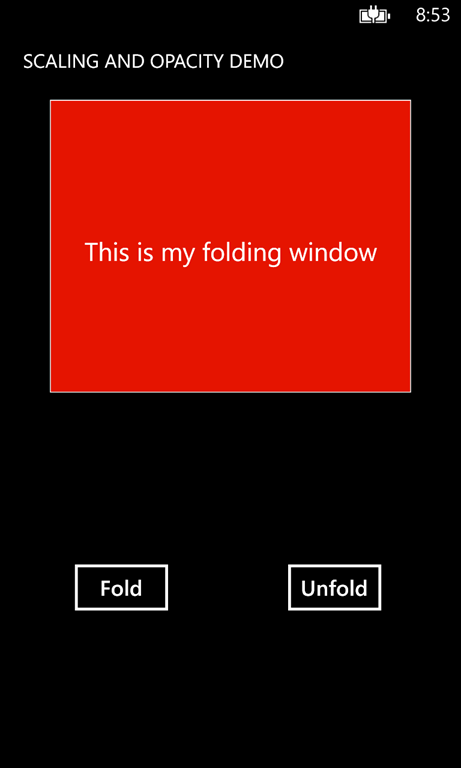
foldingNow the element will fold up and fade out simultaneously. And that’s exactly what happens is this little demo app that contains all the source code. And it shows you how to do the opposite as well – fold the window out again.

I can hear you think now: “So why on earth would you want to do this from code? Animations can be made can be made in Blend, and if you are such a Blend fan, why do you make me do it from code now, huh?”. I am an probably always will be a Blend fan – very much so, as will become clear soon – but the problem with this kind of animations is that they are not reusable. Storyboards tend to become attached to the element they have been created for – they refer by name to it. So I am trying to find a way to make a few common animations reusable. Read the next posts, and it will become clear. In the mean time, enjoy this demo application that demonstrates how to use the stuff.


On more for the road: if you add following line of at the top of both the Button_Click and Button_Click1 in the demo app:

FoldingPanel.RenderTransformOrigin = new Point(0.5, 0.5);

the panel won’t fold up to the top, but it will kind of collapse on its horizontal middle. This way, you set the origin of the animation. By setting it to 0.5, 0.5 you set it in the center point of the window. If you would set it to 1,1 the panel will fold up to its bottom.

And finally – although developed for Windows Phone 8, this this will work in Windows Phone 7 as well. And most likely for Windows 8, which will get some attention from me when this game is finally done. I think ;-)

02 November 2010

Swapping two elements in a bound ObservableCollection IMPROVED VERSION

Today I noticed something odd. I wanted to swap two elements in an ObservableCollection that was bound to a list box – so I could move objects up and down in the list box. I noticed that moving up always worked, and moving down led to a crash in my application with the message ‘The parameter is incorrect’ in the Application_UnhandledException method of App.Xaml. Fat lot of help that is, I can tell ya ;-)

Maybe this is a Windows Phone 7 only thing, but after a bit of experimenting I found out that you always have to change the value of the item that is last in the collection – i.e., the item with the highest index – first. This worked perfectly and I blogged about it. Later I found one exception, when I tried to swap the first and the second entry. Swapping second and first works, but the other way around gave once again ‘The parameter is incorrect’

This makes no sense at all, but I guess it has something to do with the fact that at one point in time the collection contains one object twice, and whatever is bound to it does not seem to like that very much. One of my household sayings is that were’s a will, there’s a workaround. So, second time around:

using System.Collections.Generic;
using System.Collections.ObjectModel;

using System.Collections.Generic;
using System.Collections.ObjectModel;

namespace LocalJoost.Utilities
{
  public static class ObservableCollectionExtensions
  {
    public static void Swap<T>(
       this ObservableCollection<T> collection, 
       T obj1, T obj2)
    {  
      if (!(collection.Contains(obj1) && collection.Contains(obj2))) return;
      var indexes = new List<int>
         {collection.IndexOf(obj1), collection.IndexOf(obj2)};
      if(indexes[0] == indexes[1]) return;
      indexes.Sort();
      var values = new List<T> {collection[indexes[0]], collection[indexes[1]]};
      collection.RemoveAt(indexes[1]);
      collection.RemoveAt(indexes[0]);
      collection.Insert(indexes[0], values[1]);
      collection.Insert(indexes[1], values[0]);
    }
  }
}
and now I am really done with it. It's not always high science what I blog, just things I hope that save someone else a lot of time :-)

29 September 2010

Extension methods for tomb stoning the Windows Phone 7 model

As I was (and still am) playing with my MVVM-driven Windows Phone 7 map viewer, I started thinking about tomb stoning and/or serializing stuff into the Windows Phone 7 application state and/or isolated storage. I came up with four extension methods than can be used to store/serialize the complete model in both. Maybe not ideal in all cases, but it was a simple solution for me.

Getting started

I created an assembly LocalJoost.Utilities, in which I first defined a generic interface for the model, which I called – with a flash of inspiration – IModel ;-). It’s implementation is not interesting for the extension methods.

Save to phone application state

using System;
using System.IO;
using System.IO.IsolatedStorage;
using System.Runtime.Serialization;
using System.Windows;
using Microsoft.Phone.Shell;

namespace LocalJoost.Utilities
{
  /// <summary>
  /// Some extensions method that allow serializing and deserializing
  /// a model to and from phone state and/or isolated storage
  /// </summary>
  public static class ApplicationExtensions
  {
    private const string ModelKey = "model";
 
    public static IModel RetrieveFromPhoneState(this Application app) 
    {
      if (PhoneApplicationService.Current.State.ContainsKey(ModelKey))
      {
        return PhoneApplicationService.Current.State[ModelKey] as IModel;
      }
      return null;
    }

    public static void SaveToPhoneState(this Application app, IModel model)
    {
      if (PhoneApplicationService.Current.State.ContainsKey(ModelKey))
      {
        PhoneApplicationService.Current.State.Remove(ModelKey);
      }
      PhoneApplicationService.Current.State.Add(ModelKey, model);
    }
  }
}

Creating a Locator

I wanted my model to be bindable by XAML and be usable from code as well, so I created the following ‘Locator’:

using LocalJoost.Utilities;

namespace LocalJoost.Models
{
  public class Locator
  {
    private static IModel _model;
    private static Locator _locator;

    public IModel Model
    {
      get { return _model; }
      set { _model = value; }
    }

    public static Locator Instance
    {
      get { return _locator ?? (_locator = new Locator()); }
    }
  }
}

Using Locator and Model from XAML

First, add the namespace to the XAML

xmlns:Utilities="clr-namespace:LocalJoost.Utilities;assembly=LocalJoost.Utilities"

Then bind it to your Layout root or any other element of choice

 <Grid x:Name="LayoutRoot"
  DataContext="{Binding Source={StaticResource Locator}, Path=Model}">

Instantiating your model

Interesting caveat – the Locator is instantiated, not your model. When the application runs for the very first time, there will be no model to retrieve. Thus, in the constructor of App.Xaml.cs you need to add:

Locator.Instance.Model = new YourModel();

in which you replace "YourModel" for your own model type.

Storing in / retrieving from phone application state

Using the extension methods is pretty simple then: open your App.Xaml.cs, find two methods called “Application_Activated” and “Application_Deactivated” and modify them as follows:

// Code to execute when the application is activated (brought to foreground)
// This code will not execute when the application is first launched
private void Application_Activated(object sender, ActivatedEventArgs e)
{
  Locator.Instance.Model = this.RetrieveFromPhoneState();
}

// Code to execute when the application is deactivated (sent to background)
// This code will not execute when the application is closing
private void Application_Deactivated(object sender, DeactivatedEventArgs e)
{
  this.SaveToPhoneState(Locator.Instance.Model);
}

And that’s it. Your model now persists to the phone state and survives, for instance, a hit on the search button

Storing in Isolated Storage

This proves to be marginally more difficult. I expanded the class ApplicationExtensions with two more methods and a const:

private const string DataFile = "model.dat";

public static T RetrieveFromIsolatedStorage<T>(this Application app) 
  where T : class
{
  using (var appStorage = IsolatedStorageFile.GetUserStoreForApplication())
  {
    if (appStorage.FileExists(DataFile))
    {
      using (var iss = appStorage.OpenFile(DataFile, FileMode.Open))
      {
        try
        {
          var serializer = new DataContractSerializer(typeof(T));
          return serializer.ReadObject(iss) as T;
        }
        catch (Exception e)
        {
          System.Diagnostics.Debug.WriteLine(e);
        }
      }
    }
  }
  return null;
}

public static void SaveToIsolatedStorage(this Application app, IModel model)
{
  using (var appStorage = IsolatedStorageFile.GetUserStoreForApplication())
  {
    if (appStorage.FileExists(DataFile))
    {
      appStorage.DeleteFile(DataFile);
    }
    var serializer = new DataContractSerializer(model.GetType());
    using (var iss = appStorage.CreateFile(DataFile))
    {
      serializer.WriteObject(iss, model);
    }
  }
}

You now have to find Application_Launching and Application_Closing in App.Xaml.cs and modify them in a similar way:

// Code to execute when the application is launching (eg, from Start)
// This code will not execute when the application is reactivated
private void Application_Launching(object sender, LaunchingEventArgs e)
{
    Locator.Instance.Model = 
       this.RetrieveFromIsolatedStorage<YourModel>();
}

// Code to execute when the application is closing (eg, user hit Back)
// This code will not execute when the application is deactivated
private void Application_Closing(object sender, ClosingEventArgs e)
{
    this.SaveToIsolatedStorage(Locator.Instance.Model);
}

Some notes

  • In order to make this work, your need to mark your model class with the [DataContract] attribute, and every member you want to be serialized with [DataMember]
  • If you are using MVVMLight (which of course you are ;-) ) and if you are just making simple apps that don’t use separate models but just view models, be aware that your model cannot inherit from ViewModelBase, for the simple reason that this class is not serializable. Oops ;-)
  • If your model communicates with the view using attached dependency properties you may run into some timing difficulties. I will soon blog about a work-around for that.

25 January 2010

A generic convertor for IEnumerable<T>

Apart from ForEach<T>, as I described in my previous post, I noticed the absence of ConvertAll<T> on everything but List<T> as well. Pretty annoying when I wanted to convert a list of business objects of So I extended my static class GenericUtilities with another extension methdo

using System;
using System.Collections.Generic;

namespace LocalJoost.Utilities
{
  public static class GenericExtensions
  {
    // previous code for ForEach omitted.

    public static IEnumerable<TC> ConvertAll<T, TC>(
      this IEnumerable<T> inputList, 
      Converter<T, TC> convert)
    {
        foreach( var t in inputList )
        {
            yield return convert(t);
        }
  }
}
This permitted me to do something like this:
return ListRubriek.Get()
  .ConvertAll(p => new CascadingDropDownNameValue(
        p.Omschrijving, p.Id.ToString()))
  .ToArray();
to easily convert a list of CSLA business objects into a list that could be used in an ASP.NET Ajax Cascading dropdown. Nothing special for the veteran functional programmer I guess but still, useful.

This is actually the 2nd version - thanks to Jarno Peschier for some constructive criticism

19 January 2010

One ForEach to rule them all

I ran into this when I was investigating functional programming in C#. That’s been around for a while, but apart from using it for traversing or modifying collections or lists, I never actually created something that was making use of a function parameter.

Anyway, one of my most used constructs is the ForEach<T> method of List<T>. I always thought it to be quite annoying that it is only available for List<T>. Not for IList<T>, ICollection<T>, or whatever. Using my trademark solution pattern – the extension method ;-)
I tried the following:

using System;
using System.Collections.Generic;

namespace LocalJoost.Utilities
{
  public static class GenericExtensions
  {
    public static void ForEach<T>(this IEnumerable<T> t, Action<T> action)
    {
      foreach (var item in t)
      {
        action(item);
      }
    }
  }
}

And that turned out to be all. IList<T>, ICollection<T>, everything that implements IEnumerable<T> – now sports a ForEach method. It even works for arrays, so if you have something like this

string[] arr = {"Hello", "World", "how", "about", "this"};
arr.ForEach(Console.WriteLine);
It nicely prints out

Hello
World
how
about
this

I guess it's a start. Maybe it is of some use to someone, as I plod on ;-)

25 August 2009

Yet another way to determine root paths in ASP.NET

How many times I have tried to find the root path of an ASP.NET page or a handler (ASHX) in order to call another URL I can hardly count. When working with WMS and WFS services and connected documents - when you call all kind of weird 'services' - it's something that needs to be done often. I decided to put a few in what seems to become my trade mark - extension methods. I created the following extensions to HttpContext
using System;
using System.Web;

namespace LocalJoost.Utilities.Web
{
  public static class HttpContextExtensions
  {
    public static string FullRootPath( this HttpContext context )
    {
      return context.Request.Url.AbsoluteUri.Split(
        new[] { context.Request.Url.AbsolutePath },
        StringSplitOptions.RemoveEmptyEntries)[0];
    }

    public static string FullApplicationPath(this HttpContext context)
    {
      return string.Concat(context.FullRootPath(), 
        context.Request.ApplicationPath);
    }
  }
}
In the Page_Load of an aspx page you can, for instance, use the methods as described below:
var r = Context.FullRootPath();
var a = Context.FullApplicationPath();
r will contain something like "http://localhost:3974" and a "http://localhost:3974/YourTestSite". Maybe there are simpler ways, but these work very well for me.

15 August 2009

Using extension methods to serialize objects to XML and compress the result - and deserialize again

Elaborating upon the string extension methods I created for compressing and decompressing strings to and from a byte array, it turned out fairly easy to create another set of compress / decompress methods to serialize any type of object to and from a byte array containing compressed XML. I once again took the StringZipExtensions class and added the following methods to compress any old object to a byte array:
/// <summary>
/// XmlSerializes the object to a compressed byte array
/// using the specified encoding.
/// </summary>
/// <param name="objectToCompress">The object to compress.</param>
/// <param name="encoding">The encoding.</param>
/// <returns>bytes array with compressed serialized object</returns>
public static byte[] Compress(this object objectToCompress,
  Encoding encoding)
{
  var xmlSerializer = new XmlSerializer(objectToCompress.GetType());
  using (var stringWriter = new StringWriter())
  {
    xmlSerializer.Serialize(stringWriter, objectToCompress);
    return stringWriter.ToString().Compress(encoding);
  }
}

/// <summary>
/// XmlSerializes the object to a compressed byte array using default
/// UTF8 encoding.
/// </summary>
/// <param name="objectToCompress">The object to compress.</param>
/// <returns>bytes array with compressed serialized object</returns>
public static byte[] Compress(this object objectToCompress)
{
  return Compress(objectToCompress, new UTF8Encoding());
}
Here, once again, an overload using a default UTF8 encoding and a method which uses your own encoding to do the heavy lifting. Then, the methods for decompressing, which - in all modesty - are a rather neat usage of generics, I think:
/// <summary>
/// Decompress an array of bytes into an object via Xml Deserialization
/// using the specified encoding
/// </summary>
/// <typeparam name="T"></typeparam>
/// <param name="compressedObject">The compressed string.</param>
/// <param name="encoding">The encoding.</param>
/// <returns>Decompressed object</returns>
public static T DecompressToObject<T>(this byte[] compressedObject,
  Encoding encoding)
{
  var xmlSer = new XmlSerializer(typeof(T));
  return (T)xmlSer.Deserialize(new StringReader(
    compressedObject.DecompressToString(encoding)));
}

/// <summary>
/// Decompress an array of bytes into an object via Xml Deserialization
/// using default UTF8 encoding
/// </summary>
/// <param name="compressedObject">The compressed string.</param>
/// <returns>Decompressed object</returns>
public static T DecompressToObject<T>(this byte[] compressedObject )
{
  return DecompressToObject<T>(compressedObject, new UTF8Encoding());
}
Then you can take something like this hugely complex ;-) object Person
public class Person
{
  public int Id { get; set; }
  public string Name { get; set; }
  public DateTime Birthday { get; set; }

  public override bool Equals(object obj)
  {
    var toCompare = obj as Person;
    if( toCompare != null )
    {
      return
        Name.Equals(toCompare.Name) &&
        Id.Equals(toCompare.Id) &&
        Birthday.Equals(toCompare.Birthday);

    }
    return base.Equals(obj);
  }
}
and serialize/compress and decompress/deserialize it like this:
[Test]
public void CompressObjectTest()
{
  var baseLineObject = new Person
  {
  Id = 99, 
  Name = "Tom", 
  Birthday = new DateTime(1969, 06, 03)
  };
  var compressed = baseLineObject.Compress();
  var testObject = compressed.DecompressToObject<Person>();
  Assert.AreEqual(testObject, baseLineObject);
}
Code downloadable here

12 August 2009

Using extension methods to compress and decompress strings

After some rightful comments by Jarno Peschier I decided to once again look into my blog post about putting compressed object on the Azure message queue and came up with the following set of extensions methods that allow you to compress a string via gzip into a byte array, and unzip a byte array containing a compressed string to a regular string again:
using System.IO;
using System.IO.Compression;
using System.Text;

namespace LocalJoost.Utilities.Compression
{
 public static class StringZipExtensions
 {
  /// <summary>
  /// Compresses the specified string a byte array using the specified
  /// encoding.
  /// </summary>
  /// <param name="stringToCompress">The string to compress.</param>
  /// <param name="encoding">The encoding.</param>
  /// <returns>bytes array with compressed string</returns>
  public static byte[] Compress(
   this string stringToCompress, 
    Encoding encoding )
   {
    var stringAsBytes = encoding.GetBytes(stringToCompress);
    using (var memoryStream = new MemoryStream())
    {
     using (var zipStream = new GZipStream(memoryStream,
      CompressionMode.Compress))
     {
      zipStream.Write(stringAsBytes, 0, stringAsBytes.Length);
      zipStream.Close();
      return (memoryStream.ToArray());
     }
    }
   }

   /// <summary>
   /// Compresses the specified string a byte array using default
   /// UTF8 encoding.
   /// </summary>
   /// <param name="stringToCompress">The string to compress.</param>
   /// <returns>bytes array with compressed string</returns>
  public static byte[] Compress( this string stringToCompress )
  {
   return Compress(stringToCompress, new UTF8Encoding());
  }

  /// <summary>
  /// Decompress an array of bytes to a string using the specified
  /// encoding
  /// </summary>
  /// <param name="compressedString">The compressed string.</param>
  /// <param name="encoding">The encoding.</param>
  /// <returns>Decompressed string</returns>
  public static string DecompressToString(
   this byte[] compressedString, 
   Encoding encoding)
  {
   const int bufferSize = 1024;
   using (var memoryStream = new MemoryStream(compressedString))
   {
    using (var zipStream = new GZipStream(memoryStream,
     CompressionMode.Decompress))
    {
     // Memory stream for storing the decompressed bytes
     using (var outStream = new MemoryStream())
     {
      var buffer = new byte[bufferSize];
      var totalBytes = 0;
      int readBytes;
      while ((readBytes = zipStream.Read(buffer,0, bufferSize)) > 0)
      {
       outStream.Write(buffer, 0, readBytes);
       totalBytes += readBytes;
      }
      return encoding.GetString(
       outStream.GetBuffer(),0, totalBytes);     
     }
    }
   }
  }

  /// <summary>
  /// Decompress an array of bytes to a string using default
  /// UTF8 encoding.
  /// </summary>
  /// <param name="compressedString">The compressed string.</param>
  /// <returns>Decompressed string</returns>
  public static string DecompressToString(this byte[] compressedString )
  {
   return DecompressToString(compressedString, new UTF8Encoding());
  }
 }
}
You can now quite simply do something like
using LocalJoost.Utilities.Compression;
using NUnit.Framework;

namespace LocalJoost.Utilities.Test
{
  [TestFixture]
  public class TestCompress
  {
    [Test]
    public void TestZipUnzip()
    {
      const string test = "The quick brown fox jumps over the lazy dog";
      var compressed = test.Compress();
      var uncompressed = compressed.DecompressToString();
      Assert.AreEqual(test, uncompressed);
    }
  }
}
and that will work, of course ;-) Both the Compress and the DecompressToString methods use UTF8 as default encoding as Jarno suggested by Live Messenger, but both methods also sport an overload which allow you to provide an encoding yourself. This will support almost any encoding - provided of course you use the same encoding to compress and decompress. So, this can even be used to compress strings containing Klingon messages - I hope this will earn me a fond majQa' from Jarno ;-) Code downloadable here

24 July 2009

Storing objects as compressed messages in the Windows Azure Queue

For my current private R&D project I wanted to store 'task set' objects (in code samples below as shown type "Request") on the Windows Azure Queue. To prevent serialization issues I opted for XML serialization, like this:
private void Enqueue(Request tr)
{
  var queueStorage = QueueStorage.Create(
  StorageAccountInfo.GetDefaultQueueStorageAccountFromConfiguration());
  var queue = queueStorage.GetQueue("MyQueue");
  if (!queue.DoesQueueExist())
  {
    queue.CreateQueue();
  }

  var xmlSerializer = new XmlSerializer(tr.GetType());
  using (var stringWriter = new StringWriter())
  {
    xmlSerializer.Serialize(stringWriter, tr);
    queue.PutMessage(new Message(stringWriter.ToString()));
  }
}
I would let the worker role deserialize the Request object and then execute it. It annoyed me to no end to learn that the Azure Queue limits message sizes to 8192 bytes. I could have redesigned my task sets to smaller units, but that would hurt the efficiency of the process I had in mind. Based upon the StringZipExtensions class I blogged about that can serialize and deserialize any old object to and from compressed XML (which you can download here) I created the following extension methods, which enable you to store objects as a GZip compressed set of bytes on the Azure queue and retrieve them again:
using LocalJoost.Utilities.Compression;
using Microsoft.Samples.ServiceHosting.StorageClient;

namespace LocalJoost.Utilities.Azure
{
  public static class MessageQueueExtensions
  {
    /// <summary>
    /// Decompresses the specified queue message.
    /// </summary>
    /// <param name="message">The message.</param>
    /// <returns></returns>
    public static string Decompress(this Message message)
    {
      return message != null ?
       message.ContentAsBytes().DecompressToString() : null;
    }

    /// <summary>
    /// Decompresses the specified queue message.
    /// to an object
    /// </summary>
    /// <param name="message">The message.</param>
    /// <returns></returns>
    public static T Decompress <T>(this Message message) where T:class
    {
      return message != null ?
       message.ContentAsBytes().DecompressToObject<T>() : null;
    }
  }
}
Adhering to my first code sample, you can now simply put an object to the queue like this
private void Enqueue(Request tr)
{
  var queueStorage = QueueStorage.Create(
    StorageAccountInfo.GetDefaultQueueStorageAccountFromConfiguration());
  var queue = queueStorage.GetQueue("MyQueue");
  if (!queue.DoesQueueExist())
  {
    queue.CreateQueue();
  }

  queue.PutCompressedObject(tr);
}
and let the worker role use the Decompress extension method on the Message itself:
var queueStorage =
  QueueStorage.Create(
  StorageAccountInfo.GetDefaultQueueStorageAccountFromConfiguration());
var queue = queueStorage.GetQueue("MyQueue");
if (queue.DoesQueueExist())
{
  var message = queue.GetMessage(600);
  if (message != null)
  {
    var request = message.Decompress<Request>();
    request.Execute();
    queue.DeleteMessage(message);
  }
}
And there you go. It is as simple as that. Although the Window Azure Queue message queue size still is limited to 8192, the amount of data that fits in that space is increased dramatically.

18 July 2009

Calling a service relative to the Silverlight XAP (improved)

In my previous post I showed a way to call a service defined with a full path, as created by the designer, relative to that of the location of your XAP, by means of an extension to a user control. I developed that during a training and while blogging it I alreadly realized that there was room for improvement. And here it is:
using System;
using System.ServiceModel;
using System.ServiceModel.Description;
using System.Windows;

namespace LocalJoost.Utilities.Silverlight
{
  public static class ServiceEndpointExtension
  {
    public static void MakeRelative(
      this ServiceEndpoint endpoint)
    {
      var clientbinLocation = 
        Application.Current.Host.Source.ToString().Substring(0,
        Application.Current.Host.Source.ToString().LastIndexOf("/"));
      var rootLocation = 
        clientbinLocation.Substring(0, 
        clientbinLocation.LastIndexOf("/"));
      endpoint.Address = new EndpointAddress(
        new Uri(string.Concat(rootLocation, 
          endpoint.Address.Uri.AbsolutePath)));
    }
  }
}
In stead of extending the user control I now extend the ServiceEndpoint. If you now want to call a service that is sitting in the root of your web application that is hosting you can call it like this:
var client = new CloudMapperDataServiceClient();
client.Endpoint.Address.MakeRelative();
Substitute "CloudMapperDataServiceClient" by your own client proxy class and you are go for launch (Sorry, currently listening to wechoosethemoon.org ;-)

17 February 2009

Silverlight data binding the lazy way

Your typical business class utilizing data binding in Silverlight (and possibly WPF too, but I don't have any experience with that) look like this:
using System.ComponentModel;

namespace Dotnetbyexample
{
  public class Person : INotifyPropertyChanged
  {
    public event PropertyChangedEventHandler PropertyChanged;

    private string firstName;
    public string FirstName
    {
      get { return this.firstName; }
      set
      {
        this.firstName = value;
        this.NotifyPropertyChanged("FirstName");
      }
    }

    private string lastName;
    public string LastName
    {
      get { return this.lastName; }
      set
      {
        this.lastName = value;
        this.NotifyPropertyChanged("LastName");
      }
    }

    private string address;
    public string Address
    {
      get { return this.address; }
      set
      {
        this.address = value;
        this.NotifyPropertyChanged("Address");
      }
    }

    private string city;
    public string City
    {
      get { return this.city; }
      set
      {
        this.city = value;
        this.NotifyPropertyChanged("City");
      }
    }

    private string state;
    public string State
    {
      get { return this.state; }
      set
      {
        this.state = value;
        this.NotifyPropertyChanged("State");
      }
    }

    private string zip;
    public string Zip
    {
      get { return this.zip; }
      set
      {
        this.zip = value;
        this.NotifyPropertyChanged("Zip");
      }
    }

    public void NotifyPropertyChanged(string propertyName)
    {
      if (PropertyChanged != null)
      {
        PropertyChanged(this, new PropertyChangedEventArgs(propertyName));
      }
    }
  }
}
Silverlight data binding rocks, for if you change the attribute, the listening GUI elements will update automatically, but what I particulary not like is the fact that the NotifyPropertyChanged method needs to be called with the name of the property as a string. Change the property name and the event does not work anymore. I created the following extension method
using System.ComponentModel;
using System.Diagnostics;

namespace Dotnetbyexample
{
  public static class INotifyPropertyChangedExtension
  {
    public static void NotifyPropertyChanged(
       this INotifyPropertyChanged npc, 
       PropertyChangedEventHandler PropertyChanged)
    {
      if (PropertyChanged != null)
      {
        string propertyName =
           new StackTrace().GetFrame(1).GetMethod().Name.Substring(4);

        PropertyChanged(npc, new PropertyChangedEventArgs(propertyName));
      }
    }
  }
}
which allows me to rewrite the business object as follows
using System.ComponentModel;

namespace Dotnetbyexample
{
  public class Person : INotifyPropertyChanged
  {
    public event PropertyChangedEventHandler PropertyChanged;

    private string firstName;
    public string FirstName
    {
      get { return this.firstName; }
      set
      {
        this.firstName = value;
        this.NotifyPropertyChanged(PropertyChanged);
      }
    }

    private string lastName;
    public string LastName
    {
      get { return this.lastName; }
      set
      {
        this.lastName = value;
        this.NotifyPropertyChanged(PropertyChanged);
      }
    }

    private string address;
    public string Address
    {
      get { return this.address; }
      set
      {
        this.address = value;
        this.NotifyPropertyChanged(PropertyChanged);
      }
    }

    private string city;
    public string City
    {
      get { return this.city; }
      set
      {
        this.city = value;
        this.NotifyPropertyChanged(PropertyChanged);
       }
    }

    private string state;
    public string State
    {
      get { return this.state; }
      set
      {
        this.state = value;
        this.NotifyPropertyChanged(PropertyChanged);
      }
    }

    private string zip;
    public string Zip
    {
      get { return this.zip; }
      set
      {
        this.zip = value;
        this.NotifyPropertyChanged(PropertyChanged);
      }
    }
  }
}
and presto: I got rid of the custom NotifyPropertyChanged method at the bottom of the class, and now the call to the extension method NotifyPropertyChanged is the same for every setter. No need to remember to change the string in the NotifyPropertyChanged when the property name changes - or when you copy the getter/setter from somewhere else ;-) Key to the whole trick is the quite unorthodox usage of the Stacktrace
new StackTrace().GetFrame(1).GetMethod().Name.Substring(4);
credits for this of course go to Rockford Lhotka with his CSLA framework - in the BusinessBase object of this framework I noticed this trick a year or so ago and suddenly I wondered if it would work in a Silverlight environment as well. Update: in the newest version of the CSLA framework the method using this trick -CanWriteProperty - is marked deprecated, and is replaced by a method CanWriteProperty(string) that takes the property name as an explicit string - so Lhotka is now swinging round to follow the PropertyChangedEventHandler.

26 November 2007

String extension methods

C# 3.0 features the new extension methods. This basically seems to allow you to add your own methods to sealed classes. That seems a bit weird, and Microsoft gives the following advice in the Visual Studio 2008 help
In general, we recommend that you implement extension methods sparingly and only when you have to. Whenever possible, client code that must extend an existing type should do so by creating a new type derived from the existing type.
Full article Then try to make a List<> and bring up the Intellisense box. You will see 40-50 new methods, and by now you will guess they are all extension methods. Practiced what thy preached, Microsoft! Anyway, if Microsoft makes a lot of extension methods, so can we. We can now finally get rid of our 'utility' classes and make something like this:
namespace LocalJoost.Utilities
{
    public static class StringExtensions
    {
        public static string Reverse(this string s)
        {
            StringBuilder builder = new StringBuilder();
            for (int i = s.Length - 1; i >= 0; i--)
            {
                builder.Append(s.Substring(i, 1));
            }
            return builder.ToString();
        }
    }
}
And then we can do something like this:
string test = "Hello hello";
string reversed = test.Reverse();
The string "reversed" will now contain the string "olleh olleH". Notice the "this" keyword before the string s in method Reverse of class StringExtensions - that is the thing that defines Reverse as an extension method of string. The only further requirements are that both class and method implementing the extension are static.