This blog attempts to be a collection of how-to examples in the Microsoft software stack - things that may take forever to find out, especially for the beginner. I see it as my way to return something to the Microsoft community in exchange for what I learned from it.
No, I am not drunk, nor did I smoke some peculiar produce our capital Amsterdam is famous for, and I did not bump my head a bit too hard on my car while getting out of it either. I was just curious how far the U of UWP would carry me. And it turns out, a lot further than I thought. It’s actually possible to run a HoloLens app on a Raspberry PI2. When I saw it happen, I actually had a bit trouble believing my own eyes, but it is possible indeed. With surprisingly little work. Although I added a little extra work to make it more fun.
I used a Raspberry PI2 running the latest Windows 10 IoT Core Insider’s build and a NexDock. Mainly because I have one, it’s handy and it looks cool. Be aware that to connect the NexDock keyboard you will need a Bluetooth dongle for your RP2 – or you will need use a RP3 which has it on board.
This post builds upon my (as of the time of this writing still incomplete) series about the Hololens Aircraft tracker, but that’s only because that’s a cool app to demo the idea on. It is no part of the series. I made a separate branch of the app at the end of the 6th episode. So this is like an interlude.
Some brute-force demolishing to get things to compile
Basically it’s as simple as setting the build target to ARM:
The only problem is, if you do that and then rebuild the project, it will complain about this
For the very simple reason this dll, which is part of the HoloToolkit, is not available for ARM. Hell, HoloLens runs x86 only, so why should it be available. No-one ever anticipated using a dolt peculiar person like me trying to run it on a bloody Raspberry PI2.
There is a rather crude way of fixing it. We are not using SpatialUnderstanding anyway, most certainly not on the Raspberry PI2. So I got rid of the plugin that Visual Studio complained about, by going to this folder in Unity:
And hitting delete. Rebuild project in Unity, try to compile it in Visual Studio. Alas. Still no success
But this is a different plugin dll – PlaneFinding. Also something we don’t use. Now this is a bit confusing, as there are three folder containing a Planefinding.dll. Maybe that’s an error in the HoloToolkit.
Whatever. Let’s get rid of the whole plugins folder under SpatialMappping. Once again, rebuild in Unity, compile in Visual Studio. And wouldn’t you know it…
The sweet smell of success. Now I want you to understand this is no way to go about to make a HoloLens project compatible with a Raspberry PI2. This is using a mallet to hit very hard on a square peg to make it go through a round hole. I have demolished two components you might want to use in the future version of your HoloLens app. But this is not serious development – this is hacking for fun’s sake to prove a point. That is why I have made a separate branch ;).
Controlling the app’s viewpoint
When you run the app on the HoloLens this is no issue at all. If you want to see the airport and it’s planes from closer up or from a different angle, you just move your head, walk to the object of your interest – or around it. If if runs on a screen, things are a bit different. So I created this little behaviour (with “ou” indeed, which suggests the good folks at Unity have been educated in The Queen’s English) that more or less replicates the key mappings of the HoloLens emulator:
It’s crude, ugly, the result is a bit stuttering – but it does the job.
using UnityEngine;

public class KeyboardCameraController : MonoBehaviour
{
  public float Rotatespeed = 0.4f;
  public float MoveSpeed = 0.02f;
  public float FastSpeedAccleration = 7.5f;

  private Quaternion _initialRotation;
  private Vector3 _initialPosition;
  void Start()
  {
    _initialRotation = Camera.main.transform.rotation;
    _initialPosition = Camera.main.transform.position;
  }

  void Update()
  {
    var speed = 1.0f;
    if (Input.GetKey(KeyCode.LeftShift) || Input.GetKey(KeyCode.RightShift))
    {
      speed = FastSpeedAccleration * speed;
    }

    if (Input.GetKey(KeyCode.LeftArrow))
    {
      Camera.main.transform.RotateAround(Camera.main.transform.position,
          Camera.main.transform.up, -Rotatespeed * speed);
    }

    if (Input.GetKey(KeyCode.RightArrow))
      Camera.main.transform.RotateAround(Camera.main.transform.position,
          Camera.main.transform.up, Rotatespeed * speed);

    if (Input.GetKey(KeyCode.UpArrow))
    {
      Camera.main.transform.RotateAround(Camera.main.transform.position,
          Camera.main.transform.right, -Rotatespeed * speed);
    }

    if (Input.GetKey(KeyCode.DownArrow))
      Camera.main.transform.RotateAround(Camera.main.transform.position,
          Camera.main.transform.right, Rotatespeed * speed);

    if (Input.GetKey(KeyCode.A))
      Camera.main.transform.position +=
          Camera.main.transform.right * -MoveSpeed * speed;

    if (Input.GetKey(KeyCode.D))
      Camera.main.transform.position +=
          Camera.main.transform.right * MoveSpeed * speed;

    if (Input.GetKey(KeyCode.W))
      Camera.main.transform.position +=
          Camera.main.transform.forward * MoveSpeed * speed;

    if (Input.GetKey(KeyCode.S))
      Camera.main.transform.position +=
          Camera.main.transform.forward * -MoveSpeed * speed;

    if (Input.GetKey(KeyCode.PageUp))
      Camera.main.transform.position +=
          Camera.main.transform.up * MoveSpeed * speed;

    if (Input.GetKey(KeyCode.PageDown))
      Camera.main.transform.position +=
          Camera.main.transform.up * -MoveSpeed * speed;

    if (Input.GetKey(KeyCode.Escape))
    {
      Camera.main.transform.position = _initialPosition;
      Camera.main.transform.rotation = _initialRotation;
    }

  }
}
Drag this behaviour on top of the camera (or for what matters, anything at all). You will be able to control the camera’s standpoint via what I have been told is the the standard PC gamer’s WASD and arrow key mappings. PageUp/PageDown will move the camera standpoint up and down, ESC will bring you back to the original viewpoint when the app started, and using SHIFT will make things go faster.
Deploy and run
Deploy the app to your Raspberry PI2 or 3 using Visual Studio – and select your PI as remote machine. Use either “Release” or “Master” build configuration. The latter should - in theory – go faster, but takes much longer (as in very much longer) to compile and deploy. Also, if you choose “Master”, the app does not always start on my PI, it’s sometimes only deployed – so you have to get it going via the device’s Device Portal. This may have something to do with me running an Insider’s build.
Either way – if you have WiFi either built-in or via dongle, that’s fine, but unless you particularly like waiting, connect your PI2/3 to a wired connection while deploying. I also observed issues when the app runs while only having WiFi connectivity – data comes in pretty slow, it can take minutes before the first airplanes appear, while on wired it takes like 30 seconds, max. Apparently my 2.4Ghz network (which the PIs use) is not that strong compared to the 5G all the other devices in the house employ.
And it works. Here are some pictures and a video of the app in action. The performance is not stellar (big surprise here, matching a $35 device against a $3000 device that comes straight out of Star Trek), but still – it works pretty reasonable.
Conclusion
Looks like the U in Universal Windows Platform is pretty universal indeed. Microsoft weren’t talking BS rubbish about this promise. This app can also be deployed to PCs (I learned that by accidentally choosing “Local Machine” as a target) and I don’t doubt it will run on phones and even XBox One, although I think I would have to ponder a little about the way to control the viewpoint on those devices as they don’t have a keyboard. Yet, an impressive result.
Part 5 of Reading temperatures & controlling a fan with a RP2, Azure Service Bus and a Microsoft Band
Intro You cannot deploy apps to a Microsoft Band directly, so there is always a kind of app running on the device to which it is paired on which the code is actually running. Typically this is a phone, but there since this is a Universal Windows App, there is no reason why it could not run on a PC, like this screenshot shows :). Yet, I have found out that although you can pair a Band to a PC, it will insist on connecting to the app before showing a UI, so you cannot actually use it with a PC. So for the time being, you should use a phone.
This blog post will talk about the setup of the app itself, actually excluding most of the stuff related to the Band - and concentrate on how to setup a reasonably componentized app.
This app also uses dependency injection, as discussed in my post about the app on the Raspberry PI2, but this one makes full use of the MVVM pattern - to be more specific, MVVMLight, by my fellow MVP (although I can barely stand in his shade) Laurent Bugnion. I make use of his ViewModelBase and Messenger, as well as SimpleIoC for some inversion of control, and DispatcherHelper to get help me solve potential issues with background processes having effects on the UI.
Basic app setup The app starts (of course) in App.xaml.cs, of which I show a little excerpt:
The first two lines mean that whenever something requests something implementing an IMessageDisplayer, send him a Toaster. A similar thing goes for IErrorLogger. Retrieving something is a easy as using GetInstance - see App_UnhandledException. Toaster is a simple class to show a toast message, ErrorLogger is something I wrote for logging errors in local storage - for long running processes. Notice also the use of the Messenger in the App_Resuming. This is all part of making the viewmodel aware of things it needs to know, which ever making a direct dependency
If you use MVVMLight's DispatcherHelper, don't forget to initialize it (I always do for some reason, fortunately the error message is clear enough) and then I initialize my main viewmodel. Which, since this is a simple app, is the only viewmodel as well ;)
Bootstrapping the viewmodel The part of the viewmodel that handles startup and initializing is this:
using System;
using System.Globalization;
using System.Threading.Tasks;
using Windows.ApplicationModel.ExtendedExecution;
using Windows.Devices.Geolocation;
using GalaSoft.MvvmLight;
using GalaSoft.MvvmLight.Ioc;
using GalaSoft.MvvmLight.Messaging;
using GalaSoft.MvvmLight.Threading;
using TemperatureReader.ClientApp.Helpers;
using TemperatureReader.ClientApp.Messages;
using TemperatureReader.ClientApp.Models;
using TemperatureReader.ServiceBus;

namespace TemperatureReader.ClientApp.ViewModels
{
  public class MainViewModel : ViewModelBase
  {
    private readonly ITemperatureListener _listener;
    private readonly IBandOperator _bandOperator;
    private readonly IMessageDisplayer _messageDisplayer;
    private readonly IErrorLogger _errorLogger;

    public MainViewModel(ITemperatureListener listener,
      IBandOperator bandOperator,
      IMessageDisplayer messageDisplayer,
      IErrorLogger errorLogger)
    {
      _listener = listener;
      _bandOperator = bandOperator;
      _messageDisplayer = messageDisplayer;
      _errorLogger = errorLogger;
    }

    public void Init()
    {
      Messenger.Default.Register<ResumeMessage>(this,
        async msg => await OnResume());
    }

    // lots omitted

    private static MainViewModel _instance;

    public static MainViewModel Instance
    {
      get { return _instance ?? (_instance = CreateNew()); }
      set { _instance = value; }
    }

    public static MainViewModel CreateNew()
    {
      var fanStatusPoster = new FanSwitchQueueClient(QueueMode.Send);
      fanStatusPoster.Start();
      var listener = new TemperatureListener();
      var errorLogger = SimpleIoc.Default.GetInstance<IErrorLogger>();
      var messageDisplayer = SimpleIoc.Default.GetInstance<IMessageDisplayer>();
      var bandOperator = new BandOperator(fanStatusPoster);
      return (new MainViewModel(
        listener, bandOperator,
        messageDisplayer, errorLogger));
    }
  }
}
And here you see once again creation of a number of independent objects that will only be loosely connected. I could have gone further and let these also be created by having them registered in SimpleIoC, but the constructor will also allow me to 'inject' these objects into the viewmodel. Anyway, we see being created:
a FanSwitchQueueClient, that will transport the command to switch the fan on or off to the Raspberry PI2 via the Azure Service bus. It's details were explained in the 2nd post of this series. It's now in Send mode, as opposed to the app on the Raspberry PI2.
TemperatureListener listens to temperature data coming from the Raspberry PI2. It's a thin wrapper around TemperatureQueueClient (also explained in in the 2nd post of this series)
An ErrorLogger, which I will describe in a future blog post
A MessageDisplayer - it's implementation being something that shows a toast, as already mentioned
A BandOperator - a class that handles all interactions with the Microsoft Band as far as this app is concerned. This will be handled in detail in the next blog post. Notice it takes a FanSwitchQueueClient as a parameter - the BandOperator itself will handle the posting of the fan switch command (and defer the actual execution to the FanSwitchQueueClient).
For now, it's good enough to know the BandOperator has a very limited public interface, that looks like this:
TemperatureListener This is basically a very thin wrapper around the TemperatureQueueClient, that only adds 'remembering' the queue's status to the basic functionality:
public class TemperatureListener : ITemperatureListener
{
  private readonly TemperatureQueueClient _client;
  public TemperatureListener()
  {
    _client = new TemperatureQueueClient(QueueMode.Listen);
    _client.OnDataReceived += ProcessTemperatureData;
 }

  private void ProcessTemperatureData(object sender,
    TemperatureData temperatureData)
  {
    OnTemperatureDataReceived?.Invoke(this, temperatureData);
  }

  public async Task Start()
  {
    await _client.Start();
    IsRunning = true;
  }

  public bool IsRunning { get; private set; }

  public void Stop()
  {
    _client.Stop();
    IsRunning = false;
  }

  public event EventHandler<TemperatureData> OnTemperatureDataReceived;
}
Note that it puts the TemperatureQueueClient in Listen mode - this is again exactly the mirror image from what is happening on the Raspberry PI2
The view model's public interface - aka what is used for data binding These 5 properties - and the one method - are the only things that are available to the 'outside world' as far as the main view model is concerned:
public async Task RemoveTile()
{
  IsBusy = true;
  await Task.Delay(1);
  await _bandOperator.RemoveTile();
  IsBusy = false;
}

public bool IsListening
{
  get
  {
    return _listener?.IsRunning ?? false;
  }
  set
  {
    if (_listener != null)
    {
      if (value != _listener.IsRunning)
      {
        Toggle();
      }
    }
  }
}

private string _temperature = "--.-";
public string Temperature
{
  get { return _temperature; }
  set { Set(() => Temperature, ref _temperature, value); }
}

private string _lastDateTimeReceived = "--:--:--   ----------";
public string LastDateTimeReceived
{
  get { return _lastDateTimeReceived; }
  set { Set(() => LastDateTimeReceived, ref _lastDateTimeReceived, value); }
}

private string _fanStatus = "???";
public string FanStatus
{
  get { return _fanStatus; }
  set { Set(() => FanStatus, ref _fanStatus, value); }
}

private bool _isBusy;
public bool IsBusy
{
  get { return _isBusy; }
  set { Set(() => IsBusy, ref _isBusy, value); }
}
The method "RemoveTile" is called to remove the custom tile from the Band and is bound to the button labeled as such. IsListening is bound to the toggle switch, IsBusy is bound to the progress ring and the semi-transparent overlay that will appear while you switch the toggle, and the rest of the properties are just display properties.
There is a single call to the BandOperator - later we will see more. The public interface for a BandOperator is very limited, as are the interface for all the classes in this project:
And that is all you need to know from the BandOperator for this blog post.
MVVMLight aficionados like me might notice that our good friend RelayCommand is MIA. This is because in the XAML I use the new x:Bind syntax, as you might have seen in this StackPanel in MainPage.xaml that show most of the text being displayed:
This new way of binding allows to directly binding public viewmodel methods to events happening in the user interfaced, so we don't need a command anymore:
<Button Grid.Row="5" Click="{x:Bind ViewModel.RemoveTile}"
  Content="Remove tile from Band" HorizontalAlignment="Center"/>
Detailed information on how to bind events directly to events can be found here. In order to be able to use x:Bind, the object to bind to needs to be a public property of the code behind class. This you can see in MainPage.xaml.cs:
public MainViewModel ViewModel
{
  get { return MainViewModel.Instance; }
}
Starting and stopping As you can see from IsListening, there should be a Toggle method that is kicked off when the IsListening property is set. There is one indeed, and it - and it's friends - are implemented like this:
Start basically kicks the whole thing off. I have found out that unless you specifiy the Task.Delay(1), setting IsBusy does not have any effect on the UI. Once, and I am literally talking the previous century here, I used DoEvents() in Visual Basic (6, yes) that had exactly the same effect ;) - now you get to see the progress ring and the overlay on the rest of the UI. Both this viewmodel and the bandoperator are made to listen to incoming temperature events on the TemperatureListener, and that TemperatureListener is started then. The bandoperator can do with it whatever it wants. Then we start a 'background session' to keep the app alive as long as possible. Then the band operator is started - this will in effect create a tile and a user interface on the connected Band, if that is not already there, and the Band will be made to vibrate. The application is running now.
Finally, in the viewmodel's Listener_OnTemperatureDataReceived method the data is put on the phone's screen and then passed around in a message to interested parties
Stop, of course, neatly disconnects all events again and stops all the components.
Flow of events Summarizing: temperature data flows like this: TemperatureQueueClient.OnDataReceived -> TemperatureListener.OnTemperatureDataReceived -> MainViewModel.Listener_OnTemperatureDataReceived + Messenger + BandOperator.HandleNewTemperature
And commands to switch of the fan flow like this: BandOperator -> FanSwitchQueueClient.PostData
And the rest is done via data binding. How the BandOperator exactly works merits a separate blog post, that will end this series.
Keeping the app alive If you hit the ToggleSwitch that is labeled "Get temperature data" you will notice Windows 10 mobile asks you to allow the app to track your location. This is in essence a trick to keep the app alive as long as possible - as I said before, the code to make the Band UI work runs on your phone but only does so to as long as the app is running ( and not suspended). I use ExtendedExecutionSession to trick your phone to think this app is tracking location in the background and should be kept alive as long as possible.
I think using ExtendedExecutionSession was first described by my fellow MVP Morten Nielsen in this article. I also got some usage guidance on this from my friend Matteo Pagani. In this demo I am clearly misusing ExtendedExecutionSession, yet it kind of does the trick - the app is not suspended right away (as happens with a lot of normal apps) but is more or less kept alive, until the phone needs the CPU and/or memory and suspends it after all. So this trick only delays the inevitable, but for demo purposes it is good enough. A probably better way is described in this article by James Croft, which uses a DeviceUseTrigger.
The StartFakeGeolocator does nothing special but creating a Geolocator that listens to location changes but does nothing with it. Have a look at the sources in the demo solution if you are interested.
Suspend and resume If the suspend request then finally comes, I neatly shut down the BandOperator for if I don't, all kinds of errors regarding accessing of already disposed native objects pop up. But it also shows a message (that is, a toast) that, when tapped, can be used to easily restart the app again and then OnResume kicks in.
Upon resuming , I only need to restart BandOperator again (and a fake Geolocator for good measure).
BlinkBehavior As I already showed, TemperatureData is also broadcasted on the MVVMLight Messenger when it is received. This is for good reasons - I want the circle in the middle blink up in accent color when data is received. That is accomplished by a behavior listening to that very message:
using System.Threading.Tasks;
using Windows.UI.Xaml;
using Windows.UI.Xaml.Media;
using Windows.UI.Xaml.Shapes;
using GalaSoft.MvvmLight.Messaging;
using Microsoft.Xaml.Interactivity;
using TemperatureReader.ClientApp.Messages;

namespace TemperatureReader.ClientApp.Behaviors
{
  public class BlinkBehavior : DependencyObject, IBehavior
  {
    private Shape _shape;
    private Brush _originalFillBrush;
    private readonly Brush _blinkBrush =
      Application.Current.Resources["SystemControlHighlightAccentBrush"] as SolidColorBrush;

    public void Attach(DependencyObject associatedObject)
    {
      AssociatedObject = associatedObject;
      _shape = associatedObject as Shape;
      if (_shape != null)
      {
        _originalFillBrush = _shape.Fill;
        Messenger.Default.Register<DataReceivedMessage>(this, OnDateReceivedMessage);
      }
    }

    private async void OnDateReceivedMessage(DataReceivedMessage mes)
    {
      _shape.Fill = _blinkBrush;

      await Task.Delay(500);
      _shape.Fill = _originalFillBrush;
    }

    public void Detach()
    {
      Messenger.Default.Unregister(this);
      if (_shape != null)
      {
        _shape.Fill = _originalFillBrush;
      }
    }

    public DependencyObject AssociatedObject { get; private set; }
  }
}
It is not quite rocket science: listen to the DataReceivedMessage, and if one is received, set the color of the attached Shape (a circle in this case) to the accent color, then return it to it's original color. The effect can be seen in the video in the first post of this series.
Conclusion Quite a lot going on in this app, and then we haven't even seen what is going on with the Band. Yet, but using MVVMLight and neatly seperated components, you can easily wire together complex actions using simple patterns using interfaces and events. In the final episode of the series I will show you in detail how the Band interface is made and operated. In the mean time, have a look at the demo solution
Part 4 of Reading temperatures & controlling a fan with a RP2, Azure Service Bus and a Microsoft Band
Intro This article shows you how to control a device attached to a Raspberry PI2 remotely - that is, the Universal Windows App on the PI2 listens to commands coming off an Azure Service Bus queue.I have explained several details already in the previous posts in this series - I will go over some things more quickly than before.
The fan is controlled using a Keyes SRD-05VDC-SL-C switch, as displayed here to the right. This is a relay that controls mains power. The Raspberry PI2 is a very low power device operating in the 5V range, so controlling mains power (100-250V depending where you live) requires there be something in between the Raspberry and the actual mains power - this little device here. Connecting the mains power directly to the poor PI2's GPIO pins would most likely result in a spectacular but rather short fireworks, so that's quite inadvisable to do.
Basic app setup As I explained before, I have set up this app using dependency injection, basically creating a set of very loosely couples objects that interact only through interfaces and/or events - an getting objects of which they are dependent on supplied via their constructor, in stead of newing them up themselves.
So, once again we have a look an the MainPage_Loaded in MainPage.xaml.cs of the TemperatureReader IoT app, and I have grayed out everything that is does not play a role in controlling the fan.
var gpioService = new GpioService();
var fanSwitch = new SwitchDevice(gpioService, Settings.SwitchPinId);
var controller = new AnalogTemperatureSensorController(gpioService);
var thermometer = new Thermometer(gpioService, controller);
var poster = new TemperatureQueueClient(QueueMode.Send);
var fanCommandListener = new FanSwitchQueueClient(QueueMode.Listen);
await fanCommandListener.Start();

fanCommandListener.OnDataReceived += (cs, cmd) =>
{
  Debug.WriteLine(
    $"Fanswitchcommand received {cmd.Status}; current status fan on =
      {fanSwitch.IsOn} at {DateTime.Now}");
  fanSwitch.SwitchOn(cmd.Status == FanStatus.On);
};
The amusing thing about this, as attentive readers will see, is that I am using no new objects whatsoever. All the object types in this are already described in previous posts of this series.
So how does this work? As soon as the app is loaded, the GpioService, which I already explained in my previous post - is created. Then the fanSwitch object is created. This is a SwitchDevice - also already explained in the previous post as a base class for a class that controls an LED, and that now controls a SRD-05VDC-SL-C - by virtue of using a different GPOI pin. Then there is a FanSwitchQueueClient created - that listens to commands coming from the Azure Service bus. The working of this class is explained in the second post of this series.
Then finally, an event handler is attached to the FanSwitchQueueClient OnDataReceived - a very little piece of code that sets the switch to the status as requested by the command coming from the Azure Service Bus.
There is also this little piece of code reports back not only the temperature but also the current fan status back to whoever is listening to the other service bus
And that, my friends, is basically all. Nothing new - just reuse what is already been built. So why 'waste' a whole blog post on it? Mostly to show that with the right architecture you can make very easily reusable and connectable components - kind of like IoT hardware.
One more thing There is an oddity to the SRD-05VDC-SL-C in relation to Windows 10 on Raspberry PI2: as soon as you open the pin to which it is connected and set its drive mode to output, the SRD-05VDC-SL-C switches itself on. A very undesirable state of affairs. This is why the constructor of SwitchDevice contains a statement to switch it off immediately:
public SwitchDevice(IGpioService gpioCtrl, int pinId)
{
  _pinId = pinId;
  _gpioCtrl = gpioCtrl;
  SwitchOn(false);
}
Sometimes you can briefly see the red status LED of the SRD-05VDC-SL-C blink red when it is initialized like this. Be aware that there may be a short power spike in the attached mains power, and be sure the device that run on mains power can handle it.
Part 3 of Reading temperatures & controlling a fan with a RP2, Azure Service Bus and a Microsoft Band
Intro In this article I will show how you can measure temperature on a Raspberry PI2 using an Universal Windows Platform App. To this extent we will use a Keyes Analog-temperature sensor and an ADC0832 analog-digital-convertor, as well as a 2-color (red-yellow) LED to show what's happening (and whether anything is happening at all) when running headless
The hardware configuration has already been detailed in the first post of this series, this post will only detail a part of software.
Basic app setup I have built this app using dependency injection, although not a very fancy sort, inspired by a colleague and some things I saw recently in code. The app that is intended to run on the Raspberry PI2 is called TemperatureReader (I have never been good at original names) and (mostly) TemperatureReader.Logic. You can find all the code in the demo solution. But of course I will highlight the way it's done.
All the UI that ss in the app it this single big TextBlock showing the temperature:
for I assume this device to run headless, but if it does not, it is nice to see something, right. In earlier post I already alluded to setting up this app as the default apps on a Raspberry PI2, which implies that whatever it does, it should start automatically. And although the UI does not amount to much, I have used the MainPage.xaml.cs to create all objects that are necessary and 'connect the dots' between them. You will see there's actually very little functionality there. In the MainPage_Loaded I first create all 'actors' in this dance of IoT controlling objects:
var gpioService = new GpioService();
var fanSwitch = new SwitchDevice(gpioService, Settings.SwitchPinId);
var controller = new AnalogTemperatureSensorController(gpioService);
var thermometer = new Thermometer(gpioService, controller);
var poster = new TemperatureQueueClient(QueueMode.Send);
var fanCommandListener = new FanSwitchQueueClient(QueueMode.Listen);
I have grayed out two lines, as they will be part of the next blog post. Then, a little bit lower, you see how these objects interact:
I use a bit of primitive dependency injection here, and keep the separate tasks - well, separated - and use only events and/or interfaces to loosely couple these objects. You will see all major objects have interfaces defined on them, and are only accessed using those interfaces - for instance, the constructor of the AnalogTemperatureSensorController expects an IGpioService, not a GpioService.
Anyway, I first create a base object GpioService, that will allow for some low level access to the Gpio pin. Then I create a low-level controller for the analog temperature controller, which is also pretty low level - and actually more controls the A/D converter than the temperature sensor itself. This uses the Gpio service (via it's interface) so it does not have to new up all that stuff itself. The Thermometer class is the class that actually exposes the temperature to the outside world, and also gives an indication of things happening using the LED. Finally, the TemperatureQueueClient, connected to the Thermometer by an OnTemperatureMeasured event subscription, simply posts temperature data on the Azure Service Bus queue as explained in the previous blog post
You will also notice there's another method in MainPage.xaml.cs is connected to the Thermometer.OnTemperatureMeasured but that is only used to display the temperature on the screen, and make the text in red and show some debug data when new data is received (so you can even see it's still posting data when the temperature has not changed):
The Gpio Service This is actually a very simple class, and it's intent is to remove the necessity of calling Windows.Foundation.Metadata.ApiInformation.IsTypePresent every time you need a GpioController. You can now simply check whether the Controller property isn't null, which is a bit easier and shorter.
using Windows.Devices.Gpio;
namespace TemperatureReader.Logic.Devices
{
public class GpioService : IGpioService
{
public GpioService()
{
if (Windows.Foundation.Metadata.ApiInformation.IsTypePresent(
"Windows.Devices.Gpio.GpioController"))
{
if (Controller == null)
{
Controller = GpioController.GetDefault();
}
}
}
public GpioController Controller { get; private set; }
}
}
The Controller property unfortunately is defined as it's implementing class type in stead of an interface - there is, in fact an IGpioController class but that's internal. I have no idea why.
The AnalogTemperatureSensorController This is the heart of the beast, the crux of the matter, or however you want to call this. A Raspberry PI2 cannot do much with an analog temperature sensor, as it is essentially a digital device. So as I explained before in the first blog post, we need to place an Analog/Digital converter in between and talk to that. And this converter is what this class talks to. It tries to read a temperature every five seconds and does this by
Initializing a read session
Initializing the the A/D converter
Read two sequences of data from the converter
If the result of those sequences are equal, a successful temperature reading was made
The value is converted into degrees Celsius (sorry folks in the USA)
The temperature is sent to all subscribers of the OnTemperatureMeasured event.
First things first. The constructor looks like this:
public AnalogTemperatureSensorController(
  IGpioService gpioCtrl,
  int adcCsPinId = Settings.AdcCsPinId,
  int adcClkPinId = Settings.AdcClkPinId,
  int adcDigitalIoPinId = Settings.AdcDigitalIoPinId,
  int delayMilliSeconds = Settings.DefaultTemperaturePostingDelay,
  int maxRetries = Settings.MaxReadRetry)
{
  _gpioCtrl = gpioCtrl;
  _adcCsPinId = adcCsPinId;
  _adcClkPinId = adcClkPinId;
  _adcDigitalIoPinId = adcDigitalIoPinId;
  _delayMilliSeconds = delayMilliSeconds;
  _maxRetries = maxRetries;
  IsMeasuring = false;
}
And all you have to provide is the Gpio service. The rest has default values that come out of the Settings definitions. You will see three pins connected to the A/D converter (5, 6 and 13, see the first blog post), the time between temperature reading (5000, or 5 seconds) and the maximum number of retries the component should try before admitting failure and telling that the outside world.
The "start" method kicks the whole process off
public bool Start()
{
  if (_gpioCtrl?.Controller != null)
  {
    IsMeasuring = true;

    if (_adcDigitalIoPin == null)
    {
      _adcCsPin = _gpioCtrl.Controller.OpenPin(_adcCsPinId);
      _adcClkPin = _gpioCtrl.Controller.OpenPin(_adcClkPinId);
      _adcDigitalIoPin = _gpioCtrl.Controller.OpenPin(_adcDigitalIoPinId);
    }

    if (_task == null)
    {
      _cancellationTokenSource = new CancellationTokenSource();
      InitReadSession();
      _task = new Task(async () =>
        await ExecuteMeasuring(_cancellationTokenSource.Token));
      _task.Start();
    }
  }
  return IsMeasuring;
}
It basically initializes the pins the component needs, then creates a task that runs indefinitely and measures the temperature every 5 seconds:
private async Task ExecuteMeasuring(CancellationToken cancellationToken)
{
  while (!cancellationToken.IsCancellationRequested)
  {
    var timePassed = DateTimeOffset.UtcNow - _lastExecutionTime;
    if (timePassed > TimeSpan.FromMilliseconds(_delayMilliSeconds))
    {
      var retries = 0;
      var readStatus = false;

      while (!readStatus && retries++ < _maxRetries)
      {
        readStatus = ReadData();
        _lastExecutionTime = DateTimeOffset.UtcNow;
      }

      if (retries >= _maxRetries)
      {
        OnTemperatureMeasured?.Invoke(this, new TemperatureData {IsValid = false});
      }
      _lastExecutionTime = DateTimeOffset.UtcNow;
    }
    else
    {
      var waitTime = _delayMilliSeconds - timePassed.TotalMilliseconds;

      if (waitTime > 0)
      {
        await Task.Delay(Convert.ToInt32(waitTime), cancellationToken);
      }
    }
  }
}
It looks rather complicated, but all it does is run indefinitely (until cancelled). It reads data (temperature) every five seconds. If reading fails, it tries again for 10 times (_maxRetries, supplied by constructor) and if it still fails, it will notify the outside world. In any case, it will wait for the rest of the _waitTime (5 seconds) before a new cycle of trying to read temperature again.
The ReadData method then is implemented as follows:
private bool ReadData()
{
  int sequence1 = 0, sequence2 = 0;
  _adcCsPin.Write(GpioPinValue.Low);

  InitReadSession();
  var waiter = new SynchronousWaiter();
  InitAdConverter(waiter);

  //Read the first sequence
  for (var i = 0; i < 8; i++)
  {
    _adcClkPin.Write(GpioPinValue.High);
    waiter.Wait(2);
    _adcClkPin.Write(GpioPinValue.Low);
    waiter.Wait(2);
    sequence1 = sequence1 << 1 | (int)_adcDigitalIoPin.Read();
  }

  //Read the second sequence
  for (var i = 0; i < 8; i++)
  {
    sequence2 = sequence2 | (int)_adcDigitalIoPin.Read() << i;

    _adcClkPin.Write(GpioPinValue.High);
    waiter.Wait(2);
    _adcClkPin.Write(GpioPinValue.Low);
    waiter.Wait(2);
  }

  _adcCsPin.Write(GpioPinValue.High);

  if (sequence1 == sequence2)
  {
    OnTemperatureMeasured?.Invoke(this,
      new TemperatureData { IsValid = true, Temperature =
        Math.Round(((255 - sequence1) - 121) * 0.21875,1) + 21.8,
        Timestamp = DateTimeOffset.UtcNow});
    return true;
  }

  return false;
}
It is important to understand that the A/D converter spits out data digital - but can do so only one bit at a time. So the whole stuff is done serially, that is: first one bit, than the other, via the _adcDigitalIoPin. But what you see are two loops. The _adcClkPin is turned on, then we wait for two milliseconds, then we turn it off again, then we wait for two milliseconds again, and then we read the _adcDigitalIoPin pin's value. We do that for every of the 8 bits. As a kind of parity, the second byte is read in the same way, but shifted in a different way into the resulting sequence variable. When the resulting integer values (sequence1 and sequence2) are the same, we have successfully read a temperature. I am not a bit shifting hero myself, so don't ask me the details, but this works. Now we only need to convert that to degrees Celsius.
From the Sunfounders manual I took a bit of code to do that, and got totally bizarre results. So I took a digital thermometer, made measurements on different times of the day and on different temperatures, and found out that the formula at the bottom of the ReadData method quite adequately converts the value the A/D converter spits out into temperatures (albeit it's mostly like 0.5-1 °C too high, but that's details. If you rebuild this with your own sensor, you might have to get some measurements yourself first to correct conversion values.
There are two important methods left: the InitReadSession method, that sets the drive mode for the three pins of the A/D converter to output
no rocket science there, just standard Windows 10 CoreIoT stuff - and then this gem, that is basically translated from C code in the Sunfounders manual
Presumably, this in some way programs the A/D converter. The three pins get turned on and off and then there is a wait period of 2 milliseconds. What kind of instructions it gets - I have really no idea. I am guessing the 2 milliseconds have the same function as a semicolon in C# - end of statement. I hope that someone who reads this blog can enlighten me. But if you initialize the A/D converter this way, it will read temperature data in a intelligible way - that is, one that is compatible with what ReadData needs.
SynchronousWaiter During the previous paragraph you may have noticed there are several calls to a SynchronousWaiter class. This is because I struggled with timings using await Task.Delay, but waiting for 2 milliseconds using that isn't really 2 milliseconds - it's usually more because of the callback overhead that's hidden under the hood of the await keyword. So here's SynchronousWaiter, a class the really only waits for the allotted number of milliseconds
using System.Diagnostics;

namespace TemperatureReader.Logic.Utilities
{
  class SynchronousWaiter
  {
    readonly Stopwatch _stopwatch;
    public SynchronousWaiter()
    {
      _stopwatch = Stopwatch.StartNew();
    }

    public void Wait(double milliseconds)
    {
      var initialTick = _stopwatch.ElapsedTicks;
      var desiredTicks = milliseconds / 1000.0 * Stopwatch.Frequency;
      var finalTick = initialTick + desiredTicks;
      while (_stopwatch.ElapsedTicks < finalTick)
      {

      }
    }
  }
}
and I won't pretend I wrote this myself - I was stuck on Task.Delay problems (albeit for a different sensor) and then a Microsoftie came to help
Thermometer This class is best described as a wrapper hiding the intricacies of the AnalogTemperatureSensorController - and it handles the 'display' too, that is - it shows when data is read by blinking a LED either green or red, depending whether the temperature was successfully read or not. In addition, it shows a red/green blinking sequence when it starts up. The constructor follows the pattern we have already seen - most of what it needs (GpioService,and AnalogTemperatureSensorController) is injected to it from outside, and the pinsettings and other settings are optional and imported from the Settings class.
  public Thermometer(IGpioService gpioService,
    IAnalogTemperatureSensorController temperatureSensorController,
    int errorPinId = Settings.ErrorPinId, int dataPinId = Settings.DataPinId,
    int longFlashTime = Settings.LongFlashTime,
    int shortFlashTime = Settings.ShortFlashTime)
  {
    _gpioService = gpioService;
    _errorPinId = errorPinId;
    _dataPinId = dataPinId;
    _longFlashTime = longFlashTime;
    _shortFlashTime = shortFlashTime;
    _temperatureSensorController = temperatureSensorController;
  }
The start method initializes two pins for the LED, calls the ShowStartup method, then waits a few seconds, connects an event to the AnalogTemperatureSensorController and starts said controller (it assumes it is not started yet)
public async Task Start()
{
  _errorLed = new StatusLed(_gpioService, _errorPinId);
  _dataPinLed = new StatusLed(_gpioService, _dataPinId);

  await ShowStartup();
  await Task.Delay(WaitTimeBeforeStartup);

  _temperatureSensorController.OnTemperatureMeasured +=
     HandleTemperatureMeasured;
  _temperatureSensorController.Start();
}
The HandleTemperatureMeasure of the Thermometer class is basically just passing along the event to the outside - and blinks the LED according to the data provided by the AnalogTemperatureSensorController
The ShowStartup method, finally, shows the startup sequence.
private async Task ShowStartup()
{
  for (var c = 0; c < 3; c++)
  {
    _errorLed.SwitchOn(true);
    await Task.Delay(_shortFlashTime);
    _dataPinLed.SwitchOn(true);
    _errorLed.SwitchOn(false);
    await Task.Delay(_shortFlashTime);
    _dataPinLed.SwitchOn(false);
    await Task.Delay(_shortFlashTime);
  }
}
That is, it blinks the LED red-green for a couple of times. Note this is a yellow-red light, so turning the R pin only makes it red, turning on both both pins makes it green.
SwitchDevice This is a class that is a logical wrapper for a 1-pin device that can be either turned on or off. It sports a constructor that turns the device off by default, a Switch method that sets the device to the desired state, a Toggle method that switches state, and an IsOn property that will allow you to check whether it's on or not:
using Windows.Devices.Gpio;

namespace TemperatureReader.Logic.Devices
{
  public class SwitchDevice
  {
    private readonly int _pinId;
    private readonly IGpioService _gpioCtrl;
    private GpioPin _pin;

    public SwitchDevice(IGpioService gpioCtrl, int pinId)
    {
      _pinId = pinId;
      _gpioCtrl = gpioCtrl;
      SwitchOn(false);
    }

    public void SwitchOn(bool @on)
    {
      GpioPin pin;
      if ((pin = GetPin()) != null)
      {
        pin.Write(@on? GpioPinValue.High : GpioPinValue.Low);
      }
    }

    public void Toggle()
    {
      SwitchOn(!IsOn);
    }

    public bool IsOn
    {
      get
      {
        GpioPin pin;
        if ((pin = GetPin()) != null)
        {
          var currentPinValue = pin.Read();
          return currentPinValue == GpioPinValue.High;
        }
        return false;
      }
    }

    protected GpioPin GetPin()
    {
      if (_pin == null)
      {
        if (_gpioCtrl?.Controller != null)
        {
          _pin = _gpioCtrl.Controller.OpenPin(_pinId);
          _pin.SetDriveMode(GpioPinDriveMode.Output);
        }
      }
      return _pin;
    }
  }
}
The private method GetPin makes sure the pin is initialized and sets it to the right (output) mode. But as you can see, I don't use a SwitchDevice, but a StatusLed.
StatusLed A very simple child class of SwitchDevice that has an extra method Flash that turns on a LED for a certain number of milliseconds, then turns it off again. Easy as cake.
using System.Threading.Tasks;

namespace TemperatureReader.Logic.Devices
{
  public class StatusLed : SwitchDevice
  {
    public StatusLed(IGpioService gpioCtrl, int pinId) :
       base(gpioCtrl,pinId)
    {
    }

    public async Task Flash(int milliseconds)
    {
      SwitchOn(true);
      await Task.Delay(milliseconds);
      SwitchOn(false);
    }
  }
}
Conclusion As you can see, by using loosely coupled high level components you can hide a lot of the low level complexity that is going on under the hood and let those components play together in a way that makes you can still understand after returning to your code after a while. Having said that, the low level things themselves can be quite daunting and I must admit that for some things I just clung to examples in C that worked - and then translated then to C#. It does not really matter - I quite often use software libraries a well whose inner workings I don't quite understand, but I feel a bit like threading on thin ice.
Yet, I still find it awesome I can just deploy this app to a Rasbperry PI2 that is connected via WiFi, remote, directly from Visual Studio, and debug it while it runs on the device. Be aware, though, that doing so while running time-critical code like in the AnalogTemperatureSensorController will introduce all kinds spectacular error. TL;DR - don't put breakpoints in that kind of code ;)
Thanks to Jesse Caplan for his explanation of issues with Task.Delay in time-critical code and the SynchronousWaiter sample.
Check the demo solution for all code running together.
Edit 18-09-2015 - simplified SwitchDevice.Toggle method considerably after comment from @robvanu - thanks!
Part 2 of Reading temperatures & controlling a fan with a RP2, Azure Service Bus and a Microsoft Band
Intro In this post I will explain how the Windows 10 device to which the Band is paired and the Raspberry PI2 'talk' to each other. As the previous post (and the title of this post) already shows, this is done using an Azure Service Bus queue. The code for this is in two of the five projects in the demo solution
TemperatureReader.Shared contains the data objects shuttled over the Azure Service Bus queue, as well as all the global definitions
TemperatureReader.ServiceBus contains the actual code for the Service Bus code.
Getting started Before you can get the code working, you will need to define an Azure Service Bus, because you cannot use mine - I like to keep it for demos myself and keep my Azure bill reasonable, thank you :). If you look into the TemperatureReader.Shared project in the demo solution you will find a class "Settings" that, amongst other things, has the following pretty long and rather cryptic definition:
public static readonly string TemperatureBusConnectionString =
"Endpoint=sb://yournamespacehere.servicebus.windows.net/;SharedAccessKeyName=RootManageSharedAccessKey;SharedAccessKey=XXXXXXXXXXXXXXXXXYOURKEYHEREXXXXXXXXXXXXXXXX";
To be able to use queues in a Service Bus, you must first claim a namespace. Doing so currently is only supported by the 'old' Azure Portal, so you need to go there to create it:
You need to select the tab "Service Bus" below, then hit the "Create" button. Then you get the pop-up as displayed on the right. Make up a nice namespace name (Azure will tell you if it's available or not), then select a region. As I am living in the Netherlands, I typically choose "West Europe" but feel free to choose otherwise. The rest of the settings can be left as they are - although you might consider setting the message tier to 'basic'. Hit the check mark, and you get the image below.
Your Azure Service bus namespace has been been created. This is stage 1 - now the actual queues need to be created. From the code in Settings.cs you can see there will need to be two queues on this Service Bus:
public static readonly string TemperatureQueue = "temperaturedatabus";
public static readonly int TemperatureQueueTtl = 10;

public static readonly string FanSwitchQueue = "fanswitchcommandbus";
public static readonly int FanSwitchQueueTtl = 10;
The first one is for sending temperature data from the PI2 to the Windows 10 device (and ultimately the Band) and the second one to send commands to switch the fan on and off. I have set the time to live (TTL) for messages on each queue at 10 seconds, meaning that any data older than 10 seconds can be discarded if it's not picked up. You can go ahead and click the arrow that I emphasized using a red box next to "thisisademo" and configure the queue manually, or just let the code (see below) to take care of it. There is only one more thing you will need to do: select the Azure Service Bus namespace that you just have created, then hit "Connection Information" at the bottom. By hovering over the text that starts with "Endpoint=sb://" you get a blue "copy" icon at the right and if you click that, that whole connection string gets put into the clipboard for your convenience.Then you can paste that into the TemperatureBusConnectionString constant in Settings.cs
A base queue client In any project that you want to use Azure Service Bus in, you will need to use the NuGet package "WindowsAzure.Messaging.Managed" (assuming your are using a managed language like C# or VB.NET). Then it's important to know that any client (and with that I mean an object of type Microsoft.WindowsAzure.Messaging.Queue) can both put objects in the queue as well as read them - and doing so is pretty stupid as I found out the hard way. A Queue object that does both basically eats his own messages - most of the time, but not all of the time. Happy debugging. Anyway, I wanted a queue client that
I could either ask to read from the queue or put data on the queue, but not both
could only send or receive data of a specified type
would automatically create a queue on the service bus if it does not exists
I came up with this:
using System;
using System.Diagnostics;
using System.Threading.Tasks;
using Microsoft.WindowsAzure.Messaging;

namespace TemperatureReader.ServiceBus
{
  public class QueueClient<T> : IQueueClient<T>
  {
    private readonly string _queueName;
    private readonly string _connectionString;
    private readonly int _messageTimeToLive;
    private readonly QueueMode _queueMode;
    private Queue _queue;

    public QueueClient(string queueName, string connectionString,
      QueueMode mode = QueueMode.Send, int messageTimeToLive = 10)
    {
      _queueName = queueName;
      _connectionString = connectionString;
      _queueMode = mode;
      _messageTimeToLive = messageTimeToLive;
    }

    public async virtual Task Start()
    {
      try
      {
        var settings = new QueueSettings
          { DefaultMessageTimeToLive = TimeSpan.FromSeconds(_messageTimeToLive) };
        await Queue.CreateAsync(_queueName, _connectionString, settings);
        Debug.WriteLine($"Queue {_queueName} created");
      }
      catch (Exception)
      {
        Debug.WriteLine($"Queue {_queueName} already exists");
      }

      _queue = new Queue(_queueName, _connectionString);
      if (_queueMode == QueueMode.Listen)
      {
        _queue.OnMessage(message =>
        {
          var data = message.GetBody<T>();
          OnDataReceived?.Invoke(this, data);
        });
      }
    }

    public virtual async Task PostData(T tData)
    {
      if (this._queueMode == QueueMode.Send)
      {
        await _queue.SendAsync(tData);
      }
      else
      {
        throw new ArgumentException(
          "Cannot send data using a QueueMode.Listen client");
      }
    }

    public void Stop()
    {
      if (_queue != null)
      {
        _queue.Dispose();
        _queue = null;
      }
    }

    public event EventHandler<T> OnDataReceived;
  }
}
If a QueueClient object is created, it accepts the name of the queue, the queue connection string (that impossible long string in Settings.TemperatureBpusConnectionString), a message time-to-live and a QueueMode (can be either Send or Listen). Notice it has a type parameter - that is the type of object you are allowed to put on the queue - or can expect to come off it.
To get the thing going, you will need to call Start. This first tries to create the queue. Unfortunately I have not been able to find out how to check if a queue exists first, so I have resorted to the rather crude method of swallowing an exception if creating the queue fails - and assume that the exception was caused by an already existing queue. Then it will create an actual Queue object (Microsoft.WindowsAzure.Messaging) - and if it's a Listen QueueClient, it will attach an anonymous method to the OnMessage method of that queue. That method will hoist the data object from the queue and pass it on to whoever is subscribed to the OnDataReceived event of the QueueClient itself.
The QueueClient's post method is basically a typed wrapper on the Queue PostData method, except that it will prohibit from posting if this is a Listen client - to prevent it swallowing it's own message.
Finally there is the Stop method, that just disposes the queue.
Using specific implementations Both TemperatureQueueClient and FanSwitchQueueClient are child classes, providing specific implementations of a queue client. For instance, TemperatureClient just handles temperature data and all you have to do is provide an override constructor to prevent you from having to set all that properties every time you use them:
using TemperatureReader.Shared;

namespace TemperatureReader.ServiceBus
{
  public class TemperatureQueueClient : QueueClient<TemperatureData>
  {
    public TemperatureQueueClient(QueueMode mode = QueueMode.Listen) :
      base(Settings.TemperatureQueue,
        Settings.TemperatureBusConnectionString, mode,
        Settings.TemperatureQueueTtl)
    {
    }
  }
}
The only thing there is left to set is the QueueMode, since you typically want to create one listening and one sending queue client.
If you now look in the MainPage_Loaded in MainPage.Xaml.cs in TemperatureReader (the IoT project) you will see a TempeatureQueueClient, processing temperature data, being set up as Send queue client while a FanSwitchQueueClient is a Listen queue client - which makes sense, as the Raspberry PI2 sends temperature data, but listens for commands to switch on or off the fan (ultimately coming from a Microsoft Band, somewhere in the world).
private async void MainPage_Loaded(object sender, Windows.UI.Xaml.RoutedEventArgs e)
{
  // stuff omitted
  var poster = new TemperatureQueueClient(QueueMode.Send);
  var fanCommandListener = new FanSwitchQueueClient(QueueMode.Listen);
In the client app that is intended for a Windows 10 device to which the Band is paired (typically a phone) it's the other way around. In MainViewModel.CreateNew you will see
public static MainViewModel CreateNew()
{
  var fanStatusPoster = new FanSwitchQueueClient(QueueMode.Send);
Indicating the queue client FanSwitchQueueClient is sending here, while the TempeatureQueueClient - embedded in TemperatureListener - is created in the constructor as a Listen client:
public TemperatureListener()
{
  _client = new TemperatureQueueClient(QueueMode.Listen);
  _client.OnDataReceived += ProcessTemperatureData;
}
Conclusion An Azure Service Bus client is a great way for simple one-to-one real time connections that can allow for some lag to happen between connected devices. It's very simple to use, can partly be created from code, is secured by default and does no require you to deploy a separate website to Azure to host a connection hub - the queue is hosted on Azure itself. And the awesome thing is - the code runs on both a Phone and a Raspberry PI2. It's in the same assembly. That is the power of the Universal Windows Platform.
Next time I will show how to actually measure temperature on a Raspberry PI2.
Part 1 - Idea, architecture, hardware shopping list and hardware configuration
Sometimes simple ideas have a tendency to balloon almost out of control, and this is one of them. In essence I wanted 'the other way around' compared with my previous IoT project - in stead of using the Band as a sensor device and the Raspberry PI2 as a 'display unit', I wanted to use the Band as controller. The idea was I could
Measure temperature using my Raspberry PI2 running Windows 10 CoreIoT
See the current temperature on my Band, including the date and time it was measured
Send a command to my Raspberry PI2 to switch on a fan if I find things are getting too hot
See on my Band the fan has actually switched on
Switch the fan off again if I feel like doing so.
Some pictures of the resulting contraption on my desk:
I will say you this my friends: playing around with IoT stuff takes the phrase "spaghetti code" to a whole new level :D
The details On my phone (or more precisely, the Windows 10 device to which my Band is paired) there is an app than can
listen to temperature data coming from the Raspberry PI2,
build a tile with a custom UI on my Band,
listen to and act on events coming from that Band UI.
If I open the custom tile on my Band, the app on my phone gets a signal to transmit the last received data from my Raspberry PI2 (the temperature, last received update date and time, and whether the fan is on or off) to the Band, followed by a single vibrate. If I tap the fan toggle button on the custom UI on my Band, the app should respond to that as well, send back a signal over the Azure Service bus queue - and display on the Band the fan is on (and can now be switched off).
On the Raspberry PI2 is a CoreIoT app that measures temperature and sends data over the Azure Service bus queue every five seconds, and also listens for fan switch on/off commands. It should also display it's 'health' by letting the connected two-color LED flash in green when a correct temperature is measured and transmitted, or red when something goes wrong. I also included a sequence on which the led rapidly blinks red/green to indicated the app is starting up. This is very handy when you set the app to be the default app - that way it's automatically started after the PI2 has booted Windows 10 CoreIoT and you can then see the app is actually starting up, even if there's no display connected.
The net result you can see on this video below:
Thanks to the Azure Service Bus being ‘somewhere’ in the cloud, I can read the temperature in my study on my Band where ever I am in the world. And while that may not be the most useful thing to do, I actually have used this contraption for real when I was on holiday in Germany for the past 1.5 weeks - in stead of a fan, I connected a spotlight to it, enabling me to turn on a light at home at random times in the evening, in order to confuse potential burglars. Like I said,Windows 10 CoreIoT will always try to keep the default app running - after there's a power failure or a crash, it automatically (re)starts that app. A very useful feature when you are hundreds of kilometers from home and cannot hit a reboot button.
How this will be blogged As this is quite a big project, I have decided to split the explanation into six blog posts:
Idea, architecture, hardware shopping list and hardware configuration
It requires you to deploy a web site, while the infrastructure for a Service Bus is 'hosted' by Azure itself.
Signal/R signals can only be delivered real time - that is the nature of Signal/R. If you missed it, you missed it. Tough boots. A queue makes it possible to receive data for a little while after it's been sent.
Security is a bit iffy - everyone who knows the address of my previous Signal/R hub solution can listen in on the data. Of course, I can encrypt that, or do access security - it's all kind of a hassle and it feels a bit roll-your-own.
There is also a disadvantage - unlike with Signal/R, there is basically only one client possible - that is the nature of a queue. If a client picks up the message, it's removed from the queue. A second client listening won't get it. So a 'broadcast' scenario is not possible. But since this is exactly what I wanted, this suited me perfectly. And my good friend Matteo Pagani from Italy had played with if before, and was kind enough to provide me with some starter code so I could go off to a flying start.
This is a high level overview of the setup:Calling this 'architecture' is a bit rich I think, but it is intended as a global overview. Although it is not entirely correct, as this picture suggest signals go between phone and PI2 (and back) over a single channel, while in fact there are two queues - one for each direction. Temperature data goes from PI2 to phone over one queue, the command to toggle the fan over the other.
Contrary to most of my demo solutions, this is a more architected solution. It uses separate components connected by dependency injection, and the Windows 10 (mobile) client is a fully fledged MVVMLight app. This is because I wanted to show a little more of how to do things in a more robustly architected way. It also makes it easier to split the blog post into manageable pieces. This is not just a simple demo - it's a complete setup.
TemperatureReader - the CoreIoT UWP app running on a Raspberry PI2 that actually reads the temperature data and displays it on a screen - if one is attached, sends data over the Service Bus and waits for commands to switch the fan on or off. Or actually, just the very limited UI that bootstraps the whole process - all the logic is in
TemperatureReader.Logic - contains all of the logic of reading temperature, flashing the LED and controlling the relay using the GpioController class.
TemperatureReader.ClientApp is the Windows 10 UWP application that acts as intermediary between the Band and the Raspberry PI2, listening to the signals coming from the PI2 and acting on commands and/or event from the Band. It has it's own user interface to show data and initialize the Band.
TemperatureReader.ServiceBus code handling communications via the Azure Service Bus.
TemperatureReader.Shared - contains the data objects that are shuttled over the Service Bus, as well as a global definitions class that defines pins used on the bread board, Azure access keys, and stuff like that - because I don't like magic strings and numbers.
Hardware shopping list To run this project, you will need the following hardware:
1 Raspberry PI2 running the latest Windows 10 CoreIoT build
1 Microsoft Band
1 device running Windows 10 (mobile or otherwise - as long as a Band can be paired to it)
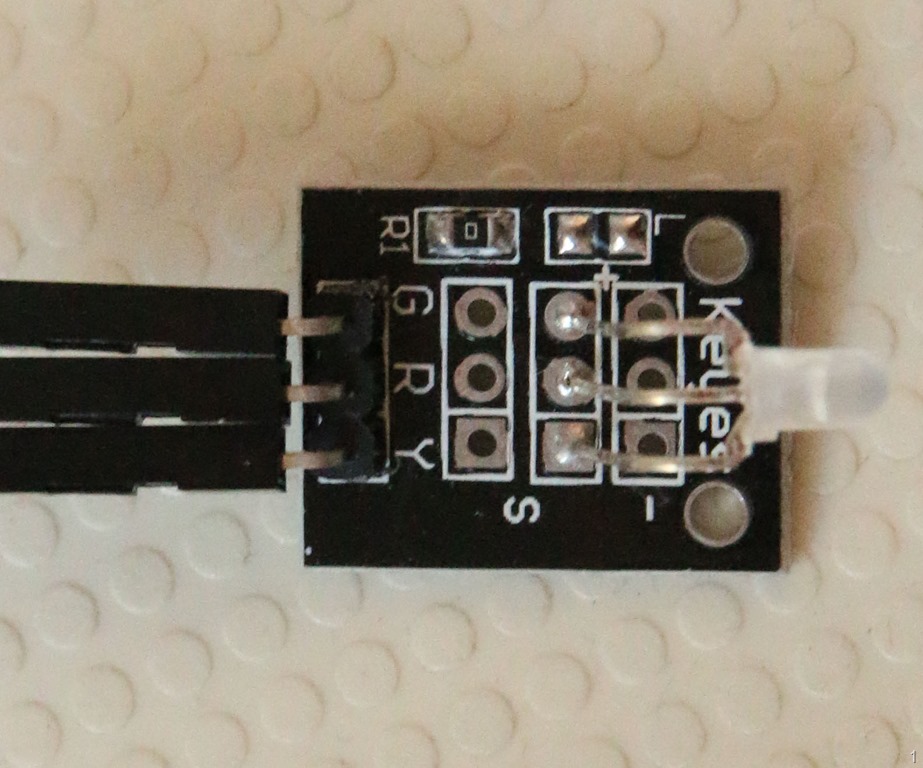
1 Keyes two-color Common-Cathode LED 1
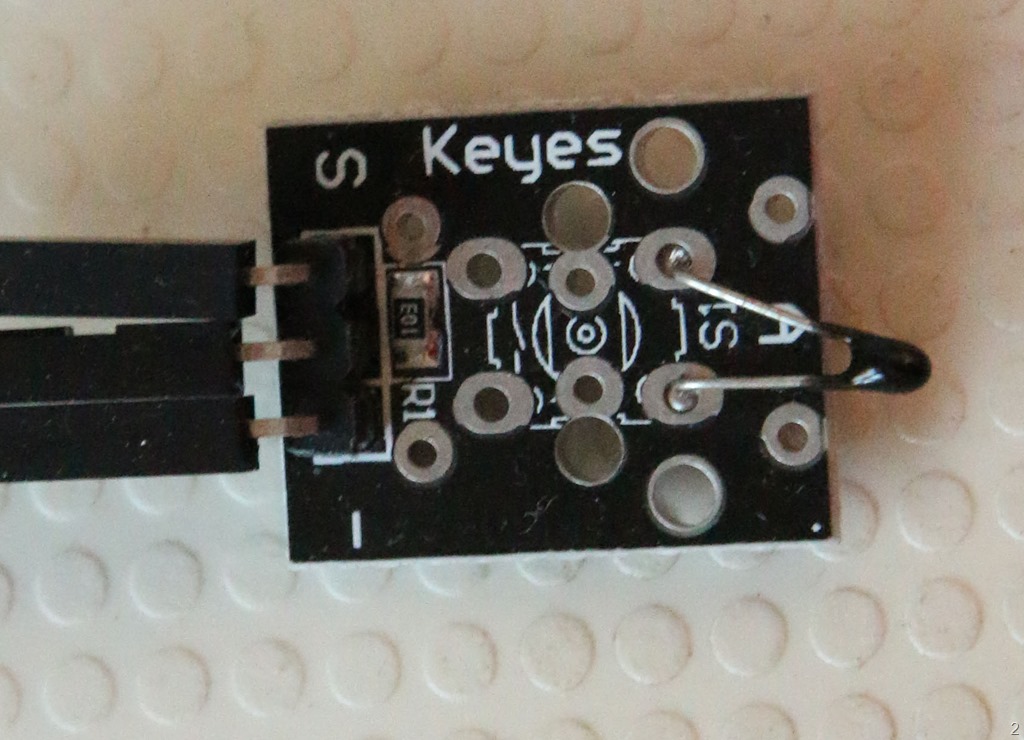
1 Keyes Analog-temperature sensor 2
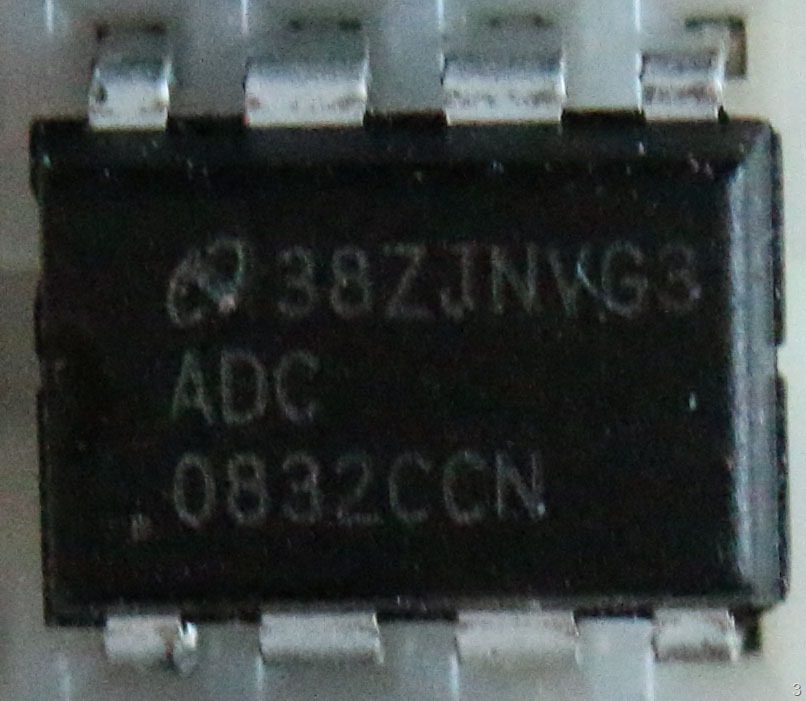
1 ADC0832 analog-digital-convertor 3
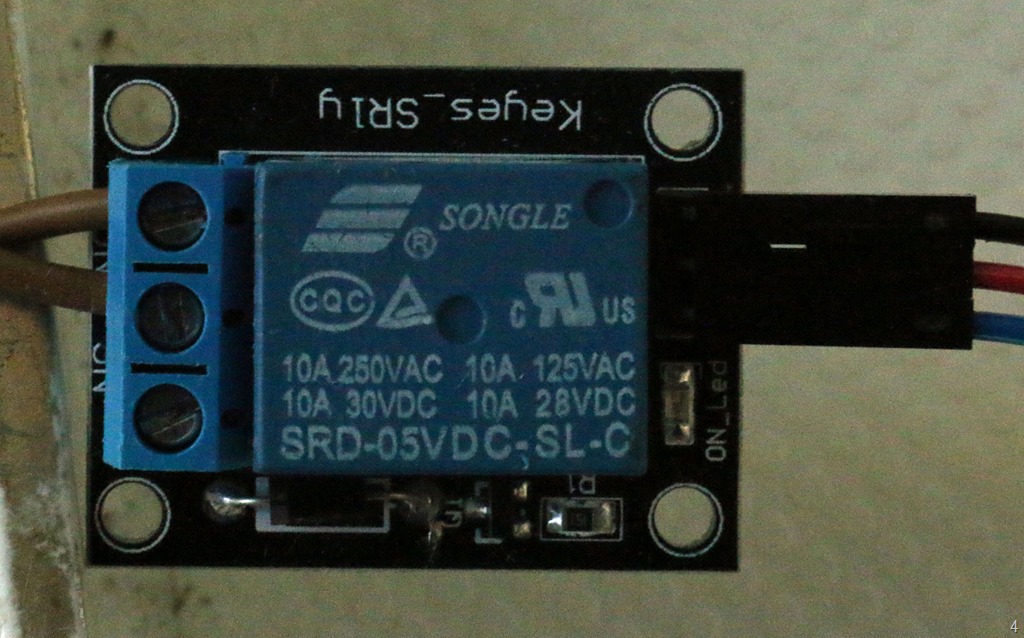
1 Keyes SRD-05VDC-SL-C switch 4
1 breadboard + flat cable connecting it to the Raspberry PI2
14 connection wires (I hope I counted them correct ;) )
Configuration A word of warning: the hardware configuration uses a relay switch to control mains power. Depending on where you live, that's between 100 and 250 Volts. We are not talking battery power here - this is the stuff that comes out of your wall plugs, drives the washing machines, refrigerators, air conditioners and whatnot, has serious oomph behind it - and can seriously hurt you if you mess around with it. In my sample I have cut a mains cord, reconnected one part via the relay and reconnected the rest using barrier strips. I sealed the connections using duct tape. At the ends of the mains cord are a mains plug and a main socket, so it can be used to control any mains power driven device. Be sure that you are careful with live wires and be aware that whatever I show you most likely would not get approval from a skilled electrician. If you re-create my setup with your own hardware, I cannot accept any responsibility for things going wrong. I also strongly suggest not letting the setup connected to the mains power unsupervised. This is a test/demo project, not a production unit.
The LED This is an easy one. I have connected "R" to GPIO12, "Y" to GPIO16, and "G" to GND (of course).
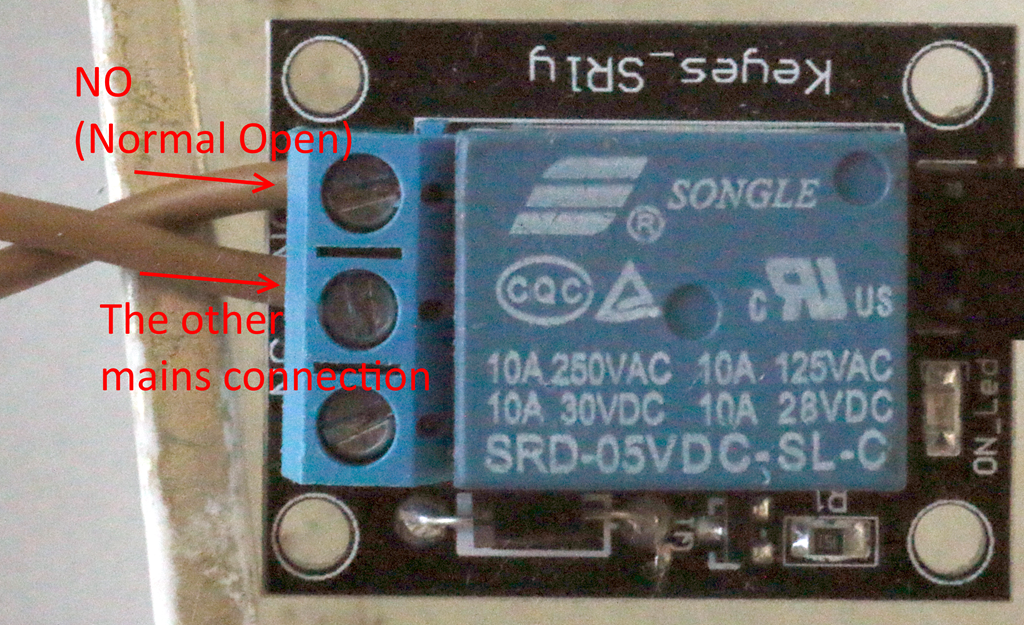
The SRD-05VDC-SL-C switch A bit more complicated, as the are no markings on the pins of this device. If you hold it the way that you can read the text on the blue block and the pins are sticking out to the right (as in picture 4) I have connected the top pin to GND, the middle pin to 5V, and the bottom pin to GPIO18.
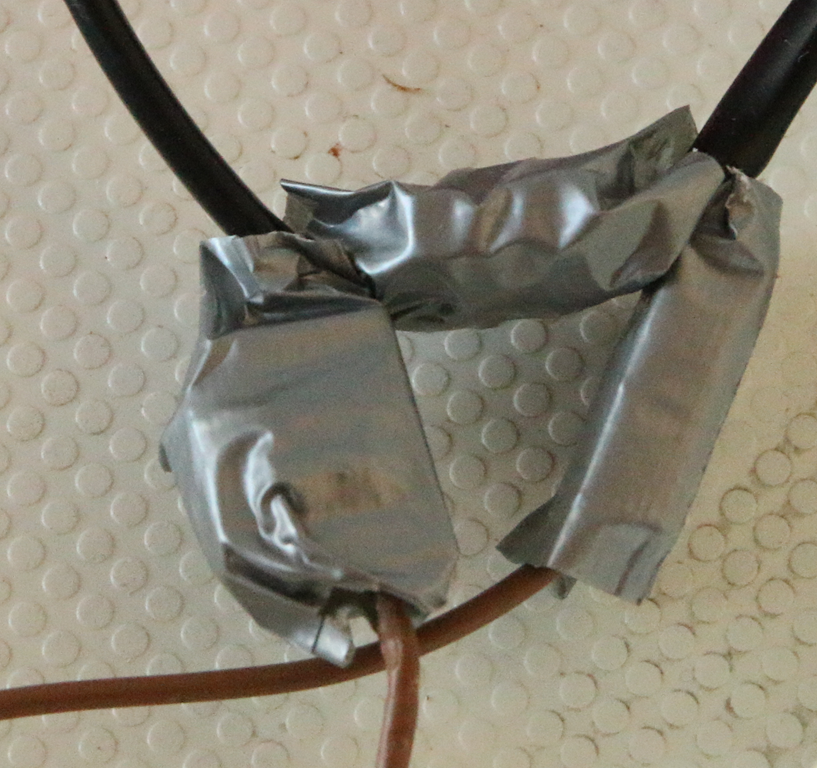
On the other side, the part with the screws on it - I connected the mains wire. I cut this first, then reconnected to mains using three terminal strip units - an sealed the stuff with duct tape. As already stated - follow this advice at your own risk. Basically one wire goes straight trough, the other part goes through the switch. Now it's not easy to see, but if you hold the switch like displayed on picture 4 (and below), you will see screws on the left side, and you can just about read "NO" under the top screw, and "NC" under the bottom screw. This stands for "Normal Open" and "Normal Closed". You fix one of the mains wire to the NO screw, and the other under the middle screw.
The Analog temperature sensor I have connected the middle pin to 3.3V, the "-" pin to GND, and "S" pin to 2 of the AC-converter (see below). That converter is the hardest part.
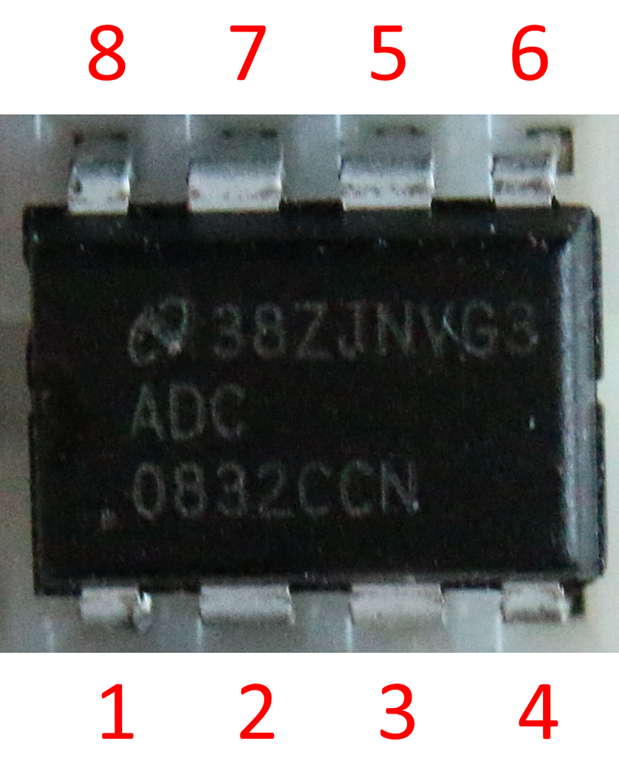
The ADC0832 analog-digital-convertor I'll be the first one to admit that I actually have no idea how this works, I nicked the idea from the Sunfounders manual. I understand the principle of an A/D converter, I just have no idea why it needs to be connected in this specific way, and I understand even less of the programming 'sequence' (that will be described in a later post) that goes into it. Anyway, this A/D converter is a chip and if you hold it the way that you can actually read the text on it, the pins are numbered this way. Why? I really don't know, having no formal background in electronics. Now this pins also have labels attached to them which are:
Intro: sometimes it seems like I’ve been here before
Back in February I got my Raspberry PI2 and wanted to do something with it. So I created a setup that made it display my heart rate as measured by my Microsoft Band, making it blink a colored LED in the same rate as my heartbeat. Windows 10 IoT Core wasn’t available at that time, which made me resort to using Raspbian Linux, installing Mono on that, getting a OWIN ASP.NET server running on that, that listened to postings on a WebAPI endpoint, employing a modified C library to actually drive the pins to make the LED go, editing files, setting permissions, all via command line stuff.
The architecture was, simply put, this:
This brings another issue to light that is a problem from both an architectural and a practical viewpoint. The Raspberry PI2 had to run a HTTP server. The phone running the app listening to the Band data needs to know the IP address of the PI2, which implicates they must be more or less in the same network space. In addition, running a server on a small device is not desirable in any way at all as it also implicates security issues. Imagine having to set passwords and/or certificates on all your devices. And it’s hard to demo as well.
Back to the drawing board
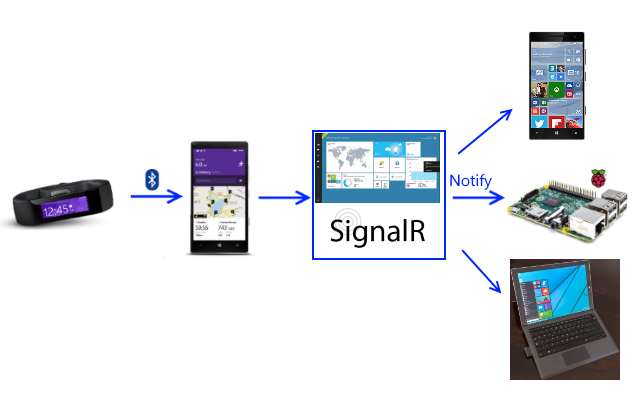
What I envisioned when I started out in February, was something like this:
A kind of magic black box in the middle that would take care of this problem by receiving data and distributing it to clients. It’s the kind of diagram typically drawn by a branch of people who tends to net big salaries by painting happy stories in the client’s mind - and, with the warm fuzzy feeling of a job well done, drop the actual problem of getting these magic boxes to appear out of thin air on the desk of some hapless unsuspecting developer. These people tend to call themselves architects, but I think marchitects would be a better word. Believe me, I’ve done architecture myself, I know how this goes. But I digress.
Anyway, in this case Microsoft has you (and me) poor developer’s – er – behind already covered, because this magic box already exists. It’s called Signal/R, and it’s been around for a while. A basic setup hardly needs any code, and if you host it on on Azure, you can very simply publish it with a few mouseclicks, debug it while running, and you never need to worry about where your magic box is on the network – it has a global URL. And what you end up then with, is this possibility:
Make a Windows 10 Universal Windows Platform app, and you get an app that can display a heart rate from your Band on any device – a phone, a Surface (or any other PC), a Raspberry PI 2 or any other device capable of running some form on Windows 10 - anywhere in the world.
And the net result really hammers home the concept of the Universal Windows Platform. I just deployed the app to three totally different types of devices and… it just works. It almost feels like cheating.
The basic setup
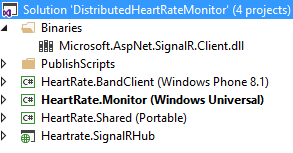
I have created a pretty simple solution that contains 4 projects:
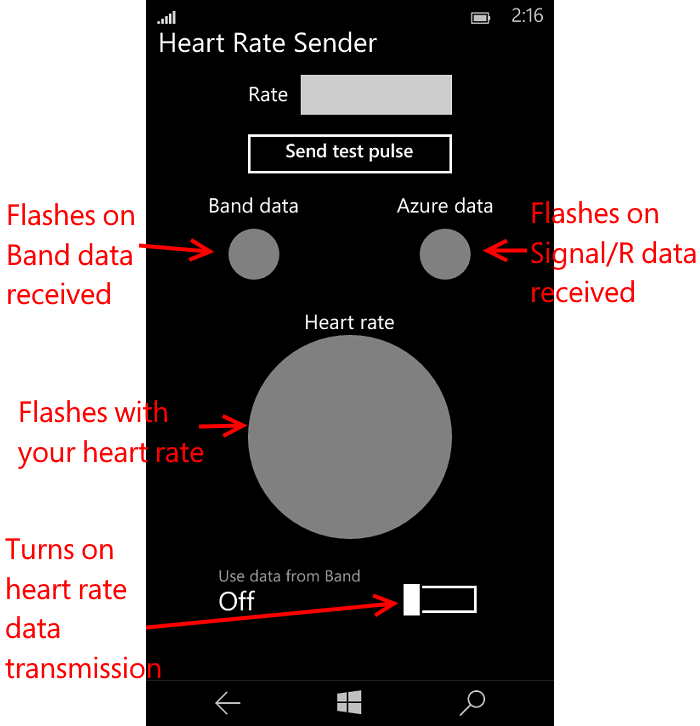
A Windows Phone 8.1 app to receive Microsoft Band heart rate data and send it to the Signal/R hub
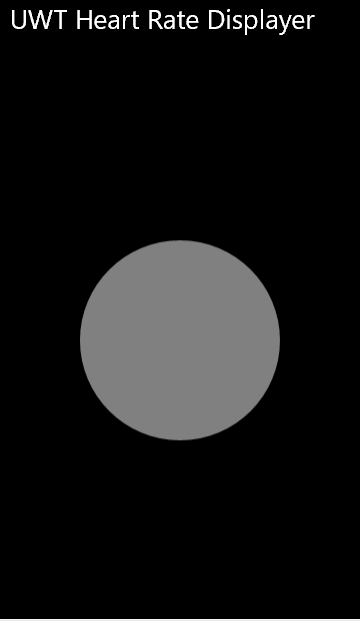
A Windows 10 UWP app to display the hearth rate as it receives notifications from the Signal/R hub
A Portable Class Library that contains some classes that are shared by the various projects.
A very simple ASP.NET web app hosting a Signal/R app that can accept heart rate pulse information and notify all clients
I opted for making a Windows Phone 8.1 Universal App to actually drive the code that receives the actual Band data for two reasons: first, my main phone is still Windows Phone 8.1 and I still use my Band every day and second, it is a nice way to demonstrate how similar Windows 10 UWP and the ‘old’ UAP code now is (and share code between it).
There are two caveats:
To open the whole solution and deploy the Windows 10 apps you will need VS2015RC (of course), but I can only get the 8.1 app deployed correctly on my phone by opening the same solution with VS2013 and deploying it from there.
There is an issue with Signal/R and Windows 10 UAP – you will need to do some fiddling with referenced assemblies to get it working – that is why there is an Signal/R client assembly in a Binaries solution folder. For details see this post I did earlier.
Since I dislike solutions peppered with magic strings (ahem), I tend to define them in some form of helper classes. In the HeartRate.Shared project I have created a simple static class “Settings”:
namespace HeartRate
{
  public static class Settings
  {
   public static readonly string HubUrl = "http://heartratehub.azurewebsites.net";

    public static readonly string HubName = "BlinkHub";
    public static readonly string ServerMethod = "PostNewRate";
    public static readonly string ClientMethod = "NotifyNewRate";
    public static readonly string TestBandName = "Joost's Band";
  }
}
Then I created a simple interface which you don’t even have to use, but that makes the Hub strongly-typed, and I tend to like that:
using HeartRate.Models;

namespace Heartrate.SignalRHub
{
  public interface IBlinkHub
  {
    void NotifyNewRate(PulseData pulse);
  }
}
The Hub itself then is pretty simple:
using HeartRate.Models;
using Microsoft.AspNet.SignalR;

namespace Heartrate.SignalRHub
{
  public class BlinkHub : Hub<IBlinkHub>
  {
    public void PostNewRate(PulseData pulse)
    {
      Clients.All.NotifyNewRate(pulse);
    }
  }
}
This basically says: expose a method “PostNewRate” accepting a parameter of type “PulseData” to a clients, that upon being called notifies all clients (including the caller) by calling a method “NotifyNewRate” with that same PulseData as parameter. Note that NotifyNewRate is not a stronly defined method – it’s dynamic. Signal/R is just going to assume it’s there on the client. If it’s not, it won’t crash or something. It just won’t do anything.
PulseData itself is just a simple DTO-type class that lives in the HeartRate.Shared project
namespace HeartRate.Models
{
  public class PulseData
  {
    public int HeartRate { get; set; }
    public string Name { get; set; }
  }
}
All we need now for the Hub is a startup class, and that is also not very complicated:
using Microsoft.AspNet.SignalR;
using Microsoft.Owin;
using Owin;

[assembly: OwinStartup(typeof(Heartrate.SignalRHub.Startup))]
namespace Heartrate.SignalRHub
{
  public class Startup
  {
    public void Configuration(IAppBuilder app)
    {
      var hubConfiguration = new HubConfiguration
      {
        EnableDetailedErrors = true,
        EnableJavaScriptProxies = false
      };
      app.MapSignalR(hubConfiguration);
    }
  }
}
Having used Azure in it’s beta days, this really blew me away – you can just publish this to Azure with a few mouse click at some URL you like (provided it’s not already taken), and you have a fully functional Signal/R hub capable of distributing a heart rate to any Signal/R client on the world. Done. I wish every magic box sold by marchitects was so easy to set up.
The Windows 10 UWP client
Blinking at the right rate
As I explained in February, a Microsoft Band does not give you a pulse every time your heart beats – it rather posts at a quite regular interval what your current heartbeat is. So in order to let something blink or flash at the rate of a heartbeat, we actually have to calculate the blink rate ourselves. As you will see, the blinking does not show your actual heartbeat – blinks will happen at the same rate as your heartbeat. More or less.
Stealing my own code from February, I have created a simple generic Blinker class that raises an event every time a blink should occur based upon the heart rate supplied to it. It’s basically an endless loop, that runs until it’s stopped. If the last update was less than 5 seconds ago, it will raise an event, wait for 60000ms divided by the beats per minute – and then fires the next event. If it does not get updates after 5 seconds, it goes into a 10-seconds polling mode. It’s nearly the same thing as last time, except now it’s only raising an event “DoBlink” in stead of actually flashing a LED.
using System;
using System.Threading;
using System.Threading.Tasks;

namespace HeartRate.Models
{
  public class Blinker
  {
    private DateTime lastReceivedUpdate = DateTime.MinValue;
    private int heartRate;
    private Task task;

    private Blinker()
    {
    }

    public void Start()
    {
      if (task == null)
      {
        cancellationTokenSource = new CancellationTokenSource();
        task = new Task(() => ShowHeartRateBlinking(cancellationTokenSource.Token),
           cancellationTokenSource.Token);
        task.Start();
      }
    }

    public void Stop()
    {
      if (cancellationTokenSource != null)
      {
        cancellationTokenSource.Cancel();
        task = null;
      }
    }

    private CancellationTokenSource cancellationTokenSource;

    private async Task ShowHeartRateBlinking(CancellationToken cancellationToken)
    {
      while (!cancellationToken.IsCancellationRequested)
      {
        if (DateTime.Now - lastReceivedUpdate < TimeSpan.FromSeconds(5))
        {
          if(DoBlink!=null) DoBlink(this, GetRate());
          await Task.Delay(60000 / HeartRate, cancellationToken);
        }
        else
        {
          await Task.Delay(10000, cancellationToken);
        }
      }
    }

    public event EventHandler<BlinkRate> DoBlink;

    private BlinkRate GetRate()
    {
      if (HeartRate < 80) return BlinkRate.Low;
      return HeartRate < 130 ? BlinkRate.Medium : BlinkRate.High;
    }

    public int HeartRate
    {
      get { return heartRate; }
      set
      {
        if (value >= 0 && value <= 200)
        {
          lastReceivedUpdate = DateTime.Now;
          heartRate = value;
        }
      }
    }

    private static Blinker blinker;
    public static Blinker GetBlinker()
    {
      return blinker ?? (blinker = new Blinker());
    }
  }
}
Listening to Signal/R notifications
To this extent I have created a small helper class HearthRateListener that basically converts a Signal/R call to an ordinary event. It looks like this:
using System;
using System.Threading.Tasks;
using HeartRate.Models;
using Microsoft.AspNet.SignalR.Client;

namespace HeartRate.Monitor.Models
{
  public class HearthRateListener
  {
    public async Task Init()
    {
      var hubConnection = new HubConnection(Settings.HubUrl);
      var hubProxy = hubConnection.CreateHubProxy(Settings.HubName);
      hubProxy.On<PulseData>(Settings.ClientMethod, pulse =>
        {
          PulseDataReceived?.Invoke(this, pulse);
        }
      );
      await hubConnection.Start();
    }

    public event EventHandler<PulseData> PulseDataReceived;
  }
}
So I make a connection to the hub’s url as defined in the settings class (“http://heartratehub.azurewebsites.net”), then create a hub proxy with the name of the hub (“BlinkHub”, which also is the class name of the Hub) and then, using the “On” method to fire when the Signal/R hub wants to notify me using the “NotifyNewRate” method. So you have to make sure the class name of hub equals the name of the hub you are subscribing to on the client, and that the client makes a dynamic ‘method’ with the same name as the server tries to call. It’s a bit fiddly and getting all the names right is important. Defining names in constants helps a little. In some of the comments on Signal/R people ask for a more strongly typed method. The answer of the team is along the lines of “You want strongly typed? Feel free to use WCF” ;)
You can see the LED and circles blinking at 74 BPM first (in blue), that for some reason my hear rate goes over 100 according to the band and the color of the flash becomes green - and faster, too. This was not intentional, but a happy coincidence when I was shooting the video.
Blinking the lights
Although the basics of operating a GPIO pin on Windows 10 IoT Core is about the same as on the Linux/Mono/C#/WiringPI, the process is vastly less complicated. There are some easy samples to find how to do that, for instance here on the IoT Github page. I created this helper class to do the work. The basic setup is this:
using System.Threading.Tasks;
using HeartRate.Models;
using Windows.Devices.Gpio;

namespace HeartRate.Monitor.Models
{
  public class LedSoundOperator
  {
    GpioController gpioCtrl;

    private LedSoundOperator()
    {
      InitGPIO();
    }

    private static LedSoundOperator lsOperator;
    public static LedSoundOperator GetBlinker()
    {
      return lsOperator ?? (lsOperator = new LedSoundOperator());
    }

    private GpioPin GetPin(BlinkRate rate)
    {
      switch (rate)
      {
        case BlinkRate.High:
          return RedPin;
        case BlinkRate.Medium:
          return GreenPin;
        default:
          return BluePin;
      }
    }

    private GpioPin RedPin;
    private GpioPin GreenPin;
    private GpioPin BluePin;
    private GpioPin SoundPin;

    private const int RedPinId = 5;
    private const int GreenPidId = 6;
    private const int BluePinId = 13;
    private const int SoundPinId = 16;
  }
}
I define this class to be a Singleton. The Sunfounder’s three color LED I used last time red pin is connected to GPIO5, the green pin to GPIO6, the blue pin to GPIO13 and the buzzer’s pin to GPIO16. Based upon the heart rate it selects a different pin and thus the LED color changes.
Initializing a pin is not exactly rocket science either. First you initialize the Gpio controller, then you open a pin, set it’s drive method to output, and write an initial “Low” value to turn in off.
If you intend to be able to run this app on a device that maynot support a Gpio controller, like a phone or a PC, you might want to check the actual presence of the Gpio controller type before actually calling it.You do this using the Windows.Foundation.Metadata.ApiInformation.IsTypePresent method as displayed.
Making the LED blink (and the buzzer tick) works like this:
public async Task Blink(BlinkRate rate)
{
  if (gpioCtrl != null)
  {
    var pin = GetPin(rate);
    pin.Write(GpioPinValue.High);
    SoundPin.Write(GpioPinValue.High);
    await Task.Delay(200);
    pin.Write(GpioPinValue.Low);
    SoundPin.Write(GpioPinValue.Low);
  }
}
Notice the check if gpioCtrl is set – the IsTypePresent may have prevented that. But if we are running on a device that actually has a GPIO board, then get the right pins, set their value to high (blink! tick!), wait 200ms, and set them to low. As easy as that.
Oh yeah, and at the end, call
public void Cleanup()
{
  RedPin?.Dispose();
  GreenPin?.Dispose();
  BluePin?.Dispose();
  SoundPin?.Dispose();
}
And then some UI stuff
The fun thing is that, unlike when running Raspbian, one app can actually display a XAML defined UI on the PI2. And having a little UI is useful as well when running, for instance, on a phone. The XAML of the page is not very complicated either
And that is because the net resulting UI isn’t that complex either :)
Wiring it all together
Mind you, in a real app I would do all this using MVVM, but I don’t want to obscure the thing I am actually trying to convey by getting too much architecture in the way. So in the code behind of the XAML page there is some stuff that wires it all together:
namespace HeartRate.Monitor
{
  public sealed partial class MainPage : Page
  {
    public MainPage()
    {
      this.InitializeComponent();
    }

    HearthRateListener listener;
    LedSoundOperator lsOperator;

    protected async override void OnNavigatedTo(NavigationEventArgs e)
    {
      listener = new HearthRateListener();
      lsOperator = LedSoundOperator.GetBlinker();
      var blinker = Blinker.GetBlinker();
      listener.PulseDataReceived += (p, q) =>
      {
        blinker.HeartRate = q.HeartRate;
      };
      blinker.DoBlink += Blinker_DoBlink;
      blinker.Start();
      await listener.Init();
    }

    private void Blinker_DoBlink(object sender, BlinkRate e)
    {
      lsOperator.Blink(e);
      Dispatcher.RunAsync(CoreDispatcherPriority.Normal, async () =>
      {
        Color c;
        switch (e)
        {
          case BlinkRate.High:
            c = Colors.Red;
            break;
          case BlinkRate.Medium:
            c = Colors.Green;
            break;
          default:
            c = Colors.Blue;
            break;
        }
        BlinkCircle.Fill = new SolidColorBrush(c);
        await Task.Delay(200);
        BlinkCircle.Fill = new SolidColorBrush(Colors.Gray);
      });
    }

    protected override void OnNavigatingFrom(NavigatingCancelEventArgs e)
    {
      lsOperator.Cleanup();
      Blinker.GetBlinker().Stop();
    }
  }
}
I create a new Heart rate listener – that is the thing that listens to heart rate data coming from the Azure Signal/R hub – and I initialize the LedSoundOperator (that will drive the pins) and a Blinker (that will raise events at the heart rate received from Azure). When the listener gets new data from Azure, it will turn it to the blinker. When the blinker raises an event, the method DoBlink will actually blink the LED and make the buzzer tick by calling the LedSoundOperator and by flashing the circle on the screen.
Some highlights of the Windows Phone 8.1 Band Client
This is a simple app that listens to the Microsoft Band heart rate data coming in and simply pushes it Azure. To make some monitoring possible, I actually added here as well the circle that flashes at your heart rate, as well as two little circles that flash yellow when Band data is received or data from Azure comes back (to the very phone that sent it).
The HeartRateModel does most of the work: it listens to the Band events, sends that data to Signal/R and checks if data is coming back. Both the receiving of data from the Band and Signal/R is exposed via events (BandDataReceivedand PulseDataReceived
The method SendPulse is worth pointing out as it shows how data is actually sent to a Signal/R hub:
I would also like to draw your attention to the fact the app now needs to ask the user’s consent to be able to connect to the Band’s heart rate sensor. This automatically displays a prompt that the user can accept or cancel, and you need to take care of that in your code:
public async Task<bool> StartListening()
{
  var pairedBands = await BandClientManager.Instance.GetBandsAsync();
  if (pairedBands.Any())
  {
    var band = pairedBands.FirstOrDefault();
    if (band != null)
    {
      bandName = band.Name;
      bandClient = await BandClientManager.Instance.ConnectAsync(band);
      var consent =
        await bandClient.SensorManager.HeartRate.RequestUserConsentAsync();
      if (consent)
      {
        var sensor = bandClient.SensorManager.HeartRate;
        sensor.ReadingChanged += SensorReadingChanged;
        await sensor.StartReadingsAsync();
      }
      return consent;
    }
  }
  return false;
}
Then there is this little oddity about Windows Phone 8.1 Universal apps and Signal/R – to get data back you actually have to set Long Polling as communication method when starting the hub connection or else the data simply won’t come down
public async Task Init()
{
  hubConnection = new HubConnection(Settings.HubUrl);
  hubProxy = hubConnection.CreateHubProxy(Settings.HubName);

  hubProxy.On<PulseData>(Settings.ClientMethod, pulse =>
  {
    if (PulseDataReceived != null)
    {
      PulseDataReceived(this, pulse);
    }
  });

  await hubConnection.Start(new LongPollingTransport());
}
My sincere thanks to Irmak Tevfik for writing this article explaining that or I would probably still be scratching my head now.
Conclusion
With some very basic stuff published on Azure and utilizing the power of the Universal Windows Platform apps I was able to write a distributed system for displaying my heart rate – using not only one code base but a single app that can be deployed on a range of devices; devices that could basically be everywhere on the world, as long as they have internet access. This really shows the power of current and near future Microsoft technology, making things that used to be extremely hard just very very simple. If I understand this right, this would even be able to run on XBox One and HoloLens, although I am not quite sure a gamer would like to see a big circle flashing on his console, nor would a HoloLens user like to see that more or less blocking his field of vision. But the point is that using these technologies it becomes very easy to connect a lot of devices very easily using one type of app.
There are some issues still to be addressed in this solution. Basically everyone can post to the hub now and everyone can connect to it, so this opens great possibilities of completely destroying an on-stage demo. You clearly need to be sure that not everyone can post heart rate data to your hub or, if you want to make this available as a cloud service, at least make sure no-one get’s other people’s data pushed to it. There are several ways to achieve that, but that’s beyond the scope of this post.
I actually have to credit my wife for thinking of an actual practical application of this crazy demo, for when I showed this to her in my typically overenthusiastic geek way, her reaction was not the typical geeks’ wife “well that’s nice dear” but “so if I understand you right, I can make a doctor listen to my heart rate even if I am on a holiday somewhere far away?” :).


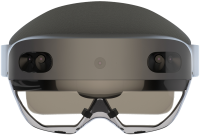



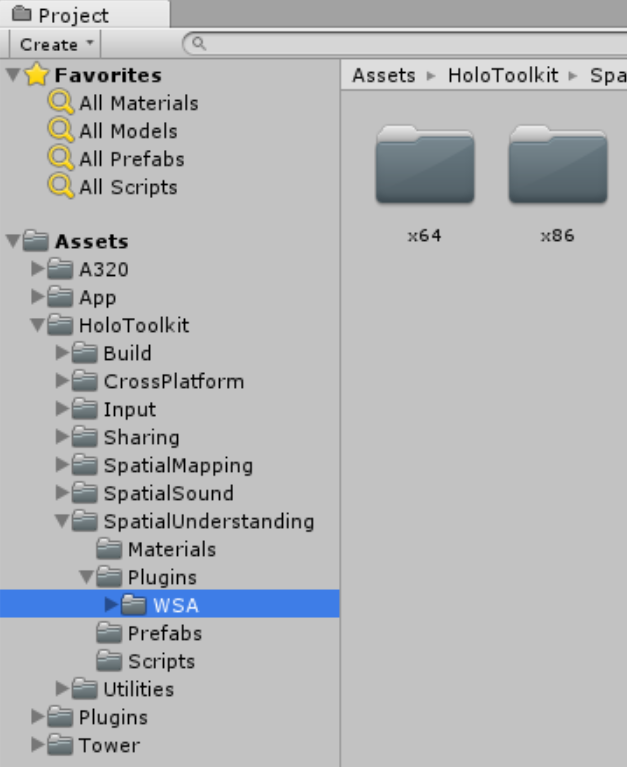

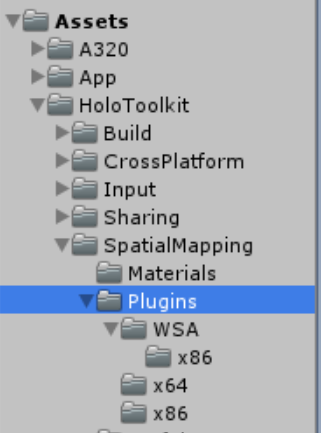
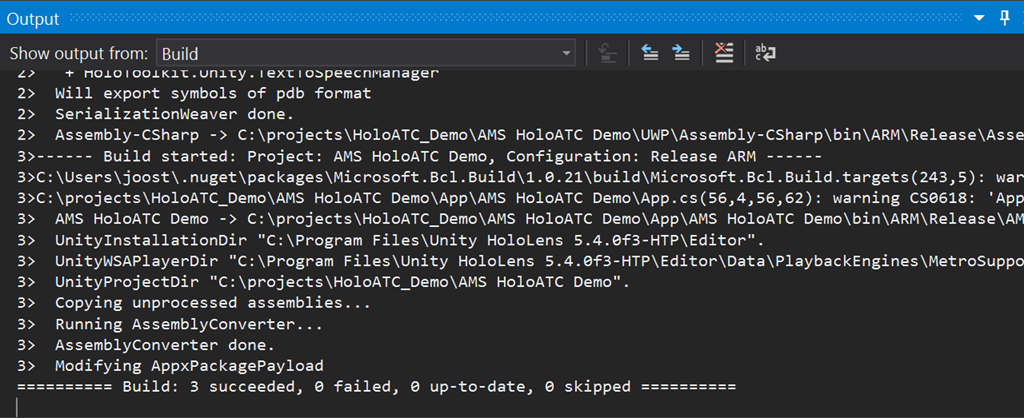
 The sweet smell of success. Now I want you to understand this is no way to go about to make a HoloLens project compatible with a Raspberry PI2. This is using a mallet to hit very hard on a square peg to make it go through a round hole. I have demolished two components you might want to use in the future version of your HoloLens app. But this is not serious development – this is hacking for fun’s sake to prove a point. That is why I have made a separate branch ;).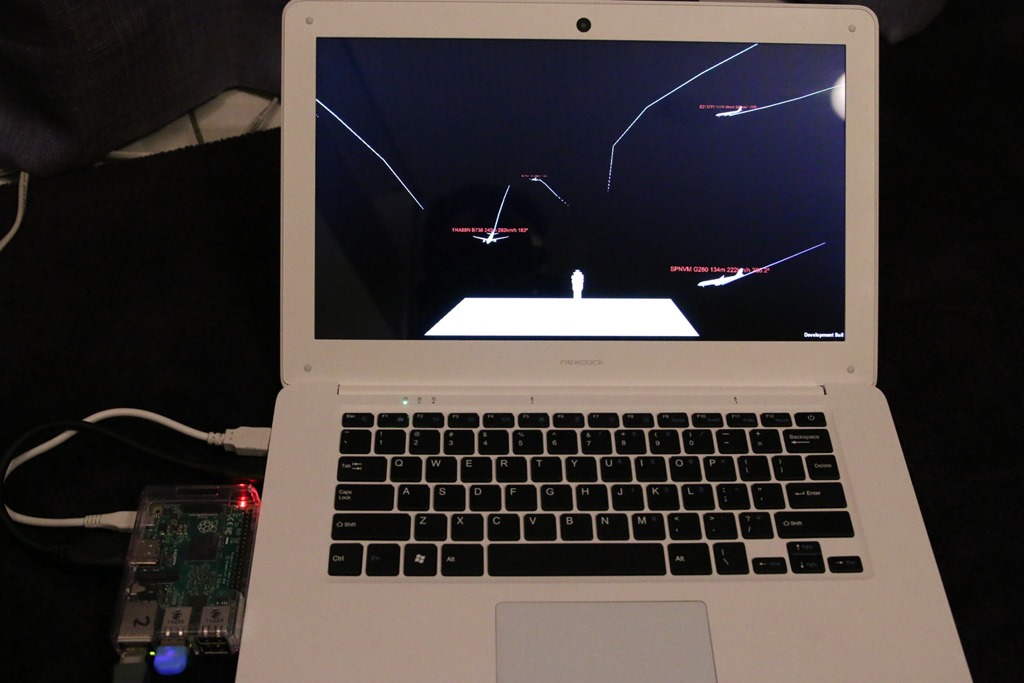
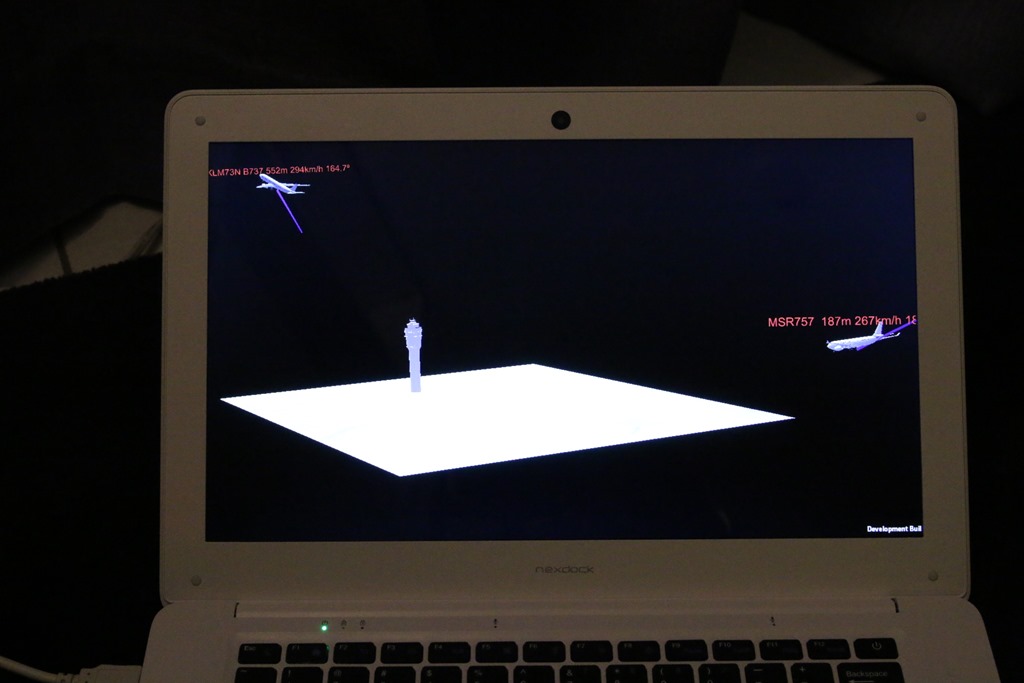


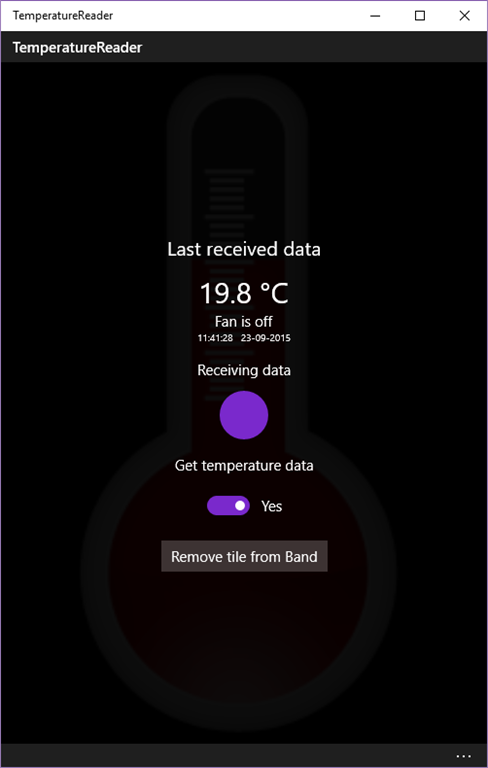
 This article shows you how to control a device attached to a Raspberry PI2 remotely - that is, the Universal


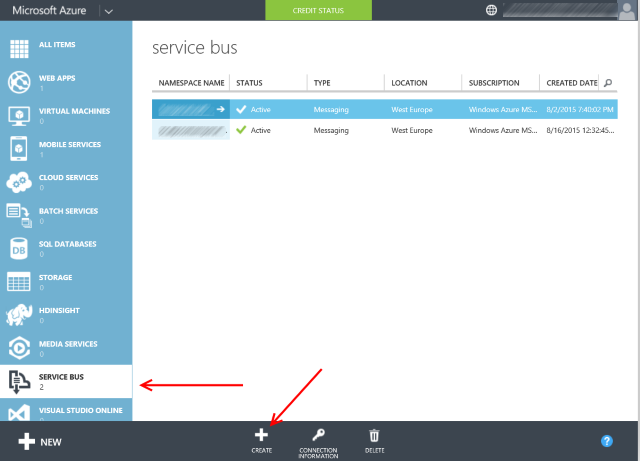
![image[33]](http://www.schaikweb.net/dotnetbyexample/Reading-temperatures--controlling-a-fan-_1195A/image33.png "image[33]")
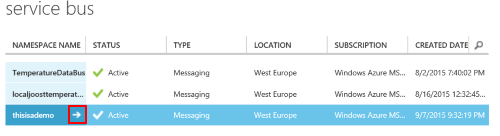

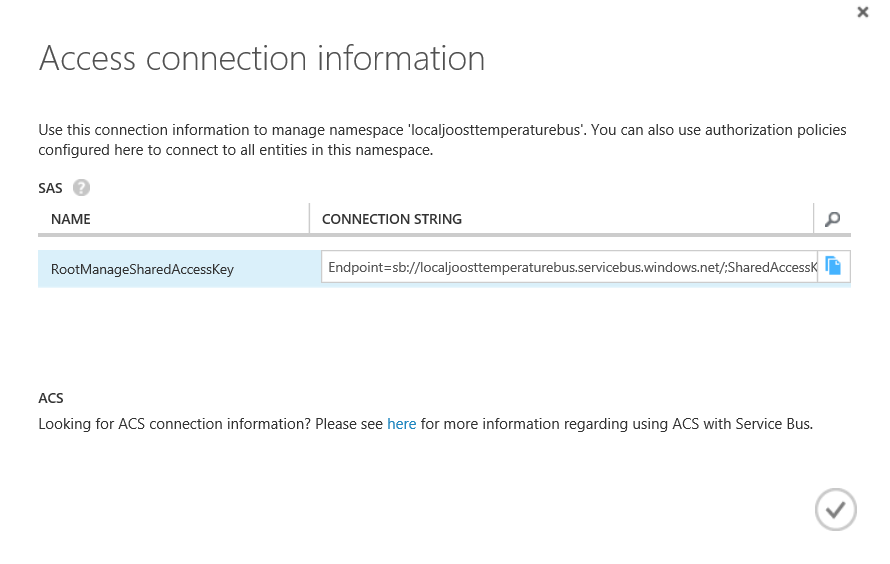

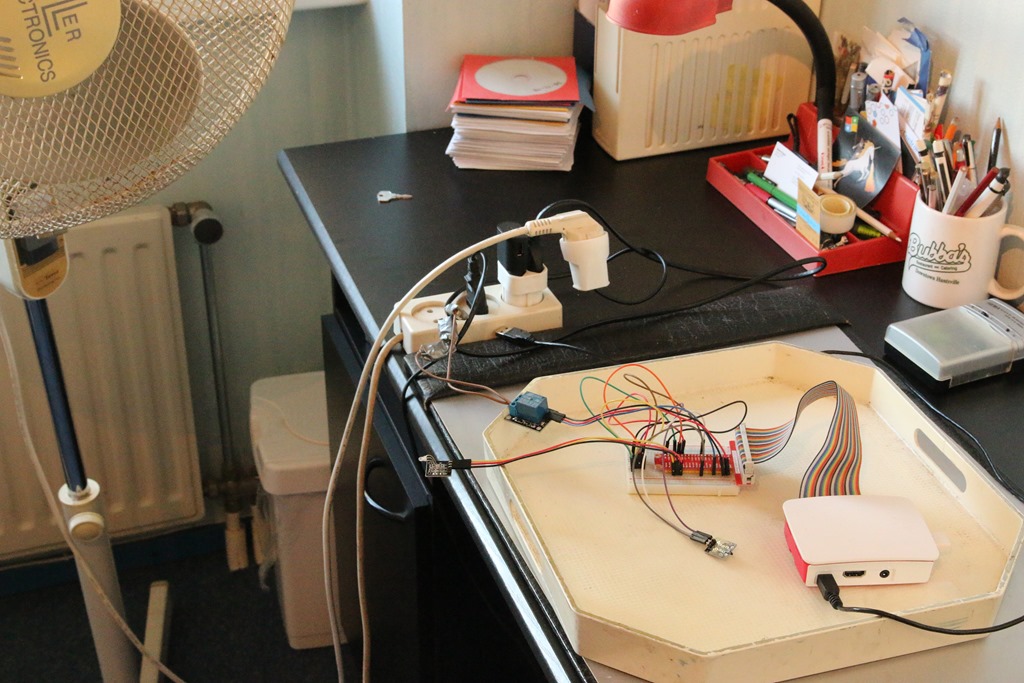
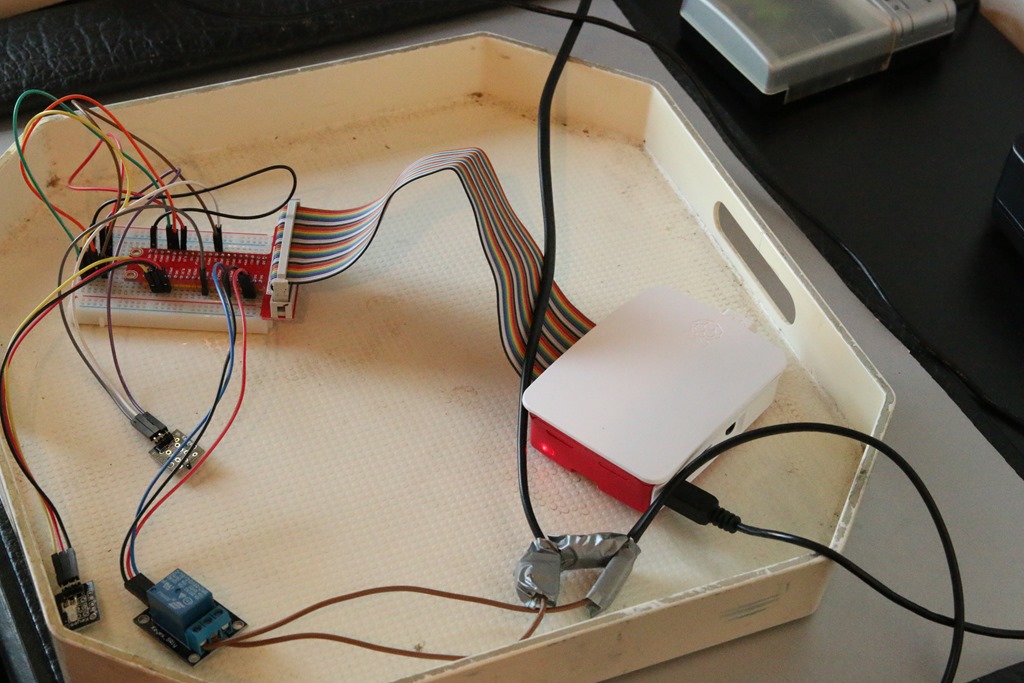
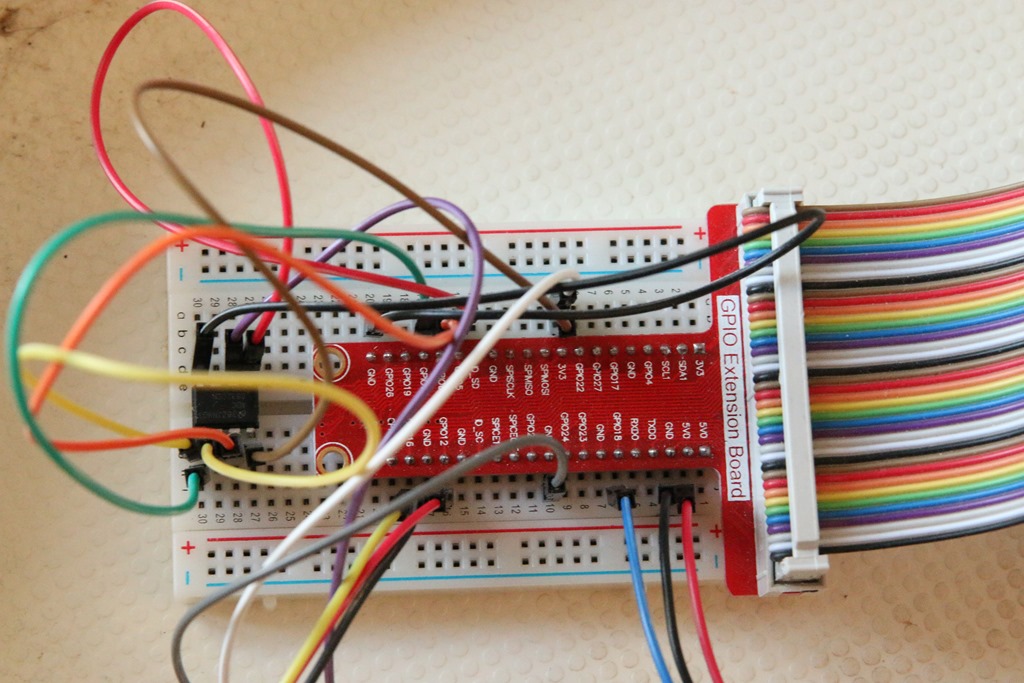
 Calling this 'architecture' is a bit rich I think, but it is intended as a global overview. Although it is not entirely correct, as this picture suggest signals go between phone and PI2 (and back) over a single channel, while in fact there are two queues - one for each direction. Temperature data goes from PI2 to phone over one queue, the command to toggle the fan over the other.