Showing posts with label Xamarin. Show all posts

30 March 2016

Xamarin Forms 2.1 upgrade–some surprises (and how to get around it)

Back in June I wrote about a proof-of-concept for view model driven animations using behaviors in Xamarin Forms. This concept made it into my employer’s standard Xamarin library (more about that soon) but after an upgrade I noticed the animation behaviors did not work anymore – at least on Android. I have no idea what happened along the way, but fact is that the the behavior no longer worked after upgrading to Xamarin Forms 2.1. A prolonged debugging session learned me the following:

  1. At the ViewAppearing stage user interface elements don’t have a size allocated yet – whereas they used to have that.
  2. A parent object - especially something a grid – does not does not necessarily has to have it’s size set yet (width and height are still –1)

I will write about this soon in more detail, but what needs to be done to get this working again is:

  1. We need to initialize the behavior on the page’s OnSizeAllocated, not the OnViewAppearing method
  2. We need to go up recursively until we find an element that does not have a size of –1 in stead of blindly taking the parent.

So, in StartPage.xaml.cs:

protected override void OnAppearing()
{
  Context.OnViewAppearing();
  base.OnAppearing();
}

protected override void OnSizeAllocated(double width, double height)
{
  Context.OnViewAppearing();
  base.OnSizeAllocated(width, height);
}

It is a bit of a kludge, but it will do for now. In FoldingPaneBehavior we will first need to add a method to recursively find a parent with a size:

protected VisualElement GetParentView()
{
  var parent = associatedObject as Element;
  VisualElement parentView = null;
  if (parent != null)
  {
    do
    {
      parent = parent.Parent;
      parentView = parent as VisualElement;
    } 
    while (parentView?.Width <= 0 && parent.Parent != null);
  }

  return parentView;
}
And the first line of the Init method neededs to be changed from
var p = associatedObject.ParentView;
to
var p = GetParentView();

And then the behavior will work again.

A second surprise when upgrading to Xamarin Forms 2.1 is that the declaration of Dependency properties using generics is deprecated. It will still work, but not for long. So in stead of

public static readonly BindableProperty IsPopupVisibleProperty =
       BindableProperty.Create<FoldingPaneBehavior, bool>(t => t.IsPopupVisible,
       default(bool), BindingMode.OneWay,
       propertyChanged: OnIsPopupVisibleChanged);
You will know have to use
public static readonly BindableProperty IsPopupVisibleProperty =
       BindableProperty.Create(nameof(IsPopupVisible), typeof(bool), 
       typeof(FoldingPaneBehavior),
       default(bool), BindingMode.OneWay,
       propertyChanged: OnIsPopupVisibleChanged);
And the callback loses its type safety because that becomes
private static void OnIsPopupVisibleChanged(BindableObject bindable, object oldValue, object newValue)
in stead of
private static void OnIsPopupVisibleChanged(BindableObject bindable, bool oldValue, object bool)

and thus you have to cast oldValue and newValue to bool. This makes the code inherently more brittle and harder to read, but I assume there is a good reason for this. I have updated the xadp snippet for creating these properties accordingly.

A typical case of moved cheese, but fortunately not too far. The updated demo solution is still on GitHub

20 February 2016

Fix for “could not connect to the debugger” while deploying Xamarin Forms apps to the Visual Studio Android Emulator

While I was busy developing a cross-platform application for Windows Phone, Android and iOS I wanted to test the Android implementation and ran into a snare – I could no longer debug on the emulator. This kept me puzzled for a while, and only with the combined help of my fellow MVPs Mayur Tendelkar and Tom Verhoeff, who both had pieces of the puzzle, I was able to finally get this working.

As you try to deploy an app to the Visual Studio Android emulator, symptoms are as follows:

  • The app is deployed
  • The app starts on the emulator
  • It immediately stops
  • You get one or more of the following messages in your output window:

AOT module 'mscorlib.dll.so' not found: dlopen failed: library "/data/app/<your app name>.Droid-1/lib/x86/libaot-mscorlib.dll.so" not found

Android application is debugging.
Could not connect to the debugger.

This actually even happens when you do File/New Project and run, which is very frustrating. Oddly enough, when you start the deployed app on the emulator by clicking on it, it runs fine. The issue is solely the debugger not being able to connect.

The first error – the missing libaot-mscorlib.dll.so, which is usually hidden in a plethora of messages - is easy to fix: disable Android fast deployment. Go to the properties of the Android project, hit tab “Android options”, and unselect “Use Fast Deployment”

image

That will usually take care of the libaot-mscorlib.dll.so issue. Not an obvious thing to do, but hey, that’s almost nothing in our field. But still my debugger would not connect. The solution to that takes the following steps, which are even less obvious:

  • Start the Hyper-V manager
  • Select the emulator you are trying to use
  • Right-click, hit settings

image

  • Click processor
  • Click Compatibility
  • Click checkbox “Migrate to a physical computer with a different processor version”

image

And of course, once you know that, you can find people have encountered this problem before, like here in the MSDN forums, on Stackoverflow or even here in comments on the release notes of the emulator. The fact that the solution is hard to find with only the error message made me decide to write a blog post about it anyway.

This issue only seems to be occurring on the newer generation of processors, which explains why I never saw it before – I ran this on a brand new Surface Pro 4, where I used to run the emulators on my big *ss desktop PC, whose i7 processor dates back to 2011. It’s one of ye good olden 970 3.20 Ghz monsters, from the time power efficiency was not quite very high on the Intel agenda yet ;) It’s the 1939 Buick Hot Rod of the i7’s, but as a bonus, I never have to turn on the heating in the study on cold winter days :)

By the way, if the android emulator seems to be stuck in  the “preparing” phase, you might want to check if you have internet connection sharing enabled – it does not seem to like that either.

Thanks Mayur and Tom, you have been a great help, as always.

13 June 2015

View model driven animations using behaviors and MVVMLight in Xamarin Forms

Intro
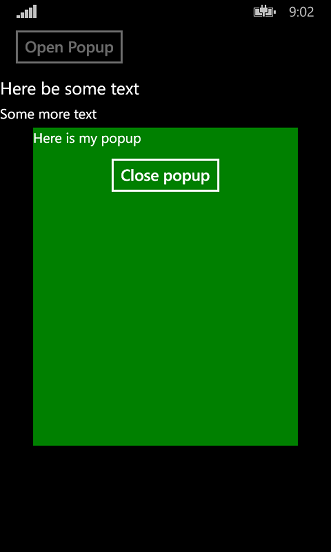
For some time now I have been making a number of behaviors implementing animations driven by view models for Windows and Windows Phone. Implementing animations in behaviors results into reusable animation building block without the need to copy and paste the functionality into code behind – or the need to remember how the internals exactly worked (you know they say a good programmer is a lazy programmer ;) ). I wanted to check if it would be possible to make animations for Xamarin Forms in a similar way, and it turns out to be possible. I have created a proof-of-concept that allows you to animate a kind of popup using a behavior, a view model and a little bit of code-behind plumbing. The popup folds open in a vertical direction from the center of the screen. It looks like this:

Setting the stage
I started out with a standard Xamarin Forms Portable project, and brought in my favorite MVVM framework MVVMLight. Then I added an empty StartPage.xaml to the portable project, and modified the constructor of the default App class to start with that page, in stead of with the default code:

public App()
{
  MainPage = new StartPage();
}

This is quite a standard way to set up a Xamarin Forms application using a XAML-based start page. I did not make it up myself ;) .

Passing startup events to the view model
A behavior in Xamarin.Forms has two events you can trap – OnAttachedTo and OnDetachingFrom – by basically overriding the methods with that name. But those are fired apparently before the visual element to which the behavior is attached to is loaded and made part of a layout: the attached object has no size, and no parent. To make matters more complicated, there is also no OnLoaded event on the attached object, like in WinRT XAML. So when do you know when the layout is ready?

It appears that on page level there is such an event: OnAppearing (and it’s counterpart OnDisppearing) which once again can be trapped by overriding those methods. What we need to do is pass the fact that these methods have been called to the view model. The more or less standard way to do that seems to be something like as follows. I first defined an interface:

namespace AnimationBehaviorDemo.ViewModels
{
  public interface IPageViewModelBase
  {
    void OnViewAppearing();
    void OnViewDisappearing();
  }
}

and then a base class implementing that interface. This is not strictly necessary, but I always feel compelled to make a base class for convenience, yet I don’t want to force myself or my fellow developers into always needing to use that base class. The interface allows me an escape route out of a possible undesirable inheritance kludge. I think that’s just good architecture.

using GalaSoft.MvvmLight;

namespace AnimationBehaviorDemo.ViewModels
{
  public class PageViewModelBase : 
     ViewModelBase, IPageViewModelBase
  {
    public virtual void OnViewAppearing()
    {
      ViewHasAppeared = true;
    }

    public virtual void OnViewDisappearing()
    {
      ViewHasAppeared = false;
    }

    private bool viewHasAppeared;
    public bool ViewHasAppeared
    {
      get { return viewHasAppeared; }
      set { Set(() => ViewHasAppeared, ref viewHasAppeared, value); }
    }
  }
}

And there we see the familiar MVVMLight syntax again. So great if you can use an awesome friend from the Windows ecosystem in a cross platform setting again (thanks Laurent!).

Anyway, now I can make a view model inheriting from PageViewModelBase (or at least implementing IPageViewModelBase), use it as binding context and pass the events to the view model using the code behind of the start page like this:

public partial class StartPage : ContentPage
{
  public StartPage()
  {
    InitializeComponent();
    BindingContext = new MyViewModel();
  }

  protected override void OnAppearing()
  {
    Context.OnViewAppearing();
    base.OnAppearing();
  }

  protected override void OnDisappearing()
  {
    Context.OnViewDisappearing();
    base.OnDisappearing();
  }

  private IPageViewModelBase Context
  {
    get { return (IPageViewModelBase)BindingContext; }
  }
}

In every page you make using this behavior then needs to have this kind of plumbing. Of course, you can define a nice base class for this as well, making the last three methods disappear again. Have a blast. I only have one page in this solution, so I leave it at this. The important thing is – we have now a way to pass the fact that the view is ready to the view model, a behavior can bind to this, and things can happen in the right order.

The view model
Using the PageViewModelBase as a starter, I add a simple command and a property for the behavior to bind to as well:

using System.Windows.Input;
using GalaSoft.MvvmLight.Command;

namespace AnimationBehaviorDemo.ViewModels
{
  public class AnimationViewModel : PageViewModelBase
  {
    public AnimationViewModel()
    {
      TogglePopup = new RelayCommand(DoTogglePopup);
    }
public ICommand TogglePopup { get; private set; } private void DoTogglePopup() { IsPopupVisible = !IsPopupVisible; } private bool isPopupVisible; public bool IsPopupVisible { get { return isPopupVisible; } set { Set(() => IsPopupVisible, ref isPopupVisible, value); } } } }

Nothing special here – standard MVVMLight view model and syntax.

The animation behavior
I will be going through this step by step, to hopefully convey what I am doing here. The basics are the two methods I already have mentioned by name: OnAttachedTo and OnDetachingFrom
using System;
using Xamarin.Forms;

namespace AnimationBehaviorDemo.Behaviors
{
  public class FoldingPaneBehavior: Behavior<View>
  {
    private View associatedObject;

    private double desiredHeight;

    protected override void OnAttachedTo(View bindable)
    {
      base.OnAttachedTo(bindable);
      associatedObject = bindable;
      bindable.BindingContextChanged += (sender, e) =>
          BindingContext = associatedObject.BindingContext;
    }

    protected override void OnDetachingFrom(View bindable)
    {
      associatedObject = null;
      base.OnDetachingFrom(bindable);
    }
  }   
}    

This basically sets up the behavior, keeping a reference to the object it’s bound to. In the OnAttachedTo there is an odd piece of code. Basically, if you don’t use this, binding to the Bindable Properties that I will show later on will not work. I have no idea why this is. It took me quite some nosing around in the Xamarin forums and eventually I found this solution here in this thread. I am not sure if this is a recommendable way. But it seems to work.

Then we get to Bindable Properties, and I think of those as the Attached Dependency Properties of WinRT XAML (in fact, they have been in XAML since WPF). In fact, we need two: one to get notified of the view having appeared, and one for the popup needing to displayed (and hidden again). For the sake of brevity, I show only the property for the popup toggle:

#region IsPopupVisible Attached Dependency Property
public static readonly BindableProperty IsPopupVisibleProperty =
   BindableProperty.Create<SlidingPaneBehavior, bool>(t => t.IsPopupVisible,
   default(bool), BindingMode.OneWay,
   propertyChanged: OnIsPopupVisibleChanged);

public bool IsPopupVisible
{
  get
  {
    return (bool)GetValue(IsPopupVisibleProperty);
  }
  set
  {
    SetValue(IsPopupVisibleProperty, value);
  }
}

private static void OnIsPopupVisibleChanged(BindableObject bindable, 
                                            bool oldValue, bool newValue)
{
  var thisObj = bindable as SlidingPaneBehavior;
  if (thisObj != null)
  {
    thisObj.AnimatePopup(newValue);
  }
}
#endregion

Like Attached Dependecy Properties in Windows this is quite some code, a lot hinges on connecting the dots in the right way, and a part of it depends on naming conventions. To make life easier, I made a Visual Studio snippet for that. The whole purpose of this construct is to make sure the AnimatePopup method gets called with the right parameter whenever the bound property changes.

But first – initialization
The first Bindable Property – that I did not even show – is called OnViewHasAppeared, is bound to the OnViewHasAppeared of the view model, and fires a method that is (very originally) called Init:

private double unfoldingHeight;
private const double HeightFraction = 0.6;
private const double WidthFraction = 0.8;

private void Init()
{
  var p = associatedObject.ParentView;
  unfoldingHeight = Math.Round(p.Height * HeightFraction, 2);
  associatedObject.WidthRequest = Math.Round(p.Width * WidthFraction , 2);
  associatedObject.HeightRequest = 0;
  associatedObject.IsVisible = false;
}

This sets the width of the popup to 0.8 times that of the parent view, it’s height to 0 and it’s visibility to false, effectively creating an invisible pane. It also calculates the height to which the panel should be unfolded, that is, when it is unfolded – 0.6 times the height of the parent. Mind you, these values are now constants, but could just as well be properties as well, with values you could set from XAML - thus creating a more customizable experience.

The actual animation is done by these two methods and some more constants:

private const int FoldOutTime = 750;
private const int FoldInTime = 500;

private void AnimatePopup(bool show)
{
  if (show)
  {
    associatedObject.IsVisible = true;
    Animate(0, unfoldingHeight, FoldOutTime);
  }
  else
  {
    Animate(unfoldingHeight, 0, FoldInTime);
  }
}

private void Animate(double start, double end, uint runningTime)
{
  var animation = new Animation(
    d => associatedObject.HeightRequest = d, start, end, Easing.SpringOut);

  animation.Commit(associatedObject, "Unfold", length: runningTime, 
    finished: (d, b) =>
  {
    if (associatedObject.Height.Equals(0))
    {
      associatedObject.IsVisible = false;
    }
  });
}

If the popup should be displayed (triggered by the change on the IsPopupDisplayed property) it first sets the popup’s visibility to true (although it’s still effectively invisible, as it has zero height) and then it launches an animation that goes from 0 to the unfoldingHeight in about 750ms. The Animate method then creates the actual animation, that animates the HeightRequest using and easing method (also a familiar friend from our good old Storyboards). By calling the Commit on it, you actually launch the animation, and you can apparently also make some kind of callback running when the animation is finished – in this case, when it determines the height is 0 (thus the popup has been folding in) – it should make it invisible again. Take note that the folding back goes a bit faster than the unfolding – 500ms in stead of 750ms. They could be the same, of course. It’s just a nice touch.

Putting it all together
In Xamarin Forms XAML, it then looks like this:

<Grid>

  <StackLayout HorizontalOptions="StartAndExpand" VerticalOptions="StartAndExpand">
    <Button Text="Open Popup" HorizontalOptions="Center" VerticalOptions="Start"
        IsEnabled="{Binding IsPopupVisible, Converter={StaticResource InverseBooleanConverter}}"
        Command="{Binding TogglePopup}"></Button>
    <Label Text="Here be some text" FontSize="25"></Label>
    <Label Text="Some more text" FontSize="20"></Label>
  </StackLayout>

  <ContentView BackgroundColor="Green" 
               HorizontalOptions="CenterAndExpand" 
               VerticalOptions="CenterAndExpand" >
    <ContentView.Behaviors >
      <behaviors:FoldingPaneBehavior 
        ViewHasAppeared ="{Binding ViewHasAppeared}" 
        IsPopupVisible="{Binding IsPopupVisible}"/>
    </ContentView.Behaviors>
    <StackLayout>
      <Label Text="Here is my popup" FontSize="20"></Label>
      <Button Text="Close popup" HorizontalOptions="Center"
     IsEnabled="{Binding IsPopupVisible}"
     Command="{Binding TogglePopup}"></Button>
    </StackLayout>
  </ContentView>
  
</Grid

imageimage

First you have the StackLayout containing the initial user interface, then the ContentView that contains the ugly green popup and the behavior. Notice the button on the initial UI gets disabled by binding to IsPopupVisible too, using a bog standard InverseBooleanConverter that I took from here. I think it’s actually the same as the WinRT value converter but I was too lazy to check ;)

Caveat emptor
Warning – you mileage may vary with this approach. I am not very versed in Xamarin Forms yet and I have no idea what amount of rules I am now violating. I find the hack in OnAttachedTo a bit worrisome, and I wonder if is has side effects. In addition, Xamarin Forms is a very rapidly evolving platform so anything I write today may be obsolete tomorrow. Also, this behavior does not yet take into account any changes in screen size (or rotation) that may occur after the behavior is initialized. I don’t doubt though this could be added.

Conclusion
With this article I hope I have given you some thought about how to write reusable x-plat animation blocks that can be wired together using behaviors. I still think it’s very important to keep such stuff from code behind as much as possible (although never loosing track of practicality – if some effect can be created using two lines of code behind, it’s not very smart to write a bazillion lines of code just to avoid that). What is sorely missed in this environment is my old friend Blend, which in a Windows environment can be used to drag behaviors on top of elements and wire some properties together in a simple UI. In Xamarin, it’s hand coding XAML all the way. Still, it’s an improvement over putting all this stuff in code behind.

As usual, a sample solution can be found on GitHub. This includes the snippet for creating Bindable Properties.

Credits and thanks
I want to thank two of my fellow developers colleagues at Wortell for being an inspiration to this blog post: Bruce Wilkins for showing me the two events that occur when a Xamarin Forms page loads and unloads, and Edwin van Manen for showing me the Xamarin Forms animation basics. They made me understand some parts that I needed to connect the dots and make this technique work.

10 January 2015

“System.IO.FileNotFoundException” using controls from another assembly in Xamarin Forms on iOS.

Disclaimer: I am at the early stages of learning Xamarin and may be just writing some stupid and obvious things. That’s just the way it is. This blog is as much a source of information as a it is a record of my learning process. I am a Windows Phone developer trying to make my code usable on other platforms.

I was building a solution as follows

  • I created a Xamarin solution XamarinPclControlBug for Windows Phone, Android and iOS using the “Blank App (Xamarin.Forms portable)” template.
  • I created a separate extra PCL PclControl that would hold some controls I was creating.
  • I then upgraded the whole solution to Forms 1.3.0 using this step-by-step procedure
  • I added references to PclControl in all four other projects of XamarinPclControlBug
  • I created a StartPage.xaml and made sure that was the start page in XamarinPclControlBug (portable) by setting MainPage to new StartPage() in de App constructor
  • I placed my custom control (and only that custom control) on StartPage.xaml
  • I deployed on Android and Windows Phone, and all was rosy.
  • I deployed on iOS, and I got:
    System.IO.FileNotFoundException: Could not load file or assembly 'PclControl' or one of its dependencies. The system cannot find the file specified.

You can check your references and deployment settings all you want, my friends, it turns out there’s probably a bug in Xamarin Forms’ iOS implementation. If you use controls and only controls from a PCL or dll that does not contain other code that is called from the app, apparently Xamarin on iOS ‘forgets’ to load/deploy the assembly (or something like that). But there is a work around.

In my sample solution I made a trivial control MyButton which is simply a child class of Button that does nothing special. The PCL PclControl contains this only this code:

using Xamarin.Forms;

namespace PclControl
{
  public class MyButton :  Button
  {
  }
}
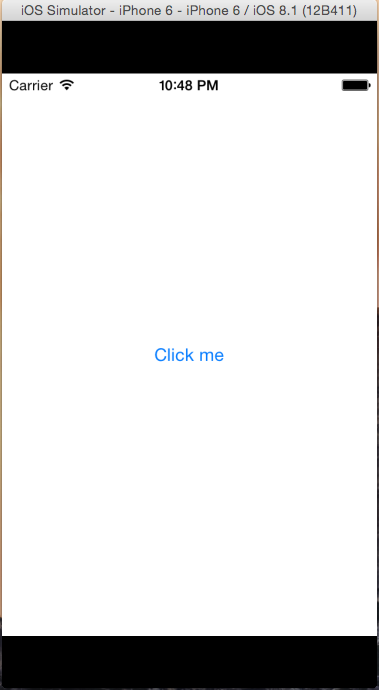
Which allows me to use it in Xamarin Forms Xaml like this:
<?xml version="1.0" encoding="utf-8" ?>
<ContentPage xmlns="http://xamarin.com/schemas/2014/forms"
  xmlns:x="http://schemas.microsoft.com/winfx/2009/xaml"
  xmlns:pclControl="clr-namespace:PclControl;assembly=PclControl"
  x:Class="XamarinPclControlBug.StartPage">
  <pclControl:MyButton Text="Click me" />
</ContentPage>

imagewp_ss_20150110_0001If you deploy this to Android, it looks good (albeit ugly), likewise in Windows Phone. It’s nothing special – just a button. But is you try to deploy this on iOS, this does not work at all, you get the System.IO.FileNotFoundException


The work around is as simple as it is weird. You go the iOS app’s AppDelegate class, and you add the code in that I displayed in red and underlined

using MonoTouch.Foundation;
using MonoTouch.UIKit;
using PclControl;
using Xamarin.Forms;
using Xamarin.Forms.Platform.iOS;

namespace XamarinPclControlBug.iOS
{
  [Register("AppDelegate")]
  public partial class AppDelegate :
      FormsApplicationDelegate 
  {
    public override bool FinishedLaunching(UIApplication app, NSDictionary options)
    {
      var b = new MyButton();
      Forms.Init();

      LoadApplication(new App()); 

      return base.FinishedLaunching(app, options);
    }
  }
}

imageIndeed – you make a manual fire-an-forget instance of the control that you want to use, and lo and behold on the right:

If you comment out the var b = new MyButton(); in the sample solution it will not work – if you do uncomment it, it will. Make sure you clean the solution before attempting re-deploy – I have noticed that sometimes making a little change like this is not enough to properly redeploy.

I think this is a bug, and one that took me quite some time to track and work around. Creating the control in code was just the result of testing whether the code could be compiled if I created a control from code – and then suddenly it worked, after hours of checking all kinds of settings. Living on the bleeding edge has it’s price.

UPDATE January 11, 2015

It has been brought to my attention that this is not caused by a bug but due to the behavior of the iOS linker. My brilliant Italian friend and fellow MVP Corrado Cavalli has run into the same or at least very similar problem earlier and has blogged about it as early as October, and recently this article from December by James Montemagno describes the same problem – and solution. Well, I can only hope my blog makes this issue (and the solution) easier to find, because I could not ;)

30 July 2014

Sharing code between a Xamarin Forms/MVVMLight app and EF-code first backend using Shared Reference Project Manager

Disclaimer

I am in the very early early stages of toying with Xamarin and it may well be that whatever I am doing here, is not the smartest thing in the world. This is a much as a report of my learning (may ‘struggle’ is a better word) as how-to. But what I describe here works – more or less – although it was a mighty hassle to actually get it working.

The objective

While I was having my first trials with Xamarin stuff, I turned to Entity Framework Code First because, well, when setting up a backend I am lazy. Without much thinking I made the models, using data annotations, and soon found out I had painted myself into a corner with a model that (very simplified) looks like this

using System.ComponentModel.DataAnnotations;
using System.ComponentModel.DataAnnotations.Schema;

namespace DemoShared.Models
{
   [Table("Pictures")]
    public class Photo
    {
      public long ID { get; set; }
      
     [Required]
      public string Name { get; set; }
    }
}

imageGuess what - data annotations don't work in PCL. Now what? Make a shadow class library for use on the client? That kind of went against my principles. So I decided to use the Shared Reference Project Manager.  This is a Visual Studio extension that can make basically any project shared, in stead of only between Windows Phone 8.1 and Windows 8.1 You can get it here.

Setting up the initial application

Using this tutorial by Laurent Bugnion I did set up my first Xamarin MVVM application. I created an app "DemoShared" and used the tutorial it up to the point where he starts making a new new xaml page (“Creating a new XAML page”).

Try to build the project. If the Windows Phone project fails with “The 'ProductID' attribute is invalid.. “ (etc), manually open it’s Properties/WMAppManifest.xml, for instance with NotePad, find “ProductID and “PubisherID” and place the generate GUIDs between accolades. This is a bug the Xamarin project template that I already reported.image

Basic setup of the backend

  • File/New Project/Web/ASP.Net Web application (it’s the only choice you have)
  • Choose a name (I chose DemoShared.Backend) and hit OK
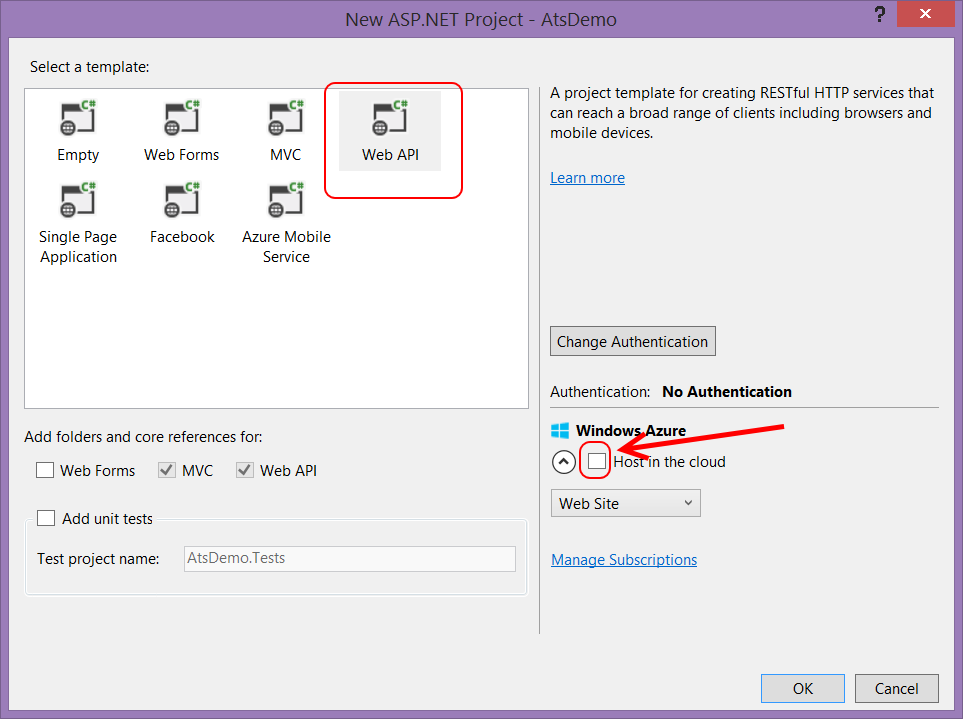
  • Choose “Web Api” and UNSELECT “Host in the cloud”
  • Go to the NuGet Package manager and update all the packages, because a lot of them will be horribly outdated. Hit “accept” or “yes” on any questions
  • Delete the all folders except “App_Data”, “App_Start” and “Controllers” because we don’t need them
  • Delete BundleConfig.cs from App_Start, and remove the reference to it from Global.asax.cs as well
  • Add a (.NET) class library DemoShared.DataAccess
  • Install NuGet Package “EntityFrameWork” in DemoShared.Backend and DemoShared.DataAccess
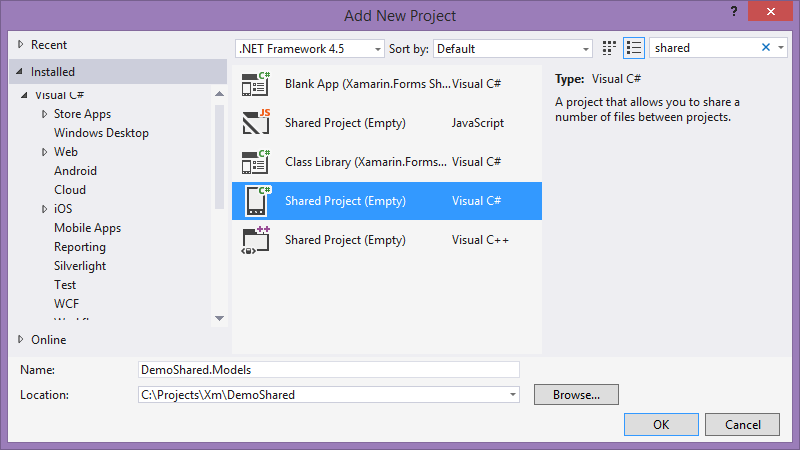
  • Create a project DemoShared.Models of type Shared Project (Empty) of type Visual C#:

image

  • Right-click the DemoShared (Portable) project, select Add, then “Add Shared Project reference”, then select “DemoShared.Models
  • Repeat this procedure for DemoShared.DataAccess.
  • Also add a reference to System.ComponentModel.DataAnnotations to DemoShared.DataAccess.
  • Add DemoShared.DataAccess as a reference to DemoShared.Backend

Re-defining the models

The key point of this whole exercise is to re-use models. For one model class this is quite some overkill, but if you have a large collection of models, things becomes quite different. So anyway. I redefined the model class as follows:

#if NET45
using System.ComponentModel.DataAnnotations;
using System.ComponentModel.DataAnnotations.Schema;
#endif

namespace DemoShared.Models
{
#if NET45
   [Table("Pictures")]
#endif

  public class Photo
  {
    public long ID { get; set; }

#if NET45     
     [Required]
#endif
    public string Name { get; set; }
  }
}

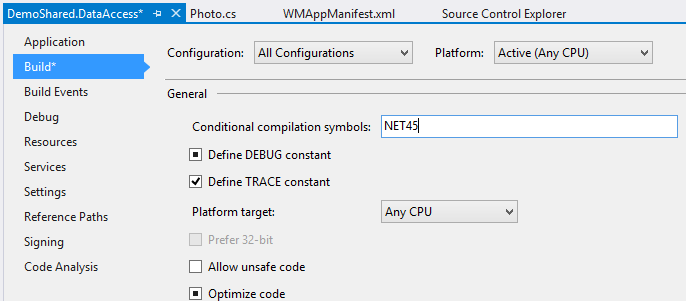
Now in order to make this compile work the way it is intended on server, you will need to add the conditional compilation symbol “NET45” to all configurations of DemoShared.DataAccess

image

And then it compiles both into PCL and into the DataAccess project – without the attributes in the first, but with the attributes the second. Remember, this is just a really nifty formalized way of ye olde way of file linking.

Kick starting the Entity Framework

Following this tutorial – more or less, I added the following class to the DataAccess project:

using System.Data.Entity;
using DemoShared.Models;

namespace DemoShared.DataAccess
{
  public class DemoContext : DbContext
  {
    public DemoContext()
      : base("DemoContext")
        {
        }

    public DbSet<Photo> Photos { get; set; }
  }
}

And then to the web.config I added this rather hopeless long connection string:

<connectionStrings>
  <add name="DemoContext" connectionString="Data Source=(localdb)\v11.0;AttachDbFilename=|DataDirectory|DemoDb.mdf;Initial Catalog=DemoDb;Integrated Security=True;MultipleActiveResultSets=True" providerName="System.Data.SqlClient" />
</connectionStrings>

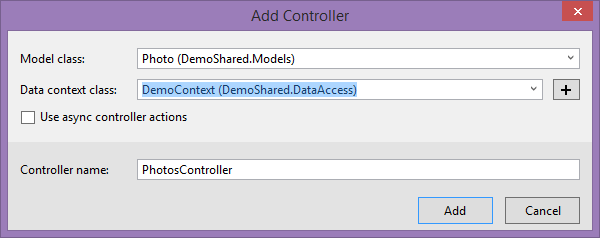
Rebuild the project. Now go to the Backend Controller folder, right click Add/Controller, select “Web API 2 Controller with actions, using Entity Framework” and in the following dialog, select the Model and Data Context class as displayed to the right

imageimage

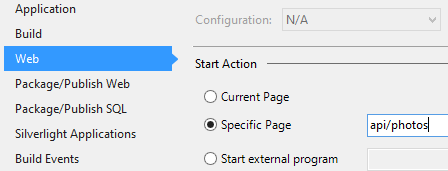
imageNow if you set “DemoShared.Backend” as start-up project, set it’s startup URL to “api/photos” and start the project, you will automatically get a database “DemoDb” in “App_Data”.Is EF code first cool or what? And my data annotations are used correctly – the Photo type is stored in the “Pictures” table, just as I wanted.

image

Now I manually entered some data in the tables to get something to show, but of course you can also write an initializer like the EF tutorial describes, or write a separate project that prefills the the database. This is what I usually do, and that’s why I have put the DemoContext in a separate assembly and not in the web project – to be able to reference it form another project.

And now finally, to the Xamarin app

Adding the view model

First of all – start the NuGet package manager and add Newtonsoft Json.NET to DemoShared (Portable).

Then, add a “ViewModels” folder to DemoShared (Portable) to hold this class:

using System;
using System.Collections.Generic;
using System.Collections.ObjectModel;
using System.IO;
using System.Net;
using DemoShared.Models;
using GalaSoft.MvvmLight;
using GalaSoft.MvvmLight.Command;
using Newtonsoft.Json;

namespace DemoShared.ViewModels
{
  public class MainViewModel : ViewModelBase
  {
    public MainViewModel()
    {
      Photos = new ObservableCollection<Photo>();
    }

    public string DataUrl
    {
      get { return "http://169.254.80.80:28552/api/Photos"; }
    }

    public ObservableCollection<Photo> Photos { get; set; }

    private RelayCommand loadCommand;

    public RelayCommand LoadCommand
    {
      get
      {
        return loadCommand ?? (loadCommand = new RelayCommand(
            () =>
            {
              var httpReq = (HttpWebRequest)WebRequest.Create(new Uri(DataUrl));
              httpReq.BeginGetResponse((ar) =>
              {
                var request = (HttpWebRequest)ar.AsyncState;
                using (var response = (HttpWebResponse)request.EndGetResponse(ar))
                {
                  if (response.StatusCode == HttpStatusCode.OK)
                  {
                    using (var reader = new StreamReader(response.GetResponseStream()))
                    {
                      string content = reader.ReadToEnd();
                      if (!string.IsNullOrWhiteSpace(content))
                      {
                        var result = JsonConvert.DeserializeObject<List<Photo>>(content);
                        foreach (var g in result)
                        {
                          Photos.Add(g);
                        }
                      }
                    }
                  }
                }
              }, httpReq);
            }));
      }
    }

    private static MainViewModel instance;
    public static MainViewModel Instance
    {
      get
      {
        CreateNew();
        return instance;
      }
      set { instance = value; }
    }

    public static MainViewModel CreateNew()
    {
      if (instance == null)
      {
        instance = new MainViewModel();
      }
      return instance;
    }
  }
}

A rather standard MVVMLight viewmodel I might say, with the usual singleton pattern I use (I am not a big fan of "Locators"). When the command is fired, data is loaded from the WebApi url, deserialized to the same model code as was used to create it on the server, and loaded into the ObservableCollection. Nothing much special here.

There's one fishy detail - in stead of a computer name or “localhost”, there is this hard coded IP adress. We will get to that later.

Adding the Forms XAML page

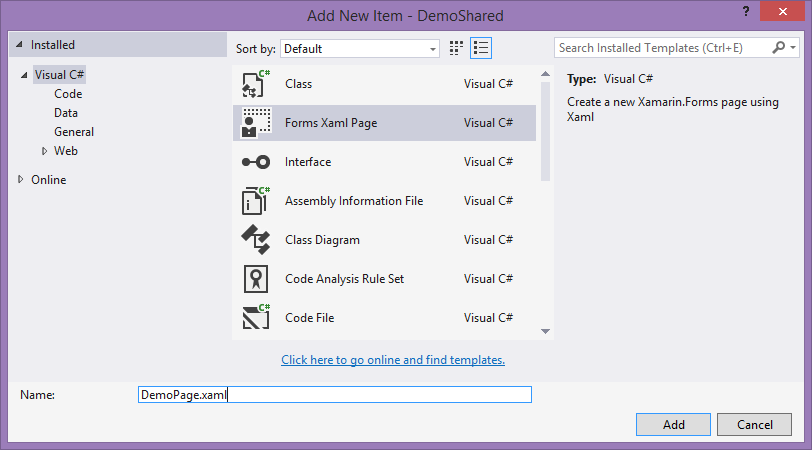
Add a new Forms XAML page like this

image

Be aware that you have to enter the name manually, that’s a bug in the Xamarin tools, like Laurent Bugnion already described in his tutorial

Now, go to the DemoPage.Xaml.cs and set up the data context by adding one line of code to the constructor of the page:

public DemoPage()
{
  InitializeComponent();
  BindingContext = MainViewModel.Instance;
}

This will of course require a “using DemoShared.ViewModels;” at the top. Then we add our “XAML” to start page

<?xml version="1.0" encoding="utf-8" ?>
<ContentPage xmlns="http://xamarin.com/schemas/2014/forms"
		xmlns:x="http://schemas.microsoft.com/winfx/2009/xaml"
		x:Class="DemoShared.DemoPage">
  <StackLayout Orientation="Vertical" Spacing="0">
    <Button Text="Click here" Command="{Binding LoadCommand}" 
            VerticalOptions="Start" HorizontalOptions="Center"  />
    <ListView ItemsSource="{Binding Photos}"
           RowHeight="50">
      <ListView.ItemTemplate>
        <DataTemplate>
          <ViewCell>
            <ViewCell.View>
              <StackLayout Padding="5, 5, 0, 5"
                           Orientation="Vertical"
                           Spacing="2">
                <Label Text="{Binding ID}" Font="Bold, Large" 
                       TextColor="Red"/>
              </StackLayout>
            </ViewCell.View>
          </ViewCell>
        </DataTemplate>
      </ListView.ItemTemplate>
    </ListView>
  </StackLayout>
</ContentPage>

Now this looks kind of familiar, but also kind of - not really. Binding looks kind of you would expect, some controls have weird options, as some... well, have you ever seen a ViewCell before? Working with this stuff really makes you appreciate things like IntelliSense and Blend, for you have none of the above. Good old handcrafted XML. But - it does carry the magic of Xamarin Forms.

Finally, we make our start page the start page of the app. Go to App.cs in DemoShared (Portable) and change the GetMainPage method to:

public static Page GetMainPage()
{
  return new DemoPage();
}

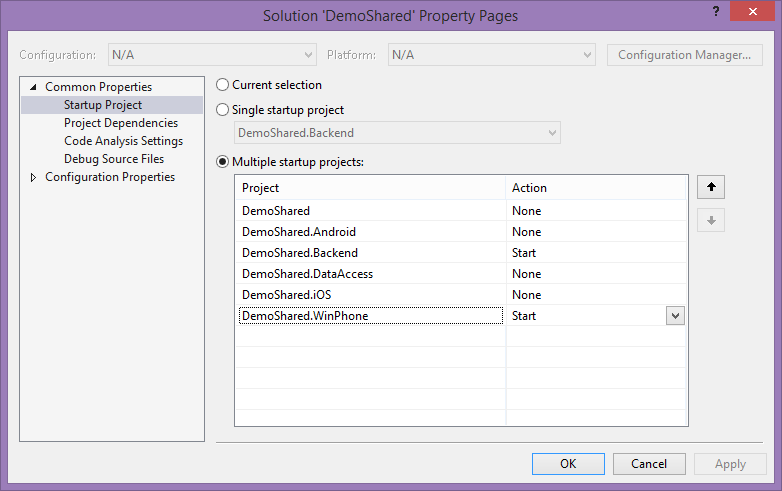
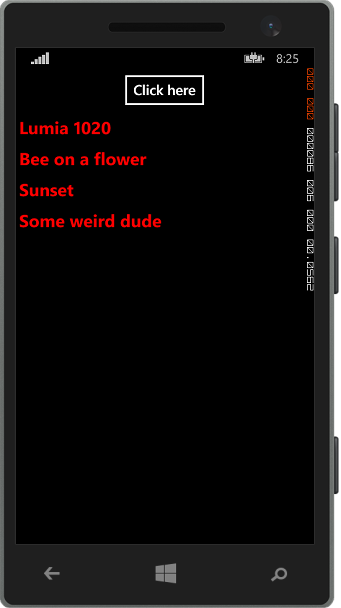
imageimageThen I set a multiple startup project, setting both the Windows Phone project as well as the backend project as startup.

And sure enough, there’s the Windows Phone startup screen with one button. And if I click it…


I get an error.

And now for the fishy detail

So your backend is a website - running under IISExpress. By default, that’s not accessible by anything else but localhost, and not by IP adress. What you have to do is explained mostly here. First, find your applicationhost.config. It’s usually in

  • C:\Users\%USERNAME%\Documents\IISExpress\config or
  • D:\Users\%USERNAME%\Documents\IISExpress\config

In my case it’s the second one. Now before you start messing around in it, you might want to make a backup. Then open the file, and search for the text "*:28552”. This should yield you the following line:

<binding protocol="http" bindingInformation="*:28552:localhost" />

Make a copy of this line, directly below it. Replace localhost by the IP adress you found earlier using "ping -t –4 <hostname>". Net result, in my case:

<binding protocol="http" bindingInformation="*:28552:localhost" />
<binding protocol="http" bindingInformation="*:28552:169.254.80.80" />

Then – very important – close Visual Studio and restart as Administrator. For then and only then IISExpress will be allowed to bind to something else than localhost. That crucial bit of information is unfortunately hard to find.

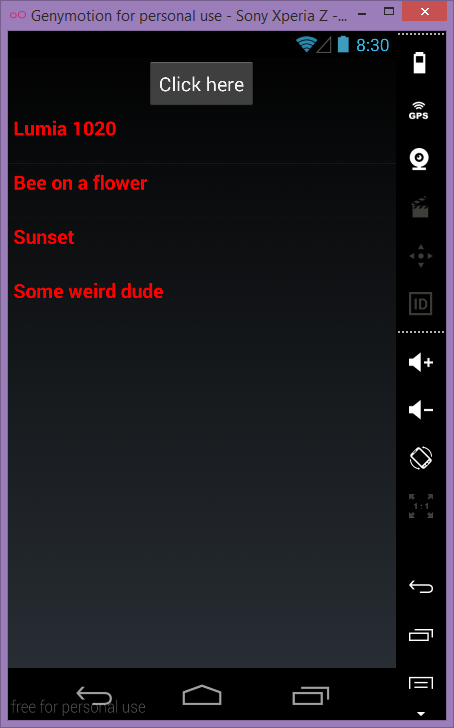
And then, sure enough:

imageimage

It runs on Windows Phone and Android. And I am sure, on Apple stuff too but lacking Apple hardware and developer account I could not test it.

BTW – and alternative to messing around with IIS Express settings is of course host the website in IIS. But that requires apparently the database being hosted in SQL*Server Express, so it can’t be in App_Data like this. Or something like that. I found this made a quick test easier.

One more thing

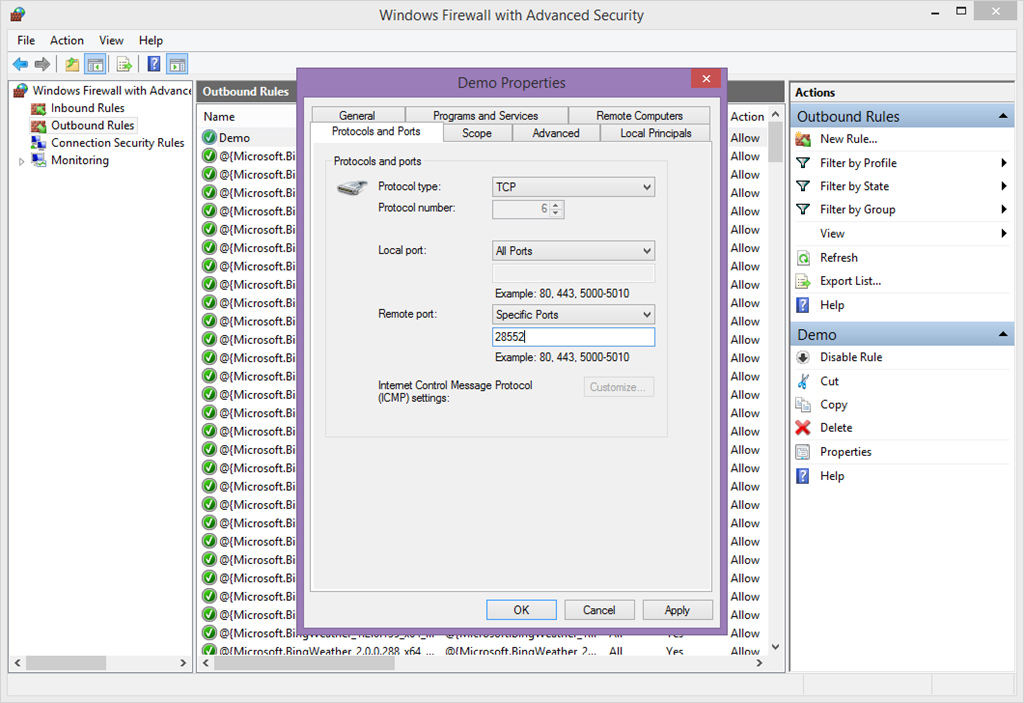
If you want to test this from outside your computer, on a phone, you might want to open the port for TCP traffic:

image

Conclusion

Using Xamarin allowed us to shared code over multiple platform, but the Shared Reference Project Manager we could also share with the server. And the ease with which you can get a database powered backend up and running using EF code first was also quite impressive to me. Now tiny details, like security and upgrades, I leave as exercise to the reader.

Code can be found here.

Post scriptum

My fellow MVP Corrado Cavelli pointed out to me that the LoadCommand method in the MainViewModel can be made considerably less complex by using the Microsoft ASP.NET Web API 2.2 Client NuGet Package. He turns out to be quite right. When you add this to the portable class library you can rewrite the command to a relatively simple

public RelayCommand LoadCommand
{
  get
  {
    return loadCommand ?? (loadCommand = new RelayCommand(
        async () =>
              {
                var client = new HttpClient { 
                   BaseAddress = new Uri("http://169.254.80.80:28552") };
                var response = await client.GetAsync("api/Photos");
                var result = await response.Content.ReadAsAsync<List<Group>>();
                foreach (var g in result)
                {
                  Groups.Add(g);
                }
              }));
  }
}
This requires "using System.Net.Http;" and "using System.Threading.Tasks;" to be added to the file, but it's a lot less cluttered than my original - copied somewhere from the interwebz - code. Thanks Corrado!