As I was working on yet another piece of POC code showing off the power of both the Windows 10 IoT Core stuff and Microsoft Azure I ran into a very odd problem. My solution contains a plethora of project types: a Universal Windows Platform app targeted towards a Raspberry PI2, a Windows Phone app, some class libraries (some portable, some not) and – the lead actor of this post - an Azure website hosting a Signal/R hub.
I published my website to Azure with a few clicks (this stuff has become so easy it’s almost laughable, to the point that it’s more work to spin up a site on your local machine) and noticed the hub was nicely transmitting messages. Then I wanted to debug the hub (that is, the website). This is an awesome facility on Visual Studio and Azure these days – if you have published a debug build, you can simply attach a debugger to a running site, place breakpoints, see Debug.WriteLine statements writing on the output window… cue “It’s a kind of Magic” ;).
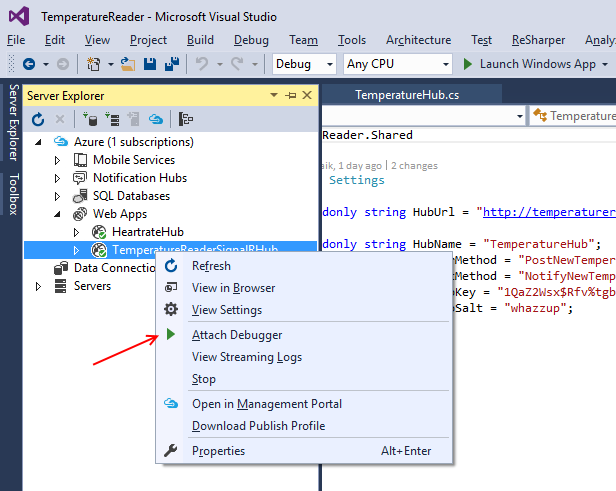
So I did set the Signal/R site to be my startup/project, opened the server explorer, expanded the Azure node, found my website and clicked “Attach Debugger”
The Edge browser, being the default browser on my Windows 10 system appeared, showing the default Azure website page indicating the website had been successfully created and then…. nothing. The debugger appeared to halt, but no breakpoints were hit, and the debugger then just stopped completely.
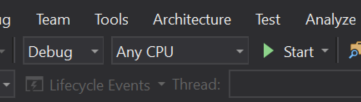
I tried a lot, but nothing helped. The annoying thing is, the solution was staring me in the face all the time but I was a bit tired. Look top right my friends, just right from the Solution Platforms dropdown, that now says “Any CPU”. There is another drop down and it says…. “Launch Windows App”.

You have to set this drop down to either “Internet Explorer” or “Google Chrome” (I don’t know if more browsers appear in this drop down once they are installed) and then and only then the debugger works. You can see this by the selected browser appearing in stead of Edge.
If this is a bug (this is a RC after all) or just something I missed, I don’t know, but this is how you get it to work. I won’t tell you how much time it took me to find it out – I’d rather not remember it ;)