29 September 2010

Extension methods for tomb stoning the Windows Phone 7 model

As I was (and still am) playing with my MVVM-driven Windows Phone 7 map viewer, I started thinking about tomb stoning and/or serializing stuff into the Windows Phone 7 application state and/or isolated storage. I came up with four extension methods than can be used to store/serialize the complete model in both. Maybe not ideal in all cases, but it was a simple solution for me.

Getting started

I created an assembly LocalJoost.Utilities, in which I first defined a generic interface for the model, which I called – with a flash of inspiration – IModel ;-). It’s implementation is not interesting for the extension methods.

Save to phone application state

using System;
using System.IO;
using System.IO.IsolatedStorage;
using System.Runtime.Serialization;
using System.Windows;
using Microsoft.Phone.Shell;

namespace LocalJoost.Utilities
{
  /// <summary>
  /// Some extensions method that allow serializing and deserializing
  /// a model to and from phone state and/or isolated storage
  /// </summary>
  public static class ApplicationExtensions
  {
    private const string ModelKey = "model";
 
    public static IModel RetrieveFromPhoneState(this Application app) 
    {
      if (PhoneApplicationService.Current.State.ContainsKey(ModelKey))
      {
        return PhoneApplicationService.Current.State[ModelKey] as IModel;
      }
      return null;
    }

    public static void SaveToPhoneState(this Application app, IModel model)
    {
      if (PhoneApplicationService.Current.State.ContainsKey(ModelKey))
      {
        PhoneApplicationService.Current.State.Remove(ModelKey);
      }
      PhoneApplicationService.Current.State.Add(ModelKey, model);
    }
  }
}

Creating a Locator

I wanted my model to be bindable by XAML and be usable from code as well, so I created the following ‘Locator’:

using LocalJoost.Utilities;

namespace LocalJoost.Models
{
  public class Locator
  {
    private static IModel _model;
    private static Locator _locator;

    public IModel Model
    {
      get { return _model; }
      set { _model = value; }
    }

    public static Locator Instance
    {
      get { return _locator ?? (_locator = new Locator()); }
    }
  }
}

Using Locator and Model from XAML

First, add the namespace to the XAML

xmlns:Utilities="clr-namespace:LocalJoost.Utilities;assembly=LocalJoost.Utilities"

Then bind it to your Layout root or any other element of choice

 <Grid x:Name="LayoutRoot"
  DataContext="{Binding Source={StaticResource Locator}, Path=Model}">

Instantiating your model

Interesting caveat – the Locator is instantiated, not your model. When the application runs for the very first time, there will be no model to retrieve. Thus, in the constructor of App.Xaml.cs you need to add:

Locator.Instance.Model = new YourModel();

in which you replace "YourModel" for your own model type.

Storing in / retrieving from phone application state

Using the extension methods is pretty simple then: open your App.Xaml.cs, find two methods called “Application_Activated” and “Application_Deactivated” and modify them as follows:

// Code to execute when the application is activated (brought to foreground)
// This code will not execute when the application is first launched
private void Application_Activated(object sender, ActivatedEventArgs e)
{
  Locator.Instance.Model = this.RetrieveFromPhoneState();
}

// Code to execute when the application is deactivated (sent to background)
// This code will not execute when the application is closing
private void Application_Deactivated(object sender, DeactivatedEventArgs e)
{
  this.SaveToPhoneState(Locator.Instance.Model);
}

And that’s it. Your model now persists to the phone state and survives, for instance, a hit on the search button

Storing in Isolated Storage

This proves to be marginally more difficult. I expanded the class ApplicationExtensions with two more methods and a const:

private const string DataFile = "model.dat";

public static T RetrieveFromIsolatedStorage<T>(this Application app) 
  where T : class
{
  using (var appStorage = IsolatedStorageFile.GetUserStoreForApplication())
  {
    if (appStorage.FileExists(DataFile))
    {
      using (var iss = appStorage.OpenFile(DataFile, FileMode.Open))
      {
        try
        {
          var serializer = new DataContractSerializer(typeof(T));
          return serializer.ReadObject(iss) as T;
        }
        catch (Exception e)
        {
          System.Diagnostics.Debug.WriteLine(e);
        }
      }
    }
  }
  return null;
}

public static void SaveToIsolatedStorage(this Application app, IModel model)
{
  using (var appStorage = IsolatedStorageFile.GetUserStoreForApplication())
  {
    if (appStorage.FileExists(DataFile))
    {
      appStorage.DeleteFile(DataFile);
    }
    var serializer = new DataContractSerializer(model.GetType());
    using (var iss = appStorage.CreateFile(DataFile))
    {
      serializer.WriteObject(iss, model);
    }
  }
}

You now have to find Application_Launching and Application_Closing in App.Xaml.cs and modify them in a similar way:

// Code to execute when the application is launching (eg, from Start)
// This code will not execute when the application is reactivated
private void Application_Launching(object sender, LaunchingEventArgs e)
{
    Locator.Instance.Model = 
       this.RetrieveFromIsolatedStorage<YourModel>();
}

// Code to execute when the application is closing (eg, user hit Back)
// This code will not execute when the application is deactivated
private void Application_Closing(object sender, ClosingEventArgs e)
{
    this.SaveToIsolatedStorage(Locator.Instance.Model);
}

Some notes

  • In order to make this work, your need to mark your model class with the [DataContract] attribute, and every member you want to be serialized with [DataMember]
  • If you are using MVVMLight (which of course you are ;-) ) and if you are just making simple apps that don’t use separate models but just view models, be aware that your model cannot inherit from ViewModelBase, for the simple reason that this class is not serializable. Oops ;-)
  • If your model communicates with the view using attached dependency properties you may run into some timing difficulties. I will soon blog about a work-around for that.

10 September 2010

An animated swipe-enabled title control for Windows Phone 7

Updated for the RTM tools, included sample application to show how it’s used.

For my ongoing ‘research project’ on making the user experience for my MVVM-driven map viewer for Windows Phone 7 a bit better I wanted to make some changes to the header. Initially you could swipe the header which showed which map you show, but it gave no indication that you actually could make the swipe, or that other maps were available. I set out to create a behaviour, and ended up building a control. In my map viewer, it currently looks and works like this:

And, of course, it needed to play along nicely with MVVM. And therefore it has three bindable properties:

  • Items: an IList of basically anything
  • SelectedItem: the currently selected item in Items
  • DisplayText: (optional): the name property of the objects in Items which value should be used in de SwipeTitle. If skipped, the ToString() value of the objects is used as a display value.

It does not sport item or data templates (yet) – it’s just meant to be plug and play. For now.

Usage

You only have to do six things to use this thing:

  • Create an empty Windows Phone 7 application
  • Add the LocalJoost.Controls project included in the demo solution to your project.
  • Create some kind of model with a property containing a list of objects and a property containing a selected object and bind it to the layout root
  • Drag the SwipeTitle control on the design surface at the place of the TextBox called “PageTitle” (and remove PageTitle)
  • Bind property Items, SelectedItem and DisplayText as needed
  • Make sure the Width property of the StackPanel “TitlePanel” is some large width, e.g. 2000.

Below is a short walkthrough of the source. Those who just want to use it, can just grab the source. If you want a simple sample application showing the usage of the control, just grab this solution and see how it works. I sincerely apologize for the sheer silliness of the demo solution, it was all I could think of on short notice.

Walkthrough

The XAML is pretty simple: three TextBlocks in a horizontal StackPanel:

<UserControl x:Class="WP7Viewer.SwipeTitle"
  xmlns="http://schemas.microsoft.com/winfx/2006/xaml/presentation"
  xmlns:x="http://schemas.microsoft.com/winfx/2006/xaml"
  xmlns:d="http://schemas.microsoft.com/expression/blend/2008"
  xmlns:mc="http://schemas.openxmlformats.org/markup-compatibility/2006"
  mc:Ignorable="d"
  FontFamily="{StaticResource PhoneFontFamilyNormal}"
  FontSize="{StaticResource PhoneFontSizeNormal}"
  Foreground="{StaticResource PhoneForegroundBrush}"
  d:DesignHeight="480" d:DesignWidth="480">
    <StackPanel Grid.Row="1" Orientation="Horizontal" x:Name="pnlSwipe">
      <TextBlock x:Name="tbPrevious"
          Foreground="Gray"
           Text="Previous" 
           Margin="0,0,0,0"
           Style="{StaticResource PhoneTextTitle1Style}">
      </TextBlock>
    <TextBlock x:Name="tbCurrent"
           Text="Current" 
           Margin="20,0,0,0"
           Style="{StaticResource PhoneTextTitle1Style}">
       </TextBlock>
    <TextBlock x:Name="tbNext"
          Foreground="Gray"
           Text="Next" 
           Margin="20,0,0,0"
           Style="{StaticResource PhoneTextTitle1Style}">
      </TextBlock>
    </StackPanel>
</UserControl>

You can swipe endlessly left or right, when it comes to the end or the start of the list it just adds the items from the start or the end again. The middle text is the selected object, and is always shown (in white). When you swipe the text to the left, it animates the swipe to completion: the text previously on the right, which you swiped into view, is now displayed in the middle TextBlock. The text that used to be in the middle block, is now in the left, and in the right TextBlock a new text from Items is displayed, as shown in the video.

Now how does this work? If you know how to do it, it is – as everything – pretty simple. First, some boring stuff, the class definition with some members and dependency properties:

using System;
using System.Collections;
using System.Collections.Generic;
using System.Windows;
using System.Windows.Controls;
using System.Windows.Input;
using System.Windows.Media;
using System.Windows.Media.Animation;

namespace WP7Viewer
{
    public partial class SwipeTitle
    {
       /// <summary>
       /// An internal linked list to make searching easier
       /// </summary>
       private LinkedList<object> _displayItems;
       private TranslateTransform _transform;
       private int _currentDisplayItem = 1; 
     
      #region Items
      /// <summary>
      /// Dependency property holding the items selectable in this control
      /// </summary>
      public static readonly DependencyProperty ItemsProperty =
         DependencyProperty.Register("Items", typeof(IList),
         typeof(SwipeTitle), new PropertyMetadata(ItemsChanged));

      private static void ItemsChanged(object sender, 
        DependencyPropertyChangedEventArgs args)
      {
        var c = sender as SwipeTitle;
        if (c != null) {  c.ProcessItemsChanged(); }
      }

      public IList Items
      {
        get { return (IList)GetValue(ItemsProperty); }
        set { SetValue(ItemsProperty, value); }
      }

      public void ProcessItemsChanged()
      {
        _displayItems = new LinkedList<object>();
        foreach (var obj in Items) _displayItems.AddLast(obj);
        SelectedItem = Items[0];
      }
      #endregion

      #region SelectedItem
      /// <summary>
      /// Dependency property holding the currently selected object
      /// </summary>
      public static readonly DependencyProperty SelectedItemProperty =
         DependencyProperty.Register("SelectedItem", typeof(object),
         typeof(SwipeTitle), new PropertyMetadata(SelectedItemChanged));

      private static void SelectedItemChanged(object sender, 
        DependencyPropertyChangedEventArgs args)
      {
        var c = sender as SwipeTitle;
        if (c != null) { c.ProcessSelectedItemChanged(); }
      }

      // .NET Property wrapper
      public object SelectedItem
      {
        get { return (object)GetValue(SelectedItemProperty); }
        set { SetValue(SelectedItemProperty, value); }
      }

      public void ProcessSelectedItemChanged()
      {
        UpdateDisplayTexts();
        ScrollToDisplayItem(1, false);
      }
      #endregion
      
      #region DisplayField
      public string DisplayField
      {
        get { return (string)GetValue(DisplayFieldProperty); }
        set { SetValue(DisplayFieldProperty, value); }
      }

      public static readonly DependencyProperty DisplayFieldProperty =
        DependencyProperty.Register("DisplayField", typeof(string), 
          typeof(SwipeTitle), null);
      #endregion
    }
  }
}

The transformation is used in the animation and to make sure the middle TextBlock is displayed when idle. I tend to tuck dependency properties in regions to keep stuff a bit organized, but feel free to do otherwise. Note, however, that the objects in Items are immediately copied in a LinkedList _displayItems – I use this list to make it easier to find previous and next objects.

Then we need a little method to get the display text from the objects according to the value of “DisplayField”:

/// <summary>
/// Retrieve the display value of an object
/// </summary>
/// <param name="displayObject"></param>
/// <returns></returns>
private string GetDisplayValue( object displayObject)
{
  if (DisplayField != null)
  {
    var pinfo = displayObject.GetType().GetProperty(DisplayField);
    if (pinfo != null)
    {
      return pinfo.GetValue(displayObject, null).ToString();
    }
  }
  return displayObject.ToString();
}
To show or update the displayed texts, according the object that is selected (in SelectedItem), the UpdateDisplayTexts method is needed. This is fired when Items or SelectedItem is changed. It finds SelectedItem and puts it in the middle TextBlock, and finds the texts that need to be before and after it, using the LinkedList _displayItems.
/// <summary>
/// Shows (possible) new texts in the three text boxes
/// </summary>
private void UpdateDisplayTexts()
{
  if (_displayItems == null) return;
  if (SelectedItem == null)
  {
    SelectedItem = _displayItems.First.Value;
  }
  tbCurrent.Text = GetDisplayValue(SelectedItem);
  var currentNode = _displayItems.Find(SelectedItem);
  if (currentNode == null) return;
  tbNext.Text =
    GetDisplayValue(currentNode.Next != null ? 
     currentNode.Next.Value : _displayItems.First.Value);
  tbPrevious.Text =
    GetDisplayValue(currentNode.Previous != null ? 
     currentNode.Previous.Value : _displayItems.Last.Value);
}

Now I need to set up and implement some events in the control:

  • The items must be initially displayed, after the control is loaded
  • When the user swipes the title, it must follow his finger
  • When the user stops swiping, it must decide whether the user has swiped far enough to select the next item (and if not, revert the swipe), and if the swipe was far enough, select the next item
  • When the next item is selected, show the new selected text in the middle again.
public SwipeTitle()
{
    InitializeComponent();
    _transform = new TranslateTransform();

    pnlSwipe.Loaded += (sender, args) => ProcessSelectedItemChanged();
    pnlSwipe.ManipulationDelta += pnlSwipe_ManipulationDelta;
    pnlSwipe.ManipulationCompleted += pnlSwipe_ManipulationCompleted;
    pnlSwipe.RenderTransform = _transform;
    tbPrevious.SizeChanged += tbPrevious_SizeChanged;
}

void pnlSwipe_ManipulationDelta(object sender, ManipulationDeltaEventArgs e)
{
    _transform.X += e.DeltaManipulation.Translation.X;
}

/// <summary>
/// Caculates the screen width
/// </summary>
private static double ScreenWidth
{
    get
    {
        var appFrame = Application.Current.RootVisual as Frame;
        return null == appFrame ? 0.0 : appFrame.RenderSize.Width;
    }
}

/// <summary>
/// Fired after manipulation is completed. When the title has been moved over 25% of the
/// screen, the next or previous item is selected
/// </summary>
/// <param name="sender"></param>
/// <param name="e"></param>
void pnlSwipe_ManipulationCompleted(object sender, ManipulationCompletedEventArgs e)
{
    if (e.TotalManipulation.Translation.X > .25 * ScreenWidth)
    {
        ScrollToDisplayItem(_currentDisplayItem - 1, true);
    }
    else if (e.TotalManipulation.Translation.X < -.25 * ScreenWidth)
    {
        ScrollToDisplayItem(_currentDisplayItem + 1, true);
    }
    ScrollToDisplayItem(_currentDisplayItem, true);
}

/// <summary>
/// Fired when new data is put into the last object. 
/// Rendering is then finished - the middle text is showed in the middle again
/// </summary>
/// <param name="sender"></param>
/// <param name="e"></param>
void tbPrevious_SizeChanged(object sender, SizeChangedEventArgs e)
{
    ScrollToDisplayItem(1, false);
}

In the constructor the members are initialized – particularly the transform – which is set to the StackPanel surrounding the three TextBlocks. When the user now swipes, the texts appear to follow him. When, in pnlSwipe_ManipulationCompleted, the user has dragged the text over more than 25% of the screen, it scrolls the text further until the newly selected items is fully into view. If the text value of the last box is changed, we need to reset the middle TextBlock in the center again – but now without animation, and so it will seem if the scrolling text suddenly changes in color and appears to be selected.

Notice a little gem in here – the ScreenWidth property. It turns out you can determine the actual screensize by trying to cast the RootVisual to a Frame, and then check it’s RenderSize.

All that is left now, basically, is the implementation of ScrollToDisplayItem – and a companion method, as shown below:

/// <summary>
/// Scrolls to one of the 3 display items
/// </summary>
/// <param name="item">0,1 or 2</param>
/// <param name="animate">Animate the transition</param>
void ScrollToDisplayItem(int item, bool animate)
{
  _currentDisplayItem = item;
  if (_currentDisplayItem < 0) _currentDisplayItem = 0;
  if (_currentDisplayItem >= pnlSwipe.Children.Count)
  {
    _currentDisplayItem = pnlSwipe.Children.Count - 1;
  }
  var totalTransform = 0.0;
  for (var counter = 0; counter < _currentDisplayItem; counter++)
  {
    double leftMargin = 0;
    if (counter + 1 < pnlSwipe.Children.Count)
    {
      leftMargin = 
        ((Thickness)(pnlSwipe.Children[counter + 1].GetValue(MarginProperty))).Left;
    }
    totalTransform += 
      pnlSwipe.Children[counter].RenderSize.Width + leftMargin;
  }
  var whereDoWeGo = -1 * totalTransform;

  if (animate)
  {
    //Set up the storyboard and animate the transition
    var sb = new Storyboard();
    var anim = 
      new DoubleAnimation
      {
        From = _transform.X,
        To = whereDoWeGo,
        Duration = new Duration(
          TimeSpan.FromMilliseconds(Math.Abs(_transform.X - whereDoWeGo)))
      };
    Storyboard.SetTarget(anim, _transform);
    Storyboard.SetTargetProperty(anim, new PropertyPath(TranslateTransform.XProperty));
    sb.Children.Add(anim);
    sb.Completed += sb_Completed;
    sb.Begin();
  }
  else
  {
    _transform.X = whereDoWeGo;
  }
}

/// <summary>
/// Fired when an animation is completed. Then a new items must be selected
/// </summary>
/// <param name="sender"></param>
/// <param name="e"></param>
void sb_Completed(object sender, EventArgs e)
{
  if (SelectedItem != null)
  {
    var currentNode = _displayItems.Find(SelectedItem);
    if (_currentDisplayItem == 0)
    {
      SelectedItem = (currentNode.Previous != null ? 
                       currentNode.Previous.Value : _displayItems.Last.Value);
    }
    if (_currentDisplayItem == 2)
    {
      SelectedItem = (currentNode.Next != null ? 
                       currentNode.Next.Value : _displayItems.First.Value);
    }
    UpdateDisplayTexts();
  }
}

In ScrollToDisplayItem the text is either moved or animated in the right direction, and when the animation is finished, the TextBlocks are updated with values according to the swipe direction. If no animation is needed – which occurs initially, or after the texts are updated – the transform is simply applied in stead of animated.

Credits

Important parts of the code came into being during a joint hacking evening at Sevensteps in Amersfoort, Netherlands, at August 31 2010. My sincere thanks to Bart Rozendaal, Kees Kleimeer and Pieter-Bas IJdens, all of Sevensteps, who basically coded the method pnlSwipe_ManipulationCompleted and the property ScreenWidth, almost all of the ScrollToDisplayItem method, and in addition supported me with wine, snacks and enjoyable company during that memorable evening.

08 August 2010

A Windows Phone 7 multi touch pan/zoom behaviour for Multi Scale Images

Some may have read my foray into using Windows Phone 7 to view maps, utilizing a Multi Scale Image (msi), MVVM Light and some extension properties. This application works quite well, but being mainly a study in applied architecture, the user experience leaves much to be desired. Studying Laurent Bugnion’s Multi Touch Behaviour got me on the right track. Although Laurent’s behaviour is very good, it basically works by translating, resizing (and optionally rotating) the control(s) inside the FrameworkElement is is attached to. For various reasons this is not an ideal solution for a map viewer.

So I set out to make my own behaviour, the first one I ever made by the way, and it turned out to remarkably easy – less than 90 lines of code, including whitespace and comments:

using System.Windows;
using System.Windows.Controls;
using System.Windows.Input;
using System.Windows.Interactivity;

namespace LocalJoost.Behaviours
{
  /// <summary>
  /// A behaviour for zooming and panning around on a MultiScaleImage
  /// using manipulation events
  /// </summary>
  public class PanZoomBehaviour : Behavior<MultiScaleImage>
  {
    /// <summary>
    /// Initialize the behavior
    /// </summary>
    protected override void OnAttached()
    {
      base.OnAttached();
      AssociatedObject.ManipulationStarted += AssociatedObject_ManipulationStarted;
      AssociatedObject.ManipulationDelta += AssociatedObject_ManipulationDelta;
    }
    /// <summary>
    /// Shortcut for the Multiscale image
    /// </summary>
    public MultiScaleImage Msi { get { return AssociatedObject; } }

    /// <summary>
    /// Screen point where the manipulation started
    /// </summary>
    private Point ManipulationOrigin { get; set; }

    /// <summary>
    /// Multiscale view point origin on the moment the manipulation started
    /// </summary>
    private Point MsiOrigin { get; set; }

    void AssociatedObject_ManipulationStarted(object sender,
ManipulationStartedEventArgs e) { // Save the current manipulation origin and MSI view point origin MsiOrigin = new Point(Msi.ViewportOrigin.X, Msi.ViewportOrigin.Y); ManipulationOrigin = e.ManipulationOrigin; } void AssociatedObject_ManipulationDelta(object sender, ManipulationDeltaEventArgs e) { if (e.DeltaManipulation.Scale.X == 0 && e.DeltaManipulation.Scale.Y == 0) { // No scaling took place (i.e. no multi touch) // 'Simply' calculate a new view point origin Msi.ViewportOrigin = new Point { X = MsiOrigin.X - (e.CumulativeManipulation.Translation.X / Msi.ActualWidth * Msi.ViewportWidth), Y = MsiOrigin.Y - (e.CumulativeManipulation.Translation.Y / Msi.ActualHeight * Msi.ViewportWidth), }; } else { // Multi touch - choose to interpretet this either as zoom or pinch var zoomscale = (e.DeltaManipulation.Scale.X + e.DeltaManipulation.Scale.Y) / 2; // Calculate a new 'logical point' - the MSI has its own 'coordinate system' var logicalPoint = Msi.ElementToLogicalPoint( new Point { X = ManipulationOrigin.X - e.CumulativeManipulation.Translation.X, Y = ManipulationOrigin.Y - e.CumulativeManipulation.Translation.Y } ); Msi.ZoomAboutLogicalPoint(zoomscale, logicalPoint.X, logicalPoint.Y); if (Msi.ViewportWidth > 1) Msi.ViewportWidth = 1; } } /// <summary> /// Occurs when detaching the behavior /// </summary> protected override void OnDetaching() { AssociatedObject.ManipulationStarted -= AssociatedObject_ManipulationStarted; AssociatedObject.ManipulationDelta -= AssociatedObject_ManipulationDelta; base.OnDetaching(); } } }

Method AssociatedObject_ManipulationStarted just records where the user started the manipulation, as well as what the MSI ViewportOrigin was on that moment. Method AssociatedObject_ManipulationDelta then simply checks if the delta event sports a scaling in x or y direction – if it does, it calculates the properties for a new ‘logical point’ to be fed into the ZoomAboutLogicalPoint method of the MultiScaleImage. If there is no scaling, the user just panned, and a new ViewportOrigin is being calculated in the MSI’s own coordinate system which runs from 0,0 to 1,1. And that’s all there is to it.

If you download my sample mapviewer application it’s actually quite simple to test drive this

  • Add a Windows Phone 7 class library LocalJoost.Behaviours to the projects
  • Reference this project from WP7viewer
  • Create the behaviour described above
  • Open MainPage.xaml in WP7Viewer
  • Find the MultiScaleImage called “msi” and remove all bindings except MapTileSource, so that only this remains:
<MultiScaleImage x:Name="msi" 
   MapMvvm:BindingHelpers.MapTileSource="{Binding CurrentTileSource.TileSource}">
</MultiScaleImage>
  • Add the behaviour to the MultiScaleImage using Blend or follow the manual procedure below:
  • Declare the namespace and the assembly in the phone:PhoneApplicationPage tag like this
xmlns:LJBehaviours="clr-namespace:LocalJoost.Behaviours;assembly=LocalJoost.Behaviours"
  • Add the behaviour to the MSI like this
<MultiScaleImage x:Name="msi" 
   MapMvvm:BindingHelpers.MapTileSource="{Binding CurrentTileSource.TileSource}">
  <i:Interaction.Behaviors>
      <LJBehaviours:PanZoomBehaviour/>
  </i:Interaction.Behaviors>
</MultiScaleImage>

And there you go. You can now zoom in and out using two or more fingers. That is, if you have a touch screen. If you don’t have a touch screen and you were not deemed important enough to be assigned a preview Windows Phone 7 device then you are in good company, for neither have I, and neither was I ;-). But fortunately there is Multi Touch Vista on CodePlex. It needs two mice (or more, but I don’t see how you can operate those), and it’s a bit cumbersome to set up, but at least I was able to test things properly. So, don’t let the lack of hardware deter you getting on the Windows Phone 7 bandwagon!

What I learned from this: behaviours will give an interesting twist to design decisions. When is it proper to solve things into behaviours, and when in a model by binding? For me, it’s clear that in this case the behaviour wins from the model – it’s far easier to make, understand and – above all – apply! For now, just drag and drop the behaviour on top of a MultiScaleImage and bang – zoom and pan. No complex binding expressions. 

Incidentally, although this behaviour was created with maps in mind, in can be applied to any MultiScaleImage of course, showing ‘ordinary’ image data.

For those who are not very fond of typing: the sample map application with the behaviour  already added and configured can be downloaded here. For those lucky b******s in possession of a real live device: you will find the XAP here. I would very much appreciate feedback on how the thing works in real life.

05 August 2010

Fixing CLSA property registration issues in child objects

AKA ‘avoiding the dreaded “Can not register property YourProperty after containing type (YourBaseType) has been instantiated” error message’

Somewhere between CSLA 3.0 en 3.6 a new way of registering properties has become into being:

// old skool CSLA
private string _oldProp = string.Empty;
public string OldProp
{
  get
  {return _oldProp;}	 
  set
  { if (value == null) value = string.Empty;
    if (!_oldProp.Equals(value))
    {
      _oldProp = value;
      PropertyHasChanged("OldProp");
    }
  }
}

//new skool CSLA
private static PropertyInfo NewPropProperty = 
  RegisterProperty(c => c.NewProp);
public string NewProp
{
	get { return GetProperty(NewPropProperty); }
	set { SetProperty(NewPropProperty, value); }
}

In CSLA 4.0 the last style is mandatory, so I started upgrading some objects (while currently using CSLA 3.8.3) in anticipation. So I upgraded my base object

using Csla;

namespace CslaInheritance
{
  public abstract class MyBaseClass : BusinessBase<MyBaseClass>
  {

    protected static PropertyInfo<string> MyProp1Property = 
        RegisterProperty<string>(c => c.MyProp1);
    public string MyProp1
    {
      get { return GetProperty(MyProp1Property); }
      set { SetProperty(MyProp1Property, value); }
    }

    protected static PropertyInfo<string> MyProp2Property = 
        RegisterProperty<string>(c => c.MyProp2);
    public string MyProp2
    {
      get { return GetProperty(MyProp2Property); }
      set { SetProperty(MyProp2Property, value); }
    }
  }
}
and then my child object
using Csla;

namespace CslaInheritance
{
  public abstract class MyConcreteClass1 : MyBaseClass
  {
    protected static PropertyInfo<string> ConcreteProp1Property = 
      RegisterProperty<string>(c => c.ConcreteProp1);
    public string ConcreteProp1
    {
      get { return GetProperty(ConcreteProp1Property); }
      set { SetProperty(ConcreteProp1Property, value); }
    }

    protected static PropertyInfo<string> ConcreteProp2Property =
      RegisterProperty<string>(c => c.ConcreteProp2);
    public string ConcreteProp2
    {
      get { return GetProperty(ConcreteProp2Property); }
      set { SetProperty(ConcreteProp2Property, value); }
    }
  }
}

And then I noticed something odd: according to the compiler, ConcreteProp1 and ConcreteProp2 were not defined. Even worse is the situation when you choose to upgrade your properties not using lambda expressions, but PropertyInfo objects, like this:

    protected static PropertyInfo<string> ConcreteProp3Property =
      new PropertyInfo<string>("ConcreteProp3Property");
    public string ConcreteProp3
    {
        get { return GetProperty(ConcreteProp3Property); }
        set { SetProperty(ConcreteProp3Property, value); }
    }
because this will compile - and run. Until you create a second child class MyConcreteClass2, instantiate it, then instantiate a MyConcreteClass1 – and then you will get a cryptical runtime error message saying “Can not register property ConcreteProp1Property after containing type MyBaseClass has been instantiated”.

Fortunately the CSLA framework comes with sources, and after some rooting around I found the culprit, if you can call it that, in Csla.BusinessBase:

protected static PropertyInfo<P> 
  RegisterProperty<P>(Expression<Func<T, object>> propertyLambdaExpression)
{
  PropertyInfo reflectedPropertyInfo = 
    Reflect<T>.GetProperty(propertyLambdaExpression);

  return RegisterProperty(Csla.Core.FieldManager.PropertyInfoFactory.Factory.Create<P>(
    typeof(T), reflectedPropertyInfo.Name));
}

Although MyConcreteClass1 inherits from MyBaseClass, MyBaseClass inherits in turn from templated class BusinessBase<MyBaseClass>. Therefore, in RegisterProperty called from MyConcreteClass1 T is still MyBaseClass. It does not matter that I actually called it from a child class. So what happens is that all the statics are defined in the base class MyBaseClass. If you are using the lambda variant to register, the compiler saves your *ss, but if you use the PropertyInfo method something weird happens. Remember, statics in a class are initialized as soon as you touch any one of statics. So what happens is: you instantiate your concrete child class, immediately the statics of both the concrete and the base class are initialized, and all the properties are registered in the base class. If you try to instantiate a second concrete child class, Csla finds that your base class properties are already initialized, and the dreaded “Can not register property ConcreteProp1Property after containing type MyBaseClass has been instantiated” error message appears.

Now you can of course change the way you implement classes. I might make MyBaseClass generic as well, then T changes along. But when upgrading an existing API out of a situation in which direct inheritance used to be perfectly legal, it’s a different story.

There are actually two ways out of this. The first one is: use PropertyInfo, but explicitly name the object type to which the property belongs

protected static PropertyInfo<string> ConcreteProp3Property =
  RegisterProperty(typeof(MyConcreteClass1), 
  new PropertyInfo<string>("ConcreteProp3Property"));
public string ConcreteProp3
{
    get { return GetProperty(ConcreteProp3Property); }
    set { SetProperty(ConcreteProp3Property, value); }
}

This works, but I like the solution below better, because that uses lambda expressions again and so your friend the compiler ;-) can help you catch typo’s. The only way I see to realize that is to add a static method at the bottom of your class

private static PropertyInfo<T> RegisterPropertyLocal<T>(
  Expression<Func<MyConcreteClass1, object>> propertyLambdaExpression)
{
  var reflectedPropertyInfo = 
  Reflect<MyConcreteClass1>.GetProperty(propertyLambdaExpression);
  return RegisterProperty(typeof(MyConcreteClass1),
    Csla.Core.FieldManager.PropertyInfoFactory.Factory.Create<T>(
    typeof(MyConcreteClass1),
    reflectedPropertyInfo.Name);
}
and then register your properties like this from now on:
protected static PropertyInfo<string> ConcreteProp1Property = 
  RegisterPropertyLocal<string>(c => c.ConcreteProp1);
public string ConcreteProp1
{
  get { return GetProperty(ConcreteProp1Property); }
  set { SetProperty(ConcreteProp1Property, value); }
}

The drawback of this solution is, of course, that you have to define a static RegisterPropertyLocal in every inherited class you define. But at least you will be saved from typos and weird runtime errors.

Now you are ready to upgrade, but I would recommend recording some macros to do the actual syntax change, unless you are very fond of very dull repetitive typing jobs ;-)

07 July 2010

Using MVVM Light to drive a Windows Phone 7 / Silverlight 4 map viewer

Updated for Windows Phone 7 beta tools!

Traditionally, the first application any developer tries out on a new platform is "Hello World". Working with spatial data daily, I tend to take this a wee bit more literal than most people. So when I wanted to try out MVVM and Windows Phone 7 at the same time, I went for the less-than-trivial task of making a generic map viewer from scratch, based upon the MultiScaleImage which – fortunately – is available on Windows Phone 7 as well. For an encore, to prove the point of MVVM, this viewer’s model should be usable by an ‘ordinary’ Silverlight application as well. My intention was to make a case study for MVVM in a less-than-ordinary environment, but I ended up with a more or less fully functional – although pretty limited – application.

Prerequisites

This example uses:
  1. Visual Studio 2010 Professional
  2. Windows Phone 7 Developer Tools Beta
  3. Silverlight 4 SDK
  4. Silverlight 4 tools for Visual Studio 2010
  5. The MVVM Light framework by Laurent Bugnion, both for Windows Phone 7 and for Silverlight 4. The parts you need are already include in the sample.

On my machine I also have the Silverlight 4 Toolkit April 2010 installed as well but I don’t think that is necessary for this sample.

Download, compile and run the source code
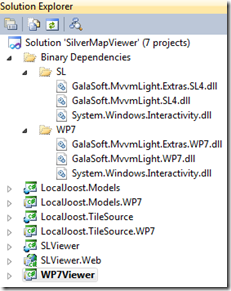
Solution structurSince the application itself contains a bit more code than my usual samples (as well as a bucketload of XAML), I cannot write out all source code in the sample. In order be able to follow what is going on, you will need to download the code first, see if it runs and compiles on your machine, and then read the rest of this article. You will end up with a solution that, with the proper parts expanded and collapsed, will look like the solution as displayed to the right. In the Binary Dependencies solutions folder you will see Laurent’s stuff (Galasoft.*), both for Windows Phone 7 and Silverlight 4, as well as System.Windows.Interactivity, which comes from the Blend SDK. The bottom to projects, SLViewer.Web and WP7Viewer, are the actual startup projects. If you fire up one , you will get one of these screens below:
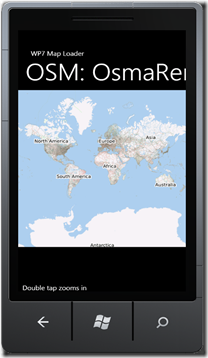
 MobileMapLoader Silverlight screen Now that’s what I call “Hello World”!

Using the applications

Double-tapping (or clicking) anywhere on the map on both applications zooms in on the location of the double-tap. If you (single) tap/click on the text “Double tap zooms in” it will toggle with “Double tap zooms out” and then double tap… you guessed it.
In addition, you can move the map around by dragging it – either with your finger or the mouse. By tapping/clicking on the map name (initially it will show the Open Source Map OsmaRender) you can change the map you are viewing: OSM OsmaRender, OSM Mapnik, Google Maps Street, Satellite, and Hybrid, and Bing Maps Road and Aerial. The Silverlight application just responds to a click and moves to the next map – the Windows Phone 7 more or less supports swipes and you can go to the next or the previous map my moving your finger from right to left or left to right over the map title. At least, it does so when I use the mouse, lacking a proper test device it is of course impossible to test how it behaves in the real world.

Solution structure

From top to bottom you will see:

  • LocalJoost.Models, this is a Silverlight 4 class library without any content, only links to source files in LocalJoost.Model.WP7
  • LocalJoost.Model.WP7, a Windows Phone 7 class library, this contains the actual model and additional items as well as the definition of attached dependency properties needed to drive the map,
  • LocalJoost.TileSource, again a codeless Silverlight class library, with links only to
  • LocalJoost.TileSource.WP7, a Windows Phone 7 class library, containing classes that translate requests from the MultiScaleImage to the image structure for various Tile Map Servers
  • SLViewer, the Silverlight 4 application
  • SLViewer.Web, the web application hosting SLViewer
  • WP7Viewer, the Windows Phone 7 application

Since LocalJoost.Models and LocalJoost.TileSource only contain links to source files in the Windows Phone 7 counterparts, both class libraries have identical code.

Tile sources

MultiScaleImage features a property Source of type MultiScaleTileSource. This class sports an abstract method GetTileLayers(int tileLevel, int tilePositionX, int tilePositionY, IList<object>tileImageLayerSources) that you can override. Each descendant essentially tells the MultiScaleImage: if you are on zoomlevel tileLevel, and need to have the Xth horizontal tile and the Yth vertical tile, then I will add an URI to the tileImageLayerSources where you can find it. So all classes in the LocalJoost.TileSource.WP7 are simply translations from what the MultiScaleImage asks into URIs of actual map images on various map servers on the internet. Nice if you are into it (like me), but not essential to understand the workings of MVVM as a driver for this application

Binding properties and commands

The key thing about MVVM is that nothing, or at least very little, ends up in what ASP.NET WebForms veterans like me tend to call the ‘codebehind file’ of the XAML. The idea is that you make your controls in XAML, and let them communicate by binding to properties and commands of the model. You click on a button or whatever, the button sends a command to the model, the model responds by changing some properties, and via the magic of INotifyPropertyChanged they automatically end up being displayed on the user interface.

Problem 1: In Silverlight you only have events, and you cannot bind events to a model. You need commands
Problem 2: The MultiScaleImage control is mostly driven by methods, to which you cannot bind, and for some reason the Source property does not want to bind to MultiScaleTileSource either (I get an error “Object does not match target type”).

The solution for problem 1 is MVVM Light. The solution for problem 2 are attached dependency properties.

Attached dependency properties for driving the MultiScaleImage

To get this application to work, there are quite some dependency properties necessary. They are all in the class BindingHelpers in LocalJoost.Models.WP7. From top to bottom you will see:

  • MapTileSource: used to bind a MultiScaleTileSource to the Source property of a MultiScaleImage
  • ZoomEventPoint: used to bind the result of an event (the location where the user tapped on the MultiScaleImage and the zoom factor) to the MultiScaleImage.
  • StartDragEventData: when the user starts dragging the map, the event starting of the dragging is stored in here. Doubles as state setting: if this property is not set, the user is not dragging. The callback method of this property also stores data in the next property:
  • DragData: stores the position and offset where the user started the dragging. This property is for storage only and you will not see it bound to anything in XAML.
  • MoveEventData: stores the event when the user actually moves the map – in conjunction with the data stored in DragData the new map origin is calculated, and the ViewportOrigin of the MultiScaleImage gets a kick to the right place.

Using MVVM Light to kick the model

If you look at the XAML of MainPage.xaml of WP7Viewer, there are a few things you should take notice of:

<phone:PhoneApplicationPage 
  x:Class="WP7Viewer.MainPage"
  <!--- omitted stuff --->
  xmlns:MapMvvm="clr-namespace:LocalJoost.Models;assembly=LocalJoost.Models"
  xmlns:i="clr-namespace:System.Windows.Interactivity;assembly=System.Windows.Interactivity"
  xmlns:cmd="clr-namespace:GalaSoft.MvvmLight.Command;assembly=GalaSoft.MvvmLight.Extras.WP7">

This way, I add my own assembly, with the model and the dependency property types, to be used in XAML with prefix “MapMvvm”. I also add System.Windows.Interactivity to be used with prefix “i” and MVVMLight with prefix “cmd”. And now the place where it all happens:

<MultiScaleImage x:Name="msi" 
   ViewportOrigin ="{Binding ViewportOrigin}"
   MapMvvm:BindingHelpers.MapTileSource="{Binding CurrentTileSource.TileSource}" 
   MapMvvm:BindingHelpers.ZoomEventPoint="{Binding ZoomEventPoint}"
   MapMvvm:BindingHelpers.StartDragEventData="{Binding StartMoveEvent}"
   MapMvvm:BindingHelpers.MoveEventData="{Binding EndMoveEvent}">

 <i:Interaction.Triggers>
   <i:EventTrigger EventName="MouseLeftButtonDown">
     <cmd:EventToCommand Command="{Binding MouseLeftButtonDown}"
      PassEventArgsToCommand="True" />
   </i:EventTrigger>
   <i:EventTrigger EventName="MouseLeftButtonUp">
     <cmd:EventToCommand Command="{Binding MouseLeftButtonUp}"
      PassEventArgsToCommand="True" />
    </i:EventTrigger>
    <i:EventTrigger EventName="MouseMove">
      <cmd:EventToCommand Command="{Binding MouseMove}"
       PassEventArgsToCommand="True" />
     </i:EventTrigger>
   </i:Interaction.Triggers>
</MultiScaleImage>

In the top part, I bind my MapTileSource, ZoomEventPoint, StartDragEventData and MoveEventData attached dependency properties of the MultiScaleImage to properties in the model, enabling the model to communicate stuff to the View – of which the MultiScaleImage is part -without having to resort to calling actual methods of the MultiScaleImage.

Now to enable the View to communicate back to the model – remember I wrote earlier that you have only events in Silverlight, no proper commands? Look at the bottom part where Laurent’s magic comes into play: I capture the event using an EventTrigger from System.Windows.Interactivity, and by using the EventToCommand from MVVM Light I can bind that to an actual command in the model – and optionally pass the parameters to the model as well. For instance, the event MouseLeftButtonDown is passed to the command MouseLeftButtonDown in MapViewModel:

public ICommand MouseLeftButtonDown
{
  get
  {
    return new RelayCommand<MouseEventArgs>(e =>
    {
      var t = DateTime.Now - _lastMouseDown;
      if (t < _timeSpanForDoubleClick)
      {
        // assume double click - Zoom
        ZoomEventPoint = 
          new ZoomEventPoint 
           { Event = e, ZoomFactor = ZoomAction.ZoomFactor };
      }
      else
      {
        // Assume start of dragging 
        StartMoveEvent = e;
      }
      _lastMouseDown = DateTime.Now;
    });
  }
}

Thus the model can communicate with the view via properties (albeit attached dependency properties) and the view can notify the model to do something by binding to its commands. The circle is closed and nothing needs to be in your ‘code behind’ file anymore. Well, almost nothing.

Instantiating the model

A minor detail: before I can bind a view to a model, there must be a model to bind to. I instantiate the model in the ‘classic’ MVVM way, via XAML only. In the phone:PhoneApplicationPage.Resources I instantiate the model like this:

<phone:PhoneApplicationPage.Resources>
  <Storyboard x:Name="LayoutrootStartup">
  <!-- ommitted stuff -->
  </Storyboard>
  <MapMvvm:MapViewModel x:Key="MapViewerModel" />
</phone:PhoneApplicationPage.Resources>
The model constructor is fired, and the list of maps (_allTileSources) and zoomactions (_zoomActions) are initialized. Then I set the model as data context for the layout root:
<Grid x:Name="LayoutRoot" 
  Background="Transparent" 
    DataContext="{StaticResource MapViewerModel}">
  <!-- ommitted stuff-->
</Grid>
and the application is off to go. There are other way of doing this: I watched Dennis Vroegop once writing code instantiating the model in the constructor in the ‘code behind file’ of the user control and then setting the data context by code - this enables passing the Dispatcher as a parameter which is necessary if you bind stuff coming from another thread. Dennis himself, by the way, is currently in the process of writing an excellent introduction to MVVM – the first two parts (in Dutch) you can find here and here.

Implementing the ‘swipe’

As I wrote earlier, in the Windows Phone 7 application it is possible to select the next or the previous map by ‘swiping’ over the map title. There are probably better ways to do this, but I did it as follows: first, I trap the ManipulationCompleted event and pass it to the model using the same trick as before:

<TextBlock x:Name="PageTitle"
  Text="{Binding CurrentTileSource.MapName}" 
  Margin="-3,-8,0,0"
  Style="{StaticResource PhoneTextTitle1Style">
   <i:Interaction.Triggers>
    <i:EventTrigger EventName="ManipulationCompleted" >
      <cmd:EventToCommand Command="{Binding SetNextMapCommandWp7}" 
        PassEventArgsToCommand="True"/>                            
    </i:EventTrigger>
  </i:Interaction.Triggers>
</TextBlock>
and then I go on processing it like this:
/// <summary>
/// Called by the Windows Phone client
/// when the user swipes over the map tile
/// </summary>
public ICommand SetNextMapCommandWp7
{
  get
  {
    return 
      new RelayCommand<ManipulationCompletedEventArgs>(SetNextMapWp7);
  }
}

/// <summary>
/// Determine to select previous or next map
/// </summary>
/// <param name="e"></param>
public void SetNextMapWp7(ManipulationCompletedEventArgs e)
{
  if (e.TotalManipulation.Translation.X > 0)
  {
    SetPreviousMap();
  }
  else
  {
    SetNextMap();
  }
}

/// <summary>
/// Move to the next map
/// </summary>
public void SetNextMap()
{
 var currentNode = _allTileSources.Find(CurrentTileSource);
 if (currentNode != null)
 {
  CurrentTileSource =
   currentNode.Next != null ? 
    currentNode.Next.Value : _allTileSources.First.Value;
 }
}

/// <summary>
/// Move to the previous map
/// </summary>
public void SetPreviousMap()
{
 var currentNode = _allTileSources.Find(CurrentTileSource);
 if (currentNode != null)
 {
  CurrentTileSource =
   currentNode.Previous != null ? 
     currentNode.Previous.Value : _allTileSources.Last.Value;
 }
}

/// <summary>
/// Command called by Silverlight 4 client
/// when user clicks on map title
/// </summary>
public ICommand SetNextMapCommand
{
  get
  {
    return new RelayCommand(SetNextMap);
  }
}

by checking the TotalManipulation.Translation.X property of the ManipulationCompletedEvent I can calculate if the user swiped from left to right or from right to left, thus showing the next or the previous map type. The types themselves, by the way, are stored in a LinkedList – that’s the first time I found use for that one – but that’s is not important for the way this works. Notice the last method – the simple SetNextCommand method – that is called by the Silverlight 4 client, where it traps a simple MouseLeftButtonDown event, which allows you only to select the next map – not the previous. ManipulationCompletedEvent seems not to be available in Silverlight 4. This is the only allowance I had to make to get the application to work from ‘plain’ Silverlight 4 as well.

Conclusion

This application is maybe somewhat unusual and still very limited - I don’t start any story board from the model showing fancy animations (which I would like to when the user swipes over the map title to select another map, but I have not found out yet how to do that). Still, I think it’s safe to say MVVM Light used in conjunction with attached dependency properties makes it possible to bind virtually anything, even a MultiScaleImage, to a model. In addition, it’s possible to reuse a lot – if not all – model code by linking source files form Windows Phone 7 libraries to Silverlight 4 libraries and vice versa which makes making applications that run both on Windows Phone 7 and Silverlight 4 (and in the near future, maybe even on Symbian) quite feasible. All in all, from an architectural standpoint, MVVM Light and attached dependency properties are a real winning team.

Credits, disclaimers and legal stuff

The algorithms for loading tiles from the Google servers and OSM are a slight adaptation from stuff to be found in the DeepEarth codebase on CodePlex, while the Bing algorithm actually comes from Microsoft itself. This code loads maps directly from Google Maps and Bing Maps servers bypassing any kind of licenses, TOSses and APIs, and is in this sense probably illegal. This is done for demonstration purposes only, to show how seamlessly the MultiScaleImage works together with multiple map servers. I do by no means encourage or endorse this code to be used other than in demo settings only, and will take no responsibility for any consequences if you choose to act otherwise. So beware. If you use the Google and Bing code in production settings, don’t come knocking on my door after the map owners have come around to kick in yours. :-P

I nicked the algorithm for dragging the map and calculating new positions somewhere from the internet, but for the life I cannot remember where, and since I heavily refactored it for use in dependency properties Google Bing cannot find it back either. If anyone recognizes his/her code and feels I shortchanged him/her in the credits, please let me know and I will correct ASAP.

11 June 2010

Making internals unit testable

When creating - or attempting to create ;-) - reusable components, it’s common practice to hide the gory details of your implementation – not only on class level, but also on assembly level. The drawback of this approach is that you cannot write unit tests to test low-level operations of your component – invisible to the world means invisible to your assembly with unit tests as well.

One approach is to make the component that is to be tested public after all – I admit I did it a couple of times in my wee days before I learned of this trick that actually dates back to .NET 2.0 if I am correct.

Let us assume you have a library MyCompany.GreatObjects.dll, in which you have a component MyCompany.GreatObjects.Internals.MyInternalComponent, and a test library in MyCompany.GreatObjects.Test.dll.

1. Strongly name your test project

Say what? No, I am getting older but I am still not senile (or at least no-one dared to tell me yet). If you don’t know what I mean with strong naming, follow the procedure described here. You might want to strongly name your project to be tested as well, when you are at it ;-) And then build your solution again.

2. Open a Visual Studio Command Prompt

Open the command prompt belonging to the version of Visual Studio you are currently using to develop and test your components. Navigate to the bin/debug subdirectory of your MyCompany.GreatObjects project.

3. Retrieve the public key of your component

Enter the following command:
sn –Tp MyCompany.GreatObjects.dll

This will give two answers – the first one, preceded by the text “Public key is” is the one you are after. It will span something like four and a bit lines and look like this:
0024000004800000940000000602000000240000525341310004000001000100dfb0f05568ca56
3e3ae7449a48d8060be86bc091a88e915a29270a43417aa82c73dea3184beab7e4dfdfca865380
dcda1d8ca2c472b5bd7f889a0f5e77d5ec0b9990a4ca03fb71c881a51585416b1e58be6da0875b
42a2d754911fbfa1daa60884c6a6ff14f636530e197c61310f622794b0f4fbd36ade16b9ea6fa3
b850febd

Copy that code into a text file and carefully remove all line breaks, so that all these characters end up in one line. Take care not to remove any other character or your name is mud.

4. Edit the AssemblyInfo.cs of the component project

This file sits in the “Properties” application folder of your MyCompany.GreatObjects project.  Add the following line (where does not matter, but the end is a logical place):
[assembly: InternalsVisibleTo("MyCompany.GreatObjects.Test, PublicKey=****")]
replace the **** by the actual value for the public key you retrieved – on one line.
Rebuild the MyCompany.GreatObjects project, and you are done. You can now test MyCompany.GreatObjects.Internals.MyInternalComponent and other objects marked as internal, of course - from MyCompany.GreatObjects.Test. But only from MyCompany.GreatObjects.Test. For the rest of the world the internals are still safely invisible.

Purists might say that you only need to test external behavior of your component, but I can think of plenty of scenarios in which you want to change the working of an internal piece of code and still want to be able to verify its behavior – internal or not.

Credits go to my colleague Valentijn Makkenze for pointing this out to me first

03 May 2010

Attached dependency properties for dummies

Recently I tried to make my first attached dependency property and it struck me as odd that I could find a lot of articles on dependency properties – but it still took me quite some time to piece together the how and the why. And basically they all parrot the same few samples. So I decided to try my own take on the subject.

So what is an attached dependency property, then?

It helped me a lot to think of an attached dependency property as being the property equivalent of an extension method. You basically attach a new property to an existing object. Without actually modifying the object definition.

What is it good for?

About the same as an extension method: you can add extra properties to existing objects, without having to go trough the hoopla of inheritance. Which is especially handy when inheritance is not possible, like in sealed objects. More importantly, these properties can play along in the WPF en Silverlight data binding. The most important application, as far as I am concerned, is that you can make something bindable that is not bindable out of the box. If some value(s) a GUI component can only be set by a method, you cannot use it from MVVM, for example. By making an attached dependency property that passes on the new value to said method you work around that. See below for how you make such a callback.

In fact, attached dependency properties is part of the magic of that makes Laurent Bugnion’s MVVM Light toolkit go, at least where the ButtonBaseExtensions class is concerned, and reading the code in this class actually (and finally) made the penny drop for me.

So how do you make an attached dependency property?

You make a static class, in which the property is declared and 'hosted', as I call it. The general form is like this:

public static class DependencyPropertyHoster
{
  public static readonly DependencyProperty MyPropertyNameProperty =
    DependencyProperty.RegisterAttached("MyPropertyName", 
    typeof(TargetPropertyType), 
    typeof(DependencyPropertyHoster), 
    new PropertyMetadata(CallBackWhenPropertyIsChanged));

  // Called when Property is retrieved
  public static TargetPropertyType GetMyPropertyName(DependencyObject obj)
  {
    return obj.GetValue(MyPropertyNameProperty) as TargetPropertyType;
  }

  // Called when Property is set
  public static void SetMyPropertyName(
     DependencyObject obj, 
     TargetPropertyType value)
  {
    obj.SetValue(MyPropertyNameProperty, value);
  }

  // Called when property is changed
  private static void CallBackWhenPropertyIsChanged(
   object sender, 
   DependencyPropertyChangedEventArgs args)
  {
    var attachedObject = sender as ObjectTypeToWhichYouWantToAttach;
    if (attachedObject != null )
    {
      // do whatever is necessary, for example
      // attachedObject.CallSomeMethod( 
      // args.NewValue as TargetPropertyType);
    }
   }
}
This is roughly the equivalent of
public partial class ObjectTypeToWhichYouWantToAttach
{
  TargetPropertyType _myPropertyName;
  TargetPropertyType MyPropertyName
 {
   get
   {
     return _myPropertyName;
   }
   set
   {
     if( _myPropertyName != value )
     {
        //CallBackWhenPropertyIsChanged...
     }
   }
  }
}

The whole thing works by naming convention. So if you call your property "MyPropertyName", then:

  • Your DependecyProperty needs to be called MyPropertyNameProperty
  • Your Set method needs to be called SetMyPropertyName
  • Your Get method needs to be called GetMyPropertyName
When you register your property the way I do, the members in the RegisterAttached method call are, from left to right:
  • The name of your property (as a string, yes)
  • Property value type (here “TargetPropertyType”, but of course that can be anything)
  • Type of the hosting class (i.e. DependencyPropertyHoster in this case)
  • Callbackmethod to be called when the property is changed.

How do you use it from XAML?

First, you need to declare its namespace and possibly its assembly. Suppose my class DependencyPropertyHoster was in namespace LocalJoost.Binders, and in a separate assembly called LocalJoost, I would need to declare it as

xmlns:MyPrefix="clr-namespace:LocalJoost.Binders;assembly=LocalJoost"
and if you want to use it in binding, you use
MyPrefix:DependencyPropertyHoster.MyPropertyName="{Binding whatever}" 

I am currently making a small mapping application using a MultiScaleImage for showing Bing Maps that heavily depends on this trickery. Stay tuned, an example of this will probably follow shortly.

But wait, where is the actual data stored if not in the object itself?

To be honest, I don’t really know. An explanation is provided in the first comment by Dennis Vroegop (thanky you!). But to be even more honest, for now I don’t really have to know. If it works, it works. That's the real beauty of abstraction :-)

Update: for the real lazybones, a code snippet

Unzip this file in your code snippet directory. You will find this in Libraries\Documents\Visual Studio 2010\Code Snippets\Visual C#\My Code Snippets. From now on, if you type “adp” followed by a tab it will automatically insert an attached dependency property for you