16 December 2012

Preventing high speed socket communication on Windows Phone 8 going south when using async/await

Currently I am working on a Windows Phone 8 action game in which you can fight a kind of duel. This involves pairing the phones via NFC and then obtaining a socket trough which the phones can exchange game information. Liking to steal from examples myself (why do you think I name my blog this way, eh?) I stole code from the Bluetooth app to app sample at MSDN. Now this is a great sample but it has one kind of problem for me.

I’ll skip the pairing, the obtaining of the socket and the definition of the data reader – that’s all documented in the MSDN sample. The method to send a message to the opponent was, in condensed form:

public async void SendMessage(string message)
{
  if (dataWriter == null)
  {
    dataWriter = new DataWriter(socket.OutputStream);
  }

  dataWriter.WriteInt32(message.Length);
  await dataWriter.StoreAsync();

  dataWriter.WriteString(message);
  await dataWriter.StoreAsync();
}

while at the same time both opponenents where listening using a simple method like

public async Task GetMessage()
{
  if (dataReader == null) dataReader = new DataReader(socket.InputStream);
  await dataReader.LoadAsync(4);
  var messageLen = (uint)dataReader.ReadInt32();
  Debug.WriteLine(messageLen);

  await dataReader.LoadAsync(messageLen);
  var message = dataReader.ReadString(messageLen);
  Debug.WriteLine(message);
  return message;
}

From the debug statements in this code you can see things weren’t exactly working as planned. Now the way this is supposed to work is as follows: as the opponent sends a message using SendMessage, the other phone is receiving a message via the socket in GetMessage. The first four bytes contain an unsigned integer containing the length of the rest of the message – which is supposed to be a string.

I noticed that while things went off to a good start, sooner or later one of the two phones would stop receiving messages or both games crashed simultaneously. I got all kind of null value errors, index out of range and whatnot. When I started debugging, I found out that while the app on phone 1 said it sent a 3-character string, the receiving app on phone 2 sometimes got a huge number for the message length, that obviously wasn’t sent, it read past the end of the stream – crash.

The MSDN sample works fine, as long as it is used for the purpose it was written, i.e. sending out (chat) messages at a kind of sedate pace – not for sending a lot of events per second to keep a game in sync. The essence of a stream is that it’s a stream indeed – things have to be written and read in the right order. For what happened of course was a race condition between two or more events in a short timeframe. The first event wrote the message length, the second event as well, then possibly a third, before the first one came to writing the actual message, and whatever arrived on the other phone was a garbled jumble of bytes that did exactly reflect what happened on the sending phone, but wasn’t the orderly message length – message payload stream the other phone expected.

The way I solved it – in a ‘there-I-fixed-it’ kind of way – was to use a lock on the write code so at least stuff went in the stream in the order the other phone was expecting it:

public async void SendMessage(string message)
{
  lock (this)
  {
    if (dataWriter == null)
    {
      dataWriter = new DataWriter(socket.OutputStream);
    }

    dataWriter.WriteInt32(message.Length);
    dataWriter.StoreAsync();

    dataWriter.WriteString(message);
    dataWriter.StoreAsync();
  }
}

Note you have to remove the “await” before the StoreAsync methods as those are not allowed within a lock. This method makes sure one message – and the whole message – is written on the stream and nothing comes in between.

Update – the first version of this posting contained a small error – which has been graciously pointed out to me by a few readers (see comments section). Also, I’ve been pointed to an article by Scott Hanselman about a similar subject. I’ve tried using the AsyncLock by Stephen Toub he describes but found out that although it works very good and my game does become a bit more fluid, the lag in getting messages across is a lot higher. Net effect: while the game runs more smoothly on both phones, the game state actually gets out of sync very fast, making the game unplayable. Apparently the AsyncLock approach doesn’t work for high speed continuous message exchange, so for now I’ll stick to the approach I described above.

20 November 2012

Passing event arguments to the WinRT EventToCommandBehavior

This week my fellow MVP Scott Lovegrove contacted me and asked if and how he could pass the result of an event to my WinRT EventToCommandBehavior and/or EventToBoundCommandBehavior. I replied this was currently not supported, but that would not be hard to make. He acknowledged that, and asked if he could mail some code. Since I am not very possessive of ‘my’ libraries, and am a lazy as any programmer should be, I responded with giving him developer access to Win8nl. He actually took up the challenge, and submitted the code.

Both EventToCommandBehavior and EventToBoundCommandBehavior now sport an extra property:

public bool PassEventArgsToCommand { get; set; }

If you set this property to true and don’t use the CommandParameter property, the method firing the command will actually pass the captured event to the model. How this works, is pretty simple to see in EventToBoundCommandBehavior:

private void FireCommand(RoutedEventArgs routedEventArgs)
{
  if (Command != null && Command.CanExecute(CommandParameter))
  {
    if (PassEventArgsToCommand && CommandParameter == null)
    {
      Command.Execute(routedEventArgs);
    }
    else
    {
      Command.Execute(CommandParameter);
    }
  }
}

Red shows the additions. Usage of course is pretty simple:

<TextBlock Text="TextBlock" FontSize="48">
  <WinRtBehaviors:Interaction.Behaviors>
    <Behaviors:EventToBoundCommandBehavior Event="Tapped" 
      Command="{Binding TestCommand}" 
      PassEventArgsToCommand="true"/>
  </WinRtBehaviors:Interaction.Behaviors>
</TextBlock>

And then you have to define a command TestCommand like this in your model:

public ICommand TestCommand
{
  get
  {
    return new RelayCommand<TappedRoutedEventArgs>(
      (p) =>
        {
           Debug.WriteLine(p.PointerDeviceType);
        });
  }
}

This will write '”Mouse”, “Touch” or “Pen” in your output window, depending on what you use to tap. Of course this is not a very useful application of this technique, but it proves the point. If you don’t use PassEventArgsToCommand both behaviors will work as before.

Now as an architect I am not too fond of this technique, because it introduces user-interface related objects into the view model – I get a bit restless when I see something like “using Windows.UI.Xaml.Input” on top of a view model class. Be careful when you use this. On the other hand, a holier-than-thou attitude ain’t gonna help getting Window 8 apps shipped and so if this will help people, I am more than fine with that.;-)

Scott tells me this code is derived from Laurent Bugnion’s original code – I did not check, but I am going to take his word for it. At the time of this writing it’s part of Win8nl 1.0.6 and already available as Nuget package. Now I only have the problem that not every line of code comes from the Netherlands, so maybe I should indeed rename this package to Win8eu ;-)

As (almost) always, a demo solution can be found here

17 November 2012

Reactive Extensions in Windows Phone 8 and the 2001 submission error

You can read the whole story if you like reading, but this whole blog post comes down to one piece of advice:

If you value your sanity, do not, under any circumstances, pull in Reactive Extensions from NuGet into a Windows Phone 8 application. Use the built-in Microsoft.Phone.Reactive.dll instead. 

Those who follow me on twitter may have seen a few tweets pass by over problems I had with the Windows Phone 8 version of my app Map Mania. The submission went OK the first time, but the test team found two bugs – bugs that were also there in previous versions, but apparently they have ramped up the quality bar again. I can only applaud that, even if I got bitten by it myself, because the test report was comprehensive and showed someone actually understood or had read into some issues that may arise when using WMS services – and by doing so, succeeded in crashing my app.

Anyway, I fixed the app, resubmitted, and then the trouble started. Although the Store Test kit showed no errors, and submission went fine showing only validated XAP’s – after a few minutes I got an e-mail from the Windows Phone dev center:

Windows Phone Dev Center app submission

We weren't able to process the app submission for Map Mania.

Unfortunately, something happened with your Windows Phone app submission. Check the status of the submission in your app list at https://dev.windowsphone.com/applicationlist. If the problem persists, contact support for assistance.

When I looked at the submission it said I had a “2001 error” with a helpful link, that leads you to a table in which it says:

There are duplicate files in AppManifest.xaml. Remove one of the files and then try again.

If rebuilding your XAP doesn't solve this problem, you may have to manually remove any duplicate files from the AppManifest.xaml in your XAP file. To rebuild your app, see Rebuilding your project in Visual Studio.

My friends, I have rebuilt the app till my fingers bled, cleaned the solution, then removed all the binaries manually, to no avail. Then I opened up the XAP to look for duplicate assemblies – there weren’t any duplicates; I scanned the AppManifest.xaml till I saw cross-eyed and didn’t find any duplicate entries there either - and after the 10th or so submit followed by automatic mail error within five minutes I gave up and indeed contacted Support.

I won’t go into full detail, but I think it’s fair to say this problem wasn’t easy to solve and Support struggled as much with it as I did. Quite some mails went back and forth, and the 9 hour time zone difference didn’t exactly work favorably for a quick resolve. It wasn’t until our Dutch DPE Matthijs Hoekstra, who I think now owe not only my sanity but possibly also my soul ;-), queried his sources and got back that a post-processing error apparently was being caused by System.Reactive.Core.dll and I was recommended to use Microsoft.Phone.Reactive.dll instead if possible.

I finally had a possible smoking gun - my own port of the #wp7nl library pulls in Reactive extensions from Nuget. So I removed the dependency from the library package, made a new local build, installed that into the app, compiled, uploaded and submitted, waiting for the inevitable dreaded 2001 error mail to pop up. Over an hour later, the only mail I got was from outlook.com reminding me of a birthday and the app status at the moment of this writing says “Status: In signing stage". Hallelujah!

Now I don’t understand why submission went OK the first time and not the second time around. But I am very glad the issue is resolved. If you use my library, please remove the references it makes to the external reactive stuff manually or wait for me to publish the version that will do without. It will be out soon, I can tell you that.

Update: #wp7nl was updated within a few hours of this post. If you use the Windows Phone 8 version, please update to 3.0.1. Should you experience problems with missing assemblies, make a manual reference to Microsoft.Phone.Reactive.dll to the projects that use wp7nl. And please remove any reference to Rx* should they linger along.

14 November 2012

A WinRT behavior to mimic EventToCommand (take 2)

(Updated with sample code January 19 2013)

Some time ago I posted a WinRT behavior to mimic EventToCommand. This behavior cunningly looked for the command name in the DataContext, but it occurred to me (and some blog post commenters as well) that it actually might be more logical skip all that skullduggery and let the developer bind to a command in stead of letting her/him provide its name as string and then go look for it.

Anyway, not wanting to break compatibility I added a new behavior to my win8nl library on CodePlex, very originally called EventToBoundCommandBehavior.

It’s working is very similar to the original EventToCommandBehavior. There are two notable differences:

  • The Command property is now no longer of type string but ICommand
  • The FireCommand method is now very simple:
private void FireCommand()
{
  if (Command != null && Command.CanExecute(CommandParameter))
  {
    Command.Execute(CommandParameter);
  }
}

Which goes to show that you can be too clever.

If you want to replace the original behavior for the new one – say, you used it like this

<TextBlock Text="TextBlock" FontSize="48">
  <WinRtBehaviors:Interaction.Behaviors>
    <Behaviors:EventToCommandBehavior Event="Tapped" 
      Command="TestCommand" 
      CommandParameter="{Binding TestProperty, Mode=TwoWay}"/>
  </WinRtBehaviors:Interaction.Behaviors>
</TextBlock>

Just go to the places marked red/underlined:

<TextBlock Text="TextBlock" FontSize="48">
  <WinRtBehaviors:Interaction.Behaviors>
    <Behaviors:EventToBoundCommandBehavior Event="Tapped" 
      Command="{Binding TestCommand}" 
      CommandParameter="{Binding TestProperty, Mode=TwoWay}"/>
  </WinRtBehaviors:Interaction.Behaviors>
</TextBlock>

Those who want to see the full source code of the new (and largely simplified) behavior can do so at http://win8nl.codeplex.com/SourceControl/changeset/view/20896#395786

Update: I’ve added some more sample code as a lot of people seem to struggle with the correct use of this behavior. Lots of time I get program problems like this: “I have a list in my view model and a command yet my command is not fired when then I tap the item”. The view model usually contains these properties:

public ObservableCollection Phones { get; set; }

public ICommand TappedCommand
{
  // code omitted
}

and the XAML is like this:

<Grid Background="{StaticResource ApplicationPageBackgroundThemeBrush}" 
  DataContext="{StaticResource DemoViewModel}">

  <GridView ItemsSource="{Binding Phones}" SelectionMode="None" 
     IsTapEnabled="True">
    <GridView.ItemTemplate>
      <DataTemplate>
        <Grid Width="350">
          <Grid.ColumnDefinitions>
            <ColumnDefinition/>
            <ColumnDefinition/>
          </Grid.ColumnDefinitions>
          <WinRtBehaviors:Interaction.Behaviors>
            <Behaviors:EventToBoundCommandBehavior 
              Command="{Binding TappedCommand}" 
              CommandParameter="{Binding}" Event="Tapped" />
          </WinRtBehaviors:Interaction.Behaviors>

          <TextBlock Text="{Binding Brand}"/>
          <TextBlock Text="{Binding Type}" Grid.Column="1"/>
        </Grid>
      </DataTemplate>
    </GridView.ItemTemplate>
  </GridView>
</Grid>

I this case, the programmer has lost track of what’s the exact data context. Happens all the time, even to me. I’ve used colors to depict the data context changes.

  • In the black code, DemoViewModel is the data context
  • In the red code, the ObserservableCollection Phones is the data context
  • In the blue code, a single Phone is the context.

So what this code tries to do is to call a command TappedCommand on class Phone in stead of DemoViewModel.So either the command needs to be in “Phone”, or the behavior’s binding must be updated like this:

<WinRtBehaviors:Interaction.Behaviors>
  <Behaviors:EventToBoundCommandBehavior 
    Command="{Binding TappedCommand, Source={StaticResource DemoViewModel}}" 
    CommandParameter="{Binding}" Event="Tapped" />
</WinRtBehaviors:Interaction.Behaviors>

Full working example can be found here.

30 October 2012

Data binding shapes to the new Windows Phone 8 Map control (and more)

A little history

When I accepted the invitation from MADNbe to talk about Maps and MVVM on September 20 early in the summer (or what was supposed to be the summer) of 2012 the actual release date for the Windows Phone SDK 8.0 was still a mystery. As it gradually became clear the SDK would not be available at the date my talk was scheduled, I devised a plan B and in stead talked about Windows Phone 7 mapping and how to port this code and knowledge to Windows 8. I also wrote a blog post I wrote about it. Now the funny thing is - the Windows Phone 8 mapping control and the Windows 8 Bing Maps control show some remarkable similarities. So if you read this article and think “Huh? I’ve read this before” that’s entirely possible! 

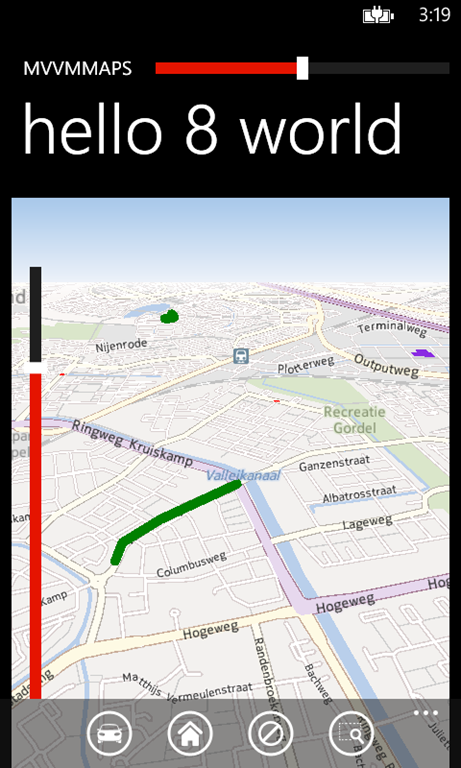
Hello 8 WorldSo world in general, and Belgium in particular, meet the new Hello World, Windows Phone 8 style!

Windows Phone 7 map binding recap

Not going to happen - I am not going to repeat myself for the sake of content ;-). In the the Windows 8 article I give a short recap of how you can bind to a Windows Phone 7 map, using templates. I’d suggest you read that if you haven’t done so already ;-). By the way, the sample solution contained with this project is mostly the same as the sample Windows Phone 7 application I use in my talk. I upgraded to Windows Phone but did not even bother to change the libraries I used. (like MVVMLight, Phone7.Fx or my own wp7nl library). That’s still Windows Phone 7 code and you call that code from Windows Phone 8 without any problem. Very soon I hope to publish updates for the libraries specific to the platform, and you will see them appearing in your NuGet package manager. The only thing you have to keep in mind is that the app no longer runs in quirks mode once you upgraded to Windows Phone 8. That means – if your library code does something funky that has a different behavior under Windows Phone 8, the platform is not going to help you keep that funky behavior  - unlike when you run a (real) Windows Phone 7 app on it.

Data binding and the new map control

Without cheering overly loud for ‘my’ home team, I actually think the Windows Phone mapping team actually has done a better job on this part than their Windows 8 brethren. That’s actually not so very hard, as the Windows 8 Bing Maps control does not support data binding at all. The Windows Phone 8 control actually (still) supports the binding of Center and ZoomLevel, as well as the new properties CartographicMode, LandMarksEnabled, Heading and Pitch, – “Heading” being the direction of the top of the map, default 0, being North – and Pitch the viewing angle of the map (normally zero, or ‘straight from above’). And probably some more I haven’t used yet.

But as far as drawing shapes on the maps are concerned, we are in the same boat as in Windows 8:

  • The shapes the control draws cannot be templated. They are apparently just projections of something native (as is the map itself).
  • There are only two kinds of shapes: MapPolygon and MapPolyline, both descending from MapElement (as opposed to MapShape in Windows 8), which in turn descends from DependencyObject – so I can use the same trick again – storing data in attached dependency properties.

To solve this, I use the same approach as I did in Windows 8: apply behaviors. Only that’s a lot easier now because unlike Windows 8, Windows Phone 8 supports behaviors out of the box.

Introducing MapShapeDrawBehavior for Windows Phone 8

This behavior is, just like it’s Windows 8 brother, called MapShapeDrawBehavior. It’s use is quite similar:

<Maps:Map x:Name="map" CartographicMode="Road">
  <i:Interaction.Behaviors>
    <MapBinding:MapShapeDrawBehavior LayerName="Roadblocks" 
       ItemsSource="{Binding RoadBlocks}" 
       PathPropertyName="Geometry">
      <MapBinding:MapShapeDrawBehavior.EventToCommandMappers>
        <MapBinding:EventToCommandMapper EventName="Tap" 
                                         CommandName="SelectCommand"/>
      </MapBinding:MapShapeDrawBehavior.EventToCommandMappers>
      <MapBinding:MapShapeDrawBehavior.ShapeDrawer>
        <MapBinding:MapPolylineDrawer Color="Green" Width="10"/>
      </MapBinding:MapShapeDrawBehavior.ShapeDrawer>
    </MapBinding:MapShapeDrawBehavior>
  </i:Interaction.Behaviors>
</Maps:Map>

The only difference, in fact, with the Windows 8 behavior is that there is not a TapCommand property but an EventMapper collection. That is because unlike the Windows 8 map shapes, Windows Phone 8 shapes don’t support events at all. These are events of the map. There aren’t any layers for shapes too – there is just a MapElements collection that you can add shapes to.

So for every category of objects you define a behavior; in this case the road blocks (the green line on the app sceenshot above). This translates conceptually to a ‘layer’. Then you need to define three things per layer:

  • Which property in the item view model contains the Path – this is the terminology for a MapElement collection of points. This is of type GeoCoordinateCollection.
  • A drawer. A drawer is a concept I made up myself. It’s a class that creates a shape from a collection of points contained in a GeoCoordinateCollection. It’s my way to make something that’s not templatable more or less configurable and the idea behind is exactly the same as for Windows 8.
  • What command in the item view model (in this case, a RoadBlockViewModel) must be called when a GestureEvent is called on the map. This can be either Tap or DoubleTap. You do this by adding an EventToCommandMapper to the EventToCommandMappers list.

          This behavior comes, just like it’s Windows 8 brother,  the three out-of-the box standard drawers: MapPolylineDrawer, MapPolygonDrawer, and MapStarDrawer. The last one draws a configurable star shaped polygon around a point – since map shapes cannot be points by themselves. A drawer needs only to implement one method:

          public override MapElement CreateShape(object viewModel, LocationCollection path)

          The basic drawers don’t do anything with the view model: they just take the settings from XAML. You can write your own if you want for instance return a shape of a different color based upon view model values. Thematic mapping again, just like I said last time.

          If you just want to use the behavior, download the sample solution, rip the Wp8nl.Contrib project from it and use it. It just needs a reference to System.Windows.Interactivity.dll, that’s about all.

          Some technical details

          As the inner workings of the behavior are almost identical to that of their Windows 8 counterparts, I am not going to recap everything again. The trick is the same: view models and layer names are stored in and retrieved from attached dependency properties that are attached to the shapes themselves - the behavior uses this how to hold view models and map shapes together, and which shape belongs to which layer. For the technically interested I will stress a few small points. First of all, I already said the map elements themselves don’t have any events. Therefore, I have to attach events to the map, using the “AddEventMappings” method that’s loaded when the behavior’s OnLoad is called:
          private void AddEventMappings()
          {
            foreach (var mapper in EventToCommandMappers)
            {
              var evt = AssociatedObject.GetType().GetRuntimeEvent(mapper.EventName);
              if (evt != null)
              {
                AddEventMapping(mapper);
              }
            }
          }
          
          private void AddEventMapping(EventToCommandMapper mapper)
          {
            Observable.FromEvent<GestureEventArgs>(AssociatedObject, mapper.EventName)
              .Subscribe(se =>
               {
                 var gestureArgs = se.EventArgs;
                 if (gestureArgs != null)
                 {
                   var shape = 
                      AssociatedObject.GetMapElementsAt(
                         gestureArgs.GetPosition(AssociatedObject)).FirstOrDefault(
                           p => MapElementProperties.GetLayerName(p)==LayerName);
                   if (shape != null)
                   {
                     FireViewmodelCommand(
                       MapElementProperties.GetViewModel(shape), mapper.CommandName);
                   }
                 }
               });
          }

          So this works fundamentally different from it’s Windows 8 counterpart: not the shapes respond to events, but the map does so, and reports the shapes found at a location of the tap or the doubletap. The shapes in question can be retrieved using the map’s GetMapElementsAt method. And then I select the first shape I find that has the same layer name in it’s LayerName attached dependency property as the behavior. Note this filter is necessary: the map reports the shapes and it reports all of them - since there is no real layer structure the map has no notion of which behavior put the shape on the map. And you don’t want every behavior reporting all other shapes that happen to be on the same location as well – that would result in double events. But if the behavior finds a hit, it calls the FireViewModelCommand, which is essentially the same as in Windows 8, and it shows the window with alphanumeric info. That part has not been changed at all.

          The rest of the behavior is mainly concerned with adding, removing and replacing shapes again. I would suggest you’d study that if you are interested in how to respond to the various events of an ObservableCollection. To prove that data binding actually works, you can open the menu and select “change dhl building”.  That’s the most eastward building on the map. If you choose that, you will actually see the building change shape. The only thing the TestChangedShapeCommand command - that’s called when you hit that menu item – does, it change a building’s geometry property. The image on the map is updated automatically.

          Some concluding observations

          Somewhere down in the guts of Windows Phone 8 there’s a native control, and I very much think both it and it’s Bing Maps control for Windows 8 counterpart are of the same breed. Both have similar, yet subtly different projections to managed code. As I already mentioned – in Windows 8 the shapes descend from MapShape, in Windows Phone 8 from MapElement. In addition, Windows Phone Map Elements support StrokeColor, StrokeThickness and StrokeDash – no such thing on Windows 8 - one more cheer for the Windows Phone team ;). But neither are supporting complex shapes and things like donuts (polygons with holes in it). These are the hallmarks of the real heavy duty GIS systems like the stuff Cadcorp. ESRI et al are making.

          Also important when sharing code is to note the following:

          • In Windows Phone 7, we made shapes from a LocationCollection, which is a collection of GeoCoordinate
          • In Windows Phone 8, shapes are created from a GeoCoordinateCollection, which is a collection of GeoCoordinate
          • In Windows 8, shapes are created from a LocationCollection which is a collection of Location.

          So both platforms refactored the Locations and their collection, and both in opposite ways. This can be solved by using converters or a generic subclass specific for both platforms but I leave things like that as exercise for the reader. The fun thing is: once again it shows that a lot of code can be reused as long as you keep application and business logic in models and view models – that way, you only have to deal with user interface and platform considerations, but your basic app structure stays intact. Once more: three cheers for MVVM.

          And as usual you can download the sample solution. I will shortly add this stuff to the Windows Phone 8 specific version of the wp7nl library on CodePlex

          Happy mapping on Windows Phone 8!

          Introducing the new Windows Phone 8 Map control

          The time is finally there: the Windows Phone SDK 8.0 is out, and now we can finally talk about all the great news things for developers that this new SDK brings, and I’ll start that right now. And I don’t think it will surprise anyone who knows me that the first thing I did was looking at the much-rumored new maps control.

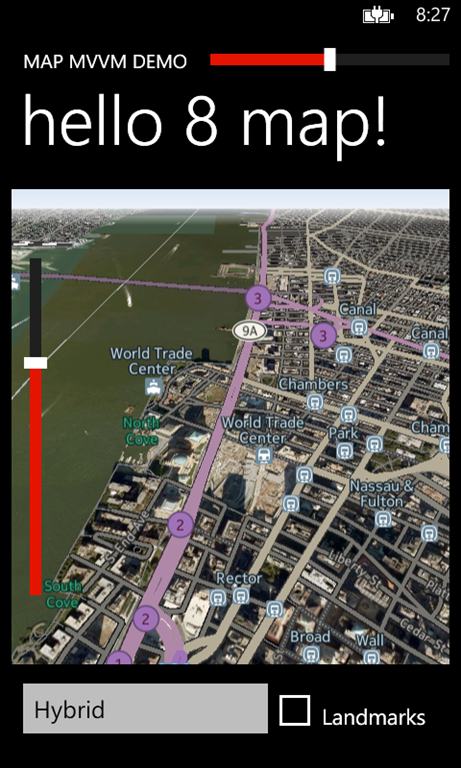
          map1I was not disappointed. In general, just two words: super slick. The very embodiment of fast and fluid. What Windows Phone 8 brings to the mapping table made by geo hart skip and is nothing short of dramatic. Think the Nokia drive map on your Windows Phone 7. On steroids. As a control. For you to use in your apps. With downloadable maps for use offline. I have seen it run on actual hardware and for me as a GIS buff, used to the fact that maps stuff usually take a lot of processing power and doesn’t necessary always go super fast, this was a serious nerdgasm. So I created a little app to show off the very basics of this map control. It allows you to select the various map modes, as well to to select map heading and pitch. Heading is the direction the top of the map is pointing – in Bing Maps this was always “North”, and Pitch is how you are looking on the map. If that’s 0, you are looking straight from above.

          Now the important the thing about Windows Phone 8 is that the team really went out of their way to make sure code is backwards compatible. That means that not only the new maps control is in the framework, but also Ye Olde Bing Maps control. This can lead to some confusing situations. The important thing to remember when working with the new map control is

          • The (old) Bing Maps control stuff is in namespace Microsoft.Phone.Controls.Maps
          • The new map control stuff in in namespace Microsoft.Phone.Maps.Controls.

          So “Controls” and “Maps” are swapped. I always keep in mind “maps first” as a mnemonic to remember which namespace to use. Especially when you are using ReSharper or a tool like it that most helpfully offers you to add namespaces and references (again) can really get you caught on the wrong foot, so pay attention.

          I started out creating a “New Windows Phone App”, selected OS 8.0 (of course), fired up the Library Package Manager and downloaded my wp7nl library. This gives MVVMLight and some other stuff I need for my sample. At the moment of this writing this is still Windows Phone 7 code but this will run fine (of course this all will be updated shortly). The only thing you need to take care of is that you delete the references to Windows Phone Controls.dll and Windows Phone Controls.Maps.dll the package makes.

          First step is to make a simple view model describing the cartographic modes the new map control supports:

          using GalaSoft.MvvmLight;
          using Microsoft.Phone.Maps.Controls;
          
          namespace MvvmMapDemo1.ViewModels
          {
            public class MapMode : ViewModelBase
            {
              private string name;
              public string Name
              {
                get { return name; }
                set
                {
                  if (name != value)
                  {
                    name = value;
                    RaisePropertyChanged(() => Name);
                  }
                }
              }
          
              private MapCartographicMode cartographicMode;
              public MapCartographicMode CartographicMode
              {
                get { return cartographicMode; }
                set
                {
                  if (cartographicMode != value)
                  {
                    cartographicMode = value;
                    RaisePropertyChanged(() => CartographicMode);
                  }
                }
              }
            }
          }
          

          The main view is basically some properties and a little bit of logic. First part handles the setup and the properties for displaying and selecting the cartographic map modes:

          using System;
          using System.Collections.ObjectModel;
          using System.Device.Location;
          using GalaSoft.MvvmLight;
          using Microsoft.Phone.Maps.Controls;
          
          namespace MvvmMapDemo1.ViewModels
          {
            public class MapViewModel : ViewModelBase
            {
              public MapViewModel()
              {
                modes = new ObservableCollection<MapMode>
                {
                  new MapMode 
                    {CartographicMode = MapCartographicMode.Road, Name = "Road"},
                  new MapMode 
                    {CartographicMode = MapCartographicMode.Aerial, Name = "Aerial"},
                  new MapMode 
                   {CartographicMode = MapCartographicMode.Hybrid, Name = "Hybrid"},
                  new MapMode
                   {CartographicMode = MapCartographicMode.Terrain, Name = "Terrain"}
                };
                selectedMode = modes[0];
              }
              
              private MapMode selectedMode;
              public MapMode SelectedMode
              {
                get { return selectedMode; }
                set
                {
                  if (selectedMode != value)
                  {
                    selectedMode = value;
                    RaisePropertyChanged(() => SelectedMode);
                  }
                }
              }
          
              private ObservableCollection<MapMode> modes;
              public ObservableCollection<MapMode> Modes
              {
                get { return modes; }
                set
                {
                  if (modes != value)
                  {
                    modes = value;
                    RaisePropertyChanged(() => Modes);
                  }
                }
              }
            }
          }
          

          The only important part about this is that there must be an initially selected mode, as the control does not take it very well if the mode is forcibly set to null by the data binding.

          At little bit more interesting are the next two properties of the view model, which control heading and pitch:

          private double pitch;
          public double Pitch
          {
            get { return pitch; }
            set
            {
              if (Math.Abs(pitch - value) > 0.05)
              {
                pitch = value;
                RaisePropertyChanged(() => Pitch);
              }
            }
          }
          
          private double heading;
          public double Heading
          {
            get { return heading; }
            set
            {
              if (value > 180) value -= 360;
              if (value < -180) value += 360;
              if (Math.Abs(heading - value) > 0.05)
              {
                heading = value;
                RaisePropertyChanged(() => Heading);
              }
            }
          }

          The map seems to try to keep its heading between 0 and 360 degrees, but I like to have the slider in the middle for North position – that way you can use it to rotate the map left and right. So I want heading to be between –180 and +180, which should be functionally equivalent to between 0 and 360 - and apparently I get away with it. Since both values are doubles I don’t do the standard equals but use a threshold value to fire a PropertyChanged. Courtesy of ReSharper suggesting this.

          Then there’s a MapCenter property, that doesn’t do very much in this solution apart from setting the initial map center. I have discovered that the center map does not like being set to null either – this beasty is a bit more picky than the Bing Maps control it seems so I take care to set an initial value:

          private GeoCoordinate mapCenter = new GeoCoordinate(40.712923, -74.013292);
          /// 
          /// Stores the map center
          /// 
          public GeoCoordinate MapCenter
          {
            get { return mapCenter; }
            set
            {
              if (mapCenter != value)
              {
                mapCenter = value;
                RaisePropertyChanged(() => MapCenter);
              }
            }
          }
          private double zoomLevel = 15;
          
          public double ZoomLevel
          {
            get { return zoomLevel; }
            set
            {
              if (zoomLevel != value)
              {
                zoomLevel = value;
                RaisePropertyChanged(() => ZoomLevel);
              }
            }
          }

          Together with the initial ZoomLevel set to 15, this will give you a nice view of Manhattan Island, New York City, USA. There's also a boolean property "Landmarks" that will enable or disable landmarks - you can look that up in the sources if you like.

          Then I opened up Blend, plonked in a map, two sliders, a checkbox on the screen, did some fiddling with grids and stuff, and deleted a lot of auto-generated comments. That made me end up with quite a bit of XAML. I won’t show it all verbatim, but the most important thing is the map itself:

          <maps:Map x:Name="map" 
                    CartographicMode="{Binding SelectedMode.CartographicMode,Mode=TwoWay}"
                    LandmarksEnabled="{Binding Landmarks,Mode=TwoWay}"
                    Pitch="{Binding Pitch, Mode=TwoWay}"
                    Heading="{Binding Heading, Mode=TwoWay}" 
                    Center="{Binding MapCenter, Mode=TwoWay}"
                    ZoomLevel="{Binding ZoomLevel, Mode=TwoWay}"
                    Grid.ColumnSpan="2"/>

          Does not look like exactly rocket science, right? It is not, as long as you make sure the maps namespace is declared as:

          xmlns:maps="clr-namespace:Microsoft.Phone.Maps.Controls;assembly=Microsoft.Phone.Maps" 

          The horizontal slider, controlling the heading, is defined as follows:

          <Slider Minimum ="-180" Maximum="180" Value="{Binding Heading, Mode=TwoWay}"/>
          The vertical slider, controlling the pitch, looks like this:
          <Slider Minimum="0" Maximum="75" Value="{Binding Pitch, Mode=TwoWay}" />

          Sue me, I took the easy way out and declared the valid ranges in XAML in stead of in my (view) model. But the point of the latter is this: apparently you can only supply ranges between 0 and 75 for pitch. And the pitch is only effective from about level 7 and higher. If you zoom out further, the map just become orthogonal (i.e. viewed straight from above, as if the pitch is 0). This is actually animated if you zoom out using pinch zoom, a very nice visual effect.

          Finally, the list picker controlling which kind of map you see, and the checkbox indicating if the map should show landmarks or not

          <toolkit:ListPicker ItemsSource="{Binding Modes}" 
                              SelectedItem="{Binding SelectedMode, Mode=TwoWay}" 
                              DisplayMemberPath="Name"/>
          <CheckBox Content="Landmarks" IsChecked="{Binding Landmarks, Mode=TwoWay}"/>

          … only I haven’t been able to find any landmarks, not in my hometown Amersfoort, not Berlin nor New York so I suppose this is something that’s not implemented yet ;-)

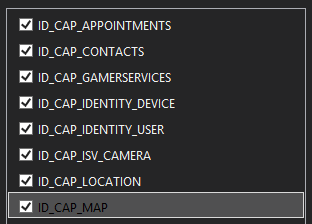
          CapMapIf you fire up this application you will get an immediate error message indicating that you have asked for the map but that you have not selected the right capability for this in the manifest. So double click on “Properties/WMAppManifest.xml” and select ID_CAP_MAP (yeah, the manifest’s got a nice editor too now), and fire up your app.

          And that’s all there is to your first spin with the new Windows Phone map control. It supports data binding – to an extent, and it’s easy to control and embed. Play with the sliders and scroll over the map – it’s amazingly fast and I can assure you it is even more so on actual hardware. Stay tuned: more is coming on this subject!

          Note: I have not touched upon creating and adding map keys to the map in this solution. This procedure is described here.

          As usual: download the sample solution here.

          03 October 2012

          A WinRT behavior to start a storyboard on an event

          Sometimes I get a bit distracted. In this article I mention a behavior that I wrote which starts a storyboard on an event, I even put in in the win8nl library – and then totally forget to blog about it, or even to announce it. So anyway, when Danny van Neyghem asked me about a problem that was almost solved by my behavior, I kinda remembered it, and that I totally forgot about it - and decided a) to improve it and b) to talk about it (well, write).

          World, meet StartStoryboardBehavior. It’s a very simple behavior that has the following properties:

          Storyboard The name of the Storyboard to start. Mandatory.
          StartImmediately true = don’t wait for an event to start, just start the storyboard when the behavior is loaded. Optional; default is false
          EventName The event of the AttachedObject that will initiate the start of the storyboard (e.g. ‘Click’ on a button). Ignored when StartImmediately  == true, mandatory otherwise
          SearchTopDown Optional, default is true. If true, the behavior will start to search for your storyboard from the top of the visual tree. This is the scenario in which for instance clicking a button will initiate a storyboard that sits somewhere in the top of the page. If this value is set to false, the behavior will search from the attached object up. Choose this setting when you use the behavior to start a storyboard that’s sitting inside a template.

          “SearchTopDown” was added just yet, and I hope it solves Danny’s problem. For those who just want to use the behavior: Nuget Win8nl and you have the behavior armed and ready. I’ve updated the package with the improved behavior already. For those who want to learn – well, it’s not rocket science but read on.

          The first part is not so very interesting – just your basic setting up of the behavior, the wiring up and a wiring down of the events. The only interesting things happen in AssociatedObjectLoaded:

          using System;
          using System.Linq;
          using Windows.UI.Xaml;
          using WinRtBehaviors;
          using System.Reflection;
          using Win8nl.External;
          using Windows.UI.Xaml.Media.Animation;
          using System.Reactive.Linq;
          
          namespace Win8nl.Behaviors
          {
            public class StartStoryboardBehavior : Behavior<FrameworkElement>
            {
              protected override void OnAttached()
              {
                base.OnAttached();
                AssociatedObject.Loaded += AssociatedObjectLoaded;
              }
              
              protected override void OnDetaching()
              {
                AssociatedObject.Loaded -= AssociatedObjectLoaded;
                base.OnDetaching();
              }
          
              private void AssociatedObjectLoaded(object sender, RoutedEventArgs e)
              {
                if (StartImmediately)
                {
                  StartStoryboard();
                }
          
                if (!string.IsNullOrWhiteSpace(EventName))
                {
                  var evt = AssociatedObject.GetType().GetRuntimeEvent(EventName);
                  if (evt != null)
                  {
                    Observable.FromEventPattern<RoutedEventArgs>(AssociatedObject, EventName)
                      .Subscribe(se => StartStoryboard());
                  }
                }
              }
            }
          }

          If StartImmediately is true, the storyboard is fired immediately. If not, the behavior tries to find an event with the name supplied in the EventName property and tries to attach a dynamic handler to it using Rx. Nothing new here, I already described this technique earlier - in the article where I announced this forgotten behavior :-)

          More interesting is this funny little method, that’s basically one big Linq statement:

          private Storyboard GetStoryBoardInVisualDescendents(FrameworkElement f)
          {
            return f.GetVisualDescendents()
              .Where(p => p.Resources.ContainsKey(Storyboard) && p.Resources[Storyboard] is Storyboard)
              .Select(p => p.Resources[Storyboard] as Storyboard).FirstOrDefault();
          }

          It checks in all visual children’s resources for a storyboard with the name supplied in “Storyboard”, and if so, it selects it. It uses the extension method GetVisualDescendents to generate a list of all the children – all the way to the bottom of the visual tree from the element in “f”.

          As for the behavior’s default behavior (meh), it searches top-down for the storyboard, using this method:

          private void StartStoryboardTopDown()
          {
            var root = AssociatedObject.GetVisualAncestors().Last() ?? AssociatedObject;
          
            var storyboard = GetStoryBoardInVisualDescendents(root);
            if (storyboard != null)
            {
              storyboard.Begin();
            }
          }

          In a nutshell: find the very last top object in the visual tree – that is the root. If that’s null, apparently the current associated object already is the root. Then it starts to search downward for the storyboard and if it finds it, it will fire it.

          For the bottom-up strategy, another method is employed, with a very original name:

          private void StartStoryboardBottomUp()
          {
            var root = AssociatedObject;
            Storyboard storyboard;
            do
            {
              storyboard = GetStoryBoardInVisualDescendents(root);
              if (storyboard == null)
              {
                root = root.GetVisualParent();
              }
            } while (root != null && storyboard == null);
          
            if (storyboard != null)
            {
              storyboard.Begin();
            }
          }

          This method starts by trying to find the storyboard in the visual tree below the current associated object. If it doesn’t find it, in moves one level up and tries again. And another one. Till it a) finds the storyboard or b) runs out of levels. If a storyboard is found, then it fires it. Okay, so that’s a little inefficient, but it only happens upon firing the event.

          The final pieces of the puzzle is StartStoryboard, which simply selects the method based upon the SearchTopDown value.

          private void StartStoryboard()
          {
            if( SearchTopDown)
            {
              StartStoryboardTopDown();
            }
            else
            {
              StartStoryboardBottomUp();
            }
          }

          And that’s all there is to it. I’ve omitted the declaration of the four (attached dependency) properties as that only bulks up this post with no actual value, and the complete listing can be found here on CodePlex if that helps you to get overview.

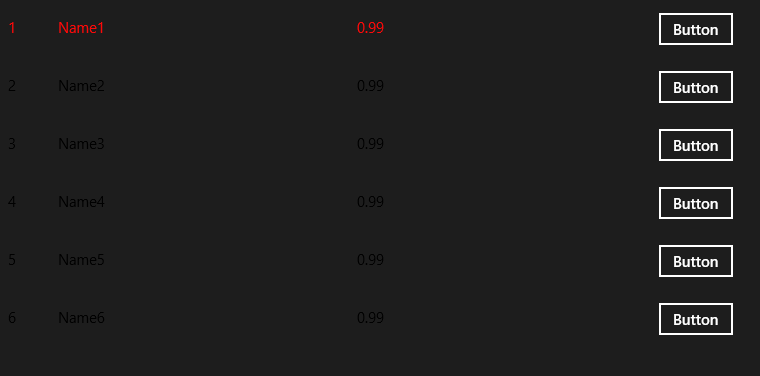
          Screenshot8For those who love to see the behavior in action I created a little sample app, which shows a few items in a ListBox. At the end of each row there’s a button, and if you click that the color of three texts to the left is animated from black to red in about a second. That’s a storyboard being fired by the behavior. Very exiting ;-) - but it proves the point.

          Enjoy! I hope this helps you with your Windows 8 development! Global Availability is coming, get cracking to get your stuff in the store!