24 June 2014

Messaging class for detecting and broadcasting that your Universal app is running in the background

Some time ago I discovered that you can trap Window.Current.VisibilityChanged in a Windows 8 app to check if the app was running in the background, and that you can use that moment to pause a game and/or save the state to storage. The fun thing is, this now works in Universal apps too, that is – and thus, also on Windows Phone 8.1.Although we can discuss if  the app is really running in the background or that is actually being suspended when it runs on Windows Phone – the mechanism is the same and it can be used to the same end.

So make this more easy to use, I made this very simple class, based upon the MVVMLight MessageBase class:

using Windows.UI.Xaml;
using GalaSoft.MvvmLight.Messaging;

namespace WpWinNl.Messages
{
  public class WindowVisibilityMessage : MessageBase
  {
    public WindowVisibilityMessage(bool visible, object sender = null, 
object target = null) :base(sender, target) { Visible = visible; } public bool Visible { get; protected set; } public static void Setup() { Window.Current.VisibilityChanged += (s, f) => Messenger.Default.Send(new WindowVisibilityMessage(f.Visible)); } } }

and all you have to use it, is to simply put

protected override void OnLaunched(LaunchActivatedEventArgs e)
{
   WindowVisibilityMessage.Setup();
   //Rest of code omitted
 

in the first line of OnLaunched in the App.Xaml.cs

Now anywhere in your app you can now listen for the WindowVisibilityMessage to come by and act on it, like this:

Messenger.Default.Register<WindowVisibilityMessage>(this, p =>
{
  if (p.Visible)
  {
    //do something 
  }
  else
  {
    //do something else
  }
});

And that’s all. The source of this class is already on codeplex and it’s also in the full WpWinNl NuGet package that I released yesterday. Since this class and it’s use is prettysimple and straightforward, I am going to skip a sample solution. A more comprehensive sample where this class plays a minor supporting role is coming soon

22 June 2014

Introducing WpWinl 2.0.0 (prerelease version)

Today I have decided to take the plunge – I have released an early version of WpWinNl 2.0.0 to NuGet. This introduces quite some changes.

To start with, WpWinNl now consists of two packages:

  • WpWinNlBasic, which contains all the stuff that is not dependent on MVVMLight. This includes a lot of behaviors, converters and utilities, including a lot of animation stuff.
  • WpWinNl proper, which is dependent on WpWinNlBasic and does pull in MVVMLight.

So if you just want to continue using WpWinNl like you used to do, nothing much is going to happen apart from the fact that you pull in two NuGet packages in stead of one. But if you for some odd reason does not like MVVMLight, or don’t use it can now use all my stuff that does not rely on MVVMLight by pulling in WpWinNLBasic only. I have received several request to that end (most vocally by Dutch DPE Rajen Kishna), so there it is.

If you, by any chance, use WpWinNl on Universal apps or Windows app, you are pulling in a profound change under the hood. For those type of apps, all the code I have written so far is sitting inside a PCL, including the behaviors. To that end, I use my previously released version of IBehaviorPortable, that uses a trick to make it possible to write cross-platform behavior (as described here).

This is a pre-release version as I said, for the simple reason that there are a few known issues:

  1. I am not entirely sure of the Bluetooth stuff. Although phone to phone seems to work, phone to PC does not, at least not under Windows Phone 8.1. I still have to get to the bottom of this
  2. Not all behaviors and utilities made it from Windows Phone 8.0 to 8.1. This includes the behaviors to check for updates, reminding the user to review, and some stuff that Timmy Kokke contributed some 1.5 years ago.

As a bonus, I also released a third package, that allows you to bind polygons, lines, and the new MapIcons to the new Windows Phone 8.1 here maps control. You can find this package by looking for WpWinNlMaps, and it basically is an update to the principle I describe here for Windows Phone 8.0. No sample code yet folks – been a bit busy lately.

I am pretty sure this all works pretty well (barring the mentioned issues), but being a engineer, I don’t say it’s done until it’s really done. So, therefore – prerelease. Terms and conditions may apply. Your mileage may vary. And stuff like that.

If you discover any issues, run into trouble, or have suggestions to improve things - please feel free contact me.

09 June 2014

Using Fody.PropertyChanged for automatic PropertyChangedEvents and model-to-viewmodel communication

When you are working with MVVM, you are faced with a couple of interesting challenges. Usually you have something like this:

You see a lot of properties with a lot of repetitive code. Of course, you can use snippets to make that easier, but still. It looks cluttered.

using GalaSoft.MvvmLight;

namespace MyApp.Logic.ViewModels
{
  public class DummyViewModel : ViewModelBase
  {
    private string myProperty;
    public string MyProperty
    {
      get { return myProperty; }
      set
      {
        if (myProperty != value)
        {
          myProperty = value;
          RaisePropertyChanged(() => MyProperty);
        }
      }
    }

    private string yourProperty;
    public string YourProperty
    {
      get { return yourProperty; }
      set
      {
        if (yourProperty != value)
        {
          yourProperty = value;
          RaisePropertyChanged(() => YourProperty);
        }
      }
    }

    public void DoSomething()
    {}
  }
}

And it usually gets more cluttered, as people tend to put what amounts to business logic into the viewmodel. I used to make a viewmodel as a wrapper around a model, like this.

namespace MyApp.Logic.Models
{
  public class DummyModel
  {
    public string YourProperty { get; set; }
    public string MyProperty { get; set; }

    public void DoSomeBusinessThing()
    { }
  }
}
and then something like this, also created via snippets
using GalaSoft.MvvmLight;
using MyApp.Logic.Models

namespace MyApp.Logic.ViewModels
{
  public class DummyViewModel : ViewModelBase
  {
    public DummyViewModel()
    {
    }

    public DummyViewModel(DummyModel model)
    {
      Model = model;
    }
    public DummyModel Model { get; set; }

    public string MyProperty
    {
      get { return Model.MyProperty; }
      set
      {
        if (Model.MyProperty != value)
        {
          Model.MyProperty = value;
          RaisePropertyChanged(() => MyProperty);
        }
      }
    }

    public string YourProperty
    {
      get { return Model.YourProperty; }
      set
      {
        if (Model.YourProperty != value)
        {
          Model.YourProperty = value;
          RaisePropertyChanged(() => YourProperty);
        }
      }
    }
  }
}
Nice. But now you have a different problem. I you call DoSomeBusinessThing and that affects "MyProperty" or "YourProperty" on the model in some way, how is the viewmodel supposed to know and fire a PropertyChanged?

Enter Fody - a great toolkit. It is basically an extensible toolkit for “weaving” .NET assemblies. It accepts plugins to decide what is actually injected. The most useful for our problem is the PropertyChanged.Fody.Which is also available as a Nuget package that you can easily add to your project. You then take your good old DummyObject and add the attribute ImplementPropertyChanged to it.

using PropertyChanged;

namespace Travalyzer.Logic.ViewModels
{
  [ImplementPropertyChanged]
  public class DummyModel
  {
    public string YourProperty { get; set; }
    public string MyProperty { get; set; }

    public void DoSomeBusinessThing()
    { }
  }
}

and boom. If something affects a property, the property will fire PropertyChanged. PropertyChanged.Fody will add all kinds of smart logic to your model, as described here. Ain't that cool, you don't even have to make a viewmodel anymore.

Well, sorry to rain on your parade, but if you now start to add commands to your enhanced model and properties or methods that are only used for display (for instance, a formatted date) you are basically polluting your business layer. It’s like adding business logic to your viewmodel, but coming from the opposite direction. Yes, you can now bind directly to model properties and they will fire a PropertyChanged, but business logic is business logic and thou shalt not pollute that with methods indented to deliver data for display and UI interaction. That is what viewmodels are for. And your viewmodel may still need to do something so it still may need to be notified. After some puzzling I came up with the following. First, I define a base class for my models with minimal baggage:

using System.ComponentModel;
using GalaSoft.MvvmLight.Threading;
using PropertyChanged;

namespace WpWinNl.MvvmLight
{
  [ImplementPropertyChanged]
  public class BaseNotifyingModel : INotifyPropertyChanged
  {
    public event PropertyChangedEventHandler PropertyChanged;

    protected virtual void OnPropertyChanged(string propertyName = null)
    {
      if (PropertyChanged != null)
      {
        DispatcherHelper.CheckBeginInvokeOnUI(() => 
            PropertyChanged(this, new PropertyChangedEventArgs(propertyName)));
      }
    }
  }
}

I don’t even use MVVMLight’s ViewmodelBase, but a very simple INotifyPropertyChanged implementation. PropertyChanged.Fody is apparently smart enough to leave that part of the class alone if it’s already implemented. But of course I do use other smart things by Laurent Bugnion – the DispatcherHelper. Mind you, this requires it being initialized in App.Xaml.cs. The most important thing is that the PropertyChanged event can be used by the viewmodel to track possible changes in the model. I use this in the following base view model, which is used on MVVMLight ViewModelBase:

using System.ComponentModel;
using GalaSoft.MvvmLight;
using PropertyChanged;

namespace WpWinNl.MvvmLight
{
  [ImplementPropertyChanged]
  public class TypedViewModelBase<T> : ViewModelBase where T : BaseNotifyingModel 
  {
    private T model;

    public TypedViewModelBase()
    {
    }

    public TypedViewModelBase(T model)
    {
      Model = model;
    }

    public T Model
    {
      get { return model; }
      set
      {
        if (value != model)
        {
          if (model != null)
          {
            model.PropertyChanged -= ModelPropertyChanged;
          }
          model = value;
          if (model != null)
          {
            model.PropertyChanged += ModelPropertyChanged;
          }
        }
      }
    }

    protected virtual void ModelPropertyChanged(object sender, 
       PropertyChangedEventArgs e)
    {
    }
  }
}

imageIf you derive your models from BaseNotifyingModel and your viewmodels from TypedViewModelBase you will have a model that automatically fires INotifyPropertyChanged on any property that is changed – so it can be used in data binding – and you will have viewmodels that will automatically be notified of any change in their model – and by overriding ModelPropertyChanged you can act on that.

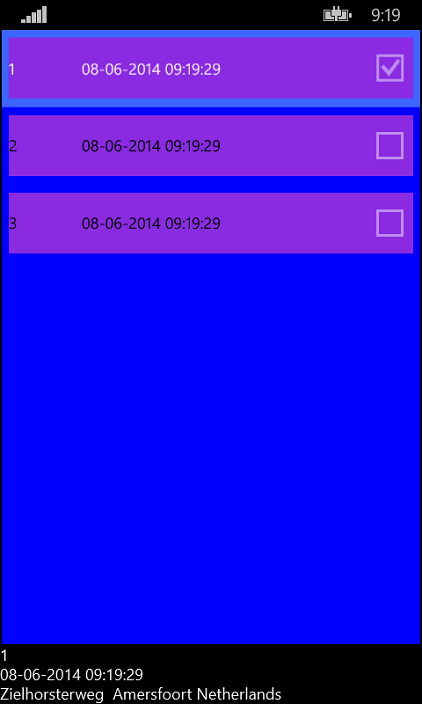
Now of course this is all very nice and very architecty, but how would this ever be useful? Suppose you have a list of business object containing a location. When the user selects it, you want to display it’s street address. You can get that using the MapLocationFinder API. If you have a few 100 points, and you want to get all the addresses – this can take quite some time. So you want to do this on-demand, as displayed in the Windows Phone demo solution.


So I created this model:

using System;
using System.Linq;
using Windows.Devices.Geolocation;
using Windows.Services.Maps;
using WpWinNl.MvvmLight;

namespace FodyDemo.Models
{
  public class LocationData : BaseNotifyingModel
  {
    public LocationData()
    {
      TimeStamp = DateTime.Now;
    }

    public int Id { get; set; }

    public bool HasLocation { get; set; }

    public Geopoint Position { get; set; }

    public DateTimeOffset TimeStamp { get; set; }

    private MapLocation locationInfo;

    public MapLocation LocationInfo
    {
      get
      {
        if (locationInfo == null)
        {
          lock (this)
          {
            MapLocationFinder.FindLocationsAtAsync(Position).
AsTask().ContinueWith(p => { var firstLocationData = p.Result.Locations; if (firstLocationData != null) { LocationInfo = firstLocationData.FirstOrDefault(); HasLocation = true; } }); } } return locationInfo; } set { locationInfo = value; } } } }

Basically, only if the LocationInfo property is accessed it is actually retrieved. In real life, I would probably implement this using a “LoadLocation” method or something, but whatever – this works as well. If the location is found, not only the LocationInfo is set, but also the HasLocation property, which makes the checkbox light up. In the list, the following properties are bound like this: 

<TextBlock Text="{Binding Model.Id}" FontSize="15"
VerticalAlignment="Center"></TextBlock> <TextBlock Text="{Binding DateAndTime}" Grid.Column="1" FontSize="15"
VerticalAlignment="Center"></TextBlock> <CheckBox IsChecked="{Binding Model.HasLocation}" IsEnabled="False"
Grid.Column="2" ></CheckBox

You can see HasLocation is bound directly to the Model, still it gets a PropertyChanged event fired courtesy of Fody. The DataAndTime property apparently coming from the ViewModel, but Location Property is left alone. for now. The panel at the bottom, where the selected object is displayed, is like this

<TextBlock Text="{Binding Model.Id}" FontSize="15" ></TextBlock>
<TextBlock Text="{Binding DateAndTime}" Grid.Row="1" FontSize="15"></TextBlock>
<TextBlock Text="{Binding LocationName}" Grid.Row="2"
FontSize="15"></TextBlock>

In the the viewmodel it looks like this:

using System.ComponentModel;
using System.Globalization;
using System.Windows.Input;
using Windows.Services.Maps;
using FodyDemo.Messages;
using FodyDemo.Models;
using GalaSoft.MvvmLight.Command;
using GalaSoft.MvvmLight.Messaging;
using WpWinNl.MvvmLight;

namespace FodyDemo.ViewModels
{
  public class LocationViewModel : TypedViewModelBase<LocationData>
  {

    public LocationViewModel()
    {
    }

    public LocationViewModel(LocationData ld) : base(ld)
    {
    }

    public string DateAndTime
    {
      get
      {
        return Model != null ? 
          Model.TimeStamp.ToString("dd-MM-yyyy hh:mm:ss", 
            CultureInfo.InvariantCulture) : string.Empty;
      }
    }

    public string LocationName
    {
      get {
        return Model != null && Model.LocationInfo != null ? 
        GetFormattedAdress(Model.LocationInfo.Address) : string.Empty; }
    }

    private string GetFormattedAdress(MapAddress a)
    {
      return string.Format("{0} {1} {2} {3}", a.Street, a.StreetNumber,
a.Town, a.Country); } public ICommand SelectCommand { get { return new RelayCommand( () => Messenger.Default.Send(new SelectedObjectMessage(this))); } } protected override void ModelPropertyChanged(object sender,
PropertyChangedEventArgs e) { if (e.PropertyName == "LocationInfo") { RaisePropertyChanged(() => LocationName); } } } }

You can see the LocatioName property shows a neatly formatted address – and gets a manual RaisePropertyChanged when the ModelPropertyChanged is fired from the model (once again courtesy of Fody) – it checks if that is indeed the “LocationInfo” property and boom – the UI knows it must update because a property from the model is changed, even tough that property is not directly bound to the property.

Thus you can use the viewmodel as it is intended – a place to bind model and view together, a converter on steroids as Josh Smith put is so aptly as early as 2008. A simple base class will add some minimal extra functionality to your business class to make it play within MVVM – but it will still keep it clean.

Important detail – if you use the MVVMLight DispatcherHelper, you must initialize it first. I usually do this in the App.xaml.cs.

The demo solution, which contains some more code, can be found here. Credits go to the equally smart as sarcastic-in-a-fun-way Scott Lovegrove, who first put me on track with Fody quite some time ago, but only recently I was smart enough to actually take his advice and try it out. My base class for models was based on this Fody sample – but of course I thought I was smarter that that and opted for events rather than MVVMLight messages, it being a more lightweight solution. I like to reserve the Messenger for inter-viewmodel communication.

If you did indeed read all the way through here – congratulations. This is a very architect’s article, not some fun thing to make a cool new user control. But once in a while I start pondering about things like this, to keep my code cleaner, and make things better. If I haven’t bored you to death with it, you might be one of the very rare species that has some architectural genes hidden in your DNA too. I like to think I have, although I am more of a micro-architect, not one that only draws enormous complex diagrams for a living ;)

05 June 2014

Fix for being unable to rename files after applying Visual Studio 2013 update 2

A couple of people – me included – have been suffering from the fact that, after they applied Visual Studio 2013 update 2, it became impossible to rename files from Visual Studio. This annoying problem was occurring only on my Surface Pro, and not my Core i7 desktop. The difference was that the Surface Pro at one point ran the public RC of VS2013.2, and the desktop did not. Even totally deleting VS2013 and reinstalling it did not work

Today I got the golden tip from a fellow named Chung Bill (unfortunately I know only his name and e-mail address): apparently, if you did follow the upgrade path from public RC to RTM and you have the Multilingual Application Toolkit (MAT) installed, something goes wrong. The solution is also very simple: uninstall the MAT, then reinstall it again. If you then fire up Visual Studio 2013 again, renaming files works again. Note that you have to uninstall it from Windows, using Programs and Features, not from inside Visual Studio.

Somewhere in the intricate woven components of the MAT and VS2013.2 something apparently went wrong. But fixing it ain't rocket science. No harm done. Nothing broke permanently ;-).

21 May 2014

Windows Phone emulator–“Unable to create a route between the waypoints”

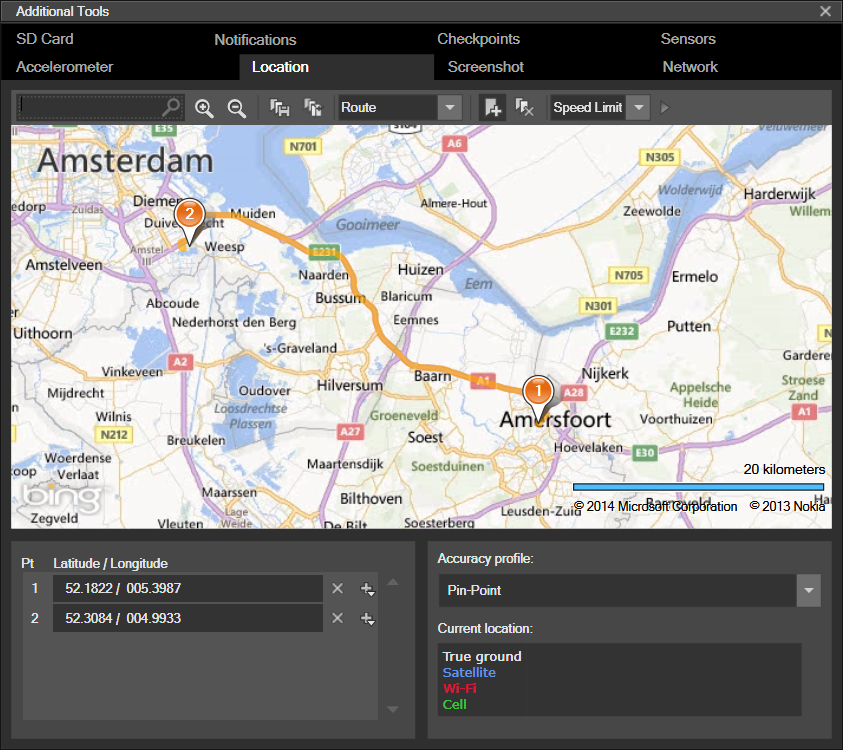
The Windows Phone 8.1 emulator has a beautiful new option: if you want to simulate a route you don’t have to put in a gazillion points anymore, you just input two (or some more if you want specific waypoint), the emulator automatically calculates a route and off you go, in this case from my home to some location near Amsterdam:

image

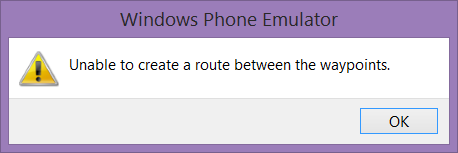
Only for some people it does not work out so well. I have seen some reports of people getting this popup, whatever two points they entered, even if those two were very close together with an obvious route:

image 

Today my friend Matteo Pagani ran into the same problem – and using a remote access tool I was able to have a look at his computer and determine once and for all the root cause of this. And it’s very simple – Matteo had set his computer to English like me, but still had the European decimal number setting. For those who are not familiar with that – when an European wants to write “a hundred thousand and a half” he writes “100.000,5” where an American typically writes “100,000.5”. Decimal point and comma are reversed. Whoever thought up this reversal, well let’s stay civilized here but I don’t have very warm feelings toward him or her, let’s put it that way. For some reason, in Geographical Information Systems territory, this is a fairly common problem. I have set my computer to the American number style for longer than I care to remember so I never ran into it.

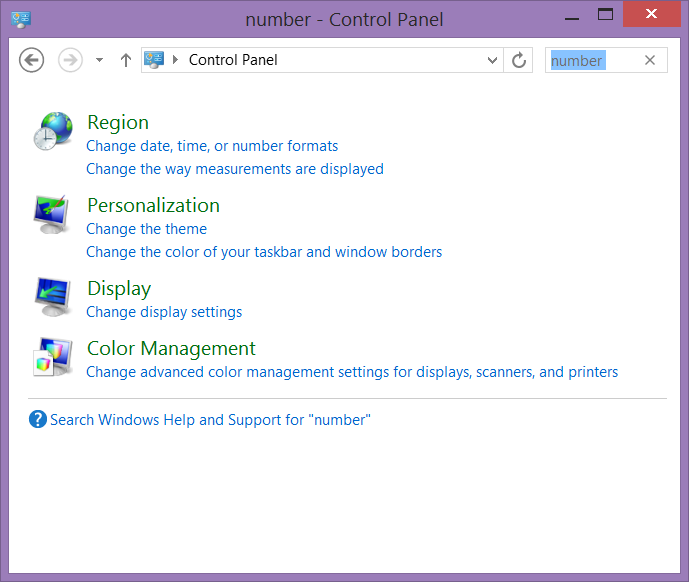
To fix this, you have to adopt the American style of numbers in Windows. Go to your Control Panel, search for number and select “Change date, time or number formats”

image

Then in the next dialog

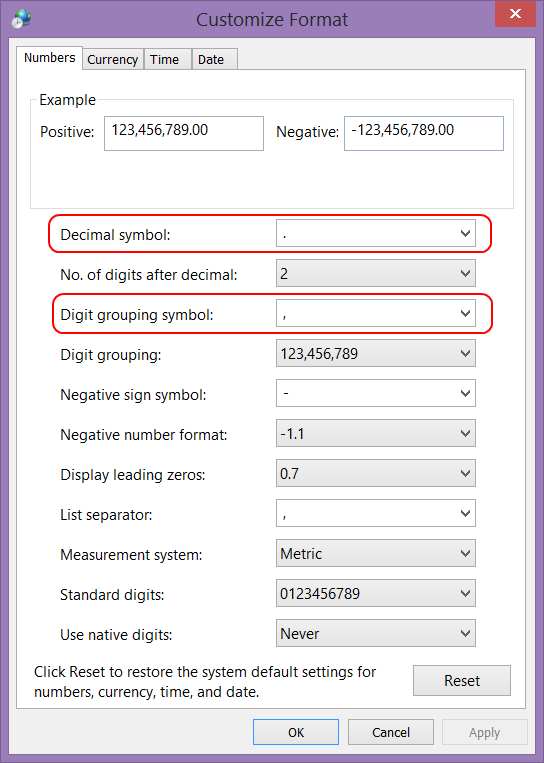
image

“Decimal symbol” should be set to . (dot) and “Digit grouping symbol” to , (comma). For extra fun, the difference is hard to spot. Close Visual Studio and the emulator, restart Visual Studio, bring up the emulator again, and presto.

I know – this affects all programs in Windows so now your Excel sheets will show up in American style. Don’t shoot the messenger, I am just reporting the problem and a work-around. It’s not the end of the world. I don’t think much people will spend days and days simulating routes ;-)

06 May 2014

Writing behaviors in PCL for Windows Phone 8.1 and Windows 8.1

This article was updated after a tip from Daniel Plaisted – see comments

I was happily adding Windows Phone 8.1 support to WpWinNl – or actually support for Universal Windows Apps - when I noticed that basically all I was doing was linking files from the Windows 8.1 project – without any changes. Convergence FTW! Although that made adding the support as such pretty simple, I also envisioned a maintenance nightmare coming towards me as would not only need to maintain links between Windows 8.1 and Windows Phone 8.0, but also between Windows 8.1 and Windows Phone 8.1. Maybe it was time to go PCL. That went pretty well, until I hit a major roadblock.

This roadblock, my friends, is very simple: the behaviors SDK, and thus everything in Microsoft.Xaml.Interactivity, is not available to PCL. This has probably to do with the fact that the behaviors SDK for Windows 8 is a separate entity, not part of the core framework, that was added later. This same characteristic has moved over to Windows Phone 8.1. It basically boils down to this: every behavior must implement Microsoft.Xaml.Interactivity.IBehavior and this is sitting in two separate assemblies – one for Windows, one for Windows Phone. On my Surface Pro they are sitting in C:\Program Files (x86)\Microsoft SDKs\Windows\v8.1\ExtensionSDKs\BehaviorsXamlSDKManaged\12.0\ for Windows 8.1 and in C:\Program Files (x86)\Microsoft SDKs\WindowsPhoneApp\v8.1\ExtensionSDKs\BehaviorsXamlSDKManaged\12.0\ for Windows Phone 8.1

Now what?

Of course, like I wrote before, you can moan and complain about this and send venomous tweets to Joe Belfiore, Cliff Simpkins or just the first Windows Phone MVP you can find – or you can pause and think if there’s a way around it. This is the thing I love to do – explore, thinker, invent – and come to a solution. Because as it turns out, my friends, there is one.

imageThe key to the solution is this pretty odd article that, believe it or not, was sent to a closed mailing list of Windows Phone MVPs to collect opinions on – by none other than Matthijs Hoekstra, just the day before I wrote this. Then I thought it was a crazy idea - today I find it an invaluable clue. Talking about coincidences. It’s like basic research – you never know where the next life saving idea will be coming from ;-) .

It’s called the “Bait and switch PCL trick” and it basically makes use of a very odd NuGet trick – it will always prefer a native platform library over a PCL. If you make a NuGet package that contains both a PCL and a native version, the PCL is then only used at compile time. So what I did was create this crazy NuGet package called CrossPlatformBehaviorBase (I think I am going to change that later) that basically has three projects in it: once PCL, one Windows Phone 8.1, and one Windows 8.1.

The key thing is that the implementation for Windows Phone and Windows are the same (in fact, the Windows Phone 8.1 implementation is linked from the Windows implementation, but the PCL is slightly different. The PCL version is a copy of the normal IBehavior interface, namespace and all:

using Windows.UI.Xaml;

namespace Microsoft.Xaml.Interactivity
{
  public interface IBehavior
  {
    DependencyObject AssociatedObject { get; }

    void Attach(DependencyObject associatedObject);

    void Detach();
  }
}

Whereas the Windows Phone and Windows implementations look like this:

[assembly: System.Runtime.CompilerServices.TypeForwardedTo(
typeof(Microsoft.Xaml.Interactivity.IBehavior))]

Indeed, that is all. A type forwarding statement to convince the compiler to look for the right IBehavior at runtime. I did not know this trick, but Daniel Plaisted alerted me in the comments.

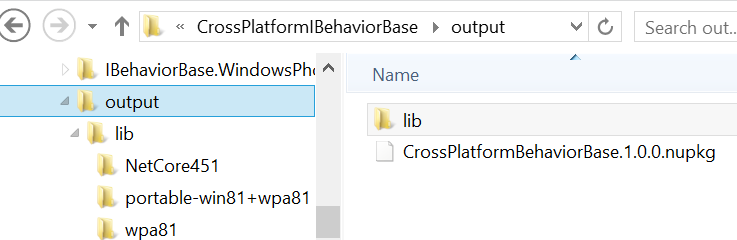
imageIf you build for release this will create three projects neatly conforming to NuGet naming specifications and finally run a little command file that creates a NuGet package in the output folder directly under the solution folder.

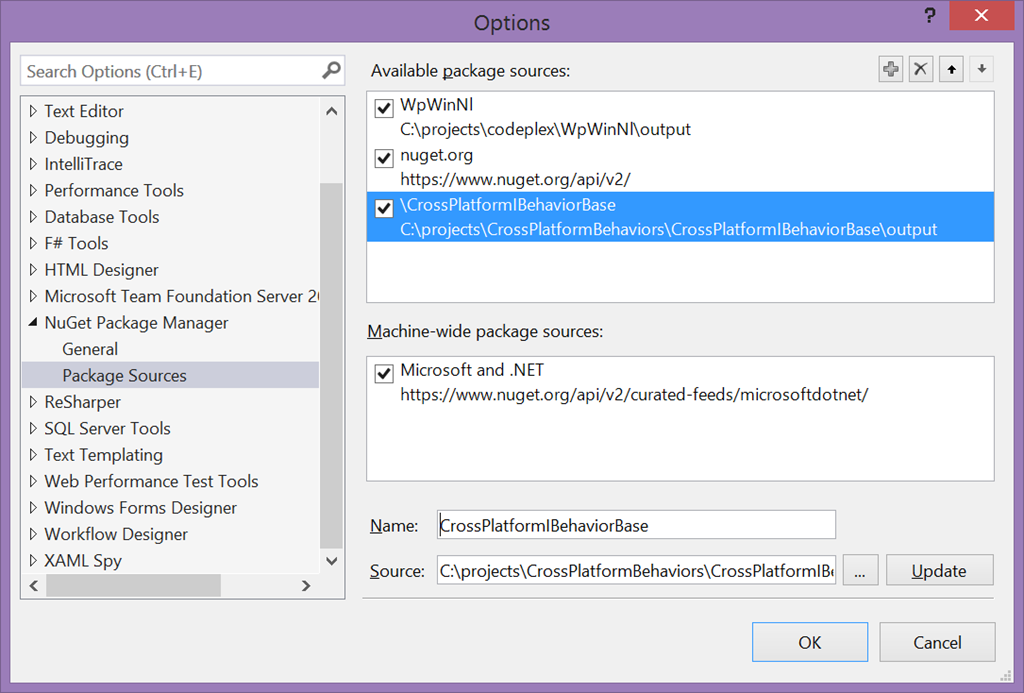
To be able to install the package, you need to specify that folder as a NuGet source:

image

imageMind you, in the future this will all be on NuGet so you won’t have to put up with this. For now,  am just explaining how it’s done.

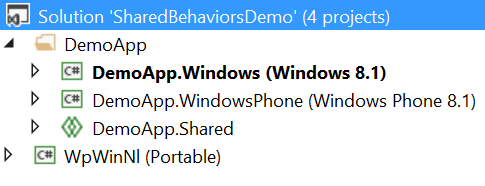
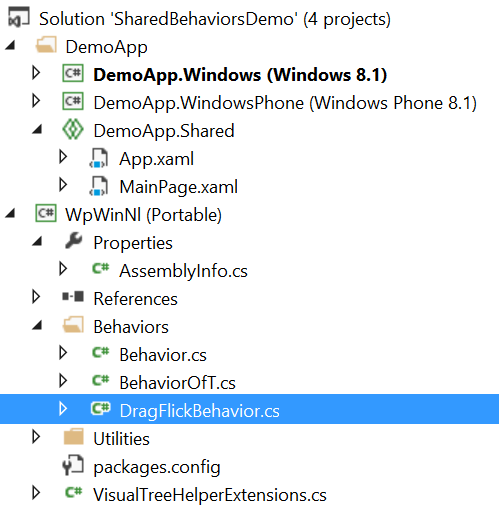
Anyway, I went ahead and created an Universal Windows App DemoApp, and added a Windows Phone 8.1/Windows 8.1 PCL “WpWinNl” to the solution.

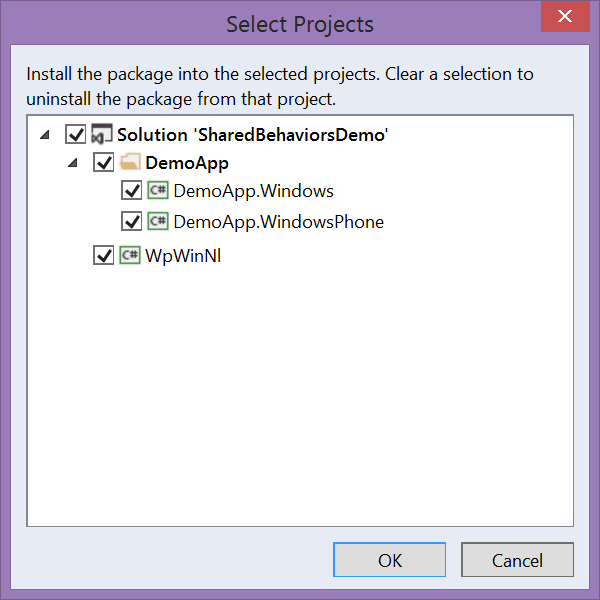
The newly created NuGet package needs to be installed in all three projects: 

imageAnd then I started in copying stuff from WpWinNl,starting with the Behavior base class that I created to maintain compatibility with ‘Silverlight style’ behaviors:

using Windows.UI.Xaml;

namespace WpWinNl.Behaviors
{
  public abstract class Behavior : DependencyObject, IBehavior
  {
    public DependencyObject AssociatedObject { get; set; }

    public virtual void Attach(DependencyObject associatedObject)
    {
      AssociatedObject = associatedObject;
    }

    public virtual void Detach()
    {
    }
  }
}

This will compile fine, now I have the replacement IBehavior in the PCL version. We continue with the Behavior<T> which of course compiles as well:

namespace WpWinNl.Behaviors
{
  public abstract class Behavior<T> : Behavior where T: DependencyObject
  {
    [System.ComponentModel.EditorBrowsable(
       System.ComponentModel.EditorBrowsableState.Never)]
    public new T AssociatedObject { get; set; }

    public override void Attach(DependencyObject associatedObject)
    {
      base.Attach(associatedObject);
      this.AssociatedObject = (T)associatedObject;
      OnAttached();
    }

    public override  void Detach()
    {
      base.Detach();
      OnDetaching();
    }

    protected virtual void OnAttached()
    {
    }

    protected virtual void OnDetaching()
    {
    }
  }
}

imageWhich basically comes over from the existing WpWinNl implementation unchanged. For kickers, I then put my infamous DragFlickBehavior, and all my animation code that has been featured on this blog multiple times on top of it and lo and behold – with a minor addition it just works. And I was able to delete all #ifdef statements for Windows Phone out, leaving only the former ‘just windows’ code. All in PCL. And all usable both on Windows Phone and Windows.

image
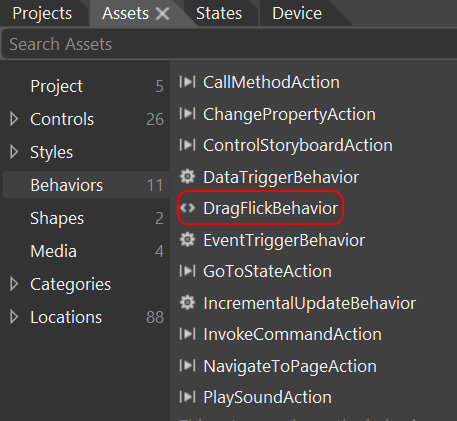
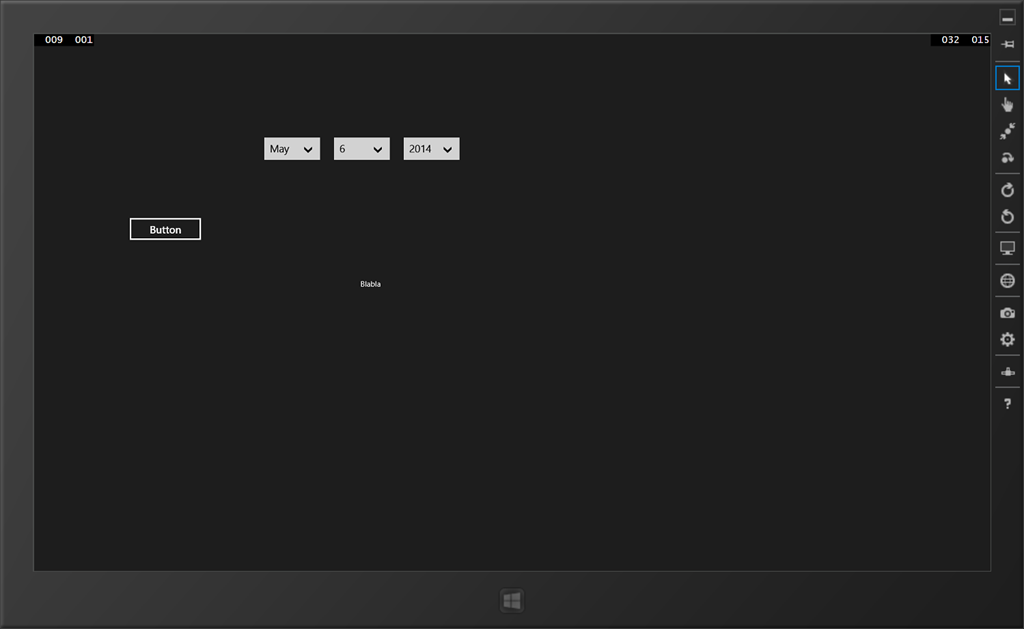
As coupe de grace I put the whole of MainPage.xaml in the shared portion, opened Blend and sure enough – there was my DragFlickBehavior:

So I dropped a date picker, a text box and a button on the screen and dragged my PCL-DragFlickBehavior on top on all three:

<Page
    xmlns="http://schemas.microsoft.com/winfx/2006/xaml/presentation"
    xmlns:x="http://schemas.microsoft.com/winfx/2006/xaml"
    xmlns:d="http://schemas.microsoft.com/expression/blend/2008"
    xmlns:mc="http://schemas.openxmlformats.org/markup-compatibility/2006"
    
    xmlns:Interactivity="using:Microsoft.Xaml.Interactivity"
    xmlns:behaviors="using:WpWinNl.Behaviors"

    x:Class="DemoApp.MainPage"
    mc:Ignorable="d">

  <Grid Background="{ThemeResource ApplicationPageBackgroundThemeBrush}">
    <Button Content="Button" HorizontalAlignment="Left" Height="37" 
      Margin="101,114,0,0" VerticalAlignment="Top" Width="108">
      <Interactivity:Interaction.Behaviors>
        <behaviors:DragFlickBehavior/>
      </Interactivity:Interaction.Behaviors>
    </Button>
    <DatePicker HorizontalAlignment="Left" Margin="48,230,0,0"
VerticalAlignment="Top"> <Interactivity:Interaction.Behaviors> <behaviors:DragFlickBehavior/> </Interactivity:Interaction.Behaviors> </DatePicker> <TextBlock HorizontalAlignment="Left" Height="42" Margin="132,310,0,0" TextWrapping="Wrap" Text="Blabla" VerticalAlignment="Top" Width="121"> <Interactivity:Interaction.Behaviors> <behaviors:DragFlickBehavior/> </Interactivity:Interaction.Behaviors> </TextBlock > </Grid> </Page>

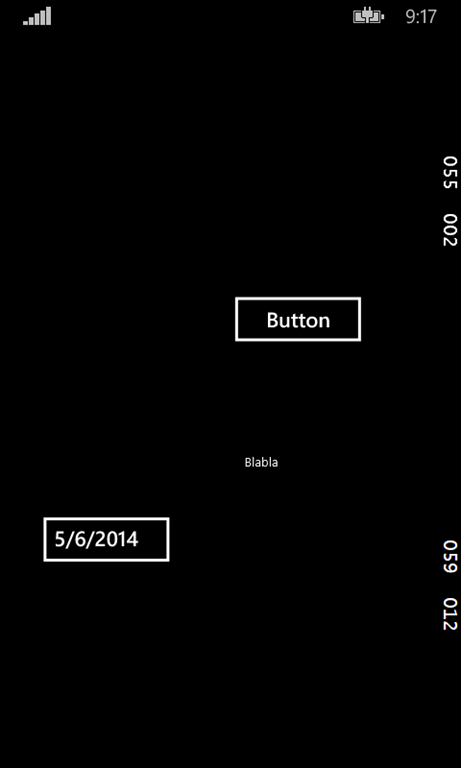
And sure enough:imageimage


The screen shows up and you can happily drag the items along, although dragging a Windows Phone date picker is quite a challenge.

So there you have it – behaviors completely defined in PCL, courtesy of a little NuGet trick. Could the Windows Phone and/or Windows Team have done this themselves? Possibly – but don’t forget I just sailed past anything that is not managed, like C++. And if there ain’t any challenges for MVPs to meet, fat lot of use we would be, eh? ;-)

A zip file with both the NuGet package and the Universal Windows App can be found here. For now it’s a kind of proof of concept, soon I will be putting this NuGet package out on NuGet itself and use it for the new version of WpWinNl. After some rigorous testing ;).

Update – after some thinking I decided to call this IBehaviorPortable and have uploaded it to NuGet with that name.

MovedCheeseException–where is StorageFolder.TryGetItemAsync in Windows Phone 8.1?

A quickie this time: when I finally started porting WpWinNl over to Windows Phone 8.1 (sorry, I was busy testing, preparing a talk and the Windows Phone Code Battle, so something had to give) and was getting into the nuts and bolts of some of my code I noticed something peculiar. Somewhere in my code the StorageHelper class, that sports this little method.

private async Task<StorageFile> GetDataFile()
{
  var result = 
    await ApplicationData.Current.LocalFolder.TryGetItemAsync(GetDataFileName(typeof(T)));
  return result as StorageFile;
}

got a compiler error on the TryGetItemsAsync method. So although Microsoft works hard on convergence for Windows Phone and Windows, apparently for some reason this method did not make the cut. In a Windows Phone / Windows 8.1 PCL it is not available either.

Now of course you can cry foul and say that once again Microsoft is pulling the rug out from under you, the loyal developer, or something to that effect – or you can just solve the problem. Either you change the line that does not compile to something that does compile on all platforms, for instance

var files = await ApplicationData.Current.LocalFolder.GetFilesAsync();
var result = files.FirstOrDefault(p => p.Name == name);

Or if you are a really lazy bastard  - like me – and just want to leave existing code intact, you can just make an extension method that you tuck in a library like this:

using System;
using System.Linq;
using System.Threading.Tasks;
using Windows.Storage;

namespace WpWinNl.Utilities
{
  /// <summary>
  /// Replaces the missing TryGetItemAsync method in Windows Phone 8.1
  /// </summary>
  public static class StorageFolderExtensions
  {
    public static async Task<IStorageItem> TryGetItemAsync(this StorageFolder folder, 
                                                           string name)
    {
      var files = await folder.GetItemsAsync().AsTask().ConfigureAwait(false);
      return files.FirstOrDefault(p => p.Name == name);
    }
  }
}

And we’re  done here. Sometimes your cheese moves a little. Deal with it, that’s what it takes to be a developer ;-). As this article basically talks about two lines of code, I will dispense with the sample solution this time if you don’t mind.

Thanks to Dave Smits for pointing out on Twitter that I should add AsTask().ConfigureAwait(false), which I did. As I am writing a library, I should not interfere with the developer's way of handling thread safety. Here is explained why.