11 February 2015

Starting an OWIN ASP.NET server on Raspberry PI 2 automatically at boot up

Inspired by the buzz that engulfed the Microsoft community when it was announced the new Raspberry PI 2 was going to support Windows 10 I actually got myself one too, with the aid of community member Maurice Spronkers (thank bro!)

image

Windows 10 for devices is not yet out for release, so here I was, being a bit impatient to apply my .NET skills, looking at a device that, at the time of this writing, only can be powered by Linux. I have extensive UNIX experience, but after the GIS world largely moved to Windows NT in 1997(!) my command line skills had gotten a little rusty. Fortunately, there are this great tutorial by this awesome Belgian guy named Jan Tielens, who describes setting up the device for .NET developers and running an ASP.NET OWIN server on it.

The only thing I could not get to work, is to get the darn OWIN server to start at boot time. I found out, eventually. The problem did not so much in the configuration, as well in the default OWIN stand alone server code. Now Linux fans all over the world will probably ridicule me for this total lack of understanding of their system, let alone at how I arrived at the solution, but what the heck. Only a few learn without falling on their face first.

So after a lot of looking around of various sites, muttering on Twitter, and getting some help from various people, I arrived at this page that tells you to need edit a file named /etc/rc.local. Think of it as ye olde autoexec.bat. That, of course, you can only do as root. So you have to start that from the command line [insert muttering here]. The purists may use Nano or even VI (I still know some keystrokes if I go on automatic) but I found out that you can get a nice notepad like editor by typing
sudo leafpad /etc/rc.local

And then you add a line
su - pi -c "mono /home/pi/Desktop/OwinDemo/OwinTest.exe " &

and that should work (yeah I put my demo on the desktop. I like a GUI. Sue me). Trouble is, after rebooting, it does not. Remembering ye olde days of shell script development, I changed the line to:
su - pi -c "mono /home/pi/Desktop/OwinDemo/OwinTest.exe 2>/home/pi/Desktop/error.txt >/home/pi/Desktop/log.txt" &

Mind you, this should all be on one line! It should dump all the output of the process itself in log.txt, and possible errors in error.txt. I booted up the PI2 – nothing. But lo and behold, two files popped onto the desktop, error.txt and log.txt. So at least something did run. The first one was empty (yay, no errors!) and the second one contained just the expected text: “Press Enter to quit.” So why did I get “This page cannot be displayed”

It turns out, my friends, that what works when you start it as a user, apparently does not work when you run it it the background. Apparently, although the Console.ReadLine should stop it – it doesn’t do that.

The only thing I had to change was the .NET code.

In stead of this piece of code, that everyone writes in the OWIN examples,

static void Main(string[] args)
{
  const string baseUrl = "http://*:5000";
  using (WebApp.Start<Startup>(baseUrl))
  {
    Console.WriteLine("Press Enter to quit.");
    Console.ReadKey();
  }
}

I wrote this very naïve piece of code

static void Main(string[] args)
{
  const string baseUrl = "http://*:5000";
  using (WebApp.Start(baseUrl))
  {
    while(true)
    {
      Console.WriteLine("Waiting...");
      Thread.Sleep(2000);
    }
  }
}

And verily, verily, now every two seconds my file “log.txt” got a new line and I actually could access the web site running on my PI.

image

I assume I am a very big dumbass for not understanding this and my logging method is very primitive, but I could not find a decent resource telling me why I was stupid and how to solve this, so I thought I’d share this with you.

AS Jan in his original article shares most of the code I forego my trademark sample solution this time, as I expect my readers at least to be capable to delete two lines of code and replace them by four.

Final thought: if you deploy this, you might want to delete the logging redirects (as you won’t like having a very big file on you desktop just saying “Waiting…” umpteen times), and you might want to set the Thread.Sleep to a higher value so save (a minute bit of) CPU cycles.

Disclaimers: no PI2’s were harmed for this article, or being forced to reboot by the flash where it’s picture was taken with ;)

08 February 2015

Using a full-size none-stretched background image in a Xamarin.Forms app

Intro

I always like to use a kind of a translucent background image to my app’s screens, that makes it look a bit more professional than just a plain single-colored screen – a trick I learned from my fellow MVP Mark Monster in the very early days of Windows Phone development. Now that I am trying to learn some Xamarin development, I want to do the same thing – but it turns out that works a bit different from what I am used to.

Setting up the basic application

I created a Xamarin Forms portable app “BackGroundImageDemo”, but when you create a new Xamarin Forms application using the newest templates in Xamarin 3.9, you get an application that uses forms, but no XAML. Having lived and dreamed XAML for the last 5 years I don’t quite like that, so start out with making the following changes:

1. Update all NuGet packages - this will get you (at the time of this writing) the 1.3.2 forms packages

2. Add StartPage.Xaml to BackGroundImageDemo (Portable)

<?xml version="1.0" encoding="utf-8" ?>
<ContentPage xmlns="http://xamarin.com/schemas/2014/forms"
             xmlns:x="http://schemas.microsoft.com/winfx/2009/xaml"
             x:Class="BackGroundImageDemo.StartPage">
	<Label Text="Hello world from XAML" VerticalOptions="Center" 
         HorizontalOptions="Center" FontSize="30" />
</ContentPage>

3. Make some changes to the App.cs in BackGroundImageDemo (Portable) to make it use the XAML page:

namespace BackGroundImageDemo
{
  public class App : Application
  {
    public App()
    {
      // The root page of your application
      MainPage = new StartPage();
    }
    
    // stuff omitted
  }
}

And when you run that, for instance on Windows Phone, it looks like this:

image

JupiterAdding a background picture

Now suppose I want to make an app related to astronomy – then I might use this beautiful picture of Jupiter, that I nicked off Wikipedia, as a background image:

It has a nice transparent background, so that will do. And guess what, the ContentPage class has a nice BackgroundImage attribute, so we are nearly done, right?

As per instructions found on the Xamarin developer pages, images will need to be:

  • For Windows Phone, in the root
  • For Android, in the Resources/drawable folder
  • For iOS, in Resources folder

In addition, you must set the right build properties for this image:imageimage

  • For Windows Phone, set “Build Action” to “Content” (this is default) and “Copy to Output Directory” to “Copy if newer”
  • For Android, this is “AndroidResource” and “Do not copy”
  • For iOS, this is “BundleResource” and “Do not copy”

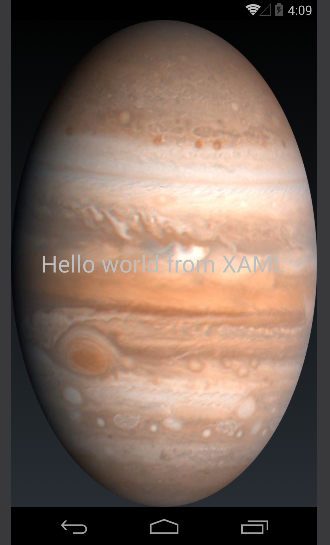
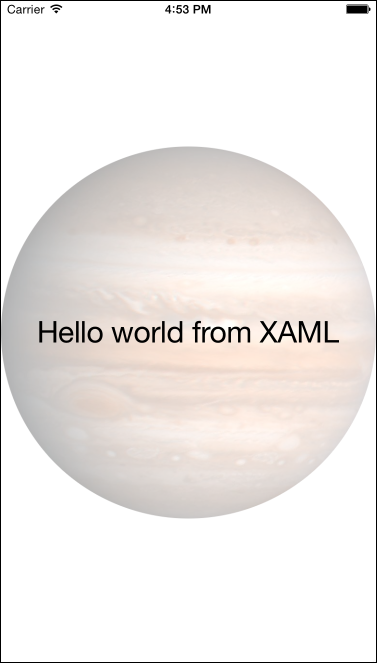
So I copy Jupiter.png three times in all folders (yeah I know, there are smarter ways to do that, that’s not the point here) add BackgroundImage=’'Jupiter.png” to the ContentPage tag and… the result, as we can see on the to the right, is not quite what we hoped for. On Android, Jupiter is looking like a giant Easter egg. Windows Phone gives the same display. On the Cupertino side, we get a different but equally undesirable effect.

RelativeLayout to the rescue

Using RelativeLayout and constraint expressions, we can more or less achieve the same result as Windows XAML’s “Uniform”.

<?xml version="1.0" encoding="utf-8" ?>
<ContentPage xmlns="http://xamarin.com/schemas/2014/forms"
             xmlns:x="http://schemas.microsoft.com/winfx/2009/xaml"
             x:Class="BackGroundImageDemo.StartPage" >
  <RelativeLayout>
    <Image Source="Jupiter.png" Opacity="0.3"
                RelativeLayout.WidthConstraint=
                  "{ConstraintExpression Type=RelativeToParent, Property=Width}"
                RelativeLayout.HeightConstraint=
                  "{ConstraintExpression Type=RelativeToParent, Property=Height}"/>
    <Grid RelativeLayout.WidthConstraint=
              "{ConstraintExpression Type=RelativeToParent, Property=Width}"
            RelativeLayout.HeightConstraint=
              "{ConstraintExpression Type=RelativeToParent, Property=Height}">

      <Label Text="Hello world from XAML" VerticalOptions="Center"
         HorizontalOptions="Center" FontSize="30"/>
    </Grid>
  </RelativeLayout>
</ContentPage>

All elements within a RelativeLayout will essentially be drawn on top of each other, unless you specify a BoundsConstraint. I don’t do that here, so essentially every object will drawn from 0,0. By setting width and height of the RelativeLayout’s children to essentially the width and height of the RelativeLayout itself, is will automatically stretch to fill the screen. And thus the image ends up in the middle, as does the Grid with the actual UI in it. Just make sure you put the image Image first and the Grid second, or else the image will appear over your text.

I also added Opacity = “0.3” to make the image translucent and not so bright that it actually wipes out your UI. The exactly value of the opacity is a matter of taste and you will need to determine how it affects the readability of the actual UI on a real device. Also, you might consider editing the image in Paint.Net or the like and set its to 0.3 opacity hard coded in the image, I guess that would save the device some work.

Anyway, net result:

imageimageimage

Demo solution, as always, can be downloaded here.

25 January 2015

Keeping popups above the bottom app bar in Windows 8.1 store apps

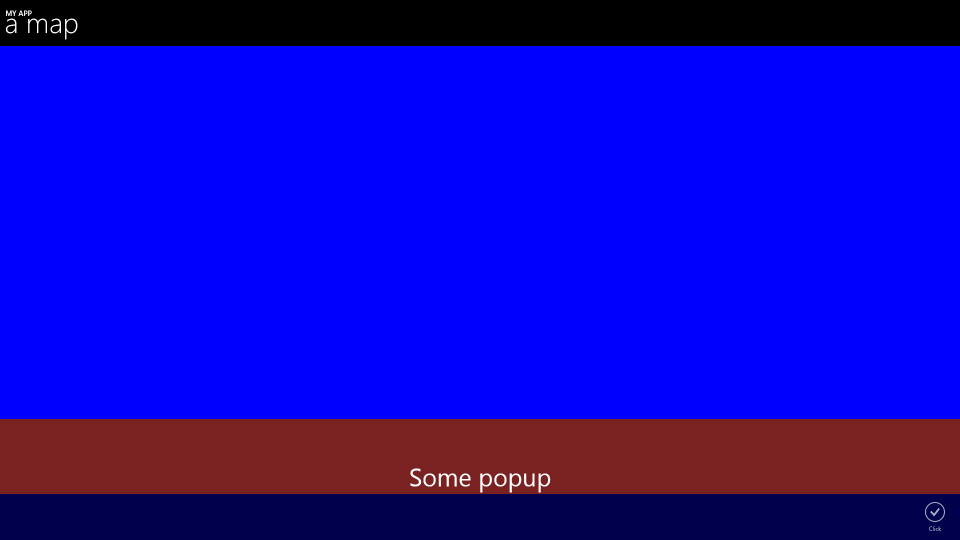
Recently, I wrote about the KeepFromBottomBehavior that helped me to deal with popups that appeared on the bottom of the screen, but were covered by the app bar when using the full screen by applying ApplicationViewBoundsMode.UseCoreWindow. When I started porting parts of Travalyzer to Windows 8.1 as a companion app, I kind of ran into the same problem: popup appearing ‘under’ the bottom app bar.

image

(This time I replaced the map by a simple blue area, to prevent you from needing to install the Bing Maps SDK to run the sample).

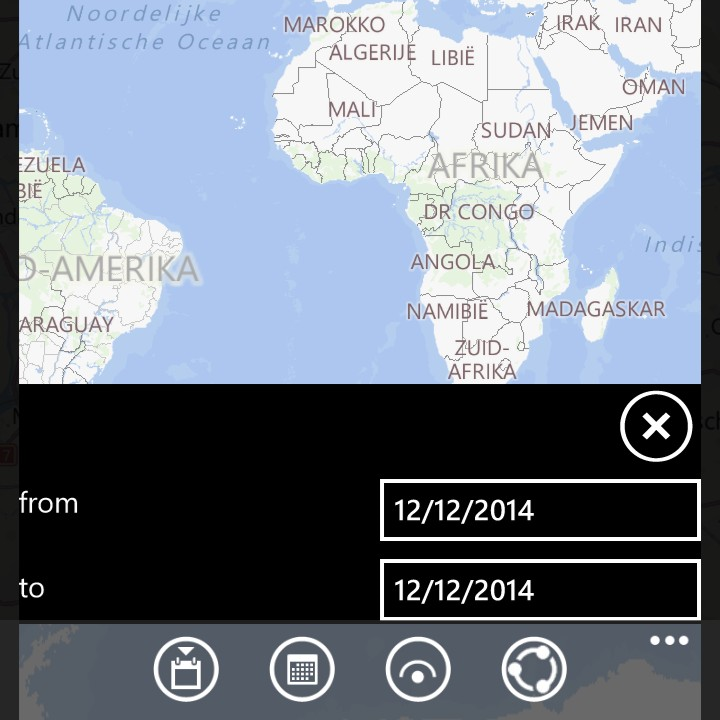
So I kind-of ported my KeepFromBottomBehavior to Windows 8.1, and got the following result.image

Which is exactly what I wanted. If the App bar is open, the popup up appears above the App bar, if it is closed, it appears on the very bottom of the screen:

image

The code is actually a lot simpler than the KeepFromBottomBehavior for Windows Phone 8.1,

using System.Threading.Tasks;
using Windows.UI.Xaml;
using Windows.UI.Xaml.Controls;

namespace WpWinNl.Behaviors
{
  public class KeepFromBottomBehavior : SafeBehavior<FrameworkElement>
  {
    private double originalBottomMargin;
    private AppBar bottomAppBar;
    protected override void OnSetup()
    {
      var page = AssociatedObject.GetVisualAncestors().OfType<Page>().First();
      bottomAppBar = page.BottomAppBar;
      bottomAppBar.Opened += BottomAppBarManipulated;
      bottomAppBar.Closed += BottomAppBarManipulated;
      originalBottomMargin = AssociatedObject.Margin.Bottom;
      UpdateBottomMargin();
      base.OnSetup();
    }

    void BottomAppBarManipulated(object sender, object e)
    {
      UpdateBottomMargin();
    }

    protected override void OnCleanup()
    {
      bottomAppBar.Opened -= BottomAppBarManipulated;
      bottomAppBar.Closed -= BottomAppBarManipulated;
      base.OnCleanup();
    }

    private async void UpdateBottomMargin()
    {
      await Task.Delay(1);
      var currentMargins = AssociatedObject.Margin;

      var newMargin = new Thickness(currentMargins.Left, 
currentMargins.Top, currentMargins.Right, originalBottomMargin + (bottomAppBar.IsOpen ?
bottomAppBar.ActualHeight : 0)); AssociatedObject.Margin = newMargin; } public double WindowHeight { get; set; } } }

Here we see this behavior works very different from it’s Windows Phone counterpart. It finds the Page this behavior is on - using the GetVisualAncestors extension methods from WpWinNl - and attaches itself to the bottom AppBar’s Opened and Closed events. When these events are fired, the bottom margin of the whole panel this behavior is attached to is increased with the actual height of the bottom AppBar. Easy as cake. The only weird thing is the Task.Delay(1). I found out that if you omit that, the behavior’s actions will flip-flop, that is, it won’t move the panel when you open the AppBar, but it will move it up when you close it. I think this has something to do with the calculation of the ActualHeight not being done yet. By using Task.Delay, with however small the value, the whole event is asynchronous and thus the calculation is not being blocked by whatever it was being blocked ;)

The WindowHeight is no longer a dependency property and is in fact no longer used, it’s just kept here to keep the behavior’s signature identical to it’s Windows Phone counterpart. In the sample solution you will see this behavior works stand-alone, it does not need SizeListenerBehavior as a companion to bind to.

The sample solution is essentially the same as in the previous article, but contains both code for Windows and Windows Phone now.

10 January 2015

“System.IO.FileNotFoundException” using controls from another assembly in Xamarin Forms on iOS.

Disclaimer: I am at the early stages of learning Xamarin and may be just writing some stupid and obvious things. That’s just the way it is. This blog is as much a source of information as a it is a record of my learning process. I am a Windows Phone developer trying to make my code usable on other platforms.

I was building a solution as follows

  • I created a Xamarin solution XamarinPclControlBug for Windows Phone, Android and iOS using the “Blank App (Xamarin.Forms portable)” template.
  • I created a separate extra PCL PclControl that would hold some controls I was creating.
  • I then upgraded the whole solution to Forms 1.3.0 using this step-by-step procedure
  • I added references to PclControl in all four other projects of XamarinPclControlBug
  • I created a StartPage.xaml and made sure that was the start page in XamarinPclControlBug (portable) by setting MainPage to new StartPage() in de App constructor
  • I placed my custom control (and only that custom control) on StartPage.xaml
  • I deployed on Android and Windows Phone, and all was rosy.
  • I deployed on iOS, and I got:
    System.IO.FileNotFoundException: Could not load file or assembly 'PclControl' or one of its dependencies. The system cannot find the file specified.

You can check your references and deployment settings all you want, my friends, it turns out there’s probably a bug in Xamarin Forms’ iOS implementation. If you use controls and only controls from a PCL or dll that does not contain other code that is called from the app, apparently Xamarin on iOS ‘forgets’ to load/deploy the assembly (or something like that). But there is a work around.

In my sample solution I made a trivial control MyButton which is simply a child class of Button that does nothing special. The PCL PclControl contains this only this code:

using Xamarin.Forms;

namespace PclControl
{
  public class MyButton :  Button
  {
  }
}
Which allows me to use it in Xamarin Forms Xaml like this:
<?xml version="1.0" encoding="utf-8" ?>
<ContentPage xmlns="http://xamarin.com/schemas/2014/forms"
  xmlns:x="http://schemas.microsoft.com/winfx/2009/xaml"
  xmlns:pclControl="clr-namespace:PclControl;assembly=PclControl"
  x:Class="XamarinPclControlBug.StartPage">
  <pclControl:MyButton Text="Click me" />
</ContentPage>

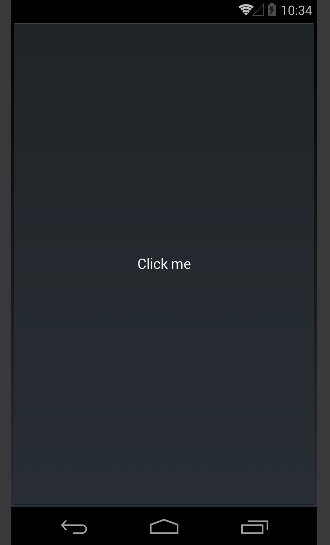
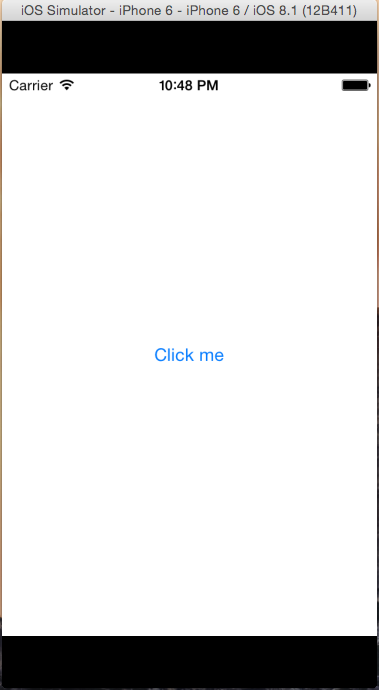
imagewp_ss_20150110_0001If you deploy this to Android, it looks good (albeit ugly), likewise in Windows Phone. It’s nothing special – just a button. But is you try to deploy this on iOS, this does not work at all, you get the System.IO.FileNotFoundException


The work around is as simple as it is weird. You go the iOS app’s AppDelegate class, and you add the code in that I displayed in red and underlined

using MonoTouch.Foundation;
using MonoTouch.UIKit;
using PclControl;
using Xamarin.Forms;
using Xamarin.Forms.Platform.iOS;

namespace XamarinPclControlBug.iOS
{
  [Register("AppDelegate")]
  public partial class AppDelegate :
      FormsApplicationDelegate 
  {
    public override bool FinishedLaunching(UIApplication app, NSDictionary options)
    {
      var b = new MyButton();
      Forms.Init();

      LoadApplication(new App()); 

      return base.FinishedLaunching(app, options);
    }
  }
}

imageIndeed – you make a manual fire-an-forget instance of the control that you want to use, and lo and behold on the right:

If you comment out the var b = new MyButton(); in the sample solution it will not work – if you do uncomment it, it will. Make sure you clean the solution before attempting re-deploy – I have noticed that sometimes making a little change like this is not enough to properly redeploy.

I think this is a bug, and one that took me quite some time to track and work around. Creating the control in code was just the result of testing whether the code could be compiled if I created a control from code – and then suddenly it worked, after hours of checking all kinds of settings. Living on the bleeding edge has it’s price.

UPDATE January 11, 2015

It has been brought to my attention that this is not caused by a bug but due to the behavior of the iOS linker. My brilliant Italian friend and fellow MVP Corrado Cavalli has run into the same or at least very similar problem earlier and has blogged about it as early as October, and recently this article from December by James Montemagno describes the same problem – and solution. Well, I can only hope my blog makes this issue (and the solution) easier to find, because I could not ;)

05 January 2015

Binding shapes to the Windows Phone 8.1 Here Maps control

Intro

Every time I meet someone from the Windows Phone Map team (or get into contact with them in some other way) I talk about the importance of being able to data bind shapes to the maps. Things are definitely improving: XAML elements can displayed using data binding out of the box (we used to need the Windows Phone toolkit for that), but Map Shapes alas not. As the saying goes – ‘if the mountain will not come to Muhammad, then Muhammad must go to the mountain' I took up an old idea that I used for Bing Maps on Windows 8 and later converted to Windows Phone 8.0 – and basically adapted it for use in Windows Phone 8.1. Including some bug fixes.

Map display elements recap

You can display either XAML elements on top of the map or use map shapes. XAML elements can be anything, a can be displayed by either adding them in code to the map’s Children property, or by using a MapItemControl, databind it’s ItemSource property to a list object and them define a template for the display using properties from the object bound to the template. Typically, that looks like this:

<Maps:MapItemsControl ItemsSource="{Binding Activities}">
    <Maps:MapItemsControl.ItemTemplate>
        <DataTemplate >
            <Image Source="{Binding Image}" Height="25"
                Maps:MapControl.NormalizedAnchorPoint="{Binding Anchor}" 
                Maps:MapControl.Location="{Binding Position}">
            </Image>
        </DataTemplate>
    </Maps:MapItemsControl.ItemTemplate>
</Maps:MapItemsControl>

Important to know is that these elements are not drawn by the map, but on top of the map, by the UI thread. Typically, they are slow.

Map shapes, on the other hand, are drawn by the map itself, by native code, and therefore fast. You can add them to the map by adding a MapShape child class to the maps’ MapElements properties. You can choose from MapPolyLine, MapPolygon and – new in Windows Phone 8.1 – MapIcon. Data binding is, unfortunately, not something that is supported.

Enter WpWinNlMaps

This time, you won’t have to type or have to look at a lot of code, as I have already published all that’s necessary on NuGet – in the WpWinNlMaps package. You simply add this to your application, and you are ready to go. Mind you, this pulls in a lot of other stuff – the WpWinNl package itself, MVVMLight, and some more stuff. This will enable you to bind view models to the map, have them displayed to and make them ‘tappable’. This is all done with the aid of – you guessed it – a behavior. MapShapeDrawBehavior to be precise.

Concepts

Typically, maps are divided into layers. You can think of this as logical units representing one class of real-world objects (or ‘features’ as they tend to be called in the geospatial word). For instance, “houses”, “gas stations”, “roads”. In Windows Phone, this is clearly not the case: all MapShapes are thrown into one basket – the MapElements property. In WpWinNlMaps, a layer roughly translates to one behavior attached to the map.

A MapShapeDrawBehavior contains a few properties

  • ItemsSource – this is where you bind your business objects/view models to
  • PathPropertyName – the name of the property in a bound object that contains the Geopath describing the object’s location
  • LayerName – the name of the layer. Make sure this is unique within the map
  • ShapeDrawer – the name of the class that actually determines how the Geopath in PathPropertyName is actually displayed
  • EventToCommandMappers – contains a collection of events of the map that need to be trapped, mapped to a command on the bound object that needs to be called when the map receives this event. Presently, the only events that make sense are “Tapped” and “MapTapped”.

A sample up front

Before going further into detail, let’s do a little sample first, because theory is fine, but code works better, in my experience. So I have a little class containing a viewmodel that has a Geopath, and Name, and a command that can be fired:

public class PointList : ViewModelBase
{
  public PointList()
  {
    Points = null;
  }
  public string Name { get; set; }

  public Geopath Points { get; set; }
  
  public ICommand SelectCommand
  {
    get
    {
      return new RelayCommand<MapSelectionParameters>(
        p => DispatcherHelper.CheckBeginInvokeOnUI(() => 
        Messenger.Default.Send(new MessageDialogMessage(
          Name, "Selected object", "Ok", "Cancel"))));
    }
  }
}

Suppose a couple of these things are sitting in my main view model’s property “Lines”, then I can simply display a number of blue violet lines by using the following XAML

<maps:MapControl x:Name="MyMap" >
  <mapbinding:MapShapeDrawBehavior LayerName="Lines" ItemsSource="{Binding Lines}" 
       PathPropertyName="Points">
  
      <mapbinding:MapShapeDrawBehavior.EventToCommandMappers>
        <mapbinding:EventToCommandMapper EventName="MapTapped" 
             CommandName="SelectCommand"/>
      </mapbinding:MapShapeDrawBehavior.EventToCommandMappers>
      
      <mapbinding:MapShapeDrawBehavior.ShapeDrawer>
        <mapbinding:MapPolylineDrawer Color="BlueViolet"/>
      </mapbinding:MapShapeDrawBehavior.ShapeDrawer>
      
  </mapbinding:MapShapeDrawBehavior>
</maps:MapControl

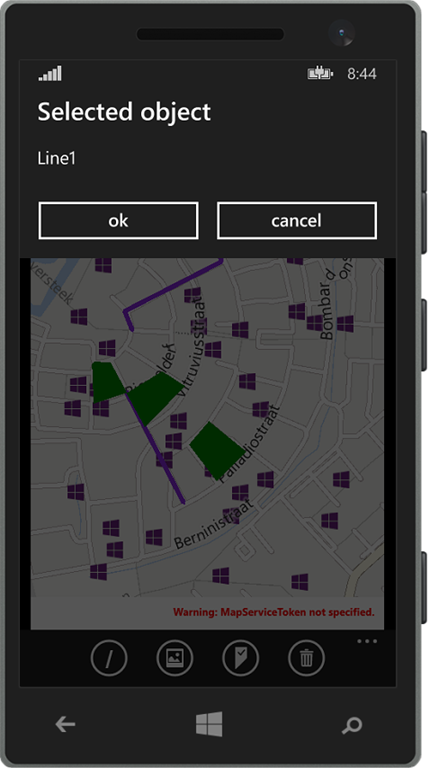
So:image

  • Objects are created from the collection “Lines”
  • The name of the layer is “Lines” (this does not need to correspond with the name used in the previous bullet)
  • The property containing the Geopath for a single object in the list “Lines” is called “Points”
  • When the event “MapTapped” is detected on one of these lines, the command “SelectCommand” is to be fired. Mind you, this command should be on the bound object. Notice this fires a MessageDialogMessage that can be displayed by a MessageDialogBehavior. Basically, if all the parts are in place, it will show a message dialog displaying the name of the object the user tapped on.
  • This object is to be drawn as a blue violet line.

The result being something as displayed to the right.

Map shape drawers

These are classes that turn the Geopath into an actual shape. You get three out of the box that can be configured using a few simple properties.

  • MapIconDrawer
  • MapPolyLineDrawer
  • MapPolygonDrawer

To draw an icon, line or polygon (duh).  The key thing is – the drawers are very simple. For instance, this is the drawer that makes a line:

public class MapPolylineDrawer : MapLinearShapeDrawer
{
  public MapPolylineDrawer()
  {
    Color = Colors.Black;
    Width = 5;
  }

  public override MapElement CreateShape(object viewModel, Geopath path)
  {
    return new MapPolyline { Path = path, StrokeThickness = Width, 
                             StrokeColor = Color, StrokeDashed = StrokeDashed, 
                             ZIndex = ZIndex };
  }
}

There is only one method CreateShape that you need to override to make your own drawer. You get the viewmodel and the Geopath (as extracted by the MapShapeDrawBehavior and you can simply mess around with it.

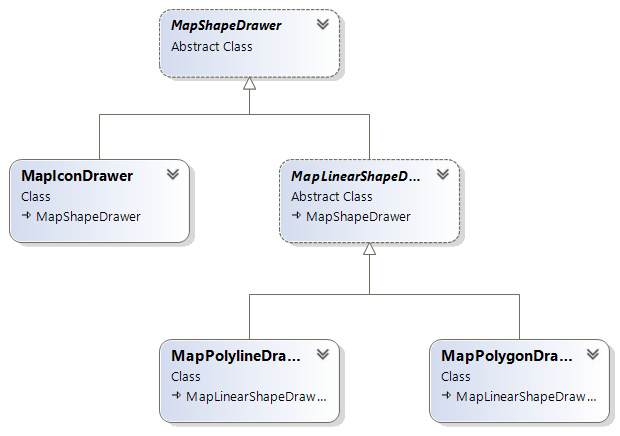
The drawer class model is like this:

image

Trapping events and activating commands with EventToCommandMapper

By adding an EventToCommandMapper to EventToCommandMappers you can make a command get called when an event occurs. You can do that easily in XAML as displayed in the sample. Basically only events that have a MapInputEventArgs or TappedRoutedEventArgs can be trapped. In most real-world cases you will only need to trap MapTapped. See the example above how to do that. Keep in mind, again, that although the event is trapped on the map, the command is executed on the elements found on the location of the event.

There is a special case though where you might want to trap the “Tapped” event too – that is when you mix and match XAML elements and MapShapes. See this article for background information on that particular subject.

Some limitations and caveats

  • Even for MapIcons the PathPropertyName needs to point to a Geopath. This is to create a common signature for the CreateShape method in the drawers. Geopaths of one point are valid, so that is no problem. If you provide Geopaths containing more than one point, it will just use the first point.
  • Although the properties are read from bound objects, those properties are not bound themselves. Therefore, an object that has already been drawn on the map will not be updated on the map if you change the contents of the Geopath. You will need to make sure the objects are in an ObservableCollection and then replace the whole object in the collection to achieve that result.
  • If you use a method like mine to deal with selecting objects (firing messages), your app’s code will need to deal with multiple selected objects – since there can be more than one object on one location. My sample solution does clearly not do that. All objects will fire a message, but only one will show the message dialog. A better way to deal with it would be
    • Make a message that contains the MapSelectionParameters that are supplied to the command that is fired on select (see sample code)
    • Have the MainViewModel collect those messages, and decide based upon the SelectTime timestamp what messages are the result of one select action and should be displayed together.
  • In professional map systems the order of the layers determines the order in which elements are drawn. So the layers that are drawn first, appear at the bottom, and everything that’s drawn later on top of it. In Windows Phone, the Z-index of each element determines that. So be sure to set those in the right order if you want to appear stuff on top of each other.
  • Be aware that MapIcons are a bit of an oddball. First, they are drawn using a ‘best effort’. In layman’s terms, this means that some of them won’t a appear if they are too close together. If there are a lot close together, a lot won’t appear. This will change while you zoom and pan, and you have no way to control it. Furthermore, MapIcons don’t always show on top of other shapes even if you specify the Z-index to be higher.

Conclusion

imageThe sample solution shows the drawing of icons, lines and polygons using the binding provided by WpWinNlMaps. You can tap on a map element and the name of the tapped element will display in a message dialog. This should give you a running start in using this library.

Although there are quite some limitations with respect to the binding, mainly caused by the nature of how the map works (you cannot bind to a command that is to be called when you tap the element – you can just provide the name of the command, just like the path property) I think this library makes using the map a lot easier – at least in MVVM apps. I am using this library extensively in my latest app Travalyzer.

Happy mapping!

22 December 2014

A behavior to show a MessageDialog from a MVVMLight viewmodel in Universal apps–with callbacks

Of course you are now all writing MVVM based apps, after all I have been advocating that for years, and you are listening this here old venerable MVP, right? ;). Anyway, some UI interactions between UI and viewmodel can seem to be a bit complicated, but these kinds of problems are usually pretty simple to solve with a combination of a behavior, the MVVMLight messenger, and a message containing a callback. And as I hate to write things more than once, I  made this into a reusable behavior. It ain’t rocket science, but it’s nice and clean.

I start with a class holding the actual message, and in this class file I have defined a callback delegate as well:

using System.Threading.Tasks;
using GalaSoft.MvvmLight.Messaging;

namespace WpWinNl.Behaviors
{
  public class MessageDialogMessage : MessageBase
  {
    public MessageDialogMessage(string message, string title,
                                string okText, string cancelText,
                                MessageDialogCallBack okCallback = null,
                                MessageDialogCallBack cancelCallback = null,
                                object sender = null, object target = null)
                                : base(sender, target)
    {
      Message = message;
      Title = title;
      OkText = okText;
      CancelText = cancelText;
      OkCallback = okCallback;
      CancelCallback = cancelCallback;
    }

    public MessageDialogCallBack OkCallback { get; private set; }
    public MessageDialogCallBack CancelCallback { get; private set; }
    public string Title { get; private set; }
    public string Message { get; private set; }
    public string OkText { get; private set; }
    public string CancelText { get; private set; }
  }

  public delegate Task MessageDialogCallBack();
}

It’s a basic MVVMLight BaseMessage child class, with properties for various texts, and two optional callbacks for OK and cancel actions.

The behavior itself is, as behaviors go, pretty simple:

using System;
using System.Diagnostics;
using Windows.UI.Popups;
using Windows.UI.Xaml;
using GalaSoft.MvvmLight.Messaging;

namespace WpWinNl.Behaviors
{
  public class MessageDialogBehavior : SafeBehavior<FrameworkElement>
  {
    protected override void OnSetup()
    {
      Messenger.Default.Register<MessageDialogMessage>(this, ProcessMessage);
      base.OnSetup();
    }

    private async void ProcessMessage(MessageDialogMessage m)
    {
      bool result = false;
      var dialog = new MessageDialog(m.Message, m.Title);

      if (!string.IsNullOrWhiteSpace(m.OkText))
      {
        dialog.Commands.Add(new UICommand(m.OkText, cmd => result = true));
      }

      if (!string.IsNullOrWhiteSpace(m.CancelText))
      {
        dialog.Commands.Add(new UICommand(m.CancelText, cmd => result = false));
      }

      try
      {
        await dialog.ShowAsync();
        if (result && m.OkCallback != null)
        {
          await m.OkCallback();
        }

        if (!result && m.CancelCallback != null)
        {
          await m.CancelCallback();
        }
      }
      catch (Exception ex)
      {
        Debug.WriteLine("double call - ain't going to work");
      }
    }
  }
}

This being once again a SafeBehavior, it simply starts to listen to MessageDialogMessage messages. When one is received, a MessageDialog is constructed with the message and title to display, as well as an optional Ok and Cancelbutton – and callback. If you send a message, you can provide optionally provide simple method from your viewmodel to be called by the behavior when Ok or Cancel is called, thus providing a two-way communication channel. Mind, though, all this is async, which has a curious side effect: if you send another message before the user has clicked Ok or Cancel, this will raise an exception.This will be displayed in the Visual Studio output window while you debug, but it won’t show up in release, and your message won’t be displayed either – so you need to carefully control sending messages, and not throw them out like there’s no tomorrow.

I have made a little sample app – a Universal app of course, because there have been some pretty clear hints by Microsoft this is the way to go forward. You will notice everything worthwhile is the shared project, up to the MainPage.xaml. People who were present at the latest Lowlands WpDev day last October will remember my fellow MVP Nico Vermeir saying in his talk “don’t do that, there’s pain in there”, and while this is true, it’s an ideal thing for lazy demo writers.

I started out with a blank Universal app, and moved the MainPage.Xaml and it’s companion MainPage.Xaml.cs to the shared project. Then I brought in my WpWinNl project that, amongst other things, drags in MVVMLight and everything else you need. Then I created this whopping complex viewmodel:

using System.Threading.Tasks;
using System.Windows.Input;
using GalaSoft.MvvmLight;
using GalaSoft.MvvmLight.Command;
using GalaSoft.MvvmLight.Messaging;
using WpWinNl.Behaviors;

namespace SampleMessagePopup
{
  public class MainViewModel : ViewModelBase
  {
    public ICommand MessageCommand
    {
      get
      {
        return new RelayCommand(
          () => 
            Messenger.Default.Send(new MessageDialogMessage(
              "Do you really want to do this?", "My Title", 
              "Hell yeah!", "No way", 
              HellYeah, Nope)));
      }
    }

    private async Task HellYeah()
    {
      Result = "Hell yeah!";
    }

    private async Task Nope()
    {
      Result = "NOOOO!";
    }


    private string result = "what?";
    public string Result
    {
      get { return result; }
      set { Set(() => Result, ref result, value); }
    }
  }
}

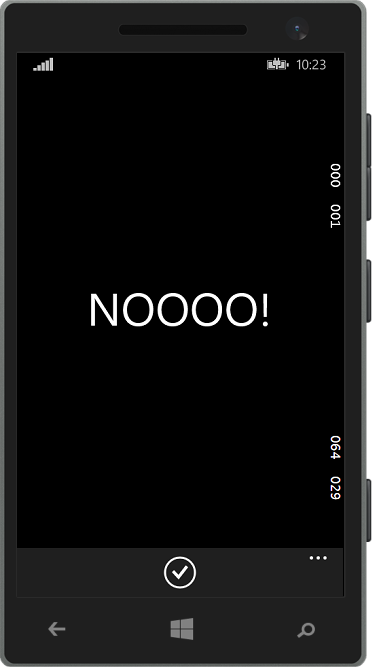
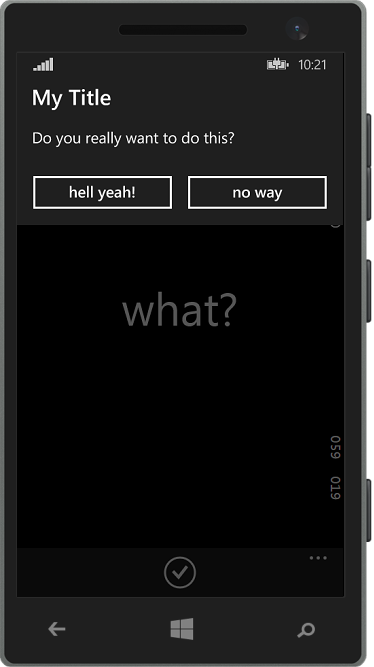
imageimageIf you fire the command, it will show a dialog that looks like the left on these two screens (on Windows Phone) and if you press the “no way” button it will show the very right screen. A few things are noticeable:

  • Both methods are async, although they don’t implement anything asynchronous. That’s because I wanted to be able do awaitable things in the callback and a contract is a contract – were not making JavaScript here. Only tools like ReSharper (highly recommended) will make you notice it, but you can ignore it for now.
  • You might notice the callback methods are private but still the behavior is apparently able to call these methods. This, my dear friends who grew up in the nice era of managed OO languages that shield you from the things that move below you in the dark dungeons of your processor, is because you basically give a pointer to a method – and that’s accessible anywhere. Your compiler may tell you it’s a private method, but that’s more like it has a secret telephone number – if you got that, you can access it anywhere ;-). Us oldies who grew up with C or Assembler can tell you all about the times when boats were made of wood and men were made of steel and the great ways you can shoot yourself in the foot with this kind of things. If you want to make you app testable it makes more sense to make the methods public, by the way, but I could not let the opportunity to show this great example of the law of leaky abstractions pass.

But I digress, I know, that is also a sign of age ;)

The Xaml is of course also pretty simple – as this app does not do much:

<Page
    xmlns="http://schemas.microsoft.com/winfx/2006/xaml/presentation"
    xmlns:x="http://schemas.microsoft.com/winfx/2006/xaml"
    xmlns:Interactivity="using:Microsoft.Xaml.Interactivity" 
    xmlns:Behaviors="using:WpWinNl.Behaviors"
    x:Class="SampleMessagePopup.MainPage"
    DataContext="{StaticResource MainViewModel}">
  <Interactivity:Interaction.Behaviors>
    <Behaviors:MessageDialogBehavior/>
  </Interactivity:Interaction.Behaviors>
  <Page.BottomAppBar>
    <CommandBar>
      <AppBarButton Icon="Accept" Label="go ask!" 
                    Command="{Binding MessageCommand}"/>
    </CommandBar>
  </Page.BottomAppBar>

  <Grid Background="{ThemeResource ApplicationPageBackgroundThemeBrush}" >
  	<TextBlock Text="{Binding Result}" HorizontalAlignment="Center" 
                   VerticalAlignment="Center" FontSize="56"/>
  </Grid>
</Page>

Notice the behavior sitting on the page itself. For obvious reasons, it’s the logical place to put. You can also put it on the top grid. But whatever you do, use only one per page. They all listen to the same message, and if you put more of them on one page you will get an interesting situation where multiple behaviors will try to show the same MessageDialog. I have not tried this, but I assume it won’t be very useful.

To make this work, by the way, you need of course to declare your viewmodel in App.Xaml. You have no other choice here, as the App Bar sits at the top level of the page, the button calls the command and thus the resource must be one level higher, i.e. the app itself.

<Application
    x:Class="SampleMessagePopup.App"
    xmlns="http://schemas.microsoft.com/winfx/2006/xaml/presentation"
    xmlns:x="http://schemas.microsoft.com/winfx/2006/xaml"
    xmlns:local="using:SampleMessagePopup"
    xmlns:system="using:System">

  <Application.Resources>
    <local:MainViewModel x:Key="MainViewModel" />
  </Application.Resources>
</Application>

Again, if you use something like ReSharper a simple click on the declaration in MainPage.Xaml will make this happen.

So, that’s all there is to it. You won’t find the code for this behavior in the solution, as it is already in WpWinNl. Just like the previous one ;). As usual, a sample solution is provided, but in inspired by my fellow MVP Diederik Krols I’ve have decided that going forward I will publish those on GitHub.

13 December 2014

A behavior to deal with UI consequences of full screen and Software Keys in Windows Phone 8.1

This week I was presented with an interesting challenge. Using this technique, I used the whole screen for my app. The problem was I had not anticipated a Denim feature for the so called software buttons. For those unfamiliar with that – on the newest low and mid-tier phones the back, start and search buttons are not necessarily hardware buttons anymore, but can be a dedicated piece of screen that shows buttons. This enables hardware manufacturers to make phones for all platforms in one (hardware) package. Now the Denim firmware – that comes with the Lumia 73x and 83x - enables users to make those software buttons disappear – so the extra piece of screen can be used by the app itself. Pretty awesome. This can be done by using pressing a little arrow that appears on the left of the button bar:image


It can be brought up again by swiping in from the bottom of the imagescreen. Pretty cool, but with a side effect I had not anticipated. If the application view bound mode is set to ApplicationViewBoundsMode.UseCoreWindow in App.Xaml.cs the phone reports the whole screen size – not only the part that is normally taken by the status bar on top and the application bar at the bottom, but also the part that is used by the button bar. The My SensorCore app Travalyzer employs slide-in ‘windows’ that slide in from the side and stick to the bottom. I just took an offset the size of the application bar, and I was done, right? Yeah. Until my app got deployed to Denim phones. When the button bar is hidden, there is no problem as you can see to the right. But when it is not hidden… image

I believe the correct word in this circumstance is something like “blimey”, or maybe “crikey”, depending on what kind part of the globe you come from.

The solution is – you guessed it – a behavior. Or actually, two. But one is an oldie. Never one for original names, I have called it KeepFromBottomBehavior.

The code is actually surprisingly simple:
using Windows.UI.ViewManagement;
using Windows.UI.Xaml;

namespace WpWinNl.Behaviors
{
  public class KeepFromBottomBehavior : SafeBehavior<FrameworkElement>
  {
    private double originalBottomMargin;
    protected override void OnSetup()
    {
      originalBottomMargin = AssociatedObject.Margin.Bottom;
      UpdateBottomMargin();
      ApplicationView.GetForCurrentView().VisibleBoundsChanged += 
        KeepInViewBehaviorVisibleBoundsChanged;

      base.OnSetup();
    }

    void KeepInViewBehaviorVisibleBoundsChanged(ApplicationView sender, object args)
    {
      UpdateBottomMargin();
    }

    private void UpdateBottomMargin()
    {
      if (WindowHeight > 0.01)
      {
        var currentMargins = AssociatedObject.Margin;

        var newMargin = new Thickness(
          currentMargins.Left, currentMargins.Top, currentMargins.Right,
          originalBottomMargin + 
            (WindowHeight - ApplicationView.GetForCurrentView().VisibleBounds.Bottom));
        AssociatedObject.Margin = newMargin;
      }
    }

    #region WindowHeight
  }
}

Like all my behaviors, it’s a SafeBehavior so you have a nice and easy base class. It first saves the current Bottom margin, and then calls the “UpdateBottomMargin” method. That method assumes “WindowHeight” contains the actual (full) height of the space available to the app. It subtracts that from that height the bottom of the rectangle depicting the visible bounds, that is – the part that is, according to the phone, not obscured by an App Bar. That it adds to the original bottom margin (in my app that is zero – I want the window to stick to the very bottom). Net effect: the object to which this behavior is attached always moves upward and downward if the user opens or closes the ‘software button bar’, and if he rotates the phone, it takes that into account as well.

Now WindowHeight is a region (yeah flame me, I use that for Dependency properties) containing a  Dependency property that calls UpdateBottomMargin as well if the WindowHeight changes.

public const string WindowHeightPropertyName = "WindowHeight";

public double WindowHeight
{
  get { return (double)GetValue(WindowHeightProperty); }
  set { SetValue(WindowHeightProperty, value); }
}

public static readonly DependencyProperty WindowHeightProperty = DependencyProperty.Register(
    WindowHeightPropertyName,
    typeof(double),
    typeof(KeepFromBottomBehavior),
    new PropertyMetadata(default(double), WindowHeightChanged));
 
public static void WindowHeightChanged(DependencyObject d, DependencyPropertyChangedEventArgs e)
{
  var thisobj = d as KeepFromBottomBehavior;
  var newValue = (double)e.NewValue;
  if (thisobj != null)
  {
    thisobj.UpdateBottomMargin();
  }
}

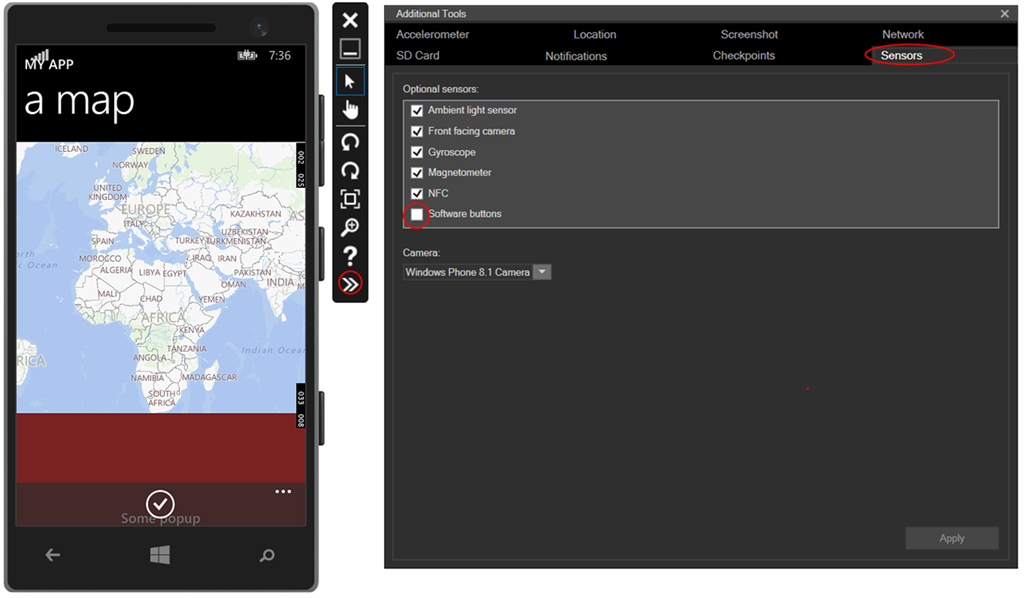
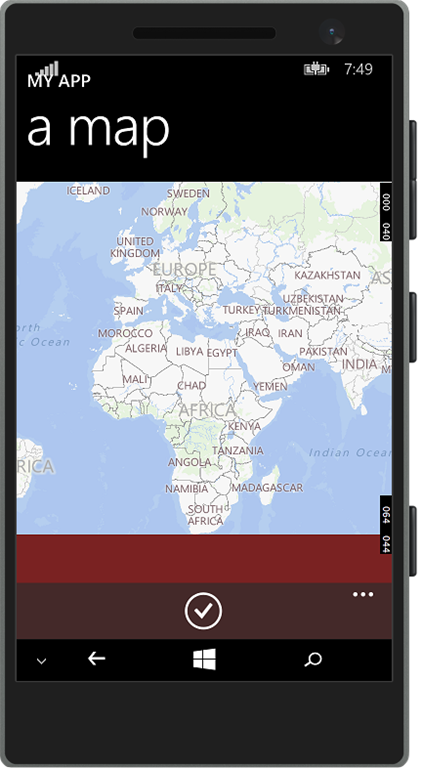
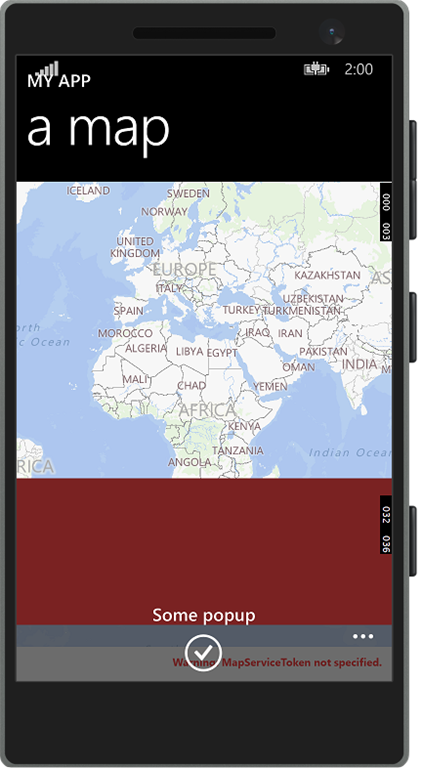
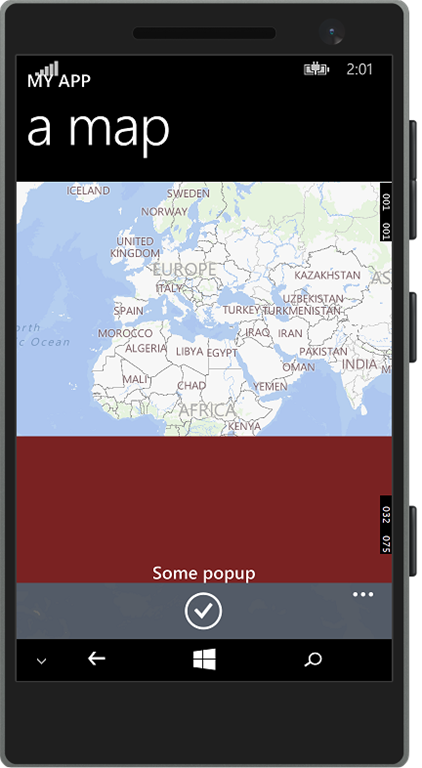
But how does this property get it’s value? Enter our old friend SizeListenerBehavior. How this all works, will be demonstrated using a simple app. First,we need to have an emulator capable of displaying software keys. The 8.1 U1 WXGA 4.5 inch fits the bill.To enable soft keys display, you will need to open the additional tools, and under sensor you will find the “Software buttons” checkbox. The emulator will reboot, and then show a screen with software keysimageimageEven with just hardware keys most of the ‘popup’ already disappears behind the app bar, but if you hide the software keys, then swipe them up again, it indeed looks pretty bad – the text “Some popup” has disappeared behind the software buttons bar, and most of the controls that could be there are hardly readable, let alone usable to the user.

The XAML for this page is not quite the most complex in the world.
<Page [name space stuff omitted]
    >
  <Page.BottomAppBar>
    <CommandBar Opacity="0.7">
      <AppBarButton Icon="Accept" Label="Click"/>
    </CommandBar>
  </Page.BottomAppBar>

  <Grid>
    <Grid.RowDefinitions>
      <RowDefinition Height="Auto"/>
      <RowDefinition Height="*"/>
    </Grid.RowDefinitions>

    <!-- Title Panel -->
    <StackPanel Grid.Row="0" Margin="12,0,0,0">
      <TextBlock  Text="MY APP" Style="{ThemeResource TitleTextBlockStyle}" 
                  Margin="0,12,0,0" />
      <TextBlock Text="a map" Margin="0,-6.5,0,26.5" 
                 Style="{ThemeResource HeaderTextBlockStyle}" 
                 CharacterSpacing="{ThemeResource PivotHeaderItemCharacterSpacing}" 
                 VerticalAlignment="Top"/>
    </StackPanel>

    <Maps:MapControl Grid.Row="1"/>
    <Grid Height="150" Grid.Row="1" VerticalAlignment="Bottom" 
      Background="#FF7A2222" >
      <TextBlock Text="Some popup"  
                 Style="{ThemeResource TitleTextBlockStyle}" 
                 VerticalAlignment="Bottom" HorizontalAlignment="Center" />
    </Grid>
  </Grid>
</Page>

Now to solve the problem, follow just these easy steps:

  1. Pull in the newest version of WpWinNl from NuGet. Make sure you have set the NuGet package manager settings to “including prerelease’. You will need to have the 2.1.2 alpha version or higher. Don’t worry about that alpha – I am already using this in my apps, I just haven’t got around to making this a final version.
  2. Compile the application
  3. Open the Windows Phone project in Blend
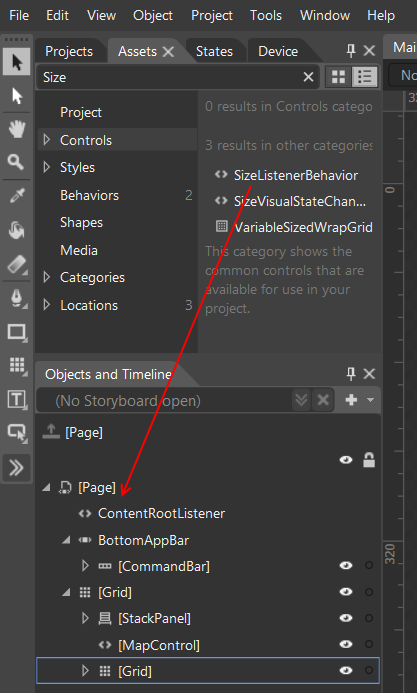
  4. Find the SizeListenerBehavior in “Assets” , drag it on top of the Page Element, rename it to ContentRootListener
    image
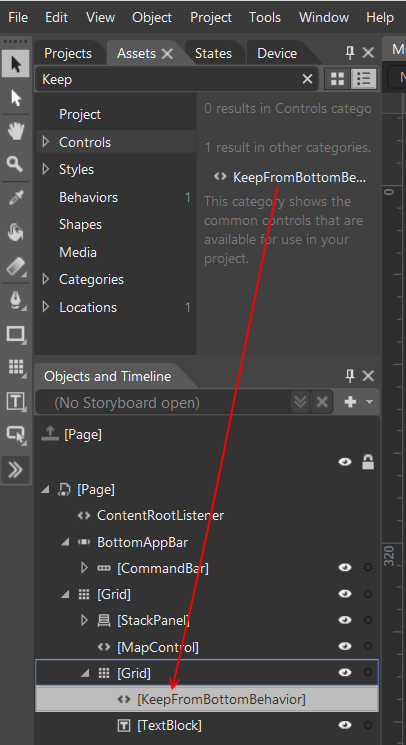
  5. Find the “KeepFromBottomBehavior”, then drag it on top of the grid holding the ‘popup’
    image
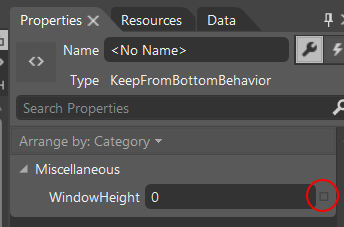
  6. On the right hand side, find the “Properties” tab and select the little square beside “WindowHeight”
    image
    In the popup menu, select “Bind to Element”
  7. Now select ContentRootListener element again (in the Objects and TimeLine tab where you just put it in step 4
  8. Select WatchedObjectHeight. That’s it. You are done.
The XAML now looks like this:
<Page [name space stuff omitted]
   >
  <Page.BottomAppBar>
    <CommandBar Opacity="0.7">
      <AppBarButton Icon="Accept" Label="Click"/>
    </CommandBar>
  </Page.BottomAppBar>

  <Interactivity:Interaction.Behaviors>
    <Behaviors:SizeListenerBehavior x:Name="ContentRootListener"/>
  </Interactivity:Interaction.Behaviors>

  <Grid>
    <Grid.RowDefinitions>
      <RowDefinition Height="Auto"/>
      <RowDefinition Height="*"/>
    </Grid.RowDefinitions>

    <!-- Title Panel -->
    <StackPanel Grid.Row="0" Margin="12,0,0,0">
      <TextBlock  Text="MY APP" Style="{ThemeResource TitleTextBlockStyle}" 
        Margin="0,12,0,0" />
      <TextBlock Text="a map" Margin="0,-6.5,0,26.5" 
        Style="{ThemeResource HeaderTextBlockStyle}" 
        CharacterSpacing="{ThemeResource PivotHeaderItemCharacterSpacing}" 
        VerticalAlignment="Top"/>
    </StackPanel>

    <Maps:MapControl Grid.Row="1"/>
    <Grid Height="150"  Grid.Row="1" VerticalAlignment="Bottom" 
    Background="#FF7A2222" >
      <Interactivity:Interaction.Behaviors>
        <Behaviors:KeepFromBottomBehavior 
        WindowHeight="{Binding WatchedObjectHeight, 
        ElementName=ContentRootListener}"/>
      </Interactivity:Interaction.Behaviors>
      <TextBlock Text="Some popup"  
        Style="{ThemeResource TitleTextBlockStyle}" 
        VerticalAlignment="Bottom" HorizontalAlignment="Center" />
    </Grid>
  </Grid>
</Page

In bold and red you see the new parts. And sure enough, if you now watch the ‘popup’ it will always be above the App Bar – it will even move dynamically move up and down if you open and close the software buttons.

imageimage

Problem solved, case closed. You don’t even have to type code because the behavior is already in WpWinNl.

Mind you – this behavior works only on Windows Phone 8.1, since it only is applicable to Windows Phone. That’s because the ApplicationView.GetForCurrentView().VisibleBoundsChanged event is only available on Windows Phone.

Demo solutions – before and after adding NuGet Package and behaviors – can be found here. Mind you – both solutions contain a Windows 8.1 project, but that does not do anything.

Special thanks to my colleague Valentijn Makkenze for first noticing this problem, Ben Greeve and this guy for sending me screenshots, and Hermit Dave for some valuable pointers.