17 October 2016

A HoloLens airplane tracker 5-smooth movement with iTween and adding a trail

Intro

In the video in the first post of this series  you can see the airplane models leaving a kind of trails in the air, while they move and rotate in a smooth fashion - in stead of merely hopping from place to place. The first is accomplished by adding a TrailRender to the AircraftHolder prefab – the second by using an awesome Unity plugin called iTween.

Adding the trail

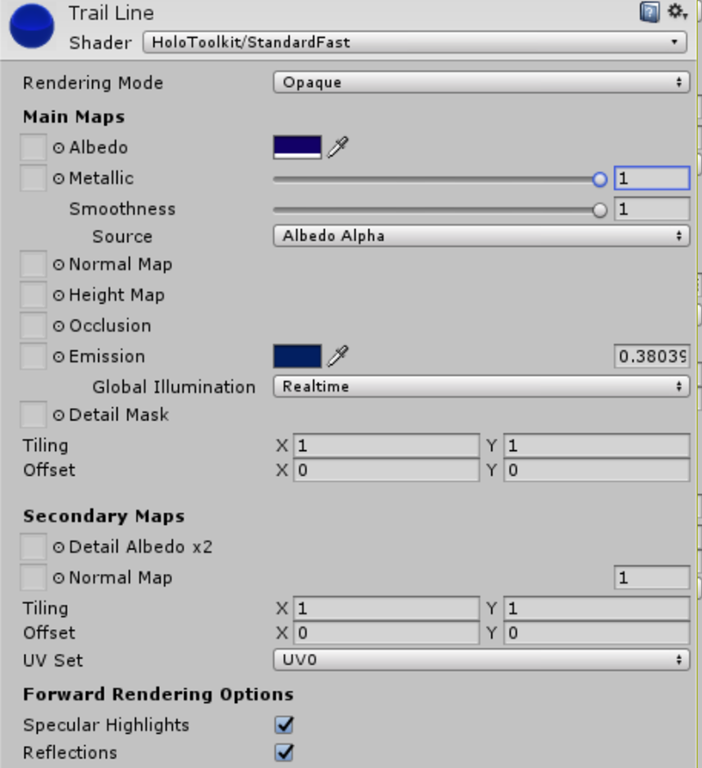
imageBefore you can add the trail, it must have a material from which it’s made. This the color of the line. I will freely admit materials are still a bit vague to me, and after quite some fiddling I came to the following settings:

  • Shader: HoloToolkit/Fast
  • Albedo: hex color 120067FF
  • Metallic: 1
  • Emission: hex color 021F61

This leads to a kind of metallic light blue to dark blue trail line (depending on where the ‘directional light’) is shining, which is quite satisfactory. Feel free to mess around with the parameters. I did ;).

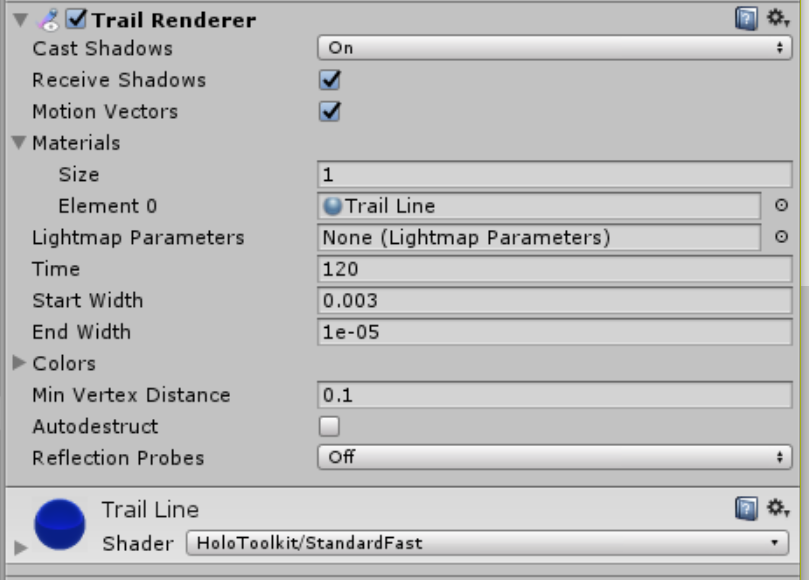
Then go to App/Scripts and open the AircraftHolder prefab. Click on “Add Component”, then select “Trail Render”. Use the following workflow/ setting:

image

  • Expand “Materials”. Drag the Trail Line Material that we just created on top of the “Element 0” field
  • Set start width to 0.003
  • Set end width to 1e-05.

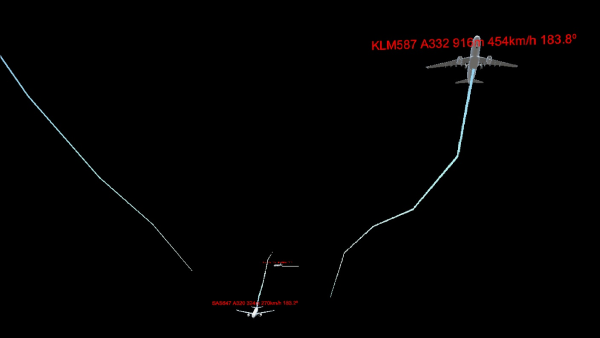
This means the trail will be visible for 120 seconds, so the tail of the trail line will be at the place where the airplane was two minutes ago. Older segments are automatically deleted. Also, near the airplane the trail will be 0.003 meter wide, petering out to 0.00001 meter (1e-05) at the very end. And sure enough:

image

Unity takes care of the drawing, erasing, and making-smaller-toward-the-end part. The only thing we have to do is move the airplane. Which is what we were doing already anyway. It once again almost feels like cheating.

imageIntroducing and obtaining iTween

In a blog post about an earlier project, the CubeBouncer, I talked about using coroutines to achieve smooth animations. In the mean time I have stumbled upon iTween, an awesome Unity plugin created by one Bob Berkebile, that makes creating animations of all kinds a lot easier. Although some concepts are a bit odd – particularly the the use of the Hash object to pass in an arbitrary number of parameters into methods – once you wrap your head around it, it’s very easy to use. Oh. And it’s free too.

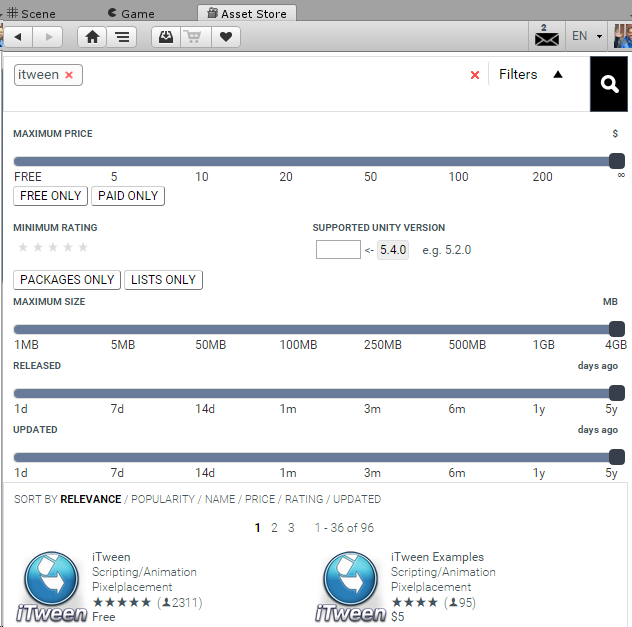
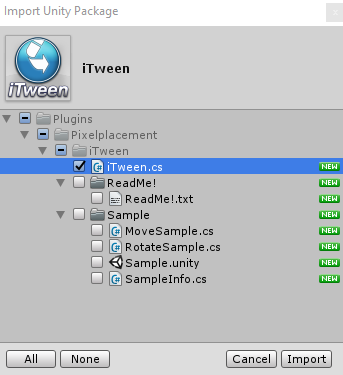
The easiest way to obtain it, is via the Unity Asset Store (Window/Asset Store or CTRL-9). Then enter iTween as search term. Click the iTween Logo, click import, and then the following dialog, as displayed to the right (below this paragraph), pops up. I usually deselect everything but the actual plugin, but if you would like to see samples and the Readme, feel free to leave everything checked.image

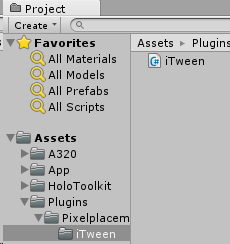
When the process is finished, your project tab should contain the iTween plugin like below

image

Once you have the iTween plugin installed, build the project, and move over to Visual Studio.

Using iTween for moving and rotating

So we head back to the AircraftController’s SetLocationOrientation method. We are going to change that a little:

private void SetLocationOrientation()
{
  SetNewFlightText();

  if (!_firstMove)
  {
    transform.localPosition = GetFlightLocation();
    if (_flightData.Heading != null)
    {
      transform.localEulerAngles = GetNewRotation();
    }
    transform.localScale = new Vector3(0.0015f, 0.0015f, 0.0015f);
    _firstMove = true;
  }
  else
  {
    iTween.MoveTo(gameObject, iTween.Hash("position", GetFlightLocation(), 
      "time", 7f, "islocal", true));
    if (_flightData.Heading != null)
    {
      iTween.RotateTo(gameObject, iTween.Hash("rotation", GetNewRotation(), 
        "time", 7f, "islocal", true));
    }
  }
}

So if the first set of data (or the initial move to a location) as has not been applied yet – that is, this is a newly created airplane – just do the same as we did before – plonk the airplane at it’s location with the proper rotation and attitude, and give it a size that makes sense. But if this aircraft already exists – move it smoothly to it’s new location in 7 seconds, using local position. And rotate it too, if needed, in the same time. And that is all you need for a smooth transition. Here you see the Hash in action. iTween has a few overloads for both Move and Rotate where you don’t need it, but in effect, when you want to do something only a little advanced – like using local space – say hello to Mr. Hash.

You can of course rant against these ‘stringly typed’ variables and talk about type safety and stuff like that – but this is how it works, and it’s perfectly usable, albeit a bit odd for those who are fans of tight architecture and clean code. But then again, HoloLens is a pretty out-of-the-ordinary device anyway. When in Rome, act like Romans. ;)

Making the text fade in and out

Now the only thing we are missing is that nice effect where the text fades out just before the airplane moves – and appears again – with the newly updated flight data. This prevents the text from flashing and also gives a nice indication whether or not we are receiving updates for an aircraft (you may have noticed by now that aircraft that have landed tend to hang around for a while just above the airport before disappearing).

First, we need to add another field:

private GameObject _label;

And of course, initialize that in Start:

void Start()
{
  _text = transform.GetComponentInChildren<TextMesh>();
  _label = transform.FindChild("Label").gameObject;
  _initComplete = true;
}

I already warned you Start would grow, didn’t I? ;) Then we add a new method:

private void StartSetLocationOrientation()
{
  if (_firstMove)
  {
    iTween.FadeTo(_label,
        iTween.Hash("alpha", 0.0f, "time", 0.5f, 
        "oncomplete", "SetLocationOrientation",
        "oncompletetarget", gameObject));
  }
  else
  {
    SetLocationOrientation();
  }
}

So when the first move is indeed done, it will fade the label’s alpha channel to 0 in half a second. When that is done, call the original SetLocationOrientation. So this is a callback. What is a very important iTween convention to understand – default the callback will be called on the object you are operating on – and that is the label. Not the airplane. Therefore I added an “oncompletetarget” entry with the current gameObject as value – so iTween knows it should call SetLocationOrientation and use my gameObject as a target, not the label.

Oh, in the else - if the airplane was just created and does not have an initial location - just move it to it’s initial location without using iTween.

Then we move to SetNewFlightData and change the call to SetLocationOrientation to StartSetLocationOrientation:

public void SetNewFlightData(Flight newFlightData)
{
  if (_initComplete)
  {
    var move = _flightData == null ||
                !_flightData.Location.LocationEquals(newFlightData.Location);
    _flightData = newFlightData;

    ExtractSpeedAndHeading();
    if (move)
    {
      StartSetLocationOrientation();
    }
    else
    {
      SetNewFlightText();
    }
  }
}

And finally, to SetLocationOrientation we add all the way to the end this line:

iTween.FadeTo(_label, iTween.Hash("alpha", 1f, "time", 0.5f, "delay", 0.2f));

This fades the label’s alpha channel (back) to 1, in 0.5 second, after a delay of 0.2 seconds. I found these values after experimenting. Feel free to play with times and stuff.

Conclusion

I have shown you how to add a trail line to an airplane, and how to use iTween for smooth transition effects. Once the basics of your HoloLens app stand, it’s quite easy to make just a little more effort and get it smooth and cool. Using a powerful tool like iTween makes it almost child’s play IMHO, once you get your head around how to using it.

Code, as always, can be found here.

15 October 2016

A HoloLens airplane tracker 4–Reading data and positioning airplanes

Time to rock and roll

All right my friends, it’s time to show the heart of the matter – how to read data from an Azure Mobile App Services data service and make the airplanes appear in the right places.

Adding the JSON data object scripts

As the projects are partially regenerated, and have a total different .NET baseline, I have not found a good way to share classes as binaries between full .NET code and Unity without getting in all kinds of trouble, so I choose the easy way out: I took

  • TrackType.cs
  • Coordinate.cs
  • Flight.cs

from the FlightDataService\DataObjects, moved them the App/Scripts/DataObjects folder in the Unity project. Then of course the service does not compile anymore, but I added the moved file as link. Then at least we have once source of truth as far as these classes are concerned.

Then we need a simple class to hold a list of flights with a timestamp (add that to the DataObjects folder as well):

using System;
using System.Collections.Generic;

namespace FlightDataService.DataObjects
{
  public class FlightSet
  {
    public FlightSet()
    {
    }

    public FlightSet(List<Flight> flights)
    {
      Flights = flights;
      TimeStamp = DateTimeOffset.Now;
    }
    public DateTimeOffset TimeStamp { get; set; }

    public List<Flight> Flights { get; set; }
  }
}

Adding a DataService to read data

I opted to add the DataService as a Singleton that can be accessed in the app. But we have a bit of an issue here -  Unity runs on Mono, e.g. .NET 3.something, and does not have things like packages for reading App services, or support async and Tasks and stuff. But remember – a HoloLens app is a two stage rocket. Unity does not generate an app for the HoloLens, but an UWP project, and that UWP project can use all the goodness from all the latest stuff. Meet the simple way to close the gap - my new friend UNITY_UWP.

using System;
using System.Collections.Generic;
using FlightDataService.DataObjects;
using HoloToolkit.Unity;
#if UNITY_UWP
using Microsoft.WindowsAzure.MobileServices;
using System.Net.Http;
using System.Threading.Tasks;
#endif

public class DataService : Singleton<DataService>
{
  public string DataUrl = "http://yourflightdataservice.azurewebsites.net/";

#if UNITY_UWP
    private MobileServiceClient _client;
#endif

  public DataService()
  {
#if UNITY_UWP
    _client = new MobileServiceClient(new Uri(DataUrl));
#endif
  }

#if UNITY_UWP
  public async Task<List<Flight>> GetFlights()
  {
    var result = await _client.InvokeApiAsync<List<Flight>>(
	                "FlightData", HttpMethod.Get, null);
    return result;
  }
#endif
}

Code between #if UNITY_UWP – #endif blocks is invisible to Unity – but will be accessible in the UWP HoloLens app that is generated by Unity. You will see Unity swallows it – no problems at all. There is only this tiny thing – you cannot add NuGet packages to Unity. So we have to do that in the UWP app, in Visual Studio. But… the UWP app is generated from Unity by File/Build and overwritten. The trick is to know not the whole app is overwritten, but only part of it. What I did was the following:

image

  • Generate the app in a subfolder “App” of the Unity project. This should be <your_root>\HoloATC_Demo\AMS HoloATC Demo\App
  • Open the solution in HoloATC_Demo\AMS HoloATC Demo\App (not the one in HoloATC_Demo\AMS HoloATC Demo)
  • Go to the project Assembly-Csharp
  • Add the NuGet Package Microsoft.Azure.Mobile.Client
  • Find the project.json file that belong to this project. You will find it’s not under AMS HoloATC Demo\App at all, but in AMS HoloATC Demo\UWP\Assembly-CSharp\project.json
  • This is the only file that has been changed with respect to the generated code. You will have to add this to source control. Even if Git claims it’s an ignored file.
  • After that – if you checkout the source in a different location or on a different machine, you will only have to regenerate the solution in the right place (the App folder), and revert this specific file. You will need to do this, or else the UWP app won’t compile.

Adding the AircraftLoader to create and update aircraft

I have created one class that is actually responsible for actually getting the aircraft data from the DataService – and one that is responsible for creating, updating and deleting aircraft. The updating – moving to a new position – is handled by the AircraftController – basically all the AircraftLoader says to the airplane is ‘here is new data for you – handle it’

Remember – it’s always best to start in Unity. So create an AircraftLoader and an AircraftController script in Assets/App/Scripts. Then proceed to double-click on AircraftLoader. This will open a Visual Studio instance. Be aware – this is not the project your will be running. This is the other solution, the one that is in the project root – I call this the ‘Edit’ solution. First, we are going to make sure the “usins” of the class are properly organized – that is, in a way that doesn’t make Unity go belly-up:

using System;
using UnityEngine;
using System.Collections.Generic;
using System.Linq;
using FlightServices.Data;
#if UNITY_UWP
using System.Threading.Tasks;
using Windows.Web.Http;
using Newtonsoft.Json;
#endif

Then we are going to add a whole lot of fields. And yes, some are public. These are things that can be set from the Unity editor. I have talked about that before.

public GameObject Aircraft;

public string TopLevelName = "HologramCollection";

private Dictionary<string, GameObject> _aircrafts;

private readonly TimeSpan _waitTime = TimeSpan.FromSeconds(5);

private DateTimeOffset _lastUpdate = DateTimeOffset.MinValue;

private Queue<FlightSet> _receivedData;

private GameObject _topLevelObject;
  • The Aircraft GameObject field will be used to drag our AircraftHolder onto – so this behaviour knows which game object to create
  • TopLevelName is the name of the parent object to which all the aircraft are added to. This  “HologramCollection” by default
  • _aircrafts is a dictionary of aircraft game objects with their id as key, so we can update/delete existing aircraft game objects based upon the data coming in
  • waitTime – minimal time to load new data
  • _lastUpdate – the time the last update of aircraft was completed
  • _receivedData – a queue with data coming from the service. I use this pattern all the time. I queue up data from the service, then read it in the Update method that Unity calls automatically 60 times a second. Don’t ever try to update game objects from .NET callback methods or events – you might regret it, or just get plain crashes – kind of like happens in UWP XAML apps, where you need the Dispatcher to take care of that
  • _topLevelObject – to store the game object with the TopLevelName in it. I have been told the method I use to find an object by name is quite heavy on performance – so better do it once and retain the result, right.

The Start method simply initializes some stuff:

void Start()
{
  _aircrafts = new Dictionary<string, GameObject>();
  _receivedData = new Queue<FlightSet>();
  _topLevelObject = GameObject.Find(TopLevelName);
}

And then there’s this little method – that is used as callback for the DataService’s GetFlight method:

#if UNITY_UWP

  private void ProcessData(Task<List<Flight>> flightData)
  {
    if (flightData.IsCompleted && !flightData.IsFaulted)
    {
      var set = new FlightSet(flightData.Result);
      _receivedData.Enqueue(set);
    }
  }
#endif

In short - when the data received and it is ok, just add it to the queue of received data. And then let Update handle it. As a matter of fact – like this:

private bool _isUpdating;
void Update()
{
  if ((_lastUpdate - DateTimeOffset.Now).Duration() > _waitTime)
  {
    _lastUpdate = DateTimeOffset.Now;
#if UNITY_UWP
    DataService.Instance.GetFlights().ContinueWith(ProcessData);
#endif
  }
  if (!_isUpdating)
  {
    _isUpdating = true;
    if (_receivedData.Any())
    {
      var set = _receivedData.Dequeue();
      var flightIds = set.Flights.Select(p => p.Id).ToList();

      var aircraftToDelete = 
        _aircrafts.Keys.Where(p => !flightIds.Contains(p)).ToList();
      DeleteAircraft(aircraftToDelete);

      var keysToUpdate = _aircrafts.Keys.Where(p => flightIds.Contains(p));
      var aircraftToUpdate = 
        set.Flights.Where(p => keysToUpdate.Contains(p.Id)).ToList();
      UpdateAircraft(aircraftToUpdate);

      var aircraftToAdd = 
        set.Flights.Where(p => !_aircrafts.Keys.Contains(p.Id)).ToList();
      CreateAircraft(aircraftToAdd);
    }

    _isUpdating = false;
  }
}

First it finds out if it’s necessary to download new data, but downloading and adding happens asynchronously. Then, if there’s any data in the queue, it first makes a list of all the id’s in the newly received flights.

  • Aircrafts that are in the aircraft game object dictionary (with the flight id as key) but are no longer in the list of flights, can be deleted (they have landed or moved out of Dutch airspace)
  • Aircraft that appear in that dictionary and in the list of flights need to be updated – possibly moved to a new position
  • Aircraft that do not have an entry in the game object dictionary are new, and need to be created.

It’s not that hard, see ;). The methods for creating, updating and deleting aircrafts are not that hard either.

private void CreateAircraft(IEnumerable<Flight> flights)
{
  foreach (var flight in flights)
  {
    var aircraft = Instantiate(Aircraft);
    aircraft.transform.parent = _topLevelObject.transform;
    aircraft.transform.localScale = new Vector3(0f, 0f, 0f);
    SetNewFlightData(aircraft, flight);
    _aircrafts.Add(flight.Id, aircraft);
  }
}

private void UpdateAircraft(IEnumerable flights)
{
  foreach (var flight in flights)
  {
    if (_aircrafts.ContainsKey(flight.Id))
    {
      var aircraft = _aircrafts[flight.Id];
      SetNewFlightData(aircraft, flight);
    }
  }
}

private void DeleteAircraft(IEnumerable<string> keys)
{
  foreach (var key in keys)
  {
    var aircraft = _aircrafts[key];
    Destroy(aircraft);
    _aircrafts.Remove(key);
  }
}

The CreateAircraft is the most interesting – it instantiates the aircraft game object, makes the HoloGramCollection it’s parent, passes the actual flight data to the object, and adds it to the dictionary of aircraft game objects using the flight id as the key. Oh, and it also sets the scale to 0, making the plane effectively invisible. This is because, without setting a location on instantiation, the aircraft will appear on 0,0,0 before – where in future episodes we will place the center of Schiphol, very near the tower, and that’s not a place where aircraft belong.

UpdateAircraft just sends flight data to the game object, and DeleteAircraft – well, deletes it. There is only this matter of SetNewFlightData:

private void SetNewFlightData(GameObject aircraft, Flight flight)
{
  var controller = aircraft.GetComponent<AircraftController>();
  if(controller != null)
  {
    //controller.SetNewFlightData(flight);
  }
}

But that has the actual method that moves the flight data to the AircraftController commented out, because that does not even exist. What is worse, the Aircraft does not even have to component. So let’s head over back to the Unity Editor.

Wiring up some stuff in Unity

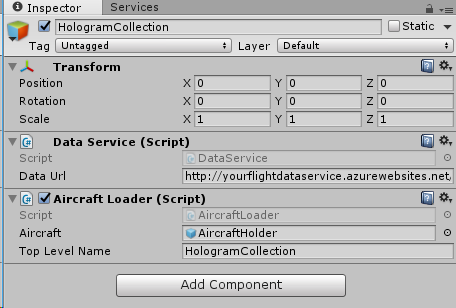
First of all, we drag the DataService and AircraftLoader Script from the App/Scripts folder on top of the HologramCollection’s inspector page. Then we drag AircraftHolder prefab from App/Prefabs on top of the AircraftLoader’s “Aircraft” property. Net result should be this:

image

Please make sure the Data Url property of the Data Service indeed points to the place where your data service as created in the first post is published.

Then go to the App/Prefabs folder, open the AircraftHolder prefab itself, and drag the (still default) AircraftController on top of the AircraftHolder’s inspector page.

image

Save the scene, then rebuild the app with File/Build settings etc. Go back to Visual Studio once the building is finished.

Creating the AircraftController

Having programmed OO since the start of this century, I tend to put control where I logically think it belongs, so rather than programming the ‘flight logic’ into a class that loads and translates data too (the AircraftLoader) I opted for putting it into a separate class that would be part of the game object. I tend to conceptualize these combined game objects and components as OO objects - although that is not completely right, it helps me think about it. The start is simple enough

public class AircraftController : MonoBehaviour
{
  private Flight _flightData;
  private float? _speed;
  private float? _heading;
  private TextMesh _text;
  private bool _initComplete;
  private bool _firstMove;

  void Start()
  {
    _text = transform.GetComponentInChildren<TextMesh>();
    _initComplete = true;
  }
}

A few private fields to retain some data.

  • _flightData just keeps the last provide flight data available
  • _speed and _heading keep the last speed and heading. The stream of data sometimes misses a beat and provides no speed and/or heading – I prefer then to display the latest data, in stead of heaving the aircraft suddenly rotate to the North (heading 0) and back again when the next set of data is correct again
  • _text keeps a reference to the text mesh so I don’t have to look it up every update - potentially 60 times a second
  • the _initComplete boolean is a trick I use regularly to prevent other routines using variables like _text before the are initialized. Remember, the Update loop is called independently of what you do. It may look a bit overdone now with only one initialization statement, but believe me – there will be more.

Well then, finally the infamous SetNewFlightData method

public void SetNewFlightData(Flight newFlightData)
{
  if(_initComplete)
  {
    var move = _flightData == null ||
               !_flightData.Location.LocationEquals(
                   newFlightData.Location);
    _flightData = newFlightData;

    ExtractSpeedAndHeading();
    if (move)
    {
      SetLocationOrientation();
    }
    else
    {
      SetNewFlightText();
    }
  }
}

I like to write the code at high level as almost self-explanatory. First we determine if the aircraft needs to be moved, then we ingest the data, and extract speed and heading. Then, when the aircraft needs to be moved, change it’s location, if not, just update the label. The ExtractSpeedAndHeading is pretty straightforward. There is only the thing with heading - that sometimes comes in a negative value, and although Unity3D has no problem with that in positioning the aircraft, I think it looks ugly in the label. So I make sure it's always positive.

private void ExtractSpeedAndHeading()
{
  if (_flightData.Heading != null)
  {
    _heading = (float)_flightData.Heading;
  }
  if (_heading < 0)
  {
    _heading += 360;
  }
  if (_flightData.Speed != null)
  {
    _speed = (float)_flightData.Speed;
  }
}

SetFlightText is also rather trivial

private void SetNewFlightText()
{
  var speedText = 
    _speed != null ? string.Format("{0}km/h", _speed) : string.Empty;

    var headingText =
      _heading != null ? string.Format("{0}⁰", _heading) : string.Empty;

    var text = string.Format("{0} {1} {2}m {3} {4}", _flightData.FlightNr,
      _flightData.Aircraft, _flightData.Location.Alt, speedText, 
      headingText).Trim();
  _text.text = text;
}

Just some clever formatting to prevent empty postfixes like km/h and degrees in the label. By the way – stick to ye olde string.Format and don’t be tempted to use C# 6 string interpolation or you will be sorry (unless you put it between “#if UNITY_UWP – #endif). Anyway, on to the next routine, that actually does all the aircraft manipulation:

private void SetLocationOrientation()
{
  SetNewFlightText();

  transform.localPosition = GetFlightLocation();
  if (_flightData.Heading != null)
  {
    transform.localEulerAngles = GetNewRotation();
  }
  if (!_firstMove)
  {
    transform.localScale = new Vector3(0.0015f, 0.0015f, 0.0015f);
    _firstMove = true;
  }
}

It sets the text too, then set’s the location based on the flight’s location, and set rotation based upon the heading of the aircraft and whether it’s going up or down. Notice I use local position, heading, and scale. This means all those things are relative to the position, rotation and scale of the containing GameObject – HologramCollection. This has the advantage that I can move, rotate and scale the containing object and in one go everything that is in it follows suit. So you don’t have to do all calculations for that – Unity takes care of that form me. I don’t use it in this app just yet, but the actual app already has some experimental code to do that (although that code is not yet in the store version).

Also, note the fact the airplane gets it’s size here (when it’s created it’s 0,0,0). I have the feeling the model is actually a 1:1 scale representation of the actual aircraft – the first time I saw it with the HoloLens I could not find it at first, then turned around and had a “Glimly Glider experience” - a giant aircraft silently swooping down on me from what looked only 10-15 meters. I decide to scale it down to 0.0015 of it’s original size so it appears to be about 10-15cm in a HoloLens – a size more beneficial for getting an good overview, not to mention the blood pressure and heart rate of the average user ;).

Next up are these two routines:

private Vector3 GetFlightLocation()
{
  return GetLocalCoordinates(_flightData.Location);
}

private Vector3 GetLocalCoordinates(Coordinate c)
{
  return new Vector3((float)c.X / 15000,
    c.Alt != null ? (float)c.Alt / 2000.0f : 0f,
    (float)c.Y / 15000);
}

I already discussed the how and why of scaling the down coordinates 15000 times in horizontal direction and 2000 times in vertical direction in a recent blog post about converting lat/lon/alt coordinates into the Unity3D X/Y/Z system, so I am not going through that again, because the next part is a lot more interesting. First I will show the last method, GetVerticalAngle

private float GetVerticalAngle()
{
  var tracksize = _flightData.Track.Count;
  if (tracksize > 2)
  {
    var pLast = _flightData.Track[tracksize - 1];
    var pSecondLast = _flightData.Track[tracksize - 3];
    var delta = pLast.Alt - pSecondLast.Alt;
    if (Math.Abs(delta.Value) > 2.5f)
    {
      return delta < 0 ? 10 : -20;
    }
  }
  return 0;
}

I found that the data, although it provides information about whether the aircraft is actually ascending or descending, that data is not always correct. So I decided to calculate that myself, based upon the difference between the current location and an older location. Now since an aircraft usually descends a lot slower than it takes off (which is very fortunate for the passenger’s – or at least my – peace of mind) this method basically returns –20 when the aircraft is going up, and 10 when it’s going down. And then we get some beautiful Unity3D math again – or more accurately, methods that prevent you from having to use all kinds of advanced 3D math:

private Vector3 GetNewRotation()
{
  var heading = _heading ?? 0;
  var rotation = Quaternion.AngleAxis(heading, Vector3.up).eulerAngles +
      Quaternion.AngleAxis(GetVerticalAngle(), Vector3.right).eulerAngles;
  return rotation;
}

Try to picture in your mind how this works:

  • For the heading we have to rotate around the axis that is going up (and down, too) from the center of the aircraft – this what they call yaw in aviation
  • For the vertical angle – that makes it look whether the aircraft is going up or down – we have to rotate around the axis that goes to the right (and left – so basically over the wings) from the center of the aircraft. In aviation, this is called pitch 

You use summarize Quaternion.AngleAxis(angle, Vector3.<the axis you desire>).eulerAngles over multiple axes to get the combined rotation of an object and assign that in one go. Hence you see in SetLocationOrientation() the statement "transform.localEulerAngles = GetNewRotation();"

The final things

Go to AircraftLoader 's SetNewFlightData and uncomment the line

 //controller.SetNewFlightData(flight);   

Because we have implemented that in the previous section. Then there’s is the method LocationEquals in Coordinate, that we used in AircraftController but that was not implemented yet ;)

public bool LocationEquals(Coordinate other)
{
  if (other == null) return false;
  return (X == other.X && Y == other.Y && Alt != null &&
          other.Alt != null &&
          Alt.Value == other.Alt.Value);
}

And if you run this in a HoloLens or the Emulator, you will see aircraft!

image

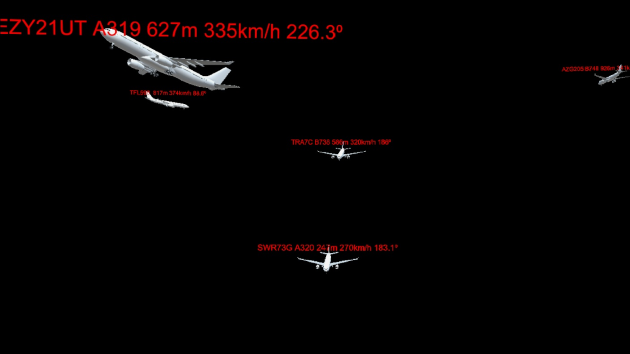
You will notice they won't move through the air but jump from position to position. They also don't show their track, there is no Schiphol Airport map, no ATC tower, no church, no gaze cursor - and you cannot select anything yet - but that is because this post is long enough as it is. The base is here. 3D visualization of a JSON stream. What is left, is basically making things more slick :)

Conclusion

In hindsight I might better have splitted this episode in two blog post still, but I hope you have made it to the end. I feel this blog post is the heart of the matter – reading a data stream and turning it into a 3D model – making ‘dry records’ come to life, almost literally. I also showed you some key concepts about positioning and rotating stuff in 3D.

As usual, the code is here on GitHub.

08 October 2016

A HoloLens airplane tracker 3–Creating an annotated airplane

Intro

In this post we are going to create a game object holding the aircraft and a label showing aircraft data that always looks at the user. We are not going to worry about scaling yet – we will handle that from code, in the next blog post.

First some housekeeping

Just as in the CubeBouncer project, we are going to create some folders in the Assets first to keep our custom assets nicely separated. Create a folder App, and in this folder the following subfolders:

  • Audio
  • Materials
  • Prefabs
  • Scripts
  • Textures
  • UWPAssets

Creating the Aircraft Holder and including the aircraft

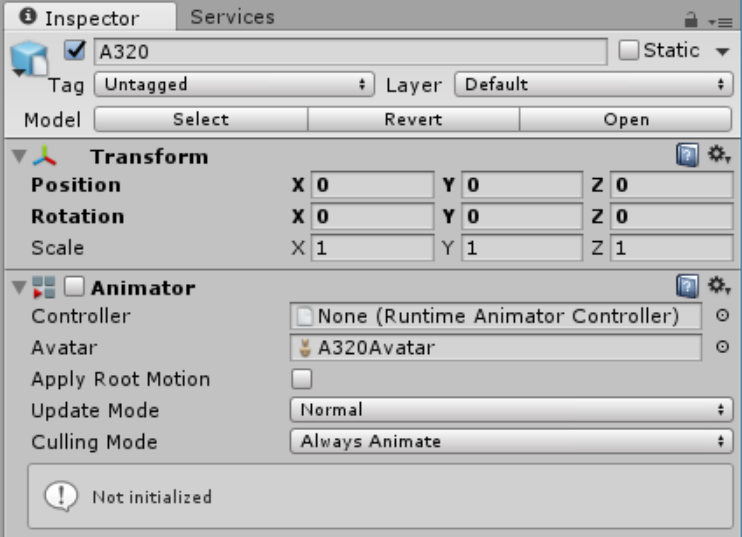
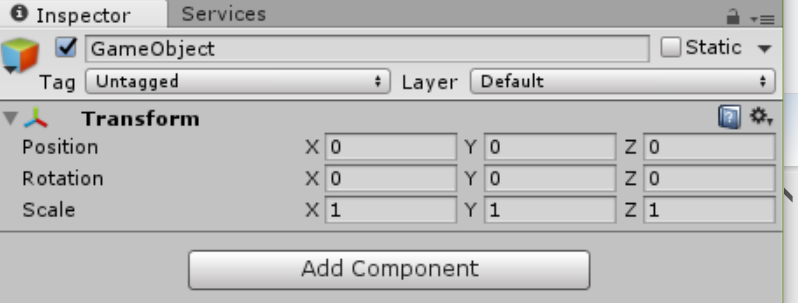
Inside the HologramCollection, create an empty GameObject called AircraftHolder. Then drag into that object the A320 object form the A320 folder. A rather large A320 appears in the Scene, as indicated in the previous blog post. Just ignore this for now.Open the A320 object (in the hierarchy, not the object in the A320 folder), disable the animator, and make sure X,Y,Z position and rotation are all 0,0,0 and scale 1,1,1:

image

At this point I have no idea what the Animator is supposed to do, but we don’t need it – I think.

Create a label

In this section we create the label above the airplane that displays flight information, like flight number, aircraft type, speed, altitude, etc. Right-click the AicraftHolder and create a “3D Text” Object. Call this “Label”. That label now sits at the bottom of the airplane, where apparently it’s origin is.

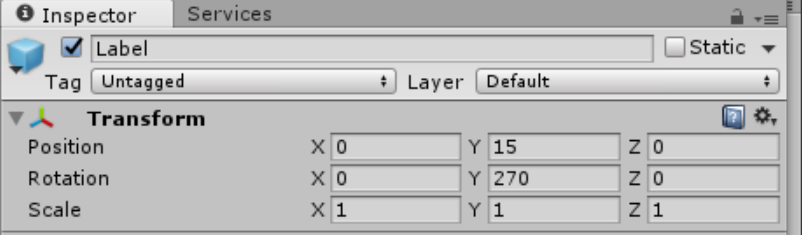
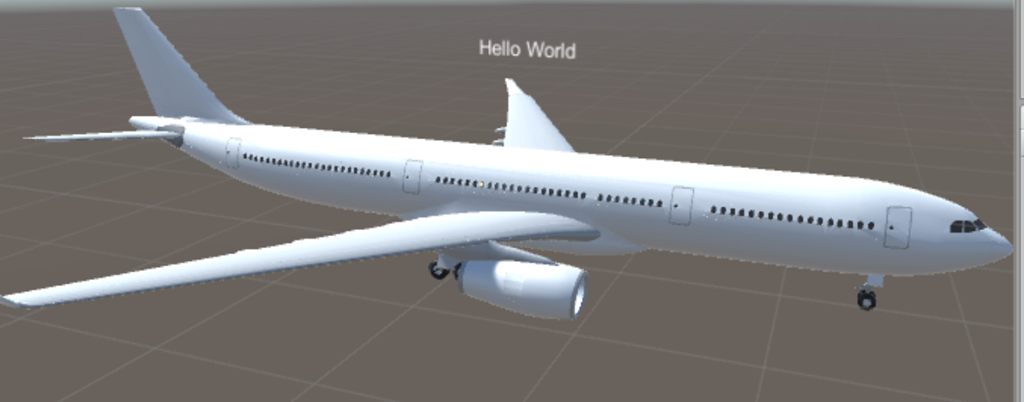
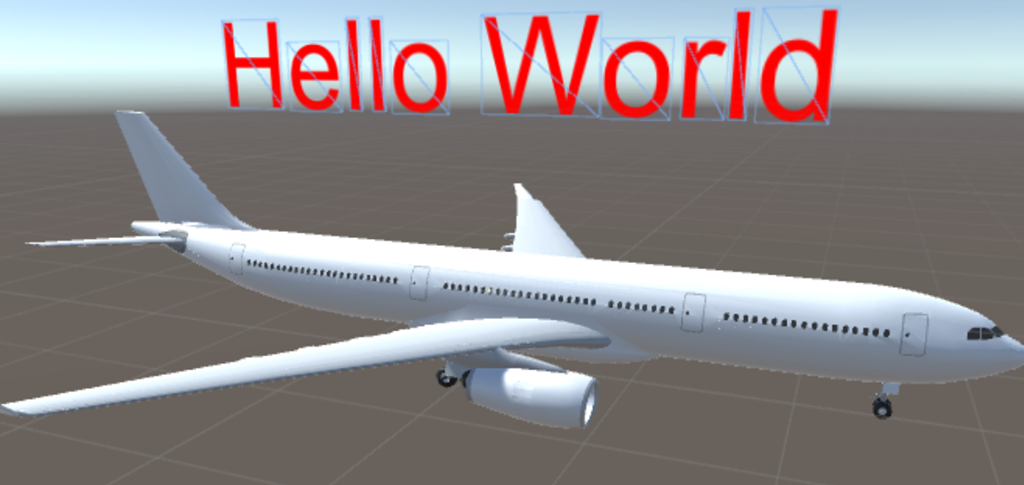
Open the label in the inspector, set the Y position to 15 and the Y rotation to 270. That places the text 15 meters above the airplane, placing it parallel above the fuselage, making the default text “Hello World” readable from the right side of the airplane

image

image

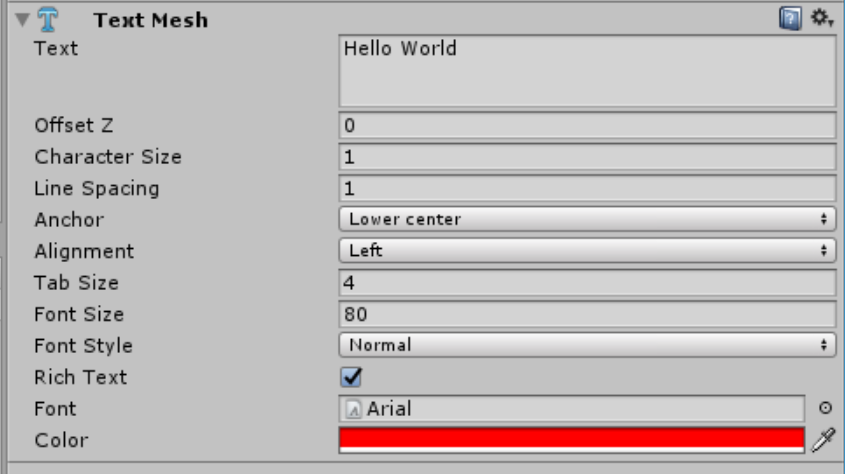
The go down to the “Text Mesh”. Change the following things:

  • Anchor to lower center
  • Change font size to 80
  • Change the color to red

image

image

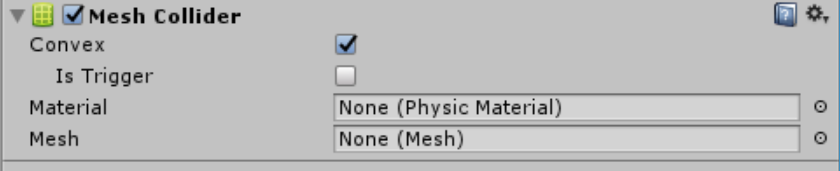
Now hit “Add component”, and add a Mesh Collider. Select the “Convex” checkbox:

image

Of course, it’s not very practical if the airplane’s data is only readable from the left side. So to close off this article, we actually going to write code – by adding a simple script that keeps the text readable from every angle. Go to the Assets/App/Scripts folder, right-click it and hit “Create Script”. Call the script “LookAtCamera”. Double-click it – that will open Visual Studio – and change the update method to this:

void Update()
{	
  gameObject.transform.LookAt(Camera.main.transform);
  gameObject.transform.Rotate(Vector3.up, 180f);
}

imageSave the file, go back at Unity. Drag the new script on top of the Label inside the AircraftHolder game obejct To see this actually works: hit the Unity “Play” button

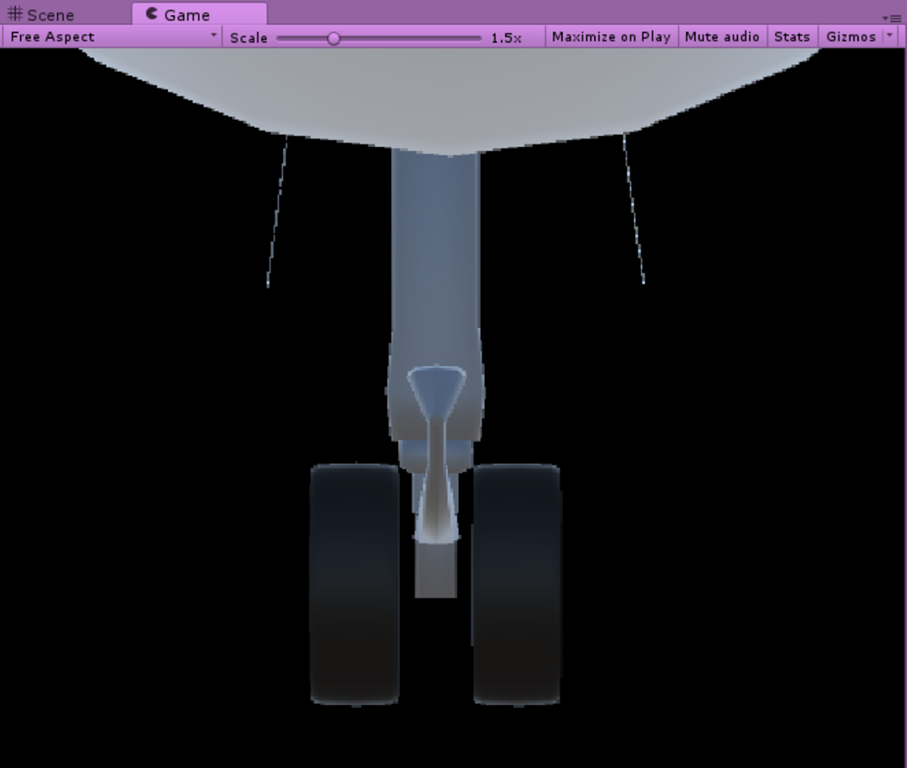
Now the fun thing is – as long as you are in play mode, changes in settings are not stored so this is great for fooling around. Initially your game screen looks like this – you are looking from under the plane right up to the front landing gear.

image

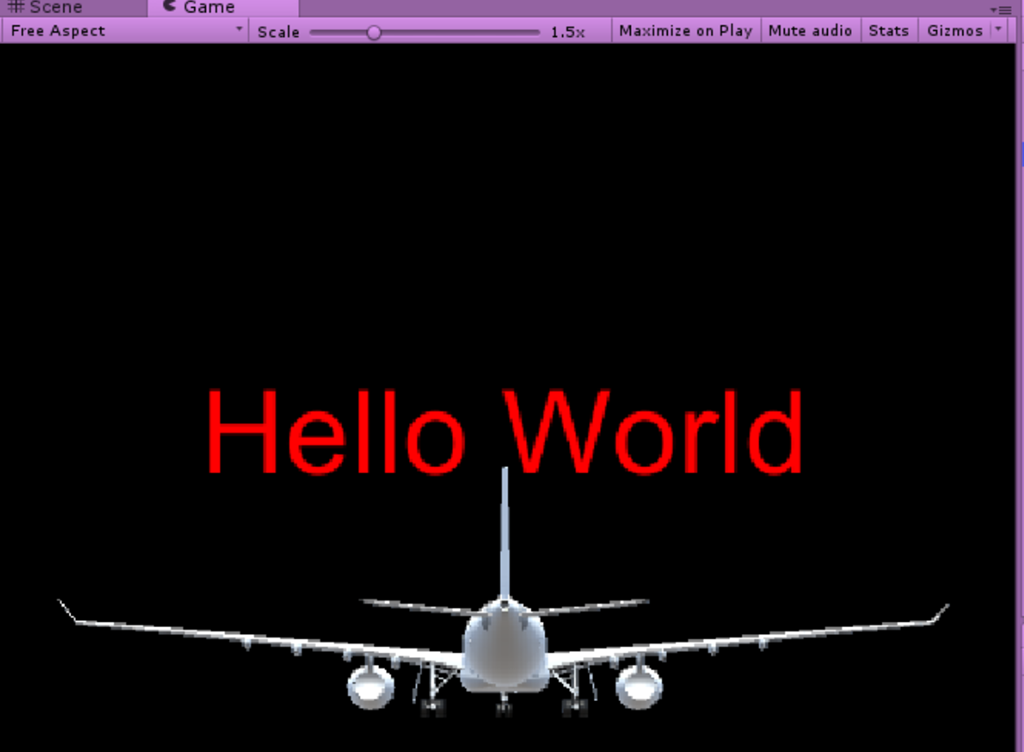
Select the AircraftHolder in the hierarchy, then change Z to 500.

image

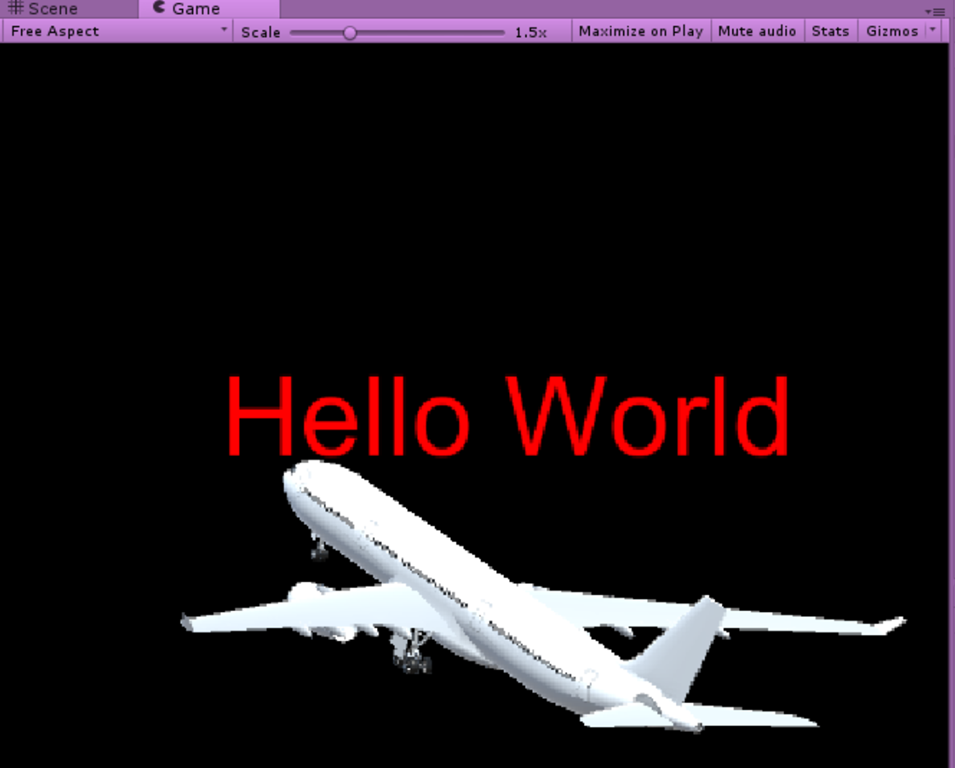
The plane flicks forward… and the text is still readable although we are not looking form the left, but the back. Change rotation X to –20 and rotatation Y to –30:

image

The plane is rotated, we are now looking more or less form the right, but the text is still pointing straight to you, and is readable. Mission accomplished. Not bad for two lines of code!

Exit Play mode. Go to the label once more, and remove the text “Hello World”. The label seems to disappear, but it’s still there, it’s now just empty. It will be filled by code.

And finally…

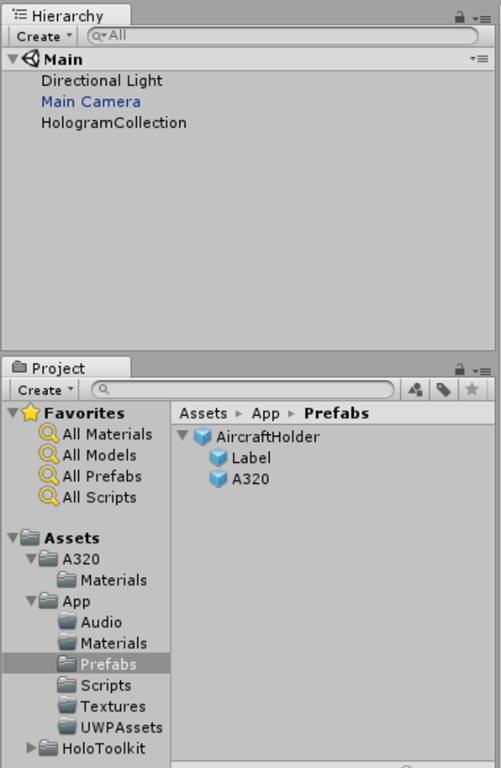
Select the Prefab folder in Assets/App, and drag the AircraftHolder into it. After you have done it, remove it from the HologramCollection. And save the Scene.

Net result:

image

The reason why I am making the AircraftHolder in stead of adding components directly to the A320 model – which is perfectly possible – is that by using this way I can easily switch out the actual airplane model, while all logic and additional components are preserved. If you find a different (more pretty) aircraft 3D model this way saves you work.

Code so far can be downloaded from Github here.

06 October 2016

A HoloLens airplane tracker 2–Setting up the project and getting airplane assets

Intro

All right my friends, it’s time to hit Unity again. In a previous blog post about the Cube Bouncer I have told you how to set up a project. That was quite a convoluted procedure. Luckily, things have improved considerably since, especially where it comes to the HoloToolkit. So this ‘setting up’ post will be a lot shorter and simpler.

Creating the project

Don’t start with creating a project – first find the HoloToolkit here on GitHub, and clone it at some place on your disk. Then follow carefully the first two steps of procedure as described here.

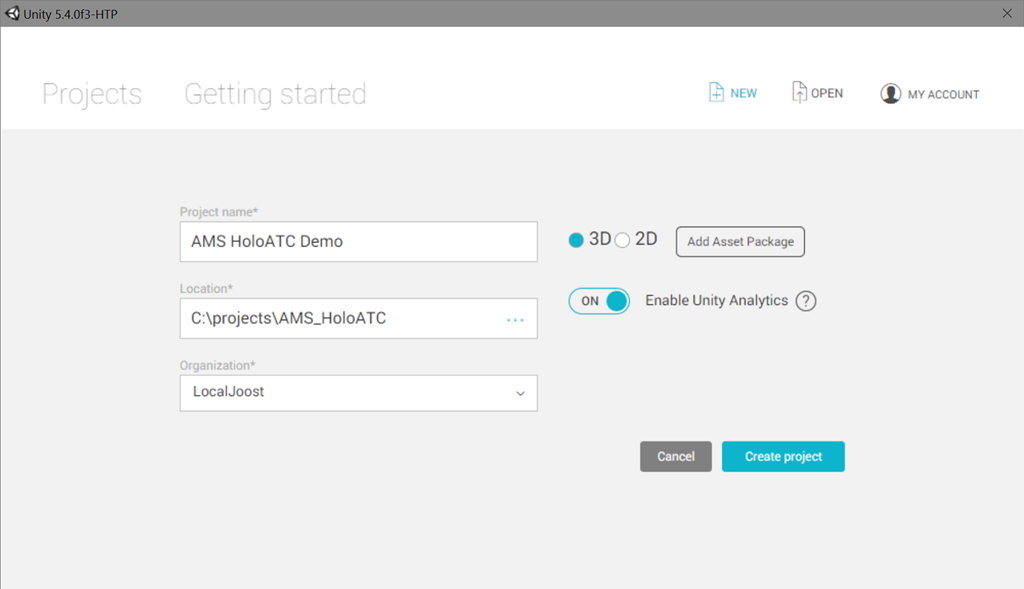
Then you create the Unity project.

image

Initializing the project

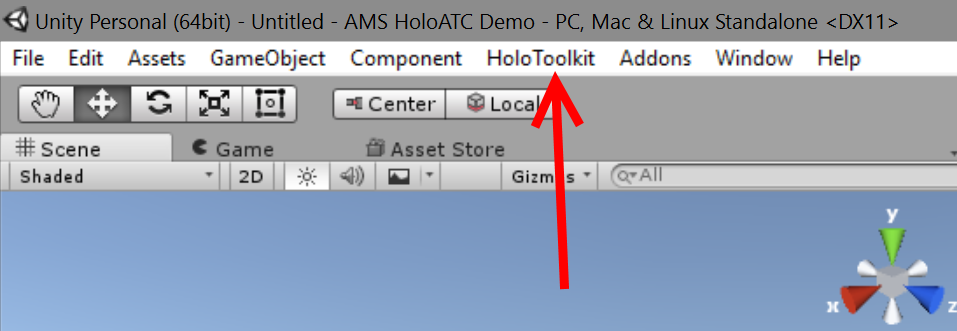
Proceed with following the third step of the getting started document: import the package. This will give you two folders in your Assets folder plus some stuff in the root – and an extra menu-item, called “HoloToolkit”

image

image

I usually delete everything under HoloToolkit-Examples. And then I hit File/Save Scene to save the current scene as “Main”. Now do the fourth step of the getting started document. I usually skip the step of adding ManualCameraControl.cs to the camera. Allow Unity to reload the project when it has to, and accept it’s offer to save the Main scene when it asks to. Now your project has been set up the way the HoloToolkit people think it’s a good default. Only I don’t quite agree with all settings, so we are going to change a few ;)

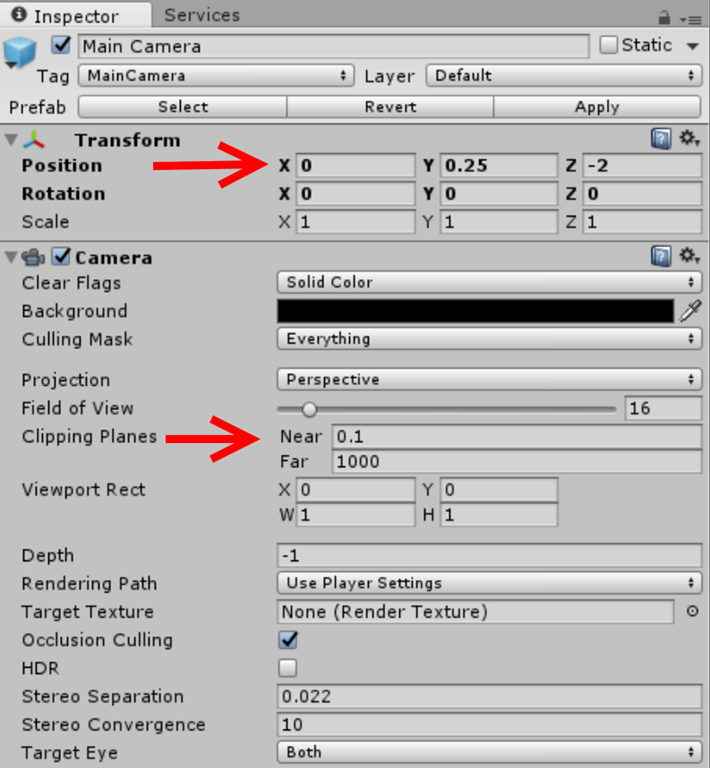
Tweaking the camera

There are two major things I want to do to the camera:

image

Every manual about the HoloLens I saw so far say you should put the camera at 0,0,0 and the near clipping plane at 0.85m. To make things clear – the clipping plane is the minimum virtual distance you can get to a Hologram before it winks out. I found it to be very cool to be able to get up close to the airplanes and the airport and see the amazing level of detail HoloLens is capable of. As to the camera location – this is essentially a 3D map, I am a GIS person – and a stubborn b*st*rd as well. So I put 0,0,0 at the center of my display data, a logical origin – the center of Schiphol airport according to Google Maps. The camera then is stationed a little South and above it. So when the app starts, you will see Schiphol float about 2 meters before you and 25 cm down from your horizontal line of sight. You will be looking due North - which gives you a nice and compelling overview of airplanes going out over the ocean and around Amsterdam, or coming into it.

After you have made the settings, double-click the camera in the hierarchy.

Directional light

Basically this can be whatever you like, but I opted to put it right over the airport.

image

The hat stand

Finally, add an empty game object “HologramCollection” to the main scene by right-clicking in the hierarchy, and select “Create Empty”. Make sure both position and rotation X, Y and Z are all 0 (zero) and Scale all 1:

image

This will be the hat stand – the place where all other Holograms will be placed in or moved within.

Getting the airplanes assets

There is of course the awesome Unity Asset store, but there is also a great site where you can find a lot of free (and paid) 3D models. It’s called an awesome site called CGTrader and claims to have 520000 3D models to choose from.

image

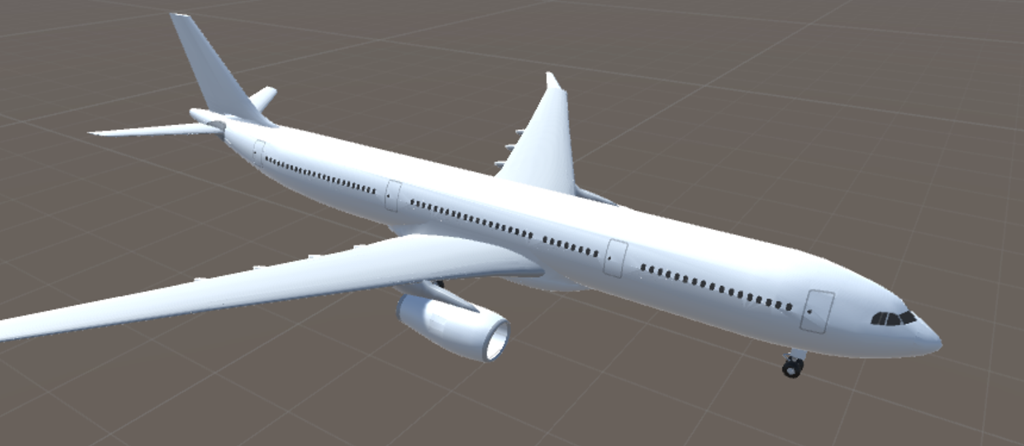
Models are available in a range of formats – we will need to have an airplane that is provided in OBJ or FBX format, because that is what Unity likes to have. You can just look for “aircraft free” and find a lot of airplanes Lo and behold, here’s a beautiful A320 and it’s free, too:

image

Before you use a model, make sure the license allows you to do so. When in doubt, contact the person who uploaded it – the site offers that capability. In my case, I contacted a person called Maxim Kraft and he (I assume he) graciously gave me permission to use it. He has a whole range of excellent models – check him out!

Anyway - hit “Free download” and select “3d-model.fbx.zip”. Unblock and unzip the file. Rename the file that comes out of it 3d-model.fbx – to A320.fbx. Then go to Unity, make a folder “A320” in the root and drag the A320.fbx from your explorer on top of it. Net result should be this:

image

And if you drag the A320 on top of your scene (don’t!) you will see this ginormous airplane (and this is zoomed out considerably!)

image

That clearly needs to be scaled down a little first. We will do that in the 4th blog post of this series.

A word about source control settings

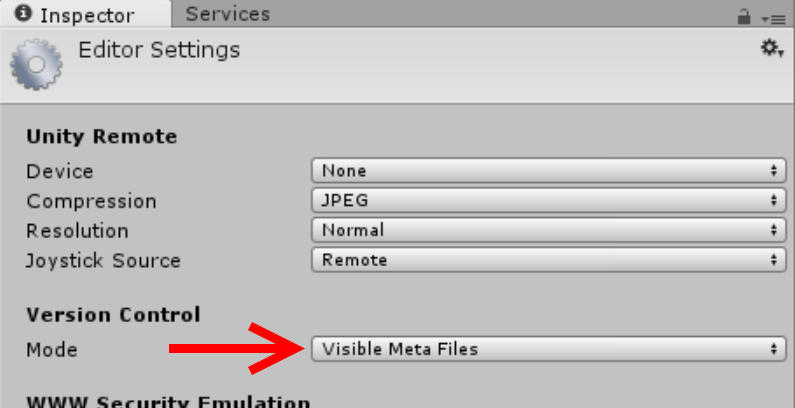
I had quite some ‘fun’ getting this solution properly in source control. I am not absolutely sure this is necessary, but I think – at least for Git – it is. Hit Edit/Project Settings/Editor and select “Visible Meta Files”

image

As to the rest – I am not a Git guru. I have included two .gitignore files, one for the FlightDataService in my previous post, and one for the Unity project. I have learned the hard way that for checking in Unity projects in Git, you make sure that everything in Assets and ProjectSettings gets checked in. As far as these directories are concerned, there is no such thing as an ignored file. So make sure everything under that is added to your repo. This includes dlls.

Code so far can be found here. That’s a short post, eh? I did say the procedure for setting up a project was dramatically simpler now, and it is indeed!

The code, as always, can be found online – here on github

05 October 2016

A HoloLens airplane tracker 1–an Azure dataservice for aircraft data

Introduction

Recently I posted my first HoloLens app “AMS HoloATC” to the public store, Now it has been showed to the important customers, I have no longer to keep it under wraps, and I can start doing what I always planned to do – bring this app in the open, and blogging in detail how I built it. So here we are, a little earlier than I anticipated. For those who have not seen it, a little video of the app, recorded the Wortell offices, which are housed in an converted Roman Catholic church (hence some unusual details).


A little rant

So why am I ‘giving this all away’? If there is one thing around the HoloLens that really annoys me it’s the secrecy. Not secrecy from Microsoft – I am talking about the videos that show beautiful apps, and tell zilch about how things are made, nothing about best practices or experiences. It’s a far cry from what I was used to in the Windows Phone and am used to in the UWP world. I get it: HoloLenses are expensive, investments need to be protected, commercial interest are at stake, your fellow community member is maybe a competitor too – but approaching how-to knowledge as a trade secret is taking it a bit too far IMHO. This is, after all, the age of Open Source. So I am going to show you (almost) every little detail, show you the places where I stumbled, and include all the code – like you are used from me from way back before I was MVP. I hope it will be useful for you. And I sincerely hope some more people will participate in being more open about their experiences in this new and exiting field. End of rant.

Planned series

As far as I can see, this is going to be an 8 part series.

  1. A data service for aircraft data (this article)
  2. Setting up the project and getting airplane assets
  3. Creating an annotated airplane
  4. Reading data and positioning airplanes
  5. Smooth movement with iTween and adding a trail 

  6. Adding an airport (and a tower)
  7. Activating an aircraft by air tapping
  8. Adding the church and the billboard

As you can see, in the first part we are not even touching on a HoloLens yet. So let’s get started with

A demo data service

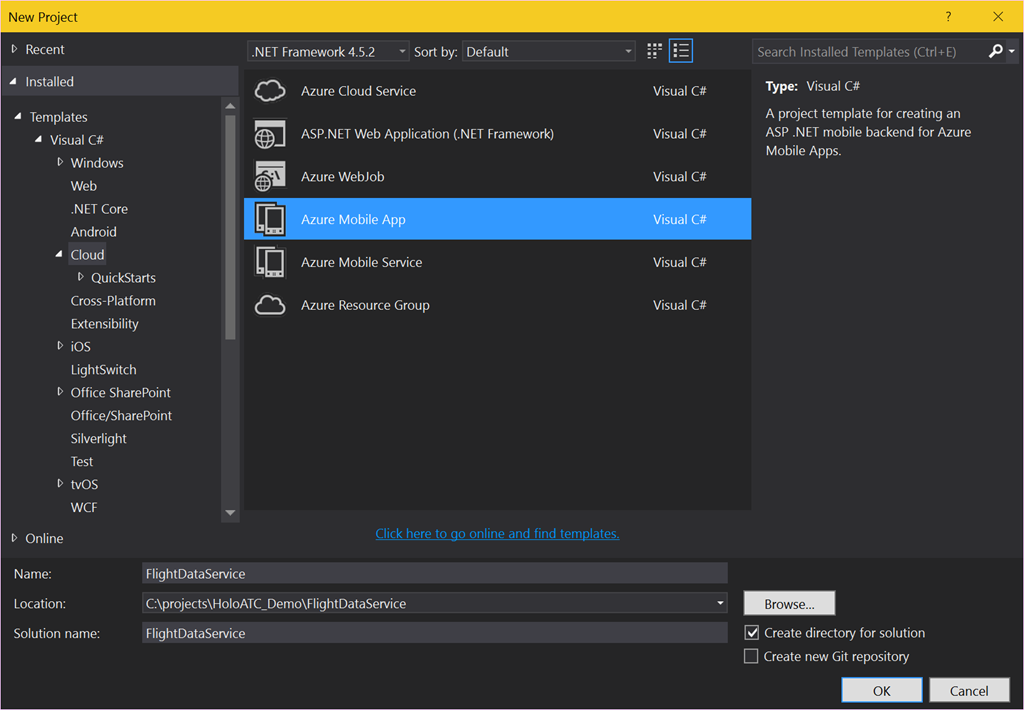
For what I hope are obvious reasons I cannot give you access to my live data feed, but what I can do is provide a sample. It serves up a 10 hour loop of recorded live data data, using data files. And this actually the feed the app in the store uses. We start with creating an App Service called “FlightDataService”.

image

I put this in a subdirectory HoloATC_Demo as this will be the home for both projects – the data service and the Unity projects/the UWP app. On the next screen I suggest you select ‘Host in the cloud’ on Azure indeed and take it from there. Provided of course you have an Azure subscription. If you don’t, take a free trial.

image

I will skip the details of hosting the service in the cloud for now, you can also do that later. First, we do a big cleaning out. We empty the Controllers, DataObjects and Models directory of the project. Then open App_Start/Startup.MobileApp.cs and remove the class MobileServiceInitializer at the bottom of the file, as well as line 25 and 26 of the Startup class:

// Use Entity Framework Code First to create database tables based on your DbContext
Database.SetInitializer(new MobileServiceInitializer());

Also, use all unused namespaces in that file, in particular FlightDataService.DataObjects and FlightDataService.Models as they no longer exist.

Adding data objects

The service employs two data objects and one enumeration. The last one is the most simple:

namespace FlightDataService.DataObjects
{
  public enum TrackType
  {
    Up = 1,
    Down = 2
  }
}
A plane is either going up or down. At least - for now. Then we need a coordinate, and this looks a bit peculiar
namespace FlightDataService.DataObjects
{
  public class Coordinate
  {
    public double Lon { get; set; }
    public double Lat { get; set; }
    public double? Alt { get; set; }
    public double X { get; set; }
    public double Y { get; set; }
    public double Z { get; set; }
  }
}

There’s not only Latitude, Longitude and Altitude, but also X, Y and Z. This is is the already converted Lat/Lon/Alt coordinate into Unity X/Y/Z space as used by HoloLens. How this is done, you can read in the precursor to this series. You won’t see this conversion in the solution as this is already converted data. But the important point it this – for every every airplane, it’s coordinate and that of it’s track (see later) needs to be converted by a set of complex mathematical calculations. Every 10 seconds the HoloLens app will pull in new aircraft data, this may means every 10 seconds up to 500 points need to be converted. it’s much more logical to run that conversion where the available computing power is next to unlimited – in Azure – in stead of a HoloLens, whose resources are limited to what Microsoft could cram into it.

The final data class is the Flight:

using System.Collections.Generic;

namespace FlightDataService.DataObjects
{
  public class Flight
  {
    public Flight()
    {
      Track = new List<Coordinate>();
    }

    public string Id { get; set; }

    public string FlightNr { get; set; }

    public string Aircraft { get; set; }

    public Coordinate Location { get; set; }

    public double? Speed { get; set; }

    public double? Heading { get; set; }

    public List<Coordinate> Track { get; set; }

    public TrackType TypeTrack { get; set; }

    public bool IsActive { get; set; }

    public override string ToString()
    {
      return string.Format("{0} {1} {2} {3} {4} {5}", FlightNr, Aircraft,  
        Location.Alt, Speed, Heading, TypeTrack).Trim();
    }
  }
}

My aircraft data feed does not always give speed or heading, especially when airplanes just have taken off, so both are nullable types. Notice also the track – the list of points where the aircraft has already been observed. IsActive is a special case – we won’t use that until much much later.

Adding a controller

We add a simple Azure Mobile App Custom Controller “FlightDataController”

image

And put the following code in it:

using System;
using System.Collections.Generic;
using System.IO;
using System.Linq;
using System.Web.Http;
using FlightDataService.DataObjects;
using Microsoft.Azure.Mobile.Server.Config;
using Newtonsoft.Json;

namespace FlightDataService.Controllers
{
  [MobileAppController]
  public class FlightDataController : ApiController
  {
    // GET api/FlightData
    [HttpGet]
    public List Get()
    {
      var dataDirectory = new DirectoryInfo(
        System.Web.HttpContext.Current.Server.MapPath(@"~/App_Data"));

      var time = DateTimeOffset.UtcNow;
      var maxPattern = $"{time.Hour % 10 + 8:00}_{time.Minute:00}_{time.Second:00}.json";
      var datafile =
          dataDirectory.EnumerateFiles()
              .Where(p => string.Compare(p.Name, maxPattern, StringComparison.Ordinal) >= 0)
              .OrderBy(p => p.Name)
              .First();
      using (var stream = datafile.OpenText())
      {
        var flights = JsonConvert.DeserializeObject>(stream.ReadLine());
        return flights;
      }
    }
  }
}

So what does this do? Well, basically look for a json file with a HH_mm_ss.json name. I have recorded a 10 hour loop from 8am to 6pm and this algorithm makes sure the data files are served up in the right order. It takes the first file whose name is ‘larger or equal’ (i.e. represents the same or a later time) than the actual time.

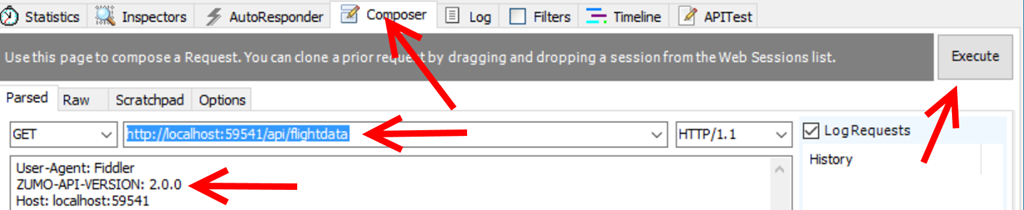
And that’s it for this very humble start. Publish it to Azure somewhere, and note the URL. You cannot test it directly in your browser because it’s an Azure App Service. If you run the service and  hit http://localhost:59541/api/flightdata in your browser you get {"message":"No API version was specified in the request, this request needs to specify a ZUMO-API-VERSION of '2.0.0'. For more information and supported clients see: http://go.microsoft.com/fwlink/?LinkId=690568#2.0.0"}

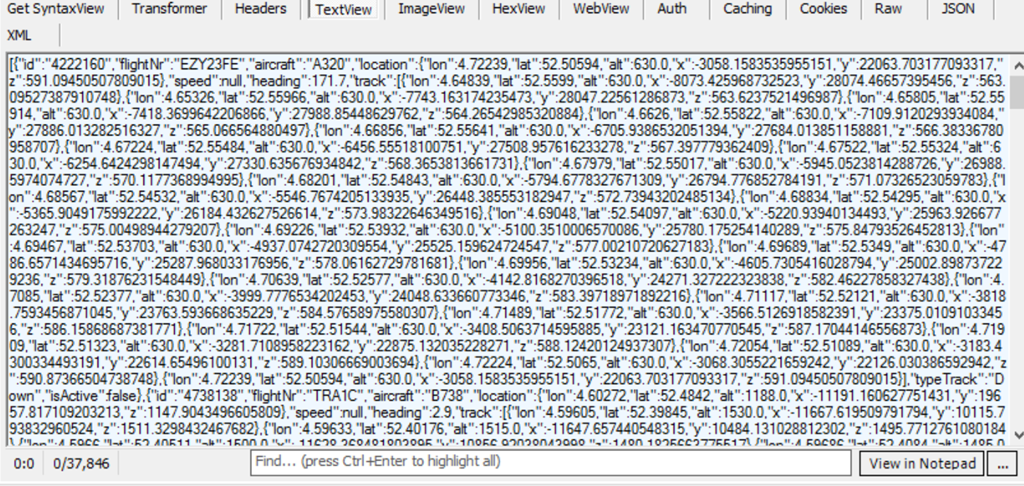
You can test it using Fiddler though by using the composer:

image

The important thing is adding ZUMO-API-HEADER:2.0.0 to the headers, then hit execute. In the session list to the left you will see then

image

And on the right hand side below the composer a lot of JSON:

image

That is, if you select TextView. Right. Our service is now working. We can now move on to make a real HoloLens application that read this stuff and transforms it into airplanes moving through your room.

Code, as always, can be viewed on and downloaded from GitHub.

28 September 2016

Converting lat/lon coordinates to local coordinates for HoloLens apps

This is going to be a bit of a theoretical story, but I feel it’s a necessary as a precursor to my promise to explain in detail how I made the AMS HoloATC app. So bear with me.

One of the challenges when it comes to showing geo-positioned data in a HoloLens is that is most of this type of data comes in Lat/Lon (and optional Alt – for altitude) format. The UWP Map component knows how to handle it, but if you want to use this kind of data in a HoloLens you will need some way to convert to the X-Y-Z system Unity uses.

Now there are two approaches. The first one is to go for the full 3D experience and you project the coordinates relative to a globe. Although is awesome for demoes, it also has the drawback that it may not be easy to see relative heights over larger distances in what is in essence a curved plane. In my app I take the Netherlands – an area of 300 by 200 km, the largest part more or less North-South, and condense that by a factor of 15000 to about 20 x 13 meters. The curvature of the Earth would cause the airplanes to rise from the edges of the view, and then come down again as they head for approach and landing.

The second approach is to pretend the Earth is flat in the Netherlands (which is kind of true, but and in a different way-people who have ever visited us will understand why) and use a tangential plane that hits the Earth on a certain spot. This is the approach I took. For the spot where the plane hits the Earth I took what according to Google Maps is the center of Amsterdam airport (aka Schiphol) -  52.307687, 4.767424, 0 (lat/lon/alt)*. A very useful site for finding lat/lon coordinates of places on Earth is this one. Click on the map or enter a name and presto.

Projecting an airplane to a globe or this tangential plane requires more math than I know. Although I worked in GIS for over 20 years I was never formally trained for it that and I was never a math wizard anyway. Fortunately, some guy called Govert van Drimmelen – I presumed him to be Dutch as well based on his name, but he is actually from South Africa – has posted a GitHub gist that does exactly what you need. It actually supports both approaches (projection to a globe and to a tangential plane). I made a fork of it that only gets rid of the missing Util.DegreesToRadians, the tests and other stuff that is not used, but is essentially the same.

But there are still two caveats, and they both have to do with altitude. I put the center of Schiphol on the 0,0,0 position in Unity’s coordinate system, and then wrote this test code:

double x, y, z;
GpsUtils.GeodeticToEnu(52.307687, 4.767424, 0, 52.307687, 4.767424, 0, out x, out y, out z);
Assert.IsTrue(x == 0 && y == 0 && z == 0);

The first coordinate is the coordinate I want to project, the second one is the place where the tangential plane is hitting the ground. If I put both at the same place, the method should return 0,0,0. And indeed it does. Hurray.

Now let’s head over to the city of Leeuwarden, some 121 km North-East from Schiphol (this is a useful simple website for measuring distances) at lat, lon = 53.201233, 5.799913. As I have no idea what to expect, let’s first print out the results before testing

GpsUtils.GeodeticToEnu(53.201233, 5.799913, 0, 52.307687, 4.767424, 0, out x, out y, out z);
Debug.WriteLine($"{x},{y},{z}");

Result: 68991.988451593,99923.1412132109,-1155.45361490022. The output is apparently in meters. Nice. So… 100km to the North and 69km to the West. If you do Pythagoras on those first two values, you get indeed about 121000. Awesome. So that seems to work as well. But… 1155 down? Still the curvature of the Earth, I guess. Apparently when you go 121 km to the North-East, you end up 1155 below the horizon of someone standing on the original place. I think. So when I project my plane I use X for X, Y for Y, and the original altitude for Z. But this leads to another problem.

First of all, one unit is a meter in a HoloLens (or appears to be – let’s not get metaphysical). If I were to use X/Y/Alt directly, an airplane approaching from the direction of Leeuwarden at 3km would be some 121km from my point of view – and at 3km height. Even if I used 1:1 models it would be invisible. That does not help giving an Air Traffic Controller (ATC) a nice 3D view of the area around his or her airport of condern. So I divide X and Y by 15000. Result for an airplane about Leeuwarden is this: 4.59946589677287,6.6615427475474

So an airplane that is in real life about 121km from me appears about 7 meters from me, forward and quite a bit to the right. As airplanes on approach for an airport (at least around Schiphol) are moving within 20km around the airport this makes the busiest part of air traffic happen in an apparent space of about 2.5x2.5 meters. That looks good to me. But if I would use the same scale factor on the height, and airplane flying 3km would be 20cm from the ground. At final approach, say at about 500m, it would be a mere 3cm from the ground. At 10km – cruise altitude, and not particularly interesting to and ATC - it would still be a little short of 70cm. Our poor ATC would have to look very carefully to see height differences between aircraft on final approach ;). So I opted to scale down the height considerably less – by dividing that by only 2000. That puts an aircraft on 500m at 25cm, on 3km it is at 1.5m, and 10km is at 5m – still well within visual range, but literally flying way over your head, which is exactly what you want, as it is not of immediate concern for an ATC handling the arrivals and departures on an airport. The only drawback is that aircraft seem to climb at impossible steep trajectories when taking off, but I think that’s ok.
So this is how I convert and transform aircraft flight data into what I think a format and space that makes it usable for an ATC wearing a HoloLens. The fun part of it is that when I hook up the app to live data and put Schiphol to the side of the room, the city where I live is more or less where the living table is. It’s pretty awesome to see airplanes coming from Schiphol and moving over that table – because in certain conditions, and when I open a window, I can actually hear the rumble of engines of the actual airplane outside when it passes over my house at 3km height ;)

As I wrote earlier, a very theoretical and perhaps even dry piece of text. I hope it’s useful for other people thinking about using geo-positioned data in HoloLens. I am still a GIS nut at heart, although I don’t work in GIS anymore. I wonder if other people maybe have better approaches.

*Technically that is not correct - Schiphol is about 4.5 meters below sea level. Do not be alarmed. We have excellent dunes, dams, and other things to keep the wet bit where it belongs, i.e. not where we live. That is, for the time being ;)

24 September 2016

Sharing download links to (hidden) HoloLens apps

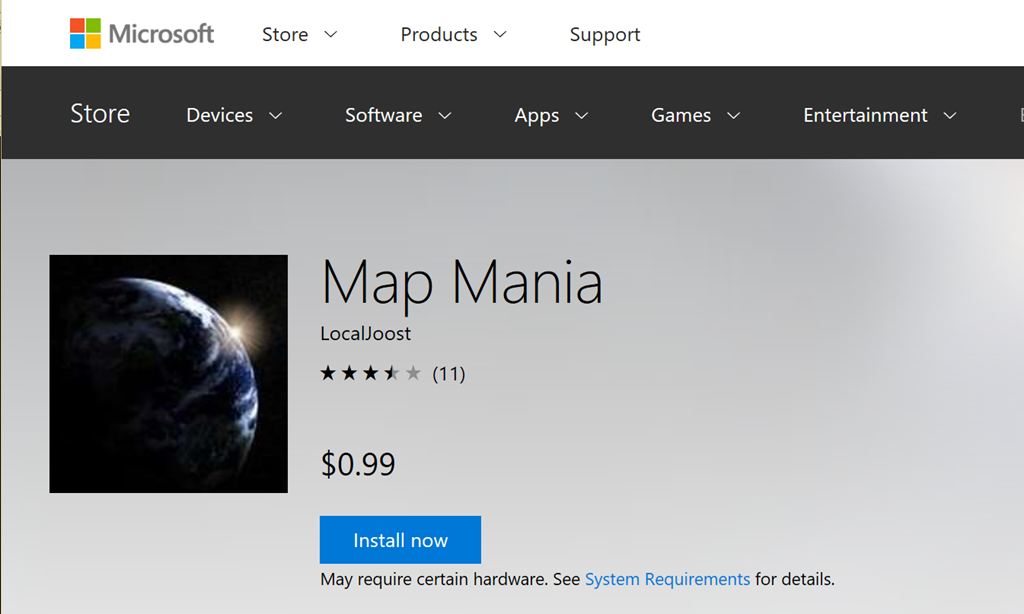
The Windows store has a very neat feature. You can send out direct http links to people that, when entered, show and app directly in the web version of the store, with a neat button next to it to initiate install. For instance, if you hit this URL: https://www.microsoft.com/store/apps/9NBLGGH08D4P

It will take you directly to my app Map Mania.image

Even more handy is that this also works with hidden apps, so you can submit early versions of your app to the Store as hidden - and only hand out the link to a limited number of people. The store has more advanced methods for distributing betas these days, but as a low friction and easy way to send your POCs to customers this direct link feature is still very useful.

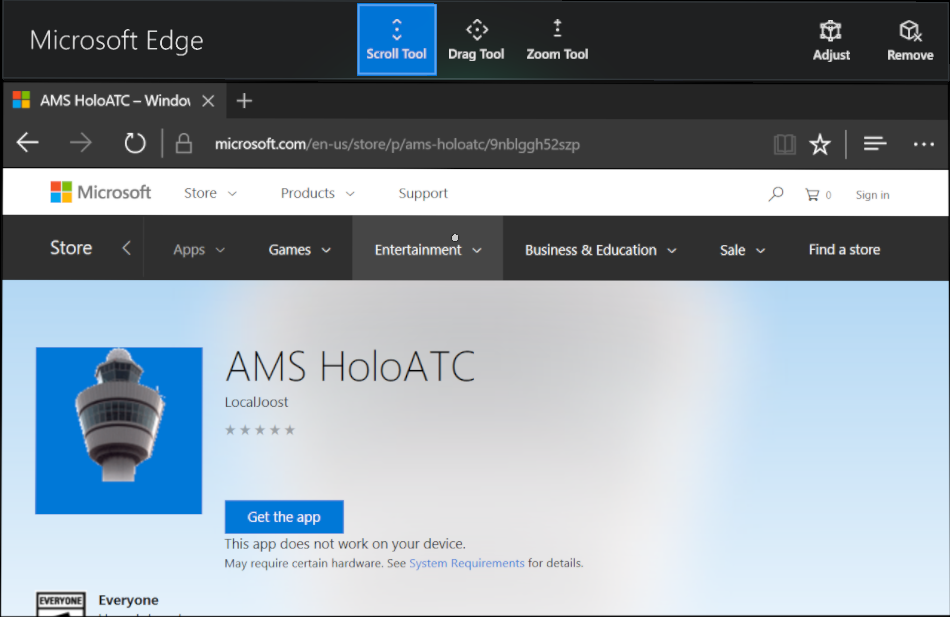
Unfortunately, this little trick does not work for HoloLens. For instance, my very first HoloLens app in the Store - “AMS HoloATC” - is accessible via URL: https://www.microsoft.com/store/apps/9NBLGGH52SZP

It will actually show you the app, but it will also say “This app does not work on your device”. Even on a HoloLens.

image

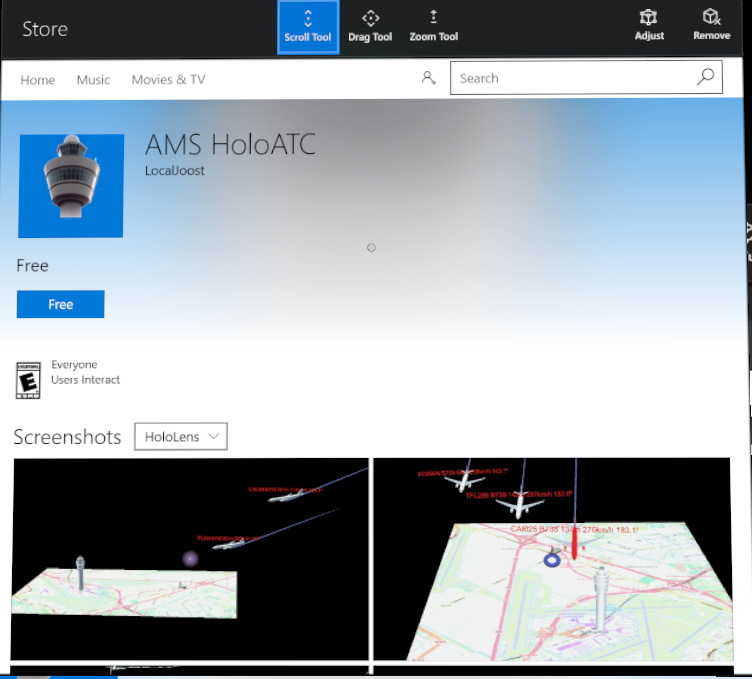
The solution for this is pretty simple – don’t use the http link, but use a store protocol link. Thus, you enter in Edge: ms-windows-store://pdp/?ProductId=9NBLGGH52SZP

And this will open the Windows Store App at the right place. And a button to install the app:

image

So you simply paste the product id behind “ms-windows-store://pdp/?ProductId=” and you can once again share links to selected audiences.

Credits go to my fellow MVP Tom Verhoeff who suggested trying this in an online conversation this afternoon, when I wanted him to try and download my app to see if it was available already. Incidentally, feedback on the app is also appreciated. In it’s current form it’s a one man spare time project. A video will appear shortly, and I will also document in detail how it’s built. Stay tuned.