02 November 2018

Responding to focus and showing data when tapping a hologram in Mixed Reality/HoloLens apps

Intro

One of the things you tend to forget as you progress into a field of expertise is how hard the first steps were. I feel that responding when gaze strikes a hologram or showing some data when an hologram is air tapped are fairly basic - but judging by the number of questions I get for "how to do this", this is apparently not so straightforward as it seems. So I decided to make a little sample that you can get from GitHub here.

Project setup

imageI created a new project in Unity. Then:


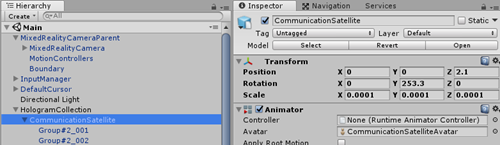
Now this model has some less than ideal size (as in being very big) so I fiddled a bit with the settings to get a more or less the view as displayed to the right
image

Now this model consist out a lot of sub objects, so this is nice model to interact with.

Creating interaction

What a hologram needs for interaction is pretty simple:

  • A collider (so the gaze cursor has something to strike against)
  • For an air tap to be intercepted: a behaviour that implements the interface IInputClickHandler
  • For registering focus (that is, the gaze cursor strikes it): a behaviour that implements IFocusable.

But this satellite has like 41 parts, and if we have to manually add a collider and 1 or two behaviors to that, it's a bit bothersome. That in this case, we can solve that by using a behaviour that sets that up for us. Mind you, that's not always possible. But for this simple sample we can.

The behaviour looks like this:

using UnityEngine;

public class InteractionBuilder : MonoBehaviour
{
    [SerializeField]
    private GameObject _toolTip;
    
    void Start ()
    {
        foreach (var child in GetComponentsInChildren<MeshFilter>())
        {
            child.gameObject.AddComponent<MeshCollider>();
            var displayer = child.gameObject.AddComponent<DataDisplayer>();
            displayer.ToolTip = _toolTip;
        }
    }
}

If simply walks find every MeshFilter child component, and adds an collider and a DataDisplayer to the game object where the MeshFiilter belongs to. The intention is to drag this on the main CommunicationSatellite object. But not right yet - because for this to work, we first need to create DataDisplayer, which is the behaviour implementing IInputClickHandler and IFocusable

Show tooltip on click - implementing IInputClickHandler

The first version of DataDisplayer looks like this:

using HoloToolkit.Unity.InputModule;
using HoloToolkit.UX.ToolTips;
using UnityEngine;

public class DataDisplayer : MonoBehaviour, IInputClickHandler
{
    public GameObject ToolTip;

    private GameObject _createdToolTip;

    public void OnInputClicked(InputClickedEventData eventData)
    {
        if (_createdToolTip == null)
        {
            _createdToolTip = Instantiate(ToolTip);
            var toolTip = _createdToolTip.GetComponent<ToolTip>();
            toolTip.ShowOutline = false;
            toolTip.ShowBackground = true;
            toolTip.ToolTipText = gameObject.name;
            toolTip.transform.position = transform.position + Vector3.up * 0.2f;
            toolTip.transform.parent = transform.parent;
            toolTip.AttachPointPosition = transform.position;
            toolTip.ContentParentTransform.localScale = new Vector3(0.05f, 0.05f, 0.05f);
            var connector = toolTip.GetComponent<ToolTipConnector>();
            connector.Target = _createdToolTip;
        }
        else
        {
            Destroy(_createdToolTip);
            _createdToolTip = null;
        }
    }
}

Now this may look a bit complicated, but most of it I just stole from the ToolTipSpawner class. Basically it only does this:

  • When the hologram-part is clicked (and OnInputClicked is called, which is a mandatory method when you implement IInputClickHandler) it checks if a tooltip already exists.
  • If not, it creates one a little above the clicked element
  • If a tooltip already exists, it's is deleted again.

This behaviour get it's  tooltip prefab handed from the InteractionBuilder. As I said, InteractionBuider should be dragged on the CommunicationSatellite root hologram, and now we have built our DataDisplayer, we can actually do so.
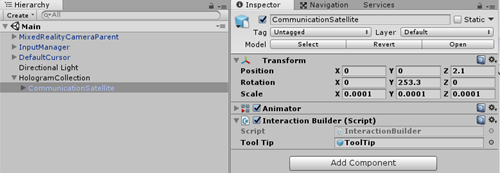
image

The Tooltip field needs to be filled by dragging the Tooltip prefab from HoloToolkit/Ux/sefabs on top of it
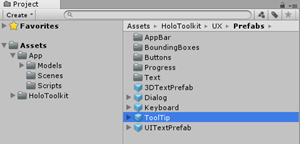
image

Now, if you tap on an element of the satellite, you will get tooltip data with the name of the element

image

Now in itself this is of course pretty much useless, but in stead of displaying the name directly you can also use the name or some other attribute of the Hologram part to reach out to a web service or a local data file, using that attribute as a key, fetch some data connected to that attribute and show that data. Is it a fairly commonly used pattern, but is up to you - and outside the scope of this blog - to have some data file or web service with connect.

Highlighting on focus - implementing IFocusable

It's not always easy to see which part of the satellite is hit by the gaze cursor, as they are both quite lightly colored. How about letting the whole part light up in red? We add the following code to DataDisplayer:

public class DataDisplayer : MonoBehaviour, IInputClickHandler, IFocusable
{
    private Dictionary<MeshRenderer, Color[]> _originalColors = 
new Dictionary<MeshRenderer, Color[]>(); void Start() { SaveOriginalColors(); } public void OnFocusEnter() { SetHighlight(true); } public void OnFocusExit() { SetHighlight(false); } }

This looks pretty simple

  • A start you save a hologram part's original colors
  • If the gaze strikes the hologram, set the highlight colors
  • If the gaze leaves, turn highlight off

It sometimes helps to make code self-explanatory and to write it like this.

So saving the original colors works like this - and it conveniently makes an inventory of the components inside each hologram-part and the materials they use:

private void SaveOriginalColors()
{
    if (!_originalColors.Any())
    {
        foreach (var component in GetComponentsInChildren<MeshRenderer>())
        {
            var colorList = new List<Color>();

            foreach (var t in component.materials)
            {
                colorList.Add(t.color);
            }
            _originalColors.Add(component, colorList.ToArray());
        }
    }
} 

Creating the highlight is not very complex now anymore

private void SetHighlight(bool status)
{
    var targetColor = Color.red;
    foreach (var component in _originalColors.Keys) 
    {
        for (var i = 0; i < component.materials.Length; i++)
        {
            component.materials[i].color = status ? 
                targetColor : _originalColors[component][i];
        }
    }
}

Basically we set the color of every material inside the the component to red if status is true - or to it's original color when it is false. And now, if the gaze cursor strikes part of our satellite:
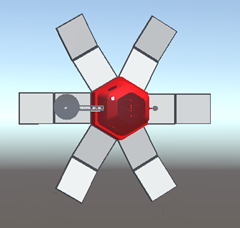
image

Conclusion

And that's all there is to it. As I wrote, I would like to suggest showing else than the name of the hologram as that is not very interesting. Also, a bit more elaborate way of showing the data than using the the Tooltip might be considered. But the principle - implementing IInputClickHandler and IFocusable and acting on that - stays the same.

The finished demo project can be found here.

18 October 2018

My first Azure build & deploy pipelines for an Azure Function V2

Intro

For those who think I am breaking rank and suddenly move away from HoloLens and Mixed Reality to Microsoft Azure (like some *cough* these days) - don't worry. I am still Windows Development MVP with every intention to stay within the Mixed Reality area. But every Mixed Reality app - like basically every app these days that's more than a simple toy needs a backend - mobile apps in general, but Mixed Reality apps just as well. Walk the World uses an Azure V1 function and a Redis cache to validate and cache request, and AMS HoloATC uses an app service to do a lot of calculations in the cloud and share selected airplanes. The new version, almost finished, uses two V2 functions. So basically, there's always an Azure component. And I used AMS HoloATC's new backend as a guinea pig for the pipelines because it's better to try something new on private projects first than to experimentally blow a customer's deployment smithereens, right?

RIGHT?

Caveat emptor

Anyway, in this post I wrote down my experiences - simply 'how I did it', how I used Azure pipelines. This may not be the best way to do it. I don't doubt some real DevOps heroes will have better ideas. But potentially making a fool out of myself never stopped me blogging.

Function first

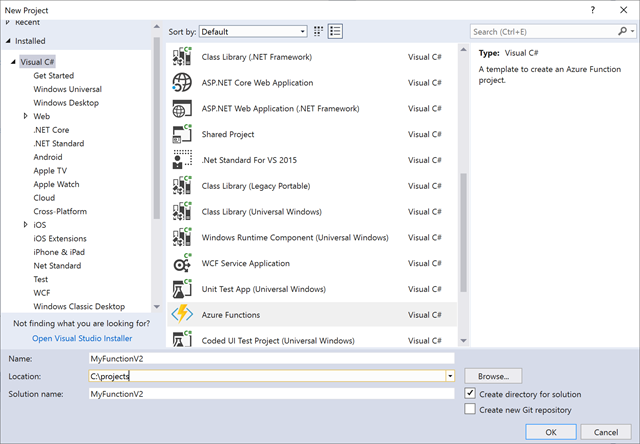
To be able to build an deploy a function, we of course first need one. So I made this little demo project "MyFunctionV2"

1-make function

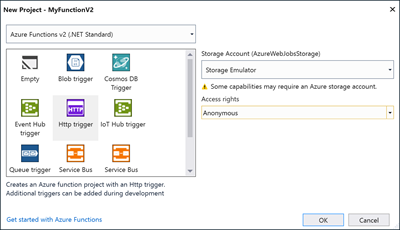
I created a simple HTTP trigger with anonymous access rights, which I think in any serious scenario you should never do, but this a demo, so here goes:

2-httptrigger

And then I simplified the already simple code in it even more so that resulted in this:

using System.Threading.Tasks;
using Microsoft.AspNetCore.Mvc;
using Microsoft.Azure.WebJobs;
using Microsoft.Azure.WebJobs.Extensions.Http;
using Microsoft.AspNetCore.Http;
using Microsoft.Extensions.Logging;

namespace MyFunctionV2
{
    public static class HelloWorld
    {
        [FunctionName("HelloWorld")]
        public static async Task<IActionResult> Run(
            [HttpTrigger(AuthorizationLevel.Anonymous, "get", "post", Route = null)] HttpRequest req,
            ILogger log)
        {
            log.LogInformation("C# HTTP trigger function processed a request.");

            return new OkObjectResult("Hello, world");
        }
    }
}

I stuck the sources in GitHub. Now we are ready to publish.

First publish

Publish? Weren't you going to use the Azure pipelines? Yes - but only to deploy. And since I am a lazy ******* I do the first publish just like in the old days (that is, up to last week) from Visual Studio. Although things have improved considerably - I used to make a function in the portal first, delete everything and then start to publish, because that was the only way to get it into a consumption plan. This way is quick and easy But I digress.

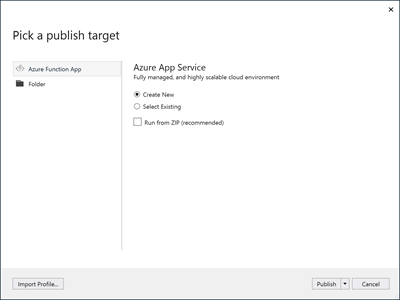
I publish a new "App Service", still apparently

4-publish1

Visual Studio selects all kinds of defaults that are not quite desirable: 

5-publish2

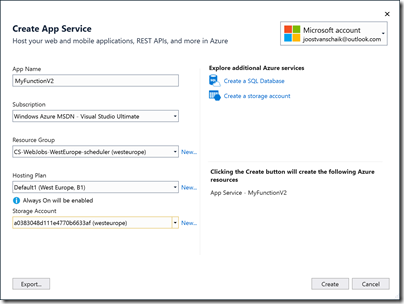
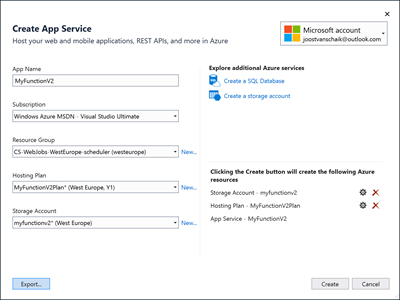
I want at least a new consumption based plan, and while I am at it, a separate storage account as well - although I am not going to use that in this sample (my AMS HoloATC functions does, for sure).

7-publish

image

When you have set everything to your liking, it should look like this:

8-publish

Notice the Export button. This allows you to export the whole created configuration in the form of a JSON document. This you can use to completely automate the creation of this as well in a release pipeline, as this 'script' contains a number of variables you can set (like names for the service, storage, the plan, etc.). This is a bit more complicated and I haven't gotten to that part yet, but I know it's possible.

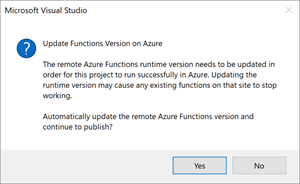
And if you click create, you might possible get this:

9-publish

Click yes, and we are done with this part.

imageCreate a Build pipeline

This requires a project to be present in . If you have opted to store the source in  Azure DevOps (or Visualstudio.com) there's already a project of course, but since I put the source in GitHub I need to create it myself. I took "TestProject" (I am not very gifted in the creative naming department, I know).

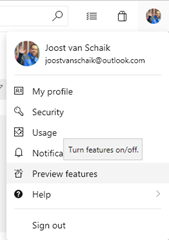
The following screenshots are made with the preview settings for Azure DevOps, so things may look a bit different still if your UI settings are still for the 'old' VisualStudio.com settings. You can force the move forward to click your profile picture right top and select "Preview features" and go from there. You might as well get used to it as the new look & feel is rolling out as I type.

image

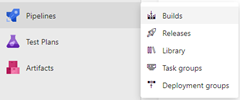
Okay, so let's click Pipelines/Builds and continue


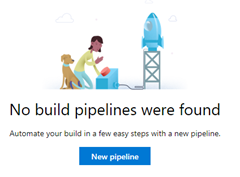
If this is your first pipeline, it will show the picture on the left, by the second and following pipelines you will see a list of pipelines with this on top, but chances are as you are reading this, it will be your first pipeline ;)

imageimage


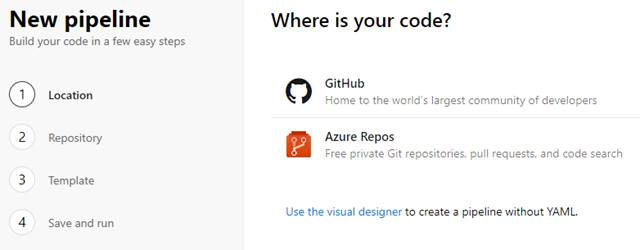
After that, it's just following the steps:

image

I am not a XAML typist nor very versed in YAML, so I click "Use the visual designer"

image

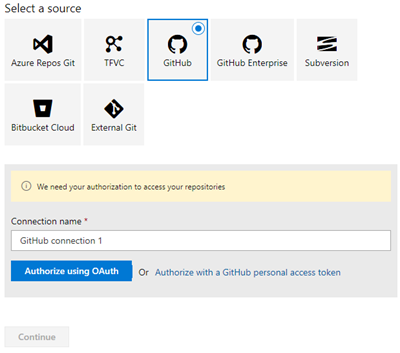
Since we are using GitHub, you might need to make a connection first.

image

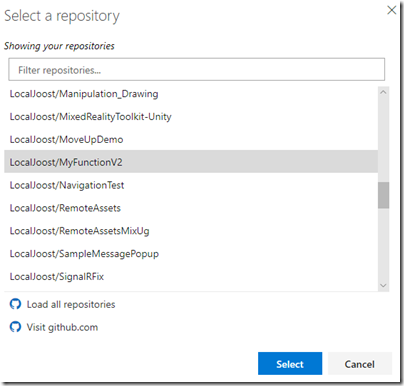
I will call mine "LocalJoost" - click "Authorize using oAuth". That will show a GitHub popup authorizing Azure Pipelines. Then select your repository:

image

Hit select

image

And then continue. You will then need to select a template, and need to scroll down quite a bit

image

Select C# function and hit apply

image

Now let's be bold and hit "Save & queue". This will save nor queue, but give you a three-option drop-down in which "Save & queue" is one of the options. Click that option, and it will still not save, nor queue, but you will get yet another popup:

image

Hit "Save & queue" - third time's a charm, you will see

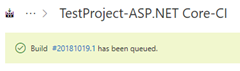
image

on top of your screen. If you click the build number, it will take you to a page where you can follow the sausage being made, and when it's done you should see about this:

image

So far so good. We have a build and it's working! And you should get an e-mail for confirmation as well.

Defining a build trigger

You might want to have a look at when and how a build is kicked off, because we don't want to do this manually every time something changes. A good developer is still a lazy developer. So click Edit in the screen above

image

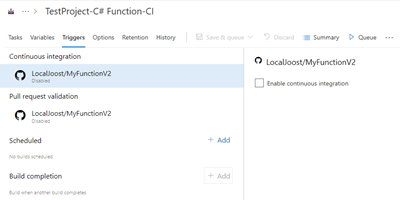
And then click "Triggers"

image

We select the continuous trigger checkbox and select the proper values, although the defaults will probably be ok right away:

image

Hit "Save and queue" once again, but this time only select "Save" from the pop-out menu.

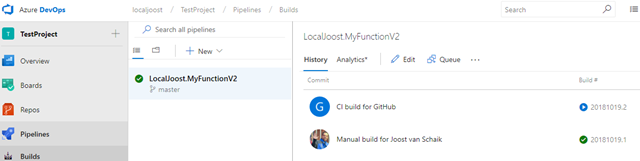
So, for fun, let's change the Readme.md, push a commit to the master and have a look at the builds again. And sure enough, a built is started immediately by the CI trigger.

image

And this, my friends, is all it takes to set up a build pipeline for a V2 function with sources hosted in GitHub.  Now for the final part - I want automated deploy as well.

Create a Release pipeline

Starts easy again:

image

This time it does a better suggestion:

image

Hit apply. That gives you this screen which I find a wee bit confusing:

image

Let's click "Add an artifact". That creates a kind of pop-over on the right side:

image

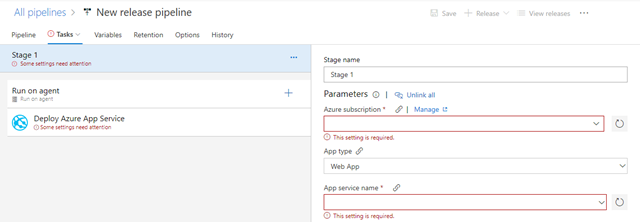
Select "Build" for source type, then set the Source Build pipeline to be the build pipeline we just created, and the Default Version to "Latest". Then we hit add. Then click the red exclamation mark on "Stage 1", to view the build tasks:

image

You will have to select the Azure subscription used (I have two) plus the App Service where you want to deployment to happen. To be able to use the subscription you will have to click the Authorize button first:

image

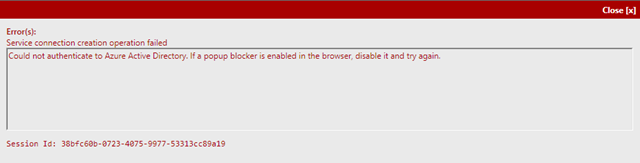
And you might want to disable your popup blocker for this site to expedite that process:)

image

Once this is done, you can select "Function App" (don't let it sit at "Web App") and select the actual function app you want to deploy to

image

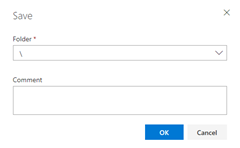
And then you click "Save".

image

Uhm, yeah, click OK I guess ;) .This will give you this screen

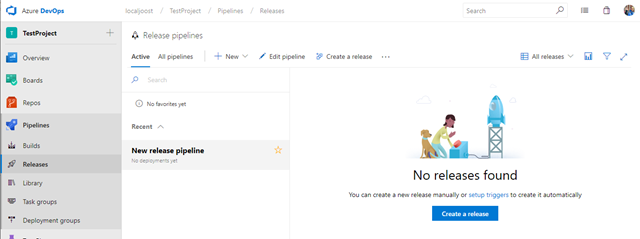
image

So let's create a release, manually, to see if things are working

image

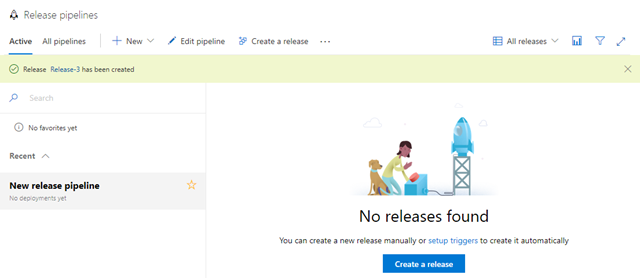
Click "Create" (don't change anything). You will go back to this screen, but you will see a yellow-greenish banner indicating a release has been started indeed:

image

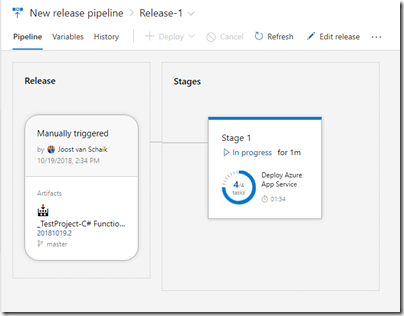
Click the release name in that banner, that will take you to this progress screen:

image

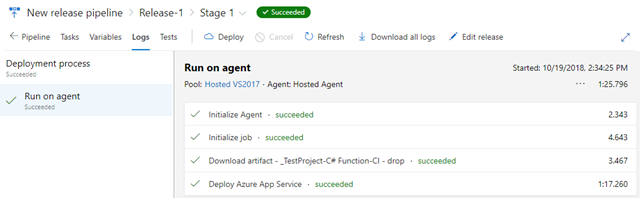
If you click "In progress" you will once again see the sausage being made in more detail:

image

And it should finish with the "Deploy Azure App Services - succeeded".

For some final automation

We want this of course to kick off automatically. To that extent, we have to click "Edit pipeline" again. If find this screen not very intuitive, but it's not rocket science to find out what's the idea with some clicking around

image

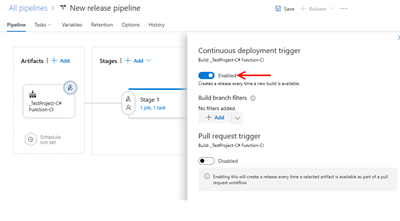
We seem to have to click the lightning bolt icon - the left one - to set the "Continuous deployment trigger".

image

Flip the toggle to to Enabled, hit save, and then the final test.

So does it work?

I have published to app MyFunctionV2, so the URL to the site should be https://myfunctionv2.azurewebsites.net and to the specific function https://myfunctionv2.azurewebsites.net/api/HelloWorld

Hitting that link gives, as expected, "Hello World". Now let's change the HttpTrigger function we made all the way at the beginning to return the text "Hello again, World". We then commit and push the code to GitHub, and now we wait...

We are off to a promising start.

image

And then we see a release being triggered automatically

image

And when that's done, we hit the URL again and sure enough:

image

Mission accomplished.

Conclusion

So even an complete n00b like me can create a fully featured continuous build-and-deploy pipeline, in a manner of a few minutes. I can tell you that retracing my steps and actually writing it down actually took a lot more time than the actual creation of the pipeline itself. I think Azure pipelines makes DevOps a lot easier, and the new UI is a lot more intuitive that the old VisualStudio.com. There are still a few places where there's room for improvement, but this is very usable.

Anyone wanting to have a look at the completely uninteresting test function can do so here. I would not bother, to be honest ;)